How to Convert Word to PDF A Simple Guide for Perfect Documents
Learn how to convert Word to PDF on any device. Our guide covers Microsoft Word, Google Docs, and online tools for flawless, professional-looking documents.
Recommended Extensions

Knowing how to convert a Word document to a PDF is one of those skills that seems simple on the surface, but it's absolutely essential. The good news is that the fastest methods are built right into the software you already use, like Microsoft Word's own 'Save As' or 'Export' functions. These tools are designed to keep your document's formatting, fonts, and images perfectly intact.
Why a Perfect PDF Conversion Matters So Much
Have you ever sent a Word document and crossed your fingers, hoping it wouldn't look like a complete mess on the other person's screen? We’ve all been there. Wondering if your carefully selected fonts will show up, or if the resume layout you agonized over will suddenly break. This is exactly why getting your PDF conversion right isn't just a nice-to-have; it's a must for clear, professional communication.
Think of a PDF (Portable Document Format) as a digital snapshot of your file. It freezes everything in place, guaranteeing it looks identical on any device, operating system, or screen. That kind of reliability is a game-changer in a lot of real-world situations.
When a Word File Just Won't Cut It
In some cases, sending a PDF is non-negotiable. Here are a few common examples:
- Job Applications: That resume you designed with unique fonts needs to be a PDF. It’s the only way to ensure a hiring manager sees it exactly as you intended.
- Legal Contracts: When you share a contract as a PDF, you’re preventing accidental (or intentional) edits and protecting the document's integrity.
- Business Reports: Sending a company report as a PDF ensures every stakeholder sees the same professional, polished document, no matter what software they're using.
The PDF format has a long, established history as a global standard for a reason. This isn't some new, untested technology; it's the bedrock of digital document sharing.
As more of our work has moved online, its role has only grown. The entire world runs on PDFs, and the numbers back it up.
The market for PDF software hit USD 2.15 billion in 2024 and is on track to reach USD 5.72 billion by 2033. This boom is directly tied to the rise of remote work and the critical need for secure, fixed document formats. You can find more insights on the PDF market's growth on Smallpdf.com.
Ultimately, mastering the PDF conversion gives you control. It’s your guarantee that your hard work is presented clearly and professionally, every single time. The methods in this guide are straightforward and will give you the confidence to handle any conversion task that comes your way.
Sometimes, the best tool for the job is the one you already have open. When it comes to turning a Word document into a PDF, you really don't need to look any further than Microsoft Word itself. Using the built-in conversion tools is hands-down the most reliable way to make sure what you see on your screen is exactly what your recipient sees.
This hasn't always been the case. I remember the clunky, error-prone workarounds we used to rely on. The game changed when Microsoft added a native 'Save as PDF' feature back in Office 2007, which dramatically cut down conversion errors by over 90%. While online tools are everywhere now, for pure fidelity, nothing beats the source. You can see just how much the demand for these tools has grown by checking out these PDF usage statistics on Smallpdf.com.
So, when is a PDF the right call? It really comes down to what you need to do with the document.
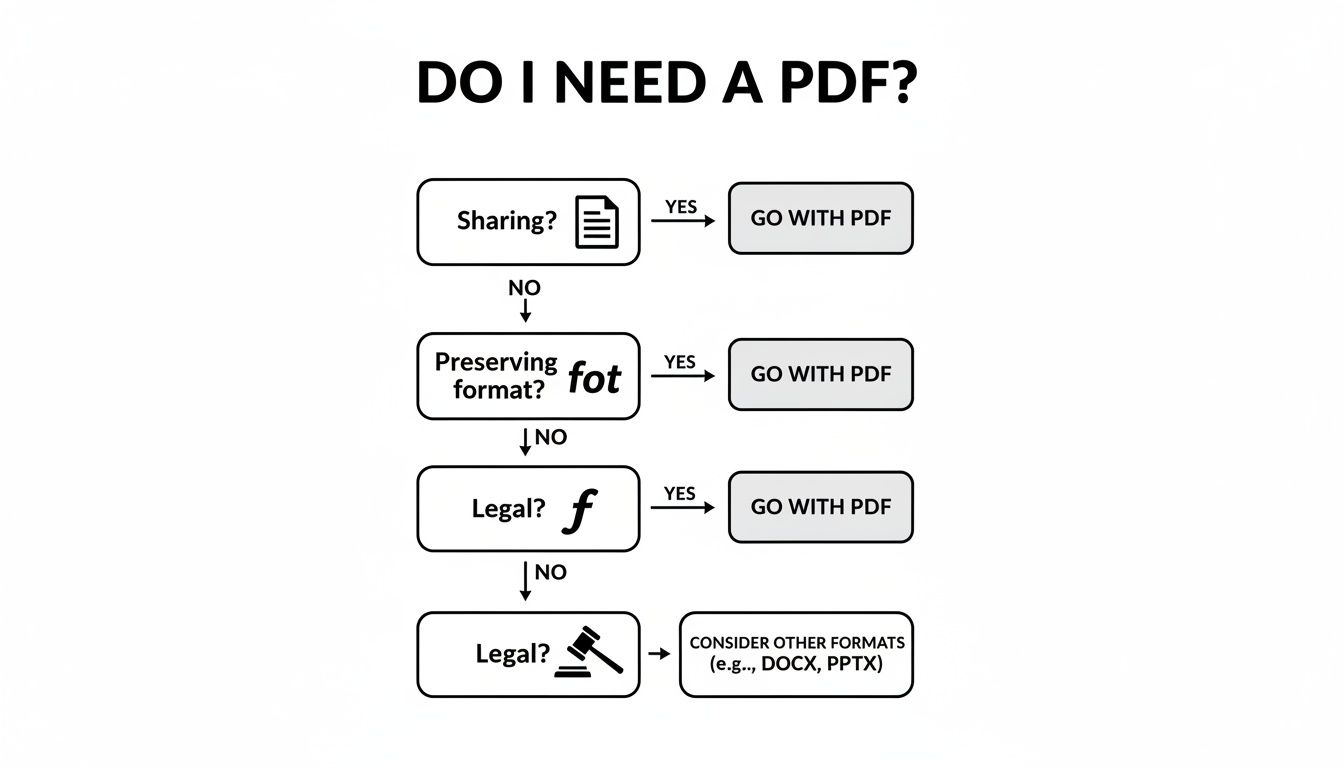
As you can see, if locking down your formatting or preventing easy edits is a priority, PDF is your best bet.
Navigating Word's Built-In Tools
Microsoft Word gives you two main ways to get the job done: "Save As" and "Export." They might look similar at first glance, but they offer different levels of control over the final file.
The quickest path is using Save As. Just head to File > Save As, and in the dropdown menu for the file type, pick PDF. It’s fast, simple, and perfect for those everyday situations where you just need a standard PDF without any special tweaks.
Using The Export Feature for More Control
If you need to get more granular, the Export function is where the real power is. You'll find it under File > Export > Create PDF/XPS Document. This brings up a dialog box that feels a lot like "Save As," but with a crucial "Options" button.
This is where you can start fine-tuning. Clicking "Options" opens a menu that lets you do things like convert only a specific range of pages or decide whether to include document properties. This is a lifesaver for massive reports when you only need to send a single chapter or section to a colleague.
Pro Tip: Look for the "PDF options" section. If you're creating a document for long-term archiving—think legal filings, dissertations, or company records—make sure to check the box for "ISO 19005-1 compliant (PDF/A)".
This PDF/A format is a special, standardized version of PDF designed to ensure your document will look and feel exactly the same, no matter what software is used to open it years or even decades from now.
Choosing Your Word to PDF Conversion Method
With so many ways to convert a document, it helps to see how they stack up. This table breaks down the most common methods to help you pick the right one for your specific task.
| Conversion Method | Best For | Key Advantage | Platform |
|---|---|---|---|
| Microsoft Word (Save As) | Quick, everyday conversions | Highest fidelity; preserves layout perfectly | Windows, macOS |
| Microsoft Word (Export) | Documents needing specific settings | Granular control over page range, quality, and PDF/A format | Windows, macOS |
| Google Docs | Cloud-based collaboration | Easy to convert and share directly from your browser | Web-based |
| Print to PDF | Converting from any printable application | Universal method that works with almost any software | Windows, macOS |
| Chrome Extensions | Converting web content or online documents | Speed and convenience without leaving the browser | Web-based (Chrome) |
Ultimately, for any document created in Word, starting there is almost always your best bet. The other methods are fantastic alternatives, especially when you're working with different file types or in different environments.
Optimizing Your File Size
One last important choice you'll make in the export options is the trade-off between quality and file size. Word gives you two clear-cut choices:
- Standard (publishing online and printing): This is your high-quality option. It keeps images sharp and text crystal-clear, making it perfect for professional reports, portfolios, or anything destined for a printer.
- Minimum size (publishing online): This setting aggressively compresses images and other elements to shrink the file size. Choose this when you need to email the document or when you're trying to save on storage space.
By getting comfortable with these built-in Word features, you can create a professional-grade PDF for pretty much any scenario you can think of—all without ever leaving the app.
What If You Don't Have Microsoft Word? Using Google Docs and Online Tools
So, what do you do when you don't have Microsoft Word installed? Maybe you're on a Chromebook, or a colleague just shared a file and you're away from your main computer. This is where cloud-based tools become incredibly handy, giving you the power to convert Word documents to PDF without any specific software.
This isn't just a niche solution; it's a massive shift in how we work. The market for PDF software is projected to explode from USD 1.96 billion in 2024 to a staggering USD 4.69 billion by 2031. A huge driver of this growth is the demand for accessible, web-based tools, with cloud usage more than doubling since 2020. Everyone from teachers to small business owners needs a quick way to get things done. You can read more about these PDF market growth trends if you're curious.
The Google Docs Method
If you live in the Google Workspace ecosystem, the simplest solution is already at your fingertips. Google Docs has a built-in converter that’s perfect for files already in your Drive or ones you need to upload on the fly.
Start by opening your Word document with Google Docs. The easiest way is to upload the .docx file to your Google Drive, then just double-click it. Google Docs does a great job of opening it in a compatible format, keeping most of your original layout intact.
From there, it’s just a couple of clicks.
- In the top-left corner, go to the File menu.
- Hover your cursor over Download.
- From the list of formats that appears, choose PDF Document (.pdf).
That’s it. Your browser will immediately download the freshly converted PDF, all ready to go. I find this method especially useful for collaborative projects where a team is working on a single Word doc that eventually needs to be locked down as a final, uneditable PDF.
How to Pick a Safe Online Converter
When Google Docs isn't an option, you'll find a whole ocean of online converter websites. They're definitely convenient, but you need to proceed with a bit of caution. Remember, you're uploading your document to someone else's server, so privacy and security should be your top priority.
A good rule of thumb: always check the privacy policy before uploading anything. A reputable service will be upfront about deleting your files from their servers after a short period (usually just a few hours) and will use SSL encryption to protect your data.
Here are a few things I always look for to spot a trustworthy service:
- HTTPS in the URL: The web address must start with
https://. No exceptions. - A Clear Deletion Policy: The site should tell you exactly how long it holds onto your files.
- No Sneaky Software: A true web-based converter should never force you to download an application.
For those who handle sensitive information and want to take privacy a step further, the best solution is a tool that processes files locally. For instance, our own Word to PDF converter within ShiftShift Extensions does the entire conversion right inside your browser. Your document never actually leaves your computer, giving you the ease of an online tool with the robust security of an offline app. It's the perfect approach when you can't afford any risks.
Advanced Conversion Techniques for Complex Documents
When you're dealing with more than just a single, simple document, the basic "Save As" method just won't cut it. Think about the real-world scenarios: compiling monthly reports, assembling a training manual from multiple chapters, or archiving an entire project's worth of documents. This is where you need to move beyond the basics for a truly efficient workflow.
Manually converting dozens of files one by one isn't just a headache; it's a huge time sink and an open invitation for mistakes. Learning how to handle complex conversions in bulk is a game-changer, freeing you up to focus on the actual work instead of the busywork.
Mastering Batch Conversions
Batch conversion is exactly what it sounds like: taking a whole folder of Word documents and turning them all into PDFs in one single action. It’s a lifesaver when you need to process a big stack of files, like converting a whole quarter's worth of financial statements or preparing submitted assignments for review.
While Microsoft Word itself doesn't offer a built-in feature for this, you have plenty of great options. For this kind of work, I almost always recommend a dedicated desktop application.
- Adobe Acrobat Pro: This is the gold standard for a reason. You can literally drag a whole folder of documents into Acrobat, and it will convert everything simultaneously. It gives you incredible control over the output settings for the entire batch.
- Offline Converters: You can find dozens of desktop apps built specifically for batch processing. These are fantastic for sensitive documents because your files are never uploaded to a cloud server—they stay on your machine.
- Command-Line Tools: If you're comfortable with a bit of code, a tool like Pandoc can be scripted to create an automated conversion pipeline. It’s not for everyone, but the flexibility is unmatched.
My advice? Always prioritize a tool that processes your files locally. The last thing you want is to upload a folder of confidential client reports to some random, unsecured website.
Merging Multiple Word Documents into One PDF
Another incredibly useful skill is combining several different Word documents into a single, cohesive PDF. This is my go-to method for creating project portfolios, compiling research papers, or building a comprehensive user guide from separately written chapters.
The most reliable way to do this is to convert each Word file to its own PDF first. Once you have a set of individual PDFs, you can use a PDF merging tool to combine and reorder them into a final, polished document. This two-step process gives you far more control.
One of the biggest headaches I see is formatting chaos from different Word versions. In fact, document formatting issues affect nearly 30% of file shares when people use incompatible
.docand.docxfiles. A solid tool that handles these variations smoothly is worth its weight in gold. You can find more insights in this report on PDF growth statistics from PDF Reader Pro.
After you've merged your files, think about security. For sensitive compilations like legal case files or internal financial reports, adding a password is a smart final touch. You can easily create a strong, unique password with our handy Password Generator.
Preserving High-Quality Images and Fonts
Nothing screams "bad conversion" like blurry, pixelated images and weird, substituted fonts. If your document's visual appeal is important—think marketing brochures, design portfolios, or scientific posters—then you absolutely have to nail the conversion settings.
When you export from Word, always look for the option labeled "Standard (publishing online and printing)." This setting is your best friend because it tells Word to preserve the original image resolution and avoid the aggressive compression that causes blurriness.
And here’s a pro tip: embed your fonts. Before you convert, head to File > Options > Save and find the checkbox for "Embed fonts in the file." Ticking this box bundles the font files into your PDF, ensuring your carefully chosen typography looks perfect, no matter who opens it on what device.
Troubleshooting Common Conversion Problems
Even the most straightforward process can hit a bump in the road. You’ve just converted a Word document to a PDF, expecting a perfect, carbon copy, but something’s clearly off. Maybe the hyperlinks are dead, or the formatting has gone completely haywire. These issues are frustrating, but they’re almost always easy to fix once you know what to look for.
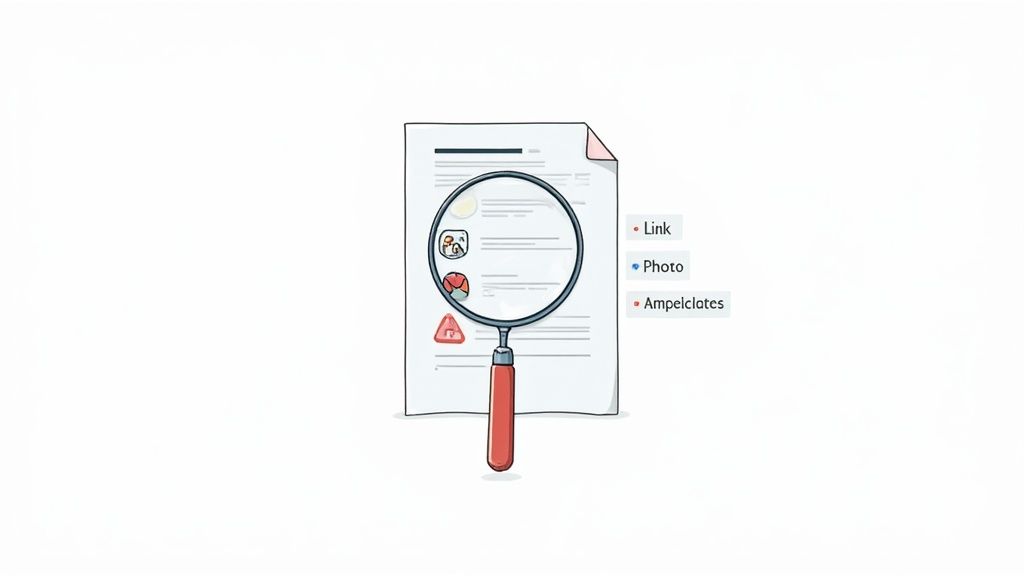
Most of these headaches fall into a few common categories: layout shifts, image quality degradation, or interactive elements that simply stop working. Let's walk through how to diagnose and solve these frequent conversion hiccups so your final PDF looks exactly how you designed it.
Why Your Formatting Looks Different
It’s incredibly frustrating when your carefully crafted layout—with its perfect fonts, margins, and spacing—completely shifts during the conversion. More often than not, this all comes down to how fonts are handled. If the person opening the PDF doesn't have the exact same font you used installed on their machine, their PDF viewer will substitute it with a default. The result? A design disaster.
Luckily, the solution is simple: embed the fonts directly into your PDF.
- In Microsoft Word: Before you save or export, navigate to
File > Options > Save. - Find the Right Setting: Look for a checkbox that says "Embed fonts in the file" and make sure it’s checked.
This one simple step packages your font files inside the PDF. It guarantees your document will look correct on any device, no matter who is viewing it. For any document where typography is a key part of the design, this is an absolute must.
Fixing Blurry Images and Broken Links
Another common complaint is that crisp, high-quality images from your Word doc suddenly look blurry and pixelated in the final PDF. This is almost always caused by compression settings that are a little too aggressive in their quest for a smaller file size. When you export from Word, you'll usually see an option to optimize for either file size or quality. Always choose the setting that prioritizes quality, like "Standard (publishing online and printing)."
Broken hyperlinks are another pain point. You click on a link that worked perfectly in Word, and now it's just dead text in the PDF. This often happens when using older software or less reliable online converters. To avoid this, stick to a modern conversion method like Word’s native "Save As PDF" or "Export" function, which are built to keep all your links active and clickable.
Going through a complex document to check every single change after conversion is tedious work. A document comparison tool can be a lifesaver here, instantly showing you any differences between the original and the final PDF. Our guide on a powerful text comparison tool at https://shiftshift.app/diff-checker can show you how to automate this process and save a ton of time.
Getting these details right is critical in a professional context. In a market like North America, which commands 35% of the global PDF editor share, document integrity is everything. Seamless conversions are essential for meeting compliance standards and maintaining a professional image. By embedding your fonts and choosing the right quality settings from the start, you can sidestep nearly all of the most common conversion headaches.
Your Top Questions About Word to PDF Conversion, Answered
Even with the best tools in hand, you might run into a few specific questions when converting a Word doc to a PDF. Let's tackle some of the most common ones that pop up, so you can get your documents looking just right.
Think of this as your go-to reference for those little details that can make all the difference. We’ll cover everything from keeping your formatting pristine to managing file size and security.
How Can I Convert a Word Document to PDF Without Losing Formatting?
This is probably the most common headache, but luckily, the fix is usually straightforward. The most reliable method is to use Microsoft Word’s own 'Export' or 'Save as PDF' function. When you see the options, make sure you select 'Standard (publishing online and printing)'. This setting is specifically designed to keep your layout, fonts, and image quality intact.
What if you've used special custom fonts? You'll need to embed them directly into the file to ensure they show up for everyone.
- Before you convert, head to
File > Options > Save. - Look for the checkbox that says 'Embed fonts in the file' and make sure it’s ticked.
Taking this one extra step is a game-changer. It guarantees your typography looks exactly as you intended, no matter who opens the document or what fonts they have installed.
Are Online Word to PDF Converters Safe to Use?
That really depends on the service you choose and, more importantly, the sensitivity of the document you're converting. Many reputable online tools use strong SSL encryption and have clear privacy policies explaining that they automatically delete your files after a few hours.
For any document containing personal data, financial details, or confidential business information, stick to offline methods. It’s simply not worth the risk. Using Microsoft Word's built-in converter or a dedicated desktop app keeps your data entirely on your own computer.
As a rule of thumb, steer clear of any online service that tries to push you into installing extra software or has a vague or nonexistent privacy policy. Your data’s security should always come first.
Can I Convert a Password-Protected Word File to a PDF?
Absolutely, but there's one critical catch: you must know the password to open the Word document in the first place. You can't bypass the protection. Once you’ve entered the password and opened the file, you can convert it to a PDF using any of the standard methods we've covered.
Keep in mind that the new PDF won't be password-protected by default. If you need to secure the PDF as well, you'll have to add a new password to it after the conversion is finished, using a tool like Adobe Acrobat or another PDF editor.
How Do I Make the Final PDF File Smaller?
Huge PDF files can be a pain, especially for emailing. Microsoft Word has a quick fix for this right in the 'Save As' or 'Export' dialog. Just choose the 'Minimum size (publishing online)' option instead of 'Standard'. This setting automatically compresses the images, creating a much smaller file that’s perfect for the web.
If you need more control, a dedicated online PDF compressor or a desktop app is the way to go. These tools often let you fine-tune the image quality and remove other non-essential data, helping you shrink the file size dramatically without making it look terrible.
For a fast and completely private way to handle file conversions right in your browser, give ShiftShift Extensions a look. Our suite of tools, including a Word to PDF converter, does all the work locally on your machine. That means your data never leaves your computer. Download it today and see how much simpler your workflow can be.
Article created using Outrank