Cara Membuka Fail STL: Panduan Praktikal untuk Sebarang Peranti
Bergelut dengan cara untuk membuka fail STL? Panduan kami merangkumi pemapar percuma terbaik, pemotong, dan alat pelayar untuk Windows, Mac, Linux, dan akses dalam talian.
Sambungan Disyorkan

Jadi, anda mempunyai fail STL dan perlu membukanya. Berita baiknya adalah anda mempunyai banyak pilihan, dari alat yang sudah ada di komputer anda hingga perisian percuma yang berkuasa.
Untuk melihat dengan cepat, alat terbina dalam sistem operasi anda seperti Windows 3D Viewer atau macOS Preview berfungsi dengan baik. Jika anda memerlukan lebih banyak fungsi, program percuma khusus seperti Blender atau MeshLab adalah pilihan yang hebat. Sudah tentu, jika pencetakan 3D adalah matlamat anda, perisian pemotong seperti Cura atau PrusaSlicer adalah pilihan yang tepat kerana ia bukan sahaja membuka fail tetapi juga menyiapkannya untuk pencetak anda. Anda juga boleh menggunakan penampil berasaskan pelayar yang mudah untuk penyelesaian tanpa pemasangan.
Sebelum kita menyelami cara untuk membuka fail ini, mari kita cepat lihat apa sebenarnya fail-fail ini.
Apa Itu Fail STL, Sebenarnya?
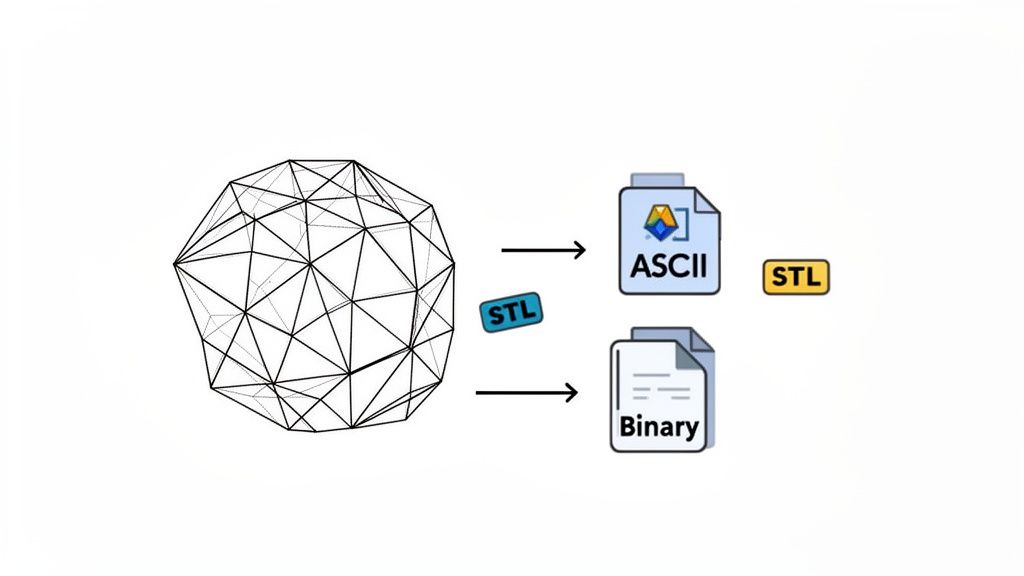
Pada dasarnya, fail STL (yang bermaksud Stereolithography) adalah format yang mudah dan universal yang menerangkan geometri permukaan objek 3D. Ia tidak mengambil kira warna, tekstur, atau bahan—hanya bentuk mentah.
Fail ini mencapai ini dengan memecahkan keseluruhan permukaan model kepada koleksi segitiga yang saling berkaitan. Proses ini dipanggil tessellation. Fikirkan ia seperti mencipta mozek; cukup banyak segitiga kecil dan rata boleh menghampiri sebarang lengkung yang kompleks.
Simplicity inilah yang menjadikan format STL sebagai asas pencetakan 3D. Ia adalah lingua franca dunia 3D, difahami oleh hampir setiap program pemodelan 3D dan pencetak yang ada. Ia adalah fail .txt bagi 3D—asas, tetapi ia berfungsi di mana-mana.
Dua Rasa STL: ASCII vs. Binary
Apabila anda mendapatkan fail STL, ia akan berada dalam salah satu daripada dua format: ASCII atau Binary. Kedua-duanya menerangkan model yang sama, tetapi mereka menyimpan data dengan cara yang sangat berbeza, yang mempunyai impak besar terhadap saiz fail dan seberapa cepat fail dimuat.
- ASCII STL: Versi ini boleh dibaca oleh manusia. Anda boleh membukanya dalam penyunting teks asas dan melihat koordinat teks biasa untuk setiap segitiga. Walaupun itu bagus untuk penyahpepijatan manual, ia sangat tidak efisien dan menghasilkan saiz fail yang besar.
- Binary STL: Ini adalah format yang akan anda temui 99% daripada masa. Ia menyimpan data geometri yang sama dalam kod binari yang padat dan boleh dibaca oleh mesin. Hasilnya? Fail yang jauh lebih kecil yang dimuat dengan lebih cepat.
Contohnya, jika seorang pereka produk menghantar prototaip kepada rakan sekerja, mereka akan sentiasa menggunakan Binary STL. Saiz yang lebih kecil dan pemuatan yang lebih cepat adalah penting untuk aliran kerja yang lancar, terutamanya dengan model yang kompleks dan berpoligon tinggi.
Mengapa Format STL Masih Penting
Format STL telah wujud sejak 1987, dicipta oleh Chuck Hull dan pasukannya di 3D Systems untuk mesin stereolithography yang pertama. Ia adalah penemuan asas untuk pembuatan aditif.
Walaupun terdapat format yang lebih baru yang boleh menyimpan data warna dan bahan (seperti 3MF atau OBJ), keserasian lintas platform yang tiada tandingan bagi fail STL menjadikannya tidak dapat dielakkan. Ia berfungsi dengan hampir mana-mana perisian dan perkakasan, menjadikannya pilihan utama untuk peminat dan profesional berpengalaman.
Memahami dengan baik apa itu fail STL juga penting untuk profesional dalam bidang seperti perkhidmatan rendering seni bina 3D, di mana fail-fail ini adalah sebahagian biasa daripada aliran kerja reka bentuk dan visualisasi. Dengan asas itu ditetapkan, mari kita terokai alat terbaik untuk tugas ini.
Panduan Cepat untuk Membuka Fail STL
Untuk memberikan anda gambaran keseluruhan, jadual ini merangkum cara yang paling mudah dan biasa untuk melihat fail STL, bergantung kepada keperluan anda.
| Kaedah | Terbaik Untuk | Platform | Ciri Utama |
|---|---|---|---|
| Pemapar OS Asli | Melihat cepat dan mudah tanpa pemasangan. | Windows, macOS | Tersedia secara serta-merta di komputer anda. |
| Aplikasi 3D Khusus | Penyuntingan, analisis, dan pandangan lanjutan. | Windows, macOS, Linux | Ciri berkuasa seperti pembaikan dan penyuntingan mesh. |
| Perisian Pemotong | Menyediakan model untuk pencetakan 3D. | Windows, macOS, Linux | Menukar model 3D kepada arahan pencetak (G-code). |
| Pemapar Berasaskan Pelayar | Melihat pada mana-mana peranti tanpa memuat turun perisian. | Mana-mana (Berdasarkan Web) | Aksesibiliti maksimum dan perkongsian yang mudah. |
Kini anda mempunyai pandangan umum, kita boleh masuk ke dalam butiran setiap kaedah.
Membuka Fail STL Secara Segera di Pelayar Anda
Kadang-kadang, alat terbaik adalah yang tidak perlu anda pasang. Apabila anda hanya perlu memeriksa model dengan cepat, memuat turun dan melancarkan aplikasi desktop yang penuh boleh terasa seperti menggunakan tukul untuk memecahkan kacang. Cara paling cepat untuk membuka fail STL sering kali adalah di dalam pelayar web anda.
Ini adalah penyelamat untuk aliran kerja yang pantas. Bayangkan seorang jurutera QA yang perlu mengesahkan selusin model 3D yang berbeza dari mesin yang selamat dan terkunci. Memasang perisian yang besar mungkin mustahil. Pemapar berasaskan pelayar membolehkan mereka hanya menyeret dan menjatuhkan setiap fail, memeriksanya, dan bergerak ke depan dalam beberapa saat.
Kuasa Pemprosesan Pelayar Tempatan
Salah satu perkara terbaik tentang alat pelayar moden adalah bahawa mereka memproses fail secara tempatan. Ini adalah perkara yang besar. Ia bermakna model 3D anda tidak pernah meninggalkan komputer anda. Mereka tidak dimuat naik ke pelayan rawak, yang merupakan butiran penting untuk privasi dan keselamatan. Ia juga bermakna anda masih boleh membuka dan melihat fail walaupun sambungan internet anda tidak stabil.
Ia tidak selalu semudah ini. Beberapa tahun yang lalu, membuka fail STL bermakna memulakan perisian proprietari 3D Systems. Hari ini, dengan lebih daripada 70% aliran kerja pencetakan 3D bergantung pada format STL, anda boleh melakukannya dengan mudah di pelayar anda menggunakan alat seperti Pemapar Model 3D ShiftShift Extensions. Sambungan Chrome ini membolehkan anda menyeret dan menjatuhkan fail STL ASCII dan Binary terus ke dalam tab pelayar untuk interaksi segera. Segala-galanya diproses secara tempatan, jadi data anda tetap milik anda. Anda boleh belajar lebih lanjut tentang bagaimana format STL terus membentuk pencetakan 3D di firstmold.com.
Poin utama adalah kelajuan yang digabungkan dengan keselamatan. Pemapar berasaskan pelayar memberikan anda akses segera seperti alat dalam talian tanpa kompromi privasi memuat naik fail reka bentuk sensitif ke pelayan pihak ketiga.
Apa yang Diharapkan dari Pemapar Pelayar
Kebanyakan pemapar pelayar berkualiti memberikan anda set ciri interaktif teras yang sangat berkuasa untuk penyelesaian yang ringan. Anda biasanya boleh menangani semua tugas pemeriksaan penting tanpa sebarang kelewatan.
Contohnya, Pemapar Model 3D ShiftShift diakses melalui palet arahan yang mudah. Dari situ, anda hanya menyeret fail anda terus ke dalam tetingkap.
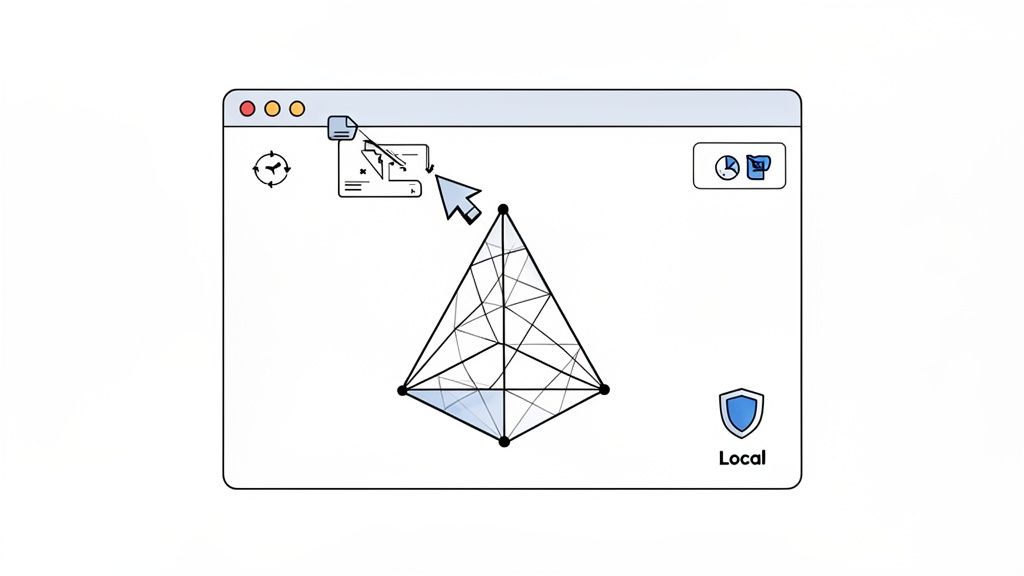
Antaramuka adalah bersih dan terus ke titik, memberi tumpuan kepada model itu sendiri dengan kawalan yang tidak menghalang anda. Setelah dimuat, anda boleh terus ke pemeriksaan anda.
Anda akan mempunyai kawalan standard yang menjadikan semakan cepat menjadi mudah:
- Putar dan Pan: Hanya klik dan seret dengan tetikus anda untuk mengorbit model dan melihatnya dari mana-mana sudut.
- Zoom: Gunakan roda skrol tetikus anda untuk melihat dengan dekat butiran tertentu atau menarik kembali untuk pandangan keseluruhan.
- Toggle Views: Tukar pada overlay berguna seperti rangka wayar untuk melihat mesh yang mendasari atau grid dan paksi untuk rujukan spatial.
Alat ini lebih daripada cukup untuk kebanyakan senario semakan cepat, seperti mengesahkan model yang anda muat turun sebelum menghantarnya ke pemotong anda atau mengesahkan semakan reka bentuk dari rakan sekerja. Jika anda ingin menyelami lebih dalam, anda mungkin berminat dengan pecahan penuh kami tentang ciri-ciri pemapar model 3D berasaskan pelayar.
Kadang-kadang, anda memerlukan lebih banyak kuasa daripada yang boleh ditawarkan oleh pelayar. Untuk saat-saat itu, aplikasi desktop khusus adalah pilihan yang tepat. Berita baiknya adalah anda mungkin sudah mempunyai pemapar STL yang mudah dipasang di komputer anda, sama ada anda menyedarinya atau tidak.
Windows dan macOS kedua-duanya dilengkapi dengan alat terbina dalam yang boleh menangani pratonton model 3D dengan cepat. Ini adalah sempurna untuk saat-saat "hanya memeriksa"—seperti apabila rakan sekerja menghantar anda fail dan anda hanya perlu melihatnya untuk memastikan ia versi yang betul. Mereka dimuat dengan serta-merta dan memberikan anda kawalan putaran dan zoom asas tanpa sebarang ciri yang membebankan.
Alat Terbina Dalam Sistem Operasi Anda
Jika anda menggunakan Windows, aplikasi 3D Viewer adalah sahabat terbaik anda. Ia bersih, mudah, dan biasanya program lalai untuk STL, jadi satu klik dua kali sudah mencukupi. Setelah berada di dalam, anda boleh dengan mudah memutar model dengan tetikus anda dan memeriksanya dari setiap sudut. Ia sangat berguna untuk aplikasi yang telah dipasang sebelumnya.
Bagi pengguna macOS, aplikasi Preview terbina dalam mempunyai beberapa keupayaan melihat 3D. Ia boleh membuka STL, tetapi jujurnya, ia agak asas berbanding dengan setara Windows. Jika anda mendapati ciri-ciri Preview sedikit mengecewakan, perjalanan cepat ke Mac App Store akan menjumpai banyak pemapar STL percuma yang khusus yang menawarkan pengalaman yang lebih kaya.
Meningkatkan dengan Perisian Percuma dan Berkuasa
Apabila anda perlu melakukan lebih daripada sekadar melihat model, sudah tiba masanya untuk memanggil pemain berat: perisian desktop percuma dan sumber terbuka. Program-program ini adalah kuda kerja untuk peminat dan profesional, dipenuhi dengan ciri untuk segala-galanya dari pemeriksaan mesh hingga penyuntingan 3D yang lengkap.
Format STL telah wujud sejak 1987, dan ketahanannya yang luar biasa adalah bukti kepada utilitinya yang mudah. Ia telah menjadi bahasa universal pencetakan 3D, menyokong anggaran 90% aliran kerja prototaip cepat. Format fail yang mudah ini telah menjadi pendorong utama dalam pertumbuhan pesat industri dari $3.5 bilion pada 2015 kepada anggaran $25 bilion menjelang 2025—lonjakan yang mengejutkan sebanyak 620%. Keserasian universalnya adalah apa yang menjadikannya begitu berkuasa. Anda boleh belajar lebih lanjut tentang sejarah dan impak format STL untuk melihat sejauh mana ia telah berkembang.
Jika anda bersedia untuk bergerak lebih jauh daripada asas, berikut adalah beberapa pilihan percuma terbaik yang ada.
Perbandingan Pemapar STL Desktop Percuma
Memilih alat percuma yang tepat boleh terasa menakutkan, tetapi ia benar-benar bergantung kepada apa yang anda perlu lakukan dengan fail tersebut. Adakah anda hanya melihat, atau adakah anda membaiki, mengubah, atau mencipta? Jadual ini memecahkan tiga cadangan utama saya untuk membantu anda memilih yang tepat untuk tugas tersebut.
| Perisian | Kes Penggunaan Utama | Platform | Kelebihan Utama |
|---|---|---|---|
| Blender | Pemodelan kreatif, animasi, dan pembaikan mesh yang kompleks | Win/Mac/Linux | Kuasa semua-dalam-satu untuk hampir mana-mana tugas 3D yang boleh dibayangkan |
| MeshLab | Pemeriksaan mesh lanjutan, pembersihan, dan analisis | Win/Mac/Linux | "Pisau Tentera Swiss" untuk pembaikan mesh yang tepat secara saintifik |
| FreeCAD | Reka bentuk 3D parametrik dan kejuruteraan mekanikal | Win/Mac/Linux | Bagus untuk menukar STL kepada model pepejal untuk kerja reka bentuk |
Setiap alat ini mempunyai keperibadian dan kekuatan tersendiri. Blender adalah studio artis, MeshLab adalah makmal jurutera, dan FreeCAD adalah bengkel pereka. Mari kita selami sedikit lebih dalam tentang apa yang menjadikan setiap satu berfungsi.
Blender: Kebanyakan orang mengenali Blender sebagai suite profesional untuk mencipta animasi dan kesan visual yang menakjubkan, tetapi ia juga alat yang hebat untuk mengendalikan STL. Untuk mendapatkan fail anda, hanya navigasi ke
File > Import > Stl (.stl). Kurva pembelajaran untuk kawalannya mungkin sedikit curam, tetapi alat analisis dan pembaikan mesh yang berkuasa adalah yang terbaik untuk program percuma.MeshLab: Ini adalah alat pakar, direka dari bawah untuk memproses dan menyunting mesh segitiga 3D. Bagi jurutera dan penyelidik, ia adalah impian yang menjadi kenyataan. Ia menawarkan ciri lanjutan untuk membersihkan imbasan yang berantakan, menyembuhkan lubang, dan memeriksa model untuk memastikan ia kedap air dan siap untuk dicetak.
FreeCAD: Sebagai pemodel 3D parametrik, FreeCAD bersinar dalam kejuruteraan dan reka bentuk produk. Anda boleh mengimport STL dan bahkan menukar mesh kepada bentuk pepejal yang boleh anda ubah dengan ketepatan. Ini menjadikannya pilihan yang sempurna jika matlamat anda adalah untuk mengintegrasikan STL yang sedia ada ke dalam pemasangan mekanikal yang lebih besar.
Alat yang tepat benar-benar bergantung kepada matlamat akhir anda. Jika anda hanya memerlukan pandangan cepat, tetaplah dengan pemapar lalai sistem operasi anda. Untuk analisis dan pembaikan pra-cetak yang serius, MeshLab adalah pilihan anda. Dan untuk penyuntingan kreatif atau mengintegrasikan model ke dalam projek reka bentuk yang lebih besar, anda tidak boleh salah dengan Blender atau FreeCAD.
Membawa STL Anda ke Kehidupan: Perisian Pemotong untuk Pencetakan 3D
Jika anda mempunyai pencetak 3D, membuka fail STL bukan sekadar melihat model—ia adalah tentang mengubah pelan digital menjadi objek fizikal yang sebenar. Di sinilah perisian pemotong berperanan, dan alat seperti Cura dan PrusaSlicer adalah pusat komando anda.
Mengimport STL hanyalah langkah pertama. Kerja sebenar berlaku seterusnya, apabila anda secara strategik meletakkan objek di atas plat binaan maya. Ini bukan sekadar soal membuatnya muat; orientasi model mempengaruhi segala-galanya dari integriti struktur hingga jumlah bahan sokongan yang diperlukan. Mendapatkannya dengan betul boleh mengurangkan masa cetak dan kos filamen dengan ketara.
Dari Model Digital ke Objek Fizikal
Setelah model dimuat, keajaiban pemotong benar-benar bermula. Program-program ini tidak hanya memaparkan fail. Mereka menganalisis geometri, membolehkan anda untuk "memotong"nya menjadi ratusan atau bahkan ribuan lapisan mendatar individu. Anda kemudian dapat melihat keseluruhan proses cetakan, satu lapisan pada satu masa.
Fungsi pratonton ini adalah pengubah permainan dan alat diagnostik yang tidak dapat diketepikan. Katakan anda mencetak bahagian fungsional, seperti braket khusus. Dengan menyemak pandangan lapisan demi lapisan, anda boleh:
- Mengesan titik lemah yang berpotensi: Menangkap dinding nipis atau ciri kecil yang mungkin gagal semasa cetakan.
- Memeriksa pengisian anda: Pastikan struktur dalaman cukup kuat untuk keperluan anda tanpa membazirkan bahan.
- Memastikan laluan alat: Menonton laluan perjalanan muncung yang tepat untuk mengesan masalah berpotensi seperti penarikan yang tidak perlu atau perlanggaran dengan model.
Menghabiskan beberapa minit memeriksa model yang dipotong dengan cara ini boleh menyelamatkan anda dari berjam-jam kekecewaan dan satu gulung filamen yang terbuang. Ia sering menjadi perbezaan antara prototaip yang sempurna dan monster spaghetti di atas katil cetakan anda.
Pembaikan Automatik dan Menyediakan untuk Cetakan
Pemotong moden sangat pintar. Mereka dilengkapi dengan algoritma yang kuat yang secara automatik mencari dan membetulkan masalah mesh biasa yang jika tidak akan menghancurkan cetakan. Masalah seperti lubang kecil atau tepi tidak manifold sering diperbaiki sebaik sahaja anda mengimport fail, kadang-kadang tanpa anda sedari.
Tugas utama pemotong adalah untuk merapatkan jurang antara model 3D (STL) dan arahan tepat yang boleh dibaca mesin yang diperlukan oleh pencetak anda (G-code). Ia mengira semua nombor kompleks supaya anda boleh fokus untuk mendapatkan hasil fizikal yang terbaik.
Bagi profesional yang mempunyai tarikh akhir yang ketat, kelajuan adalah segalanya. Inilah sebabnya mengapa fail STL binari adalah format pilihan dalam 80-90% aliran kerja profesional. Mereka boleh menjadi sehingga 90% lebih kecil daripada rakan-rakan ASCII mereka, yang bermaksud mereka dimuat hampir serta-merta dalam pemotong. Kecekapan itu adalah kelebihan besar apabila anda mengendalikan ratusan fail setiap hari. Anda boleh menemui lebih banyak petua praktikal mengenai pengoptimuman fail STL di firstmold.com.
Akhirnya, mengetahui cara membuka fail STL dalam pemotong adalah kemahiran paling asas bagi sesiapa yang terlibat dalam pencetakan 3D. Ini adalah langkah kritikal di mana anda memberikan model statik jalannya ke dunia fizikal, menyesuaikan setiap butiran terakhir untuk mendapatkan cetakan yang sempurna.
Bagaimana untuk Memperbaiki Masalah Fail STL yang Biasa
Jadi, anda mempunyai fail STL, tetapi ia memberikan anda masalah. Mungkin pemotong anda menunjukkan ralat, penampil anda menunjukkan artefak grafik yang pelik, atau lebih teruk, cetakan 3D anda gagal. Jangan risau—kebanyakan masalah ini datang dari beberapa masalah geometri biasa yang sebenarnya agak mudah untuk diperbaiki setelah anda tahu apa yang perlu dicari.
Fikirkan fail STL sebagai patung digital yang dibuat daripada ribuan segitiga kecil yang saling berkaitan. Untuk ia dicetak dengan betul, ia perlu "kedap air." Ini bermakna setiap tepi segitiga mesti dijahit dengan sempurna kepada tepi segitiga lain. Apabila peraturan mudah ini dilanggar, keadaan menjadi kelam kabut.
Tetapi model yang rosak bukanlah jalan buntu. Dengan alat yang betul dan sedikit pemahaman, anda boleh membaiki STL yang cacat dalam hanya beberapa minit dan mengembalikan projek anda ke landasan yang betul.
Mendiagnosis dan Memperbaiki Ralat Mesh
Punca biasa di sebalik STL yang bermasalah adalah geometri tidak manifold, norma terbalik, dan muka yang bersilang. Ini kedengaran sedikit teknikal, tetapi konsepnya adalah mudah. Kebanyakan perisian 3D moden boleh mengesan masalah ini untuk anda, tetapi mengetahui apa itu membantu anda memperbaikinya dengan lebih cepat.
Berikut adalah pecahan tentang apa yang biasanya anda akan hadapi:
- Geometri Tidak Manifold: Ini hanyalah cara yang canggih untuk mengatakan terdapat lubang atau celah dalam model anda. Bayangkan lubang pin kecil dalam belon—ia tidak lagi kedap udara. Pemotong sering menandakan ini kerana ia tidak dapat menentukan apa yang sepatutnya menjadi "dalam" model berbanding "luar."
- Norma Terbalik: Setiap segitiga dalam mesh anda mempunyai sisi "dalam" dan sisi "luar", yang ditakrifkan oleh vektor normalnya. Norma terbalik bermakna segitiga menghadap ke arah yang salah, mencipta apa yang kelihatan seperti lubang dan mengelirukan pemotong tentang di mana bahan pepejal sepatutnya berada.
- Muka yang Bersilang: Ini berlaku apabila dua atau lebih segitiga memotong antara satu sama lain, mencipta geometri yang tidak boleh wujud di dunia nyata. Ia seperti cuba menolak dua objek pepejal melalui satu sama lain, dan ia boleh menyebabkan artefak yang sangat hodoh dalam cetakan akhir anda.
Berita baik? Banyak pemotong moden seperti Cura dan PrusaSlicer telah menjadi sangat pintar. Mereka sering mempunyai fungsi pembaikan terbina dalam yang secara automatik membetulkan sebahagian besar ralat biasa ini apabila anda mengimport fail. Untuk masalah yang lebih degil, alat khusus seperti MeshLab memberikan anda pilihan pembaikan yang lebih kuat dan praktikal.
Aliran Kerja Penyelesaian Masalah Anda
Apabila anda menghadapi masalah dengan STL, langkah pertama adalah untuk menentukan di mana untuk membukanya. Pokok keputusan mudah ini menunjukkan laluan paling biasa yang diambil orang apabila membuka dan menyediakan model.
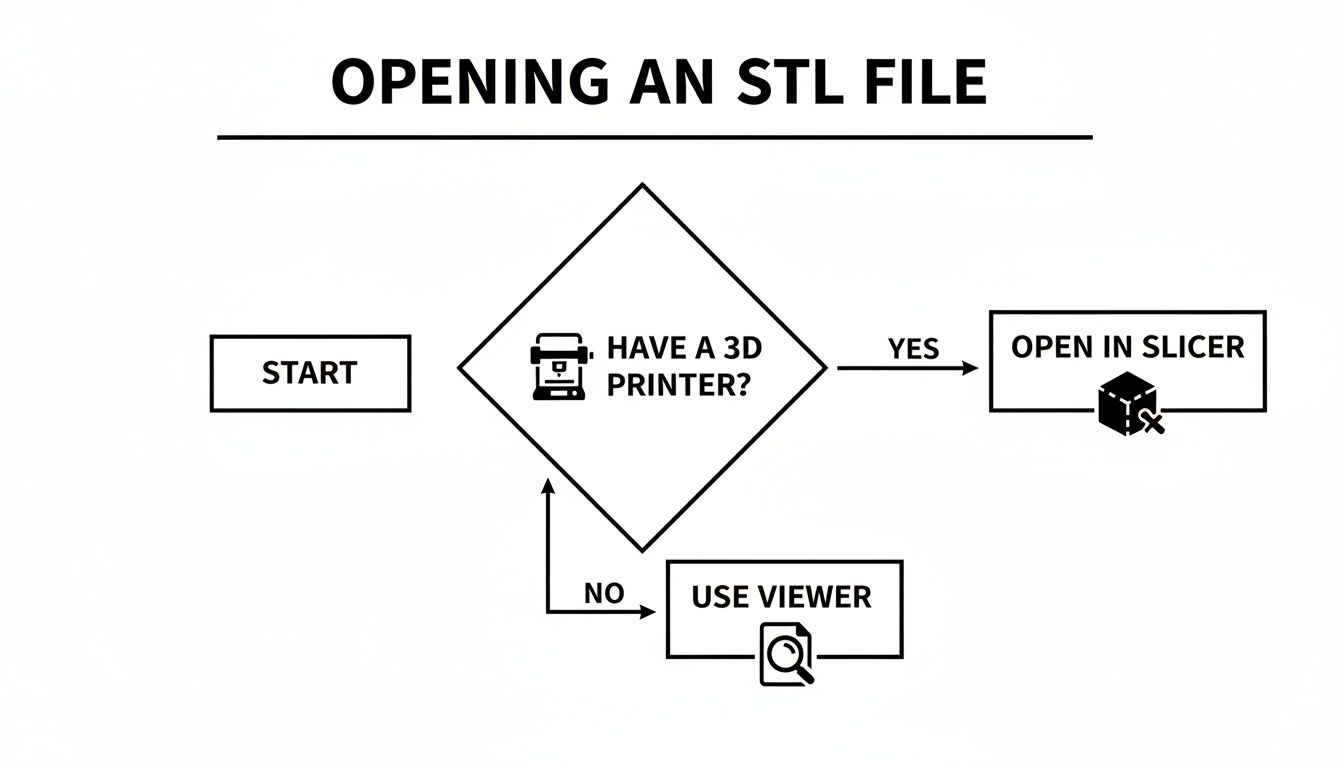
Seperti yang anda lihat, laluan bercabang awal: jika anda mencetak 3D, pemotong anda adalah alat utama. Jika anda hanya perlu memeriksa model, penampil yang sederhana sudah memadai. Berfikir dengan cara ini memastikan aliran kerja anda efisien.
Walaupun dengan format baru seperti 3MF muncul pada tahun 2015, format STL masih bertahan. Kenapa? Keserasian mundur yang universal adalah kelebihan besar, melindungi pelaburan bertahun-tahun dalam perkakasan dan perisian lama. Ini adalah salah satu sebab mengapa dianggarkan 2.5 bilion fail STL masih dieksport setiap tahun di seluruh dunia. Anda boleh membaca lebih lanjut tentang warisan berterusan format STL di Wikipedia).
Sama ada anda membaiki model CAD yang kompleks atau hanya melakukan pemeriksaan visual cepat, memahami masalah berpotensi ini menjadikan kerja dengan fail STL jauh lebih lancar.
Ada Soalan Mengenai STL? Kami Ada Jawapan
Menyelami model 3D sering menimbulkan beberapa soalan biasa, terutamanya apabila anda baru sahaja mendapatkan orientasi. Ini adalah tempat anda untuk jawapan cepat dan langsung tentang pengendalian fail STL. Mari kita jelas kan kekeliruan supaya anda boleh kembali kepada penciptaan.
Jadi, Bolehkah Saya Sebenarnya Mengedit Fail STL?
Ya, tetapi ia tidak sama seperti mengedit dokumen Word. Fikirkan dengan cara ini: sementara penampil sederhana membolehkan anda melihat tetapi tidak menyentuh, perisian pengeditan mesh khusus seperti Blender, Meshmixer, atau FreeCAD memberikan anda alat untuk membuat perubahan.
Fail STL hanyalah mesh—koleksi segitiga yang saling berkaitan. Ia bukan model parametrik "pintar" dari perisian CAD. Ini bermakna pengeditan melibatkan menolak, menarik, dan membentuk segitiga tersebut secara langsung. Pendekatan "pemodelan langsung" ini sangat baik untuk pengubahsuaian artistik, membaiki lubang, atau melicinkan permukaan yang kasar. Ia kurang ideal untuk perubahan kejuruteraan yang tepat, seperti cuba mengubah diameter lubang bolt dengan tepat 0.5mm.
Bagaimana Saya Menukar STL ke Format Lain?
Menukar STL ke format lain seperti STEP atau OBJ adalah keperluan yang sangat biasa, dan kebanyakan program 3D yang serius boleh melakukannya. Alat terbaik benar-benar bergantung kepada apa yang anda cuba capai.
- Perlu fail CAD (seperti STEP)? FreeCAD adalah rakan anda di sini. Anda boleh mengimport mesh STL, menggunakan alatnya untuk mencipta badan pepejal dari mesh tersebut, dan kemudian mengeksportnya sebagai fail STEP. Kini ia sedia untuk perisian kejuruteraan yang betul.
- Perlu format mesh lain (seperti OBJ)? Jika anda beralih ke format yang mengendalikan warna dan tekstur, Blender adalah pilihan yang sempurna. Aliran kerjanya sangat mudah: import STL, kemudian pergi ke
File > Exportdan pilih OBJ.
Satu kata peringatan tentang penukar dalam talian: walaupun mudah, fikir dua kali sebelum memuat naik reka bentuk sensitif atau proprietari ke laman web rawak.
Petua Profesional: Untuk sebarang kerja profesional atau sulit, gunakan perisian desktop untuk penukaran. Anda mengekalkan kawalan penuh ke atas harta intelektual anda dan tidak akan menghadapi had saiz fail yang sering menghalang alat dalam talian percuma.
Kenapa Fail STL Saya Sepenuhnya Kelabu?
Ah, soalan klasik! Ini menyentuh inti pati apa itu fail STL. Format STL asal direka dengan satu tujuan: untuk menerangkan geometri permukaan 3D mentah objek. Itu sahaja.
Ia tidak mengandungi sebarang maklumat tentang warna, tekstur, atau bahan apa yang sepatutnya digunakan. Ia hanyalah senarai koordinat untuk bucu segitiga yang membentuk cangkerang model. Jika anda memerlukan warna, anda perlu menggunakan format yang lebih mampu seperti OBJ, 3MF, atau FBX.
Apa Yang Dimaksudkan Dengan "Resolusi Tinggi" vs. "Resolusi Rendah"?
Apabila kita bercakap tentang "resolusi" untuk fail STL, kita sebenarnya bercakap tentang ketumpatan mesh segitiganya. Ia semua tentang butiran.
Fail STL resolusi tinggi menggunakan sejumlah besar segitiga kecil untuk memetakan permukaan. Ini menangkap butiran halus dan mencipta lengkung yang sangat licin, tetapi pertukarannya adalah saiz fail yang besar. Sebaliknya, fail STL resolusi rendah menggunakan segitiga yang lebih sedikit dan lebih besar. Fail ini jauh lebih kecil dan lebih mudah untuk diurus, tetapi lengkung boleh kelihatan blok atau berfaceted. Memilih yang betul sentiasa merupakan keseimbangan antara kesetiaan visual dan prestasi.
Siap untuk mempercepat aliran kerja pelayar anda? ShiftShift Extensions menawarkan suite alat yang semakin berkembang—dari Penampil Model 3D hingga pemformat kod—semuanya boleh diakses melalui palet arahan yang cepat. Cuba secara percuma di https://shiftshift.app.