እንዴት ላፕቶፕ ላይ ስክሪንስሆቶች እንደሚወስዱ የመጨረሻ መረጃ
እንዴት በላፕቶፕ ላይ ስክሪን ምስሎች ማንበብ ይማሩ በእኛ የመጨረሻ መመሪያ ይማሩ። በWindows, macOS, ChromeOS እና Linux ላይ የስክሪን ካፕቸር ማስተላለፊያ በተግባር መረጃዎች እና መሣሪያዎች ይማሩ።
የተመነጨ ማስተካከያዎች

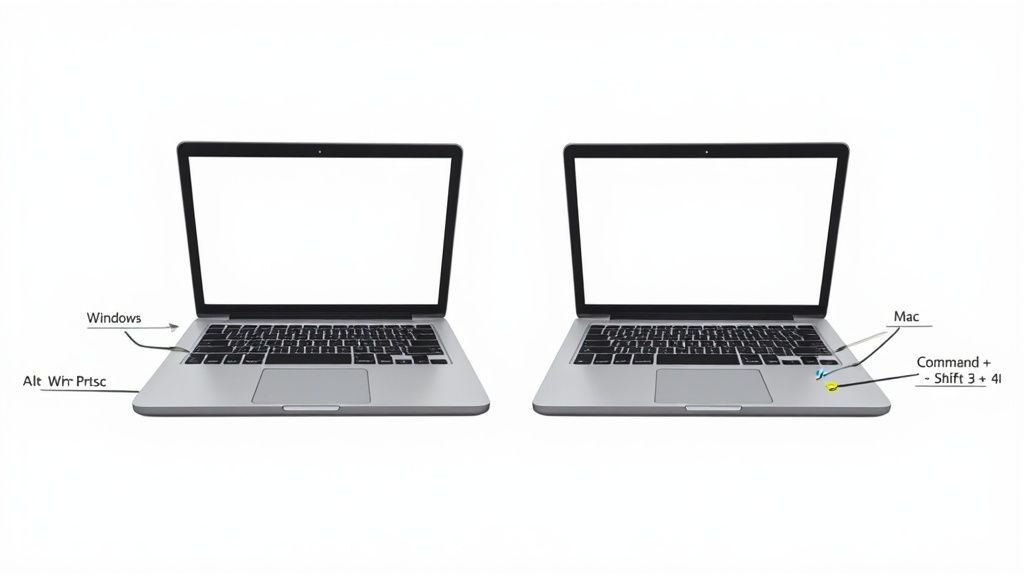
እንግዲህ، የላፕቶፕዎን ስክሪንሾት መውሰድ ይፈልጋሉ? እውነቱ ከምትሠሩት ነገሮች በጣም ቀላል ነገር ነው። ለቅጽበት ሙሉ ስክሪን ቅርጽ ከሆነ በዊንዶውዝ ላይ ያለውን PrtSc ቁልፍ ይምቱ ወይም በማክ ላይ Command+Shift+3 ይጫኑ። ብቻ እዛ ነው። እነዚህ ሚስręcz ቁልፎች የሚታዩትን በዚህ በግልጽ የሚያሳዩት መንገድ ቀጥታ ናቸው።
የልፕቶፕ ስክሪንሾቶችን የምትጠቅሙበት ወዲያውኑ መመሪያ
ስክሪንዎን መቅረጥ እንዴት እንደሚችሉ መ learnt ለእኛ በመስመር ላይ የምንሠራው ሁሉ መሠረታዊ ችሎታ ነው። አስፈላጊ መረጃ ለመቀመጥ፣ ለስራ ባልደረቦች ፈጣን ማስተማሪያዎች ለመፍጠር ወይም ከቪዲዮ ጥሪ የሚደርሰውን አስደሳች ጊዜ ለማጋራት ይህ ነው የምትሠራው። ትክክለኛውን ትዕዛዞች በመማር ምንም ሰላምታ ጥበብ ብቻ አይደለም፤ በእውነতና የስራ ሂደትዎን ያቀላጥፋልና ያ/DTD rápido ያደርገዋል። ያስቡት ያህል ፣ የሶፍትዌር ግጭት ረጅም መግለጫ በመጻፍ ይልቅ ፎቶ ላይ የመሳሰሉትን ፎቶ ማስተላለፍ ይችላሉ።
ለምንድን ነው ስክሪንሾት ችሎታዎች ያስፈልጉት
በማንኛውም ፈጣን የሆነ ሥራ ውስጥ ግልጽ የሆነ ግንኙነት ቁልፍ ነው። በቃ በጣም የሚደረግ በመመልከት ምልክት የተደረገ ምስል ማስተላለፍ አንዳንድ ነገር ለመረዳት ሰከንዶች ይወስዳል፣ በተቀን ተዘርግተን የምንጽፈው ረጅም መግለጫ የኢሜይል ግን ደቂቃዎች ሊወስድ ይችላል እና በመረዳት ላይ የበለጠ ጊዋዊ ይሆናል። መመሪያው በቀጥታ ወደ ነጥብ ይሄዳል፣ በጣም የተለመዱ የመሠረት ስርዓቶች እንዲህ ለማድረግ በጣም ፈጣን ዘዴዎችን ይሰጣል ስለዚህ የሚፈልጉትን ስክሪንሾት በምንም እንቅፋት ሳይኖረው መውሰድ ይችላሉ።
እምነት ይፍጠሩ ወይም አይፍጠሩ ብለው፣ የስክሪንስንሮት ተግባር ከ1985 ዓ.ም. በተነሳበት ጊዜ ጀምሮ እስከውሃል ቆይቷል። እስከ 2025 ድረስ ቀላል ተፅዕኖ ሲኖረው፣ የዴስክቶፕ መጠቀም አሁንም በዓለም ዓቀፍ የድር ጊዜ ላይ 38.1% እንደሚሆን፣ የላፕቶፕ ተጠቀмяዎች ከመጀመሪያው ጋር ጋራ ሆነው አስፈላጊ ናቸው። የপሪንት ስክሪን (PrtSc) ቁልፍ በወንዶች ላፕቶፖች ላይ ላፕቶፕ ግዙ ከወሰዱ ጋር 70.21% ሲሆን፣ macOS በሙሉ 5.5%.
ከመሠረተ ልማቱ ባሻገር
የተሰጡት መሳሪያዎች ለፈጣን ፎቶ ትልቅ ይሆናሉ፣ ነገር ግን እንደ ግዙ ማድረግ በቃ የማይችልበት የሚያስፈልግ ከዚህ በላይ ኃይል አለበት። እንደ ልክ ምሳሌ፣ ሙሉ የሚሄድ ድር ገጹን ለማንሳት ሞክረን። ለዚያ፣ ከዛ የበለጠ ተ打交ሸ መሳሪያ ያስፈልግዎታል። ድር ተሰፋፊ መጠቀም ቀላል የሚሆንበት የሙሉ ገጽ ስክሪንስንሮት እንዴት ይወስዱ የምንተርክ መመሪያ በእውነት አደረግን።
ትክክለኛው የፍሬስነት ጥቅም ከ ምን መሳሪያ መጠቀም እንደሆነ ያውቃሉ ይሄን ለመሆን ነው። ቀላል የመርከብ ዝርዝር ለፈጣን ማንሳት ተስፋፊ ነው፣ ግን ትልቅ ኃይል ያለው መሳሪያ ለስንት ነገር የሚያስፈልግ ከተሠላ ወይም ከተጋራ በቀላሉ የሚያስተሳስር ነው።
በተለያዩ በቃላት ለማሳየት፣ ብዙ ጊዜ የሚያስፈልጉትን የአጭር መንገዶች በሰንጠረዥ ላይ አደረግኩ.
ለላፕቶፖች ፈጣን ስክሪንሾት አጭር መንገዶች
ይህ ሰንጠረዥ በዊንዶስና በ macOS ላፕቶፖች ላይ ስክሪንሾት ለመ拿了 የሚያገለግል በጣም ጠቃሚ የቃል አጭር መንገዶችን ያቀርባል። ለፈጣን ማስታወሻ በመርሀ ቅርብ ያስቀምጡት.
| የአሠራር ሲስተም | ተግባር | የቃል አጭር መንገድ | ተግባር ውጤት |
|---|---|---|---|
| ዊንዶስ | ሙሉ ስክሪንን ወደ ቅር千方百ር መላክ | PrtSc |
ሙሉ ስክሪንን ወደ ቅር千方百ር ይคፋል |
| ዊንዶስ | ሙሉ ስክሪንን ወደ ፋይል ማስቀመጥ | Win + PrtSc |
ሙሉ ስክሪንን ወደ ምስሎች ፋይልдер ይቀመጣል |
| ዊንዶስ | ንቁ መስኮትን ወደ ቅር千方百ር መላክ | Alt + PrtSc |
የአሁኑን ንቁ መስኮት ይያዛል |
| ዊንዶስ | .custom ቦታ (Snipping Tool) | Win + Shift + S |
Snipping Tool ወደ ምርጫ ክፍት ያደርጋል |
| macOS | ሙሉ ስክሪን ወደ ፋይል | Command + Shift + 3 |
ሙሉ ስክሪኑን ወደ ዴስክቶፕ ያስቀምጣል |
| macOS | custom ቦታ ወደ ፋይል | Command + Shift + 4 |
ቦታ ለመምረጥ ያስችሎሃል እና ያስቀምጣል |
| macOS | መስኮት/ምናምን ወደ ፋይል | Command + Shift + 4 + Space |
የተወሰነ መስኮትን ወይም ምናምን ያወቅማል |
| macOS | Screenshot መተግበሪያ ክፍት | Command + Shift + 5 |
በተጨማሪ ምርጫዎች Screenshot መተግበሪያ ይከፈታል |
የነሱን ማቀዝቀዣዎች በመጠቀም በሁሉም ጊዜ በጣም ብዙ ጊዜ ይэкономишь ይችላሉ፣ ቀረበ ተቀባይን ቢያዙ፣ ስህተትን ቢያመለኩ፣ ወይም ጥሩ ሀሳብን ብቻ ቢቀርብ::
በዋና የመኪና ቦታ ያሉ Windows ዋና ሰዓቶች ላይ ጥሩ ስክሪንሾቶች መውሰድ
በሚሊዮኖች የሚቆጠሩ ተጠቃሚዎች Windows ዋና ሰዓት የሚጠቀሙ ከሆነ ፈጣን ስክሪንሾት መውሰድ እንዴት እንደሚችል ማወቅ የማይተርፍ ችሎታ ነው። ይህ በቀን ዕለት ዕለት ዕልፍ ጊዜ የምሠራ ነገር ነው። Windows ከጥንት ጀምሮ ቆይታቸው ከመሸ ሰንሰለቶች እስከ ተጨማሪ ዘመናዊ እና ተለዋዋጭ መተግበሪያ ጋር ድንቅ የሆነ ዕቃ ይሰጣል::
ምንን ዘዴ መጠቀም እንደሚያስፈልግ በማወቅ በጣም ብዙ ጊዜ ማ экономишь ይችላሉ። ለማስታወቂያ ሙሉ ስክሪንሽን መያዝ፣ ያስደነገገ ስህተት መልዕክት መያዝ፣ ወይም የድር ጣቢያ አንድ ሰፊ ክፍል ብቻ መቆረጥ ከሆነ ለዚያ ሥራ ፍጹም መሣሪያ አለ::
ጥንታዊ ምስጢር: ፕሪንት ስክሪን ቁልፍ
በ Windows ላይ ስክሪንሾት መውሰድ በጣም ቀላል የሆነ መንገድ ፕሪንት ስክሪን ቁልፍ ነው። ብዙ ጊዜ PrtSc, PrtScn፣ ወይም ከዚህ ተመሳሳይ ነገር እንደሚታይ ያያችሁ። መሠረታዊ ይመስላል፣ ነገር ግን ድሮቹ ምን ቁልፎች እንደሚመስጡ ይቀይራል::
ይህ ነው ዝርዝር::
- PrtSc ቁልፍ ብቻ: ይህንን ቁልፍ ሲጫን ሙሉ ማመልከቻውን (ወይም በባህርይ የማመልከቻ ማቀናበሪያ ስለሚኖራችሁ ማመልከቻዎችን) ይወስዳል እና ወደ ቅላጌ ቅርጂ ይያዝዋል። በራስ-ሰር ፋይል አይቀምጥም። እንደ ማሳያ ተግባር ወይም ኢሜይል ያህል ወደ ስንት ቦታ ማስቀመጥ ያለባችሁ—ይመልከቱት እና ያስቀምጡት።
- Alt + PrtSc: ይህ በጣም ትክክለኛ ነው። የሚያንከታተንው ብቻ ንቁ መስኮት ነው። እኔ የምታወቀውን ፕሮግራም ወይም ዕውራ ሳይ በመንካታ በጣም ያስደስ⛈ኛል፣ ማስታወሻ የማይፈቅድ የዴስክቶፕ እና የመስመር ማሳያ አያስፈልግም። እንደ መሠረታዊ PrtSc ቅርጂውን ወደ ቅላጌ ቅርጂ ያስቀምጣል::
- Windows ቁልፍ + PrtSc: ይህ ሙሉ ማመልከቻ ስክሪንሾት በቀጥታ እንደ ፋይል ለማስቀመጥ የምትጠቀሙበት መሆኑ ነው። ይህንን ቅርጾች ሲጫኑ ማመልከቻው አንድ ጊዜ ይደ_IList ይሆናል—በትክክል መሆኑን ለማሳየት። ምስሉ ወዲያውኑ እንደ PNG ፋይል በዚህ ቦታ ይቀመጣል
Pictures > Screenshotsፎልደር.
የእኔ የግል ምክር: ለ עמிரক ፈጣን መመሪያ ሲያዘጋጅ ሁልጊዜ Alt + PrtSc እጠቃለዋለሁ። ይህ ስክሪንሾቱን ንጹህ ያደርገዋል እና ለእነሱ መመልከት ያለባቸውን ብቻ ማኮረር ያደርገዋል፣ መመሪያዎቹን ተከትሎ መከታተል በጣም ቀላል ያደርጋል::
በቁርጥ መጠን መጨረሻ በ Snipping Tool
ተጨማሪ ቁጥጥር በሚፈልጉበት ጊዜ፣ Snipping Tool በጣም በጣም የሚያግዝዎ ምርጡ አጋር ነው። በአዳዲስ የ Windows ቅርጾች ውስጥ ብዙ ጊዜ Snip & Sketch ተብሎ የሚጠራ ሲሆን፣ በቀጥታ የተገነባ ነው። ከእኔ ተወዳጅ ቁልፍ ማዕላጮች አንዱን በመጠቀም በፍጥነት ማውጫውን ይችላሉ: የመስኮቱ ቁልፍ + Shift + S.
ይህንን ቁልፍ ስርጭት በመፍጠር ማእከልዎን ያድርቃል እና ከላዩ በትንሽ መሳሪያ ሰንጠረዥ ይከፍታል፣ ማእከልዎን ለመያዝ አራት የተለያዩ መንገዶች ይሰጣል።
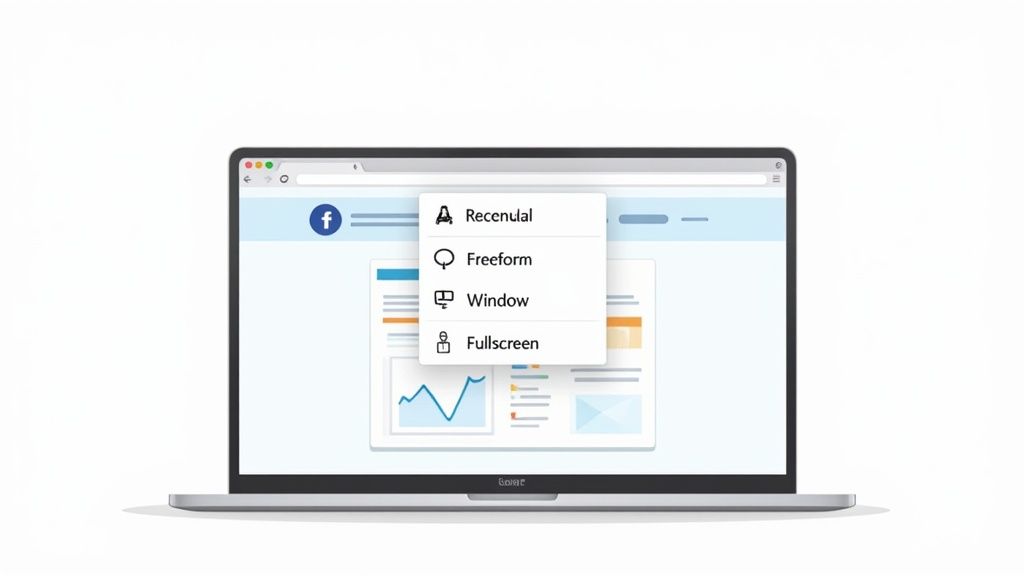
ይህ ትንሽ ዝርዝር ምናምን ነገር ያልሆነ ለአራቱ ጉልሎት ያላቸው የማሳያ ሁኔታዎች በተመለከተ ፈጣን መድረሻ ይሰጣል፣ ስለዚህ ሥራውን ሳያቁ ለተልዕኮው ምርጥ መሳሪያን መምረጥ ይችላሉ።
ስለ አራቱ የ Snipping ሁኔታዎች ተጨማሪ ዝርዝር
እያንዳንዱ ዘዴ ለተወሰነ ስራ የተነደፈ ነው፣ ማለትም በኋላ ለመቆረጥ አለመፈለግ ስለሚያስፈልግዎት ትክክለኛውን ችግር ማግኘት ይችላሉ።
- አርብቶ የተቀረጠ ስልክ/ ይህ ተነሳሽ ነው እና ብዙ ጊዜ የምጠቀመው ይህ ነው። በመስመር ላይ ያለው ቁምጥሮ እንደ የመስመር ሰጭ ይሆናል፣ ያለውንም ቦታ በመጠቅለል ቀይ ማድረግ ያስችላል።
- ነፃ ቅርጽ ስልክ/ ይህ በፈጠራ ላይ ያለ ነው። ማንኛውንም ቅርጽ ማውለድ ይችላሉ፣ በመስመር ውስጥ ያለውን ብቻ ያሳያል። ከተጨፍረ ገጹ ላይ ያለውን የተለየ ቅርጽ ያለው ሎጎ ወይም የተከፈተ ገጭ ማንሳት ተስፋፋ ነው።
- የመስኮት ስልክ/ ይህ ዘዴ በጣም ብል HttpNotFound. በማንኛውም ክፍት መስኮት ላይ ያለውን ቁምጥሮ ብቻ ቀር ያድርጉት፣ ይያሳudeau። አንድ ጊዜ ይጫኑ፣ ይህን መስኮት በትክክል ያሳያል፣ ሌሎችን ሁሉ ሳይቀር ያስቀጥራል።
- ሙሉ ስክ ስልክ/ እዚህ ምንም አይገርምም—ይህ እርስዎን ሙሉ ስክ ያሳያል፣ ልክ እንደ
Windows key + PrtScቀልḍ
ስልክ ከተነሳ በኋላ፣ ምስሉ ወደ ቅንraig ተቀምጧል እና አጭር ማሳወቂያ ይፈታል። ያንን ማሳወቂያ መጫን ድንቅ ዓይነት ነው። ስክን ከእርስዎ የሚያረጋግጥ በመሆኑ በቃ በነጥብ ማብራት፣ ማስተካከል እና ማስቀመጥ ይችላሉ።
ይህ የተቀመጠ ማስተካከያ በጣም ጊዜን ያቀርባል። 2025 መስከረም ጀምሮ፣ Windows 11 በዴስክቶፕ ገበያ ስርቆት 43.22% አለው፣ እና የላመ ስክሪንሻት መሳሪያው ይህን ምክንያት ነው። በእውነትም፣ መረጃዎች 70% ተጠቃሚዎች ለቅጽበታዊ ማስተካከያ ባህሪዎቹ Win + Shift + S ቁልፍ ስርዓትን እንደሚጠቀሙ ያመለክታሉ። በዘመናዊ የክፍል ስራ ዓለማችን፣ በእይታ መግባባት ወሳኝ ነው። ጥሩ ስክሪንሻቶች ውስንነቱን ለማስተንትን ጊዜን እስከ 50% መቀነስ እንደሚችሉ ይገመታል—በዓለም አቀፍ ደረጃ በዓመት 193.6 ሚሊዮን የሚሆኑ ደንበኛ የኮምፒውተር ቁሳቁሶች በመላኩ ያለው ተጽዕኖ በጣም ትልቅ ነው። ስለ ዓለም አቀፍ የመጠቀሚያ ስርዓት ገበያ ስርቆት በ Procurri.com የተጨማሪ መረጃ ማግኘት ይችላሉ .
በ MacBook ስክሪንሻት መያዝ
በ Mac ላይ ከሆኑ፣ ዕድላችን ጥሩ ነው። በ macOS ውስጥ የተቀመጡ የስክሪንሻት መሳሪያዎች ከፍተኛ ተፈጥሮ እና ኃይል ያላቸው ናቸው፣ ከፍራፍር ፕሮጀክቶች እስከ ተቋማዊ ስራ ለማንኛውም ሁኔታ ተስማሚ ናቸው። ስክሪንሻት መያዝ በጣም ፈጣን ነው፣ ማንኛውም Mac ተጠቃሚ ማስታወሻ የሚኖረውን ቁልፍ ስርዓቶችን ተከትሎ ነው።
ይህ ትእዛዝ ለእርስዎ ፍላጎት በትክክል የሚፈልጋቸውን በሚያስፈልጋቸው ጊዜ በቀጥታ ለመቀበል የሚያደርግ መስመር ነው። ከ应用程序 ልብስ ማበርከት አያስፈልግዎም—መሳሪያዎቹ ሁልጊዜ ስለ ቁልፍ ጥቃቅን ብቻ ናቸው.
የእርስዎ ምርጫ MacBook ስክሪንሾት ስHORTCUTS
ያስኬድን በሁለት ዋና ትእዛዞች እንጀምር። በመጀመሪያ Command + Shift + 3 ይሄ ነው። ይህ ትእዛዝ የእርስዎን ሙሉ ስክሪን በፍጥነት ለመቅረፍ ይሄዳሉ። በምትጠቅሙት ጊዜ ማዕከላዊ የካሜራ ድምጽ ይሰማዎታል፣ እና ስክሪንሾት ቅርጿ በንግግር ማስቀመጡ በፊት ጠቋሚ ቅርጿ በወገኑ ይፈጠራል። ሁሉንም አንድ ጊዜ ለመቅረፍ ተስፋፋ ነው.
ለበለጠ ትኩረት ያላቸው ቅርጾች፣ የእርስዎ ጠቅላላ ዘንድ ይሆናል Command + Shift + 4። ይህ ስHORTCUT አይድዎ ወደ ቁልፍ ክሬስሆር ይቀይራል፣ የሚፈልጉትን ትክክለኛውን የስክሪን ክፍል ለመምረጥ እንዲጫኑ ያደርገዋል። እኔ ይህን ሁልጊዜ ለተለያዩ ነገሮች እንደ አንድ አንቀጽ፣ በሪፖርት ውስጥ ያለ ቻርት ወይም በድህረ ገጹ ላይ ያለ ድንቅ ዲዛይን መሰረት ለመለያየት እንጠቀማለን.
ይህ ቀላል መመሪያ ለብዙ ጊዜ የሚጠቅሙ ፍላጎቶች ምን ስHORTCUT መጠቀም እንደሚኖር ለማየት ይረዳችኋል.
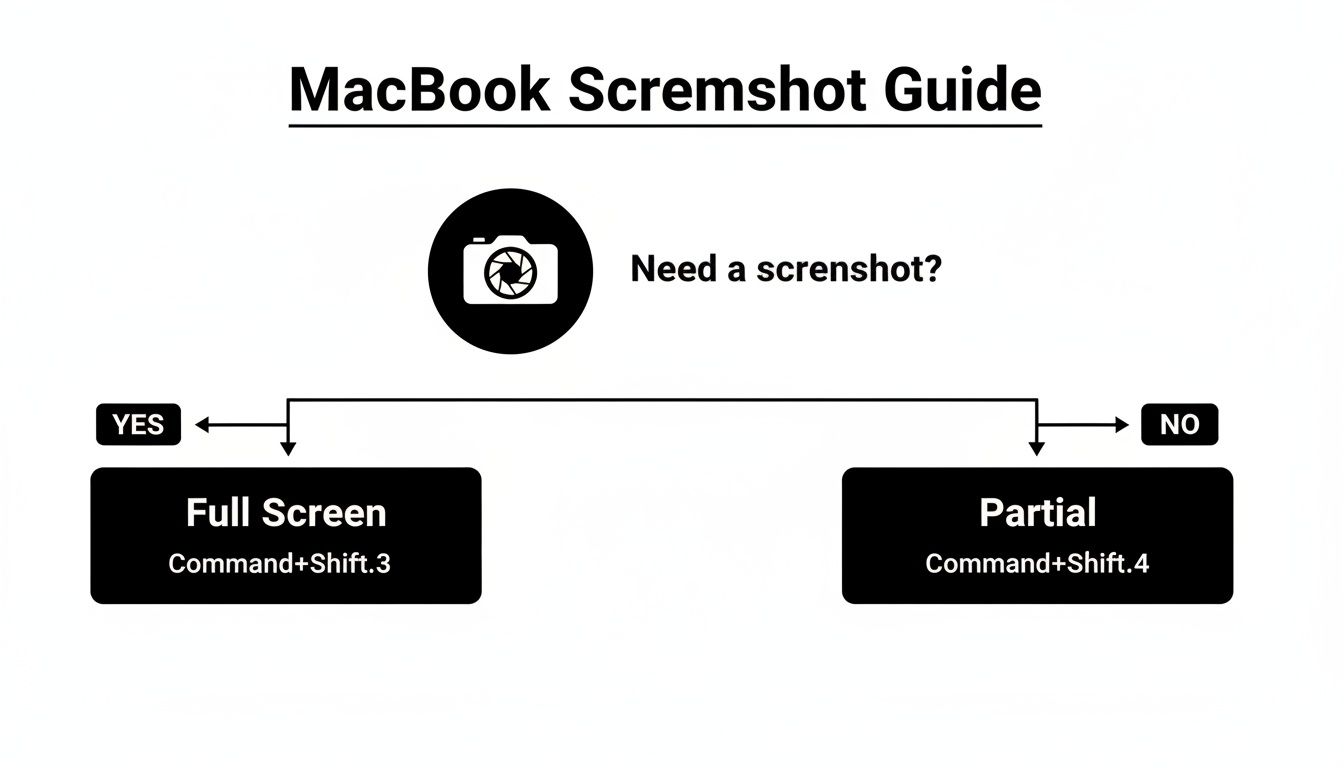
ከቻርታው የሚያሳየው እንደሆነ፣ ምርጫዎ ሙሉ ስክሪን እንደሚፈልጋችሁ ወይም ከእርሷ አንድ ክፍል ብቻ እንደሚፈልጋችሁ ይወሰናል፣ ወዲያውኑ ትክክለኛውን የመፍጫ መልኩን ያሳያችሁልማል።
የመስኮቶችን እና ምናምን ማንቂያዎችን በመምረጥ መቻል
ይህ ምክር እንደ ድብቅ ማዕከለ ስምምነት ይሰማሃል ሲያመለኳችሁ። Command + Shift + 4 ከተነሳ በኋላ፣ የመስመር መቋረጫውን አታጫውትም። በምትኩን የ ስፓስ ባሩ ላይ እንዳይቃ ስንት ሰጥት። መመልከቻዎ በ التعا唑 ሁኔታ ወደ ካሜራ ምልክት ይቀይራል።
አሁን፣ በማንኛውም ክፍት መስኮት፣ ምናምን ወይም በ حتії የ ዳክ ላይ ብቻ ይዘርግቱ፣ እና እሱ ይ选拭ል ይሚታችሁ። አንድ ጊዜ መጫን ያንን ብቻ አካል ይይዛል፣ ከንጹህ፣ በሙያ የሚመሰል የጥላ ጥላ ጋር።
ይህ ዘዴ ጥንታዊ ትምህርት ለማንሳት በጣም ያረጋኛል። መስኮቱን በትክክል ያመለጣል፣ የመጨረሻ ምስሉ በትክክል የተዘጋጀ እና በትኩረት የተሞላ ይሆናል—ምንም ዓይነት አስቀረግሮ ማስወገድ አይፈልግም። ይህ አንድ ትንሽ ዝርዝር ቢሆንም፣ በጣም በልዩ ለውጥ አደርጋል።
የቅጠል ማንሳት መተግበሪያው ኃይል
የፍጠኝ ኪቦርድ አማራጮች ለፈጣን ጥ얌ሶች በጣም ጥሩ ቢሆኑም، ትክክለኛው የ 명령 ማዕከል የቅጠል ማንሳት መተግበሪያው ነው። ይህንን Command + Shift + 5 በመ.struts መግባት ማሳየት ይችላሉ። ይህ በመመልከቻዎ ከታች በሚገኝ ትንሽ መቆጣጠሪያ ፓነል ያመጣል፣ ሙሉ አዲስ የሚሆን የተግባር ደረጃ ይከፍታል።
ይህ በቀላል ፎቶዎች ወገን በላይ እንደመሆኑ ከመጠን በላይ ወደ ከፍተኛ መስኮት ማስገባት የሚችልበት ቦታ ነው። በ መመልከቻ ላይ ያለው መሳሪያ ምድር ለሙሉ መመልከቻ፣ ልዩ መስኮት ወይም ለተመረጠ ክፍል ማንሳት ግልጽ ምልክቶችን ይሰጣል—በትክክል እንደ ኪቦርድ አማራጮቹ።
ግን የቅጠል ማንሳት መተግበሪያው ከዚህ በላይ በጣም ብዙ ነው። ይህ ለ መመልከቻ ቪዲዮ ቀረጽ እና ሌሎች ብዙ የተጠቀሙ ማስተካከያ አማራጮች የማስመลาด በር ነው።
ከፍተኛ አማራጮችን እና የ መመልከቻ ቪዲዮ ቀረጽ መቃኘት
በ የቅጠል ማንሳት መተግበሪያው መቆጣጠሪያ ፓነል ውስጥ፣ የ "አማራጮች" ምናምን ላይ ይ犟ል። ይህ ለ የ ሥራዎ ሂደት ቅርጽ ለመስጠት ተሞክሮውን በ ትክክል ማስተካከል የሚጀምርበት ቦታ ነው።
ያስተካክላችሁ የሚችሉት እነዚህ ናቸው:
- የሰዓት ተሞክሮ አስተካክል: ከስክሪንሾት ከTaken በፊት 5 ወይም 10 ሰከንድ ማህከል መጨመር ይችላሉ። ይህ ምንጊዜም ብርጭቆ የሚታዩ ምንጠቃላይ መረጃዎችን ወይም ሌሎችን በየጊዜው የሚታዩ የመፍጫ ምልክቶችን ለመያዝ ከፍተኛ አገልግሎት ነው።
- የማስቀመጫ ቦታ ቀይር: ከመደበኛነት ላይ ስክሪንሾቶች በወንበር ላይ ይወድቃሉ፣ ይህም በፍጥነት ሊፈርስ ይችላል። መድረሻውን በቀላሉ ወደ ሰነዶች ፎልድር፣ ክሊፕቦርድ ወይም ሌላም ምርጫ ያለን ማንኛውም ቦታ መቀየር ይችላሉ።
- የመዳፊት ጠቋሚ ማሳየት ወይም ማHide ማድረግ: ንጽጽር ያለው መመሪያ ለመፍጠር፣ ጠቋሚውን ማHide ማድረግ ስለሚፈልጉት፣ ይህ ምርጫ በመጨረሻ ምስሉ ውስጥ ታውሃቸው ዘንድ ይደረግልዎታል።
የስክሪንሾት መተግበሪያ ለእንደምር መስлик ብቻ አይደለም። ሁለት ጉልህ የስክሪን የመቅረፍ መሳሪያዎችን ያካትታል። ሙሉውን ስክሪን ወይም የተመረጠውን ክፍል ብቻ መቅረፍ ይችላሉ፣ ይህም ፈጣን የቪዲዮ መመሪያ ወይም የሶፍትዌር ቅር在網路上 በሚሆንበት ጊዜ ማቅረብ በቀላሉ ያደርጋል። መቅረፉን ከተቆማቸው በኋላ፣ ቅርጉ ቆንጆ የሚታይ ይዘት ይወጣል፣ ቪዲዮውን በመቀነስና በማስቀመጥ ያስፈልገዉን ሳይሆን ሌላ መቀየሪያ መተግበሪያ ከመክፈት በፊት ያደርጋል።
የላይ ደረጃ ስክሪንሾት ቴክኒክ እና መሳሪያዎች
መሠረታዊ የሰልፍ ቁልፎችን ከመረጠኩ በኋላ፣ በዕለት ተዕለት አጋጣሚ ድንገት ተገዶ ይሆናቸዋል። የውስጥ መሣሪያዎች በሁሉም ጊዜ በቂ የሆኑ አይደለም። ረቅሞ የሚፈላ ጥቅስ ያለው ዌብ ገጹን ሙሉ በሙሉ መቅረፍ መቻል ከፈለጋችሁ ምን ይፈጠራል? ለአድር ቅርጾች ተማሪዎች፣ ማርኬቲንግ ባለሙያዎች እና ረጅም ዓይነት ይዘትን ለመቅረጽ ሞክርያቸው ለማንኛውም ሰው ይህ ድmanent ችግር ነው።
ይህ አስፈላጊ የሆነው ልዩ ተግባራት ናቸው። ቀላል የስክሪን እርምጃን በእውነቱ ጠቃሚ የሆነ ስለሆነ ትዝታ አቅርባቸዋል፣ ለቃል ኪዳኑ የሚስጥ ተግባራት እንደ ረቅሞ መቅረፍ፣ ዝርዝር ትርጉም ማብ锒ening እና ቀላል የደመና ማጋራት ያቀርባሉ፣ ይህም የስራ ሂደትዎን ሙሉ በሙሉ ያሻሽላል::
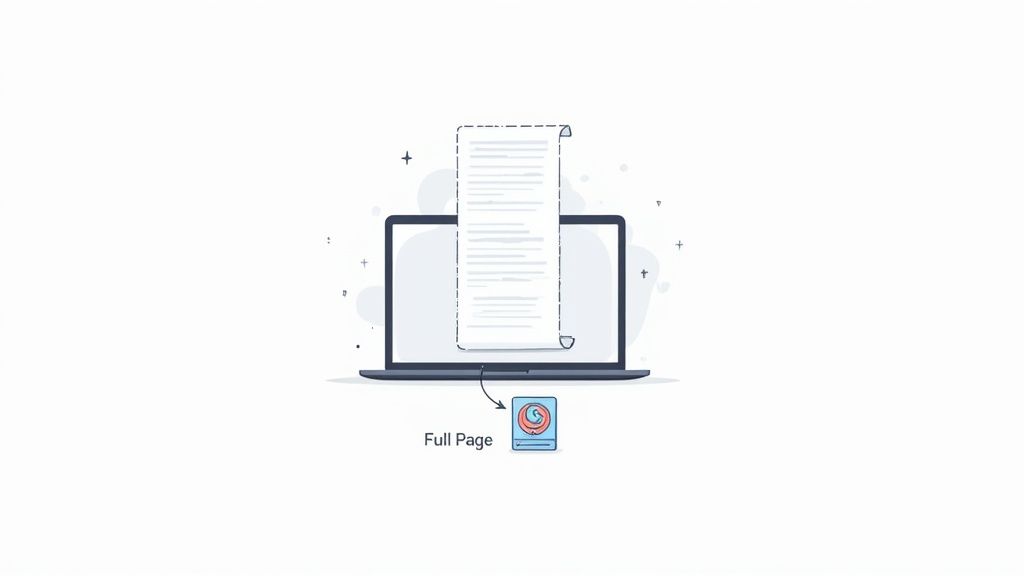
ከላይ ያለው ምስል በቀጥታ የማይታይ ይዘትን መቅረፍ ችግርን በግልጽ ያሳያል - ልዩ መሣሪያዎች በእርግጥ የሚያብሩት ሥራ።
ሙሉ የሚፈላ ገጾችን መቅረፍ
“እንዴት ይህን አደርጋለሁ?” በሚለው መሰረት የሚጠየቁ በጣም የተለመዱ ጥያቄዎች አንዱ ስኮሪንግ ስክሪንሾት መውሰድ ነው። ሙሉ የምርት ገጹን፣ ረጅም ጽሑፍን ወይም ዝርዝር የትንታኔ ዳሽቦርድን ለማስቀመጥ ትሞክራለህ ብለህ አስበ። በብዙ ስክሪንሾቶች ላይ መቀላቀል ብቻ አለመቻል አይደለም፣ ነገር ግን ሁልጊዜ እርምጃ ነው እና በተጨማሪ ችግር ላይ ይመጣል። በግድ እና ሰው የማይደንቅ እንዲሆን ያደርገዋል። በስህተት ላይ ታማኝ በሆነ ሁኔታ፣ በጣም ጥሩ ምርጫዎች አሉን.
እንደ Google Chrome እና Firefox ያሉ በብዛት የሚሄዱ ብራውዘሮች በእርግጥ እነዚህን ችሎታ በdeveloping tools ላይ ይሰርጣሉ። ቻይነቱ እንደሆነ ቢሆንም، ይህ ዘዴ ትንሽ ቴክኒካል ሊሆን ይችላል እና ምንም እንቅስቃሴ ሊያስተናግድ አይችልም፣ ብዙ ጊዜ በምትርጎ መሳፍንት ውስጥ መታየት እና ትክክለኛ ትዕዛዞችን ማስኬድ ይጠይቃል.
በጣም በጣም ቀላል ዘዴ የሆነው የብራውዘር ተጨማሪ መጠቀም ነው። ShiftShift's Full Page Screenshot የምንወዳቸውን ዕቃዎች እንደ አንድ ነገር ብቻ ለማድረግ እና በፍጹም ለማድረግ የተነደፉ ናቸው። በአንድ ጠቅታ ብቻ፣ የመሰረቃቸውን ዌብ ገጹን ከላይ ወዳይ በታች መታየት ይችላሉ፣ በእሱ ላይ በአንድ ቀጥታ እና ድምirkten የሆነ ምስል ሆኖ ማስቀመጥ ይችላሉ። በ频繁 ለመቀመጥ ወይም የዌብ ይዘት ለማካፈል የሚፈልጉት ሰዎች ላይ ያህል ጥቅም ላይ ሊውል ይችላል::
ብርቱ የሆኑ የሦስተኛ ወገን መተግበሪያዎችን መፈለግ
ከብራውዘር ተጨማሪዎች ባልፈጥረው ወደ ውጪ በመመልከት፣ ምስሉን ስለመደበኛነት አስተሳሰብዎን ሙሉ በሙሉ ሊቀይር የሚችል ሙሉ የባህሪዎች ስብስብ የሚሰጥ ልዩ የሦስተኛ ወገን መተግበሪያዎችን ያገኘዋል። እነዚህ መሳሪያዎች ከፈጣን ማንቂያ በላይ ተጨማሪ የሚያስፈልጋቸው ለኃያላናት ተጠቃሚዎች የተሰራሉ::
ይህ ባህሪ ምን ያህን ዋና እንደሆነ ማስታወስ ይመጣል። የወርቅ ዓለም አቀፍ የላፕቶፕ ገበያ በ2023 ዓ.ም. 186.3 ቢሊዮን ዶላር አድርጓል፣ 124.8 ቢሊዮን ዶላር ለባህላዊ ላፕቶፖችና 61.5 ቢሊዮን ዶላር ለ2-በ-1 መሣሪያዎች ተከፋፍሎ ነው። ስክሪን ማንሳት ያሉ ዋና ምርጫ ባህሪያት ለተጠቃሚዎች በጣም አስፈላጊ ናቸው። በ[70.21% የስርዓት አስተሳስር] ተሰልፎ የሚያስተዳድረው Windows ላይ፣ በትንሽ ላፕቶፖች ላይ ተጠቃሚዎች ብዙ ጊዜ Fn + PrtSc ማዕርጂያ ላይ ይ依赖 ነበር። በ2024 ዓ.ም. በአሲያ ተስፋ ቦታ ውስጥ የተደረጉ የብሩህነት ጥናቶች እንኳን Windows + Shift + S መምረጥ ይመርጣሉ ማለት ተጠርጥረው የሚታረዱ መlemnats ከሙሉ የስክሪን ማንሳት ጋር ሲነጻጸር ፋይል መጠን እስከ 60% ድረስ ሊቀንስ ይችላል።
ምዕራፎች በመጠቀም ላይ ሶስተኛ ወገን መተግበሪያዎች በእነዚህ አቅም ላይ ይታያሉ፤ የተቻለ መጠን ለ標準 መሳሪያዎች እንደማይቻል የሚያሳዩ ችሎታዎችን ያቀርባሉ፡፡
- ከፍተኛ ማብራሪያ ማድረጊያ፡ ከቀላል ማድመቂያ በላይ የሚሄድ ነው። ባህላዊ መሳሪያዎችን የሚያስፈልጋቸውን ቀስተኛ አሞቃቶችን፣ የጽሑፍ ሳጥኖችን፣ የሚያደርጉትን ማጠላጠያ መረጃዎችን ያስተካክሉ፣ እንዲሁም በቀጥታ በምስልዎ ላይ ቁጥር ያላቸውን ደረጃዎች ይፍጠሩ::
- የደመና ማጣቀሻ፡ ስክሪንሾትዎችን በአ/autoload ላይ Dropbox ወይም Google Drive እንደሆነ ወዲያውኑ ወደ አገልግሎቶች ይValueCollection ያደርጋቸው እና ወዲያውኑ ለማካፈል ቻይን ወደ ቅንጩ ቅርጾ ይመልከቱ::
- አውቶሜቲክ የስራ ሂደቶች፡ በተወሰኑ ጊዜያት ወይም በተወሰኑ ክፍሎች ለመቃኘት ሥርዓቶችን ያዋህዱ፣ ወይም ውስን ደረጃዎች ያሉ ስብሰብ በመምከር መመሪያዎችን ያዋህዱ::
በጣም ብዙ ሰዎች ከዓመታት ጀምሮ ነባሪ መሳሪያዎችን ብቻ በመጠቀም ላይ ናቸው፣ ስም ማጠፍ ወይም አጥማጆችን መጨመር ያሉ ትንሽ እና ድርብ የሆኑ ሥራዎች ላይ ያሳഴቃሉ ብዙ ጊዜ እንደሚያ丢失 ሳያውቁ። ጥሩ ልዩ መተግበሪያ እነዚህን ድራሶች እንዲቀሉ ያደርጋቸዋል እና በፍጥነት ለአ продуктив ሥራ ሂደት ግድ የሚሆን ክፍል ይሆናል::
አቅም ስላለዎት ጉልል የሆነ መሳሪያ ብትፈልጉ፣ ነፃ Snagit አማካሪ ማየት በጣም ጥሩ መንገድ ነው ፎቶ ማንሳት ሂደትዎ እንዴት የበለጠ ቀልď̈ እንደሚሆን::
ትክክለኛውን ፎቶ ማንሳት መሳሪያ መምረጥ
ስለዚህ፣ ከውስጥ የተሰጡ መሳሪያዎች፣ የብራውዘር ተ_expand ወይም ልዩ መተግበሪያ መምረጥ ይፈልጋሉ? መልስ በትክክል ምን መስራት እንደሚፈልጉ ይወሰናል ። ለአጭር ጊዜ አንድ ጊዜ ለማንሳት ምርጡ ምርጡ ናቸው ። ለድር የተወሰኑ ሥራዎች፣ የብራውዘር ተ_expand ተጋላጣይዎ ነው ። ነገር ግን ፎቶ ማንሳት በዕንደት ዕለት ተወካዮች የተለመዱ ለሆኑ ሁሉም ሰዎች፣ ሙሉ በሙሉ የተቀመጡ ሦስተኛ መሳሪያ የተሻለ ዕድሜ አለው::
ምርጫውን ቀላል ለማድረግ، እነዚህ መሳሪያዎች እንዴት እንደሚመሳሰሉ በአጭровት ይመልከቱ::
የመဓረት መሳሪያዎችን ማነጻጸር
| ባህሪ | የትስስር መሳሪያዎች (Snipping Tool, macOS Screenshot) | የብራውዘር ማሰliers (ለምሳሌ: ShiftShift) | የሦስተኛ ወገን መተግበሪያዎች (ለምሳሌ: Snagit, Greenshot) |
|---|---|---|---|
| የመታጠብ መቅረጽ | የማይገኝ ነው | ለድር ገጾች ልዩ ነው | አዎ፣ ለመተግበሪያዎች እና ለድር ገጾች |
| የላይ የሚሄድ ማስተካከያ | መሠረታዊ (ብሩሽ፣ ማብቂያ) | ለመሠረታዊ ቅርጾች እና ቃላት ብቻ የ 제한 ነው | ዝርዝር (ማደብከት፣ ደረጃዎች፣ ጥሪ ብ댜ሮች፣ ተጽዕኖዎች) |
| ቪዲዮ ማቅረጽ | መሠረታዊ (macOS ብቻ) | በተለይ አይካት የለውም | ማስተካከያ ያለው የላይ የሚሄድ ባህሪዎች |
| በመנן መጋራት | በእጅ መጫን ያስፈልጋል | ማንኛውም ጊዜ ሊኖር ይችላል | በውስጡ የተቀመጠ እና በራስ-ሰር ማገናኛ ያለው |
| የስራ መርሆ ማሳሰሻ | ምንም የለም | ምንም የለም | አዎ፣ በቅድመ ማሰሪያዎች እና በ-custom presets |
| ለምን ጥሩ ነው | ፈጣን፣ ቀላል ማጠቃለያዎች | ሰዎች ገጾችን በፈጣነት ለማንሳት | ሙያዊ መመርከቻዎች፣ የችግር ሪፖርቶች፣ በየቀኑ አገልግሎት |
በመጨረሻም፣ ዓላማው ስክሪንሾቶችዎ ለእርስዎ ይሠራጡ ነው። ትክክለኛውን መሣሪያ በመጠቀም፣ ገዥ ዕትሞች ሆነው መቆየት ይቆርጣቸዋል፣ እና ግልጽ፣ ተግባራዊ እና ኃያላዊ የመግባቢያ ንብረት ይሆናቸዋል.
በ ChromeOS እና Linux ዋና ሰ компьютеры
ተጨማሪ ምክንያቶችን ሳይቀር ለማየት እንሞክር። ዋዜና ማክ ብዙ ጊዜ በማብቂያ ቢኖሩም፣ ብዙ ሰዎች ዲጂታል ህይወታቸውን በክሮምቡክ እና በተለያዩ የሊ눅ስ አይነቶች ላይ ነው የሚኖሩት። ጥሩ ዜና? በነዚህ ስርዓቶች ላይ ስክሪንሾት ማንሳት በቀላሉ ይቻላል፣ ከuxe በፊትም አንዳንድ ወሰን ተጨማሪ ምቹ ነው።
ክሮምቡክ ከምትጠቀሙበት ጊዜ፣ ሙሉ ተሞክሮው በፍጥነት እና በቀላሉ ላይ የተመሰረተ መሆኑን ያውላላችሁ። ስክሪንሽotch ማውደም ከዚህ ልዩ አይደለም። ከምኩ በኋላ መፈለግ አይፈለግም፤ ሁሉም ነገር በጥቂት የፍጥነት የመተየቢያ ቁልፎች ላይ ይመሰረታል።
በክሮምቡክ ላይ ስክሪንሾት እንዴት ይመሳሳል
ከማክ ተጠቅሞ ከተሞክረ ቢሆን በክሮምቡክ ላይ ስክሪንሽotch የማውደም ሂደት ተamiliar ይመስላል፣ ነገር ግን የተለየ ዕቅድ አለው። ሁሉም ነገር ቁልፍ Show Windows ቁልፍ ነው — ከስምንት በስተቀኝ ያለ አራት ማዕዘን የሚመስለው፣ F5 ሊኖርበት የሚገባ ቦታ ላይ ያለው።
ሁልጊዜ የምትጠቀማቸው ሁለት አ쇖ላፎች እነዚህ ናቸው)
- ሙሉውን ስክሪን ለማውደም) ንካ Ctrl + Show Windows. ፈጣን ፀብ ታያላችሁ፣ እና ስክሪንሽoch ተቀምጧል ብሎ ማስታወቂያ ይነሳል።
- የተወሰነ አካባቢን ብቻ ለመያዝ፡ ይጠቀሙ Ctrl + Shift + Show Windows። የเabor鼠标 መምልከትዎ ወደ ክሮስህር ይለዋወጣል። ያስፈልግዎን በትክክል የምስክር ቅርጹን ለመምረጥ ጠቅ በማድረግ ይጎትቱ።
ማንኛውንም ጥቂት ወይም የሚፈልጋቸውን ቢያዙ በማድረግ ChromeOS በፍጥነት ይጠብቃቸዋል በእርስዎ "አውርዎን ቻጎች" በመጠቀም የሚመቸ ቦታ ነው። ትንንሽ ማሳወቂያ በዚያ ቀልድ ላይ ያለው በጣም ጠቃሚ ነው፣ በቀጥታ ወደ ቻጎቹ ማስተ䢓ር ወይም ገጹን ወደ ቅርጽ በመስራት ወደ ሌላ Google Doc ወይም ኢሜይል መ貼黏 ያስችላል።
አንዳንዴም Ctrl + Shift + Show Windows በመጠቀም በተጨማሪ የምትጠቀሙበት ምክንያት በጣም የጊዜ ቆይታ ነው። ከዚያ በኋላ ሙሉ ስክሪን ገጹን መቀረጽ የሚፈልጉትን ያስወግዳል፣ ይህም የእርስዎን "አውርዎን ቻጎች" ከውድድር ማፍረስ ይከላከላል። ለስራ ሂደትዎ ትንሽ ማስተካከያ ታላቅ ለውጥ ያመጣል።
ለቀላል ማስተካከያ ያለው ገጹ በጣም ጥሩ ነው። ሌላ መተግበሪያ አለማግኘት በፍጥነት መቀረጽ ወይም ማዞር ወይም ችላታ ማድረግ ይችላሉ።
በሊ눅ስ ዓለም የስክሪን ማሳወቂያዎችን ማሰረዝ
ሊ눅ስ ስለ ምርጫ ነው፣ እና ቅጽበቱ ለስክሪንሾት መውሰድም እንደዚህ አይነት ይሆናል። ትክክለው ዘዴ በልዩ መልኩ ከተለያዩ የistribution (እንደ Ubuntu ወይም Fedora) እና የዴስክቶፕ አከባቢያት (GNOME፣ KDE፣ ወዘተ) ሊለይ ይችላል። ግን አይፈሩም። የዕለት ተዕለት የሚሠሩ ብዙ ሊ눅ስ ቅርጾች ከመ Chow ውጭ ሌላ አይምር መሳሪያ ያቀርባሉ.
ለምሳሌ፣ በተወካይ ስርዓት ላይ ከሆኑት ውስጥ አንዱን ከመረጥክ፣ የGNOME ዴስክቶፕ በሚሠራበት፣ መሳሪያው በቀላሉ "ስክሪንሾት" ይባላል። በመተግበሪያዎች ዝርዝር ውስጥ ማግኘት ብቻ ይችላሉ፣ እና ዝግጁ ነዎት.
የGNOME የስክሪንሾት መሳሪያ መጠቀም
የስክሪንሾት መተግበሪያውን በከፍታ በዚህ ጊዜ፣ ከጥቂት ምርጫዎች ጋር ትናንትና የሚታይ አጫጭር መስኮት ይመለከታሉ። ምንም አድናቆት ሳይኖረው እና ለእርስዎ ያስፈልግዎትን ቅጽበት በትክክል ለማድረግ የተነደፈ ነው.
በዚህ ምን ማድረግ ይችላሉ፡
- መመልከቻ፡ የሙሉ ዴስክቶፕዎን፣ በርካታ ማስያዣዎችንም በመካከል ፎቶ ይይዛል.
- መስኮት፡ በልዩ መተግበሪያ መስኮት ላይ ጠቅ በማድረግ ብቻውን ያህል ይይዛል.
- ምርጫ፡ መመልከቻ ቀስትዎን እርስዎ ማንኛውንም ቦታ ለመጠቀም ባዶ ለመሳብ መሳሪያ ይሆናል.
የአንዱ በቂ አይደለም የተባለ ባህሪው የ nội ግን ግን በውስጥ የተሰራው መቀየር ነው። እኔ ይህን ሁልጊዜ እጠቀማለሁ። የንክፍል ምድር ወይም የመሳብ ሁኔታን መቅረፍ ከፈለጋችሁ፣ 5 ወይም 10 ሰከንዶች መቀየር በቂ ጊዜ ይሰጣችሁ ሁሉንም ነገር በትክክል በመቀመጥ ላይ ሳለ ፎቶው እንዲያዝ። ለማስተማር መመሪያዎች ወይም ቴክኒካል መመሪያዎች የሚሰራ ማንኛውም ሰው ለህይወት ነው።
በተጨማሪም፣ ይህ Linux ነው፣ ስለዚህ ለኃያላን ተጠቃሚዎች ሁልጊዜ የ커ማንድ-ላይን ምርጫ አለ። ይህን ለማድረግ የተለመደው ቀላል መሳሪያ scrot ነው። ቴርሚናሉን ክፈቱ scrot my-screenshot.png በፍጥነት ያስገቡ፣ ወዲያውኑ ሙሉ ስክሪን ፎቶ ይቀመጣል። ይህ ዘዴ ለስክሪፕቲንግ ተስፋፋ ነው፣ ተሟሪተኛዎችን እና የስርዓት አስተዳደሮችን የስክሪን መቅረፎችን በكبر የሥራ ሂደት ውስጥ ማስተሳሰር ያደርጋቸዋል።
የተለመዱ የስክሪን ፎቶ ችግሮችን መፈረጅ
ስለዚህ የስክሪን ፎቶ መቅረፍ ተሞክሬያችሁ፣ እና... ምንም አልተከሰተም። ይህ በትልቁ የተለመደ ግጭት ነው። ስለዚህ ብዙ ተሰማብቶኛል፣ በተጨማሪም ከWindows ተጠቃሚዎች በተለይ Print Screen (PrtSc) ቁልፉ ሙሉ በሙሉ ተቀጥሯል የሚለው ነው።
መጋረጃ አታፍ碌ም! በአብዛኛው የስራ ሕርጎ አይደለም። በብዙ ዘመናዊ የላፕቶፕ ስብስቦች ውስጥ ያውን ቁልፍ ምርጫ አለው። ሌላ ምንም ከመግባትዎ በፊት፣ እባክዎን Fn ቁልፉን ይጠንቅቀው ቆይተው PrtSc ይንኩ። ይህ መት電子郵件 ለዋናው ተግባር ብዙ ጊዜ ያስፈልጋል።
ይህ ካልሆነ ፣ ሌላ የሚችል ችግር የስራ ስርዓት ውስጥ ያለ መተግበሪያ ሊሆን ይችላል። OneDrive ወይም Dropbox ያሉ የዕለት ተዕለት መረጃ ማጋራት አገልግሎቶች ማሳያ ቅርጾችን በቀጥታ ወደ ፋይል ቅርጾቻቸው ለማስቀመጥ በራስ-ሰር ለ"ረዳትነት" ፍላጎት አላቸው። የቅርጽ መለያ ውስጥ ገብተው በፍጥነት ይህን ማጥፋት እና ቁልፍዎን በድጋሚ ማግኘት ይችላሉ።
ምር臺南 ቅርጽዎ ጥቁር ስክሪን ብቻ ሆኖ የሚቀጥፈው ምክንያት
Netflix ትሮም ለመቀረጥ ወይም በመጫወቻ ውስጥ ልዩ ጊዜ ለመያዝ የሞከሩ ልብ አይስጡም ፡ ጥቁር ስQUARE ብቻ የሚወስድ ልዩ ቅርጽ ይወስዳል? ይህ የተለመደ ችግር ነው ፣ እና ሁልጊዜ የሚነሳው የስራ ሕርጎ ፍጥነት.
በመሠረቱ፣ በራስዎ ብራውዘር ወይም በጫውን የነፃ እንቅስቃሴ ለማድረግ የሚያስፈልገውን ድንግርግ ይጠብቃል—ወዲያውኑ ለሚያስከፍለው ግራፍክስ ቅርጽ ለመቀረፍ ምክንያት የቀረበውን ጥረት በቀጥታ ለ专用 ግራፍክስ ካርድ (GPU) ይከፍላል። ዋናው ጉድጓድ ግን ይህ ቀጥታ መንገድ ብዙ ጊዜ ስክሪንሾት መሳሪያዎ መያዝ የሚሞክረውን ዋናውን ስርዓት ያለማቀፍ ነው።
ቀላል መፍትሔው፡ ወደ ብራውዘርዎ ማስተካከያ በቃ (ብዙ ጊዜ በ'ስርዓት' ወይም በ'ከፍተኛ' ስር ይገኛል) እና በቃል ቅጽበት የሆነውን hardware acceleration አቋምሽ። ስክሪንሾትዎን ይወስዱ፣ ከዚያም ቪዲዮዎችን እና ምንጮችን ለመቀ bezpo እንደገና ማብራት አይርሱ::
ድብልቅ ወይም ዝቅተኛ ጥራት ያላቸውን ስክሪንሾቶች መፍትሔ ማድረግ
ይህ በጣም አፋፍ ይሆናል። ስክሪንሾት ይወስዱ፣ በስክሪንዎ ላይ ግልጽ ይታያል፣ ግን የተቀመጠው ፋይል ድብልቅ፣ ጉንግስตา ወይም በመታቀል ዝቅተኛ ጥራት ነው። ምን ነው የሚያመጣው؟
ከ十佳 አንድ ጊዜ ይህ የመ顯示 መጠን ማስተካከያ ችግር ነው። ከፍተኛ ጥራት ያለው ስክሪን ያለው ዩላፕቶፕ ካለዎት፣ የስርዓት አሰራርዎ ሁሉንም—ጽሑፍ ምልክቶችን፣ መስኮቶችን—በከፍተኛ ስሌት እየሰፋ ይሆናል 125% ወይም 150% ስለዚህ በመስኮት ያልብጡ ስለሚሆን በግልጽ ማንበብ ይችላሉ።
አንዳንድ ጊዜ፣ የማንሳት መሳሪያዎች ከዚህ ግራ ይጠብቃቸዋል። ምናምን ምስሉን በ"እውነተኛ" ያልተመጠነ ሪዞሉሽን ይይዙ፣ እሱም በሚያይበት ጊዜ ፒክሰላት ይመስላል.
የመጀመሪያው እርምጃዎ የመ_display ቅንብሮችን መመርመርና ስክሪንዎ በተፈጥሮ ካለው "አመለካከት" ቪዞሉሽን ላይ እንደተቀናበረ ማረጋገጥ መሆን አለበት። ከዚህ በተጨማሪ የግራፉክስ �ራይቨር ማዘመኛ መፈተሽም ይጠቅማል፤ ያልተዘመኑ ሪላይቨሮች የማንሳት ጥራትን የሚffect ዓይነት ያሉ አደገኛ ስለ መርሐግብር ስህተቶች ሊያስከትሉ ይችላሉ.
ስለ ማንሳት ጥያቄዎች አሉዎት? መልሶች አሉን ብለዋል
ሁሉንም ማስ NSCoder እና መሳሪያዎች ቢኖሩም፣ በላፕቶፕዎ ላይ ማንሳትን ለመ驾驭 ሲሞክሩ ጥያቄዎች ሁሌም ይነሳሉ። ዝርዝር እነዚህ በጣም የሚገርሙ ጥያቄዎችን አሁን እንፈቱ።
ማንሳቴ በ默认 ወዴት ይሄዳል?
ይህ ምናምን የምሰማው ቁጥር አንድ ጥያቄ ነው። ላፕቶፕዎ እነዚህን ፋይሎች ወዴት እንደሚደብቅ ቀላል ነው ማድረግ::
በ Windows ማሽን ላይ፣ Win + PrtSc የቃል ማስተካከያ ሲሠሱ ማንሳትዎ በተፈጥሮ በተዘጋጀ ፋይልდር ውስጥ ይቀመጣል። ያገኙዋቸዋል በ Pictures > Screenshots.
ከ Macበሆነ ስርዓት ላይ ከሆኑ፣ ነገሮች በጣም ቀላል ይሆናሉ። ስክሪንሾቶዎችዎ በቀጥታ በডেስክቶፕዎ ላይ ይታያሉ፣ ለመጠቀም ዝግጁ ሆነው።
ለ Chromebook ተጠቃሚዎች፣ የእርስዎ ማንበቢያዎች በአቀናብሮ በ&rquot;Downloads&rquot; ፎልደር ውስጥ ይቀመጣሉ።
አንድ መስኮትን ብቻ እንዴት ማንበብ እችላለሁ?
ሙሉ ስክሪንዎን መያዝ እንደ አስፈላጊ ባይኖር ሊሆን ይችላል። አንድ ፕሮግራም ወይም መስኮትን ብቻ ማንበብ በሚፈልጉበት ጊዜ፣ ይህን ለማድረግ በጣም ግልጽ የሆነ መንገድ አለ።
በ Windows ላፕቶፕ ላይ፣ እርስዎ ማድረግ የሚፈልጉትን መስኮት ለመስራት ጠቅ ያድርጉ፣ ከዚያም ይጫኑ Alt + PrtSc. ይህ በትክክል የተሳካ ፎቶ ይወዳదራል በዚህ መስኮት ብቻ ወደ ቅርጽ በ利用您的 ትምህርት ላይ።
በ macOS፣ ስሎት የሚቀጥለው ነው Command + Shift + 4። ኮርሮሮሮህ ወደ ጭረት መስመር ይቀይራል፣ ግን አይንቀስም። በምትክ老乡 የሚያስፈልግህን ብቻ አድርግ። spacebar. በቃ ምልክቱ ወደ ካሜራ ምልክት ይለዋወጣል። አሁን ማንኛውንም መስኮት ለመያዝ በቀላሉ ማንኛውንም መስኮት ላይ ማንሳት ይችላሉ።
እርግዝኛ ሁን፣ ሙሉ ስክሪንን በመ抓取 ከዚያም በትብብር በመቁረጥ የሚሰሩ ሰዎችን በየጊዜው እማየቸዋለሁ። የንቃት መስኮት መፍጫ ቁልፍ መማር ለእርስዎ ብዙ ጊዜ ይ tiết ይሰጣል፣ በተለይ ሪፖርት ወይም መመሪያ ዳይሬክቶሪ በማሰራት ላይ ከሆነ.
ስክሪንሾችን ወዲያውኑ ማስተካከል ይችላለሁ?
እርግኝታ አለው። ዘመናዊ የመሠረት ስርዓቶች ለእንደዚህ ዓይነት ፈጣን የስራ ፈሳሽ ይሰራሉ።
በእርምጃ ሁለቱም Windows እና macOS ላይ፣ ስክሪንሾ ከተወሰዱ በኋላ ትንን ቅርጽ በምትሆነው ቅጽበት ላይ ምስል ቅድመ እይታ ይታያል። አይተወትም! ያንን ቅርጽ በመግ砺 ወዲያውኑ ቀላል ነገር ግን ውጤታማ የሆነ መቀየሪያ ይከፈታል.
ይህ በፍайл በቃል በመቀየስ ከመሆኑ በፊትም መቀጠፍ፣ መሳብ፣ ቀስቶችን መጨመር ወይም ወሳኝ ክፍሎችን ማድመቅ ይችላል። ፈጣን ማስታወሻዎችን መጨመር ወይም ነገር ማሳየት ያስደስተኛል።
በእርግም እርምጃ ለመስራት ተጨማሪ ኃይል ከፈለጉ፣ ተጨማሪ የላ住房和城 ባህሪያት ያቀርባሉትን በርካታ ጠንካራ ስክሪንሾ መሣሪያዎች እና መረጃ መስጫዎች ማሰስ ሁልጊዜ ይችላሉ.