CSV से Excel कनवर्टर: बेदाग डेटा के लिए त्वरित उपकरण
CSV को Excel में परिवर्तित करने के लिए सबसे अच्छे विकल्प खोजें, त्वरित ब्राउज़र उपकरणों से लेकर शक्तिशाली स्क्रिप्ट तक, जो स्प्रेडशीट में डेटा को बिना किसी त्रुटि के प्रस्तुत करते हैं।
अनुशंसित एक्सटेंशन

यदि आपको CSV को Excel प्रारूप में प्राप्त करने का सबसे तेज़ तरीका चाहिए, तो एक स्थानीय, ब्राउज़र-आधारित टूल आपके लिए सबसे अच्छा विकल्प है। ShiftShift के CSV→XLSX कनवर्टर जैसा एक्सटेंशन एक साधारण कीबोर्ड शॉर्टकट के साथ तुरंत काम कर सकता है, जिससे आपके डेटा को अपलोड किए बिना सामान्य फ़ॉर्मेटिंग की समस्याओं से बचा जा सकता है।
CSV को Excel में बदलना एक मुख्य डेटा कौशल क्यों है
अपने मूल में, एक CSV फ़ाइल बहुत सरल है—यह केवल सादा टेक्स्ट है। यह सार्वभौमिकता इसे विभिन्न प्रणालियों के बीच डेटा को स्थानांतरित करने के लिए एकदम सही बनाती है, लेकिन जब आपको वास्तव में जानकारी के साथ काम करने की आवश्यकता होती है तो यह इसकी सबसे बड़ी कमजोरी भी है। एक कच्ची CSV फ़ार्मूला, चार्ट, कई शीट, या किसी भी प्रकार की गतिशील फ़ॉर्मेटिंग को संभाल नहीं सकती है। यह स्थिर है, और स्पष्ट रूप से, अक्सर एक गड़बड़ होती है।
यही कारण है कि CSV को XLSX फ़ाइल में बदलना इतना महत्वपूर्ण पहला कदम है। वह सरल परिवर्तन Excel के पूरे विश्लेषणात्मक टूलकिट को अनलॉक करता है। अचानक, आप पिवट टेबल बना सकते हैं, रुझानों को विज़ुअलाइज़ कर सकते हैं, और सार्थक अंतर्दृष्टि प्राप्त करने के लिए जटिल फ़ार्मूला लागू कर सकते हैं। अनगिनत पेशेवरों के लिए, यह रूपांतरण केवल एक तकनीकी कार्य नहीं है; यह उनके पूरे वर्कफ़्लो के लिए शुरुआती बिंदु है।
कच्चे डेटा से कार्रवाई योग्य अंतर्दृष्टि तक
मान लीजिए कि आपने अभी-अभी अपने CRM से एक बड़ी बिक्री रिपोर्ट निकाली है। यह आपके डेस्कटॉप पर एक CSV के रूप में आती है, और आपका बॉस चाहता है कि आप पिछली तिमाही से सबसे अच्छा प्रदर्शन करने वाले क्षेत्रों की पहचान करें। अपने कच्चे टेक्स्ट प्रारूप में, यह केवल वर्णों की एक दीवार है। लेकिन जैसे ही आप इसे परिवर्तित करते हैं, आप काम पर लग सकते हैं:
- कुल और औसत की गणना करें: सेकंड में अपने प्रमुख मेट्रिक्स प्राप्त करने के लिए
SUMयाAVERAGEका उपयोग करें। - प्रदर्शन को विज़ुअलाइज़ करें: एक त्वरित बार चार्ट क्षेत्रीय बिक्री की तुलना को सहज बनाता है।
- फ़िल्टर और सॉर्ट करें: विशिष्ट उत्पादों या समय-सीमा के लिए डेटा को आसानी से अलग करें।
- पेशेवर रिपोर्ट साझा करें: अपने निष्कर्षों को एक पॉलिश, आसानी से पचने वाली रिपोर्ट में पैक करें।
यह निर्णय लेने का प्रवाह दिखाता है कि आप अपनी तत्काल आवश्यकताओं के आधार पर सही रूपांतरण विधि कैसे चुन सकते हैं।
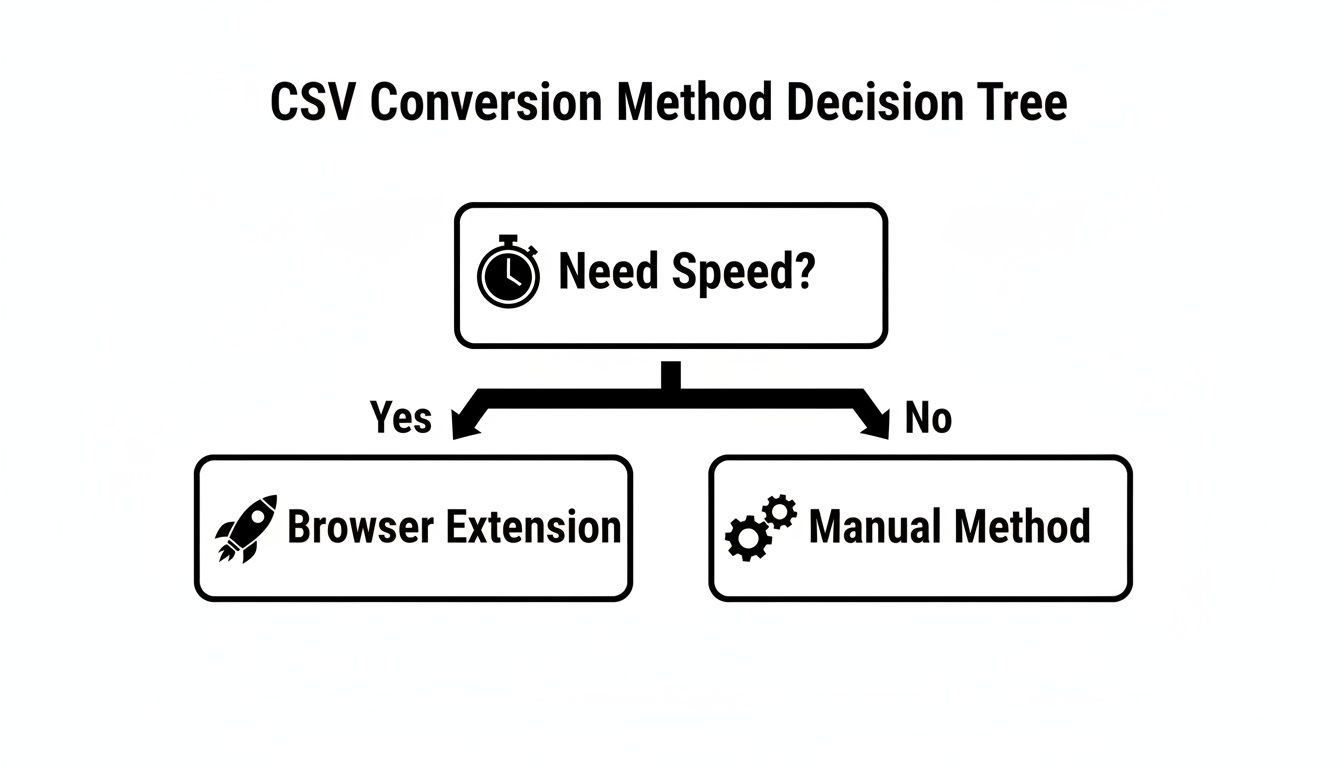
जैसा कि आप देख सकते हैं, जब गति खेल का नाम है, तो एक समर्पित ब्राउज़र एक्सटेंशन एक कच्ची फ़ाइल से उपयोग के लिए तैयार स्प्रेडशीट तक सबसे सीधा रास्ता प्रदान करता है।
अपनी CSV को Excel रूपांतरण विधि चुनना
यह तालिका आपको उन रूपांतरण विधियों का एक त्वरित स्नैपशॉट देती है जिन्हें हम कवर करेंगे, ताकि आप तुरंत देख सकें कि कौन सा दृष्टिकोण गति, डेटा गोपनीयता और तकनीकी आराम स्तर के लिए आपकी आवश्यकताओं के अनुरूप है।
| रूपांतरण विधि | इसके लिए सबसे अच्छा | गति | गोपनीयता | तकनीकी कौशल |
|---|---|---|---|---|
| ब्राउज़र एक्सटेंशन | गति, सुविधा, और बैच प्रोसेसिंग | तत्काल | उच्च (स्थानीय प्रसंस्करण) | शुरुआती |
| Excel/Google Sheets | एक-बार की फ़ाइलें, परिचितता, और बुनियादी समायोजन | तेज | उच्च (स्थानीय ऐप) | शुरुआती |
| कमांड-लाइन उपकरण | स्वचालन, बड़ी फ़ाइलें, और स्क्रिप्टिंग वर्कफ़्लो | बहुत तेज | उच्च (स्थानीय प्रसंस्करण) | मध्यवर्ती |
| स्क्रिप्टिंग (Python) | कस्टम प्रोसेसिंग, जटिल तर्क, और एकीकरण | तेज | उच्च (स्थानीय प्रसंस्करण) | उन्नत |
प्रत्येक विधि का अपना स्थान है, और समय से पहले फायदे और नुकसान जानने से बहुत सारी निराशा बच जाती है।
बिजनेस एनालिटिक्स में Excel का प्रभुत्व
इस कौशल का महत्व व्यापार जगत में Excel की अटूट स्थिति से ही बढ़ जाता है। Microsoft Excel वैश्विक स्प्रेडशीट सॉफ्टवेयर बाजार में आश्चर्यजनक 45% बाजार हिस्सेदारी रखता है, जिससे प्रतिस्पर्धी बहुत पीछे छूट जाते हैं।
यह कोई आश्चर्य की बात नहीं है, कि फॉर्च्यून 500 कंपनियों में से 70% से अधिक दैनिक डेटा विश्लेषण के लिए Excel पर निर्भर करती हैं, जिनमें से अधिकांश डेटाबेस, SaaS प्लेटफॉर्म या API से खींचे गए हल्के CSVs से शुरू होते हैं। इस रूपांतरण में महारत हासिल करना केवल एक फ़ंक्शन सीखने के बारे में नहीं है; यह किसी भी डेटा-संचालित भूमिका में एक मौलिक क्षमता है। आप इन बाजार गतिशीलता के बारे में अधिक जान सकते हैं यह देखने के लिए कि यह कौशल इतना महत्वपूर्ण क्यों बना हुआ है।
संक्षेप में, CSV को Excel में बदलना कच्चे, स्थिर जानकारी को विश्लेषण के लिए एक गतिशील कैनवास में बदलने का कार्य है। यह रुझानों को उजागर करने, पूर्वानुमान लगाने और अंततः, सूचित व्यावसायिक निर्णय लेने के लिए शुरुआती बिंदु है।
सबसे आसान तरीका: एक ब्राउज़र-आधारित कनवर्टर
जब आपका वर्कफ़्लो पूरी तरह से गति के बारे में होता है, तो आयात विज़ार्ड के साथ जूझना आखिरी चीज है जो आप करना चाहते हैं। यदि आपको सेकंड में एक कच्ची CSV से एक साफ, उपयोग करने योग्य Excel स्प्रेडशीट तक पहुंचने की आवश्यकता है, तो एक समर्पित ब्राउज़र-आधारित कनवर्टर आपका सबसे सीधा मार्ग है। यह दृष्टिकोण सभी अतिरिक्त चरणों को हटा देता है और आपको उस टूल के अंदर काम करने देता है जिसे आपने पहले से ही पूरे दिन खुला रखा है—आपका ब्राउज़र।
ShiftShift CSV→XLSX एक्सटेंशन इसका एक आदर्श उदाहरण है। इसे एक-क्लिक समाधान के रूप में बनाया गया है जो आपके स्थानीय मशीन पर ही सारा काम करता है। क्योंकि यह एक एक्सटेंशन है, आपका संवेदनशील डेटा कभी भी सर्वर पर अपलोड नहीं होता है, जिससे आपको डेस्कटॉप ऐप की सुरक्षा के साथ एक ऑनलाइन टूल की सुविधा मिलती है।
बुद्धिमान रूपांतरण जो बस काम करता है
जो वास्तव में एक आधुनिक csv to excel converter को चमकाता है, वह डेटा फ़ाइलों के साथ आने वाली सामान्य समस्याओं को स्वचालित रूप से संभालने की उसकी क्षमता है। ShiftShift एक्सटेंशन को विशेष रूप से उन समस्याओं को हल करने के लिए डिज़ाइन किया गया था जो मैन्युअल आयात को बाधित करती हैं।
मान लीजिए कि आपने अभी-अभी एक CRM से एक बिक्री रिपोर्ट निर्यात की है, लेकिन यह मानों को अलग करने के लिए अल्पविराम के बजाय अर्धविराम का उपयोग करती है। सीमांकक को मैन्युअल रूप से निर्दिष्ट करने के लिए Excel के आयात विज़ार्ड में खुदाई करने के बजाय, आप इसे एक्सटेंशन के माध्यम से चलाते हैं। यह बुद्धिमानी से सही का पता लगाता है—चाहे वह अल्पविराम, अर्धविराम, या टैब हो—और पहली कोशिश में ही कॉलम को सही कर देता है।
यह स्क्रीनशॉट दिखाता है कि ShiftShift कनवर्टर कार्रवाई में कितना सरल और साफ है।
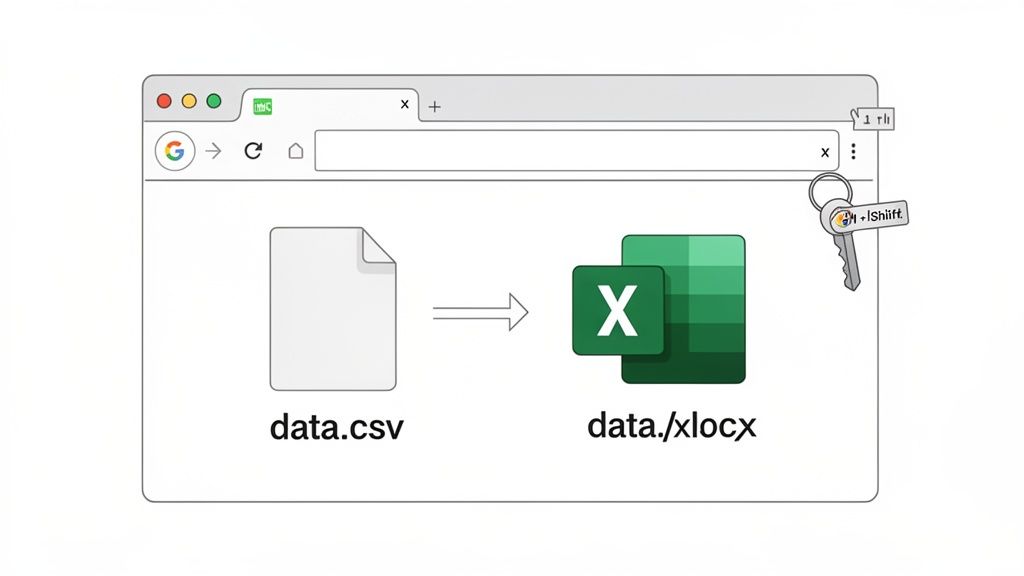
जैसा कि आप देख सकते हैं, टूल एकल या कई फ़ाइलों को सीधे ब्राउज़र में एक सहज, तत्काल कार्रवाई में परिवर्तित करता है।
यहां वास्तविक लाभ घर्षण को दूर करना है। एक स्मार्ट कनवर्टर आपको डेटा की समस्याओं को हल नहीं करवाता है; यह उनकी उम्मीद करता है और उन्हें आपके लिए ठीक करता है। यह बहुत समय बचाता है और उन परेशान करने वाली फ़ॉर्मेटिंग त्रुटियों को होने से पहले ही रोकता है।
2020 के बाद से विश्वसनीय डेटा टूल की आवश्यकता में भारी वृद्धि हुई है। Google Trends डेटा 2020 की शुरुआत से 2023 में अपने चरम तक 'CSV to Excel' के लिए वैश्विक खोजों में भारी 320% की वृद्धि दिखाता है। यह आश्चर्य की बात नहीं है जब आप मानते हैं कि 92% डेटा विश्लेषक CSV को अपना शीर्ष आयात प्रारूप कहते हैं, फिर भी उनमें से आश्चर्यजनक 68% Excel में इन फ़ाइलों को खोलते समय एन्कोडिंग या सीमांकक समस्याओं का सामना करते हैं। ये वही निराशाएं हैं जिन्हें बुद्धिमान कन्वर्टर्स खत्म करने के लिए बनाए गए हैं।
बैच प्रोसेसिंग के साथ शक्ति बढ़ाएँ
एक समर्पित उपकरण वास्तव में अपनी उपयोगिता तब साबित करता है जब आपके पास एक से अधिक फ़ाइलें हों। कल्पना कीजिए कि आप एक QA इंजीनियर हैं जिसे हाल ही में किए गए परीक्षण से दर्जनों लॉग फ़ाइलों की समीक्षा करने की आवश्यकता है। Excel के आयात विज़ार्ड के साथ प्रत्येक को व्यक्तिगत रूप से परिवर्तित करना दिमाग को सुन्न करने वाला दोहराव होगा। यहीं पर बैच प्रोसेसिंग के साथ एक गुणवत्तापूर्ण csv to excel converter सब कुछ बदल देता है।
ShiftShift एक्सटेंशन के साथ, आप CSV फ़ाइलों का एक पूरा फ़ोल्डर ले सकते हैं और उन सभी को एक साथ परिवर्तित कर सकते हैं। उपकरण प्रत्येक फ़ाइल को संसाधित करता है और व्यक्तिगत XLSX डाउनलोड देता है, जिससे एक थकाऊ काम एक त्वरित, स्वचालित चरण में बदल जाता है। जो कोई भी नियमित रूप से कई डेटा निर्यात के साथ काम करता है, उसके लिए यह सुविधा पूरी तरह से गेम-चेंजर है। तेज़, सुविधाजनक फ़ाइल प्रबंधन का यह सिद्धांत अन्य स्वरूपों पर भी लागू होता है - कुछ ऐसा जिसे हम सर्वश्रेष्ठ मुफ्त PDF कनवर्टर सॉफ़्टवेयर पर अपनी मार्गदर्शिका में खोजते हैं।
एक्सेल और गूगल शीट्स के साथ मैन्युअल रूपांतरण
जबकि समर्पित उपकरण गति के लिए बहुत अच्छे हैं, कभी-कभी आपको बस वही काम करने की आवश्यकता होती है जो आपके पास है। अच्छी खबर यह है कि Microsoft Excel और Google Sheets दोनों में CSV फ़ाइलों को आयात करने के लिए ठोस, अंतर्निहित सुविधाएँ हैं। वे उन एक-बार के रूपांतरणों के लिए एकदम सही हैं जहाँ आपको प्रक्रिया पर सीधा नियंत्रण चाहिए।
यह व्यावहारिक दृष्टिकोण आपको ड्राइवर की सीट पर बिठाता है, लेकिन इसका मतलब यह है कि आप विवरणों में अधिक शामिल होंगे। Excel में क्लासिक तरीका इसके डेटा आयात विज़ार्ड का उपयोग करना है - कई लोगों के लिए एक परिचित मार्ग जो अधिकांश सीधी CSVs के लिए भरोसेमंद है।
एक्सेल में टेक्स्ट/CSV से सुविधा का उपयोग करना
Excel में चीज़ों को शुरू करने के लिए, मुख्य रिबन पर डेटा टैब पर जाएँ। आप टेक्स्ट/CSV से बटन की तलाश कर रहे हैं। इस पर क्लिक करने से एक फ़ाइल ब्राउज़र खुलता है, जिससे आप उस CSV को इंगित कर सकते हैं जिसे आप परिवर्तित करना चाहते हैं।
एक बार जब आप अपनी फ़ाइल का चयन कर लेते हैं, तो Excel का आयात विज़ार्ड दिखाई देता है। यहीं पर असली काम होता है। यह आपको आपके डेटा का पूर्वावलोकन दिखाता है और संरचना का अपना सबसे अच्छा अनुमान लगाता है, लेकिन मुख्य बात यह है कि आप इसकी धारणाओं को ओवरराइड कर सकते हैं। यह सुनिश्चित करने का आपका मौका है कि सब कुछ साफ-सुथरा आए।
आप कुछ महत्वपूर्ण सेटिंग्स को ठीक कर पाएंगे:
- फ़ाइल मूल: यह वर्ण एन्कोडिंग के लिए है। सही का चयन करना, जैसे UTF-8, आपकी शीट में गड़बड़ टेक्स्ट या अजीब प्रतीकों को दिखाने से बचने के लिए महत्वपूर्ण है।
- सीमांकक: यहां, आप Excel को बताते हैं कि कौन सा वर्ण आपके कॉलम को अलग करता है। यह एक अल्पविराम हो सकता है, लेकिन यह आसानी से एक अर्धविराम, टैब, या यहां तक कि एक पाइप भी हो सकता है।
- डेटा प्रकार का पता लगाना: यह सेटिंग एक जीवनरक्षक है। आप Excel को विशिष्ट कॉलम को टेक्स्ट, संख्या या दिनांक के रूप में मानने का निर्देश दे सकते हैं, जो कि आप ZIP कोड में अग्रणी शून्य जैसी चीज़ों को कैसे संरक्षित करते हैं।
इन सेटिंग्स को डायल करने के बाद, बस "लोड" पर क्लिक करें, और Excel सभी डेटा को एक ताज़ा, साफ-सुथरी स्वरूपित वर्कशीट में खींच लेगा। बेशक, डेटा प्राप्त करना आधी लड़ाई है। इसे वास्तव में उपयोगी बनाने के लिए, आप इसे व्यवस्थित और साफ करना चाहेंगे। Excel में डेटा पार्सिंग में महारत हासिल करना आपके आयातित डेटा को परिष्कृत करने के लिए एक बेहतरीन अगला कदम है।
गूगल शीट्स में CSV डेटा आयात करना
Google Sheets में प्रक्रिया अक्सर और भी सरल होती है, जिससे यदि आप क्लाउड में काम करते हैं या किसी टीम के साथ सहयोग करते हैं तो यह एक शानदार विकल्प बन जाता है। नेविगेट करने के लिए कोई जटिल विज़ार्ड नहीं है, बस एक सीधा आयात फ़ंक्शन है जो बिना किसी परेशानी के अधिकांश मानक CSVs को संभालता है।
बस एक नई या मौजूदा Google शीट खोलें, फिर फ़ाइल > आयात करें पर जाएँ और "अपलोड" टैब पर क्लिक करें। एक बार जब आप अपनी CSV का चयन कर लेते हैं, तो Google Sheets आपको कुछ साफ, सरल विकल्प देता है।
आप यह तय कर सकते हैं कि एक नई स्प्रेडशीट बनानी है, नई शीट डालनी है, या बस आपके पास खुली हुई शीट में डेटा को बदलना है। यह आपको विभाजक निर्दिष्ट करने या Google Sheets को स्वचालित रूप से इसका पता लगाने की अनुमति भी देता है - उन फ़ाइलों के लिए उपयोगी है जो मानक अल्पविराम का उपयोग नहीं करती हैं।
मैन्युअल रूपांतरण के ट्रेड-ऑफ
जितने प्रभावी ये मैन्युअल तरीके हैं, उनकी अपनी सीमाएँ हैं। वे स्वाभाविक रूप से इंटरैक्टिव हैं, जिसका अर्थ है कि आपको प्रत्येक फ़ाइल के लिए विकल्पों के माध्यम से क्लिक करने के लिए वहां होना होगा। यदि आप एक साथ CSVs के पूरे फ़ोल्डर को संसाधित करने का प्रयास कर रहे हैं तो यह जल्दी से एक बड़ा समय-सिंक बन जाता है।
सीमांकक और एन्कोडिंग को सही करने का बोझ भी पूरी तरह से आपके कंधों पर पड़ता है। यदि आप इसे गलत करते हैं, तो आप एक गड़बड़ के साथ रह जाते हैं और आपको आयात प्रक्रिया को फिर से शुरू करना होगा।
अंततः, ये तरीके कभी-कभार फ़ाइल के लिए एकदम सही हैं, लेकिन वे दोहराव वाले, उच्च-मात्रा वाले रूपांतरण कार्य के लिए स्केल नहीं करते हैं।
डेवलपर्स और पावर उपयोगकर्ताओं के लिए उन्नत रूपांतरण
यदि आप अपना दिन एक टर्मिनल में बिताते हैं या लगभग हर चीज़ को स्वचालित करने के लिए स्क्रिप्ट लिखते हैं, तो फ़ाइल को परिवर्तित करने के लिए GUI के माध्यम से क्लिक करना दर्दनाक रूप से धीमा लगता है। डेटा पाइपलाइन बनाने या प्रोग्रामेटिक रूप से बड़े डेटासेट को संभालने वाले किसी भी व्यक्ति के लिए, कमांड-लाइन उपकरण और स्क्रिप्टिंग लाइब्रेरी ही असली शक्ति हैं।
ये तरीके गति, नियंत्रण और कार्य को दोहराने योग्य बनाने के बारे में हैं। मैन्युअल चरणों को भूल जाओ। एक ही कमांड या एक छोटी स्क्रिप्ट के साथ, आप Excel में एक भी फ़ाइल खोलने में लगने वाले समय में सैकड़ों फ़ाइलों को चबा सकते हैं। यह आवर्ती कार्यों के लिए एकदम सही है, जैसे दैनिक डेटा डंप को संसाधित करना या स्वचालित रिपोर्टिंग डैशबोर्ड के लिए फ़ाइलों को तैयार करना।
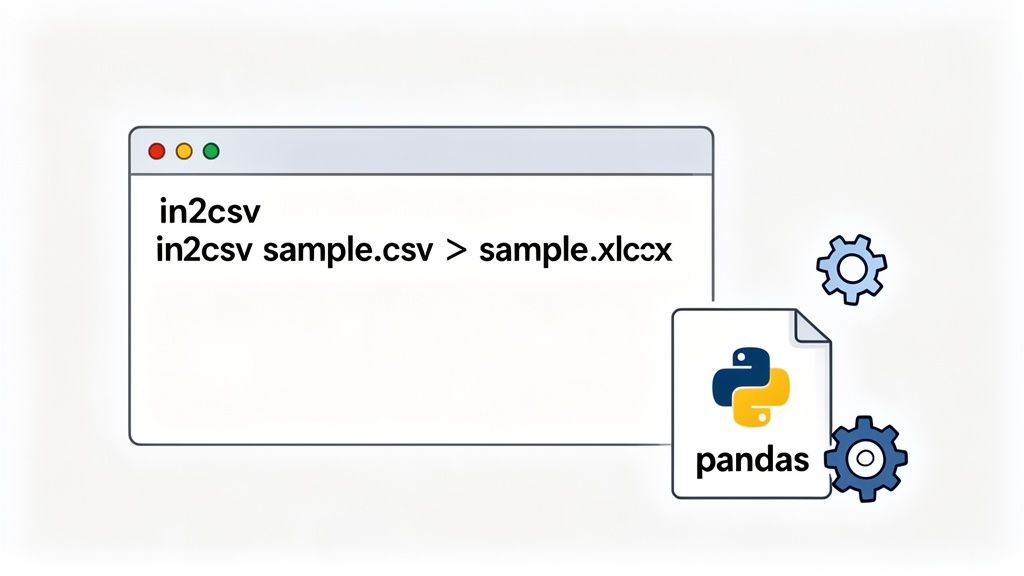
Csvkit के साथ स्विफ्ट टर्मिनल रूपांतरण
कमांड लाइन पर रहने वालों के लिए, csvkit एक आवश्यक उपकरण है। यह छोटे, तेज उपयोगिताओं का एक सूट है जिसे विशेष रूप से CSV फ़ाइलों के साथ काम करने के लिए डिज़ाइन किया गया है। आप इसका उपयोग अपने टर्मिनल को छोड़े बिना अपने डेटा का निरीक्षण, स्लाइस और रूपांतरण करने के लिए कर सकते हैं।
in2csv कमांड विशेष रूप से उपयोगी है, क्योंकि यह विभिन्न फ़ाइल स्वरूपों के एक गुच्छा को पढ़ सकता है और एक साफ, मानकीकृत CSV को बाहर निकाल सकता है। वहां से, आप बस इसके आउटपुट को अपनी Excel फ़ाइल प्राप्त करने के लिए दूसरे कमांड में पाइप कर सकते हैं।
यह दृष्टिकोण तब शानदार है जब आप एक दूरस्थ सर्वर में SSH'd हैं और कुछ डेटा को जल्दी से जांचने की आवश्यकता है, या जब आप एक बड़ी शेल स्क्रिप्ट में एक फ़ाइल रूपांतरण चरण को स्लॉट करना चाहते हैं। यह तेज़, कुशल है, और आपको अपने तत्व में रखता है। दक्षता की बात करें तो, यदि आप अपने वर्कफ़्लो को सुव्यवस्थित करने के लिए अन्य उपकरणों की तलाश कर रहे हैं, तो डेवलपर्स के लिए सर्वश्रेष्ठ Chrome एक्सटेंशन की हमारी सूची देखें।
पायथन और पांडा के साथ प्रोग्रामेटिक नियंत्रण
जब एक साधारण प्रारूप परिवर्तन पर्याप्त नहीं होता है, तो पायथन की पांडा लाइब्रेरी गो-टू समाधान है। यह आपको पूरी प्रक्रिया पर पूर्ण नियंत्रण देता है। आप एक CSV को DataFrame में लोड कर सकते हैं, जटिल हेरफेर कर सकते हैं, और फिर परिणाम को एक पूरी तरह से स्वरूपित XLSX फ़ाइल में लिख सकते हैं।
यह सिर्फ एक फ़ाइल एक्सटेंशन बदलने के बारे में नहीं है। यह एक मजबूत, स्वचालित डेटा वर्कफ़्लो बनाने के बारे में है। आप गंदे कॉलम को साफ कर सकते हैं, नए फ़ील्ड की गणना कर सकते हैं, या Excel फ़ाइल के अस्तित्व में आने से पहले अप्रासंगिक पंक्तियों को फ़िल्टर कर सकते हैं।
इस तरह के वर्कफ़्लो में महारत हासिल करना अक्सर पहले डेटा प्राप्त करने से शुरू होता है। गहराई में जाने वाले किसी भी व्यक्ति के लिए, वेबसाइटों से डेटा निकालने के लिए यह व्यावहारिक मार्गदर्शिका आपकी नींव बनाने के लिए एक बेहतरीन जगह है।
स्वचालित, API-संचालित समाधानों की ओर बढ़ना एक प्रमुख प्रवृत्ति है। 2024 में, उद्यम प्लेटफार्मों के लिए अपने API के माध्यम से प्रतिदिन 100,000 से अधिक रूपांतरणों को संभालना असामान्य नहीं है। यह वही है जो हम डेवलपर समुदाय में देखते हैं, जहां एक हालिया स्टैक ओवरफ्लो सर्वेक्षण से पता चला है कि 62% उत्तरदाता साप्ताहिक रूप से CSVs को Excel में परिवर्तित करते हैं। कई लोग डेस्कटॉप सॉफ़्टवेयर स्थापित करने से बचने के लिए ब्राउज़र-आधारित टूल पसंद करते हैं, जो ShiftShift कमांड पैलेट के पीछे का तत्काल-पहुंच मॉडल है। आप देख सकते हैं कि ये रूपांतरण API कितने शक्तिशाली हो गए हैं।
सामान्य CSV रूपांतरण समस्याओं को कैसे हल करें
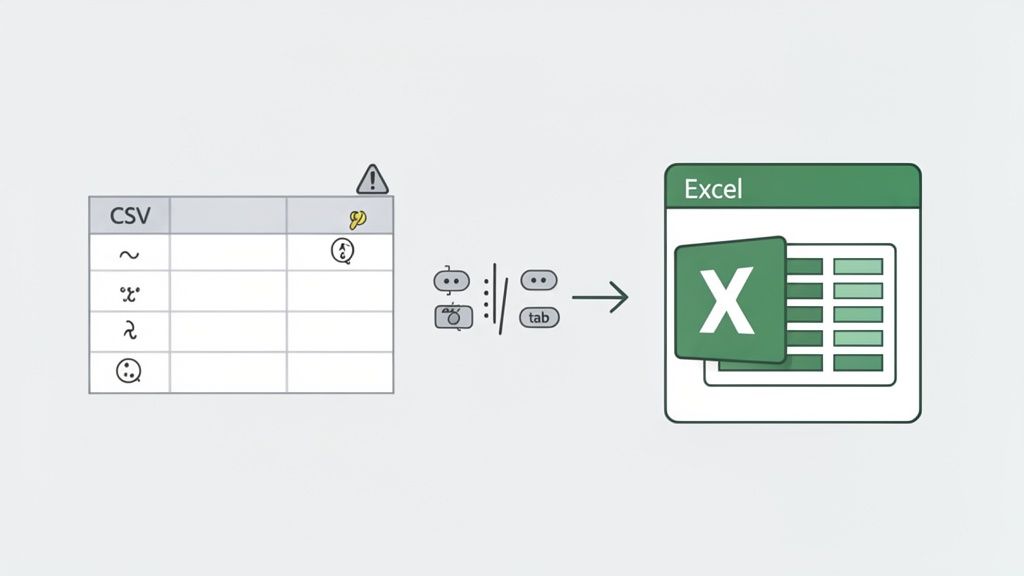
यहां तक कि सर्वोत्तम इरादों के साथ भी, CSV फ़ाइलों को परिवर्तित करना कुछ बाधाएँ पैदा कर सकता है। हम सभी ने यह अनुभव किया है: आप अपनी नई परिवर्तित Excel फ़ाइल खोलते हैं, और यह बेतरतीब टेक्स्ट का एक गड़बड़झाला होता है या, इससे भी बदतर, आपका सारा डेटा एक ही कॉलम में बुरी तरह से फंस जाता है।
ये समस्याएँ निराशाजनक होती हैं, लेकिन एक बार जब आप जान जाते हैं कि उनका कारण क्या है, तो उन्हें ठीक करना लगभग हमेशा आसान होता है। आइए सबसे आम समस्याओं और उन्हें हमेशा के लिए कैसे हल करें, इस पर चर्चा करें।
गड़बड़ वर्णों का रहस्य
क्या आपने कभी कोई फ़ाइल खोली है और पठनीय टेक्स्ट के बजाय या é जैसे अजीब प्रतीक देखे हैं? यह वर्ण एन्कोडिंग बेमेल का एक क्लासिक संकेत है।
यह तब होता है जब CSV (जैसे, एक डेटाबेस निर्यात) उत्पन्न करने वाला सिस्टम एक टेक्स्ट मानक का उपयोग करता है, जैसे UTF-8, लेकिन Excel मानता है कि यह एक अलग मानक का उपयोग कर रहा है, जैसे एक क्षेत्रीय Windows मानक। दोनों संवाद नहीं कर सकते, और आपका डेटा अनुवाद में गड़बड़ हो जाता है।
सबसे सरल समाधान एक आधुनिक csv to excel converter का उपयोग करना है जो आपके लिए एन्कोडिंग का पता लगाने के लिए पर्याप्त स्मार्ट है। उदाहरण के लिए, ShiftShift एक्सटेंशन, फ़ाइल का विश्लेषण करता है और स्वचालित रूप से सही मानक लागू करता है, ताकि वे अजीब प्रतीक कभी दिखाई न दें।
यदि आप फ़ाइल को मैन्युअल रूप से Excel में आयात कर रहे हैं, तो यह तरकीब है:
- आयात विज़ार्ड लॉन्च करने के लिए डेटा > टेक्स्ट/CSV से पर जाएं।
- "फ़ाइल मूल" ड्रॉपडाउन मेनू ढूंढें।
- उस सूची से, 65001: यूनिकोड (UTF-8) चुनें।
यह एक कदम एन्कोडिंग की अधिकांश समस्याओं को हल करता है, खासकर उन डेटा के साथ जिनमें अंतर्राष्ट्रीय वर्ण या प्रतीक शामिल होते हैं।
प्रो टिप: UTF-8 वेब पर और आधुनिक अनुप्रयोगों में टेक्स्ट के लिए सार्वभौमिक मानक है। जब यह संदेह हो कि कौन सी एन्कोडिंग चुननी है, तो UTF-8 से शुरुआत करना आपका सबसे अच्छा दांव है।
एकल-कॉलम सीमांकक आपदा
यह एक वास्तविक क्लासिक है। आप अपनी स्प्रेडशीट खोलते हैं, और आपका सारा सुंदर डेटा कॉलम A में भरा हुआ है, जिसमें कॉमा या अर्धविराम अभी भी वहीं बैठे हैं। यह एक सीमांकक समस्या है।
इसका मतलब है कि Excel ने सही ढंग से अनुमान नहीं लगाया कि कॉलम को अलग करने के लिए किस वर्ण—सीमांकक—का उपयोग किया गया था। जबकि CSV में "C" कॉमा के लिए है, कई सिस्टम, खासकर यूरोप में, इसके बजाय अर्धविराम (;) का उपयोग करते हैं। एक अच्छा कनवर्टर टूल इसे अपने आप समझ जाएगा।
लेकिन यदि आप इसे हाथ से कर रहे हैं, तो "टेक्स्ट/CSV से" विज़ार्ड एक बार फिर आपका दोस्त है। यह आपको एक पूर्वावलोकन देता है जहाँ आप Excel को स्पष्ट रूप से बता सकते हैं कि सीमांकक क्या है। आप कॉमा, अर्धविराम, टैब, या यहां तक कि एक कस्टम वर्ण में से चुन सकते हैं।
इसे सही करना ही Excel को बताता है कि सब कुछ को साफ, अलग-अलग कॉलम में कैसे ठीक से विभाजित किया जाए। उन लोगों के लिए जो अक्सर मुश्किल डेटा प्रारूपों से निपटते हैं, दो टेक्स्ट फ़ाइलों की तुलना कैसे करें पर हमारी मार्गदर्शिका इस तरह के संरचनात्मक अंतरों को पहचानने में भी बहुत मददगार हो सकती है।
अत्यधिक बड़ी CSV फ़ाइलों को नियंत्रित करना
जब आपकी CSV फ़ाइल एक राक्षस हो—हम सैकड़ों हजारों या लाखों पंक्तियों की बात कर रहे हैं तो क्या होगा? इसे सीधे Excel में खोलने की कोशिश करने से प्रोग्राम फ्रीज हो सकता है, क्रैश हो सकता है, या पूरी तरह से हार मान सकता है।
याद रखें, Excel की 1,048,576 पंक्तियों की एक कठोर सीमा है। यदि आपकी फ़ाइल इससे बड़ी है, तो यह बस फिट नहीं होगी।
जब आप उस दीवार से टकराते हैं, तो आपके पास कुछ ठोस विकल्प होते हैं:
- इसे विभाजित करें: बड़े CSV को छोटे, अधिक सुपाच्य फ़ाइलों में काटने के लिए एक कमांड-लाइन टूल या एक साधारण स्क्रिप्ट का उपयोग करें, इससे पहले कि आप उन्हें परिवर्तित करने का प्रयास करें।
- पावर क्वेरी का उपयोग करें: यह Excel का अंतर्निहित डेटा टूल है। पावर क्वेरी एक बड़ी CSV फ़ाइल से कनेक्ट हो सकती है बिना इसे मेमोरी में लोड करने की कोशिश किए। यह आपको अपने डेटा को स्प्रेडशीट में आने से पहले फ़िल्टर करने, ट्रिम करने और एकत्रित करने की अनुमति देता है।
- प्रोग्रामेटिक बनें: वास्तव में विशाल डेटासेट के लिए, पायथन और पांडा लाइब्रेरी जैसी किसी चीज़ के साथ रूपांतरण को स्क्रिप्ट करना सबसे विश्वसनीय और शक्तिशाली तरीका है। यह इस तरह के भारी काम के लिए बनाया गया है।
CSV रूपांतरण के बारे में प्रश्न हैं? हमारे पास उत्तर हैं
आइए CSV फ़ाइलों को परिवर्तित करने का प्रयास करते समय आने वाले कुछ सबसे सामान्य प्रश्नों को संबोधित करके चीजों को समाप्त करें। ये वास्तविक दुनिया की बाधाएँ हैं जिन्हें मैं हर समय देखता हूं, और उन्हें सही करना ही सब कुछ बदल देता है।
क्या कनवर्टर मेरे सीमांकक का स्वचालित रूप से पता लगाएगा?
हाँ, एक अच्छा कनवर्टर निश्चित रूप से ऐसा करेगा। यह एक समर्पित टूल का उपयोग करने के सबसे बड़े कारणों में से एक है। एक स्मार्ट कनवर्टर, जैसे ShiftShift एक्सटेंशन, को स्वचालित रूप से सीमांकक—चाहे वह कॉमा, अर्धविराम, टैब, या कुछ और हो—का पता लगाने के लिए डिज़ाइन किया गया है। यह बस फ़ाइल की संरचना को देखता है और इसे सही ढंग से पार्स करता है।
आप इस सुविधा की सराहना तब करेंगे जब आप पहली बार अर्धविराम-सीमांकित फ़ाइल को Excel में आयात करने का प्रयास करेंगे और आपका सारा डेटा एक ही कॉलम में भर जाएगा। स्वचालित पहचान उस सामान्य समस्या को पूरी तरह से दरकिनार कर देती है।
क्या ऑनलाइन कनवर्टर का उपयोग करना वास्तव में सुरक्षित है?
यह एक बड़ा सवाल है, और इसका उत्तर है: यह पूरी तरह से इस बात पर निर्भर करता है कि टूल कैसे काम करता है। आपको ऑनलाइन मिलने वाली अधिकांश मुफ्त वेबसाइटें आपको अपनी CSV फ़ाइल को अपने सर्वर पर अपलोड करने के लिए कहती हैं। संवेदनशील डेटा के लिए, यह एक बड़ा लाल झंडा है। आपकी जानकारी आपकी मशीन छोड़ देती है, और आपको कोई पता नहीं होता कि इसे कौन देख सकता है या कहाँ संग्रहीत किया जाता है।
किसी भी गोपनीय चीज़ के लिए, ऐसे टूल का उपयोग करें जो फ़ाइलों को स्थानीय रूप से संसाधित करते हैं। ShiftShift जैसे एक्सटेंशन पूरी तरह से आपके ब्राउज़र के भीतर चलते हैं, जिसका अर्थ है कि आपका डेटा कभी भी आपके कंप्यूटर को नहीं छोड़ता। यह पूर्ण गोपनीयता की गारंटी देने का एकमात्र तरीका है। संवेदनशील फ़ाइलों के लिए हमेशा, हमेशा एक स्थानीय या ब्राउज़र-आधारित ऑफ़लाइन कनवर्टर चुनें।
मैं Excel को अपने अग्रणी शून्य हटाने से कैसे रोकूं?
आह, क्लासिक Excel समस्या। आपके पास ZIP कोड, कर्मचारी ID, या उत्पाद SKU हैं जो शून्य से शुरू होते हैं, और Excel उन शून्यों को हटाकर उन्हें "ठीक" कर देता है। ऐसा इसलिए होता है क्योंकि यह अनुमान लगाता है कि कॉलम एक संख्या है।
चाल यह है कि Excel को उस कॉलम को टेक्स्ट के रूप में देखने के लिए मजबूर किया जाए, न कि संख्या के रूप में।
- यदि आप Excel के "टेक्स्ट/CSV से" आयात टूल का उपयोग कर रहे हैं, तो आपको एक डेटा पूर्वावलोकन विंडो मिलेगी।
- केवल "समाप्त करें" पर क्लिक न करें! इसके बजाय, अग्रणी शून्यों वाले कॉलम को ढूंढें और उसके हेडर पर क्लिक करें।
- एक ड्रॉपडाउन दिखाई देगा जहाँ आप डेटा प्रकार को "सामान्य" से "टेक्स्ट" में बदल सकते हैं।
यह एक छोटा सा कदम Excel को आपके डेटा को CSV में ठीक वैसे ही संरक्षित करने के लिए कहता है जैसा वह दिखाई देता है।
CSV के पूरे फ़ोल्डर को परिवर्तित करने का सबसे अच्छा तरीका क्या है?
एक-एक करके? बिल्कुल नहीं। यह एक लंबी और उबाऊ दोपहर का नुस्खा है। इसके लिए, आपको बैच प्रोसेसिंग के लिए डिज़ाइन किए गए टूल की आवश्यकता है। ShiftShift CSV से XLSX कनवर्टर इसी के लिए बनाया गया था—बस CSV फ़ाइलों के पूरे फ़ोल्डर को खींचें और छोड़ें, और यह प्रत्येक के लिए एक संबंधित XLSX फ़ाइल उत्पन्न करेगा।
यदि आप अधिक तकनीकी रूप से इच्छुक हैं, तो स्क्रिप्टिंग अंतिम शक्ति चाल है। पांडा लाइब्रेरी का उपयोग करके पायथन की कुछ पंक्तियाँ एक स्वचालित वर्कफ़्लो बना सकती हैं जो फ़ाइलों की एक निर्देशिका के माध्यम से ज़िप करती है। यह आवर्ती डेटा रूपांतरण कार्यों को संभालने वाले किसी भी व्यक्ति के लिए एकदम सही समाधान है।
आयात विज़ार्ड से लड़ना बंद करने और अपनी फ़ाइलों को परिवर्तित करने के लिए तैयार हैं? ShiftShift एक्सटेंशन इकोसिस्टम आपके ब्राउज़र में एक शक्तिशाली, गोपनीयता-प्रथम CSV से Excel कनवर्टर प्रदान करता है। देखें कि स्थानीय बैच प्रोसेसिंग और स्मार्ट प्रारूप पहचान कितनी तेज़ हो सकती है।
इसे आज ही https://shiftshift.app से इंस्टॉल करें।