Jak przetestować prędkość internetu: Szybkie, dokładne wyniki w kilka minut
Dowiedz się, jak dokładnie testować prędkość internetu i zrozumieć wyniki, aby szybko rozwiązywać powszechne problemy z połączeniem.

Zalecane rozszerzenia

Szczerze mówiąc, nic tak szybko nie zatrzymuje dnia, jak bolesnie wolne połączenie internetowe. Niezależnie od tego, czy jesteś w trakcie ważnej rozmowy służbowej, czy po prostu próbujesz oglądać film, opóźnione połączenie to ostateczna frustracja.
Dobrą wiadomością jest to, że nie musisz zgadywać, co jest nie tak. Szybki test prędkości internetu daje ci konkretne liczby dotyczące prędkości pobierania, prędkości wysyłania i pingu twojego połączenia. To nie tylko zaspokajanie ciekawości; chodzi o zobaczenie rzeczywistej wydajności, którą otrzymujesz w porównaniu do tego, co obiecał twój dostawca internetu.
Dlaczego dokładne testy prędkości są ważniejsze niż kiedykolwiek
Żyjemy w sieci. Od rozmów wideo i pracy w chmurze po streaming w 4K i gry online, nasze połączenie internetowe jest kręgosłupem wszystkiego. Pomyśl o teście prędkości mniej jak o technicznym obowiązku, a bardziej jak o badaniu stanu zdrowia twojego cyfrowego życia. To jedyny wiarygodny sposób, aby potwierdzić, że faktycznie otrzymujesz usługę, za którą płacisz miesiąc po miesiącu.
Ale ten przewodnik dotyczy czegoś więcej niż tylko kliknięcia „Start” w teście. Zamierzamy zagłębić się w to, jak właściwie interpretować te wyniki, aby miały sens w kontekście twojej codziennej działalności, niezależnie od tego, czy pracujesz zdalnie, rywalizujesz w grze online, czy po prostu jesteś częścią zapracowanego gospodarstwa domowego, w którym wszyscy konkurują o pasmo.
Poza reklamowanymi liczbami
Widziałeś reklamy od dostawców usług internetowych (ISP) obiecujące prędkości „do” 100 Mbps lub więcej. To „do” ma na sobie wiele ciężaru. Reprezentuje najlepszy możliwy scenariusz, a twoja rzeczywista, codzienna prędkość często jest zupełnie inną historią z powodu kilku powszechnych winowajców:
- Kongestia sieci: Kiedy wszyscy w twojej okolicy logują się do internetu po pracy, może to spowolnić całą sieć. To jak ruch w godzinach szczytu, ale dla danych.
- Ograniczenia sprzętowe: Twój plan internetowy może być szybki, ale stary router lub starzejący się laptop mogą nie mieć wystarczającej mocy, aby nadążyć.
- Zakłócenia Wi-Fi: Grube ściany, metalowe urządzenia, a nawet sieć Wi-Fi sąsiada mogą osłabiać twój sygnał i obniżać prędkości.
Przeprowadzenie odpowiedniego testu prędkości pomaga przebić się przez ten hałas i zobaczyć dokładnie, co jest dostarczane do twojego urządzenia w danym momencie.
Test prędkości to więcej niż tylko liczba—jest to narzędzie diagnostyczne. Daje ci moc do znalezienia wąskich gardeł, pociągnięcia ISP do odpowiedzialności i upewnienia się, że twoje połączenie może poradzić sobie z tym, co na nie rzucisz.
Aby zrozumieć to wszystko, musisz poznać trzy podstawowe metryki: prędkość pobierania, prędkość wysyłania i ping. Zrozumienie ich to klucz do przekształcenia losowych liczb w użyteczne informacje. Na przykład, wolne pobieranie to klasyczny powód buforowania filmów, podczas gdy słabe prędkości wysyłania to tajemniczy złoczyńca stojący za tymi zacinającymi się, zamrożonymi rozmowami wideo. Nauka, jak prawidłowo testować prędkość internetu, daje ci dowód, którego potrzebujesz, aby zacząć rozwiązywać problem.
Jak przeprowadzić bezbłędny pierwszy test prędkości
Zanim pomyślisz o naciśnięciu przycisku „Start”, porozmawiajmy o uzyskaniu naprawdę dokładnego odczytu prędkości internetu. Pomyśl o tym jak o eksperymencie naukowym—musisz kontrolować zmienne. Losowy test z wszystkim działającym w tle jest jak próba pomiaru opadów deszczu w huraganie. Wyniki będą chaotyczne i praktycznie bezużyteczne.
Naszym celem jest stworzenie czystego stanu, dając testowi prędkości wyłączną, nieprzerwaną ścieżkę do internetu. Dzięki temu liczby, które zobaczysz, odzwierciedlają rzeczywisty potencjał twojego połączenia, a nie tylko hałas twojego codziennego życia cyfrowego.
Przygotowanie do dokładnego odczytu
Po pierwsze, musisz wyeliminować wszelkie tło na swojej sieci. Oznacza to zamknięcie wszystkiego, co może cicho korzystać z twojego pasma.
Zacznij od przeglądarki internetowej. Jeśli jesteś jak ja i często masz otwartych 20+ kart, czas na sprzątanie. Każda z tych kart, zwłaszcza te, które automatycznie się odświeżają, jak strony z wiadomościami czy kanały społecznościowe, mogą pobierać dane. Zamknij je wszystkie, zostawiając tylko jedną kartę, której użyjesz do testu prędkości.
Następnie sprawdź inne aplikacje działające na twoim komputerze. Niektóre z najczęstszych pożeraczy pasma to:
- Usługi strumieniowe: Czy Netflix, YouTube lub Spotify są uruchomione? Wstrzymaj je.
- Synchronizacja w chmurze: Wstrzymaj usługi takie jak Dropbox, Google Drive lub OneDrive.
- Aktywne pobierania: Upewnij się, że żadne aktualizacje oprogramowania, gry ani inne duże pliki nie są pobierane w tle.
W zasadzie chcesz, aby twój komputer był całkowicie cichy w sieci. Ta mała praca przygotowawcza to to, co oddziela dzikie zgadywanie od wiarygodnego punktu odniesienia.
Przeprowadzanie testu dla najbardziej wiarygodnych wyników
Gdy twoje urządzenie jest przygotowane i gotowe, czas na przeprowadzenie testu. Narzędzie oparte na przeglądarce, takie jak rozszerzenie Speed Test od ShiftShift, czyni to bardzo wygodnym, dając ci wyniki bez konieczności opuszczania strony.
Po prostu otwórz narzędzie i naciśnij przycisk start. Jest zaprojektowane tak, aby było proste i bezpośrednie.
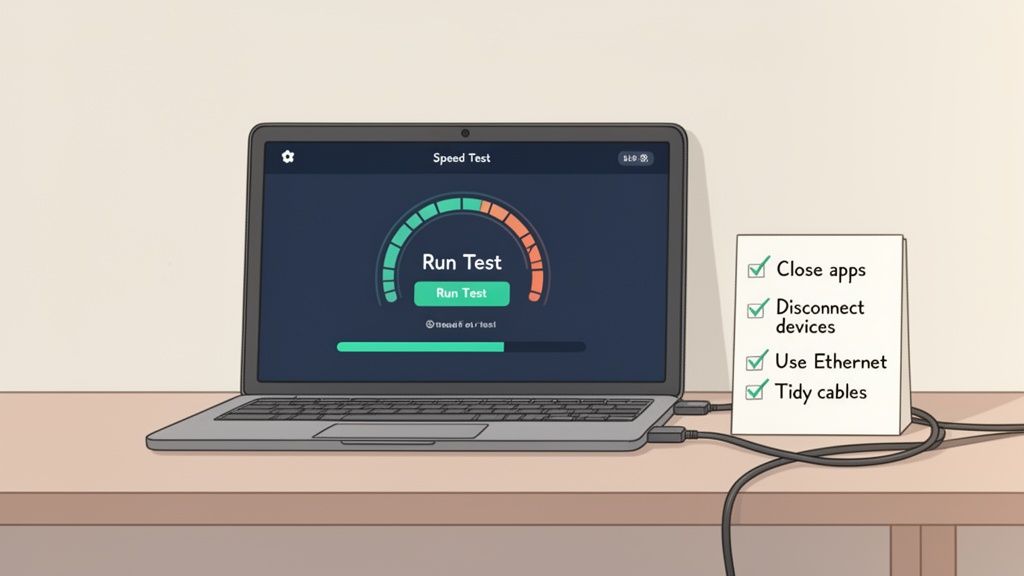
Test trwa tylko kilka sekund. W tym czasie mierzy twoją prędkość pobierania, następnie prędkość wysyłania, a na końcu ping (lub opóźnienie), wysyłając i odbierając pakiety danych z pobliskiego serwera.
Aby uzyskać jeszcze czystszy wynik, warto tymczasowo odłączyć inne urządzenia od Wi-Fi—myśl o telefonach, smart TV i konsolach do gier.
Wskazówka profesjonalna: Aby uzyskać absolutnie najlepszy odczyt bazowy, podłącz komputer bezpośrednio do routera za pomocą kabla Ethernet. Z mojego doświadczenia wynika, że Wi-Fi może łatwo obniżyć twoje prędkości o 40-50% z powodu zakłóceń sygnału i odległości. Nauka zarządzania danymi przeglądarki również może pomóc, co możesz poznać w naszym przewodniku na temat najlepszego edytora ciasteczek Chrome.
Nie przeprowadzaj testu tylko raz i nie kończ na tym dnia. Zawsze zalecam przeprowadzenie co najmniej trzech testów o różnych porach—rano, po południu i wieczorem. To może pomóc w zauważeniu problemów, takich jak kongestia sieciowa lub nawet potencjalne ograniczenia ze strony ISP, które dotyczą zaskakujących 25% użytkowników na całym świecie. I pamiętaj, że te aplikacje w tle mogą cicho zjadać 10-20% twojego pasma, więc upewnij się, że są zamknięte. Podjęcie tych dodatkowych kroków daje ci znacznie bogatszy, pełniejszy obraz zdrowia twojego internetu.
Odczytywanie wyników: Jak wygląda dobra prędkość internetu
Przeprowadzenie testu jest szybkie, ale prawdziwa magia tkwi w zrozumieniu, co te liczby naprawdę oznaczają dla twojego codziennego życia online. Zobaczysz trzy kluczowe metryki: prędkość pobierania, prędkość wysyłania i ping. Każda z nich opowiada istotną część historii o zdrowiu twojego połączenia internetowego.
Więc otrzymałeś wynik, taki jak 75 Mbps pobierania. Co to właściwie oznacza? Czy to wystarczająco dużo, aby twoja rodzina mogła streamować Netflix w 4K, podczas gdy ktoś inny jest na rozmowie Zoom, a inny gra online? Zgłębmy to i zrozummy wszystko.
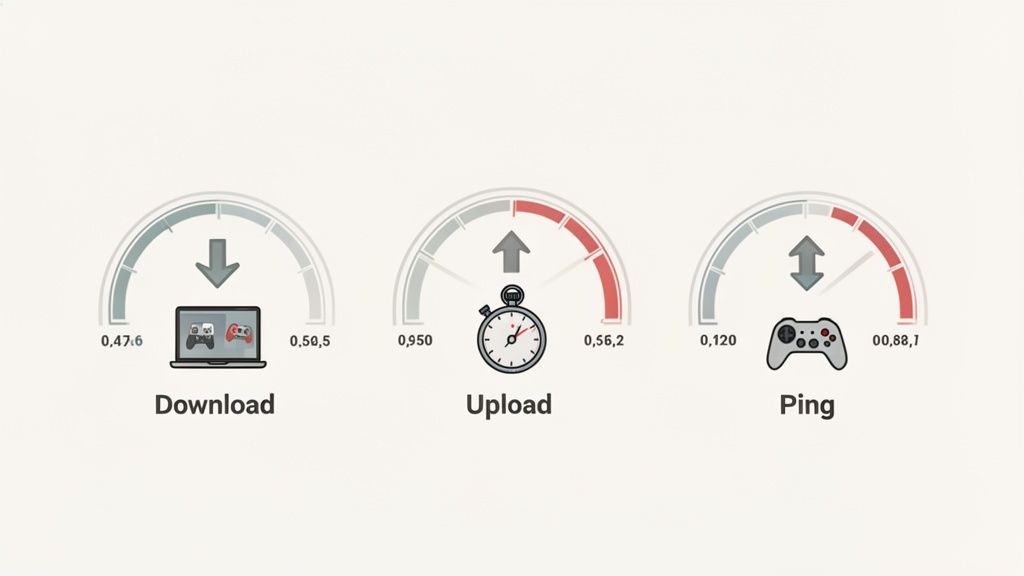
Prędkość pobierania: Potęga strumieniowania
To liczba, o której wszyscy mówią. Mierzona w megabitach na sekundę (Mbps), twoja prędkość pobierania określa, jak szybko możesz pobierać dane z internetu. To siła napędowa za płynnością strumieniowania wideo, szybkim ładowaniem stron internetowych i pobieraniem dużych plików.
Dla kontekstu w rzeczywistości, strumieniowanie wysokiej jakości filmu 4K na usłudze takiej jak Netflix wymaga stabilnych 25 Mbps. Jeśli twój wynik testu osiąga 100 Mbps, masz wystarczająco dużo pasma, aby uruchomić cztery takie strumienie 4K jednocześnie bez buforowania.
Prędkość wysyłania: Niezauważony bohater nowoczesnej pracy
Często ukryta w cieniu swojego bardziej znanego odpowiednika pobierania, prędkość wysyłania mierzy, jak szybko twoje urządzenia mogą wysyłać dane na internet. To cichy bohater, który zapewnia, że twoje rozmowy wideo są krystalicznie czyste, twoje zdjęcia szybko synchronizują się w chmurze, a te ogromne pliki robocze faktycznie są wysyłane.
Jeśli pracujesz zdalnie, słaba prędkość wysyłania jest prawie zawsze złoczyńcą stojącym za zacinającym się, pikselowym obrazem wideo na Zoomie lub bolesnie wolnym kopiowaniem do Dropboxa. Dla każdego gospodarstwa domowego z pracownikami zdalnymi lub osobami tworzącymi treści, 10 Mbps powinno być absolutnym minimum.
Plany internetowe często krzyczą o ogromnych prędkościach pobierania, ale szeptają o wysyłaniu. Niska prędkość wysyłania może być ogromnym wąskim gardłem, nawet jeśli twoje pobieranie jest szybkie. Szukaj planów „symetrycznych”, gdzie obie prędkości są takie same—są one złotym standardem.
Ping: Sekret responsywnego grania
Na koniec mamy ping, który również zobaczysz nazywany opóźnieniem. To nie chodzi o surową prędkość, ale o responsywność. Mierzony w milisekundach (ms), to czas podróży sygnału z twojego komputera do serwera i z powrotem.
Niski ping jest niezbędny do gier online, gdzie opóźnienie o ułamek sekundy może oznaczać różnicę między wygraną a przegraną.
- Poniżej 40 ms: Doskonałe do gier konkurencyjnych.
- Powyżej 100 ms: Poczujesz opóźnienie, a to nie będzie przyjemne.
Aby naprawdę umieścić swoje wyniki w odpowiedniej perspektywie, pomocne jest zrozumienie czym jest dobra prędkość Wi-Fi dla rzeczy, które robisz najczęściej.
Użyj tej tabeli, aby sprawdzić, czy twoja obecna prędkość internetu spełnia wymagania twoich ulubionych aktywności online.
Zalecane prędkości internetu dla powszechnych aktywności
| Aktywność | Minimalna zalecana prędkość | Idealna prędkość dla najlepszej wydajności |
|---|---|---|
| Email i przeglądanie internetu | 1–5 Mbps | 10 Mbps+ |
| Media społecznościowe | 5 Mbps | 15 Mbps+ |
| Streaming wideo HD (1080p) | 10 Mbps | 25 Mbps+ |
| Streaming wideo 4K (UHD) | 25 Mbps | 50 Mbps+ |
| Wideokonferencje (Zoom, Teams) | 5 Mbps (wysyłanie/pobieranie) | 10 Mbps+ (wysyłanie/pobieranie) |
| Gry online (konkurencyjne) | 10 Mbps (niski ping niezbędny) | 50 Mbps+ (z pingiem <40 ms) |
| Pobieranie dużych plików | 25 Mbps | 100 Mbps+ |
Sprawdzenie, jak twoje liczby wypadają w porównaniu do tych powszechnych zadań, da ci jasny obraz tego, czy twój plan internetowy faktycznie dostarcza to, czego potrzebujesz.
Typowe błędy, które psują wyniki testu prędkości
Uzyskanie wiarygodnej podstawy jest kluczowe, ale niezwykle łatwo uzyskać mylący wynik. Niedokładny test może skierować cię na złą ścieżkę rozwiązywania problemów, obwiniając ISP, gdy prawdziwy winowajca czai się tuż pod twoim nosem. Przejdźmy przez najczęstsze potknięcia, które mogą zakłócić twój test prędkości i jak ich unikać.
Największy błąd? Testowanie przez Wi-Fi, zwłaszcza jeśli jesteś daleko od routera. Sygnały Wi-Fi stają się słabsze im dalej podróżują i im więcej przeszkód—jak ściany, podłogi, a nawet meble—muszą pokonać. Test przeprowadzony z twojej kanapy może pokazać tylko ułamek prędkości, którą twój plan internetowy faktycznie dostarcza do twojego modemu.
Pozostawienie połączenia VPN włączonego
Kolejny klasyczny błąd to przeprowadzanie testu podczas połączenia z Wirtualną Siecią Prywatną (VPN). VPN jest zaprojektowany do szyfrowania twojego ruchu i kierowania go przez inny serwer, co dodaje dodatkowe kroki do podróży twoich danych. Ten proces prawie zawsze spowalnia twoje połączenie, czasami znacznie.
Chociaż jest doskonały dla prywatności, pozostawienie VPN włączonego oznacza, że testujesz prędkość połączenia VPN, a nie swojego bezpośredniego połączenia internetowego. Zawsze upewnij się, że rozłączyłeś się z VPN przed naciśnięciem „Start”, aby zobaczyć, co twój ISP faktycznie dostarcza. Zawsze możesz przeprowadzić drugi test z włączonym VPN później, aby zobaczyć, jak bardzo wpływa to na twoje prędkości.
Kiedyś spędziłem tydzień sfrustrowany tym, co myślałem, że jest okropnym internetem, tylko po to, by zdać sobie sprawę, że funkcja automatycznego łączenia mojego VPN była wąskim gardłem. Wyłączenie jej ujawniło, że moje prędkości były całkowicie w porządku. To prosta kontrola, która może zaoszczędzić ci wiele bólu głowy.
Testowanie w godzinach szczytu cyfrowego
Pomyśl o połączeniu internetowym w twojej okolicy jak o autostradzie. O 14:00 we wtorek ruch prawdopodobnie jest lekki i płynny. Ale o 19:00, gdy wszyscy wracają do domu z pracy i szkoły, aby streamować filmy, grać w gry i łączyć się na rozmowach wideo, ta sama autostrada może stać się poważnie zakorkowana.
Przeprowadzanie testu prędkości w tych godzinach szczytu użytkowania prawdopodobnie pokaże wolniejsze wyniki z powodu lokalnej kongestii sieciowej. Oczywiście daje to prawdziwy obraz wydajności pod presją, ale nie odzwierciedla maksymalnego potencjału twojego połączenia.
Ten diagram przepływu przedstawia trzy najczęstsze pułapki, które mogą zniekształcić twoje wyniki.
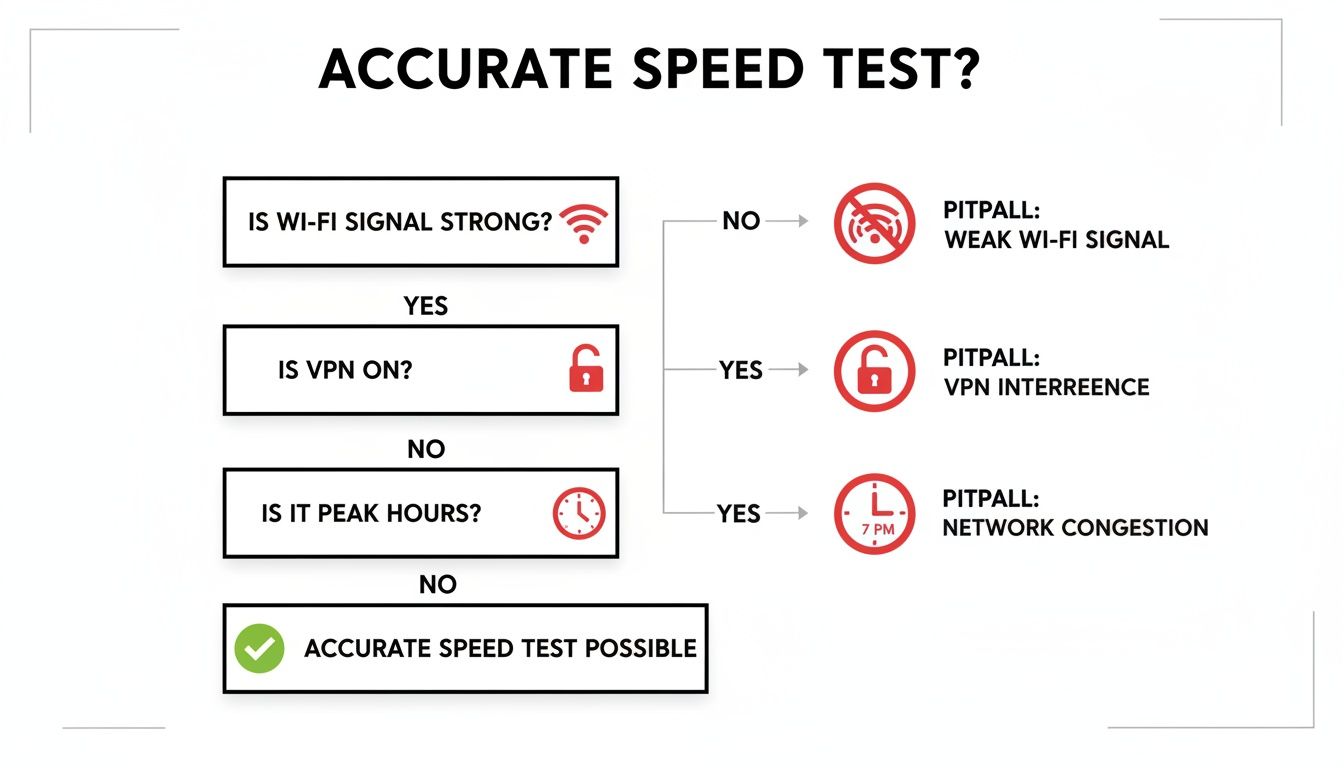
Jak widać, czynniki zewnętrzne, takie jak siła sygnału Wi-Fi, VPN i nawet nawyki strumieniowe twoich sąsiadów, mogą łatwo zakłócać dokładny pomiar. Celem jest systematyczne wykluczanie tych zmiennych. Dzięki temu zbliżasz się do izolowania prawdziwej wydajności swojego połączenia internetowego—co tak naprawdę próbujesz ustalić.
Zaawansowana strategia lokalizowania problemów z połączeniem
Kiedy twój pierwszy test prędkości wraca z ponurymi wynikami, łatwo jest po prostu załamać ręce. Ale ten pojedynczy test to tylko jedna wskazówka. Aby naprawdę dotrzeć do sedna tego, co się dzieje, musisz myśleć jak detektyw i zbierać więcej dowodów.
To wszystko dotyczy izolowania zmiennych. Zmieniając systematycznie jedną rzecz na raz—na przykład sposób połączenia lub czas testowania—możesz przestać zgadywać i zacząć diagnozować. Takie podejście pomaga przejść od niejasnego „moje internet jest wolne” do zidentyfikowania prawdziwego winowajcy, czy to Wi-Fi, dostawca internetu, czy coś zupełnie innego.
Porównaj Połączenia Przewodowe i Wi-Fi
To jest najważniejszy test diagnostyczny, jaki możesz przeprowadzić. Wi-Fi jest niezwykle wygodne, ale jest również podatne na różnego rodzaju problemy, takie jak zakłócenia sygnału, odległość od routera, a nawet grube ściany. Szybki test porównawczy od razu powie ci: „Czy mój internet jest wolny, czy to tylko moje Wi-Fi?”
Oto jak to zrobić:
- Uzyskaj bazę Wi-Fi: Najpierw przeprowadź test prędkości z miejsca, w którym zazwyczaj korzystasz z komputera—na kanapie, biurku itp. Zapisz prędkości pobierania, wysyłania i ping.
- Przejdź na połączenie przewodowe: Następnie weź kabel Ethernet i podłącz komputer bezpośrednio do jednego z portów LAN z tyłu routera. Upewnij się, że wyłączyłeś Wi-Fi na swoim komputerze, aby zmusić go do korzystania z połączenia przewodowego.
- Uruchom test ponownie: Teraz przeprowadź dokładnie ten sam test prędkości.
Jeśli prędkość przewodowa jest znacznie szybsza (a zazwyczaj tak jest), właśnie znalazłeś swój problem. To nie jest usługa internetowa, którą twój dostawca wysyła do twojego domu; to sygnał bezprzewodowy w twoim domu. Może to oznaczać, że twój router się starzeje, jest schowany w złym miejscu lub występuje zbyt wiele zakłóceń sygnału od innych urządzeń.
Testuj o Różnych Porach Dnia
Twoje połączenie internetowe to zasób współdzielony, trochę jak autostrada. W godzinach szczytu, zazwyczaj od 19:00 do 23:00, wszyscy w twojej okolicy są online, oglądają filmy, grają i prowadzą rozmowy wideo. Ten cyfrowy szczyt może powodować poważne zatory w sieci.
Aby sprawdzić, czy to na ciebie wpływa, spróbuj przeprowadzić testy o różnych porach:
- Poza szczytem: Przeprowadź test zaraz po przebudzeniu (około 9:00) lub późno w nocy (po 23:00).
- W szczycie: Przeprowadź kolejny test w samym środku godziny szczytu (powiedzmy, 20:00).
Jeśli zauważysz ogromny spadek prędkości w godzinach szczytu, to klasyczny znak lokalnego zatoru sieciowego. Nie możesz wiele zrobić w sprawie nawyków Netflixa swoich sąsiadów, ale posiadanie tych danych daje ci solidny dowód, aby zgłosić się do swojego dostawcy, jeśli problem jest konsekwentnie zły.
Izoluj Urządzenia i Wpływ VPN
Na koniec upewnijmy się, że problem nie pochodzi z jednego z twoich własnych urządzeń lub oprogramowania, które uruchamiasz. Ukryta aktualizacja w tle lub źle działająca wtyczka przeglądarki mogą łatwo pochłonąć twoją przepustowość.
Spróbuj przeprowadzić test prędkości na kilku różnych urządzeniach. Jeśli twój laptop działa wolno, ale twój smartfon (połączony z tym samym Wi-Fi) działa szybko, problem prawdopodobnie leży w laptopie. Może to być cokolwiek, od przestarzałych sterowników po przeglądarkę obciążoną dodatkami. Możesz nawet chcieć zapoznać się z naszym przewodnikiem na temat najlepszych rozszerzeń Chrome dla programistów, aby sprawdzić, czy twoja konfiguracja może być zoptymalizowana.
VPN działa poprzez szyfrowanie i przekierowywanie twojego ruchu internetowego przez inny serwer, co prawie zawsze wiąże się z kosztami wydajności. Aby zobaczyć, jak duże, przeprowadź test prędkości z połączonym VPN, a następnie natychmiast rozłącz i uruchom go ponownie. Spadek prędkości o 20-30% jest dość standardowy, ale jeśli widzisz redukcję powyżej 50%, może nadszedł czas, aby spróbować innej lokalizacji serwera lub poszukać szybszego dostawcy VPN.
Więc, Twój Internet Jest Wolny. Co Teraz?
Testy zostały przeprowadzone, a liczby nie kłamią—twoje połączenie internetowe po prostu nie działa. Zanim zrezygnujesz i spędzisz godzinę na linii z obsługą klienta, jest kilka prostych rzeczy, które możesz spróbować teraz, aby rozwiązać najczęstsze problemy z wolnym internetem.
Pomyśl o tym jak o podstawowym rozwiązywaniu problemów. Wykluczając łatwe rzeczy po swojej stronie, będziesz miał konkretne dowody, jeśli musisz wykonać ten telefon.
Pierwszy krok? Klasyczne „wyłącz i włącz ponownie”, ale zrób to w odpowiedni sposób. Pełny cykl zasilania twojego sprzętu sieciowego pozwala wewnętrznym komponentom schłodzić się, usuwa wszelkie tymczasowe usterki oprogramowania i wymusza świeże połączenie z twoim dostawcą usług internetowych (ISP).
Oto jak to zrobić poprawnie:
- Odłącz zarówno modem, jak i router od gniazdka. Nie wystarczy tylko wcisnąć przycisk zasilania.
- Odczekaj co najmniej 60 sekund. Ta część jest kluczowa. Daje to sprzętowi wystarczająco dużo czasu na całkowite rozładowanie i zresetowanie pamięci wewnętrznej.
- Najpierw podłącz modem. Poczekaj, aż jego diody się ustabilizują—zazwyczaj szukasz solidnych świateł zasilania, odbioru i wysyłania. Może to zająć kilka minut.
- Gdy modem wróci online, podłącz router z powrotem. Daj mu jeszcze kilka minut na uruchomienie i rozpoczęcie nadawania.
Teraz przeprowadź kolejny test prędkości. Będziesz zdziwiony, jak często ten prosty trik przywraca twoje prędkości do poziomu, na którym powinny być.
Kiedy Proste Rozwiązania Nie Wystarczają
Jeśli ponowne uruchomienie nie przyniosło rezultatu, problem może być nieco bardziej uciążliwy. Z wynikami testu prędkości potwierdzającymi problem, czas zrozumieć dokładnie dlaczego twój internet jest wolny.
Kolejnym kluczowym krokiem jest sprawdzenie aktualizacji oprogramowania routera. Producenci nieustannie wydają nowe oprogramowanie, aby poprawić wydajność, załatać luki w zabezpieczeniach i naprawić błędy, które mogą cię spowalniać.
To zazwyczaj polega na zalogowaniu się do panelu administracyjnego routera za pomocą przeglądarki internetowej (adres często znajduje się na naklejce na samym routerze). Szukaj sekcji „Aktualizacja oprogramowania” lub „Aktualizacja routera” i postępuj zgodnie z instrukcjami.
Wskazówka dla profesjonalistów: Prowadź prosty dziennik swoich wyników testów. Zapisz datę, godzinę i różnicę między prędkościami przewodowymi a Wi-Fi. Kiedy zadzwonisz do swojego dostawcy, te dane pomogą ci ominąć ich standardowy skrypt i szybciej dotrzeć do prawdziwego technika.
Czas Skontaktować Się z Twoim ISP
Przeprowadziłeś cykl zasilania swojego sprzętu, zaktualizowałeś oprogramowanie i przeprowadziłeś wiele testów, które wskazują na problem. Teraz czas zadzwonić do swojego dostawcy. I uwierz mi, nie jesteś sam.
Na dużym rynku, takim jak USA, gdzie średnia prędkość szerokopasmowa wynosi 203,81 Mbps (zajmując 13. miejsce na świecie), niezależne testy ujawniły, że 15% połączeń działa poniżej reklamowanych prędkości o ponad 50%. Doprowadziło to do 20% wzrostu skarg do FCC w 2025.
Kiedy wykonasz telefon, miej przygotowane swoje informacje:
- Wyniki testów prędkości przewodowej i bezprzewodowej.
- Godziny, w których przeprowadzałeś testy.
- Kroki rozwiązywania problemów, które już podjąłeś.
To pokazuje agentowi wsparcia, że wykonałeś swoją pracę domową i pomaga im zlokalizować potencjalny problem po ich stronie, czy to złą linię do twojego domu, czy przestarzały sprzęt.
Jeśli problemy będą się utrzymywać, a twój dostawca nie będzie w stanie ich naprawić, może nadszedł czas, aby pomyśleć o aktualizacji swojego planu lub całkowitej zmianie dostawcy. W końcu powinieneś otrzymać wydajność, za którą płacisz. Zrozumienie, jak różne elementy wpływają na wydajność, jest kluczowe, nie tylko dla twojego połączenia, ale także dla właścicieli stron internetowych. Na przykład, nawet typ pliku obrazu może dramatycznie wpłynąć na czasy ładowania, jak omawiamy w naszym przewodniku na temat najlepszego formatu obrazu dla sieci.
Najczęściej Zadawane Pytania o Prędkość Internetu
Przeprowadzenie testu prędkości to jedno, ale zrozumienie wyników to inna sprawa. To całkowicie normalne, że masz pytania, gdy twoje liczby nie do końca odpowiadają temu, czego się spodziewałeś. Zajmijmy się niektórymi z najczęstszych pytań, które ludzie mają po sprawdzeniu swojego połączenia.
Dlaczego Moja Prędkość Internetu Jest Niższa Niż To, Za Co Płacę?
To prawdopodobnie najczęstsze pytanie ze wszystkich. Płacisz za konkretny plan, więc dlaczego nie otrzymujesz tych dokładnych prędkości? Liczba, którą reklamuje twój dostawca usług internetowych (ISP), to figura „do” — teoretyczne maksimum w idealnych warunkach laboratoryjnych. W rzeczywistości sprawy wyglądają nieco inaczej.
Na pewno działa kilka czynników:
- Zator w Sieci: Twoje połączenie to zasób współdzielony. W godzinach szczytu (pomyśl o wieczorach, gdy wszyscy oglądają) ta współdzielona „autostrada” staje się zatłoczona, a wszystko może zwolnić dla wszystkich.
- Wi-Fi vs. Przewodowe: Sygnał Wi-Fi jest wygodny, ale prawie zawsze jest wolniejszy niż podłączenie bezpośrednio do routera za pomocą kabla Ethernet. Ściany, mikrofalówki, a nawet odległość od routera mogą osłabiać sygnał i zmniejszać prędkość.
- Przestarzały Sprzęt: Twój plan internetowy może być zupełnie nowy, ale jeśli twój modem lub router ma kilka lat, nie będą w stanie nadążyć. Stary sprzęt staje się wąskim gardłem, uniemożliwiając ci cieszenie się pełną prędkością, za którą płacisz.
Pomyśl o tym jak o ciśnieniu wody w twoim domu. Miasto gwarantuje określoną ilość przepływu do twojego domu (modem), ale jeśli masz stare, wąskie rury wewnątrz (twój router), ciśnienie wypływające z kranu (twoje urządzenie) będzie znacznie słabsze.
Czy VPN Naprawdę Spowalnia Mój Internet?
Tak, prawie zawsze tak. Kiedy używasz VPN, dodajesz dodatkowe kroki do podróży swojego internetu. Twoje dane muszą być szyfrowane na twoim urządzeniu, wysyłane do serwera VPN gdzieś indziej na świecie, tam odszyfrowywane, a następnie wysyłane do ostatecznego celu.
Ta dodatkowa praca może powodować wszystko, od drobnego spadku prędkości o 10% do bardziej znaczącego uderzenia o 50% lub więcej. Rzeczywisty wpływ zależy od jakości twojej usługi VPN, jak daleko jest serwer i jakiego rodzaju szyfrowania używa. Jedynym sposobem, aby się o tym przekonać, jest przeprowadzenie testu prędkości z włączonym VPN, a następnie ponownie z wyłączonym.
Jaka Jest Różnica Między Modemem a Routerem?
Łatwo je pomylić, zwłaszcza że wielu dostawców usług internetowych teraz daje ci jeden box, który wykonuje obie funkcje. Ale to dwa bardzo różne urządzenia z odmiennymi rolami.
Modem to twoja brama do internetu. To urządzenie, które łączy się z kablem lub linią telefoniczną wchodzącą do twojego domu i tłumaczy sygnał od twojego dostawcy usług internetowych na coś, co twoje urządzenia mogą wykorzystać. Zazwyczaj ma tylko jeden port do podłączenia.
Router to dyrektor ruchu w twoim domu. Bierze to pojedyncze połączenie internetowe z modemu i tworzy prywatną sieć, dzieląc połączenie ze wszystkimi twoimi urządzeniami—laptopami, telefonami, smart TV—i nadając sygnał Wi-Fi.
Gotowy, aby uzyskać jasne, natychmiastowe informacje o swoim połączeniu i wiele więcej? Test prędkości to tylko jedno z wielu potężnych narzędzi dostępnych w zestawie ShiftShift Extensions. Uzyskaj natychmiastowy dostęp do narzędzi dla programistów, konwerterów plików i pomocy w produktywności bezpośrednio z przeglądarki. Pobierz ShiftShift Extensions już dziś!