Finding the Best Image Format for Web Performance
Discover the best image format for web optimization. Compare WebP, AVIF, SVG, and JPEG to improve site speed, user experience, and search rankings.
Recommended Extensions

Here's the honest truth: there isn't one single best image format for the web. The right choice is always a strategic one, completely dependent on what the image actually is. For photographs, AVIF or WebP deliver incredible compression. For logos and icons, SVG is the undisputed champion. And for those moments when you need a raster graphic with a transparent background, PNG is still the go-to.
Decoding the Best Web Image Formats
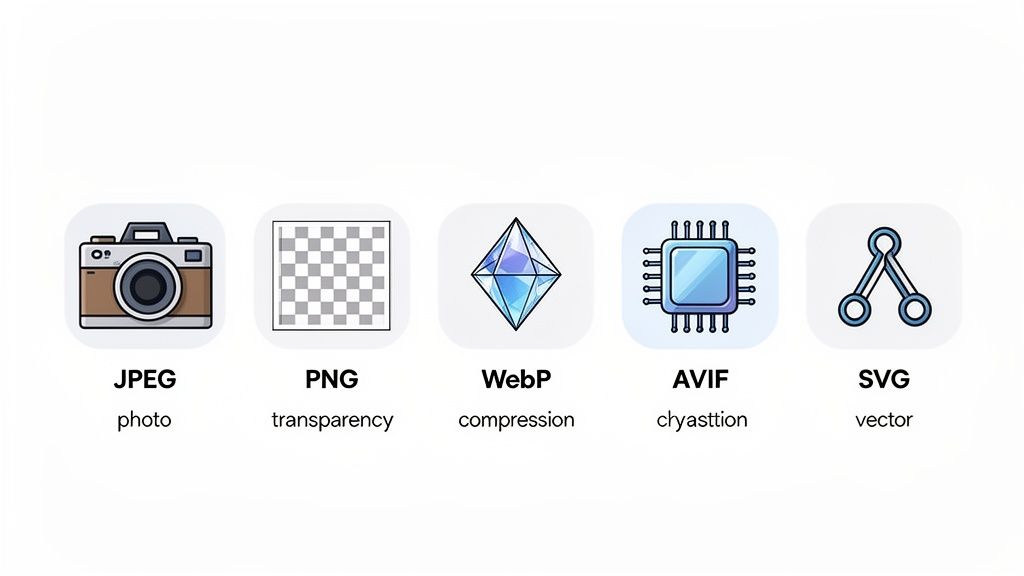
Picking the right image format is a constant negotiation between visual quality, file size, and the features you need. Every single kilobyte you shave off an image helps your pages load faster, which in turn leads to a better user experience and even a nice little boost in search rankings. While old-timers like JPEG and PNG laid the groundwork for the visual web we know today, modern formats like WebP and AVIF are pushing performance to a whole new level.
This single decision ripples across your website, affecting a few key areas:
- Performance: Smaller images mean faster load times. It’s that simple. This is a huge factor for keeping visitors engaged and for passing Google's Core Web Vitals.
- Appearance: Each format has its own way of handling colors, fine details, and sharpness. The wrong choice can leave a beautiful photo looking muddy or an icon looking fuzzy.
- Functionality: Do you need a logo with a transparent background? Or an animation to catch someone's eye? Only certain formats can handle these jobs.
To get a really solid handle on how these choices impact your site's speed and quality, it's worth checking out this comprehensive guide to choosing the best image format for websites. Getting the fundamentals right is the first real step toward a properly optimized site.
Quick Comparison of Web Image Formats
To cut through the noise, it helps to see how the main options stack up against each other. Each format is really a specialized tool. You wouldn't use a hammer to turn a screw, and you shouldn't use a PNG for a complex photograph.
The core idea behind modern image optimization is simple: deliver the smallest file that still looks great in its specific context. This almost always means using a mix of formats across your site, not just sticking to one.
Here’s a quick overview of the most common formats and what they do best. Think of this table as a cheat sheet to get you started before we dig into the nitty-gritty of each one.
| Format | Best For | Compression | Transparency | Animation |
|---|---|---|---|---|
| AVIF | Photographs, High-detail graphics | Superior Lossy & Lossless | Yes (Alpha) | Yes |
| WebP | Photographs, Graphics, Animations | Excellent Lossy & Lossless | Yes (Alpha) | Yes |
| JPEG | Photographs (Legacy Fallback) | Good Lossy | No | No |
| PNG | Logos, Icons, Screenshots | Excellent Lossless | Yes (Alpha) | No |
| SVG | Logos, Icons, Illustrations | Vector (Scalable) | Yes | Yes (CSS/JS) |
Comparing the Classics: JPEG, PNG, and GIF
Before modern powerhouses like WebP and AVIF changed the game, a trio of formats built the visual foundation of the internet. JPEG, PNG, and GIF were the workhorses every web developer had in their toolbox. To really grasp why the new formats are so good, you first have to understand the originals—their strengths, their quirks, and the specific problems they were built to solve.
These old-timers still have their place, often as bulletproof fallbacks for ancient browsers. Each one strikes a different balance between file size, image quality, and special features like transparency or animation. Picking the right one has always been a matter of context, so let's dig into how they work and where they still shine.
JPEG: The Photographic Standard
For decades, JPEG (short for Joint Photographic Experts Group) has been the undisputed king of online photos. Its secret weapon is a clever lossy compression algorithm that's brilliant at shrinking images with millions of colors and subtle gradients—think landscapes, portraits, and product shots. The algorithm works by throwing away visual data that the human eye isn't very good at noticing anyway.
Of course, that compression is a double-edged sword. "Lossy" means that data is gone for good. If you push the compression too hard, you’ll start to see nasty artifacts—those blocky or blurry patches that ruin sharp details. This makes JPEG a terrible choice for anything with crisp lines, like logos, user interface elements, or screenshots with text.
The other major drawback? No transparency. A JPEG will always have a solid background, making it useless for icons or graphics you need to place over different colored backgrounds.
PNG: For Flawless Graphics and Transparency
The Portable Network Graphics (PNG) format came along as a more powerful, patent-free alternative to GIF. Its defining feature is lossless compression, which is a fancy way of saying it doesn't discard a single pixel of information. You can save a PNG a hundred times, and it will look identical to the original, unlike a JPEG which degrades with each new save.
This pixel-perfect approach makes PNG the go-to for:
- Logos and Icons: It keeps sharp lines and solid colors perfectly crisp.
- Screenshots and Diagrams: Text and UI elements stay crystal clear without any compression fuzziness.
- Images with Text: It avoids the blurry "halos" that JPEGs often create around letters.
The real game-changer for PNG is its support for alpha transparency. While GIF could only manage basic on-or-off transparency, PNG allows for 256 levels of opacity. This lets you create beautiful, feathered edges and realistic drop shadows that blend seamlessly into any background.
The tradeoff here is file size. For a complex photograph, a lossless PNG will be monstrously larger than a comparable JPEG—often 5-10x bigger. That's why you should almost never use a PNG for a photo; it’s just bad for performance. If you have a large photo saved as a PNG, a quick conversion is in order. To help with this, you can learn more about converting PNG to JPG in our detailed guide.
GIF: For Simple, Lo-Fi Animation
The Graphics Interchange Format (GIF) is the oldest of the bunch, and today, its main job is creating simple, looping animations. For years, it was the only way to get motion on a webpage without needing a plugin. But the format comes with some serious baggage that makes it a poor fit for most modern sites.
GIFs are stuck with a tiny color palette of just 256 colors. This is why animated GIFs often look grainy or dithered, especially when they’re made from a video that originally had millions of colors. They also only support 1-bit transparency, meaning a pixel is either 100% see-through or 100% opaque—no soft edges.
While GIFs run everywhere, they generate huge files for what you get. Modern video formats like MP4 or WebM can deliver the same animation at a fraction of the size and with far superior color. Animated WebP and AVIF are also much better alternatives. These days, GIFs are best left for email clients or legacy systems where video support is a no-go.
Despite their age, these formats are far from obsolete. A W3Techs analysis shows that while PNG usage leads at 78.1%, JPEG remains a crucial workhorse. The same data shows WebP at 18.7% and growing fast, largely because its compression beats JPEG's by 25-35%. That means smaller files and faster load times, especially for users on mobile.
Getting to Grips With Modern Formats: WebP and AVIF
While the old guard of image formats built the visual web, the endless pursuit of speed and efficiency demanded something better. This is where WebP and AVIF come in. They weren't just tweaks to existing tech; they were engineered from the ground up to radically improve the balance between file size and visual quality.
Google rolled out WebP back in 2010 as a do-it-all format for the modern internet. It smartly combines the best traits of its predecessors, offering lossy compression that gives JPEG a run for its money and lossless compression that often beats PNG. On top of that, it handles transparency and animation, making it a true workhorse.
AVIF, the newer kid on the block, is built on the back of the incredibly powerful AV1 video codec. This heritage gives it a serious edge, enabling even more aggressive compression that consistently delivers smaller files than any other format at a similar quality level. For anyone obsessed with squeezing every last kilobyte out of their images, AVIF is the current gold standard.
The Power of WebP Compression
WebP’s magic lies in its sophisticated predictive coding. In simple terms, it looks at the pixels surrounding a specific pixel, predicts what that pixel's value should be, and then only saves the difference. This is a much smarter and more efficient approach than what JPEG and PNG use, leading to some seriously impressive file size savings.
Its flexibility is a huge win. You can deploy WebP across the board:
- Photographs: Lossy WebP can slash file sizes by 25-35% compared to a JPEG of the same visual quality.
- Graphics with Transparency: For logos and icons, lossless WebP often produces smaller files than PNG while keeping every pixel perfect.
- Animations: Animated WebP blows the old GIF format out of the water with better color support and much smaller files.
The versatility of WebP is its greatest asset. It consolidates the distinct roles once held by JPEG, PNG, and GIF into a single, highly efficient format, simplifying asset management and delivery pipelines.
The web has certainly embraced these advantages. WebP adoption has shot up to an impressive 18.7% across all websites, and that number is still climbing as browser support is now practically universal. This means you can confidently serve WebP to nearly all of your users and give them a faster experience.
AVIF: The New King of Efficiency
If WebP was a leap forward, AVIF is another massive jump. By tapping into the advanced algorithms of the AV1 video codec, AVIF can achieve file sizes that are often 30% smaller than WebP and over 50% smaller than JPEG, all without any noticeable drop in quality. It performs especially well on images with complex textures, details, and color gradients.
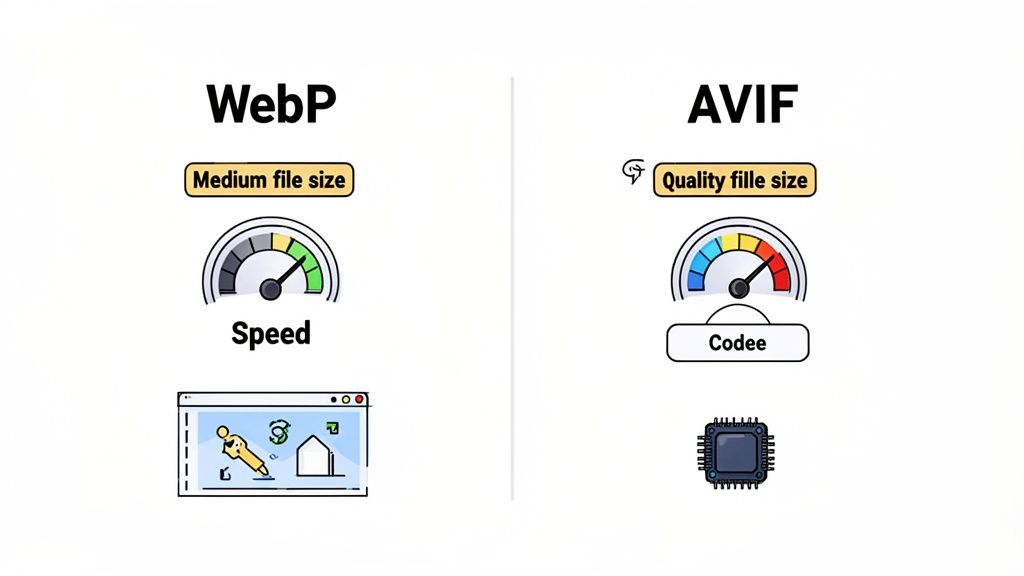
One of AVIF’s killer features is its support for a wider color gamut and higher bit depths, including High Dynamic Range (HDR). This translates to more vibrant, true-to-life colors and richer contrast, making it a fantastic choice for high-impact hero images or product photos where color fidelity is critical.
But all that power has a small cost. Encoding and decoding AVIF images can be more demanding on the CPU compared to WebP or JPEG. Modern devices barely break a sweat, but it’s something to keep in mind if you're supporting much older hardware. The encoding process itself can also be a bit slower, which could affect workflows that rely on generating images on the fly.
Making the Right Choice: WebP vs. AVIF
So, which one should you use? The decision usually comes down to balancing maximum compression against the widest possible compatibility. Both are fantastic for web optimization, but they shine in slightly different situations.
To help you decide, let's break down the key features of all the major formats in a quick comparison.
Web Image Format Feature Comparison
This table offers a snapshot of what each format brings to the table, making it easier to see how they stack up against each other at a glance.
| Feature | JPEG | PNG | GIF | WebP | AVIF | SVG |
|---|---|---|---|---|---|---|
| Compression | Lossy | Lossless | Lossless | Lossy & Lossless | Lossy & Lossless | N/A |
| Transparency | No | Yes (Alpha) | Yes (Index) | Yes (Alpha) | Yes (Alpha) | Yes |
| Animation | No | No (APNG) | Yes | Yes | Yes | Yes (SMIL) |
| Color Depth | 24-bit | Up to 48-bit | 8-bit | 24-bit | Up to 36-bit | N/A |
| Best For | Photos | Logos, Icons | Short Animations | All-Purpose | Photos, HDR | Logos, Icons |
| Browser Support | 100% | 100% | 100% | ~97% | ~93% | ~99% |
Looking at this, you can see that modern formats like WebP and AVIF cover far more ground than their predecessors.
For most websites today, WebP hits the sweet spot between performance and compatibility. With its near-universal support (~97% of browsers) and speedy decoding, it’s a safe, reliable, and highly effective choice for your default image format. If you need to update your existing images, tools are readily available. Our guide on how to handle a JPG to WebP conversion can get you started.
AVIF is your go-to when you need the absolute smallest file size possible, like for a critical Largest Contentful Paint (LCP) image on a landing page. Its superior compression can give you a real performance edge in these make-or-break scenarios. Just be sure to set up a WebP or JPEG fallback for the ~7% of browsers that don't support it yet.
Diving Into Vector Graphics with SVG
Everything we’ve looked at so far—JPEG, PNG, WebP—are raster formats. They’re all built on a grid of pixels. Now, let's switch gears and talk about a completely different animal: Scalable Vector Graphics (SVG).
Instead of a pixel grid, SVGs use mathematical equations to map out shapes, lines, and curves. This is the secret to their biggest advantage: infinite scalability. An SVG can be stretched from a tiny icon to a massive billboard without ever getting blurry or pixelated. The browser just re-runs the math for the new dimensions, keeping every line perfectly crisp.
The Unmatched Flexibility of SVG
Because SVGs are really just code (specifically, XML), they are incredibly light for simple graphics. A logo that might be 30 KB as a PNG can shrink down to just 2-3 KB as an SVG. That's a huge win for performance.
But the real magic is that this code can be manipulated directly with CSS and JavaScript. This unlocks some amazing possibilities:
- Interactive Graphics: You can change an icon’s color on hover or create complex animations that respond to user actions.
- Accessibility: Since text inside an SVG is actual text, it’s searchable, selectable, and readable by screen readers. That’s a massive plus for usability.
- Effortless Edits: Need to update your site's color scheme? You can change a logo’s color with a single line of CSS instead of re-exporting a dozen different image files.
The power of SVG is that it treats graphics as scriptable objects in the browser, not static pixels. This makes it an essential tool for modern, responsive front-end design.
You can't use an SVG for a photograph, of course. But for any graphic that needs to stay sharp across all screen sizes and resolutions, it’s the undisputed champion. Its tiny file size and styling capabilities make it the best image format for web logos and icons, period.
When to Choose SVG
Knowing when to use SVG is pretty simple. If it's a non-photographic graphic with solid colors that needs to scale, SVG is almost always the right call.
Here are the prime use cases:
- Logos and Brand Marks: Keep your logo looking flawless on everything from a tiny favicon to a 4K display.
- UI Icons: Icons for menus, buttons, and other interface elements will stay crisp at any size, and you can easily change their color to match your theme.
- Simple Illustrations and Diagrams: Line art, charts, and infographics are perfect for SVG and usually end up much smaller than a comparable PNG.
- Animated and Interactive Elements: For animations that are more complex than a simple GIF but don't need a full video file, SVG is the way to go.
Sometimes, you might start with a raster image like a JPG that needs to be turned into a scalable graphic. For those situations, knowing the right way to handle the conversion is crucial. Our guide on how to transform a JPG into a scalable SVG walks through the best practices for this workflow. By adopting SVG for the right jobs, you ensure your most important visual assets are performant, flexible, and future-proof.
Knowing the specs of each image format is one thing, but knowing when to use each one is what really moves the needle on web performance. The right choice is always contextual. A format that’s perfect for a stunning hero image will be a disaster for a simple company logo.
This is where the rubber meets the road. Let's walk through the most common image types you'll encounter and build a practical framework for choosing the best format. This way, you’re always making a strategic choice that balances visual quality with file size and functionality.
To kick things off, the first decision is usually between a raster (pixel-based) or vector (math-based) format. This flowchart breaks down that initial choice.

As you can see, if your image is built from a grid of pixels, like a photograph, you're in raster territory. If it's defined by mathematical equations, like a logo, vector is the clear winner.
Photographic Content and Hero Images
For any image capturing real-world detail—product shots, portraits, or those big, beautiful banner images—the game is all about maximum compression with minimal quality loss. This is where modern formats absolutely shine.
Primary Choice: AVIF
AVIF delivers the most aggressive compression you can get today. It routinely creates files 30% smaller than WebP and often over 50% smaller than JPEG. For a critical, above-the-fold hero image that directly impacts your Largest Contentful Paint (LCP) score, that kind of file size reduction is a massive win.Secondary Choice: WebP
Think of WebP as the perfect all-rounder. It provides excellent compression, decodes quickly, and boasts near-universal browser support (~97%). It's a reliable, high-performing, and safe bet for almost any photograph.Fallback: JPEG
You should always have a JPEG fallback. It's the lingua franca of web photos, guaranteeing that the small percentage of users on older browsers won't be left staring at a broken image.
Getting this right is especially critical in e-commerce. For a deep dive into how these choices play out in a major marketplace, check out the official Amazon Product Image Requirements.
Logos, Icons, and UI Elements
When you're working with graphics that rely on sharp lines, solid colors, and clean geometric shapes, scalability and crispness are non-negotiable. Pixelation is your worst enemy.
Primary Choice: SVG
For logos and icons, SVG is the undisputed champion. Because it’s a vector format, it scales to any size—from a tiny favicon to a massive billboard—with zero quality loss. Your brand assets will look pixel-perfect on every screen. Plus, the file sizes are minuscule, and you can even style SVGs with CSS to create interactive effects like hover-state color changes.Secondary Choice: PNG
If for some reason you can't use an SVG (maybe due to a platform limitation or a highly complex illustration), PNG is the next best thing. Its lossless compression keeps lines and text perfectly sharp, and its alpha transparency support is flawless for placing logos on different colored backgrounds.
Images Requiring Transparency
Sometimes you need a transparent background on an image that isn't a simple logo, like a product cutout or a portrait with the background removed.
Primary Choice: WebP
WebP is a game-changer here. It supports full alpha transparency just like a PNG but often at a fraction of the file size. You get the best of both worlds: complex photographic detail and an efficient transparent background.Secondary Choice: AVIF
AVIF also provides excellent transparency support with even better compression. If your top priority is the absolute smallest file size possible, AVIF is an outstanding choice.Fallback: PNG
PNG remains the classic, reliable option for transparency. While its files can be large for photographic content, its support is universal, making it a bulletproof fallback.
Animated Elements
For adding motion to a page, the goal is to sidestep the bloated file sizes of traditional GIFs while delivering high-quality visuals.
Primary Choice: MP4/WebM Video
Honestly, for anything more than a simple, short loop, you should be using a modern video format. A short, looping, muted MP4 video will almost always be smaller and look infinitely better than an animated GIF doing the same job.Secondary Choice: Animated WebP
For simple, GIF-style animations like a loading spinner or an animated icon, Animated WebP is a fantastic upgrade. It supports a full range of colors and transparency while producing much smaller files than its predecessor.Fallback: GIF
Only use a GIF when you absolutely have to. Its main stronghold is in email marketing, where video support is notoriously unreliable.
Image Format Recommendations by Use Case
To make things even clearer, here’s a quick-reference table that summarizes our recommendations. Think of it as a cheat sheet for making the right call every time.
| Use Case | Primary Format Recommendation | Fallback Format Recommendation | Key Considerations |
|---|---|---|---|
| Photographs & Hero Images | AVIF | WebP, then JPEG | Prioritize the smallest file size for fast loading (LCP). |
| Logos & Icons | SVG | PNG | Scalability and sharpness are critical. Use vectors whenever possible. |
| Images with Transparency | WebP | AVIF, then PNG | WebP offers a great balance of quality and file size for transparent photos. |
| Simple Animations | Animated WebP | Animated GIF | Aim for modern formats; only use GIF for maximum compatibility (e.g., email). |
| Complex Animations | MP4 / WebM Video | Animated WebP | Video is far more efficient for longer or higher-quality animations. |
This table should help you quickly map your image's purpose to the best possible format, ensuring you're always optimizing for both performance and visual fidelity.
Frequently Asked Questions About Image Formats
Working with modern image formats can bring up some practical questions. Let's tackle the most common ones I hear from developers and designers to help you put all this knowledge into practice.
How Do I Use WebP and AVIF with Fallbacks?
This is the big one. You want to use the latest, most efficient formats like WebP or AVIF, but you can't just abandon users on older browsers. The answer is the HTML <picture> element. It’s a beautifully simple solution that lets the browser do the heavy lifting.
The <picture> tag lets you offer a menu of image formats. The browser starts at the top, finds the first one it understands, and ignores the rest.
Here’s what that looks like in code:

In this example, the browser first tries to load image.avif. If it can't, it moves on to image.webp. If that fails too, it falls back to the good old image.jpg in the <img> tag, which works everywhere.
This strategy is called progressive enhancement. You give the best experience to users with modern browsers while ensuring a perfectly functional (and still fast) site for everyone else. It’s a true win-win.
Is AVIF Ready for Widespread Use?
Yes, with a couple of footnotes. The compression AVIF offers is simply phenomenal, and browser support has finally hit a tipping point. With Chrome, Firefox, and Safari all on board, AVIF now works for about 93% of users globally.
But there are a couple of things to keep in mind:
- Encoding Speed: Creating an AVIF file takes more processing power than a JPEG or WebP. If your workflow involves generating thousands of images on the fly, this could be a bottleneck.
- Decoding Performance: On most modern devices, AVIF decodes in a snap. But on some very low-end hardware, WebP can sometimes be a fraction of a second faster to display, even if the file itself is a bit larger.
For most sites, AVIF is a fantastic choice, especially for high-impact visuals like hero images where every kilobyte matters. Just make sure you always provide a WebP or JPEG fallback using the <picture> element. This covers the small percentage of users without AVIF support and handles any edge cases.
How Do Image Formats Affect Core Web Vitals?
Image formats are absolutely central to your Core Web Vitals, especially the Largest Contentful Paint (LCP). LCP measures the time it takes for the largest visual element on the screen to appear. A slow-loading hero image is one of the most common reasons for a poor LCP score.
Here's the direct connection:
- Smaller Files, Faster Downloads: Switching from JPEG to a modern format like AVIF or WebP can shrink file sizes dramatically.
- Faster Downloads, Better LCP: The smaller the file, the faster it travels over the network. This means the browser can download and display your main image much sooner, directly improving your LCP time. Shaving just a few hundred milliseconds here can be the difference between a "Good" score and a "Needs Improvement" warning from Google.
- Indirect Impact on CLS: While not tied to a specific format, a good optimization process includes setting
widthandheightattributes on your images. This prevents the page from jumping around as images load, which is critical for a good Cumulative Layout Shift (CLS) score.
When you choose the best image format for the web, you're not just making a technical decision—you're directly improving the user experience and a key performance metric that Google cares about.
What Are the Best Tools for Converting Images?
A solid conversion tool is a must-have in your toolkit. The good news is there are plenty of great options out there, from heavy-duty desktop apps to slick online converters.
Here are a few of my go-to recommendations:
- Desktop Apps: For ultimate control, you can't beat tools like Adobe Photoshop (with the right plugins), Affinity Photo, or the free and open-source powerhouse, GIMP.
- Command-Line Tools: If you need to automate your workflow, command-line tools are the way to go. Check out
cwebpfor WebP andavifencfor AVIF. They're perfect for scripting and batch processing. - Online Converters: Google's Squoosh is fantastic. It's a web-based tool that lets you visually compare formats and compression levels side-by-side, making it an excellent way to learn the trade-offs.
Sometimes, you just need a quick, no-fuss conversion without installing software or uploading sensitive files to a random website. That's where in-browser tools really shine.
For lightning-fast, secure, and private file conversions right in your browser, ShiftShift Extensions provides a powerful suite of tools. Convert between JPG, PNG, WebP, AVIF, and SVG with batch processing and fine-tuned quality controls. Because all processing happens locally, your files never leave your computer, ensuring complete privacy and offline functionality.
Discover a smarter workflow at https://shiftshift.app.