Bir STL Dosyasını Nasıl Açılır: Her Kullanıcı İçin Pratik Bir Kılavuz
STL dosyası nasıl açılır: 3D baskı ve tasarım için en iyi ücretsiz görüntüleyicileri, tarayıcı araçlarını ve CAD yazılımlarını keşfedin.

Önerilen Uzantılar

Elinizde bir STL dosyası var ve bunu açmanız gerekiyor. İyi haber şu ki, birçok seçeneğiniz var. Bilgisayarınızda muhtemelen zaten bulunan ücretsiz masaüstü yazılımlarını (Windows'ta Microsoft 3D Viewer gibi) kullanabilir, hızlı bir bakış için web tabanlı bir görüntüleyiciye yükleyebilir veya tam kapsamlı bir CAD veya 3D yazıcı dilimleme programına aktarabilirsiniz.
Doğru araç, dosya ile ne yapmanız gerektiğine bağlı. Sadece bir göz atıyor musunuz, yoksa 3D baskı için hazırlıyor veya tasarım değişiklikleri mi yapıyorsunuz?
STL Görüntüleme Seçeneklerinizi Anlamak
İlk bulduğunuz programı indirmeden önce, mevcut olan farklı araç türlerini inceleyelim. Buradaki hedefiniz her şeydir. Hızlı bir tasarım doğrulaması, aynı modeli karmaşık bir mühendislik montajına entegre etmekten farklı bir yaklaşım gerektirir.
STL formatının hala 3D baskının kralı olması oldukça şaşırtıcı. İlk olarak 1987 yılında 3D Systems tarafından orijinal stereolitografi yazıcıları için geliştirildi. 3D yüzeyi bir üçgen ağı ile yaklaşık olarak temsil etme basit bir kavramdır, ancak son derece iyi çalışır. Bu yüzden bugün 3D baskı iş akışlarının %90'ından fazlasında kullanılmaktadır. Tarihi ve yapısı hakkında daha derinlemesine bilgi edinmek isterseniz, STL dosya formatı hakkında harika kapsamlı incelemeler bulunmaktadır.
Yolunuzu Seçmek: Hızlı Bakış, Düzenleme veya İleri Düzey?
Gürültüyü kesmek için, şu anda neyi başarmanız gerektiğini kendinize sorun. Bu akış diyagramı, en yaygın görevler temelinde karar verme sürecini haritalandırıyor.
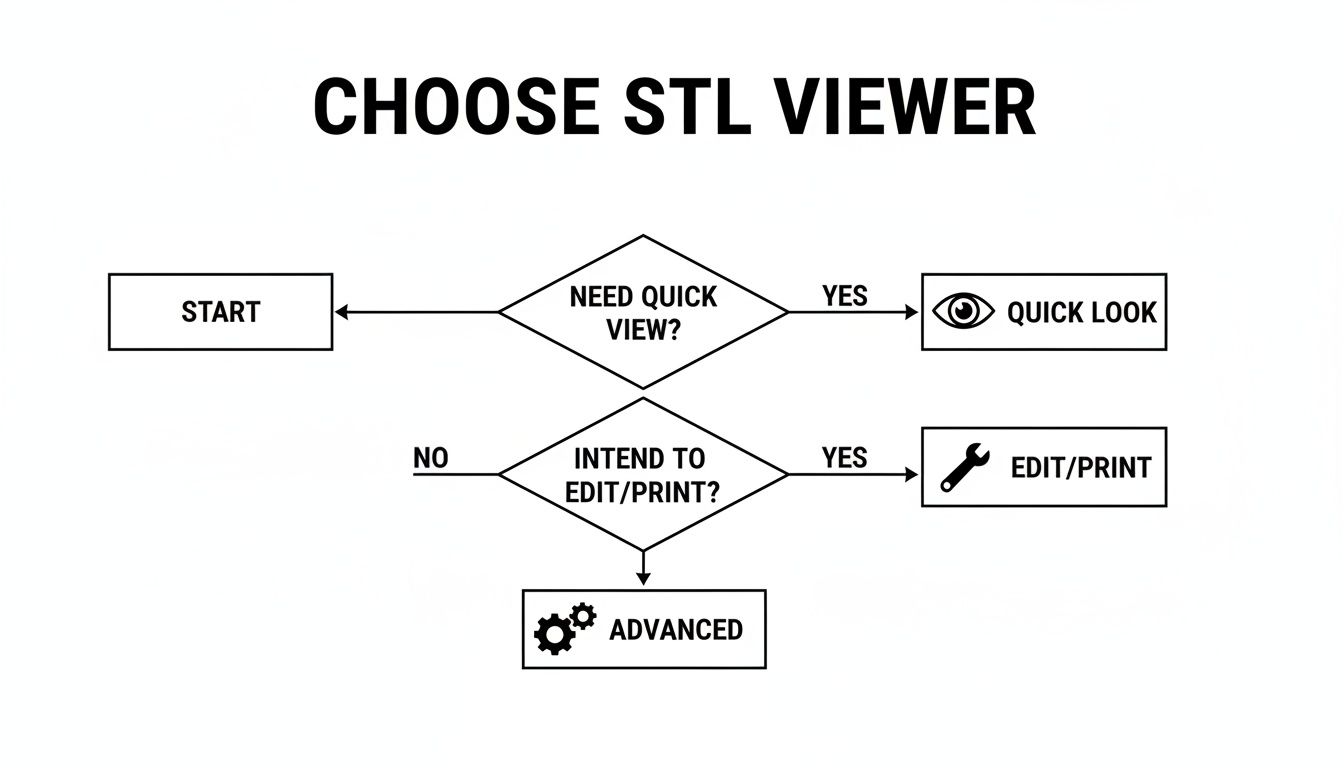
Gördüğünüz gibi, eğer sadece bir modeli incelemeniz gerekiyorsa, basit bir tarayıcı aracı veya temel bir masaüstü görüntüleyici en hızlı seçeneğinizdir. Ancak değişiklik yapmanız veya bir dosyayı baskıya hazırlamanız gerektiği anda, bir dilimleyici veya uygun bir CAD programına geçmeniz gerekecek. Yoğun analiz için, özel mühendislik yazılımlarına yönelmeniz gerekecek.
STL Dosyanızı Açmanın Üç Hızlı Yolu
Daha net bir resim vermek için, STL dosyasını açmanın en yaygın üç yolunu karşılaştıran bir tablo hazırladım. Her yöntemin hız, özellikler ve -önemlisi- gizlilik açısından kendi avantajları vardır.
| Yöntem | En İyi Kullanım | Hız | Ana Özellikler | Gizlilik Seviyesi |
|---|---|---|---|---|
| Tarayıcı İçi Görüntüleyiciler | Kurulum olmadan anlık, güvenli model incelemesi. | Çok Hızlı | Döndürme, yakınlaştırma, tel çerçeve görünümü, ekran görüntüleri. | Yüksek (yerel görüntüleyicilerle) |
| Masaüstü Yazılımları | Çevrimdışı görüntüleme ve daha güçlü inceleme araçları. | Hızlı | Ölçüm araçları, ağ analizi, temel onarımlar. | Çok Yüksek |
| Tam CAD Programları | Modelleri düzenleme, değiştirme ve projelere entegre etme. | Daha Yavaş | Tam düzenleme seti, dosya dönüştürme, montaj. | Çok Yüksek |
Bu tablo, net bir takas gösteriyor: saf hız ve kullanım kolaylığı açısından, tarayıcı tabanlı bir görüntüleyici ile kıyaslanamaz. Ancak daha fazla kontrol ve gelişmiş özellikler için, makinenizde özel yazılımlar kurulu olmalıdır.
Benim Görüşüm: Eğer bir STL dosyasının içindekileri hızlı ve güvenli bir şekilde görmek istiyorsanız, ShiftShift Extensions'tan yerel bir tarayıcı içi görüntüleyici en iyi seçimdir. Eşsizdir. Hiçbir şey indirmenize gerek yok ve daha da önemlisi, tasarım dosyalarınız asla bilgisayarınızdan çıkmaz. Hassas veya özel projeler için bu büyük bir kazançtır. Basit bir bakışın ötesinde bir şey için, masaüstü yazılımınızı açmanız gerekecek.
Tarayıcınızda STL Dosyalarını Anında Açma
Bazen bir STL dosyasının içindekileri görmeniz gerekir ve bunu şimdi yapmalısınız. Hantal yazılımların kurulmasını beklemeyi veya IT yöneticinizden izin istemeyi unutun. En hızlı yol genellikle ekranınızda zaten açık olan şeydir: web tarayıcınız.
Bu, özellikle hassas veya özel tasarımlar ile çalışırken bir oyun değiştiricidir. Birçok çevrimiçi görüntüleyici, dosyanızı sunucularına yüklemenizi ister, bu da büyük bir güvenlik kırmızı bayrağı olabilir. Ancak en iyi olanlar, her şeyi kendi makinenizde çalıştırır. Fikri mülkiyetiniz asla bilgisayarınızdan çıkmaz.
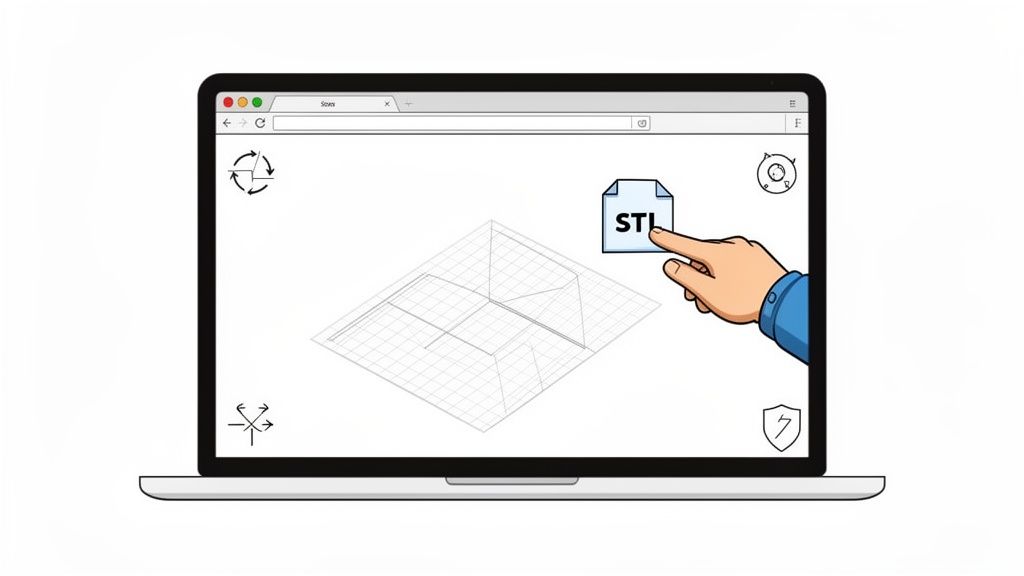
Gizlilik Öncelikli Bir İş Akışı
İpucu, tarayıcınızın kendi gücünü dosyayı yerel olarak işlemek için kullanan bir görüntüleyici bulmaktır. Bu gizlilik öncelikli iş akışı son derece basittir: aracın web sayfasını veya uzantısını açın ve STL dosyanızı sürükleyip bırakın. Tüm ağır işler ve render işlemleri cihazınızda gerçekleşir, her şeyi tamamen gizli tutar.
Bir mühendis gizli bir prototipi gözden geçirmesi gerektiğini hayal edin. STL dosyasını güvenli bir şekilde açabilir, onu üçüncü taraf bir buluta göndermeden inceleyebilir. Ya da bir ürün tasarımcısını düşünün, bir serbest çalışandan bir modeli hızlıca kontrol etmesi gerekiyor ama çalışma makinesini başka bir programla karıştırmak istemiyor. Temiz, güvenli ve son derece verimli.
Yerel bir tarayıcı içi görüntüleyici, bir dosya alıp onu görme arasındaki sürtüşmeyi ortadan kaldırır. Sadece zaman kazanmakla kalmıyorsunuz; verilerinizi tamamen dış sunuculardan uzak tutarak koruyan bir iş akışını benimsemiş oluyorsunuz. Bu, önceden yayımlanmış veya gizli tasarımlarla çalışan profesyoneller için müzakere edilemez bir durumdur.
Bu yaklaşım, tarayıcınızı, tipik yazılım yükü olmadan bir STL dosyasını nasıl açacağınızı bilmesi gereken herkes için güçlü, talep üzerine bir araca dönüştürüyor. Bunun neden bu kadar etkili olduğunu daha derinlemesine incelemek için, tarayıcı tabanlı 3D model görüntüleyici avantajları hakkında rehberimize göz atın.
Hızlı Kontroller için Temel Özellikler
Bu görüntüleyiciler tam kapsamlı bir CAD programının yerini almak için tasarlanmamıştır, ancak hızlı inceleme ve doğrulama için ihtiyaç duyacağınız tüm temel özellikleri barındırır. Dürüst olmak gerekirse, bunlar %90'lık bir zaman diliminde kullanacağınız temel işlevlerdir.
Herhangi bir açıdan bir modeli incelemenizi sağlayan temel kontrol araçlarına anında erişim sağlarsınız. Tasarımın doğru olduğunu onaylamak için mükemmeldir, böylece baskıya göndermeden veya zincirdeki bir sonraki kişiye iletmeden önce kontrol edebilirsiniz.
İyi bir tarayıcı içi görüntüleyiciden beklemeniz gerekenler:
- Model Döndürme: Modeli X, Y ve Z eksenlerinde serbestçe döndürerek tam 360 derece görünüm elde edin.
- Yakınlaştırma ve Kaydırma: Küçük detayları incelemek için yakından bakın veya modeli kaydırarak farklı alanları kolayca kontrol edin.
- Tel Çerçeve Görünümü: Katı ve tel çerçeve modları arasında geçiş yapın. Bu, altındaki ağı analiz etmek ve potansiyel geometri sorunlarını tespit etmek için benim tercih ettiğim yöntemdir.
- Ekran Görüntüsü Alma: Mevcut görünümünüzün hızlı, yüksek kaliteli bir anlık görüntüsünü alarak bir meslektaşınızla veya müşterinizle anında geri bildirim için paylaşın.
Bu araçlar, bir parçanın yönünü doğrulamak, belirgin yüzey kusurlarını tespit etmek veya ilerlemeden önce doğru dosyayı aldığınızdan emin olmak gibi günlük görevleri kolaylaştırır. Hafif ama kesinlikle vazgeçilmez bir çözümdür.
Doğru Masaüstü STL Görüntüleyicisini Seçmek
Bazen, tarayıcınızda hızlı bir bakış yeterli olmayabilir. Daha derin bir inceleme için, özel bir masaüstü uygulamasına ihtiyacınız olacak. Bu programlar performans için tasarlanmıştır, çevrimdışı çalışır ve detaylı incelemeler için ihtiyaç duyduğunuz ciddi araçları içerir, tüm bunları bir web uygulamasının gecikmesi olmadan yapar. Bir modeli sadece göz atmanın ötesine geçmeniz gerektiğinde, mantıklı bir sonraki adım olarak düşünün.
Gerçek ipucu, yazılımı gerçekten ne yapmanız gerektiği ile eşleştirmektir. Eğer bir hobi sahibiyseniz ve bir dosyanın baskıya hazır göründüğünden emin olmaya çalışıyorsanız, karmaşık bir mühendislik setine ihtiyacınız yoktur. Öte yandan, hassas ölçümler almak veya ağdaki kusurları bulmak istiyorsanız, basit bir görüntüleyici yetersiz kalacaktır.
Windows Kullanıcıları için: Yerleşik Bir Çözüm
Windows PC kullanıyorsanız, iyi haber - muhtemelen zaten harika bir araç hazır. Microsoft 3D Viewer, Windows 10 ve 11'de önceden yüklenmiş olarak gelir ve açıkçası, varsayılan bir uygulama için oldukça sağlamdır. STL, OBJ ve diğer yaygın formatları sorunsuz bir şekilde işler, temiz render ve basit kontroller sunar.
Dürüst olmak gerekirse, bunu herhangi bir Windows kullanıcısına önerdiğim ilk şeydir. En az direnç yoludur. Bir STL dosyasını açabilir, döndürebilir, boyutlarını kontrol edebilir ve hatta bazı temel aydınlatma ile oynayabilirsiniz. Hızlı ve kapsamlı bir kontrol için, genellikle ihtiyacınız olan tek şeydir.
Tüm Kullanıcılar için Çapraz Platform Güç Merkezleri
Daha ciddi bir şey yapmanız gerektiğinde veya macOS veya Linux'taysanız, özel, çapraz platform görüntüleyicilere bakma zamanı. Bu uygulamalar, karmaşık 3D ağ verilerini işlemek için sıfırdan tasarlanmıştır ve basit görüntülemenin çok ötesinde özelliklerle doludur.
Bu alanda gerçekten öne çıkan iki ücretsiz seçenek var:
- MeshLab: Bunu sık sık 3D ağlar için "İsviçre çakısı" olarak adlandırırım. Görüntüleyiciden çok daha fazlası olan açık kaynaklı bir güç merkezidir. 3D modelleri temizlemek, düzenlemek, onarmak ve gerçekten analiz etmek için kullanabilirsiniz.
- UltiMaker Cura: Ana görevi 3D baskı için bir dilimleyici olmakla birlikte, Cura aynı zamanda harika bir STL görüntüleyicisidir. Modelleri baskıya hazırlamak için tasarlandığı için, diğer görüntüleyicilerin gözden kaçırabileceği potansiyel sorunları tespit etmede son derece iyidir.
MeshLab arayüzünün bu ekran görüntüsü, gücünü anlamanızı sağlar. Görünür olan araçların sayısı, temel bir görüntüleyicinin yapabileceğinden çok daha derin bir analiz için tasarlandığını gösterir.
İş Akışınız için Doğru Seçimi Yapmak
Peki, doğru aracı nasıl seçersiniz? Her şey, ana hedefinize bağlıdır. Hayatınızı karmaşıklaştırmadan sorununuzu çözen bir şey istiyorsunuz.
Profesyonel İpucu: Bir işi mükemmel bir şekilde yapacak bir program varken üç farklı program yüklemeyin. Öncelikle acil ihtiyacınızı karşılayan en basit aracı seçin. Windows kullanıcıları için bu 3D Viewer'dır. Sadece sınırlarına ulaştığınızda - örneğin, bozuk bir ağı düzeltmeniz gerektiğinde - MeshLab gibi bir şeye geçmelisiniz.
En yaygın görevlerinizi düşünün:
- Hızlı Doğrulama: Sadece doğru dosyayı indirdiğinizi ve iyi göründüğünü onaylamanız mı gerekiyor? Microsoft 3D Viewer (Windows) veya Önizleme uygulaması (macOS) mükemmeldir.
- Detaylı İnceleme: Ölçümler almak, duvar kalınlığını kontrol etmek veya yüzey kusurlarını aramak mı gerekiyor? MeshLab gibi bir hassas araç, ihtiyaç duyduğunuz kontrolü sağlar.
- Baskı Hazırlığı: Eğer doğrudan 3D yazıcıya gidecekseniz, STL dosyasını dilimleyicinizde (Cura gibi) açın. Modeli görüntüleyebilir ve baskıya hazırlayabilirsiniz. Bu en verimli iş akışıdır.
STL Dosyaları için CAD ve Dilimleme Yazılımlarını Kullanma
Bir modeli sadece görmekten daha fazlasını yapmanız gerektiğinde, basit görüntüleyicilerin ötesine geçme zamanı. Ciddi değişiklikler yapmak veya bir dosyayı 3D baskı için hazırlamak için, Bilgisayar Destekli Tasarım (CAD) veya dilimleme yazılımları gibi profesyonel araçlara geçmeniz gerekecek. Bu uygulamalar, dijital bir dosyayı gerçek bir nesneye dönüştürmek için tasarlanmıştır.
Bir STL dosyasını Fusion 360, Blender veya SolidWorks gibi bir CAD programına aktarmak tamamen farklı bir oyundur. Yazılım, akıllı, düzenlenebilir bir nesne olarak değil, sayısız birbirine bağlı üçgenden oluşan "aptal" bir ağ olarak görür. Bu, nihai geometrinin bir anlık görüntüsüdür, ancak onu oluşturan tüm parametrik veriler kaybolmuştur.
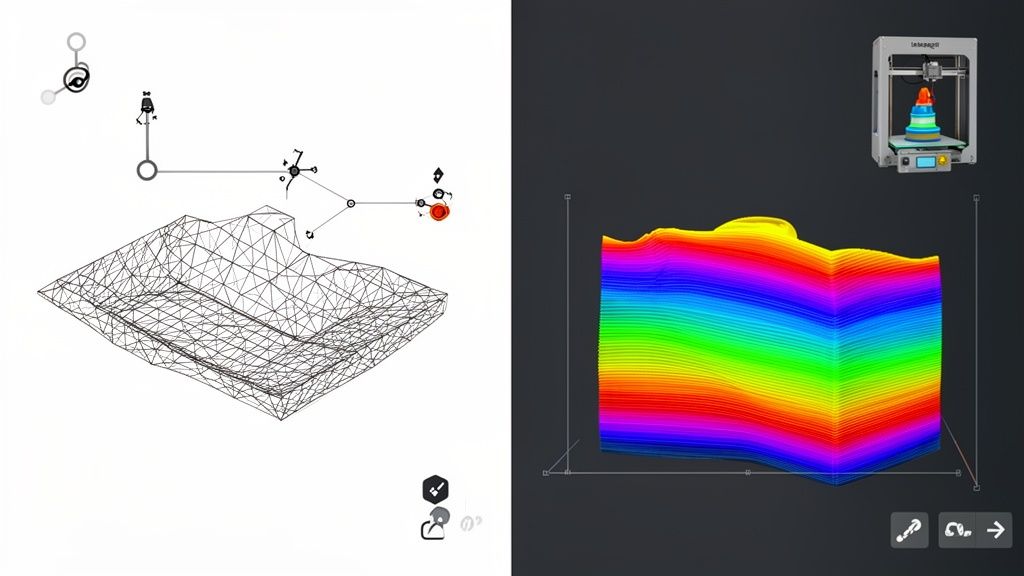
Bu ayrım her şeydir. STL formatının basitliği, hem en büyük gücü hem de en önemli zayıflığıdır. Tasarımı, hassas tasarım geçmişini ortadan kaldıracak şekilde tasarlanmıştır; bu, STEP gibi bir formata kıyasla veri transferini %99 oranında azaltabilir. Bu kasıtlı veri koruma, 2025 yılına kadar 15 milyar dolara ulaşması beklenen hızlı prototipleme pazarında büyük bir etken olmuştur; çünkü şirketlerin modelleri paylaşmasına olanak tanır, fikri mülkiyetlerini vermeden.
STL'yi CAD'de Düzenlenebilir Hale Getirmek
İçeri aktarılan bir STL sadece bir ağ olduğundan, doğrudan düzenlemek zor olabilir. Bunu, düzleştirilmiş bir JPEG'i düzenlemeye çalışmakla katmanlı bir Photoshop dosyasını düzenlemeye çalışmak gibi düşünün. Bir deliğe tıklayıp yeni bir çap yazamazsınız. Ancak modern CAD paketleri, işinizi halletmenize yardımcı olacak güçlü ağ düzenleme araçlarına sahiptir.
İşte bunu ele almanın birkaç yaygın yolu:
- Doğrudan Ağ Manipülasyonu: Birçok program, üçgen yüzeyleri itme, çekme ve şekillendirme olanağı sunar. Bu yaklaşım, organik şekiller veya küçük sanatsal ayarlamalar yapmak için harika çalışır.
- Ağdan Katı Dönüşüm: Bazı yazılımlar, ağı katı bir cisme dönüştürmeye çalışır. Eğer başarılı olursa, standart parametrik araçları kullanarak bunu değiştirebilirsiniz. Ancak dikkatli olun; bu işlem daha karmaşık modellerde başarısız olabilir veya hatalar oluşturabilir.
Eğer STL dosyalarını ciddi şekilde değiştirmeyi veya sıfırdan oluşturmayı planlıyorsanız, 3D modelleme yazılımını ustalaşmak zorunludur.
Dilimleme Yazılımının Rolü
Eğer nihai hedefiniz bir 3D yazıcıysa, bir dilimleyici şarttır. UltiMaker Cura, PrusaSlicer veya Bambu Studio gibi dilimleyiciler, dijital iş akışındaki son ve en kritik adımdır. Ana görevleri, 3D modelinizi yüzlerce veya hatta binlerce ince yatay katmana "dilimlemektir".
Bir dilimleyici, bir STL dosyasının geometrik kabuğunu 3D yazıcınız için ayrıntılı, adım adım bir talimat kılavuzuna çevirir. Bu kılavuza G-code denir ve yazıcıya her bir katman için tam olarak nereye hareket etmesi, ne kadar hızlı gitmesi ve ne kadar malzeme ekstruzyon yapması gerektiğini söyler.
Bir STL dosyasını bir dilimleyicide açtığınızda, sadece görüntülemekle kalmaz; aynı zamanda onu üretim için hazırlarsınız. Burada, nihai baskınızın kalitesini, dayanıklılığını ve görünümünü doğrudan etkileyen kritik ayarları belirleyeceksiniz.
Aşağıdaki gibi ana parametreler üzerinde yoğunlaşacaksınız:
- Yönlendirme: Modelin, başarılı bir baskı sağlamak ve destek ihtiyacını en aza indirmek için yapım plakasında nasıl duracağını belirlemek.
- Doldurma: İç yapıyı tanımlamak—güç ile kullanılan malzeme miktarı ve baskının süresi arasında denge kurmak.
- Destekler: Modelinizin baskı sırasında sarkma yapan kısımlarını desteklemek için otomatik olarak çıkarılabilir yapılar oluşturmak.
- Katman Yüksekliği: Her katmanın kalınlığını ayarlamak; bu, ince detay ile daha hızlı baskı hızı arasında bir denge kurmaktır.
Sonuç olarak, CAD ve dilimleyici yazılımları, ekranınızdaki dijital dosya ile elinizdeki fiziksel nesne arasında köprü kuran temel araçlardır.
Yaygın STL Dosyası Problemlerini Nasıl Çözersiniz
Er ya da geç, işbirliği yapmayı reddeden bir STL dosyasıyla karşılaşacaksınız. Açmaya çalıştığınızda bir hata mesajı alırsınız, karmaşık bir çokgen görüntüsüyle karşılaşırsınız veya daha kötüsü, hiçbir şey göremezsiniz. Bu her zaman olur ve iyi haber şu ki, bu sorunların çoğu, ne aradığınızı bildiğinizde tamamen düzeltilebilir.
Bozuk gibi görünen bir STL dosyasını açmaya çalışırken, sorun genellikle birkaç yaygın geometrik hataya dayanır. Bir yazılımın 3D modeli anlaması için—özellikle 3D baskı için—mükemmel, "su geçirmez" bir dijital nesne olması gerekir. Herhangi bir delik, garip örtüşen yüzeyler veya ters çevrilmiş üçgenler, programın onu işlemek için tamamen kafa karışıklığına neden olabilir.
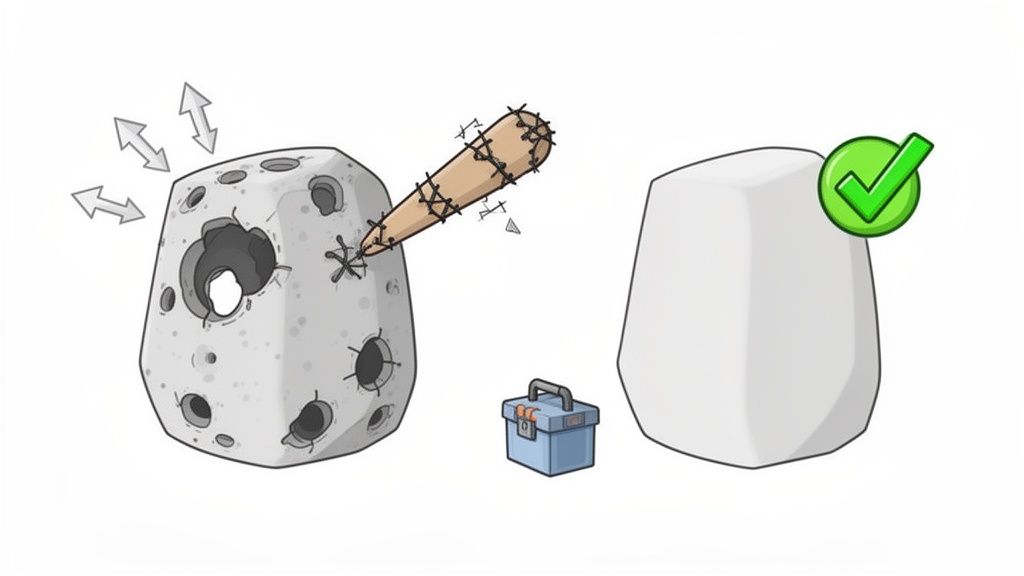
Dosyanızı Teşhis Etme ve Onarma
Bir sorunlu STL dosyasının arkasındaki yaygın nedenler genellikle geometrik hatalardır. Terimler biraz teknik geliyorsa endişelenmeyin; kavramlar oldukça basit ve bu sorunları tek tıklamayla düzeltebilen birçok ücretsiz araç mevcuttur.
İşte büyük üç:
- Non-Manifold Geometri: Bu, kesinlikle en yaygın problemdir. Modelinizde üç veya daha fazla yüzey tarafından paylaşılan tek bir kenarı düşünün. Gerçek dünyada bu imkansızdır ve yazılımın başa çıkamayacağı bir belirsizlik yaratır.
- Ters Normaller: Modelinizi oluşturan her küçük üçgenin bir "içi" ve bir "dışı" vardır. Bunlardan bazıları yanlış yönde ters çevrilirse, modelde delik varmış gibi görünmesine veya bir 3D baskı dilimleyicisinin tamamen başarısız olmasına neden olabilir.
- Ağda Delikler: Modelinizin tamamen kapalı, sürekli bir yüzey olması gerekir. Herhangi bir boşluk veya delik, su geçirmez olmadığı anlamına gelir ki bu, 3D baskı için bir engel teşkil eder ve görüntüleyicilerde garip görsel hatalara yol açabilir.
Bu sorunlarla başa çıkmak için Autodesk Meshmixer, Windows 3D Builder'daki onarım işlevleri ve PrusaSlicer gibi araçlar en iyi dostlarınızdır. Çoğu, ağı analiz eden ve bu yaygın hataları sizin için onaran harika bir tek tıklama "otomatik onarım" özelliğine sahiptir.
Benim Tercih Ettiğim Çözüm: Bir dosya bana zorluk çıkarıyorsa, ilk durağım PrusaSlicer'dır. Hiçbir şey yazdırmayı planlamasam bile, STL'yi içe aktarırım. Hataları hemen tespit etme konusunda harikadır ve genellikle onları düzeltme teklif eden bir mesaj çıkarır. Onarım algoritması oldukça sağlamdır ve sorunumun %80'inde çözüm bulur.
ASCII ve İkili STL Dosyalarını Anlamak
Bazen sorun modelin kendisi değil, dosya formatıdır. STL dosyaları aslında iki çeşitte gelir: ASCII ve ikili. Her ikisi de tam olarak aynı geometriyi tanımlar, ancak verileri depolama şekilleri temelde farklıdır ve bazı eski veya özel programlar yalnızca bir türü okuyabilir.
Sayılara dalarsak, ikili STL dosyaları sadece popüler değil—modern 3D baskının iş atlarıdır. ASCII karşıtlarına göre dosya boyutları %95 daha küçük olabilir, bu da büyük bir farktır. Sektör istatistiklerinin çevrimiçi paylaşılan STL dosyalarının %85'inin ikili formatta olduğunu göstermesi şaşırtıcı değil; çünkü bunlar çok daha kompakt ve makinelerin işlenmesi için daha hızlıdır. Farklı STL dosya formatlarının 3D baskıdaki önemi hakkında daha fazla bilgi edinmek isterseniz, daha derinlemesine inceleyebilirsiniz.
- ASCII STL: Bu format insan tarafından okunabilir. Bir metin düzenleyicisinde açıp her bir üçgenin koordinatlarını düz metin olarak görebilirsiniz. Sorun giderme için harikadır ancak büyük dosya boyutlarına yol açar.
- İkili STL: Bu modern standarttır. Aynı veriyi çok daha kompakt, bilgisayar dostu ikili kodda depolar. Dosyalar dramatik şekilde daha küçüktür ve çok daha hızlı yüklenir.
Bir program bir STL dosyasında takılıyorsa, muhtemelen diğer formatı bekliyordur. Hızlı ve kolay bir çözüm, dosyayı MeshLab gibi bir programda açmak ve sadece ikili STL olarak yeniden kaydetmektir. Bu basit dönüşüm, uyumluluk sorunlarını anında çözebilir.
STL Dosyaları Hakkında Sorularınız Cevaplandı
Son olarak, STL'lerle çalışırken her zaman ortaya çıkan bazı yaygın soruları ele alalım. Bu sorulara net bir yanıt almak, özellikle de tek istediğiniz bir stl dosyasını nasıl açacağınızı bulup projenize geri dönmekse, size büyük bir rahatlık sağlayabilir.
İnsanların denemek istediği ilk şeylerden biri düzenlemektir. Bir STL'yi en sevdiğiniz CAD yazılımına atıp boyutları ayarlayabilir misiniz? Aslında bu o kadar basit değil. Bunun nedeni, dosyanın temelde nasıl inşa edildiğidir.
Neden Bir STL'yi Düzenlemek Bu Kadar Zor?
Bir STL dosyası, özünde bir ağ modelidir. Bunu, sert, üçgen bir ağ ile sarılmış boş bir nesne olarak düşünmeyi seviyorum. Sadece modelin nihai yüzeyini tanımlar—"cilt" diyelim. Oluşturulma adımlarını hatırlamaz. Bu, genellikle parametrik olan yerel bir CAD dosyasından çok uzaktır.
Parametrik bir model, daha çok bir tarif gibidir. Her bir adımı kaydeder—her ekstruzyon, her kesim, her fillet—ve bunlardan herhangi birini geri dönüp değiştirmenize izin verir. Bir deliği 2mm daha geniş yapmak mı istiyorsunuz? O belirli özelliği düzenlersiniz. Bir STL ile o "tarif" kaybolur. Elinizde bitmiş bir kek kalır ve onu değiştirmek, ağın bireysel üçgenlerini manuel olarak itip çekmek anlamına gelir. Bu karmaşık, kesin olmayan bir süreçtir.
STL ve Diğer Yaygın 3D Formatları
STL formatı, on yıllardır 3D baskının iş atı olmuştur, ancak tek seçenek değildir. Sık sık OBJ ve 3MF gibi formatlarla karşılaşacaksınız ve bunların güçlü yönlerini anlamak, iş için doğru olanı seçmenize yardımcı olur.
| Dosya Formatı | Ana Özellik | En İyi Kullanım Durumu |
|---|---|---|
| STL | Sadece Geometri | 3D baskı uyumluluğu için evrensel standart. |
| OBJ | Geometri & Temel Dokular | Renk veya doku bilgisine ihtiyaç duyan basit modeller. |
| 3MF | Modern & Kapsamlı | Karmaşık, çok parçalı veya çok renkli 3D baskı işleri. |
Gördüğünüz gibi, STL, sadece şekli gerektiğinde temel, güvenilir seçeneğinizdir. Renk verisi eklemeniz gerekiyorsa, OBJ sağlam bir yükseltmedir. Ancak malzemeleri, renkleri ve diğer baskı spesifik verileri bir araya getiren modern, karmaşık projeler için 3MF açık ara kazanan.
Neden Bazı STL Dosyaları Bu Kadar Büyük?
Hiç basit bir modeli indirip yüzlerce megabayt olduğunu gördünüz mü? Bir STL dosyasının boyutu gerçekten iki şeye dayanır: çokgen sayısı ve dosya türü.
Bir modelin yüzeyini yaklaşık olarak tanımlamak için kullanılan üçgen sayısı arttıkça, aldığınız detay da artar—ve dosya boyutu büyür. Çok sayıda pürüzsüz eğriye sahip yüksek çözünürlüklü bir model, kolayca milyonlarca çokgen içerebilir ve her biri dosya boyutuna katkıda bulunur.
İkili ve ASCII arasındaki format seçimi de büyük bir fark yaratır. İkili STL'ler verileri çok daha verimli bir şekilde depolar ve bir sebebi var; standarttır. Düz metin olarak yazılmış bir ASCII dosyası, tam olarak aynı model için kolayca beş veya altı kat daha büyük olabilir.
STL, OBJ ve diğer 3D modellerinizi tamamen özel, tarayıcı içinde incelemek için ShiftShift Extensions 3D Model Görüntüleyicisini kontrol edin. Tüm işleme, makinenizde gerçekleşir, böylece tasarımlarınız her zaman size ait kalır. Daha fazla bilgi edinebilirsiniz: https://shiftshift.app.