STL Dosyasını Nasıl Açılır: STL dosyasını 3 Kolay Adımda nasıl açacağınız
STL dosyasını nasıl açılır: Windows, macOS, Linux ve çevrimiçi olarak ücretsiz araçlarla STL modellerini görüntülemek için hızlı adımlar, yazılım satın alımına gerek yok.

Önerilen Uzantılar

Bir STL dosyasını açmak zor olmak zorunda değil. En hızlı yol, MeshLab gibi özel bir ücretsiz görüntüleyici kullanmak, Windows 3D Görüntüleyici gibi yerleşik bir araçla açmak veya sadece bir tarayıcı tabanlı görüntüleyiciye sürükleyip bırakmaktır. Bu yöntemlerin hepsi, karmaşık CAD yazılımlarıyla uğraşmadan, saniyeler içinde bir 3D modeli incelemenizi sağlar.
STL Dosyasını Görüntülemenin En Hızlı Yolu
Bir STL dosyanız var ve sadece onu görmek istiyorsunuz. Hızlı bir bakış için dev bir program yüklemek istemezsiniz. İster 3D yazıcıya gitmeden önce bir modeli kontrol eden bir hobi sahibi olun, ister bir tasarımı gözden geçiren bir profesyonel, önemli olan hızlı bir şekilde göz atabilmektir.
Neyse ki, elinizin altında birkaç harika seçenek var. İlk olarak, hafif, özel bir STL görüntüleyici—3D modelleri verimli bir şekilde açmak için tasarlanmış basit bir uygulama. İkinci ve genellikle daha hızlı yol ise tarayıcı tabanlı bir araçtır. Bu web uygulamaları sıfır kurulum gerektirir; sadece sürükleyin, bırakın ve görüntüleyin.
Özel Görüntüleyiciler vs. Tarayıcı Araçları
Özel görüntüleyiciler, sürekli 3D modellerle çalışıyorsanız ve masaüstünüzde güvenilir, çevrimdışı bir araca ihtiyacınız varsa mükemmeldir. Genellikle ölçüm araçları veya basit ağ analizi gibi kullanışlı inceleme özellikleri ile birlikte gelirler, ancak tam kapsamlı bir CAD paketinden çok daha karmaşık değildirler. Onları 3D çalışmalarınız için özel bir büyüteç olarak düşünün.
Öte yandan, tarayıcı tabanlı görüntüleyiciler tamamen pratiklik üzerine kuruludur. Tek seferlik görevler, 3D yazılımı olmayan bir meslektaşınızla bir modeli paylaşmak veya herhangi bir şey yükleyemediğiniz bir bilgisayarda çalışırken idealdir. ShiftShift Extensions 3D Model Viewer gibi araçlarla, dosyanız tarayıcınıza yerel kalır, bu nedenle verilerinizin bir yere yüklenmesi konusunda endişelenmenize gerek kalmaz.
Bu basit akış diyagramı, dosyanızı açma karar verme sürecini ortaya koyar.
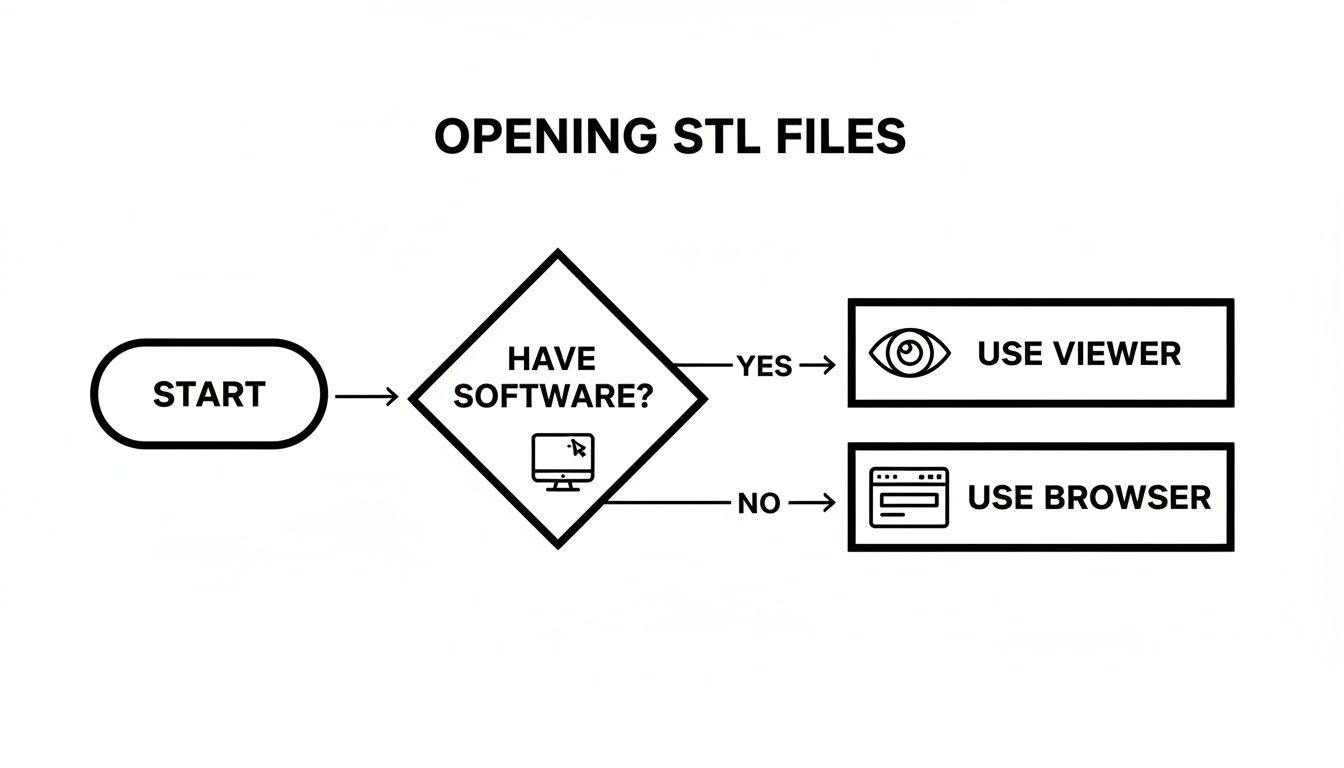
Gördüğünüz gibi, gerçekten de tek mesele, bilgisayarınızda kalıcı bir araca sahip olmayı mı yoksa bir web uygulamasının anında erişilebilirliğini mi tercih ettiğinizdir.
Önemli Nokta: Hiçbir kurulum gerektirmeden en hızlı sonuç için, tarayıcı tabanlı bir görüntüleyici en iyi yoldur. Eğer günlük olarak STL dosyalarıyla çalışıyorsanız, özel bir masaüstü görüntüleyici iş akışınıza akıllıca bir ek olacaktır.
Bir bakışta karar vermenize yardımcı olmak için, işte en hızlı yöntemlerin hızlı bir özeti.
STL Dosyasını Açmanın En Hızlı Yolları
| Yöntem | En İyi Kullanım | Platform | Maliyet |
|---|---|---|---|
| Tarayıcı Tabanlı Görüntüleyici | Anlık, tek seferlik görüntüleme; paylaşım ve işbirliği | Herhangi bir (Web tarayıcısı) | Ücretsiz |
| Yerleşik OS Görüntüleyici | Yeni yazılım yüklemeden hızlı kontroller | Windows, macOS | Ücretsiz |
| Özel Masaüstü Görüntüleyici | Sık kullanım; çevrimdışı erişim; temel analiz araçları | Windows, macOS, Linux | Ücretsiz |
| 3D Modelleme/CAD Yazılımı | Modeli detaylı bir şekilde düzenlemeniz veya analiz etmeniz gerektiğinde | Windows, macOS, Linux | Ücretsizden Profesyonel'e |
Bu araçların her biri işinizi görür, ancak durumunuza uygun olanı seçmek size zaman ve hayal kırıklığı kazandırır. Çoğu insan için, bir tarayıcı veya yerleşik OS görüntüleyici, hızlı bir önizleme için fazlasıyla yeterlidir.
STL Dosyasının Temel Özelliklerini Anlamak
Bir STL dosyasını açmakta rahat hissetmeden önce, arka planda neler olup bittiğini bilmek faydalıdır. Karmaşık bir dosya türü gibi görünebilir, ancak aslında oldukça basittir. Temelinde, bir STL dosyası, bir 3D nesnenin yüzeyini büyük bir üçgen koleksiyonu kullanarak tanımlar. Bu yönteme tessellation denir.
Bunu, bir futbol topunu küçük, düz üçgen yamalarla kaplamak gibi düşünün. Her yama basittir, ancak yeterince bir araya getirdiğinizde, pürüzsüz, kavisli bir yüzey illüzyonu yaratırlar. Kullandığınız üçgen sayısı arttıkça, boyutları küçülür ve 3D modeliniz daha ayrıntılı görünür. Bu zarif, sade yaklaşım, STL formatını 3D baskıda on yıllardır güçlü kılan unsurdur.
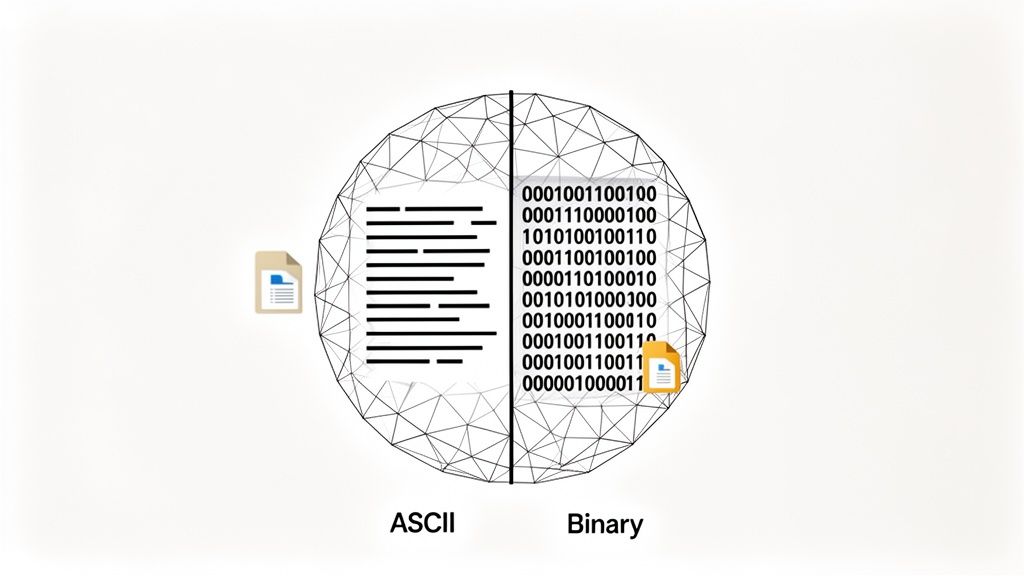
STL'nin İki Türü: ASCII ve İkili
Karşılaştığınız her STL dosyası iki türden biri olacaktır. Farkı anlamak, harika bir sorun giderme ipucu olup, genellikle bir programın bir dosyayı sorunsuz açarken diğerinin neden açamadığını açıklar.
- ASCII STL: Bu versiyon tamamen metin tabanlıdır. Gerçekten de Notepad'de açıp her bir üçgenin köşeleri için insan tarafından okunabilir koordinatları görebilirsiniz. Bu, hata ayıklama veya dosyayı manuel olarak incelemek için harika, ancak büyük bir maliyeti vardır: dosyalar çok büyüktür.
- İkili STL: Bu, çoğu zaman karşılaşacağınız formattır. Tam olarak aynı üçgen verilerini, ancak çok daha kompakt, makine tarafından okunabilir ikili kodda saklar. Bu dosyalar önemli ölçüde daha küçüktür ve yazılımın okuması için daha hızlıdır, bu da onları neredeyse her uygulama için endüstri standardı haline getirir.
Önemli Nokta: Bir STL dosyasını açmaya çalışırken bir hata alırsanız, şüphelenilecek ilk şeylerden biri formatıdır. Bazı eski, daha basit görüntüleyiciler veya hatta özel yazılımlar, genellikle verimliliği nedeniyle yalnızca bir türü—genellikle ikili—işlemek için tasarlanmış olabilir.
Bu son derece basit yapı, yeni bir icat değil; 3D baskının doğuşuna kadar uzanıyor. STL dosya formatı, stereolitografi icatçısı Charles Hull tarafından kurulan 3D Systems tarafından 1987 yılında oluşturulmuştur. Başlangıçta, "STL" "Stereolithography"nin kısaltmasıydı, ancak adı daha sonra gayri resmi olarak "Standard Triangle Language" veya "Standard Tessellation Language" olarak değiştirilmiştir. Kökenleri ve etkisi hakkında daha fazla bilgi için FirstMold web sitesine göz atabilirsiniz.
Dolayısıyla, bir STL dosyasını açtığınızda, karmaşık bir görsel modeli yüklemiyorsunuz. Yazılımınız sadece uzun, basit bir üçgen listesini okuyor ve bunları 3D uzayda bir araya getiriyor. İşte bu kadar basit.
Windows, macOS ve Linux'ta STL Dosyalarını Açma
Hangi tür bilgisayarı kullanırsanız kullanın, STL dosyalarını fazla zahmet çekmeden açabilir ve görüntüleyebilirsiniz. Çoğu işletim sistemi, hızlı bir bakış için çalışan yerleşik bir araçla birlikte gelir ve daha ciddi işler için güçlü, ücretsiz yazılımlar sunan büyük bir geliştirici topluluğu vardır.
Her platform için en iyi seçeneklere bakalım.
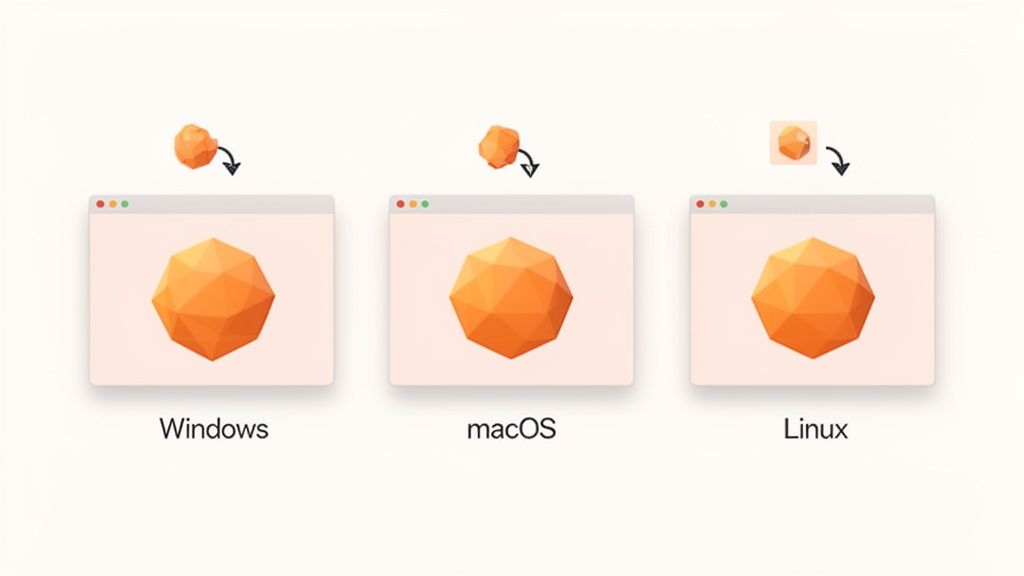
Windows'ta STL Dosyalarını Görüntüleme
Eğer modern bir Windows sürümündeyseniz—10 veya 11—zaten hazırsınız. İçinde oldukça yetenekli bir STL görüntüleyici var: 3D Görüntüleyici uygulaması.
Başlat Menünüzde "3D Görüntüleyici"yi arayarak açabilirsiniz. Oradan, STL dosyanızı doğrudan pencereye sürükleyebilirsiniz. Dönme, kaydırma ve yakınlaştırma için tüm temel kontrolleri sağlar ve modelin yüzey detaylarını gerçekten incelemenize yardımcı olacak birkaç kullanışlı aydınlatma ve gölgeleme seçeneği sunar.
Çok daha akıcı bir iş akışı için, 3D Görüntüleyici'yi STL'ler için varsayılan programınız yapmanızı öneririm. Bu basit, tek seferlik bir düzeltmedir.
- Herhangi bir
.stldosyasını bulun ve sağ tıklayın. - "Birlikte Aç" seçeneğine gidin ve ardından "Başka bir uygulama seç" seçeneğini seçin.
- Programlar listesinden "3D Görüntüleyici"yi seçin.
- En alttaki "Her zaman bu uygulamayı .stl dosyalarını açmak için kullan" seçeneğini işaretlediğinizden emin olun.
Hepsi bu kadar. Artık herhangi bir STL dosyasına çift tıkladığınızda, anında açılacaktır. Bu küçük ayar, çok zaman kazandırır.
macOS'ta STL'leri Yönetme
Mac tarafında, Apple hızlı bakışlar için yerel bir çözüm sunuyor. PDF'lerden ve resimlerden tanıdığınız güvenilir Önizleme uygulaması, STL dosyalarını da açabilir. Basit bir çift tıklama yeterli olmalıdır.
Ancak dürüst olalım—Önizleme oldukça temel. Modeli gösterir ve bu kadar. Dosyanın ne olduğunu doğrulamaktan daha fazlasını yapmanız gerekiyorsa, özel bir araca ihtiyacınız olacak. Harika bir ücretsiz ve açık kaynak seçeneği MeshLab'dır. 3D ağları temizlemek ve düzenlemek için profesyonellerin kullandığı bir programdır, ancak aynı zamanda mükemmel bir görüntüleyicidir.
Profesyonel İpucu: MeshLab'ın arayüzü ilk bakışta biraz bunaltıcı görünebilir. Sizi korkutmasına izin vermeyin. Sadece bir modeli görüntülemek için, farenizi kullanarak döndürmeye ve yakınlaştırmaya odaklanın. Gerçekten ihtiyaç duyana kadar karmaşık menüleri göz ardı edebilirsiniz.
Linux Kullanıcıları için Açık Kaynak Gücü
Linux dünyası, güçlü, açık kaynak yazılımlar üzerine kuruludur ve 3D araçlar da farklı değildir. Her Linux dağıtımında tek bir varsayılan görüntüleyici bulamayabilirsiniz, ancak en iyi uygulamalara kolay erişiminiz vardır.
- Blender: Ne düşündüğünüzü biliyorum—Blender tam kapsamlı bir 3D yaratım paketidir. Ve öyledir, ancak bu aynı zamanda onu inanılmaz bir STL görüntüleyici yapar. Büyük, karmaşık dosyaları zahmetsizce işleyebilir. Sadece Blender'ı açın ve
Dosya > İçe Aktar > Stl (.stl)yolunu izleyin. - FreeCAD: Mühendislik veya CAD geçmişine sahip olanlar için FreeCAD mükemmel bir uyumdur. STL'leri yerel olarak açan parametrik bir 3D modelleyicidir ve ölçüm ve analiz için hassas araçlarla donatılmıştır.
Kurulumları genellikle paket yöneticinize bağlı olarak tek bir komut satırı kadar uzaktadır. Örneğin, Debian veya Ubuntu tabanlı sistemlerde sudo apt-get install blender komutunu çalıştırmanız yeterlidir. İkisi de 3D modellerle daha fazla çalışmayı planlıyorsanız, araç setinize harika eklemelerdir.
Neden Tarayıcınız En İyi STL Görüntüleyicinizdir
Bunu düşünün: karmaşık bir 3D modeli, yeni bir tarayıcı sekmesi açmak için kullandığınız kadar kolay bir tıklama ile açabilirsiniz. Bu bir varsayım değil—modern web tabanlı STL görüntüleyicilerin tam olarak yaptığı şeydir ve bu, herhangi bir özel yazılım yüklemenize gerek kalmamasının büyük bir nedenidir.
Bu yaklaşım, sürtünmeyi ortadan kaldırır. Çalıştırılacak kurulum yok, güncellemeler için sizi rahatsız eden yazılımlar yok ve değerli sabit disk alanınızı yiyen programlar yok. Bu, özellikle uygulama yükleyemediğiniz bir bilgisayarda, hızlı tasarım incelemeleri için hayat kurtarıcıdır; örneğin, bir halk kütüphanesinde veya kilitli bir iş dizüstü bilgisayarında.
Sürükle ve Bırak Gücü
Tarayıcı tabanlı araçların bu kadar harika olmasının nedeni, anında erişim sağlamalarıdır. Çoğu basit bir sürükle ve bırak prensibiyle çalışır. Sadece .stl dosyanızı bulun, tarayıcı penceresine sürükleyin ve boom—orada, incelemeniz için hazır. Modeli herhangi bir açıdan döndürebilir, yakınlaştırabilir ve kaydırabilirsiniz, böylece herhangi bir zahmet olmadan tam bir resim elde edersiniz.
Bu aynı zamanda işbirliğini son derece basit hale getirir. Bir meslektaşınıza, "Hey, dosyamı görmek için bu belirli programı yükleyebilir misin?" demek yerine, onlara sadece bir bağlantı gönderirsiniz. Onlar açabilir, modeli görüntüleyebilir ve teknik becerileri veya yüklü yazılımları ne olursa olsun, saniyeler içinde size geri bildirim verebilirler.
Bu araçların birçoğu ayrıca gizliliğinizi de göz önünde bulundurur. Örneğin, ShiftShift 3D Model Viewer gibi en iyi tarayıcı uzantıları, dosyalarınızı yerel olarak işler. Bu, potansiyel olarak hassas tasarım dosyalarınızın rastgele bir sunucuya yüklenmediği anlamına gelir. Tüm işleme ve etkileşim, makinenizde gerçekleşir, bu da büyük bir güvenlik kazancı sağlar.
İşte tarayıcı tabanlı bir görüntüleyici arayüzünün ne kadar temiz olabileceğine bir bakış.
Bu ekran görüntüsü, profesyonel CAD yazılımlarında bulacağınız menü ve araç çubuklarının bunaltıcı karmaşasından uzak, 3D modelin merkezde olduğu güzel bir basit arayüzü gösteriyor.
Önemli İçgörü: Tarayıcı tabanlı görüntüleyiciler, 3D modellere erişimi tamamen açar. Teknik engelleri yıkarak, herkesin—müşterilerden teknik olmayan ekip üyelerine kadar—bir tasarımla etkileşimde bulunmasına olanak tanır; herkesin zaten açık olan tek araç: web tarayıcısı.
Ne Zaman Tarayıcı Görüntüleyici Seçmelisiniz
Peki, bu ne zaman doğru bir hamle? Bu yöntem, profesyonel veya hobi sahibi olsanız da, her zaman ortaya çıkan birçok yaygın durum için mükemmeldir.
- Hızlı Doğrulama: Thingiverse gibi bir siteden bir model indirdiniz ve dilimleyicinize göndermeden önce doğru olup olmadığını kontrol etmek istiyorsunuz.
- İşbirlikçi İncelemeler: Bir proje yöneticisinden veya tam anlamıyla bir CAD paketine ihtiyaç duymayan bir müşteriden hızlı geri bildirim almanız gerekiyor.
- Sınırlı Bir Bilgisayarda Çalışma: Yazılım yüklemesini engelleyen bir makinedesiniz, bu da tarayıcı tabanlı aracı tek gerçek seçeneğiniz haline getiriyor.
- Arada Bir Kullanım: Sadece ara sıra STL dosyalarıyla ilgileniyorsunuz ve nadiren kullandığınız bir uygulama ile sisteminizi karmaşık hale getirmek istemiyorsunuz.
3D modelleri hızlı ve güvenilir bir şekilde kontrol etmesi gereken herkes için, bir STL dosyasını tarayıcınızda açmayı bilmek temel bir beceridir. Modern bir 3D model görüntüleyicisinin iş akışınızı nasıl basitleştirebileceği hakkında daha fazla bilgi edinebilirsiniz.
Görüntülemenin Ötesine Geçmek: Düzenleme ve Baskı
Bir STL dosyasını açıp modelinizi görmek sadece başlangıçtır. Asıl eğlence, bir değişiklik yapmanız gerektiğinde başlar. Belki bir parçanın tam oturması için hafif bir ayar yapmanız gerekecek ya da indirdiğiniz model tam olarak mükemmel değil. İşte burada bir dosyayı sadece incelemekten, onunla gerçekten çalışmaya geçiyorsunuz ve iş akışınız, düzenleme, heykel yapma veya baskıya hazırlık yapma durumunuza bağlı olarak farklılık gösterecek.
Pasif izlemekten aktif yaratmaya geçmek kritik bir adımdır. Basit bir önizleme, bir modelin baskı için "su geçirmez" olup olmadığını veya boyutlarının gerçek dünya uygulamaları için yeterince doğru olup olmadığını size söylemez. Bunun için kollarınızı sıvayıp doğru yazılıma geçmeniz gerekir.
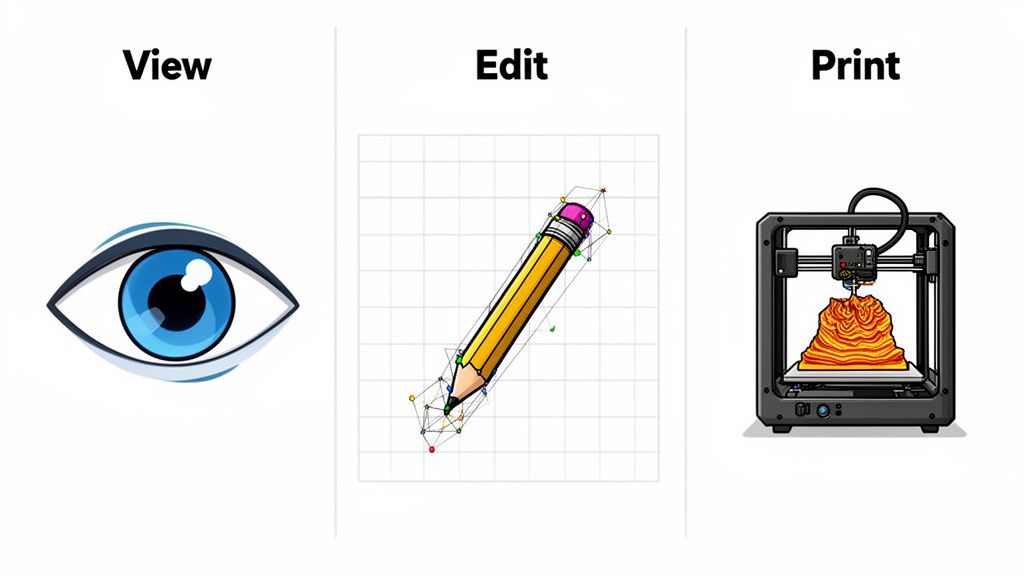
Görüntüleyiciden CAD Yazılımına
Kesinliğe ihtiyacınız varsa ne olacak? Diyelim ki bir deliğin çapını sadece 0.2mm değiştirmek ya da bir montaj braketini ayarlamak istiyorsunuz. Bu, Bilgisayar Destekli Tasarım (CAD) yazılımı için bir iş. Bir STL dosyası, temelde sayısız üçgenden oluşan bir kabuk olduğundan, bu tür kesin değişiklikler için hantal hale gelir.
Autodesk Fusion 360 veya FreeCAD gibi programlar bu iş için tasarlanmıştır. Bu programlar, üçgen ağınızı katı bir cisme dönüştürebilir ve size parametreli araçlar kullanarak kesin, tarih tabanlı değişiklikler yapma imkanı sunar. Bu, kil ile oynayan bir heykeltıraş ile kesin boyutları tanımlayan bir mühendis arasındaki farktır.
Benim İki Kuruşum: Boyutsal doğruluğun kritik olduğu her durumda CAD yazılımına başvurun. Mekanik parçalar, işlevsel prototipler veya kesin ölçümlerin her şey olduğu herhangi bir tasarım için en iyi tercihtir.
Ağ Düzenleyicileri ile Onarma ve Heykel Yapma
Bazen, sorun modelin kendisindedir. Bir çevrimiçi deposundan bir dosya indirip ağında delikler olduğunu bulabilirsiniz ya da belki daha sanatsal, organik değişiklikler yapmak istiyorsunuz. Bu tür işler için, özel bir ağ düzenleyici en iyi arkadaşınızdır.
Meshmixer veya Blender içindeki heykel yapma özellikleri burada mükemmeldir. Bu araçlar, STL'nin üçgen geometrisi ile doğrudan çalışır ve size güçlü yetenekler sunar:
- Delikleri Onarın: Bir modeli "su geçirmez" hale getirmek için boşlukları otomatik olarak bulup yamalayın, böylece gerçekten basılabilir.
- Ayrıntıları Heykel Yapın: Yüzeylere dijital kil ile çalışıyormuş gibi ekleyin, düzleştirin veya doku ekleyin.
- Modelleri Birleştirin: İki ayrı STL dosyasını tek bir, uyumlu nesne haline getirin.
Bu, 3D baskıya hazırlık için modelleri hazırlamanın ve katı geometrik kurallara bağlı olmayan karmaşık, sanatsal tasarımlar oluşturmanın temel bir parçasıdır. Bu uzmanlık, inşaat gibi alanlarda da temeldir; burada profesyoneller, detaylı planları gerçek bir iş sahasına yerleştirmek için artırılmış gerçeklik ile 3D modelleri kullanır.
Baskıya Hazırlık için Kesici Yazılımı
Modeliniz düzenlendikten, onarıldıktan ve hazır hale geldikten sonra, fiziksel bir nesne haline gelmeden önce son bir engel vardır: dilimleme. Bir kesici, 3D modelinizi 3D yazıcınızın gerçekten uygulayabileceği bir dile çeviren yazılımdır.
Ultimaker Cura veya PrusaSlicer gibi programlar, bitmiş STL dosyanızı alır ve onu yüzlerce veya binlerce ince, yatay katmana böler. Burada, tüm kritik baskı ayarlarını -katman yüksekliği, baskı hızı, dolgu yoğunluğu ve destek yapıları- ayarlayacaksınız. Yazılım daha sonra, yazıcı kafasının nereye hareket etmesi ve ne zaman plastik çıkarması gerektiğini belirten kesin talimatlar seti olan bir G-kodu dosyası üretir.
STL formatı, 1980'lerin sonlarından beri eklemeli üretimde endüstri standardı olmuştur ve bu da uyumlu araçların büyük bir ekosistemine yol açmıştır. Bu yaygın benimseme, piyasadaki hemen her kesicinin bir STL dosyasını nasıl yöneteceğini bildiği anlamına gelir ve bu da onu her yerdeki yaratıcılar için güvenilir bir iş gücü haline getirir.
Yaygın STL Dosyası Problemleri ile Çalışmak
Bir STL dosyasını açmaya çalışırken bir engelle karşılaşmak sinir bozucu olabilir, ancak endişelenmeyin - çözüm genellikle oldukça basittir. On durumdan dokuzunda, sorun dosyanın kendisindedir, kullandığınız yazılımda değil. Klasik bir suçlu, tam olarak bitmemiş bir indirme sonucu bozulmuş bir dosyadır. İnternet bağlantınızdaki en küçük bir aksama bile, doğru görünen ama aslında okunamaz bir dosya ile sonuçlanabilir.
Bir diğer yaygın engel ise eski Binary vs. ASCII format sorunudur. Çoğu modern araç her ikisini de gayet iyi yönetebilirken, bazı eski veya çok özel programlar yanlış türde bir dosya verirseniz hata verebilir. Bir dosyanın bir makinede açılıp diğerinde açılmadığını kontrol etmek hızlı bir işlemdir.
Korkulan "Non-Manifold" Hatası
Özellikle 3D baskı için en yaygın ve korkutucu uyarılardan biri, "non-manifold" veya "su geçirmez değil" geometrisi ile ilgili bir hatadır. Peki, bu ne anlama geliyor?
3D modelinizi su ile doldurmanız gereken bir şişe olarak hayal edin. Yüzeyinde herhangi bir delik varsa, ne kadar küçük olursa olsun, su sızacaktır. İşte bu bir non-manifold modeldir.
Bir 3D yazıcı için bu delikler bir engel teşkil eder. Kesici yazılım, nesnenin "içinde" ne olduğunu ve "dışında" ne olduğunu anlayamadığı için kafası karışır. Bu neredeyse her zaman baskı yatağında karmaşık bir kargaşaya yol açar. Bu durumu, çevrimiçi kütüphanelerden alınan modellerde sıkça göreceksiniz; çünkü bunlar her zaman mükemmel, boşluksuz yüzeylerle tasarlanmamıştır.
Deneyimden Bir İpucu: Non-manifold hatası için endişelenmeyin. Autodesk Meshmixer veya hatta Windows'taki yerleşik 3D Builder gibi araçlar harika, genellikle tek tıklama ile onarım işlevlerine sahiptir. Bu araçlar, o küçük delikleri bulup yamalayabilir ve sızdıran modelinizi sadece birkaç dakikada katı, basılabilir bir nesneye dönüştürebilir.
Dosyanızı onarmak genellikle sadece birkaç tıklama uzaklığındadır:
- Öncelikle, sorunlu STL dosyasını tercih ettiğiniz onarım aracına içe aktarın.
- Sonra, bir "incele" veya "analiz et" işlevi arayın ve çalıştırın.
- Yazılım, problemli alanları vurgulayacak ve genellikle otomatik bir düzeltme önerecektir. Sadece uygulayın.
- Son olarak, yeni onarılmış, su geçirmez STL'yi dışa aktarın ve hazırsınız.
STL Dosyaları Hakkında Sorularınız mı Var? Cevaplarımız Var.
3D modellerle çalışırken, güvenilir STL dosya formatı hakkında birkaç soru her zaman ortaya çıkıyor. Bunları çözmek, size birçok baş ağrısından kurtarabilir ve tasarımdan baskıya geçişinizi çok daha akıcı hale getirebilir.
O halde, duyduğum en yaygın sorulara dalalım.
Neden STL Dosyam Sadece Tek Renk?
Bu muhtemelen en yaygın sorudur. İnsanlar modellerini açıp güzel dokuların ve renklerin nereye gittiğini merak ederler. Kısa cevap: hiç orada değildiler.
Standart STL formatı renk körüdür. Sadece bir 3D nesnenin yüzey geometrisini tanımlar - temelde, birbirine bağlı üçgenlerin büyük bir koleksiyonu. Renk, doku veya malzeme özellikleri hakkında herhangi bir bilgi saklamaz.
Bir STL Dosyasını Gerçekten Düzenleyebilir miyim?
Evet, ancak tamamen yazılımınıza bağlıdır. Bir STL'yi onlarca programda açıp görüntüleyebilirsiniz, ancak bu onu düzenleyebileceğiniz anlamına gelmez.
- Basit görüntüleyiciler (Windows veya macOS'taki yerleşik olanlar gibi) sadece bakmak içindir. Döndürebilir ve yakınlaştırabilirsiniz, ama hepsi bu.
- Modeli gerçekten değiştirmek için, Mesh düzenleyici gibi özel bir araca ihtiyacınız var; örneğin Blender veya Meshmixer.
- Alternatif olarak, CAD programı gibi Fusion 360, STL ağını katı bir cisme dönüştürebilir; bu da kesin mühendislik değişiklikleri için çok daha kolaydır.
Neden STL Dosyam Bu Kadar Büyük?
Dosya boyutu gerçekten can sıkıcı olabilir, özellikle tasarımları paylaşmaya çalışırken. Eğer STL'niz devasa ise, genellikle iki şeyden birinin sonucudur: model karmaşıklığı veya dosya formatı.
Milyonlarca küçük üçgen içeren süper detaylı bir model doğal olarak büyük bir dosya olacaktır. Ancak gerçek suçlu genellikle formattır. Düz metin olarak veri saklayan bir ASCII formatındaki STL, çok daha verimli olan Binary eşdeğerinden 5-6 kat daha büyük olabilir.
Benim Profesyonel İpucum: Her zaman, her zaman STL'lerinizi Binary formatında kaydedin veya dışa aktarın. Daha küçüktür, daha hızlı yüklenir ve bir sebebi var; profesyonel standarttır. ASCII, yalnızca dosyayı bir metin düzenleyicisinde manuel olarak incelemeniz gerektiğinde gerçekten faydalıdır, bu da nadir bir senaryodur.
STL Dosyasını Doğrudan 3D Yazıcımı Gönderebilir miyim?
Tam olarak değil. STL dosyasını mimari plan olarak düşünün. Nihai nesnenin nasıl görünmesi gerektiğini gösterir, ancak yazıcının onu inşa etmesi için gereken adım adım talimatları içermez.
İşte burada "kesici" yazılım devreye girer. Bir kesici (Cura, PrusaSlicer veya Simplify3D gibi) STL'nizi alır, onu yüzlerce veya binlerce ince yatay katmana "dilimler" ve makine tarafından okunabilir talimatlar, yani G-kodu üretir. G-kodu, 3D yazıcınıza nasıl hareket edeceğini, ne zaman plastik çıkartacağını ve hangi sıcaklıkta olacağını söyler.
Durumu biraz daha netleştirmek için, en yaygın soruların hızlı bir özetini burada bulabilirsiniz.
SSS Hızlı Referans
| Soru | Kısa Cevap |
|---|---|
| STL'ler renk veya dokuya sahip mi? | Hayır, STL formatı yalnızca 3D modelin yüzey geometrisini saklar. |
| Herhangi bir STL dosyasını düzenleyebilir miyim? | Bir mesh düzenleyici (Blender) veya bir CAD programı gibi özel yazılımlara ihtiyacınız var. |
| Neden STL dosyam bu kadar büyük? | Muhtemelen verimsiz ASCII formatında kaydedilmiş karmaşık bir modeldir, Binary yerine. |
| Bir STL dosyası 3D baskıya hazır mı? | Hayır, önce "kesici" yazılım tarafından işlenmesi gerekir, böylece G-kodu oluşturulur. |
Umarım bu, STL formatı etrafındaki bazı gizemleri aydınlatır! Bu temelleri anlamak, daha akıcı bir 3D iş akışı için anahtardır.
3D modellerinizi tarayıcınızda önizlemenin zahmetsiz bir yolunu arıyorsanız, ShiftShift Extensions'tan 3D Model Görüntüleyici uzantısını şiddetle tavsiye ederim. Hem ASCII hem de Binary STL dosyalarını anında açan harika bir araçtır ve çalışmalarınızı kendi makinenizde özel ve güvenli tutar.