Як зробити скріншот усієї веб-сторінки на будь-якому пристрої: Повний посібник
Дізнайтеся, як зробити скріншот цілого веб-сайту на різних пристроях за допомогою нашого посібника. Від вбудованих інструментів до розширень і мобільних методів для ідеального захоплення повної сторінки.
Рекомендовані розширення

Ми всі там були. Ви натискаєте «Print Screen», щоб зберегти веб-сторінку, але отримуєте лише маленький фрагмент, видимий на вашому моніторі. А що з усім тим важливим контентом, що ховається нижче?
Навчитися знімати скріншот усієї веб-сторінки — це справжня революція. Це дозволяє вам захопити все: від заголовка до підвалу в одному чистому, безперервному зображенні, перетворюючи фрагментовані частини на повний візуальний запис.
Чому вам потрібно більше, ніж просто Print Screen
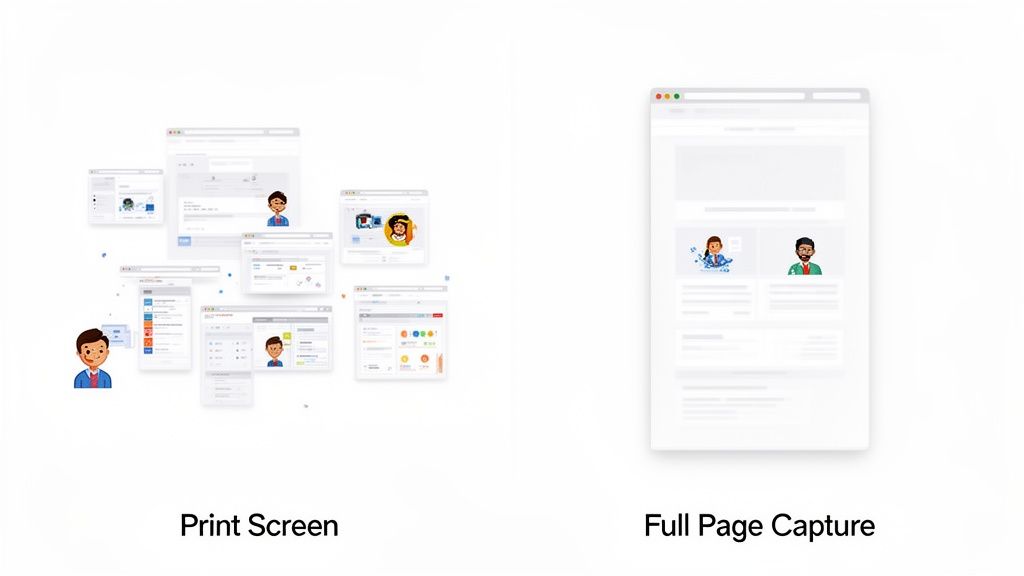
Згадайте, коли востаннє ви намагалися зберегти довгу статтю або цільову сторінку конкурента. Ви, напевно, зробили скріншот, прокрутили, зробили ще один, і повторювали процес, поки не дійшли донизу. Результат? Безладна мозаїка зображень, які вам довелося зшивати, якщо ви взагалі цим займалися.
Цей ручний підхід не лише викликає головний біль; він абсолютно непрактичний для будь-якої професійної роботи. Для всіх, хто має справу з веб-сайтами — розробників, маркетологів, дизайнерів — простий скріншот просто не підходить.
- Для тестувальників QA: Уявіть, що ви знаходите візуальну помилку глибоко в підвалі величезної сторінки. Стандартний скріншот не може показати повний контекст. Повне захоплення сторінки, з іншого боку, документує всю макет, роблячи ваші звіти про помилки в сто разів зрозумілішими.
- Для веб-розробників: Коли ви показуєте новий дизайн клієнту, надсилання єдиного, цілісного зображення всієї домашньої сторінки виглядає набагато більш професійно, ніж серія розрізнених файлів. Це дозволяє їм переглядати весь потік сторінки одночасно.
- Для маркетологів: Прагнете заархівувати воронку продажів конкурента або детальну сторінку продукту? Вам потрібно захопити все. Повний скріншот зберігає всю цю подорож користувача в одному файлі, готовому до аналізу.
Подолання сучасних веб-викликів
Сьогоднішні веб-сайти далекі від статичних. Вони переповнені динамічними елементами, які ускладнюють базові методи зняття скріншотів. Липкі заголовки, які слідують за вами вниз по сторінці, можуть виявитися дубльованими у ваших зшитих зображеннях. А що з контентом, який завантажується за запитом, що з'являється лише тоді, коли ви до нього прокручуєте? Він може бути зовсім відсутнім у вашому фінальному зображенні, якщо ви не використовуєте правильний інструмент.
Захоплення повної веб-сторінки — це не лише зручність, це створення точного, професійного та повного візуального документа. Ви зберігаєте цілісність сторінки так, як вона була задумана.
Це не просто нішевий запит. Попит на надійні інструменти захоплення зростає. Ринок програмного забезпечення для зняття скріншотів веб-сайтів на шляху до перевищення 1,2 мільярда доларів до 2033 року, зростаючи на стабільні 12% щорічно. Цей бум відображає суттєвий зсув, оскільки професіонали відмовляються від ручних методів на користь автоматизованих інструментів. Ви можете заглянути в повний звіт про зростання ринку для отримання додаткових відомостей.
Перед тим, як зануритися в «як», корисно побачити варіанти поруч. Кожен метод має свої переваги і підходить для різних ситуацій.
Методи захоплення веб-сторінок на один погляд
| Метод | Найкраще підходить для | Основне обмеження | Необхідний технічний рівень |
|---|---|---|---|
| Інструменти розробника браузера | Розробники, тестувальники QA та технічні користувачі, які потребують швидкого, вбудованого захоплення без установки чогось. | Може бути лякаючим для нетехнічних користувачів і не має функцій анотації або редагування. | Середній |
| Вбудовані функції браузера | Звичайні користувачі на Firefox або Edge, яким потрібне просте, одноклікове рішення для базових захоплень. | Не доступно в усіх браузерах (зокрема, Chrome) і має дуже обмежену настройку. | Початківець |
| Розширення браузера | Практично всі — від маркетологів до команд підтримки — хто потребує надійного, багатофункціонального інструменту з можливостями редагування та обміну. | Вимагає установки стороннього розширення; якість функцій може сильно варіюватися. | Початківець |
| Методи мобільних пристроїв | Захоплення специфічних макетів мобільних пристроїв або контенту додатків безпосередньо з смартфона або планшета. | Може бути незручним; якість може бути не такою високою, як у настільних захоплень. | Початківець |
Ця таблиця дає вам швидкий огляд, допомагаючи вибрати правильний шлях, перш ніж ми перейдемо до покрокових інструкцій для кожного.
Знайти правильний інструмент для роботи
Добра новина в тому, що вам не потрібно бути генієм коду, щоб зняти скріншот усієї веб-сторінки. Від вбудованих команд браузера до потужних розширень, існує інструмент, який ідеально підходить для ваших потреб. Ці рішення створені для вирішення сучасних викликів, таких як безкінечний прокрут і динамічний контент, забезпечуючи вам ідеальне захоплення кожного разу.
У наступних розділах ми розглянемо найкращі доступні методи, щоб ви могли знайти той, який ідеально впишеться у ваш робочий процес.
Використання прихованих інструментів зняття скріншотів у вашому браузері
Перш ніж ви навіть подумаєте про установку стороннього інструменту, погляньте на те, що ваш браузер вже може зробити. Це трохи секрет, але такі браузери, як Chrome, Firefox і Edge, мають потужні, вбудовані інструменти, які можуть зняти скріншот усієї веб-сторінки без додаткового програмного забезпечення.
Я помітив, що розробники та професіонали QA часто користуються цими вбудованими методами. Чому? Вони надійні, вже встановлені і працюють безпосередньо в середовищі, яке вони використовують для тестування та розробки. Цей підхід обминає проблеми з конфіденційністю або потенційні конфлікти, які іноді виникають з розширеннями браузера.
Розблокування повноекранних скріншотів у Chrome DevTools
Google Chrome не зовсім ставить кнопку «Зберегти повну сторінку» на перше місце. Натомість він ховає надзвичайно точний інструмент захоплення всередині своїх Інструментів розробника (DevTools). Це мій улюблений варіант, коли мені потрібен ідеальний результат, особливо для технічної роботи.
Дістатися до нього досить просто. Спочатку вам потрібно відкрити DevTools. Ви можете клацнути правою кнопкою миші в будь-якому місці на сторінці та натиснути «Перевірити», або просто використати комбінацію клавіш:
- На Windows/Linux:
Ctrl + Shift + I - На Mac:
Cmd + Option + I
Коли панель DevTools відкрита, вам потрібно викликати меню команд. Це ще одна швидка комбінація клавіш: Ctrl + Shift + P (на Windows/Linux) або Cmd + Shift + P (на Mac). Пошуковий рядок з'явиться відразу.
Звідти просто почніть вводити «скріншот». Ви побачите кілька варіантів, але той, який вам потрібен, — це «Захопити повний розмір скріншот». Клацніть на нього. Chrome впорається з рештою — прокрутить і зшиває всю сторінку разом — перш ніж зберегти її як файл PNG безпосередньо у вашій папці завантажень. Легко.
Симуляція мобільних пристроїв для адаптивних захоплень
Ось де метод DevTools дійсно сяє: його інтеграція з емулятором пристроїв. Ця функція є справжньою революцією для тих, хто проводить тестування адаптивного дизайну, оскільки вона дозволяє вам захопити веб-сторінку так, як вона виглядатиме на конкретному телефоні або планшеті.
Щоб почати, відкрийте DevTools і знайдіть значок «Перемикання панелі пристроїв»; він виглядає як маленький планшет поруч з телефоном. Клацнувши на нього, ви відразу ж переформатовуєте веб-сторінку в симульований мобільний екран. Потім ви можете використовувати випадаюче меню, щоб вибрати з десятків популярних пристроїв, таких як iPhone 14 Pro або Samsung Galaxy S20 Ultra.
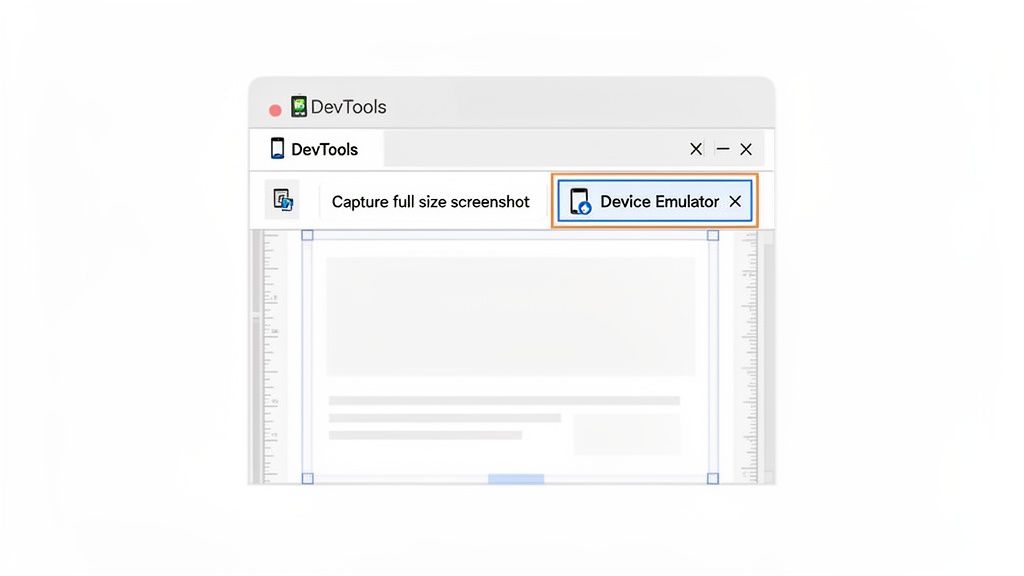
Цей вигляд є абсолютно критичним для перевірки того, що макети, шрифти та зображення правильно відображаються на менших екранах перед тим, як ви зробите скріншот.
Коли ви налаштуєте мобільний вигляд, просто повторіть ті ж кроки, що й раніше. Відкрийте меню команд (Ctrl/Cmd + Shift + P), введіть «скріншот» і виберіть «Захопити повний розмір скріншот». Ви отримаєте ідеальне, вертикально прокручене мобільне захоплення. Це саме той робочий процес, який я бачив, як інженери QA використовують для перевірки дизайнів, орієнтованих на мобільні пристрої, на довгій сторінці продукту електронної комерції.
Вбудовані інструменти зняття скріншотів у Firefox та Edge
Хоча Chrome змушує вас трохи покопатися, Firefox та Edge зробили цей процес набагато доступнішим для середнього користувача, вбудувавши функцію безпосередньо в основний інтерфейс браузера.
- У Firefox: Просто клацніть правою кнопкою миші в будь-якому місці на сторінці та виберіть «Зробити скріншот». З'являється накладка, яка дає вам можливість зберегти те, що ви бачите, або зберегти всю сторінку. Це простий процес з двома кліками.
- У Microsoft Edge: Ви можете використовувати комбінацію клавіш
Ctrl + Shift + Sабо натиснути основне меню налаштувань (...) і знайти «Веб-захоплення». Це також дає вам можливості для захоплення конкретної області або всієї сторінки.
Ці вбудовані інструменти надзвичайно зручні, але вони лише одна частина набагато більшої картини продуктивності. Вони чудово виконують захоплення, але їм не вистачає інтегрованого робочого процесу, який можуть запропонувати інші рішення. Щоб дійсно підвищити ефективність вашого браузера, ознайомтеся з нашим посібником про найкращі розширення Chrome для продуктивності.
Порада професіонала: Коли ви маєте справу з динамічними веб-сайтами, які завантажують більше контенту, коли ви прокручуєте (подумайте про стрічки соціальних медіа), я завжди вручну прокручую до самого низу сторінки перед тим, як зробити скріншот. Це змушує всі елементи завантажуватися, щоб вони дійсно з'явилися у фінальному зображенні.
Надійність цих захоплень є критично важливою, особливо в професійних умовах, таких як тестування QA. Це дивно, але деякі комерційні API для зняття скріншотів мають рівень відмови від 28% до вражаючих 75%, тоді як найкращі з них вдається утримувати на рівні 6%. Ця величезна різниця дійсно підкреслює, чому наявність надійного, вбудованого методу є такою цінною, особливо для розробників, які повинні захоплювати складні односторінкові програми з великою кількістю рендерингу JavaScript.
Використання розширень браузера: глибоке занурення в ShiftShift
Хоча вбудовані інструменти браузера виконують свою роботу для базового захоплення, вони можуть здаватися трохи незграбними та повільними, коли ви рухаєтеся швидко. Ось тут дійсно сяє хороше розширення браузера, надаючи вам набагато швидший і інтуїтивніший спосіб зняти скріншот усієї веб-сторінки. Чесно кажучи, для тих, хто потребує цього регулярно, розширення є справжньою революцією.
Замість того, щоб копатися в меню розробника, ви отримуєте просте рішення в один клік. Багато з них навіть пропонують зручні функції, такі як інструменти редагування, анотації або хмарне зберігання. Ці розширення створені для реальних завдань, чи то маркетолог, що зберігає цільову сторінку конкурента, чи дизайнер, що черпає натхнення.
Робочий процес зняття скріншотів ShiftShift
Серед безлічі варіантів екосистема розширень ShiftShift має справді унікальний підхід. Це не просто ще один інструмент для зняття скріншотів; це функція, вбудована в більший набір продуктивності, до якого ви можете отримати доступ через один потужний інтерфейс команд. Це повністю змінює ваше уявлення про інструменти браузера.
Все проходить через Палету команд. Просто двічі натисніть клавішу Shift, і вона з'явиться. Якщо ви віддаєте перевагу комбінаціям клавіш, Cmd+Shift+P на Mac або Ctrl+Shift+P на Windows/Linux також працює. Як тільки вона відкрита, ви можете робити все, не дістаючи миші.
Захоплення вашого першого повноекранного скріншота
Увесь процес побудований для швидкості. Як тільки Палета команд активна, просто почніть вводити «скріншот». Розумний пошук миттєво виводить інструмент для повного скріншота. Ніякого полювання по меню.
Звідти ви побачите три прості варіанти, кожен для різного сценарію:
- Видима область: Це захоплює точно те, що зараз на вашому екрані, як стандартний скріншот, але без усіх елементів браузера.
- Користувацький вибір: Ідеально підходить для зосередження на конкретному графіку, зображенні або цитаті. Просто клацніть і перетягніть, щоб обвести те, що вам потрібно.
- Уся сторінка: Це те, що нам потрібно. Виберіть його, і інструмент автоматично прокручує вниз по сторінці, захоплюючи все і зшиваючи це в одне ідеальне, безшовне зображення.
Після вибору варіанту захоплення готове за кілька секунд. Ви можете зберегти його як файл PNG або JPEG. Увесь процес — від виклику палітри до збереження файлу — може зайняти менше п'яти секунд.
Справжня магія підходу ShiftShift полягає не лише в самому захопленні, а в тому, як плавно це вписується в інші завдання. Він виводить спеціалізовані інструменти з їхніх силосів і об'єднує їх в єдиний, за запитом робочий процес.
Такий вид інтеграції є величезним заощадженням часу. Уявіть, що ви дизайнер, який створює настрій. Ви можете захопити повноекранний скріншот сайту, а потім, не залишаючи Палету команд, відразу запустити інструмент Конвертер зображень, щоб перетворити його на файл WebP для кращої продуктивності. Окремі інструменти просто не можуть запропонувати таку плавну роботу.
Чому інтеграція та конфіденційність важливі
Що дійсно виділяє підхід ShiftShift, так це його основні принципи: конфіденційність і продуктивність. У світі, де ми всі більше усвідомлюємо свої дані, це велика справа.
- 100% локальна обробка: Кожна дія, від самого скріншота до конвертації файлу, відбувається безпосередньо у вашому браузері. Нічого ніколи не надсилається на віддалений сервер.
- Працює повністю офлайн: Оскільки все відбувається локально, ви можете використовувати інструмент зняття скріншотів та інші утиліти, навіть якщо у вас пропаде інтернет.
- Конфіденційність за замовчуванням: Розширення не відстежує вашу активність і не збирає жодної вашої особистої інформації. Те, що ви робите, залишається на вашій машині.
Цей дизайн, орієнтований на локальність, означає, що ваші захоплення не лише швидкі, але й абсолютно безпечні. Для розробників або будь-кого, хто працює з чутливою інформацією — такими як внутрішні корпоративні сторінки або незавершені дизайни продуктів — це критично важливо. Ви можете впевнено зняти скріншот усієї веб-сторінки, знаючи, що дані ніколи не залишають ваш комп'ютер. Якщо ви шукаєте більше інструментів, створених з урахуванням цього підходу до конфіденційності, наш список найкращих розширень Chrome для розробників — чудове місце для початку.
Звичайно, крім вбудованих варіантів, існує безліч інших чудових розширень. Щоб знайти правильний варіант, варто дослідити, що вважається найкращим розширенням для зняття скріншотів Chrome для різних потреб, оскільки деякі краще підходять для анотацій, а інші — для відео.
Врешті-решт, наявність набору надійних, пов'язаних інструментів, які ви можете викликати за допомогою комбінації клавіш, є потужною альтернативою тому, щоб мати справу з десятком однозадачних розширень. Це зменшує безлад і робить весь ваш досвід роботи з браузером більш зручним.
Коли знімки екрана на всю сторінку йдуть не так
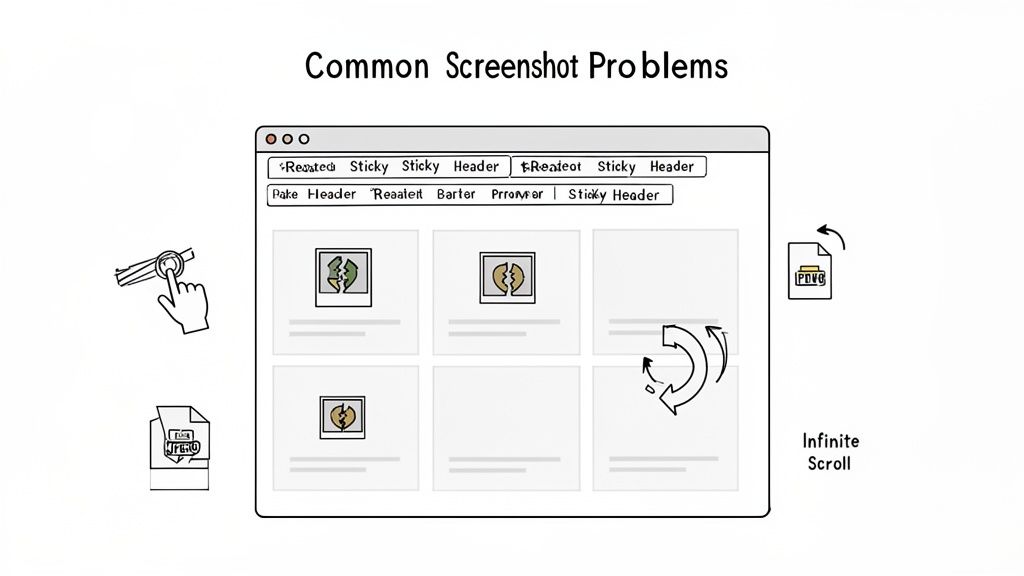
Навіть найнадійніші інструменти можуть стикатися з проблемами, намагаючись зробити знімок екрана всієї веб-сторінки. Сучасні сайти складні, і все може піти не так. Ви натискаєте на захоплення, а результат... не те, що ви хотіли. Можливо, заголовок повторюється по всій сторінці, зображення відсутні, або захоплення просто зупиняється на півдорозі.
Це поширений досвід, але не хвилюйтеся — більшість цих збоїв має дивовижно прості рішення. Оскільки очікується, що глобальне онлайн-населення досягне 68%, потреба в чистих, точних візуальних записах для аналізу та документації лише зростає. Ви можете заглибитися в останні тренди залучення на сайтах, щоб побачити, наскільки багато цифрової взаємодії відбувається.
Давайте розглянемо деякі з найпоширеніших проблем, з якими я стикався, і, що важливіше, як їх вирішити.
Вирішення проблем із закріпленими заголовками та нижніми колонтитулами
Це, напевно, найпоширеніша проблема, з якою стикаються люди. Ви знаєте ці навігаційні панелі або віджети чату, які залишаються прикріпленими до верхньої або нижньої частини екрана під час прокрутки? Їх називають «закріпленими» або «фіксованими» елементами.
Коли інструмент для знімків екрана захоплює сторінку частинами і зшиває їх разом, він може випадково захопити цей закріплений заголовок у кожному сегменті. В результаті фінальне зображення має дратівливий повторюваний заголовок, який закриває ваш контент.
Порада: Деякі розумні розширення браузера створені для вирішення цієї проблеми. Наприклад, інструмент від ShiftShift часто достатньо розумний, щоб ідентифікувати ці фіксовані елементи та правильно зшити фінальне зображення, уникаючи повторення зовсім.
Якщо ваш інструмент не такий просунутий, є швидкий ручний обхід. Використовуйте інструменти розробника вашого браузера, щоб тимчасово приховати елемент. Просто клацніть правою кнопкою миші на закріпленому заголовку, виберіть «Перевірити», знайдіть його код і додайте швидке правило стилю, наприклад, display: none;. Проблема вирішена.
Чому зображення відсутні?
Коли-небудь робили знімок екрана довгої статті, лише щоб виявити порожні білі квадрати там, де мали бути красиві зображення? Це майже завжди через ліниве завантаження. Це трюк продуктивності, коли веб-сайти не завантажують зображення, поки ви не прокрутите їх у поле зору.
Якщо ваш інструмент для знімків екрана прокручує швидше, ніж зображення можуть з'явитися, він просто захоплює порожні заповнювачі. Виправлення є дивовижно простим.
- По-перше, повільно прокрутіть. Перш ніж навіть думати про натискання кнопки захоплення, вручну прокрутіть до самого низу сторінки. Не поспішайте.
- Потім просто почекайте секунду. Дайте всім зображенням та іншому контенту момент, щоб повністю завантажитися.
- Тепер активуйте знімок екрана.
Цей маленький маневр завантажує все в кеш браузера, тому все готове, коли інструмент виконує свою роботу. Працює як чарівно майже завжди.
Захоплення сторінок за логіном
Спробуєте зробити знімок приватної панелі управління або сторінки лише для учасників? Тут багато веб-сервісів для знімків екрана зазнають невдачі. Вони не можуть бачити сторінку, тому що, ну, вони не увійшли в систему як ви.
Немає жодних облікових даних для обміну і жодних складних налаштувань. Ви просто переходите на сторінку і натискаєте захоплення. Це безпечний, локальний підхід, який просто працює.
Швидкий посібник з усунення неполадок
Навіть з найкращою підготовкою ви можете натрапити на труднощі. Я склав цю таблицю швидкого посилання, щоб допомогти вам діагностувати та вирішити найпоширеніші проблеми на ходу.
Вирішення поширених проблем зі знімками екрана
| Проблема | Причина | Рішення |
|---|---|---|
| Повторювані заголовки/нижні колонтитули | «Закріплені» або «фіксовані» елементи захоплюються в кожному зшитому сегменті. | Використовуйте розумне розширення, яке автоматично обробляє ці елементи, або використовуйте інструменти розробника браузера, щоб тимчасово приховати елемент за допомогою display: none;. |
| Відсутні зображення або контент | Сторінка використовує ліниве завантаження, і контент не завантажився перед захопленням. | Вручну прокрутіть повільно до самого низу сторінки, щоб завантажити всі ресурси, почекайте момент, а потім ініціюйте знімок екрана. |
| Захоплення зупиняється на півдорозі | Це часто трапляється зі сторінками з нескінченною прокруткою, які продовжують завантажувати новий контент. | Прокрутіть вниз вручну, щоб завантажити потрібний контент перед захопленням. Інструмент може бачити лише те, що вже завантажено. |
| Неточне захоплення | Інструмент заплутується через складні CSS-анімації або динамічні макети. | Спробуйте змінити розмір вікна браузера або почекайте, поки всі анімації на сторінці завершаться, перш ніж почати захоплення. |
| Не можу отримати доступ до сторінок з логіном | Веб-сервіси для знімків екрана не можуть пройти через ваші облікові дані для входу. | Використовуйте розширення браузера. Воно працює в межах вашої аутентифікованої сесії і може бачити все, що бачите ви. |
Вважайте цю таблицю вашою першою лінією захисту. Дев'ять разів з десяти одне з цих простих коригувань допоможе вам отримати ідеальний, чистий знімок екрана, на який ви сподівалися.
Знімки екрана з прокруткою на вашому телефоні
Будемо чесними — більшість з нас переглядає веб-сторінки на своїх телефонах. З більш ніж половиною всього веб-трафіку, що відбувається на мобільних пристроях, знання того, як зробити знімок екрана на вашому пристрої, є навичкою, яку ви будете використовувати постійно.
На щастя, вам більше не потрібно шукати сторонні додатки. Як iOS, так і Android мають стильні вбудовані функції, які прекрасно справляються з цим. Чи зберігаєте ви довгу статтю для польоту, архівуєте підтвердження онлайн-замовлення або просто ведете облік мобільного сайту конкурента, отримати чисте, безперервне зображення всієї веб-сторінки дивовижно просто.
Захоплення повних сторінок на iPhone
Якщо ви на iPhone, Apple має фантастичний інструмент для захоплення повної сторінки, вбудований прямо в Safari. Це одна з тих елегантних функцій «вона просто працює». Єдине зауваження? Він зберігає фінальний вихід у форматі PDF, а не у стандартному зображенні, як PNG. Для архівування або обміну документами це часто навіть краще.
Процес починається, як і будь-який інший знімок екрана, який ви б зробили.
- По-перше, відкрийте веб-сторінку, яку потрібно зберегти, у Safari.
- Натисніть звичайну комбінацію знімка екрана для вашої моделі iPhone (зазвичай це бокова кнопка та кнопка підвищення гучності разом).
- У нижньому лівому куті з'явиться маленьке ескізне зображення. Вам потрібно натиснути на нього відразу, перш ніж воно зникне.
Після того, як ви натиснете на ескіз, ви потрапите на екран редагування. Подивіться вгорі, і ви побачите два варіанти: «Екран» і «Повна сторінка».
Просто натисніть на «Повна сторінка». Попередній перегляд всієї прокручуваної сторінки з'явиться праворуч. Ви навіть можете перетягнути маленький повзунок, щоб прокрутити всю сторінку і переконатися, що захоплено все, що вам потрібно.
Коли ви будете задоволені, натисніть «Готово» у кутку і виберіть «Зберегти PDF у файли». І все. У вас є ідеально збережений PDF сайту, готовий до використання. Я вважаю, що цей метод є надійним для контенту з великою кількістю тексту, як-от блоги або новинні статті.
Зробити знімок екрана з прокруткою на Android
У світі Android справи трохи фрагментовані, але хороша новина полягає в тому, що більшість сучасних телефонів від Google, Samsung, OnePlus та інших мають вбудовану функцію для цього. Вона може називатися «Знімок екрана з прокруткою», «Прокрутка захоплення» або щось подібне, але ідея залишається такою ж.
Ви почнете, зробивши знімок екрана звичайним способом.
- Натисніть одночасно кнопки живлення та зменшення гучності.
- З'явиться попередній перегляд, але ви також побачите маленьку панель інструментів внизу. Зверніть увагу на значок зі стрілками, що вказують вниз, часто позначений «Захопити більше» або «Прокрутити».
Натискання цієї кнопки змушує екран автоматично прокручуватися вниз і додає новий розділ до вашого знімка екрана. Ви просто продовжуєте натискати кнопку, поки не захопите все, що хочете. Телефон розумно зшиває все це в одне довге зображення по мірі просування.
Коли ви досягнете дна сторінки або захопите потрібний розділ, просто натисніть будь-де на екрані, щоб зупинити процес. Остаточний, подовжений знімок екрана зберігається безпосередньо у вашій фотогалереї як одне зображення (зазвичай PNG або JPG), що ідеально підходить, коли вам потрібен візуальний запис.
Це працює як чарівно на більшості сайтів. Однак я бачив, як це не спрацьовує на сторінках зі справді складними макетами або елементами, які завантажуються під час прокрутки (ліниве завантаження). Якщо ви отримали знімок екрана з відсутніми зображеннями або неправильним вирівнюванням, ось професійна порада: прокрутіть до самого низу сторінки самостійно перед початком процесу знімка екрана. Це змусить весь контент завантажитися, надаючи інструменту захоплення повну сторінку для роботи.
Вибір правильного методу знімка екрана для вашого завдання
Знання того, як зробити знімок екрана всієї веб-сторінки, є чудовим початком, але справжня майстерність полягає в тому, щоб вибрати правильний інструмент для роботи. Це те, що відрізняє незграбний робочий процес від ефективного. Немає єдиного найкращого методу — лише правильний інструмент для того, що вам потрібно зараз.
Думайте про це як про інструменти механіка. Ви б не використовували величезний ключ для маленького гвинта. Так само запускати Chrome DevTools лише для збереження рецепту, напевно, є надмірним. З іншого боку, просте розширення браузера може не дати вам точності, необхідної для критичного звіту про помилку.
Відповідність інструмента користувачу
Давайте подивимося, як різні професіонали можуть підійти до цього. Ваша роль часто визначає ваші пріоритети, чи то швидкість, точність до пікселя, чи просто зручність.
- Для QA-інженера: Ваша робота залежить від точності. Chrome DevTools — ваш основний інструмент для вирішення проблем з адаптивним дизайном і документування візуальних помилок з повною точністю. Але для швидкого захоплення користувацьких потоків або позначення незначних недоліків інтерфейсу, розширення, таке як ShiftShift, набагато швидше і дозволяє вам залишатися в зоні.
- Для маркетолога: Ви постійно архівуєте рекламу конкурентів, зберігаєте красиві цільові сторінки для натхнення та документуєте свої кампанії. Швидкість і організація — це все. Надійне розширення браузера — ваш найкращий друг, дозволяючи вам захоплювати, зберігати та сортувати візуали без зайвих зусиль.
- Для звичайного користувача: Залишайтеся простими. Вбудовані інструменти для знімків екрана у Firefox, Edge або на вашому телефоні більш ніж достатні. Вони чисті, прості у використанні і справляються з більшістю повсякденних потреб без додаткових завантажень або крутої кривої навчання.
Коли ви далеко від свого столу, вибір ще простіший, як показує це дерево рішень для мобільних знімків екрана.
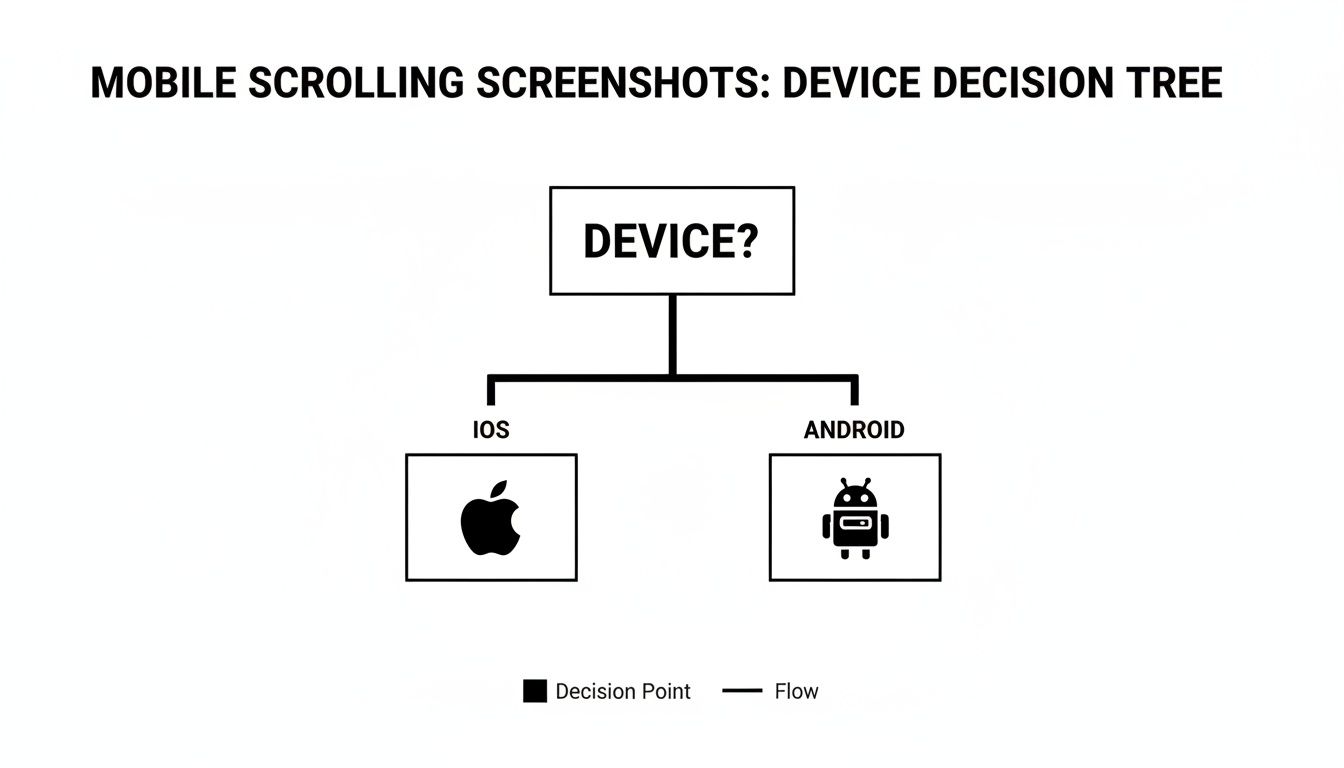
Як ви можете бачити, як iOS, так і Android надають вам вбудований спосіб захоплення повної прокручуваної сторінки, хоча точні кроки та фінальний результат можуть трохи відрізнятися.
Мета полягає в тому, щоб перейти від простого знання як до розуміння коли і чому. Цей стратегічний підхід економить час і забезпечує, що ви завжди отримуєте ідеальний результат.
Врешті-решт, мати універсальний інструмент під рукою безцінно. Іноді статичне зображення недостатньо, і вам може знадобитися щось більш динамічне, наприклад, створення інтерактивних покрокових посібників для навчання або документів підтримки. Якщо ви шукаєте потужний інструмент, який поєднує знімки екрана з функціями редагування без високої ціни, хороша безкоштовна альтернатива Snagit може стати ідеальним варіантом для вашого робочого процесу.
Є питання? У нас є відповіді
Ви знаєте методи, але кілька складних ситуацій завжди виникають, коли намагаєтеся зробити знімок екрана всієї веб-сторінки. Давайте розглянемо деякі з найпоширеніших запитань, які я чую.
Який найкращий формат для збереження знімка екрана?
Це насправді зводиться до того, для чого ви використовуєте знімок екрана. Для більшості речей, особливо для всього, що містить текст або чіткі елементи інтерфейсу, PNG — ваш найкращий вибір. Це «безвтратний» формат, що є вишуканим способом сказати, що він не викидає жодних даних, щоб зменшити розмір файлу, тому ви отримуєте ідеальне, чітке зображення щоразу.
Але що, якщо вам потрібно надіслати цей знімок екрана електронною поштою або завантажити його в інструмент управління проектами з обмеженнями на розмір файлу? Ось тут JPEG стає в нагоді. Він значно зменшує розмір файлу, але робить це, жертвуючи трохи якістю. Для загального обміну це часто цілком прийнятно, але для детального зворотного зв'язку з дизайну або звіту про помилки дотримуйтеся PNG.
Моя золота порада: Використовуйте PNG для якості та точності. Використовуйте JPEG, коли маленький, легкий для обміну файл важливіший за деталі до пікселя.
Чи можу я насправді захопити сторінку з нескінченною прокруткою?
Ах, класична проблема нескінченної прокрутки. Подумайте про вашу стрічку Twitter або LinkedIn. Більшість інструментів можуть лише «бачити» та захоплювати те, що наразі завантажено на сторінці, тому вони застряють.
Рішення є дивовижно простим. Вам потрібно прокручувати самостійно. Просто вручну прокрутіть вниз по сторінці, поки весь контент, який ви хочете захопити, не з'явиться у полі зору. Коли все буде на місці, активуйте ваш інструмент для знімків екрана, будь то DevTools або розширення. Таким чином, інструмент має повну картину для роботи.
Чи безпечно використовувати розширення браузера?
Це розумне питання. Ви праві, що потрібно бути обережним, оскільки розширення часто потребують дозволу на читання того, що на вашому екрані. Трюк полягає в тому, щоб дотримуватися добре відомих розширень, які відкрито повідомляють про те, як вони обробляють ваші дані.
Найкращі з них обробляють все локально, прямо на вашій машині. Наприклад, розширення, таке як ShiftShift Extensions, виконує всю свою магію всередині вашого браузера. Воно ніколи не надсилає ваш знімок екрана на зовнішній сервер, що означає, що ваша інформація залишається повністю приватною. Перед установкою будь-якого розширення завжди корисно швидко перевірити його дозволи та прочитати його політику конфіденційності.
Якщо ви шукаєте інструмент, який є швидким, приватним і потужним, екосистема ShiftShift Extensions варта вашої уваги. Вона надає команду для зняття скріншоту всього екрану та безліч інших утиліт в одному місці. Ви можете дізнатися більше про те, як це працює, на https://shiftshift.app.