እንደ እርስዎ የሚሆን መመሪያ ወደ ብሮዘር የተመለከተ 3D ሞዴል እንደተመለከተ እንደ መረጃ መረጃ ይዘው ይህ ነው።
የ3D ሞዴል እንደ ተመለከተ በቀጥታ በድረ-ገጻችሁ ውስጥ ኃይል አስቀድሞ አስተዋይ ይደርሳል። ይህ መመሪያ ዋነኛ ባህሪዎችን፣ የእውነተኛ ዓለም አጠቃላይ አጠቃላይ እና STL ፋይሎችን በደህና ማየት እንዴት እንደሚቻል ይቀርባል።

የተመነጨ ማስተካከያዎች

ባለ 3D ሞዴል መመልከቻን (3D model viewer) ዲጂታል ንድፎችን ወደ ህይወት የሚያመጣ ልዩ መስኮት አድርገው ያስቡት። ውስብስብ እና ከባድ ሶፍትዌሮችን ከመታገል ይልቅ፣ መመልከቻው ባለ ሶስት አቅጣጫዊ ፋይሎችን ለመክፈት እና ለመጠቀም ቀላል እና ቀላል መንገድ ይሰጥዎታል። ያንን ጥሬ መረጃ ወደ በይነተገናኝ ነገር ይለውጠዋል፣ ይህም ማሽከርከር፣ ማጉላት እና ከሁሉም አቅጣጫ መመርመር ይችላሉ።
ባለ 3D ሞዴል መመልከቻ ምንድን ነው እና ለምን ያስፈልግዎታል?
አንድ መሐንዲስ ለአዲስ ሞተር ጠፍጣፋ፣ ባለ ሁለት አቅጣጫዊ ንድፎችን (blueprints) ሲሰጥዎ ያስቡ። ዋናውን ነገር ሊረዱት ይችላሉ፣ ነገር ግን እውነተኛ ቅርፁን፣ ጥልቀቱን እና ሁሉም ውስብስብ ክፍሎች እንዴት እንደሚጣመሩ መረዳት ፈጽሞ የማይቻል ነው። ባለ 3D ሞዴል መመልከቻ የሚፈታው ትክክለኛው ችግር ይህ ነው—በመረጃ ፋይል እና በእውነተኛ፣ በእይታ ልምድ መካከል ያለውን ክፍተት ያገናኛል።
ይህ አካላዊ ምሳሌን በእጅዎ እንደያዙት ዲጂታል አቻ ነው።
ይህ ዓይነቱ ቴክኖሎጂ ቀደም ሲል ውድ በሆኑ፣ ከባድ በሆኑ የዴስክቶፕ ፕሮግራሞች ውስጥ ተቆልፎ ነበር። ከእንግዲህ ወዲህ አይደለም። ዘመናዊው መስፈርት በኮምፒተርዎ ላይ ወዲያውኑ የሚሰራ ቀልጣፋ፣ በአሳሽ ላይ የተመሰረተ መመልከቻ ነው፣ ይህም የዛሬውን ፈጣን፣ የትብብር የስራ ፍሰቶችን የሚደግፍ ወሳኝ ለውጥ ነው።
አሁን የማየት ኃይል
በዋናው ላይ፣ ባለ 3D ሞዴል መመልከቻ ውስብስብ የጂኦሜትሪክ መረጃዎችን ወዲያውኑ እና በቀላሉ እንዲያገኙ ለማድረግ ነው። የ3D ይዘትን ውጤታማ በሆነ መንገድ ዲሞክራሲያዊ ያደርገዋል፣ ይህም የድር አሳሽ ላለው ማንኛውም ሰው ተደራሽ ያደርገዋል፣ ምንም ልዩ ችሎታ አያስፈልግም። ተፅዕኖውን በትክክል ለመረዳት፣ 3D ሞዴሊንግ በትክክል ምንድን ነው እና እነዚህን ዲጂታል ነገሮች የመፍጠር ሂደት መጀመሪያ ላይ መረዳት ጠቃሚ ነው። አንዴ ያ ሞዴል ከተገነባ በኋላ፣ መመልከቻው ለመፈተሽ፣ ለማጋራት እና ለማጽደቅ ዋናው መድረክ ይሆናል።
ይህ አዲስ የተገኘ ተደራሽነት ከፍተኛ እድገትን እያመጣ ነው። እነዚህ መመልከቻዎች የተገነቡባቸውን ፋይሎች የሚፈጥረው የ3D ሞዴሊንግ ገበያ በ2035 ወደ 21.80 ቢሊዮን ዶላር ለማደግ በሂደት ላይ ነው። ይህ አዝማሚያ በይነተገናኝ 3D መሳሪያዎች ከፍተኛ ፍላጎት እንዳለ ያሳያል። በእርግጥ፣ የተገመተው 67% ዲዛይነሮች አሁን ከአሮጌው የዴስክቶፕ ሶፍትዌር ይልቅ የአካባቢ አሳሽ መመልከቻዎችን ይመርጣሉ፣ ብዙውን ጊዜ ፈጣን ስለሆኑ—የመጫኛ ጊዜዎችን በአማካይ 75% ይቀንሳሉ።
የ3D ሞዴል መመልከቻ ስራ የፋይልን ውስብስብ የሂሳብ መጋጠሚያዎች ወደ አንጎላችን በሰከንድ ውስጥ ሊሰራው ወደሚችል ተጨባጭ ምስል መተርጎም ነው። በፈጣሪ እና በገምጋሚው መካከል ያለውን የቴክኒክ ግድግዳ ያፈርሳል።
ይህ ቴክኖሎጂ በብዙ የተለያዩ መስኮች በፍጥነት አስፈላጊ ሆኗል፦
- 3D ማተሚያ የትርፍ ጊዜ ማሳለፊያዎች፦ ከመታተሙ በፊት ለመጨረሻው፣ ወሳኝ ፍተሻ መመልከቻን ይጠቀማሉ፣ ይህም ሰዓታትን እና ውድ ቁሳቁሶችን በተበላሸ ሞዴል ላይ ከማባከን ያድናቸዋል።
- የጨዋታ ገንቢዎች፦ በአሳሹ ውስጥ ፈጣን እይታ አዲስ የጨዋታ ንብረትን ከኮዲንግ አካባቢያቸው ሳይወጡ እንዲያረጋግጡ ያስችላቸዋል።
- መሐንዲሶች እና ዲዛይነሮች፦ መመልከቻዎች በይነተገናኝ ምሳሌዎችን ከደንበኞች ጋር ለማጋራት እና ፈጣን ግብረመልስ ለማግኘት የሚጠቀሙባቸው መሳሪያዎች ናቸው፣ ይህም ትብብርን ቀላል ያደርገዋል።
አንድ ምርጥ 3D ሞዴል መመልከቻ ምን ያደርገዋል?
ሁሉም 3D መመልከቻዎች አንድ አይነት አይደሉም። አዎ፣ አብዛኛዎቹ ሞዴልን ማሽከርከር ይችላሉ፣ ነገር ግን በእውነት ጠቃሚ የሆነ መሳሪያ የማንኛውም ባለሙያ የመሳሪያ ስብስብ አስፈላጊ አካል የሚያደርጉ ባህሪያት አሉት። ምርጥ መመልከቻዎች የአጠቃቀም ቀላል ቁጥጥሮች፣ ብልህ የእይታ መርጃዎች እና ጠንካራ የቴክኒክ አፈጻጸም ድብልቅ ናቸው።
በጣም በትንሹ፣ መሰረታዊ ነገሮች ያስፈልጉዎታል፦ ፓን፣ ማጉላት እና ማሽከርከር። እነዚህን በዲጂታል ቦታ ውስጥ እንደ እጆችዎ ያስቡ። ማሽከርከር ነገሩን በማንኛውም ዘንግ ላይ እንዲያዞሩ ያስችልዎታል፣ ማጉላት ጥሩ ዝርዝሮችን ለመፈተሽ ያቀርብዎታል፣ እና ፓን ሞዴሉን በስክሪኑ ላይ ያንሸራትታል። እነዚህ ሶስት ቁጥጥሮች ሞዴልዎን ከሁሉም አቅጣጫ ለመመርመር ነፃነት ይሰጡዎታል።
አስፈላጊ የእይታ መርጃዎች
ቀላል አሰሳን አልፎ፣ ዘመናዊ 3D ሞዴል መመልከቻ የነገሩን አወቃቀር በጥልቀት እንዲመለከቱ ሊያስችልዎ ይገባል። እነዚህ የሚያምሩ ተጨማሪዎች ብቻ አይደሉም፤ ሊያመልጡዎት የሚችሉ ችግሮችን ለመያዝ የሚረዱ ተግባራዊ መሳሪያዎች ናቸው።
ለምሳሌ፣ ሁልጊዜ የምፈልጋቸው ሁለት ባህሪያት፦
- Wireframe Toggle፦ ይህ ባህሪ ጠንካራ ንጣፎችን በማንሳት ስር ያለውን ባለ ብዙ ጎን መረብ ያሳያል። የተደበቁ መዋቅራዊ ችግሮችን ወይም አላስፈላጊ ውስብስብ ጂኦሜትሪ ለመለየት ለሚሞክሩ መሐንዲሶች ህይወት አድን ነው።
- Grid and Axes Display፦ ቀላል ፍርግርግ ወዲያውኑ የመጠን እና የ proportionality ስሜት ይሰጥዎታል፣ ይህም ልኬቶችን በአንድ እይታ ማረጋገጥ ለሚያስፈልገው የምርት ዲዛይነር ፍጹም ነው። የ X፣ Y እና Z መጥረቢያዎችም ግልጽ የሆነ የአቅጣጫ ማጣቀሻ ይሰጣሉ።
ይህ ሥዕላዊ መግለጫ አንድ 3D ሞዴል መመልከቻ ጥሬ መረጃን እንዴት እንደሚወስድ እና በእውነት ሊያዩት እና ሊገናኙበት ወደሚችሉት ነገር እንደሚለውጠው ለማየት ይረዳል።
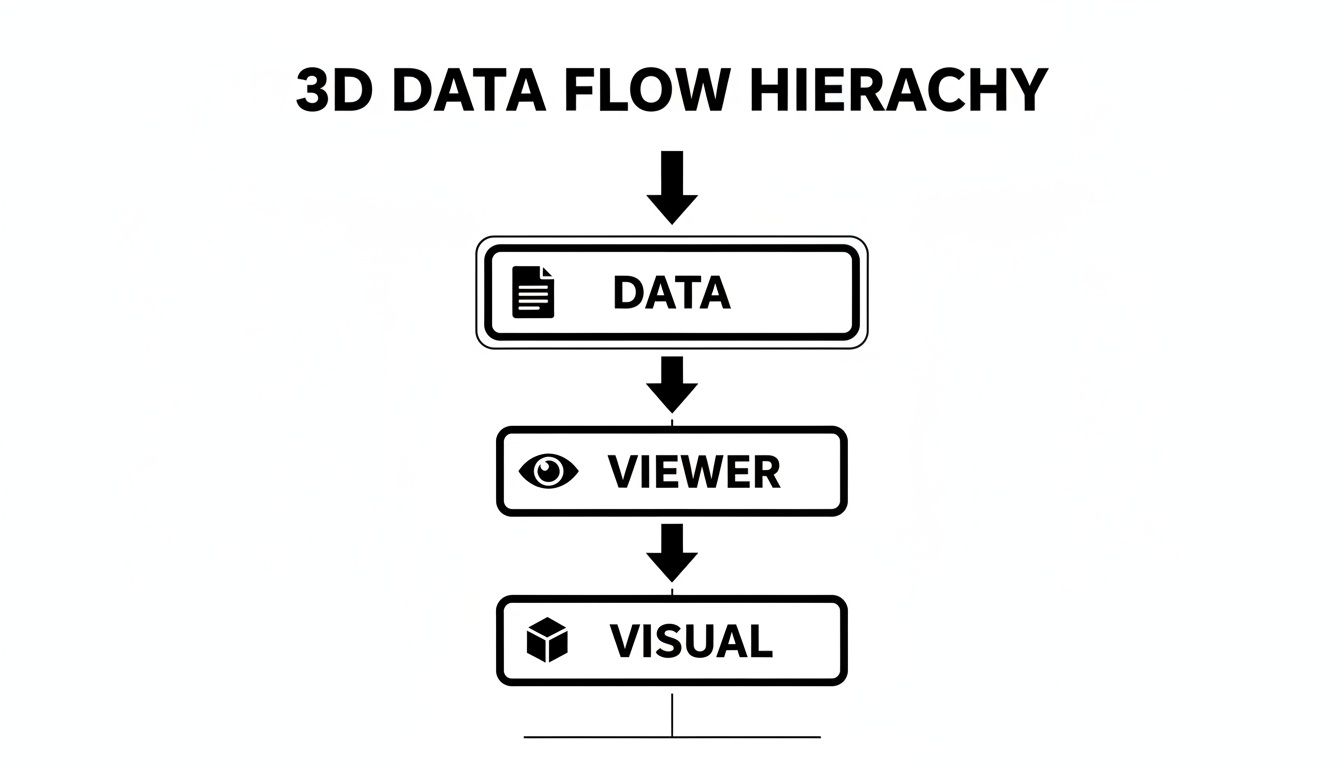
የመመልከቻውን ሚና እንደ ተርጓሚ ያሳያል፣ ውስብስብ የጂኦሜትሪክ መረጃዎችን ከፋይል ወስዶ በይነተገናኝ ያደርገዋል።
ከዚህ በታች ከማንኛውም ከፍተኛ ጥራት ካለው 3D ሞዴል መመልከቻ ሊጠብቋቸው የሚገቡ ቁልፍ ባህሪያትን የሚያብራራ ፈጣን ሠንጠረዥ አለ። ባህሪው ምንድን ነው ብቻ ሳይሆን በየቀኑ በእውነተኛ ፕሮጀክቶች ላይ ለሚሰሩ ሰዎች ለምን አስፈላጊ እንደሆነም አጉልቻለሁ።
ከፍተኛ ጥራት ያለው 3D ሞዴል መመልከቻ ቁልፍ ባህሪያት
| ባህሪ | መግለጫ | ለተጠቃሚዎች ዋና ጥቅም |
|---|---|---|
| ዋና በይነተገናኝ ቁጥጥሮች | ሞዴሉን ያለችግር ለማንቀሳቀስ፣ ለማጉላት እና ለማሽከርከር ችሎታ። | ዲዛይነሮች፦ ከሁሉም አቅጣጫዎች ጥልቅ ምርመራን ያስችላል። ገንቢዎች፦ ካሜራ እና የነገር አቀማመጥን ለማረም አስፈላጊ ነው። |
| Wireframe Mode | በጠንካራው ሞዴል እና ስር ባለው የመረብ መዋቅር መካከል ይቀያየራል። | የጥራት ቁጥጥር መሐንዲሶች፦ የተደበቁ የጂኦሜትሪ ጉድለቶችን ወይም የማሳያ ቅርሶችን ለመለየት ይረዳል። ዲዛይነሮች፦ የፖሊጎን ብዛትን ለማመቻቸት ጠቃሚ ነው። |
| Grid & Axes Display | ለቦታ ማጣቀሻ ፍርግርግ እና X፣ Y፣ Z መጥረቢያዎችን ይደራርባል። | ሁሉም ሰው: ሞዴሊንግ ሶፍትዌር ሳይከፍቱ ወዲያውኑ የመጠን፣ የቅርጽ እና የአቅጣጫ ስሜት ይሰጣል። |
| ሰፊ የፋይል ቅርጸት ድጋፍ | እንደ STL፣ OBJ፣ FBX እና GLB ካሉ የተለመዱ ቅርጸቶች ጋር ተኳሃኝነት። | ገንቢዎች እና ዲዛይነሮች: የማያቋርጥ የፋይል ልወጣዎች ሳያስፈልግ እንከን የለሽ ትብብር እና የስራ ፍሰት ውህደትን ያረጋግጣል። |
| ከፍተኛ አፈጻጸም ያለው አቀራረብ | ሞዴሎችን በከፍተኛ የፖሊጎን ብዛት በፍጥነት ያለምንም መዘግየት ወይም ብልሽት ያቀርባል። | ሁሉም ሰው: ውስብስብ፣ ሙያዊ ደረጃ ያላቸው ንብረቶችን ለመስራት፣ ጊዜን ለመቆጠብ እና ብስጭትን ለመከላከል ወሳኝ ነው። |
እነዚህ ባህሪያት “ጥሩ-መሆን-ያለባቸው” ዝርዝር ብቻ አይደሉም፤ በ3D ሞዴሎች በብቃት ለመስራት ለሚፈልግ ማንኛውም ሰው መሰረታዊ መስፈርቶች ናቸው።
ቴክኒካዊ አፈጻጸም እና የፋይል ድጋፍ
በመጨረሻም፣ አንድ ተመልካች እንደ ቴክኒካዊ ውስጣዊ ክፍሎቹ ጥሩ ነው። የተለያዩ የፋይል ቅርጸቶችን ያለችግር የመክፈት ችሎታ ፍጹም አስፈላጊ ነው። ብዙ የOBJ እና FBX ፋይሎችን ቢያዩም፣ STL (ሁለቱም ASCII እና Binary) አሁንም እንደ 3D ህትመት እና ፈጣን የድር ቅድመ እይታዎች ያሉ ነገሮች ሁለንተናዊ ቋንቋ ነው።
ኃይለኛ 3D ተመልካች አሳሽዎን ሳያበላሽ ከፍተኛ-ፖሊጎን ሞዴሎችን በተቀላጠፈ ሁኔታ ማቅረብ አለበት። አፈጻጸም የቅንጦት አይደለም—ሙያዊ ደረጃ ያላቸውን ዲዛይኖች ለመቆጣጠር ዋና መስፈርት ነው።
የ3D ሞዴሎች ገበያ እየፈነዳ ሲሆን በ2031 20.25 ቢሊዮን ዶላር ይደርሳል ተብሎ ይጠበቃል። ይህ እድገት 3D ተደራሽ በሚያደርጉ መሳሪያዎች የተጎላበተ ነው። በእርግጥ፣ 65% የ3D ንብረቶች አሁን የድር ቴክኖሎጂዎችን በመጠቀም ይታያሉ፣ ይህም ከ2018 ከ22% ትልቅ ዝላይ ነው። በሌሎች መስኮች የላቀ እይታ እንዴት እንደሚሰራ ለማወቅ ከፈለጉ፣ ምርጥ የውስጥ ዲዛይን አቀራረብ ሶፍትዌርን መመልከት አንዳንድ አስደሳች ተመሳሳይነቶችን ሊያቀርብ ይችላል።
እነዚህ ባህሪያት በእውነተኛው ዓለም ላይም ተጽዕኖ ያሳድራሉ። በአውቶሞቲቭ ኢንዱስትሪ ውስጥ፣ የሽቦ ፍሬም መቀያየሪያዎችን መጠቀም ብቻ የፕሮቶታይፕ ስህተቶችን በ28% እንደሚቀንስ ታይቷል። ትክክለኛዎቹ መሳሪያዎች እውነተኛ ጊዜ እና ገንዘብ እንደሚቆጥቡ ማረጋገጫ ነው። እና ልክ እንደ 3D ሞዴሎች ትክክለኛውን ቅርጸት እንደሚያስፈልጋቸው፣ ለድር ምርጥ የምስል ቅርጸትን መረዳት ዲጂታል ይዘትን ለሚፈጥር ማንኛውም ሰው ወሳኝ ነው።
ባለሙያዎች በየቀኑ 3D ሞዴል ተመልካቾችን እንዴት እንደሚጠቀሙ
አንድ 3D ሞዴል ተመልካች ከሶፍትዌር ቁራጭ በላይ ነው፤ ሰዎች በእውነተኛው ዓለም ችግሮችን ለመፍታት በየቀኑ የሚተማመኑበት ተግባራዊ መሳሪያ ነው። እነዚህ ተመልካቾች በሙያዊ የስራ ፍሰቶች ውስጥ እንዴት እንደሚገቡ ሲመለከቱ፣ ፕሮጀክቶችን በትክክለኛው መንገድ ለማቆየት እና ሁሉም ሰው በአንድ ገጽ ላይ መሆኑን ለማረጋገጥ ምን ያህል አስፈላጊ እንደሆኑ ማድነቅ ይጀምራሉ።
በጣም ቴክኒካዊ የሆኑ ሰዎች እና ቴክኒካዊ ያልሆኑ ባለድርሻ አካላት የሚገናኙበት፣ ተመሳሳይ ነገር የሚመለከቱበት እና በእርግጥ እርስ በእርስ የሚግባቡበት የጋራ መሬት አድርገው ያስቡት።
የተለያዩ ባለሙያዎች 3D ሞዴል ተመልካችን እንዴት ብልህ ለመስራት፣ በተሻለ ሁኔታ ለመተባበር እና ነገሮችን በፍጥነት ለማከናወን እንደሚጠቀሙ እንመልከት።
ለገንቢዎች: በኮድ ውስጥ ያለ የህይወት መስመር
የድር ወይም የጨዋታ ገንቢ ከሆኑ፣ የአውድ መቀያየር የምርታማነት ጠላት እንደሆነ ያውቃሉ። ጥሩ በአሳሽ ላይ የተመሰረቱ ተመልካቾች ከመምጣታቸው በፊት፣ የ3D ንብረትን መፈተሽ ትልቅ ችግር ነበር። ኮድ መስራት ማቆም፣ እንደ Blender ወይም 3ds Max ያለ ከባድ ሞዴሊንግ ፕሮግራም ማስጀመር፣ ፋይሉን ማስመጣት እና ከዚያ ወደ ኮድ አእምሮዎ ለመመለስ መሞከር ነበረብዎት። ፍጥነትዎን ሙሉ በሙሉ ሊገድል የሚችል የማይመች ሂደት ነበር።
ዘመናዊ በአሳሽ ውስጥ ያለ 3D ሞዴል ተመልካች ሁሉንም ነገር ይለውጣል።
አሁን፣ አንድ ገንቢ የሞዴል ፋይልን ወደ አሳሽ ትር ጎትቶ መጣል ይችላል። ወዲያውኑ፣ የእድገት አካባቢያቸውን ሳይለቁ አቅጣጫውን፣ መጠኑን እና ጂኦሜትሪውን ማረጋገጥ ይችላሉ። እንከን የለሽ፣ ፈጣን የግብረመልስ ዑደት ነው።
ይህ በተለይ በድር ልማት ውስጥ ትልቅ ነው፣ አፈጻጸም ሁሉም ነገር ነው። አንድ ገንቢ የሞዴል ፖሊጎን ብዛት እና አጠቃላይ ውስብስብነት ፈጣን እይታ ማግኘት ይችላል ይህም ለተጠቃሚዎች ድር ጣቢያውን እንዳያዘገየው ለማረጋገጥ። ከመጀመሪያው ጀምሮ ዋናውን የተጠቃሚ ተሞክሮ ችግር ለመፍታት ፈጣን፣ ቀላል መንገድ ነው።
ለምርት ዲዛይነሮች: ምናባዊው የስራ ጠረጴዛ
የምርት ዲዛይነሮች ያለማቋረጥ ይደግማሉ። አጠቃላይ ስራቸው በፕሮቶታይፖች መፍጠር፣ መገምገም፣ ማስተካከል እና ማቅረብ ላይ ያተኮረ ነው። ለእነሱ፣ 3D ሞዴል ተመልካች እንደ ምናባዊ የስራ ጠረጴዛ ነው—ንድፍን ለመገልበጥ እና ከሁሉም ሊታሰብ ከሚችሉ ማዕዘኖች ለመመርመር ንጹህ ቦታ፣ ልክ በእጃቸው አካላዊ ነገር እንደያዙ።
ይህ በጥቂት ቁልፍ ጊዜያት ውስጥ እጅግ በጣም ጠቃሚ ይሆናል:
- ውስጣዊ ግምገማዎች: ከስታቲክ ምስሎች ይልቅ፣ ዲዛይነሮች ወደ በይነተገናኝ ሞዴል አገናኝ መላክ ይችላሉ። ይህ መሐንዲሶች እና አስተዳዳሪዎች እንዲያሽከረክሩት፣ በተወሰኑ ክፍሎች ላይ እንዲያሳንሱ እና የበለጠ ትክክለኛ ግብረመልስ እንዲሰጡ ያስችላቸዋል።
- የደንበኛ አቀራረቦች: የቀጥታ 3D ሞዴልን ከደንበኛ ጋር ማጋራት ጨዋታን የሚቀይር ነው። ጽንሰ-ሐሳቡን በራሳቸው ውሎች እንዲያስሱ ያስችላቸዋል፣ ይህም ወደ የበለጠ አሳታፊ እና ትብብር ያለው የማጽደቅ ሂደት ይመራል።
- ፈጣን ፕሮቶታይፕ: ተመልካቹ ፋይል ወደ 3D አታሚ ከመላኩ በፊት የመጨረሻው የጤና ምርመራ ነው። በሞዴሉ መዋቅር ወይም ልኬቶች ውስጥ ውድ ስህተትን ለመያዝ የመጨረሻው ዕድል ነው።
ለQA መሐንዲሶች: ለሞዴሎች ማይክሮስኮፕ
ኃላፊነቱ በጥራት ማረጋገጫ (QA) መሐንዲሶች ላይ ያርፋል። ስራቸው የመጨረሻው 3D ሞዴል በእይታም ሆነ በቴክኒካዊ መልኩ ፍጹም መሆኑን ማረጋገጥ ነው። ንብረት ለመጨረሻው መድረሻው ዝግጁ መሆኑን የሚያረጋግጡ እነሱ ናቸው፣ ያ የቪዲዮ ጨዋታ፣ የኢ-ኮሜርስ ጣቢያ ወይም የስነ-ህንፃ አቀራረብ ይሁን።
ጥሩ 3D ሞዴል ተመልካች በመሠረቱ የእነሱ ዲጂታል ማይክሮስኮፕ ነው። እንደ የሽቦ ፍሬም ሁነታ ባሉ ባህሪያት፣ ተጠግተው በመሠረታዊው ሜሽ ውስጥ የተደበቁ ችግሮችን መመርመር ይችላሉ—እንደ ያልተለመደ ጂኦሜትሪ ወይም በኋላ ላይ አስቀያሚ የማቅረብ ችግሮችን ሊያስከትሉ የሚችሉ መገናኛ ፖሊጎኖች።
እንዲሁም የሞዴሉን መጠን፣ መዞሪያ ነጥብ እና አቅጣጫ ፕሮጀክቱ የሚፈልገውን ያህል መሆኑን ማረጋገጥ ይችላሉ። ይህ ዓይነቱ ዝርዝር ምርመራ ሁሉንም ዓይነት ስህተቶች እና ውህደት ችግሮችን አስቀድሞ ይከላከላል፣ ይህም የመጨረሻው ምርት የተሟላ እና ሙያዊ መሆኑን ያረጋግጣል።
የመጀመሪያውን የSTL ፋይልዎን ደረጃ በደረጃ ማየት
እሺ፣ ከንድፈ ሃሳቡ ይበቃል። ዘመናዊ 3D ሞዴል መመልከቻን ለመረዳት ምርጡ መንገድ በቀጥታ ገብቶ መጠቀም ነው። የShiftShift 3D ሞዴል መመልከቻን የመሰለ በብሮውዘር ላይ የተመሰረተ መሳሪያ በመጠቀም የመጀመሪያውን የSTL ፋይልዎን እንዴት መጫን እንደሚችሉ እንመልከት። ምን ያህል ፈጣን እና ቀላል እንደሆነ ያያሉ።
አድካሚ ሶፍትዌሮችን ስለመጫን ይርሱ። የሚያስፈልግዎ የድር አሳሽዎ እና 3D ፋይል ብቻ ነው። ከመሳሪያው መክፈት ጀምሮ ሞዴሉን ማሽከርከር እና የስራዎን ቅጽበታዊ ገጽ እይታ ማንሳት ድረስ እንሄዳለን።
ደረጃ 1: መመልከቻውን ያስጀምሩ እና ፋይልዎን ይጫኑ
በመጀመሪያ ደረጃ፣ መመልከቻውን መክፈት ያስፈልግዎታል። እንደ ShiftShift ባሉ የተቀናጀ መሳሪያ፣ የቁልፍ ሰሌዳ አቋራጭ (እንደ Shift ሁለት ጊዜ መታ ማድረግ) በመጫን እና "3D Model Viewer" ብለው በመተየብ ቀላል ነው። መስኮቶችን ወይም መተግበሪያዎችን መቀየር አያስፈልግም—ዝም ብሎ ይታያል፣ ለመሄድ ዝግጁ ነው።
መመልከቻው ከታየ በኋላ ፋይልዎን ማስገባት በቀላሉ በመጎተት እና በመጣል ነው።
- ፋይልዎን ያግኙ: የSTL ፋይልን ከኮምፒዩተርዎ ይውሰዱ። ASCII ወይም Binary STL ቢሆን ምንም አይደለም፤ ጥሩ መመልከቻ በራስ-ሰር ያውቀዋል።
- ይጎትቱት እና ይጣሉት: ፋይሉን ከፎልደሩ ጎትተው በመመልከቻው በተሰየመው ቦታ ላይ በብሮውዘርዎ ውስጥ ይጣሉት።
በቅጽበት፣ ያ የፋይል አዶ ሙሉ በሙሉ ወደ መስተጋብራዊ 3D ነገር በቀጥታ በማያ ገጽዎ ላይ ይለወጣል።
ይህ የShiftShift 3D ሞዴል መመልከቻ ስራውን እየሰራ ነው፣ የSTL ፋይልን በቀላል መቆጣጠሪያ ፓነሉ እያሳየ ነው።
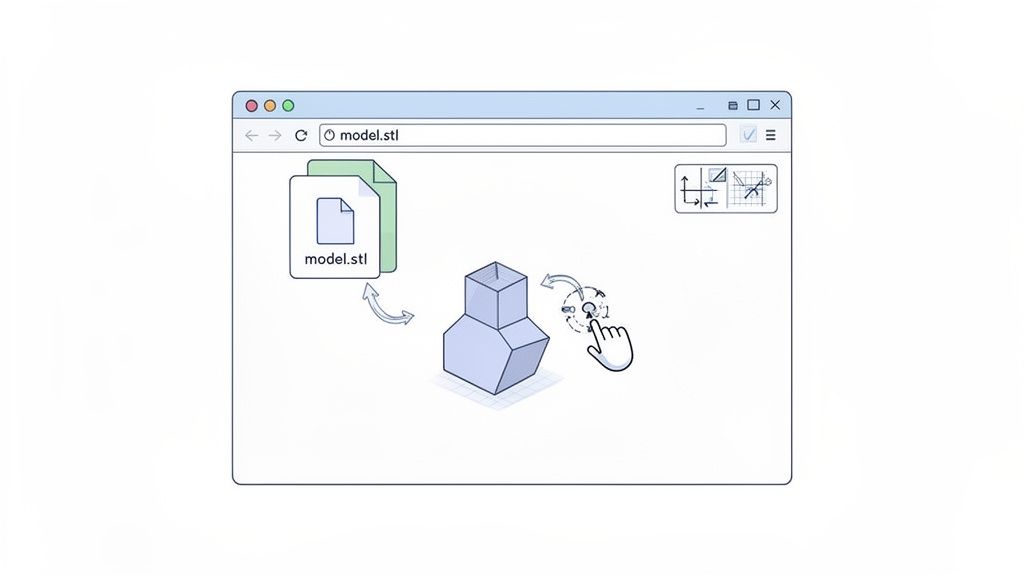
በይነገጹ ንጹህ እና ያልተዝረከረከ መሆኑን አስተውለዋል? ትኩረቱ በሞዴልዎ ላይ ይቆያል፣ ነገር ግን የሚያስፈልጉዎት መሳሪያዎች ሁልጊዜ በአንድ ጠቅታ ርቀት ላይ ናቸው።
ደረጃ 2: ሞዴሉን ያስሱ እና ይመርምሩ
አሁን አስደሳችው ክፍል—በሞዴሉ መጫወት። መቆጣጠሪያዎቹ ተፈጥሯዊ ስሜት እንዲሰማቸው ተደርገው የተሰሩ ናቸው፣ ልክ እንደ ካርታ መተግበሪያ መጠቀም ወይም በቪዲዮ ጨዋታ ውስጥ መንቀሳቀስ።
- አሽከርክር (Orbit): የግራውን የመዳፊት ቁልፍ ተጭነው ይያዙ እና መዳፊቱን ያንቀሳቅሱ። ይህ ሞዴሉን እንዲያሽከረክሩ እና ከሁሉም ሊሆኑ ከሚችሉ አቅጣጫዎች እንዲያዩት ያስችልዎታል።
- አንቀሳቅስ (Pan): የቀኝ የመዳፊት ቁልፍን ተጭነው ይያዙ እና ሞዴሉን ወደ ግራ፣ ቀኝ፣ ላይ ወይም ታች ያንሸራትቱ።
- አጉላ (Zoom): የመዳፊትዎን ማሸብለል ጎማ በመጠቀም ትናንሽ ዝርዝሮችን በቅርበት ለማየት ወይም ሙሉውን ምስል ለማየት ወደ ኋላ ይጎትቱ።
እነዚህ ሶስት መቆጣጠሪያዎች—ማሽከርከር፣ ማንቀሳቀስ እና ማጉላት—የ3D መስተጋብር መሰረታዊ ነገሮች ናቸው። የሞዴልዎን ጂኦሜትሪ በእውነት እንደያዙት እንዲያስሱ ነፃነት ይሰጡዎታል።
ደረጃ 3: የእይታ መርጃዎችን ይጠቀሙ እና ወደ ውጭ ይላኩ
በእውነት ጥሩ 3D ሞዴል መመልከቻ ከመሰረታዊ እንቅስቃሴ በላይ ይሰጥዎታል። የነገሩን አወቃቀር ለመረዳት እና ያገኙትን ለማጋራት የሚረዱ መሳሪያዎችን ያቀርባል። በመቆጣጠሪያ ፓነል ውስጥ፣ በተለምዶ ጥቂት ጠቃሚ መቀያየሪያዎችን ያገኛሉ:
- ፍርግርግ (Grid): የመሬት ፍርግርግ ያበራል፣ ይህም የመጠን እና የአቅጣጫ ስሜት ለማግኘት በጣም ጥሩ ነው።
- መጥረቢያዎች (Axes): የX፣ Y እና Z መጥረቢያዎችን ያሳያል፣ ይህም ለአቅጣጫ ግልጽ የማጣቀሻ ማዕቀፍ ይሰጥዎታል።
- የሽቦ ፍሬም (Wireframe): ይህ ለቴክኒካዊ ምርመራዎች የእኔ የግል ተወዳጅ ነው። ጠንካራዎቹን ገጽታዎች ያስወግዳል እና ከስር ያለውን ጥሬ ፖሊጎናል ሜሽ ያሳያል።
ትክክለኛውን ምስል ካስተካከሉ በኋላ፣ አሁን ያለውን እይታ ከፍተኛ ጥራት ያለው PNG ምስል ለማስቀመጥ አብሮ የተሰራውን ቅጽበታዊ ገጽ እይታ ቁልፍ መጠቀም ይችላሉ። ይህ ለፕሮጀክት ሰነዶች፣ ለሥራ ባልደረቦች ግብረመልስ ለመላክ ወይም ወደ አቀራረብ ለማስገባት እጅግ በጣም ጠቃሚ ነው። ያንን ምስል በሌሎች የስራ ፍሰቶች ውስጥ መጠቀም ይችላሉ፣ ለምሳሌ QR ኮድ እንዴት እንደሚፈጠር መማር፣ ይህም የቡድን አባልን በቀጥታ ወደ ሞዴሉ የመስመር ላይ ስሪት ያገናኛል።
ግላዊነትን የሚያስቀድም መመልከቻ ለስራ ፍሰትዎ ለምን ትልቅ ለውጥ ያመጣል
የስራ ፍሰትዎ በአእምሯዊ ንብረት ላይ ሲያተኩር፣ 3D ሞዴል መመልከቻን መምረጥ የጥቅም ጉዳይ ብቻ አይደለም—ወሳኝ የንግድ ውሳኔ ነው። ብዙ የመስመር ላይ መሳሪያዎች የንድፍ ፋይሎችዎን ወደ አገልጋዮቻቸው እንዲሰቅሉ ይጠይቁዎታል። ምንም እንኳን ቀላል ቢመስልም፣ ያ አንድ እርምጃ ለከፍተኛ ደህንነት እና ግላዊነት ስጋቶች ሊያጋልጥዎት ይችላል፣ በተለይም ሚስጥራዊ ፕሮቶታይፖችን ወይም ያልተለቀቁ የምርት ሞዴሎችን እየሰሩ ከሆነ።
ግላዊነትን የሚያስቀድም አቀራረብ የእርስዎ ውሂብ ኮምፒውተርዎን ፈጽሞ እንደማይለቅ በማረጋገጥ ሁኔታውን ሙሉ በሙሉ ይለውጣል።
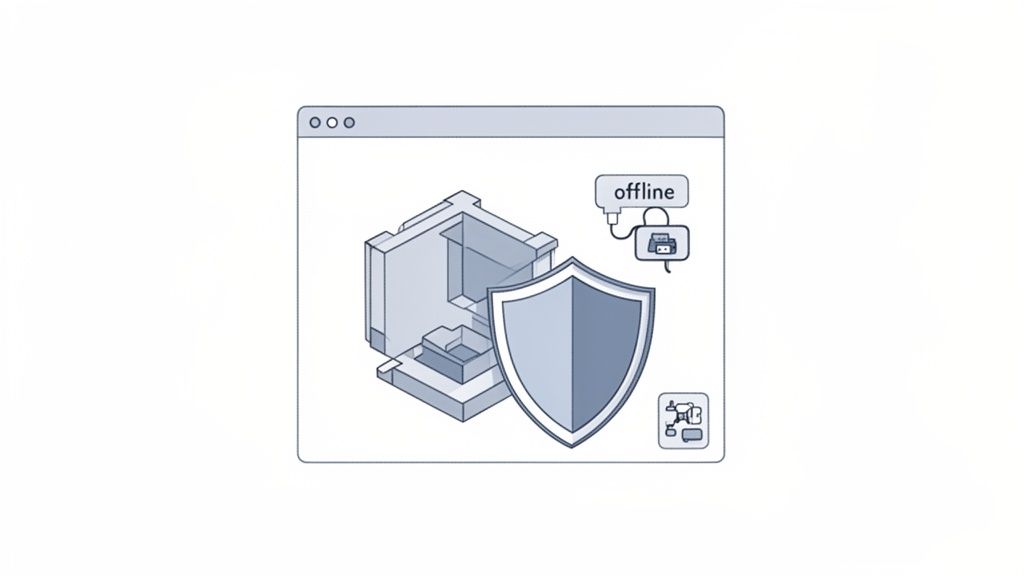
ይህ ነገሮችን ስለመቆለፍ ብቻ አይደለም፤ ይበልጥ ጠንካራ እና እጅግ በጣም ቀልጣፋ የሆነ የስራ ፍሰት ስለመገንባት ነው። በShiftShift ውስጥ ያለው የመሰለ የአካባቢ፣ በብሮውዘር ውስጥ ያለ መመልከቻ ለባለሙያዎች ብልህ ምርጫ የሚያደርጉትን ሶስት ምሰሶዎች እንመልከት።
የአካባቢ ሂደት ደህንነት
ግላዊነትን የሚያስቀድም መመልከቻ ትልቁ ጥቅም ሁሉም ነገር በአካባቢው፣ በድር አሳሽዎ ውስጥ መከሰቱ ነው። የእርስዎ STL ፋይሎች እና ሌሎች ሞዴሎች የራስዎን ኮምፒውተር ኃይል በመጠቀም ይሰራሉ። በዴስክቶፕዎ ላይ ሰነድ ከማረም እና በደመና ላይ የተመሰረተ የቃላት ማቀናበሪያ ከመጠቀም መካከል ያለው ልዩነት ነው—የአካባቢው ፋይል ሁልጊዜ በእርስዎ ቁጥጥር ስር ነው።
ሁሉንም ውሂብ በደንበኛው በኩል በማቆየት፣ ከአገልጋይ ጥሰቶች፣ ያልተፈቀደ መዳረሻ ወይም ከሶስተኛ ወገን ሰቀላዎች ጋር የተያያዘ የውሂብ ማዕድን ማውጣት አደጋን ሙሉ በሙሉ ያስወግዳሉ። የእርስዎ አእምሯዊ ንብረት የእርስዎ ሆኖ ይቆያል፣ ነጥብ።
ለኢንጂነሮች፣ ለምርት ዲዛይነሮች ወይም በንግድ ነክ መረጃዎችን ለሚያስተናግዱ ሁሉ፣ ይህ ጥሩ ብቻ ሳይሆን መሰረታዊ መስፈርት ነው።
ከመስመር ውጭ የመድረስ አስተማማኝነት
እውነቱን እንነጋገር ከተባለ፣ የበይነመረብ ግንኙነት ሁልጊዜ የተረጋገጠ አይደለም። በደመና ላይ የተመሰረተ መሳሪያ ላይ መተማመን በአውሮፕላን ውስጥ ሲሆኑ፣ ሩቅ በሆነ የስራ ቦታ ላይ ሲሆኑ ወይም ደግሞ ደካማ ግንኙነት ሲያጋጥምዎ ሙሉ የስራ ፍሰትዎን ሊያቆም ይችላል። ከመስመር ውጭ መስራት የሚችል 3D ሞዴል መመልከቻ ከዚህ ጥገኝነት ነፃ ያደርግዎታል።
አንዴ ከተጫነ፣ እንደ ShiftShift መመልከቻ ያለ አሳሽ ላይ የተመሰረተ መሳሪያ በማንኛውም ቦታ፣ በማንኛውም ጊዜ ይሰራል። ይህ ማለት ስለ ግንኙነት ሳያስቡ ሞዴልን መመርመር፣ ማረጋገጥ ወይም ማቅረብ ይችላሉ፣ ይህም ከጠረጴዛቸው ጋር ያልተጣበቁ ባለሙያዎች እምነት የሚጣልበት መሳሪያ ያደርገዋል።
እንከን የለሽ የስራ ፍሰት ውህደት
በመተግበሪያዎች መካከል ያለማቋረጥ መቀያየር ምርታማነትን የሚቀንስ እንደሆነ ይታወቃል። 3D ሞዴልን ለማየት ብቻ የተለየ፣ ብዙ ጊዜ የማይመች የዴስክቶፕ ፕሮግራም ማስጀመር ከዋናው የስራ አካባቢዎ ያወጣዎታል እና ትኩረትዎን ይበትናል። በእውነት የተዋሃደ መመልከቻ እርስዎ ካሉበት ቦታ ወዲያውኑ በመጀመር ይህንን ችግር ይፈታል። ይህ እርስዎ በስራዎ ላይ እንዲያተኩሩ ያደርጋል፣ የሞዴል ምርመራን የሚያደናቅፍ ስራ ሳይሆን ከሂደትዎ ጋር እንከን የለሽ አካል ያደርገዋል። ተመሳሳይ አመክንዮ ለሌሎች ፈጣን ስራዎችም ይሠራል፣ ለምሳሌ ጽሑፍን በመስመር ላይ በነጻ ማወዳደር ሲያስፈልግዎ ከስራዎ ሳይርቁ።
ቁጥሮቹ ይህንን ይደግፋሉ። የ3D ምስል ማሳያ ገበያ እያደገ ሲሆን በ2035 40.97 ቢሊዮን ዶላር ይደርሳል ተብሎ ይጠበቃል፣ ቅልጥፍና ደግሞ ቀዳሚ ቅድሚያ የሚሰጠው ጉዳይ ነው። በአሳሽ ውስጥ ያሉ መመልከቻዎች ከዋናው መተግበሪያዎች ጋር ሲነፃፀሩ 52% ጊዜ ይቆጥባሉ፣ እና 73% የሚሆኑት ኢንተርፕራይዞች የመረጃ ደንቦችን ለማሟላት የአካባቢ ማቀነባበሪያን ቅድሚያ ስለሚሰጡ፣ ወደ ግላዊነት-ቀዳሚ መሳሪያዎች መሸጋገር ግልፅ ነው። በዚህ ዝርዝር ዘገባ ውስጥ ተጨማሪ የ3D አቀራረብ ገበያ አዝማሚያዎችን ማግኘት ይችላሉ።
ጥያቄዎች አሉዎት? መልሶች አሉን
በጣም ቀጥተኛ የሆኑ መሳሪያዎች እንኳን አንዳንድ ጊዜ ግራ ሊያጋቡዎት ይችላሉ። 3D ሞዴል መመልከቻ ሲጠቀሙ፣ ጥቂት የተለመዱ ችግሮች ብቅ ይላሉ፣ ብዙውን ጊዜ ከፋይል አይነቶች፣ ከአፈጻጸም ችግሮች እና ከደህንነት ጋር የተያያዙ ናቸው። ብዙ ጊዜ የምንሰማቸውን ጥያቄዎች እንመልከት እና የሚፈልጉትን መልሶች እናግኝ።
ይህን እንደ ዋና የመላ ፍለጋ መመሪያዎ አድርገው ይቁጠሩት። ምንም አላስፈላጊ ነገር የለም፣ እርስዎ እና ፕሮጀክቶችዎ ወደፊት እንዲሄዱ የሚያደርጉ ተግባራዊ መፍትሄዎች ብቻ።
የትኞቹን የፋይል ቅርጸቶች መጠቀም አለብኝ?
የ3D ዓለም በተለያዩ የፋይል አይነቶች የተሞላ ነው፣ ነገር ግን ለፈጣን እይታ እና ለ3D ህትመት አንድ ቅርጸት የበላይ ነው፡ STL (Stereolithography)። እሱ የ3D ሞዴሎች ሁለንተናዊ ቋንቋ ነው—ቀላል፣ በሰፊው የሚደገፍ እና አብዛኛዎቹ በአሳሽ ላይ የተመሰረቱ መመልከቻዎች የተገነቡበት ነው።
የSTL ፋይሎች በሁለት ዋና ዋና አይነቶች ይመጣሉ፡ ASCII፣ እሱም በጽሑፍ ላይ የተመሰረተ ነው፣ እና Binary፣ እሱም በጣም የታመቀ ነው። እንደ ShiftShift ውስጥ የተገነባው ጠንካራ መመልከቻ ሁለቱንም በራስ-ሰር ይይዝልዎታል፣ ስለዚህ ስለእሱ ማሰብ እንኳን አያስፈልግዎትም። እንደ OBJ፣ FBX ወይም GLTF ያሉ ቅርጸቶችንም ያጋጥሙዎታል፣ እነዚህም ለበለጠ ውስብስብ ሞዴሎች ከሸካራነት እና ከአኒሜሽን ጋር በጣም ጥሩ ናቸው። ነገር ግን የጂኦሜትሪውን መመርመር ብቻ ሲያስፈልግዎ፣ STL ሁልጊዜ ማለት ይቻላል ምርጥ ምርጫዎ ነው።
የእኔ 3D ሞዴል ለመጫን ለምን በጣም ቀርፋፋ ነው?
ሞዴልዎ ለመታየት ዘላለማዊ ጊዜ የሚወስድ ከሆነ ወይም አሳሽዎን ወደ ቀርፋፋ ሁኔታ የሚቀይር ከሆነ፣ ወንጀለኛው ሁልጊዜ ማለት ይቻላል ከሁለት ነገሮች አንዱ ነው፡ የሞዴሉ ውስብስብነት ወይም የኮምፒተርዎ የሚገኙ ሀብቶች። በሚሊዮኖች የሚቆጠሩ ፖሊጎኖች ያለው ሞዴል ግዙፍ፣ ከፍተኛ ጥራት ያለው ፎቶ የ3D አቻ ነው—ለማሳየት ብዙ ሃይል ይጠይቃል።
ቀርፋፋ የሚጫን ሞዴል መመልከቻው የተበላሸ ነው ማለት አይደለም። ብዙ ጊዜ፣ ሞዴሉ በድር አሳሽ ውስጥ ለስላሳ፣ በእውነተኛ ጊዜ ለማሳየት በጣም ከባድ መሆኑን የሚያሳይ ምልክት ነው። ዘዴው በዝርዝር እና በአፈጻጸም መካከል ሚዛን መፈለግ ነው።
ነገሮችን ለማፋጠን ማድረግ የሚችሏቸው ጥቂት ነገሮች እዚህ አሉ፦
- ጂኦሜትሪውን ቀለል ያድርጉት፦ በጣም ውጤታማው መፍትሄ የፖሊጎን ብዛት መቀነስ ነው። ይህንን ለማየት ከመሞከርዎ በፊት በተወሰነ የ3D ሞዴሊንግ ፕሮግራም ውስጥ ማድረግ ያስፈልግዎታል።
- አሳሽዎን ያዘምኑ፦ ዘመናዊ አሳሾች እነዚህን መመልከቻዎች የሚያንቀሳቅሰውን WebGLን በመያዝ በጣም የተሻሉ ናቸው። ፈጣን ዝመና አስደናቂ ነገሮችን ሊያደርግ ይችላል።
- የስርዓት ሀብቶችን ነፃ ያድርጉ፦ የኮምፒተርዎን ሲፒዩ እና ጂፒዩ ሊበሉ የሚችሉ ሌሎች የሚጠይቁ የአሳሽ ትሮችን ወይም መተግበሪያዎችን ይዝጉ።
የእኔ ዲዛይኖች በአሳሽ ላይ በተመሰረተ መመልከቻ ውስጥ ደህና ናቸው?
ይህ ጥሩ ጥያቄ ነው፣ እና ሁሉም ወደ አንድ ወሳኝ ዝርዝር ይወርዳል፡ ፋይልዎ የት ነው የሚሰራው? ብዙ የመስመር ላይ መመልከቻዎች ሞዴልዎን ወደ አገልጋዮቻቸው እንዲሰቅሉ ይጠይቁዎታል። ፋይልዎ ኮምፒተርዎን ለቆ ወደ ሌላ ሰው አገልጋይ ሲደርስ፣ ሊከሰት የሚችል የደህንነት ስጋት ፈጥረዋል።
ለዚህም ነው ግላዊነት-ቀዳሚ መሳሪያዎች ጨዋታን የሚቀይሩት። እንደ ShiftShift 3D ሞዴል መመልከቻ ያለ መመልከቻ ሁሉንም ነገር በአካባቢው፣ በአሳሽዎ ውስጥ ያከናውናል። ፋይልዎ ማሽንዎን አይለቅም። ይህ የደንበኛ-ጎን አቀራረብ በባለቤትነት የተያዙ ዲዛይኖችን ወይም ሚስጥራዊ አይፒን ለሚሰሩ ሁሉ የወርቅ ደረጃ ነው፣ ስራዎ የግል ሆኖ እንደሚቆይ ሙሉ የአእምሮ ሰላም ይሰጥዎታል።
በእርግጥ በስልኬ ላይ 3D ሞዴሎችን ማየት እችላለሁ?
በእርግጥ። አብዛኛዎቹ ዘመናዊ የድር ላይ የተመሰረቱ 3D መመልከቻዎች ምላሽ ሰጪ እንዲሆኑ እና በንክኪ ማያ ገጾች ላይ ጥሩ እንዲሰሩ ተደርገው የተሰሩ ናቸው። ምን ያህል በጥሩ ሁኔታ እንደሚሰራ በስልክዎ የማቀነባበሪያ ኃይል ላይ የተመሰረተ ነው፣ ነገር ግን የዛሬዎቹ ስማርት ስልኮች እና ታብሌቶች አብዛኛዎቹን የተለመዱ ሞዴሎችን ያለችግር ማስተናገድ ይችላሉ።
ከመዳፊት ይልቅ፣ እንደ ፒንች-ቱ-ዙም እና ድራግ-ቱ-ሮቴት ያሉ የተለመዱ ምልክቶችን ይጠቀማሉ። የአሳሽ ቅጥያዎች ብዙውን ጊዜ በዴስክቶፕ ላይ ያተኮሩ ቢሆኑም፣ መሰረታዊው የድር ቴክኖሎጂ ለሞባይል ተስማሚ ነው፣ ስለዚህ ከጠረጴዛዎ ርቀው ሲሆኑ አብዛኛዎቹን ገለልተኛ የድር መመልከቻዎችን በቀላሉ ማግኘት ይችላሉ።
ሞዴሎችዎን ፈጣን፣ ግላዊ እና በቀላሉ በሚሰራ መሳሪያ ለመፈተሽ ዝግጁ ነዎት? የShiftShift 3D ሞዴል መመልከቻ ህይወትዎን ቀላል ለማድረግ የተነደፉ እያደጉ ካሉ የቅጥያዎች ስብስብ አንዱ ነው። ይሞክሩት እና 3D ምስል ማሳያ ከአሳሽዎ ምን ያህል ቀላል ሊሆን እንደሚችል ይመልከቱ። https://shiftshift.app