How to Generate QR Code Instantly with Free Browser Tools
Learn how to generate QR code designs for URLs, Wi-Fi, and contacts in seconds. Our guide shows you free, secure, and customizable browser-based methods.
Recommended Extensions

Forget heading over to some ad-cluttered website just to create a QR code. The simplest and quickest way is to do it right from your browser, often with a single click. This approach is not only fast but also private, keeping your data entirely on your own device.
It's the kind of seamless convenience that, once you try it, you'll wonder how you did it any other way.
Your Instant Guide to Browser-Based QR Code Generation

The best tools are the ones that fit right into your existing workflow. When it comes to QR codes, that means using an extension that lives inside your browser, turning a tedious task into an instant action.
Tools like ShiftShift's QR Code Generator are built specifically for this. They work locally on your machine, which is a game-changer for two big reasons: speed and privacy. Because nothing ever leaves your computer, your information isn't being uploaded to some random server on the internet.
This is a huge deal when you’re working with sensitive information. Think about it:
- Private URLs: Need to share a link to an unpublished blog post or an internal company document?
- Contact Information: You can generate a vCard with your details without sending your personal info to a third-party site.
- Wi-Fi Credentials: Quickly share network access with a guest without having to spell out a complicated password.
The Power of Local Generation
The "Quick Response" code has actually been around since 1994. It was developed by Masahiro Hara's team at Denso Wave to track car parts more efficiently than old-school barcodes. It was designed to hold over 7,000 numeric characters and be scanned more than ten times faster. You can read the whole story on the official QR code history page.
By keeping the generation process entirely within your browser, you maintain complete control over your data. This is a critical security benefit that many online generator services simply can't match.
Using an in-browser tool brings back that original spirit of pure efficiency. It makes generating a QR code a secure, immediate, and genuinely useful tool for everyday tasks.
Core Features of In-Browser QR Code Generation
To break it down, here’s a look at what makes in-browser generation so practical for day-to-day use.
| Feature | Description | Why It Matters |
|---|---|---|
| Instant Access | Generate a QR code for the current web page with a single click of the extension icon. | There’s no need to copy, paste, or navigate away from your current task. It's incredibly efficient. |
| Offline Functionality | Since the tool runs locally, it works even without an active internet connection. | Perfect for generating codes on the go, in areas with spotty Wi-Fi, or when you’re intentionally offline. |
| Enhanced Privacy | All data processing happens on your device. Nothing is sent to an external server. | Your information—like Wi-Fi passwords or private links—remains completely confidential. |
| Custom Data Input | Easily switch from the current URL to create codes for text, contact cards (vCard), or Wi-Fi networks. | Offers the versatility of a full-featured website generator without the privacy trade-offs. |
Ultimately, these features combine to create a tool that is both powerful and respects your privacy, integrating seamlessly into how you already work.
Creating Your First QR Code in Under a Minute
The fastest way to get the hang of generating a QR code is to just jump in and do it. We'll stick with a browser-based tool for this guide. Why? Because it’s the most straightforward method, and it keeps everything you're doing private and secure right on your own computer. No data gets sent to a server somewhere.
Let's get started.
First things first, you need a trustworthy tool. The safest place to find one is your browser's official extension store, like the Chrome Web Store. A quick search for "QR code generator" will bring up plenty of options that have been reviewed and vetted, which is a much smarter move than downloading from a random third-party site.
For this walkthrough, we'll use ShiftShift's QR Code Generator. Once you land on its official extension page, installing it is usually just a single click on a button like "Add to Chrome."
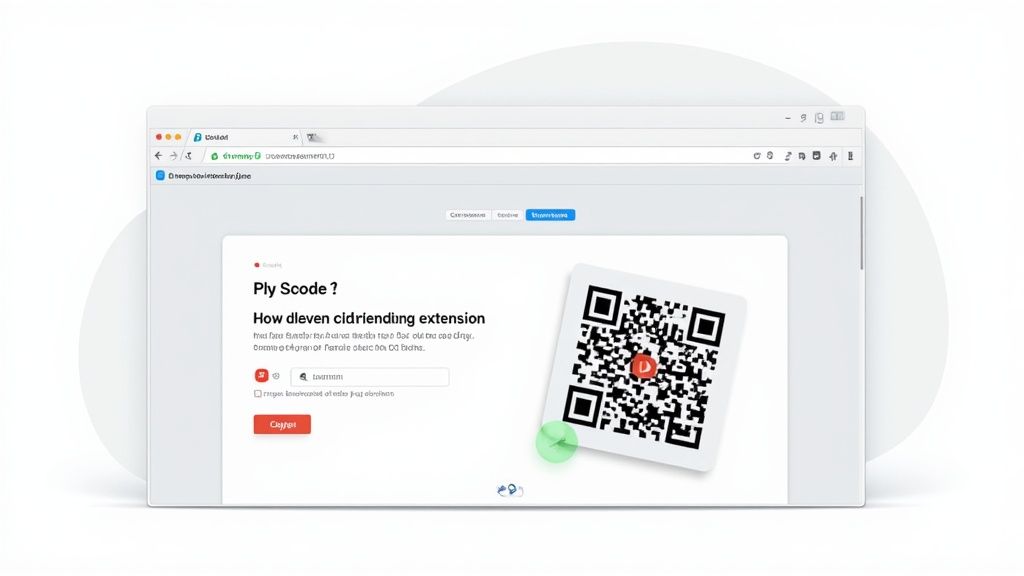
You can see the developer, check user ratings, and read an overview—all good signs that give you the confidence to install. It's a simple, one-time setup that takes seconds.
Instantly Generate from Your Current Page
With the extension installed, this part is almost laughably easy. Go to any website you want to share—maybe it's an interesting article, a product page, or your own portfolio.
Now, just click the extension's icon in your browser's toolbar.
That's it. A QR code for that exact URL is instantly created. No copying, no pasting, no navigating away from what you're doing. This is perfect for those on-the-fly moments, like when you need to share a link during a presentation or quickly send a webpage from your laptop to a friend's phone.
Creating a QR Code for Custom Data
But what if you need a QR code for something that isn't the webpage you're currently on? Any decent browser extension will handle this just as easily.
The real power of a browser-based tool is its flexibility. You can switch from creating a code for your current URL to one for a custom piece of text or a specific link in just a few seconds.
Let's say you're designing a flyer for a local event. You need a QR code that takes people directly to the online ticket-purchasing page, not just your homepage. Here’s how you’d do it:
- Open the tool: Click the extension icon to bring up its interface.
- Find the input field: It will probably have the current page's URL in it already.
- Swap the data: Just delete that URL and paste in your custom link—for instance, the URL for your event's ticketing page.
- Watch it update: The QR code will change in real-time to encode your new link.
This same process works for more than just links. You could type in a short note, a special discount code for your business, or a simple instruction. As you type, the QR code dynamically updates to match, making it a surprisingly versatile tool for all sorts of situations.
If you want to dive deeper, you can explore the full range of features on the official ShiftShift QR Generator site.
Designing QR Codes That Get Noticed
A plain, black-and-white QR code gets the job done, sure, but it's not going to win any design awards. More importantly, it blends into the background. When you start adding custom design elements, you’re not just making it look better—you're turning a simple tool into a piece of branding that actually invites people to scan it.
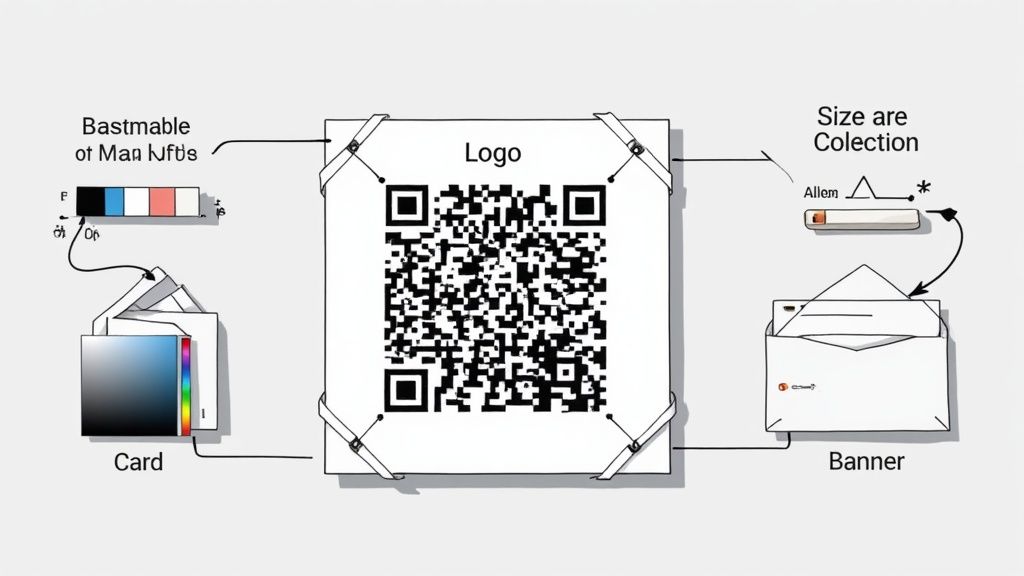
This is more about strategy than just aesthetics. Think about it: a QR code splashed with your brand's colors and a familiar logo is far more likely to catch someone's eye and earn their trust than a generic square they might ignore.
The Secret Ingredient: Error Correction
So, how can you slap a logo in the middle of a QR code without breaking it? The magic is a feature called error correction. It’s a built-in redundancy that allows the code to be partially covered up or even damaged and still work perfectly.
You get four levels to choose from:
- Level L (Low): Can withstand up to 7% data loss.
- Level M (Medium): Handles up to 15% data loss.
- Level Q (Quartile): Bounces back from 25% data loss.
- Level H (High): Recovers from a hefty 30% data loss.
If you’re planning to add a logo, Level H is practically a requirement. That high level of redundancy gives you plenty of breathing room, ensuring scanners can easily figure out the missing data points hidden behind your image.
Getting the Colors Right
Swapping out the default black for your brand’s colors is a fantastic way to make a QR code your own. But you have to follow one simple rule: contrast is king. A light-colored code on a light background, like a pale yellow on white, is a surefire way to make a code that nobody can scan.
Always stick with a dark color for the code's pattern and a light color for the background. Your company's navy blue on a crisp white background? Perfect. A soft gray on a cream-colored business card? You're just asking for frustrated users.
My Pro Tip: Always test your custom QR code before you send it to the printer. I mean really test it. Use a couple of different phones (an iPhone and an Android), try it in bright light and dim light, and make sure it scans instantly every time.
Ultimately, a reliable QR code comes down to a few key things: the right error correction level, sufficient contrast, and a practical size. For most print materials, you’ll want the code to be at least 1 cm x 1 cm to make sure phone cameras can focus on it without any trouble.
And don't forget about the file format. For something big like a trade show banner, you absolutely need a vector file (like an SVG) to keep it sharp and scannable. If you only have a standard image file, our guide on how to convert PNG images to SVG can be a real lifesaver.
Beyond the URL: Tapping Into Different QR Code Types
Most people see a QR code and just assume it’s a link to a website. While that’s often true, it's really just scratching the surface of what they can do. The real magic happens when you start embedding different kinds of data, turning a simple square into a powerful tool for all sorts of tasks. Knowing how to generate qr code variations for specific situations can make a world of difference.
Picture a busy café. Instead of the barista shouting the Wi-Fi password over the grinder every five minutes, there's a small QR code on each table. A quick scan and customers are online. No typos, no hassle—just a smooth, instant connection. That's the kind of practical problem-solving we're talking about.
Making Life Easier, One Scan at a Time
This same principle extends far beyond just Wi-Fi. The goal is always to pick the data type that makes the user's next step as simple as possible.
- vCard: This is an absolute game-changer for networking. Forget fumbling with business cards that just get lost or thrown away. One scan of a vCard QR code and your name, number, email, and company details are saved directly into the other person's phone.
- Email: Want to make it incredibly easy for customers to send you feedback? A QR code can launch a pre-filled email, automatically populating your address in the "To" field and even a subject line like "Feedback from Table 12."
- Plain Text: Sometimes, simple is best. A plain text QR code is perfect for sharing critical info when an internet connection isn't guaranteed—think product serial numbers, emergency instructions, or special discount codes.
The most effective QR codes are the ones that anticipate what the user wants to do next. By encoding the right type of data, you eliminate friction and make the intended action—whether it's saving a contact or connecting to a network—completely effortless.
Common QR Code Types and Their Uses
Figuring out which type to use is the key to creating a QR code that’s genuinely helpful. This quick breakdown covers the most common options and the best places to use them.
| QR Code Type | What It Does | Best For |
|---|---|---|
| URL | Opens a specific web page. | Directing traffic to websites, product pages, or social media profiles. |
| Wi-Fi | Connects a device to a network. | Providing instant internet access in cafes, offices, or guest homes. |
| vCard | Saves contact information. | Networking events, business cards, and personal portfolios. |
| Opens a pre-filled email draft. | Customer support, feedback collection, and quick contact forms. | |
| Text | Displays a short block of text. | Sharing instructions, discount codes, or important notes offline. |
Once you start thinking in terms of the action you want to inspire, you'll see opportunities to use these different QR code types everywhere.
How to Save and Share Your New QR Code
Alright, you’ve designed the perfect QR code. Now what? Getting it out into the world is the easy part.
For most digital uses—like dropping it into a social media post, an email signature, or onto your website—you don’t even need to download it. Just right-click on the generated code and hit "Copy Image." From there, you can paste it directly where you need it. Simple as that.
But what if you need a high-quality file for printing? That’s where downloading comes in, and you'll usually have two choices: PNG or SVG.
- PNG (Portable Network Graphics): Think of this as your go-to for everyday digital stuff. It’s perfect for web graphics, emails, and small-scale print jobs like flyers or business cards. Just be aware that if you try to blow it up too large, it might start looking a bit fuzzy.
- SVG (Scalable Vector Graphics): This is the format the pros use for a reason. An SVG isn’t made of pixels; it's a vector file built on math. That means you can scale it to any size imaginable—from a tiny icon on a sticker to a massive billboard—and it will stay perfectly crisp and clear every time.
Your Data Stays on Your Device
One of the biggest advantages of creating a QR code with an in-browser tool is privacy. The entire generation process happens right there on your machine. Nothing gets sent over the internet to some random server.
This is a huge deal, especially if you're encoding sensitive information. Think about it: you probably don’t want your private Wi-Fi password or personal contact details sitting on a third-party server. With a local generator, your data remains completely yours.
This offline-first approach gives you a level of security and peace of mind you just don't get with most online services. It also means other related tasks, like learning how to take a full page screenshot of your work, can be done safely without ever uploading your screen's content.
Got Questions About Making QR Codes?
Even with a tool as simple as a browser extension, a few questions always come up. Let's clear up some of the most common ones I hear so you can start creating QR codes with confidence.
Are In-Browser QR Code Generators Safe?
This is probably the biggest concern, and for good reason. The short answer is yes, as long as you pick the right tool.
My personal preference is for extensions like ShiftShift Extensions that do all the work right there on your computer. Nothing gets sent to an outside server. This local processing model is a huge win for privacy compared to many online generators that might log your data.
Do QR Codes Ever Expire?
People often wonder if their QR codes have a shelf life. The good news is that standard, static QR codes—the kind you'll make for a website link or Wi-Fi password—do not expire.
The data is baked right into that black-and-white pattern. It will work forever, provided the destination is still live. If you link to your website, the code is good as long as your site is online. The only QR codes that "expire" are dynamic ones, which are usually part of a paid marketing service that can redirect the link.
For most of us, the QR codes we generate are permanent. Just remember, it's on you to keep the linked content (like your portfolio or menu) available. The code itself won't let you down.
Can I Add a Logo to the Middle?
Absolutely! This is a great way to brand your QR code. The secret lies in cranking up the error correction level to 'Q' or 'H'.
Think of error correction as built-in backup data. A higher level means the code can have a chunk of it missing or covered up—say, by your logo—and still scan perfectly. Just be sure to test the final version with a few different phones before you send it off to the printer.
Ready to create secure, custom QR codes right in your browser? The ShiftShift Extensions suite offers a powerful, privacy-focused QR Code Generator that works offline and keeps your data safe. Install it today and see how easy it is at https://shiftshift.app.
Article created using Outrank