እባኮትን የኮኪ ኤዲተር ቻሮም እንቅስቃሴ ለመጠቀም መመሪያዎት
እባኮትን የእንቅስቃሴ እና የጥናት ሂደቶች ላይ የሚሰሩ እና የመረጃ ደህንነት ለማሻሻል የኮኪ ኤዲተር የChrome እንቅስቃሴ ይዘው ይማሩ። ይህ መመሪያ ለማስተዳደር እና ለማሻሻል የኮኪዎችን እንዴት መቆጣጠር እንደሚቻል ይገልጻል።

የተመነጨ ማስተካከያዎች

አንድ ኩኪ አርታዒ Chrome ቅጥያ ድር ጣቢያዎች የሚያከማቿቸውን ኩኪዎች በቀጥታ እንድትደርሱባቸው የሚያስችል የብሮውዘር መሳሪያ ነው። በመሠረቱ፣ ድር ጣቢያዎች ማን እንደሆናችሁ እና ምን እየሰራችሁ እንደሆነ ለማስታወስ የሚጠቀሙባቸውን ትናንሽ የውሂብ ክፍሎች የምትቆጣጠሩበት የግል መቆጣጠሪያ ፓነል ነው። ለገንቢዎች፣ ለሞካሪዎች እና ለግላዊነት ለሚጨነቁ ሰዎች እንኳን ይህ ቀጥተኛ ቁጥጥር ትልቅ ለውጥ ያመጣል።
ኩኪ አርታዒ ምንድን ነው እና ለምን ጠቃሚ ነው?
ኩኪዎችን እንደ ድር ጣቢያ የአጭር ጊዜ ማህደረ ትውስታ አድርገው ያስቡ። ወደ አንድ ጣቢያ ሲገቡ፣ “ይህ ሰው ገብቷል” የሚል ትንሽ ዲጂታል “ተለጣፊ ማስታወሻ” በብሮውዘርዎ ላይ ይተዋል። ሌላው ደግሞ የገበያ ጋሪዎን ይዘቶች ወይም የጨለማ ሁነታን እንደሚመርጡ ሊያስታውስ ይችላል። እነዚህ ማስታወሻዎች ማሰስን ለስላሳ ያደርጉታል፣ ነገር ግን ከትዕይንት በስተጀርባ ይሰራሉ።
የኩኪ አርታዒ የሚገባው እዚህ ላይ ነው። የብሮውዘርን የገንቢ መሳሪያዎች ውስብስብነት እንድትዳስሱ ከማስገደድ ይልቅ፣ ቅጥያ ሁሉንም እነዚያን ተለጣፊ ማስታወሻዎች ለማየት እና ለማስተዳደር ንጹህና ቀላል መስኮት ያቀርባል። በአንድ ወቅት የማይታየውን ነገር የሚታይ ያደርገዋል፣ ኩኪዎችን በጥቂት ጠቅታዎች እንድታዩ፣ እንድታስተካክሉ፣ እንድትጨምሩ ወይም እንድትሰርዙ ያስችላችኋል።
ከኩኪ አርታዒ ማን ይጠቀማል?
የኩኪ አርታዒ ለአንድ ዓይነት ሰው ብቻ አይደለም፤ ጥቅሙ በተለያዩ መስኮች እና ፍላጎቶች ላይ ይሰራጫል። ለአንዳንዶች፣ የዕለት ተዕለት ሥራቸው ወሳኝ አካል ነው። ለሌሎች ደግሞ፣ ዲጂታል ግላዊነታቸውን ለመጠበቅ አስፈላጊ መሳሪያ ነው።
ከእሱ ከፍተኛውን ጥቅም የሚያገኙ ዋና ዋና ቡድኖች እነሆ፦
- ገንቢዎች፦ እንደ መግቢያ ስርዓቶች ወይም የተጠቃሚ ክፍለ ጊዜዎች ያሉ ነገሮችን ያለማቋረጥ ያርማሉ። የኩኪ አርታዒ ድር ጣቢያው እንዴት ምላሽ እንደሚሰጥ ለማየት የኩኪን ዋጋ ወዲያውኑ እንዲቀይሩ ያስችላቸዋል፣ ሙሉ ተከታታይ እርምጃዎችን ሳያልፉ።
- የጥራት ማረጋገጫ ሞካሪዎች፦ አንድ ድር ጣቢያ ለመደበኛ ተጠቃሚ ከአስተዳዳሪ ጋር ሲነጻጸር እንዴት እንደሚታይ መሞከር እንደሚያስፈልግ አስቡት። ያለማቋረጥ ከመግባት እና ከመውጣት ይልቅ፣ ሞካሪ በሰከንዶች ውስጥ በተጠቃሚ ሚናዎች መካከል ለመቀያየር ኩኪን ማስተካከል ይችላል። ይህ እጅግ በጣም ብዙ ጊዜ ይቆጥባል።
- የግላዊነት ተሟጋቾች፦ ብዙ ሰዎች የመከታተያ ኩኪዎችን ለማግኘት እና ለመሰረዝ የኩኪ አርታዒዎችን ይጠቀማሉ። እነዚህ ከጣቢያ ወደ ጣቢያ የሚከተሏችሁ ዘላቂ ትናንሽ ሰላዮች ናቸው፣ እና ጥሩ አርታዒ በዲጂታል አሻራዎ ላይ የተወሰነ ቁጥጥር እንዲያገኙ ይረዳዎታል።
ይህ ካርታ እነዚህ የተለያዩ ተጠቃሚዎች መሳሪያውን ለተወሰኑ ግቦቻቸው እንዴት እንደሚጠቀሙበት በደንብ ያብራራል።
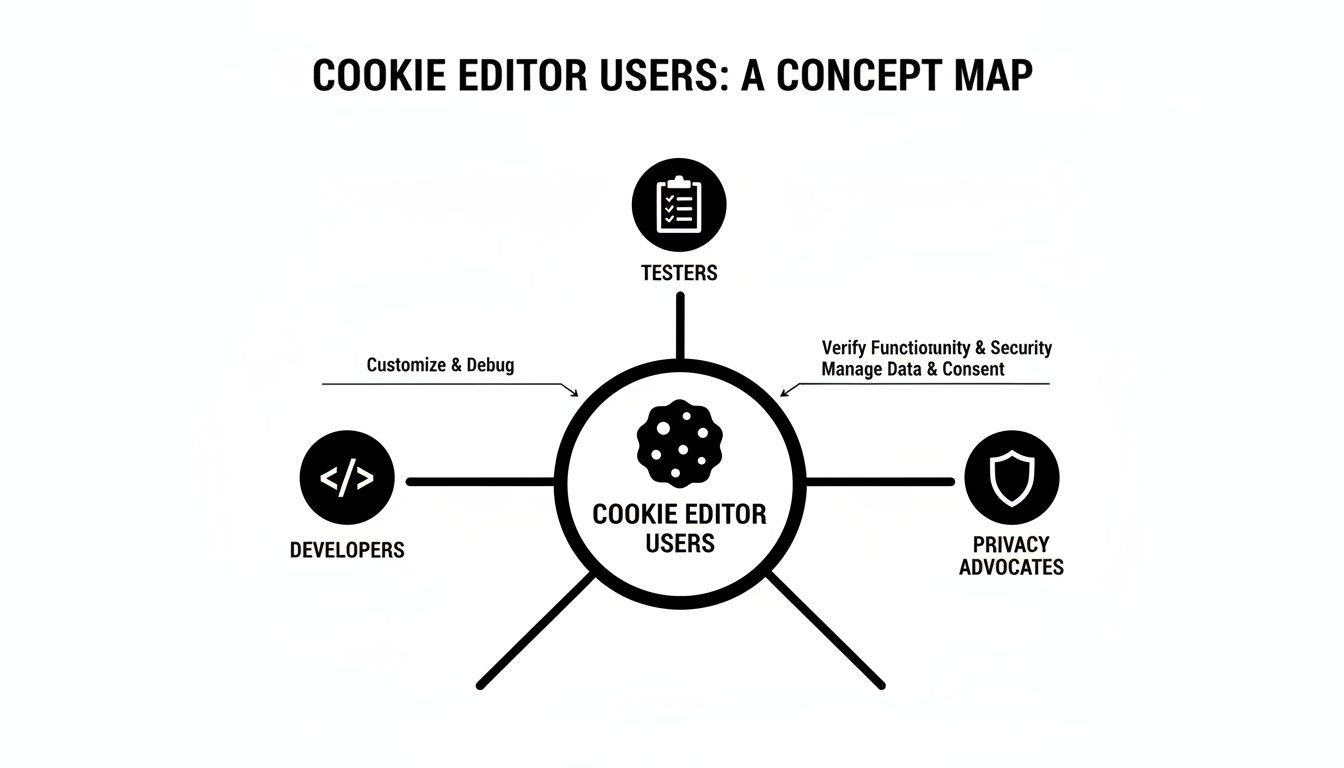
እንደሚመለከቱት፣ የመሳሪያው ኃይል በተለዋዋጭነቱ ላይ ነው። ለከፍተኛ የቴክኒክ ባለሙያዎችም ሆነ በመስመር ላይ ውሂባቸው ላይ የበለጠ አስተያየት ለሚፈልጉ ተራ ተጠቃሚዎች ጠቃሚ ነው። የእነዚህ መሳሪያዎች ተወዳጅነት የብሮውዘር ቅጥያ ገበያን መጠን ስንመለከት ትርጉም ይሰጣል። ከኦገስት 2024 ጀምሮ፣ የChrome Web Store ከ111,933 በላይ ቅጥያዎች መኖሪያ ሲሆን፣ ከእነዚህ ውስጥ 55.5% የሚሆኑት ምርታማነት መሳሪያዎች ናቸው—ኩኪ አስተዳዳሪዎችን የሚያገኙበት ምድብ። ስለ Chrome የተጠቃሚዎች ብዛት እና ስለ ሰፊው የቅጥያ ስነ-ምህዳር የበለጠ ማወቅ ይችላሉ።
በኩኪ አርታዒ ምን ማድረግ ይችላሉ
ታዲያ፣ ኩኪዎችን “ማስተዳደር” በተግባር ምን ይመስላል? ይህ ሰንጠረዥ የኩኪ አርታዒ ዋና ተግባራትን ያብራራል፣ መሳሪያው ምን ማድረግ እንደሚችሉ በአጭሩ ያሳያል።
| ተግባር | ምን ማለት ነው | በጣም የሚረዳው ማንን ነው |
|---|---|---|
| ኩኪዎችን ይመልከቱ | በአሁኑ ድር ጣቢያ የተከማቹ ሁሉንም ኩኪዎች ግልጽ ዝርዝር ይመልከቱ። | ሁሉም |
| ኩኪዎችን ያርትዑ | የኩኪን ዋጋ፣ የሚያበቃበትን ቀን ወይም ሌሎች ባህሪያትን ይቀይሩ። | ገንቢዎች፣ የጥራት ማረጋገጫ ሞካሪዎች |
| ኩኪዎችን ይሰርዙ | ለአንድ ጣቢያ የተወሰኑ ኩኪዎችን በተናጠል ወይም ሁሉንም በአንድ ጊዜ ያስወግዱ። | ሁሉም፣ በተለይም የግላዊነት ተሟጋቾች |
| አዲስ ኩኪዎችን ያክሉ | ለአሁኑ ጣቢያ አዲስ ኩኪ ከባዶ ይፍጠሩ። | ገንቢዎች፣ የጥራት ማረጋገጫ ሞካሪዎች |
| አስመጣ/ላክ | የኩኪዎችን ስብስብ ወደ ፋይል (JSON) ያስቀምጡ እና በኋላ ላይ መልሰው ይጫኑት። | የጥራት ማረጋገጫ ሞካሪዎች፣ ገንቢዎች |
| ፈልግ/አጣራ | በስሙ ወይም በዋጋው የተወሰነ ኩኪን በፍጥነት ያግኙ። | ሁሉም |
በመጨረሻም፣ የኩኪ አርታዒ በብሮውዘር ውስጥ ካለው “ሁሉንም ኩኪዎች አጽዳ” ቁልፍ ጋር የማይቻል ትክክለኛነት ደረጃ ይሰጥዎታል። አጥፊው ሳይሆን የቀዶ ጥገና ሐኪሙ ይሆናሉ።
ለፍላጎቶችዎ ትክክለኛውን የኩኪ አርታዒ መምረጥ
ሁሉም የኩኪ አርታዒዎች አንድ አይነት አይደሉም። የChrome Web Storeን ሲፈልጉ፣ በደርዘን የሚቆጠሩ አማራጮችን ያገኛሉ፣ እና ትክክለኛውን ኩኪ አርታዒ Chrome ቅጥያ ለመምረጥ መሞከር አድካሚ ሊሆን ይችላል። ምርጦቹ በኃይለኛ፣ ጥልቅ ባህሪያት እና ቀላል፣ ሊታወቅ በሚችል ንድፍ መካከል ፍጹም ሚዛን ይፈጥራሉ።
አዲስ ባለብዙ-መሳሪያ እንደመምረጥ አድርገው ያስቡት። ርካሹ አንድ screwdriver ብቻ ሊኖረው ይችላል፣ ይህም ለአንድ የተወሰነ ሥራ ጥሩ ነው። ነገር ግን ጥሩው ፕላስ፣ ስለታም ቢላዋ እና መቀስ አለው፣ ሁሉም በሚያስፈልግዎት ጊዜ ለመያዝ ቀላል ናቸው። ጥራት ያለው የኩኪ አርታዒም እንዲሁ ነው—የተዝረከረከ ወይም ግራ የሚያጋባ ሳይሆን ሙሉ የባህሪያት ስብስብ ሊሰጥዎ ይገባል።
እያንዳንዱ ጥሩ የኩኪ አርታዒ ሊኖረው የሚገባቸው ዋና ዋና ባህሪያት
በጣም ዝቅተኛ በሆነ ደረጃ፣ እርስዎ እያሰቡት ያለ ማንኛውም ቅጥያ መሰረታዊ ነገሮችን ማሟላት አለበት። እነዚህ ፍጹም አስፈላጊ የሆኑ፣ የማንኛውም ጠቃሚ የኩኪ አስተዳደር መሳሪያ መሰረታዊ ነገሮች ናቸው። አንድ ቅጥያ በእነዚህ ላይ ከተሳሳተ፣ ስራ ከመስራት ይልቅ ከእሱ ጋር በመታገል ብዙ ጊዜ ያጠፋሉ።
የማይደራደሩባቸው ነገሮች ዝርዝር እነሆ፦
- አጠቃላይ እይታ፦ ለአሁኑ ጣቢያ ሁሉንም ኩኪዎች በንጹህ፣ በቀላሉ ሊነበብ በሚችል ዝርዝር ውስጥ ማየት ያስፈልግዎታል።
- ሙሉ የአርትዖት ቁጥጥር፦ የኩኪን እያንዳንዱን ክፍል—ስሙን፣ እሴቱን፣ ጎራውን፣ መንገዱን እና የሚያበቃበትን ቀን—ማሻሻል መቻል አስፈላጊ ነው። እዚህ ምንም ስምምነት የለም።
- ቀላል ፈጠራ እና መሰረዝ፦ አዲስ ኩኪ ማከል ወይም የቆየውን መሰረዝ አንድ ጠቅታ ብቻ መውሰድ አለበት። በጣም ቀላል ነው።
- ግልጽ የተጠቃሚ በይነገጽ፦ አቀማመጡ ትርጉም ያለው መሆን አለበት። የሚያስፈልግዎትን ለማግኘት ግራ በሚያጋቡ ምናሌዎች ውስጥ መፈለግ የለብዎትም።
በእውነት ውጤታማ የሆነ የኩኪ አርታዒ መረጃን ብቻ አያሳይም፤ ስራዎን በሚያፋጥን መንገድ ያቀርበዋል። ዋናው ነጥብ ኩኪዎችን ማስተዳደር የሂደትዎ ፈሳሽ አካል እንዲሆን ማድረግ እንጂ አስቸጋሪ እንቅፋት እንዳይሆን ማድረግ ነው።
ምርጦቹን የሚለዩ የላቁ ባህሪያት
ዋናዎቹ ባህሪያት የዕለት ተዕለት ነገሮችን የሚሸፍኑ ቢሆንም፣ የላቁ ችሎታዎች ግን ጥሩ መሳሪያን ከማይተካው የሚለዩት ናቸው። እነዚህ ቅልጥፍና ሁሉም ነገር በሆነባቸው ውስብስብ ሁኔታዎች ውስጥ ገንቢዎች እና የጥራት ማረጋገጫ ሞካሪዎች የሚተማመኑባቸው የኃይል ተጠቃሚ ባህሪያት ናቸው።
እነዚህን የጨዋታ ለዋጮች ይፈልጉ፦
- ኃይለኛ ፍለጋ እና ማጣሪያ፦ አንድ ድር ጣቢያ በመቶዎች የሚቆጠሩ ኩኪዎች ሲኖሩት፣ የሚፈልጉትን በትክክል ወዲያውኑ ለማግኘት የሚያስችል መንገድ ያስፈልግዎታል። ጠንካራ የፍለጋ ተግባር ወሳኝ ነው።
- የማስመጣት እና የመላክ ተግባር፦ ይህ ትልቅ ጊዜ ቆጣቢ ነው። ኩኪዎችን ወደ JSON ወይም የጽሑፍ ፋይል መላክ—እና በኋላ መልሰው ማስመጣት—ቡድኖች የሙከራ ሁኔታዎችን እንዲያጋሩ እና የተወሰኑ የተጠቃሚ ሁኔታዎችን ያለ ብዙ በእጅ ማዋቀር እንዲገለብጡ ያስችላቸዋል።
- የጅምላ ስራዎች፦ ከአንድ ኩኪ በአንድ ጊዜ በላይ ያስቡ። ለአንድ ጎራ ሁሉንም ኩኪዎች መሰረዝ፣ የክፍለ ጊዜ ኩኪዎችን ብቻ ማጽዳት ወይም የተወሰነ የፍለጋ መጠይቅን የሚያሟሉ ሁሉንም ኩኪዎች ማስወገድ የስራ ፍሰትዎን በእጅጉ ያቀላጥፋል።
እነዚህ የላቁ ባህሪያት በተለይ በቡድን ሲሰሩ እና የአሳሽ ሁኔታዎችን በተከታታይ ማጋራት እና መደጋገም ሲያስፈልግ ወሳኝ ይሆናሉ። በእርግጥ የኩኪ አስተዳደር ውጤታማ የስራ ፍሰት አንድ አካል ብቻ ነው። ሌሎች ምርጥ መሳሪያዎችን በሰፊው ለማየት፣ ስለ ምርጥ የChrome ቅጥያዎች ለምርታማነት ያለንን መመሪያ ይመልከቱ። እርስ በርስ በጥሩ ሁኔታ የሚሰሩ መሳሪያዎችን ማግኘት በእውነት ውጤታማ የሆነ ማዋቀር ለመገንባት ሚስጥሩ ነው።
በኩኪ አርታዒ እንዴት እንደሚጀመር
ወደ ኩኪ አስተዳደር መግባት ከሚመስለው በላይ ቀላል ነው። ትክክለኛውን የኩኪ አርታዒ Chrome ቅጥያ ካገኙ በኋላ፣ በጥቂት ደቂቃዎች ውስጥ ከዜሮ ወደ ኩኪዎች ማርትዕ መሄድ ይችላሉ። ከመጀመሪያው ጀምሮ ምቾት እንዲሰማዎት ሙሉውን ሂደት ደረጃ በደረጃ እመራዎታለሁ።
የመጀመሪያው ማቆሚያዎ ኦፊሴላዊው Chrome Web Store ነው፣ ይህም የአሳሽ ተጨማሪዎችን ማግኘት ያለብዎት ብቸኛው ቦታ ነው። ህጋዊ እና ደህንነቱ የተጠበቀ መሳሪያ እያወረዱ መሆንዎን ለማረጋገጥ ምርጡ መንገድ ነው። ለ"cookie editor" ፈጣን ፍለጋ ብዙ አማራጮችን ያመጣል፣ ነገር ግን ምን መፈለግ እንዳለቦት ማወቅ ቁልፍ ነው።
የመጀመሪያውን ቅጥያዎን ማግኘት እና መጫን
በመደብሩ ውስጥ አንድ ቅጥያ ላይ ጠቅ ሲያደርጉ፣ ወዲያውኑ "ወደ Chrome አክል" የሚለውን ቁልፍ አይጫኑ። ለማጣራት አንድ ሰከንድ ይውሰዱ። አንድ መሳሪያ ታማኝ መሆኑን ለማየት ሊፈትሹዋቸው የሚችሏቸው ጥቂት ቀላል ነገሮች አሉ።
በመጀመሪያ፣ ብዙ ተጠቃሚዎች እና ከፍተኛ አማካይ ደረጃ ያላቸውን ቅጥያዎች ይፈልጉ—ከ4 ኮከቦች በላይ የሆነ ማንኛውም ነገር ብዙውን ጊዜ ጥሩ ምልክት ነው። የቅርብ ጊዜ ግምገማዎችን ማየትም ምን ያህል በጥሩ ሁኔታ እንደሚሰራ እውነተኛ ስሜት ለማግኘት ጥሩ መንገድ ነው። እና በመጨረሻም፣ ሁልጊዜ "የግላዊነት ልምዶች" ትርን እንዲፈትሹ እመክራለሁ። ሁሉም ነገር በመሳሪያዎ ላይ በአካባቢው እንደሚሰራ፣ ወደ አገልጋዮቻቸው እንደማይላክ ገንቢው ግልጽ የሚያደርግበት መሳሪያ ይፈልጋሉ።
አንድ መደበኛ የቅጥያ ገጽ በChrome Web Store ውስጥ እንደዚህ ይመስላል።
ብልህ ምርጫ ለማድረግ የሚያስፈልግዎ ነገር ሁሉ እዚያው አለ—የተጠቃሚ ደረጃዎች፣ ፈጣን አጠቃላይ እይታ እና የግላዊነት መረጃ።
አንዱን ከመረጡ በኋላ፣ ወደፊት ይሂዱ እና "ወደ Chrome አክል" የሚለውን ቁልፍ ይጫኑ። ትንሽ ብቅ ባይ መስኮት ፈቃዶቹን እንዲያጸድቁ ይጠይቅዎታል። ካረጋገጡ በኋላ፣ የቅጥያው አዶ በአሳሽዎ የመሳሪያ አሞሌ ውስጥ ብቅ ይላል፣ ለመሄድ ዝግጁ ነው።
በይነገጹን ማሰስ እና የመጀመሪያውን አርትዖት ማድረግ
እሺ፣ ቅጥያው ከተጫነ በኋላ፣ ወደ ስራ እንግባ። ወደ ማንኛውም ድር ጣቢያ ይሂዱ እና በመሳሪያ አሞሌዎ ውስጥ ያለውን አዲሱን የኩኪ አርታዒ አዶ ላይ ጠቅ ያድርጉ።
ይህ ዋናውን በይነገጽ ይከፍታል፣ ይህም ብዙውን ጊዜ ጣቢያው በአሁኑ ጊዜ የሚጠቀምባቸውን ሁሉንም ኩኪዎች ንጹህ እና ቀላል ዝርዝር ይመስላል። ይህ አዲሱ የቁጥጥር ፓነልዎ ነው።
ምቾት እንዲሰማዎት መሰረታዊ አርትዖት እንሞክር፦
- ኩኪ ይምረጡ፦ ዝርዝሩ ውስጥ ያለ ማንኛውም ኩኪ ላይ ጠቅ ያድርጉ ዝርዝሮቹን ለማየት። "ስም"፣ "እሴት"፣ "ጎራ"፣ "የሚያበቃበት ቀን" እና ሌሎችንም መስኮች ያያሉ። አስፈላጊ ያልሆነ የሚመስለውን ይምረጡ።
- እሴቱን ይቀይሩ፦ "እሴት" የሚለውን መስክ ያግኙ እና አዲስ ነገር ይተይቡ። ለምሳሌ፣
theme=darkየሚል እሴት ያለው ኩኪ ካዩ፣ ወደtheme=lightለመቀየር ይሞክሩ። - ለውጦችዎን ያስቀምጡ፦ "አስቀምጥ" የሚል ቁልፍ ወይም ትንሽ ምልክት አዶ ሊኖር ይገባል። ለውጡን ለማስቀመጥ ጠቅ ያድርጉት። ወዲያውኑ ይከሰታል።
- ገጹን ያድሱ፦ አሁን፣ የድር ገጹን ያድሱ። የእኛ ምሳሌ ከሰራ፣ የድር ጣቢያው የቀለም ገጽታ ከጨለማ ወደ ብርሃን ሲቀየር ሊያዩ ይችላሉ።
እና ያ ብቻ ነው! የመጀመሪያውን ኩኪዎን አርትዖት አድርገዋል። ይህ አንድ ቀላል ተግባር ለሁሉም የላቁ ነገሮች፣ እንደ የተጠቃሚ ክፍለ ጊዜ ማረም፣ መተግበሪያዎ በተለያዩ ሁኔታዎች ውስጥ እንዴት እንደሚሰራ መሞከር፣ ወይም የሚያበሳጩ መከታተያዎችን ማስወገድ የመሰሉ ነገሮች መሰረት ነው።
ኩኪን መሰረዝም እንዲሁ ቀላል ነው። አብዛኛዎቹ መሳሪያዎች ከእያንዳንዱ አጠገብ ትንሽ የቆሻሻ መጣያ አዶ አላቸው፣ ወይም የተወሰነ "ሰርዝ" ቁልፍ አላቸው። ይህ የቀዶ ጥገና ቁጥጥር ይሰጥዎታል፣ ጣቢያው ለመስራት የሚያስፈልገውን ሌላ ነገር ሳያበላሹ የተወሰነ ኩኪን እንዲያስወግዱ ያስችልዎታል።
ለገንቢዎች እና ሞካሪዎች እውነተኛ የዓለም ሁኔታዎች
የኩኪ አርታዒ ምን ማድረግ እንደሚችል ማወቅ አንድ ነገር ነው። እውነተኛ እና የሚያናድድ ችግር ሲፈታ ማየት ደግሞ ሌላ ነገር ነው። ለገንቢዎች እና ለ QA ሞካሪዎች፣ የኩኪ አርታዒ Chrome ቅጥያ ከመሳሪያ ይልቅ አድካሚ ስራዎችን ለመቀነስ የሚያስችል ሚስጥራዊ መሳሪያ ይመስላል።
ከንድፈ ሃሳቡ አልፈን ሁልጊዜ የሚያጋጥሟችሁን አንዳንድ ችግሮች እንመልከት።
ለምሳሌ፣ በስህተት በተሞላ የመግቢያ ፍሰት እየተታገላችሁ ያለ ገንቢ ናችሁ። አንድ ተጠቃሚ ሁልጊዜ ከስርዓቱ እየወጣሁ ነው ብሎ ያማርራል፣ ነገር ግን በእርግጥ በእርስዎ ማሽን ላይ በትክክል ይሰራል። ከመገመት ይልቅ፣ የኩኪ አርታዒን ከፍታችሁ የክፍለ ጊዜ ኩኪያቸውን በቀጥታ ማየት ትችላላችሁ። ምናልባት የማለቂያው ቀን ከአምስት ደቂቃ በፊት ተቀምጦ ሊሆን ይችላል፣ ወይም Secure ባንዲራ ጠፍቶ ሊሆን ይችላል። በቀላሉ የExpires/Max-Age ባህሪን በእጅ ማስተካከል ወይም ባንዲራውን ማብራት፣ ገጹን ማደስ እና ይህ ችግሩን እንደፈታው ማየት ትችላላችሁ።
ይሄው ነው። አንድም የሰርቨር-ጎን ኮድ ሳይነኩ በሰከንዶች ውስጥ መላምት ፈትሻችኋል። ረጅም የሳንካ ማስተካከያ ክፍለ ጊዜን ወደ ፈጣን፣ የቀዶ ጥገና ማስተካከያ የሚቀይር ትልቅ ጊዜ ቆጣቢ ነው።
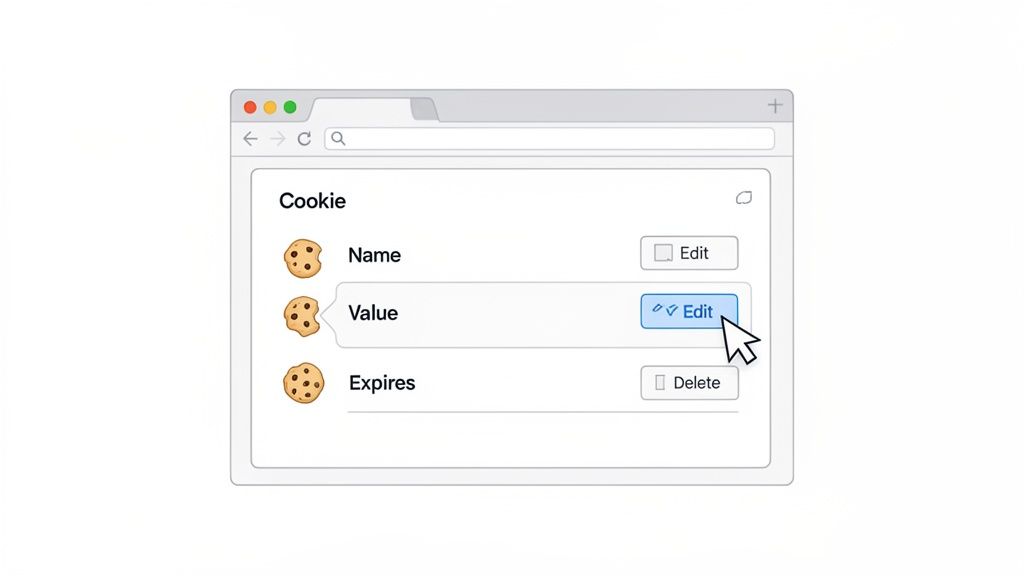
የጥራት ማረጋገጫን በተጠቃሚ ሚና ማስመሰል ማፋጠን
በጥራት ማረጋገጫ (QA) ውስጥ ከሆኑ፣ ስራዎ በሙሉ ውጤታማነት ላይ ያተኮረ ነው። በጣም ከሚያናድዱ ተግባራት አንዱ አንድ መተግበሪያ ለተለያዩ የተጠቃሚ አይነቶች እንዴት እንደሚሰራ ማረጋገጥ ነው። አስተዳዳሪው ዳሽቦርዱን ያያል? አንድ ተራ ተጠቃሚ ወደ ፕሪሚየም ክፍል መግባት ይችላል?
የቀድሞው መንገድ የሚያናድድ ነበር፡ ውጣ፣ በሌላ አካውንት ግባ፣ ደግመህ። የኩኪ አርታዒ ያንን ዑደት ሙሉ በሙሉ ያስወግዳል።
አንድ ሞካሪ በቀላሉ
user_roleኩኪውን አግኝቶ እሴቱን ከ"standard" ወደ "admin" በመቀየር ገጹን ያድሳል። ወዲያውኑ፣ ጣቢያውን በአስተዳዳሪ ዓይን ያያሉ። ይህ ትንሽ ዘዴ ደርዘን የሙከራ አካውንቶችን የማስተዳደር እና የይለፍ ቃሎችን ያለማቋረጥ የመቀያየር ችግርን ያስወግዳል፣ ይህም የፍቃድ ሙከራን በጣም ፈጣን ያደርገዋል።
በጥብቅ የጊዜ ገደቦች ዓለም ውስጥ፣ እንደዚህ አይነት ውጤታማነት ወርቅ ነው። ለገንቢ-ተኮር Chrome ቅጥያዎች ገበያ እያደገ መምጣቱ አያስደንቅም—በ2025 2.5 ቢሊዮን ዶላር ይገመት የነበረ ሲሆን በ2033 5.0 ቢሊዮን ዶላር ይደርሳል ተብሎ ይጠበቃል። እነዚህ መሳሪያዎች በ Chrome ውስጥ የስራ ፍሰቶችን ስለሚያቀሉ ይበለጽጋሉ፣ ይህም የአሳሽ ገበያውን 67.72% ይይዛል።
የA/B ሙከራን እና ግላዊነትን ማላበስን ማቀላጠፍ
ብዙ ዘመናዊ ድር ጣቢያዎች የA/B ሙከራዎችን ለማካሄድ ወይም ግላዊ ይዘትን ለማቅረብ ኩኪዎችን ይጠቀማሉ። የኩኪ አርታዒ እርስዎ የሚያዩትን እና መቼ እንደሚያዩት እንዲቆጣጠሩ ያስችልዎታል።
ጥቂት ተግባራዊ ምሳሌዎች እነሆ፡-
- የA/B የሙከራ ልዩነቶችን ማስገደድ፡ እንደ
ab_test_groupያለ ኩኪ የአንድ አዲስ ባህሪ "ስሪት A" ወይም "ስሪት B" ማየት እንዳለብዎ ከወሰነ፣ እሴቱን ማስተካከል ይችላሉ። በእርግጥ መሞከር ወደሚፈልጉት ቡድን በዘፈቀደ ለመመደብ መጠበቅ አያስፈልግም። - ግላዊ ይዘትን ማረጋገጥ፡ አንድ የኢ-ኮሜርስ ጣቢያ ለ"አዲስ ጎብኚ" እና ለ"ታማኝ ደንበኛ" የተለያዩ ነገሮችን ለማሳየት
user_segmentኩኪን እንደሚጠቀም አስቡት። ሁለቱም ክፍሎች ትክክለኛውን ይዘት ማየታቸውን ለማረጋገጥ ያንን እሴት ወደ ኋላ እና ወደ ፊት መቀየር ይችላሉ። - የጂኦግራፊያዊ አካባቢ-ተኮር ባህሪያትን ማረጋገጥ፡ አንድ ጣቢያ የአገር ኮድ (
country=US) ለማከማቸት ኩኪን የሚጠቀም ከሆነ፣ የብሪታንያ-ተኮር ማስተዋወቂያዎች በትክክል እየተጫኑ መሆናቸውን ለማረጋገጥ ወዲያውኑ ወደcountry=UKመቀየር ይችላሉ።
እንደነዚህ ያሉት መሳሪያዎች የማንኛውም ዘመናዊ ገንቢ ማዋቀር ዋና አካል ናቸው። የበለጠ ማሰስ ከፈለጉ፣ ለሌሎች አስፈላጊ የድር ገንቢዎች Chrome ቅጥያዎች መመሪያ አዘጋጅተናል።
የኩኪ አርታዒን ለግላዊነት እና ደህንነት መጠቀም
ገንቢዎች እና የጥራት ማረጋገጫ ሞካሪዎች ስራቸውን ለማፋጠን ጥሩ የኩኪ አርታዒ Chrome ቅጥያ ቢወዱም፣ እነዚህ መሳሪያዎች የመስመር ላይ ግላዊነትዎን ለመጠበቅ እንደ ጋሻ ድንቅ ድርብ ህይወት አላቸው። የኩኪ አርታዒ እርስዎ የመረጃዎን አያያዝ በትክክል እንዲቆጣጠሩ ያስችልዎታል—ከአጠቃላይ "ሁሉንም ኩኪዎች አጽዳ" ቁልፍ እጅግ የላቀ ነው። ድር ጣቢያዎች የሚተዉትን ዲጂታል ፍርፋሪ በቀጥታ ማየት ይችላሉ።
ለግላዊነትዎ ትልቁ ጥቅም? የሶስተኛ ወገን መከታተያ ኩኪዎችን መቆጣጠር። እነዚህ በመላው ኢንተርኔት የሚከተሉዎት፣ ለገበያ አውታረ መረቦች ልማዶችዎን እና ፍላጎቶችዎን የሚሰበስቡ ተንኮለኛ ኩኪዎች ናቸው። በኩኪ አርታዒ አማካኝነት እርስዎ እንኳን የማይጎበኟቸውን ጎራዎች ኩኪዎችን በቀላሉ ማግኘት እና ወዲያውኑ ማስወገድ ይችላሉ።
የእርስዎን ዲጂታል አሻራ መቆጣጠር
የእጅ ኩኪ ኦዲት እንደ ጥሩ ዲጂታል ንፅህና አድርገው ያስቡ። የኩኪ አርታዒዎን አልፎ አልፎ መክፈት እነዚህን ያልተፈለጉ መከታተያዎች እንዲያገኙ እና እንዲያጸዱ ያስችልዎታል፣ ይህም አስተዋዋቂዎች ስለእርስዎ ሊሰበስቡ የሚችሉትን የመረጃ መጠን በእጅጉ ይቀንሳል።
ይህ ዓይነቱ በእጅ ቁጥጥር የመስመር ላይ ማንነትዎን ለማስተዳደር ኃይለኛ የመከላከያ ሽፋን ነው። እነዚህን መሳሪያዎች ማወቅ ወሳኝ ክህሎት ነው፣ እና ለመጀመር ጥሩ ቦታ የመከታተያ ኩኪዎችን እንዴት ማስወገድ እና ግላዊነትዎን መልሰው ማግኘት እንደሚችሉ መማር ነው።
የዲጂታል ደህንነት ዋና መርህ የጥቃት ገጽዎን መቀነስ ነው። አላስፈላጊ ኩኪዎችን በመደበኛነት መመርመር እና መሰረዝ የዲጂታል አሻራዎን ይቀንሳል፣ ይህም መከታተያዎች የሚሰሩበትን ነገር ይቀንሳል እና አሰሳዎን በተፈጥሮው የበለጠ ደህንነቱ የተጠበቀ ያደርገዋል።
ደህንነቱ ያልተጠበቀ የመረጃ ማከማቻን መመርመር
ከመከታተል ባሻገር፣ የኩኪ አርታዒ አንዳንድ እውነተኛ የደህንነት ስጋቶችን ለማሽተት ሊረዳዎ ይችላል። ብዙ ድር ጣቢያዎች ሚስጥራዊ መረጃዎችን—እንደ የተጠቃሚ መታወቂያዎች ወይም የግል ዝርዝሮች—በማይመሰጠሩ ኩኪዎች ውስጥ በግዴለሽነት ሲያከማቹ ይገረማሉ። አንድ አርታዒ በእነዚያ ኩኪዎች ውስጥ እንዲመለከቱ እና አንድ ጣቢያ በትክክል ምን እያጠራቀመ እንዳለ እንዲያዩ ያስችልዎታል።
የግል መረጃዎ በግልጽ ጽሑፍ ውስጥ ከተቀመጠ፣ ያ የዚያ ጣቢያ የደህንነት ልምዶች ትልቅ ቀይ ባንዲራ ነው። ይህ ግንዛቤ የትኞቹን ድር ጣቢያዎች በእርግጥ ማመን እንደሚችሉ በተመለከተ ብልህ ምርጫዎችን እንዲያደርጉ ይረዳዎታል።
ለዚህም ነው ግላዊነትዎን ከመሠረቱ የሚያከብር ቅጥያ መምረጥ በጣም አስፈላጊ የሆነው። እንደ ShiftShift Cookie Manager ያለ ታማኝ መሣሪያ ሁሉንም ስራውን እዚያው ማሽንዎ ላይ ያከናውናል። የኩኪ ውሂብዎን ወደ ውጫዊ አገልጋይ በፍጹም አይልክም፣ ስለዚህ የክፍለ ጊዜ መረጃዎ ሙሉ በሙሉ የግል ሆኖ ይቆያል። ይህ በአካባቢው ብቻ የሚደረግ አቀራረብ ደህንነቱ የተጠበቀ የኩኪ አስተዳደር መሠረት ሲሆን ከሰፊ የደህንነት ልምዶች ጋር የተያያዘ ነው። ስለዚህ ጉዳይ የበለጠ ለማወቅ፣ በተመሳሳይ መርሆዎች ላይ የተገነባውን የይለፍ ቃል ደህንነት ምርጥ ልምዶች ላይ ያለውን መመሪያችንን ይመልከቱ።
በተደጋጋሚ የሚጠየቁ ጥያቄዎች

ወደ አሳሽ ኩኪዎች ዓለም መግባት በእርግጠኝነት ጥቂት ጥያቄዎችን ሊያስነሳ ይችላል። ስለ cookie editor Chrome extension አጠቃቀም ሊኖሩዎት የሚችሉትን በጣም የተለመዱትን እናብራራ።
የኩኪ አርታዒ Chrome ቅጥያዎች ደህና ናቸው?
አጭር መልሱ፡ የትኛውን እንደሚጭኑት ሙሉ በሙሉ ይወሰናል። ምርጥ፣ በጣም ታማኝ የሆኑ ቅጥያዎች ሁሉንም ውሂብዎን በአካባቢው፣ በአሳሽዎ ውስጥ ያካሂዳሉ። ምንም ነገር ወደ ሶስተኛ ወገን አገልጋይ አይሰቀልም፣ ይህም ለግላዊነት ትልቅ ድል ነው።
"ወደ Chrome አክል" የሚለውን ከመጫንዎ በፊት ሁልጊዜ ፈጣን የአእምሮ ምርመራ ያድርጉ። የቅጥያውን የሚያስፈልጉ ፈቃዶችን ያንብቡ እና በ Chrome Web Store ላይ ያሉትን የቅርብ ጊዜ የተጠቃሚ ግምገማዎች ይቃኙ። እና ብልህ ይሁኑ—እንደ ባንክዎ ባሉ ስሜታዊ ጣቢያዎች ላይ ኩኪዎችን እያስተካከሉ ከሆነ፣ የበለጠ ጥንቃቄ ያድርጉ። የተሳሳተ እርምጃ ነገሮችን ሊያበላሽ ወይም በቀላሉ ሊያስወጣዎት ይችላል።
ጥሩ የአውራ ጣት ህግ፡ የቅጥያ የግላዊነት ፖሊሲ ሁሉም የኩኪ ውሂብ በመሳሪያዎ ላይ እንደሚቆይ በግልጽ ካልገለጸ፣ ያንን እንደ ትልቅ ቀይ ባንዲራ ይቁጠሩት። ደህንነትዎ ለአደጋው ዋጋ የለውም።
ይህ ከ Chrome DevTools እንዴት ይለያል?
ጥሩ ጥያቄ። የ Chrome አብሮ የተሰራውን DevTools በመጠቀም ኩኪዎችን በእርግጠኝነት ማስተዳደር ይችላሉ። ልዩነቱ በእውነቱ ወደ ምቾት እና ፍጥነት ይወርዳል። እንደ ልዩ ፊሊፕስ-ራስ ስክሩድራይቨር መጠቀም እና ባለብዙ-መሳሪያ ጋር መታገል አድርገው ያስቡት—ሁለቱም ስራውን ያከናውናሉ፣ ነገር ግን አንዱ ለተሰጠው ተግባር በትክክል የተነደፈ ነው።
ጥሩ cookie editor Chrome extension የተሻለ የስራ ፍሰት እንዲኖር ተብሎ የተሰራ ነው፣ ብዙ ጊዜ ብዙ ጊዜ የሚቆጥቡ ባህሪያትን ያካትታል፣ ለምሳሌ፦
- ፈጣን ፍለጋ እና ማጣሪያ የሚፈልጉትን ኩኪ በሰከንዶች ውስጥ በትክክል እንዲያገኙ።
- የጅምላ ማስመጣት እና ወደ ውጭ መላክ አማራጮች፣ ብዙውን ጊዜ በ JSON ውስጥ፣ ይህም የሙከራ ጉዳዮችን ከቡድንዎ ጋር ለመጋራት ህይወት አድን ነው።
- ንጹህ በይነገጽ የበለጠ የሚታወቅ ስሜት የሚሰጥ እና ነገሮችን ለማከናወን ጥቂት ጠቅታዎችን የሚፈልግ።
ለገንቢዎች እና የጥራት ማረጋገጫ ሞካሪዎች ቀኑን ሙሉ ከኩኪዎች ጋር ለሚሰሩ፣ እነዚህ ትናንሽ ቅልጥፍናዎች ይጨምራሉ፣ አስቸጋሪ፣ ባለብዙ-ደረጃ ሂደትን ወደ ጥቂት ቀላል ጠቅታዎች ይለውጣሉ።
አንዳንድ ኩኪዎች የማይስተካከሉ ለምንድን ነው?
ተቆልፎ እና "HttpOnly" ተብሎ የተሰየመ ኩኪ አጋጥሞዎት ያውቃል? ያ ስህተት አይደለም፤ በድር ጣቢያው አገልጋይ የተቀመጠ ሆን ተብሎ እና አስፈላጊ የደህንነት ባህሪ ነው።
የHttpOnly ባንዲራ በገጹ ላይ የሚሰሩ ስክሪፕቶች (እንደ JavaScript ያሉ) ያንን ኩኪ እንዳይደርሱበት ለመከላከል የተነደፈ ነው። ይህ እንደ cross-site scripting (XSS) ካሉ የተለመዱ ጥቃቶች ወሳኝ መከላከያ ነው፣ አንድ ጠላፊ የእርስዎን የክፍለ ጊዜ ምልክት ለመስረቅ ተንኮል አዘል ኮድ ለማስገባት ሊሞክር ይችላል። ማንኛውም ታዋቂ የኩኪ አርታዒ ይህንን ቅንብር ያከብራል እና እንዲያልፉት አይፈቅድም።
ኩኪ አርታዒን ተጠቅሜ ለዘላለም መግባት እችላለሁ?
አጓጊ ሀሳብ ነው—የክፍለ ጊዜ ኩኪውን ያግኙ፣ የማለቂያ ቀኑን ወደ 2099 ያቀናብሩ እና እንደገና በጭራሽ አይግቡ፣ አይደል? ቀኑን በእርግጠኝነት መቀየር ቢችሉም፣ ለዘላለም ለመግባት አስተማማኝ እቅድ አይደለም።
እዚህ ያለው ችግር፡ አብዛኛዎቹ ዘመናዊ ድር ጣቢያዎች በአገልጋይ-ጎን የክፍለ ጊዜ አስተዳደር ላይ ይተማመናሉ። ይህ ማለት አገልጋዩ የራሱን ሰዓት ቆጣሪ ይይዛል ማለት ነው። ለተወሰነ ጊዜ እንቅስቃሴ-አልባ ከሆኑ በኋላ፣ አገልጋዩ ክፍለ ጊዜዎን በራሱ በኩል ያጠፋል። አሳሽዎ አሁንም ኩኪውን ቢይዝም፣ አገልጋዩ ከእንግዲህ ትክክለኛ እንደሆነ አይገነዘበውም። ስለዚህ፣ በልማት አካባቢ ጠቃሚ ዘዴ ቢሆንም፣ ወደ የቀጥታ ድር ጣቢያዎች ለመግባት እራስዎን ለማቆየት አስተማማኝ መንገድ አይደለም።
ኃይለኛ፣ የሚታወቅ እና ግላዊነትን በሚያተኩር መሳሪያ ኩኪዎችዎን ሙሉ በሙሉ ለመቆጣጠር ዝግጁ ነዎት? ShiftShift Extensions ሁሉን አቀፍ የኩኪ አስተዳዳሪን ከደርዘን የሚቆጠሩ ሌሎች የምርታማነት መሳሪያዎች ጋር ያቀርባል፣ ሁሉም ከአንድ፣ እጅግ በጣም ፈጣን የትእዛዝ ቤተ-መጽሐፍት ተደራሽ ናቸው።