እንዴት ሁለት ጽሁፎች መነጻጸር እንደሚቻል የአገልግሎት መመሪያ ለአንዳንድ አንደኛ የምርምር ተመራቂዎች
እንዴት ሁለት ጽሁፎች ፋይሎችን በኃይለኛ የትንቢት መሣሪያዎች፣ የምስል ጽሁፍ አርታዊዎች፣ እና በተመጣጣኝ የአይነት ድር መለያ መሳሪያዎች መነሳት ይማሩ። የስራዎትን ዘዴ ይበልጥ ይማሩ።

የተመነጨ ማስተካከያዎች

ሁለት የጽሑፍ ፋይሎችን ማወዳደር ቀላል ሊመስል ይችላል፣ ነገር ግን ገንቢዎች በየቀኑ የሚጠቀሙበት ክህሎት ነው። በdiff የመሰለ መሳሪያ በኮማንድ መስመር ላይም ሆነ፣ እንደ VS Code ያለ የእይታ አርታዒ እየተጠቀሙም ሆነ፣ ወይም በብሮውዘር ላይ የተመሰረተ መገልገያ ውስጥ ፈጣን ማረጋገጫ ብቻ የሚያስፈልግዎ ከሆነ፣ ይህንን መቆጣጠር ከብዙ ችግሮች ሊያድንዎት ይችላል። ይህ የኮድ ለውጦችን የሚያገኙበት፣ የቅንብር ስህተቶችን የሚያድኑበት እና የእርስዎ ውሂብ እርስዎ እንደሚያስቡት በትክክል መሆኑን የሚያረጋግጡበት መንገድ ነው።
የፋይል ንጽጽርን መቆጣጠር ለምን አስፈለገ?
እውነቱን እንነጋገር—ፋይሎችን "ማነፃፀር" በገንቢ ህይወት ውስጥ የማያቋርጥ ተግባር ነው። የቨርዥን መቆጣጠሪያ መሰረት፣ ሚስጥራዊ ችግርን ለማረም የመጀመሪያው እርምጃ፣ እና ወሳኝ የቅንብር ማሻሻያ ከመጫንዎ በፊት የመጨረሻው ማረጋገጫ ነው። ይህ ልዩ ተግባር ሳይሆን የኮድ ጥራትን ለመጠበቅ እና ሶፍትዌር አስተማማኝ እንዲሆን የማድረግ መሰረታዊ አካል ነው።
እስቲ አስቡት። በትልቅ JSON ፋይል ውስጥ አንድ የተሳሳተ ኮማ ከማግኘት ጀምሮ የቡድን አጋርዎን ውስብስብ የባህሪ ቅርንጫፍ እስከ መገምገም ድረስ፣ ጥሩ የፋይል ንጽጽር ምን እንደተለወጠ ግልጽ፣ መስመር-በ-መስመር ታሪክ ይሰጥዎታል። "ጥቂት ማስተካከያዎች" የሚለውን ረቂቅ ሀሳብ ወደ እያንዳንዱ መጨመር፣ መሰረዝ እና ማሻሻያ ወደ ተጨባጭ ማስረጃ ይለውጠዋል። ብዙ ሰዎች ተመሳሳይ ኮድ በሚነኩበት የቡድን ሁኔታ ውስጥ፣ ያ ግልጽነት ሁሉንም ነገር ነው።
የፋይል ንጽጽር ዘዴዎች በአጭሩ
ወደ ጥልቀት ከመግባታችን በፊት፣ ይህ ሰንጠረዥ ፈጣን አጠቃላይ እይታ ይሰጥዎታል። ትክክለኛው መሳሪያ በእርግጥ በሚሰራው ስራ ላይ የተመሰረተ ነው።
| ዘዴ | ምርጥ ለ | የተለመደ ተጠቃሚ | ዋና ጥቅም |
|---|---|---|---|
| Command-Line (CLI) | ስክሪፕቲንግ፣ አውቶሜሽን፣ CI/CD ፓይፕላይኖች፣ ፈጣን ማረጋገጫዎች | የስርዓት አስተዳዳሪዎች፣ የባክኤንድ ገንቢዎች | ፍጥነት እና ስክሪፕት የማድረግ ችሎታ |
| የኮድ አርታዒ | ጥልቅ የኮድ ግምገማዎች፣ የዕለት ተዕለት የልማት ተግባራት | IDE/አርታዒ የሚጠቀም ማንኛውም ገንቢ | እንከን የለሽ የስራ ፍሰት ውህደት |
| በብሮውዘር ላይ የተመሰረተ መሳሪያ | ፈጣን የአንድ ጊዜ ንጽጽሮች፣ ቴክኒካል ያልሆኑ ተጠቃሚዎች | ፈጣን፣ ምንም ጭነት የማያስፈልገው ንጽጽር የሚያስፈልገው ማንኛውም ሰው | ተደራሽነት እና የአጠቃቀም ቀላልነት |
እነዚህ እያንዳንዳቸው አቀራረቦች የራሳቸው ቦታ አላቸው፣ እና የትኛውን መምረጥ እንዳለብዎ ማወቅ የውጊያው ግማሽ ነው።
ለስራው ትክክለኛውን መሳሪያ መምረጥ
ለእነዚህ መሳሪያዎች ያለው ፍላጎት ትንሽ አይደለም። የፋይል ንጽጽር ሶፍትዌር ዓለም አቀፍ ገበያ በ2024 ከ1.2 ቢሊዮን እስከ 1.72 ቢሊዮን ዶላር ይገመት ነበር። የዴቭኦፕስ ልምዶች መደበኛ እየሆኑ ሲሄዱ፣ ይህ አሃዝ በ2033 ከ5.6 ቢሊዮን ዶላር በላይ ይዘልቃል ተብሎ ይጠበቃል። ይህ የዘመናዊ ልማት ወሳኝ አካል እንደሆነ ግልጽ ነው።
ከየት እንደምትጀምሩ እርግጠኛ ካልሆናችሁ፣ ይህ ትንሽ የውሳኔ ዛፍ ወደ ትክክለኛው አቅጣጫ ሊመራችሁ ይችላል።
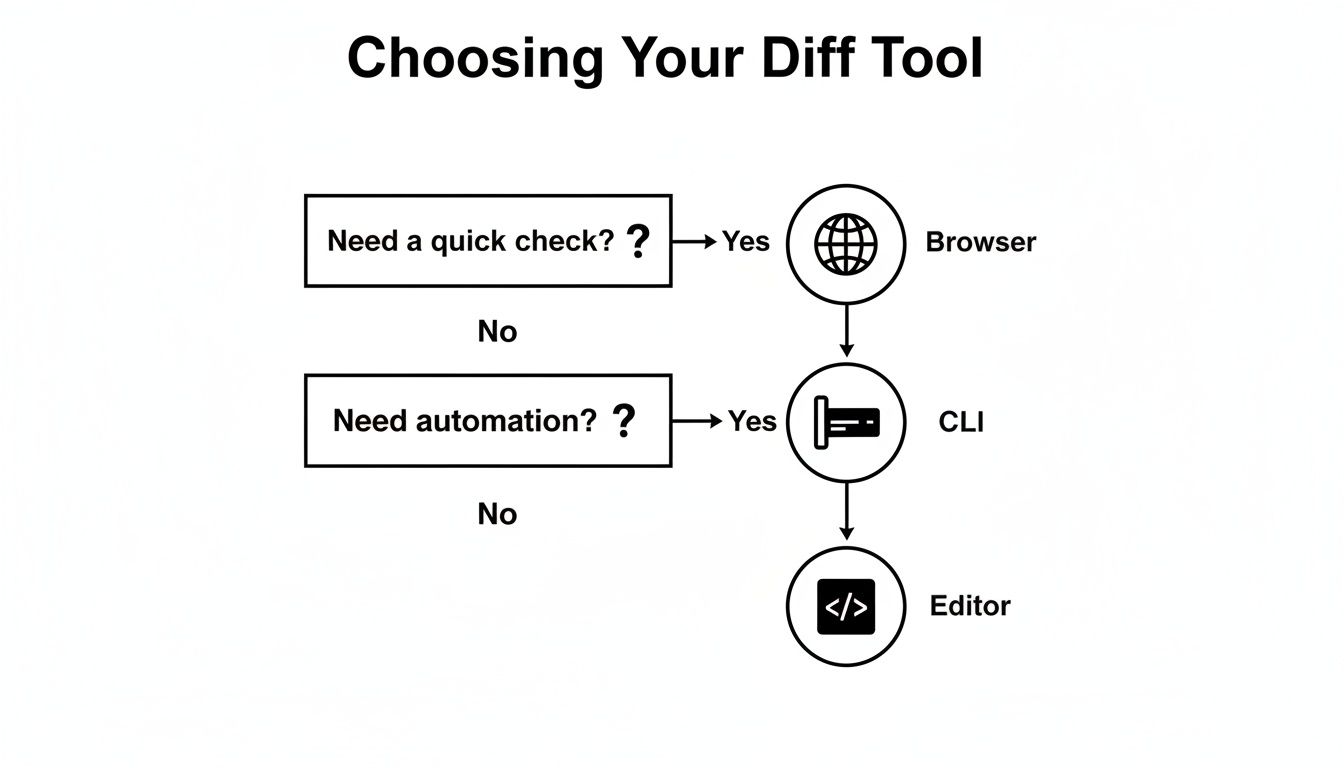
እንደሚመለከቱት፣ ምርጫው ብዙውን ጊዜ በፍጥነት፣ በአውቶሜሽን እና በጥልቅ ውህደት መካከል ባለው ስምምነት ላይ ይወርዳል። ይህንን ለመፍታት ሦስቱን ዋና መንገዶች እንመለከታለን፦
- Command-Line Utilities: እነዚህ ኃይለኛ መሳሪያዎች ናቸው።
diffእናfcን አስቡ። ለአውቶሜሽን የተገነቡ ናቸው እና ለስክሪፕቲንግ እና CI/CD ፓይፕላይኖች አስፈላጊ ናቸው፣ ምንም እንኳን መጀመሪያ ላይ ትንሽ ግራ የሚያጋቡ ሊሆኑ ቢችሉም። - Visual Text Editors: ይህ ሁሉ ስለ ምቾት ነው። እንደ VS Code ያሉ መሳሪያዎች ሊታወቅ የሚችል፣ ጎን ለጎን ንጽጽሮችን እርስዎ አስቀድመው በሚሰሩበት አካባቢ ያመጣሉ። እንከን የለሽ ተሞክሮ ለማግኘት ፍጹም ነው።
- Browser-Based Tools: አሁን ማወዳደር የሚያስፈልጓቸው ሁለት የጽሑፍ ቁርጥራጮች አሉዎት? ይህ የእርስዎ ምርጫ ነው። ምንም ጭነት አያስፈልጋቸውም እና ለፈጣን፣ የአንድ ጊዜ ስራዎች በጣም ጥሩ ናቸው። ለበለጠ ዝርዝር ትንተና፣ እንደ የDocuwriter የተወሰነ የንጽጽር መሳሪያ ኃይለኛ፣ በድር ላይ የተመሰረተ መፍትሄ ይሰጣል።
ትክክለኛውን አቀራረጽ መምረጥ ውጤታማ የገንቢ ምርታማነት መሳሪያዎችን ከሚያደርጉት ትልቅ ክፍል ነው። ሁሉም ነገር ብልህ በሆነ መንገድ ስለመስራት ነው፣ ብዙ ኮድ ስለማውጣት ብቻ አይደለም።
የኮማንድ መስመር ፋይል ንጽጽርን መቆጣጠር
ንጹህ ፍጥነት፣ ኃይል እና አውቶሜሽን ሲያስፈልግ፣ ፋይሎችን ለማወዳደር የኮማንድ መስመርን የሚወዳደር የለም። የግራፊክ በይነገጽን ጫጫታ ይቆርጣል፣ ምን እንደተለወጠ በትክክል ለማየት ቀጥተኛ፣ ስክሪፕት ሊደረግ የሚችል መንገድ ይሰጥዎታል። ይህ ለገንቢዎች፣ ለሲስተም አስተዳዳሪዎች እና አውቶማቲክ ማረጋገጫዎችን በ CI/CD ፓይፕላይኖቻቸው ውስጥ ለሚገነቡ ሁሉ ተመራጭ ዘዴ ነው።
የኮማንድ መስመር የድሮ መሳሪያ ብቻ አይደለም፤ ስለ ጥሬ ቅልጥፍና ነው። ዘመናዊ የፋይል ንጽጽር መገልገያዎች ልዩነቶችን በሰከንዶች ውስጥ መቃኘት እና ማግኘት ይችላሉ፣ ይህም በእጅ ለመስራት ሰዓታት የሚወስድ ስራ ነው። ይህ በችሎታ ውስጥ ያለው ዝላይ ስህተቶችን ለመያዝ እና የእርስዎ ኮድ ወይም ቅንብሮች ትክክል መሆናቸውን ለማረጋገጥ ትልቅ ጥቅም ነው። በእነዚህ መሳሪያዎች በዛሬው የስራ ፍሰቶች ላይ ስላለው ተጽእኖ በGlobalVision ላይ የበለጠ ማግኘት ይችላሉ።
በሊኑክስ እና ማክኦኤስ ላይ ያለው ክላሲክ Diff ትዕዛዝ
በማንኛውም የዩኒክስ ላይ የተመሰረተ ስርዓት ላይ፣ ሊኑክስን እና ማክኦኤስን ጨምሮ፣ የፋይል ንጽጽር ንጉስ diff ትዕዛዝ ነው። በመጀመሪያ ሲታይ፣ ውጤቱ ትንሽ ግራ የሚያጋባ ሊመስል ይችላል፣ ነገር ግን አንዴ ከተለማመዱት፣ ምን ያህል ኃይለኛ እንደሆነ ይገነዘባሉ። አንድ ፋይልን ወደ ሌላ ለመቀየር የትኞቹን መስመሮች መጨመር፣ መሰረዝ ወይም መቀየር እንዳለብዎ በትክክል ይነግርዎታል።
ሁለት ቀላል የአገልጋይ ቅንብር ፋይሎች፣ config.v1.txt እና config.v2.txt አሉዎት እንበል።
ይህ config.v1.txt ነው፦
SERVER_NAME=prod-app
PORT=8080
ENABLE_SSL=false
እና ይሄው config.v2.txt:
SERVER_NAME=prod-app-new
PORT=8080
ENABLE_SSL=true
LOG_LEVEL=info
ተርሚናልዎን ከፍተው diff config.v1.txt config.v2.txt ብለው ካስኬዱ፣ እንደዚህ ያለ ውጤት ያገኛሉ:
ታዲያ፣ ያ ውጤት ምን ማለት ነው?
1c1በመጀመሪያው ፋይል ውስጥ ያለው መስመር 1 ከሁለተኛው ፋይል ውስጥ ካለው መስመር 1 ጋር እንዲመሳሰል መቀየር (c) እንዳለበት ይነግርዎታል።- በ
<የሚጀምሩ መስመሮች ከመጀመሪያው ፋይል (config.v1.txt) የመጡ ናቸው። - በ
>የሚጀምሩ መስመሮች ከሁለተኛው ፋይል (config.v2.txt) የመጡ ናቸው። 3a4ማለት ከመጀመሪያው ፋይል መስመር 3 በኋላ፣ ከሁለተኛው ፋይል መስመር 4 ያለውን ይዘት ማከል (a) ያስፈልግዎታል ማለት ነው።
በዊንዶውስ ውስጥ ፋይሎችን በfc እና PowerShell ማወዳደር
የዊንዶውስ ተጠቃሚዎች አልተዘነጉም፤ ሁለት ምርጥ የአገሬው አማራጮች አሏቸው። የድሮው ምርጫ fc (File Compare) ሲሆን፣ ለዘመናት የቆየ ታማኝ ትዕዛዝ ነው። ያልተዛመዱ መስመሮችን በማድመቅ ስራውን የሚያከናውን ቀጥተኛ መሳሪያ ነው።
ሁለቱን የconfig ፋይሎቻችንን ለማወዳደር፣ በቀላሉ fc config.v1.txt config.v2.txt ብለው ያካሂዳሉ። ውጤቱ ከdiff ያነሰ ዝርዝር ነው፣ ግን የትኞቹ መስመሮች እንደማይዛመዱ በግልጽ ያሳያል።
ለበለጠ ዘመናዊ እና ኃይለኛ አቀራረብ፣ PowerShell Compare-Object cmdlet ይሰጠናል። ይህ ከጽሑፍ ብቻ ሳይሆን ከነገሮች ጋር ስለሚሰራ እጅግ በጣም ተለዋዋጭ ያደርገዋል።
ጠቃሚ ምክር: የPowerShellን
Compare-Objectከጽሑፍ ፋይሎች ውጪ ለብዙ ነገሮች እጠቀማለሁ። የሁለት የተለያዩ ትዕዛዞችን ውጤት ማወዳደር፣ በሚሰሩ ሂደቶች ላይ ልዩነቶችን መፈተሽ፣ ወይም ውስብስብ የውሂብ አወቃቀሮችን መተንተን ይችላሉ። እውነተኛ የስራ ፈረስ ነው።
በCompare-Object መጀመር ቀላል ነው። የፋይሎችዎን ይዘት ብቻ ይመግቡት:Compare-Object (Get-Content config.v1.txt) (Get-Content config.v2.txt)
ውጤቱ ከቀድሞዎቹ የበለጠ ግልጽ ነው። ልዩነቶቹ የት እንዳሉ በትክክል ለማመልከት የጎን አመልካቾችን (<= ለመጀመሪያው ፋይል፣ => ለሁለተኛው) ይጠቀማል፣ ይህም በዊንዶውስ ስነ-ምህዳር ውስጥ ለሚደረግ ማንኛውም ከባድ ስራ የእኔ ተመራጭ ምርጫ ያደርገዋል።
የጽሑፍ አርታዒዎን ለምስል ልዩነቶች መጠቀም
እውነቱን ለመናገር፣ የትዕዛዝ መስመር ኃይለኛ ቢሆንም፣ በሁለት ፋይሎች መካከል ምን እንደተለወጠ ለማየት ሁልጊዜ በጣም ግልጽ የሆነው መንገድ አይደለም። በጽሑፍ አርታዒ ውስጥ ለምንኖር ብዙዎቻችን፣ የdiff ትዕዛዝን ለማስኬድ ብቻ አውድ መቀየር የስራ ፍሰት መቋረጥ ይመስላል። መልካም ዜናው? የእርስዎ ተወዳጅ አርታዒ ሁለት የጽሑፍ ፋይሎችን በምስል ለማነፃፀር አስደናቂ፣ አብሮ የተሰራ መሳሪያ አለው።
እንደ Visual Studio Code እና Sublime Text ያሉ አርታዒዎች የፋይል ንፅፅርን እንከን የለሽ፣ አስደሳች ተሞክሮ ያደርጉታል። የትዕዛዝ መስመር ውጤትን ከመመልከት ይልቅ፣ እያንዳንዱ ለውጥ የሚታይበት ንጹህ፣ ጎን ለጎን እይታ ያገኛሉ። ጭማሪዎች፣ መሰረዞች እና ማሻሻያዎች በቀላሉ ለመረዳት በሚያስችሉ ቀለሞች ጎልተው ይታያሉ፣ ይህም በኮድ ግምገማዎች ወይም በሌሊት የሳንካ ማስተካከያ ክፍለ ጊዜዎች ውስጥ ትልቅ እገዛ ነው።
በVisual Studio Code ውስጥ ፋይሎችን ማወዳደር
የVS Code የdiff መሳሪያዎች ከፍተኛ ደረጃ ያላቸው ናቸው፣ በዋነኛነት በዋናው የGit ውህደት ውስጥ የተካተቱ በመሆናቸው። ለመጀመር ቅጥያ መፈለግ እንኳን አያስፈልግዎትም፤ ሁሉም ነገር ከሳጥኑ ውስጥ ይገኛል።
ንፅፅርን ማዘጋጀት እና ማስኬድ እጅግ በጣም ቀላል ነው:
- በVS Code ፕሮጀክትዎ ውስጥ ወደ ፋይል ኤክስፕሎረር ፓነል ይሂዱ።
- የመጀመሪያውን ፋይል ያግኙ፣ በቀኝ ጠቅ ያድርጉት እና Select for Compare የሚለውን ይምረጡ።
- አሁን፣ ሁለተኛውን ፋይል ያግኙ፣ በቀኝ ጠቅ ያድርጉት እና Compare with Selected የሚለውን ይጫኑ።
ይሄው ነው። VS Code ወዲያውኑ የተለየ የdiff አርታዒ ይከፍታል። ይህ እይታ ቀላል ጎን ለጎን እይታ ብቻ አይደለም፤ በመስመር ውስጥ የተለወጡትን ትክክለኛ ቁምፊዎች ያጎላል፣ ሙሉውን መስመር ብቻ አይደለም። እመኑኝ፣ ያ የዝርዝር ደረጃ ተንኮለኛ የፊደል ስህተት ወይም የጎደለ ኮማ ለማግኘት ሲሞክሩ ትልቅ እገዛ ነው።
ከታች ያለው እይታ በGit-ክትትል በሚደረግ ፋይል ውስጥ ለውጦችን ሲያወዳድሩ የሚያዩት ፍጹም ምሳሌ ነው።
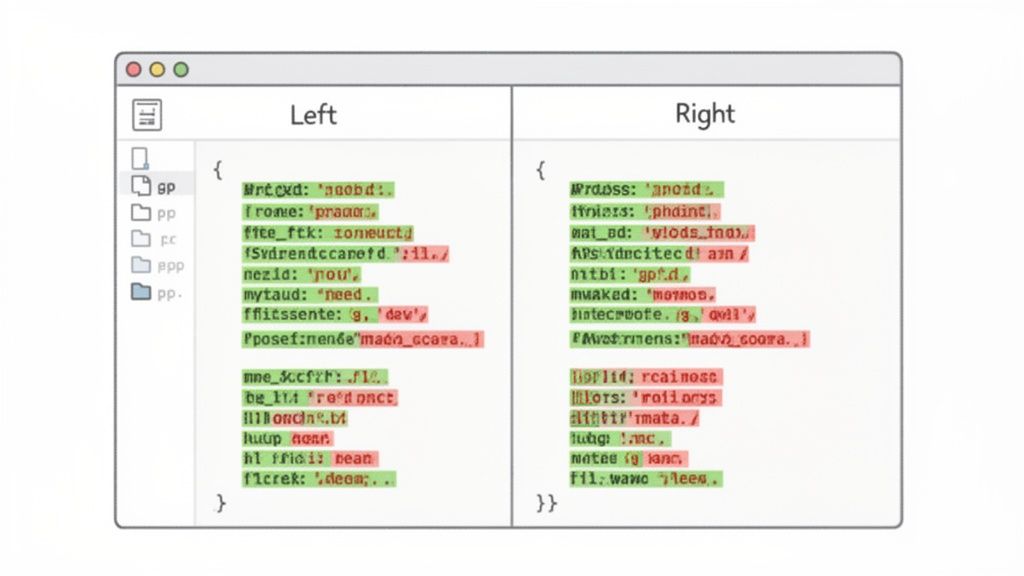
የምስል ቋንቋው ግልጽ ነው: በግራ በኩል ቀይ ለተወገዱ መስመሮች, በቀኝ በኩል አረንጓዴ ለተጨመሩ መስመሮች. ምንም ውስብስብ ምልክቶችን መፍታት ሳያስፈልግዎ ምን እንደተሻሻለ ወዲያውኑ ይረዳሉ።
ከልምድ የተገኘ ጠቃሚ ምክር: በVS Code የdiff እይታ ውስጥ ሲሆኑ፣ ከእያንዳንዱ ለውጥ አጠገብ ያሉትን ትናንሽ የመደመር እና የመቀነስ ምልክቶችን ይፈልጉ። እነዚህ የግለሰብ መስመሮችን ወይም የኮድ ብሎኮችን እንዲያዘጋጁ ወይም እንዲመልሱ ያስችሉዎታል። ንጹህ እና ትክክለኛ ኮሚቶችን ለመገንባት እጅግ በጣም ጠቃሚ ባህሪ ነው።
Sublime Textን በጥቅሎች ማሻሻል
Sublime Text ለፍጥነቱ እና ለንጹህ በይነገጹ ብዙ ተከታዮች አሉት። ምንም እንኳን እንደ VS Code አብሮ የተሰራ የdiff መሳሪያ ባይኖረውም፣ በቀላሉ ሊሰፋ ይችላል። እዚህ ምርጡን ተሞክሮ ለማግኘት፣ ጥቅል መጫን ይፈልጋሉ። ለዓመታት ተመራጭ የሆነው Sublimerge ሲሆን፣ ሙያዊ ደረጃ ያላቸው የdiff እና merge ችሎታዎችን በቀጥታ ወደ አርታዒው የሚያክል ኃይለኛ ጥቅል ነው።
እንደ Sublimerge ያለ መሳሪያ ከጫኑ በኋላ፣ የስራ ፍሰቱ በጣም የተለመደ ይሆናል:
- ለማወዳደር የሚፈልጓቸውን ሁለት ፋይሎች (ወይም ሁለት የጽሑፍ ምርጫዎችን ብቻ) ይምረጡ።
ይህ አቀራረብ የSublimeን አፈጻጸም ለሚወዱ እና በጣም የተበጀ ማዋቀር ላላቸው ገንቢዎች ተስማሚ ነው። የተወሰነ ጥቅል በመጨመር፣ የኮድ አጻጻፍ ምትዎን ሳያቋርጡ ሁለት የጽሑፍ ፋይሎችን በፍጥነት እና በትክክል ማወዳደር ይችላሉ።
ለፈጣን ንጽጽሮች በአሳሽ ላይ የተመሰረቱ መሳሪያዎች
አንዳንድ ጊዜ፣ ፈጣን ማረጋገጫ ብቻ ያስፈልግዎታል። ተርሚናል ማስነሳት ወይም ሙሉ የኮድ አርታዒ ማስጀመር አያስፈልግዎትም፤ በሁለት የጽሑፍ ብሎኮች መካከል ያለውን ልዩነት አሁን ማየት ብቻ ያስፈልግዎታል። በዚህ ጊዜ በአሳሽ ላይ የተመሰረቱ መሳሪያዎች ወደ ውስጥ ይገባሉ፣ በማንኛውም የበይነመረብ ግንኙነት ባለው ማሽን ላይ ፈጣን የልዩነት ኃይል ይሰጣሉ።
ይህ አቀራረብ ለእነዚያ የአንድ ጊዜ ተግባራት የእኔ ሚስጥራዊ መሳሪያ ነው። ባልደረባዬን በማሽናቸው ላይ ስረዳ ወይም የተለመደውን ሶፍትዌሬን መጫን በማልችልበት ኮምፒውተር ላይ ስሰራ ያለማቋረጥ እጠቀማለሁ። የመስመር ላይ ልዩነት መሳሪያዎች ያለ ምንም ማዋቀር በቀጥታ ወደ ነጥቡ ያደርሱዎታል።
የአሳሽ መሳሪያን ለምን ይመርጣሉ?
ትልቁ መስህብ ንጹህ ምቾት ነው። ምንም ጭነት አያስፈልግም። ንጽጽር ከማስፈለግዎ ወደ ውጤቶቹ በሰከንዶች ውስጥ መሄድ ይችላሉ፣ ደቂቃዎች አይፈጅምም። ያ ዓይነቱ ተደራሽነት ለፈጣን ማረጋገጫዎች እና ድንገተኛ ስህተት ማረም ህይወት አድን ነው።
በተጨማሪም፣ ሁለንተናዊ የመድረክ ተኳሃኝነት ያገኛሉ። በዊንዶውስ፣ ማክኦኤስ ወይም ሊኑክስ ላይ ቢሆኑ ምንም ለውጥ የለውም። የድር አሳሽ ካለዎት መሳሪያው በሁሉም ቦታ በተመሳሳይ መንገድ ይሰራል። በተለያዩ ኦፕሬቲንግ ሲስተሞች ላይ ለተሰራጩ ቡድኖች፣ ያ ወጥነት ትልቅ ድል ነው።
የአሳሽ ልዩነት ስንት ጊዜ እንዳዳነኝ ቁጥር አጥቻለሁ። ከትምህርት ወይም ከStack Overflow መልስ የውቅር ቁርጥራጭ ስጎትት፣ እኔና የራሴን ስሪት በአሳሽ መሳሪያ ውስጥ እለጥፋለሁ። ማንኛውንም የትየባ ስህተቶች ወይም ስውር የቅርጸት ልዩነቶችን ወዲያውኑ ያሳያል። የብዙ ብስጭት ዓለምን የሚከላከል ቀላል የአእምሮ ማረጋገጫ ነው።
ፈጣን መመሪያ፡ የShiftShift ቅጥያዎች በተግባር
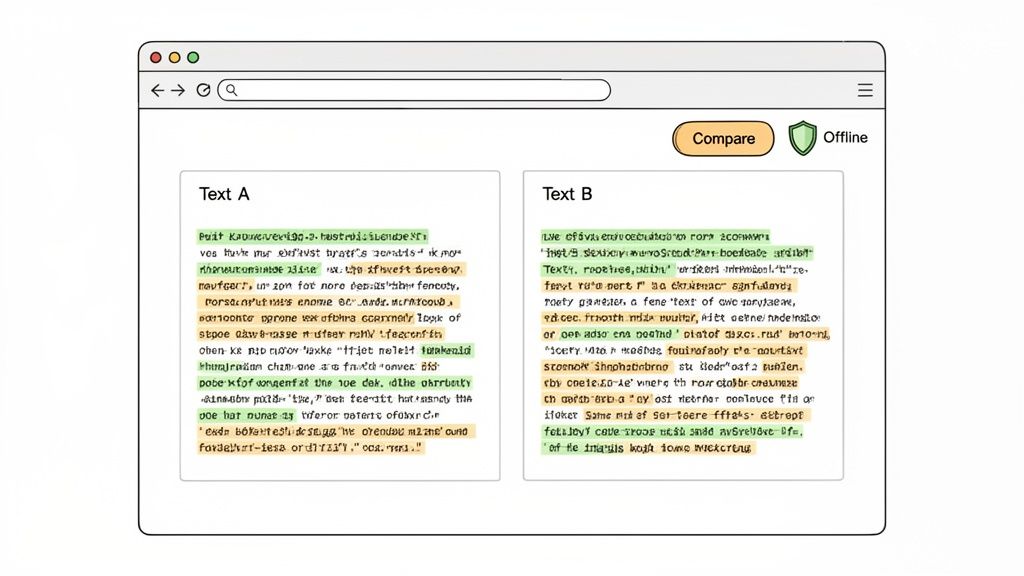
የስራ ፍሰቱ ለፍጥነት የተሰራ ነው። በShiftShift Extensions ስብስብ ውስጥ ያለውን የጽሑፍ ንጽጽር መሳሪያ እንመልከት። ከዚህ የበለጠ ቀላል ሊሆን አይችልም፡ የመጀመሪያውን ጽሑፍ በአንድ ፓነል ውስጥ እና አዲሱን ጽሑፍ በሌላኛው ውስጥ ይለጥፋሉ።
ወዲያውኑ፣ የተጨመረውን ወይም የተወገደውን የሚያጎላ ግልጽ የቀለም ኮድ ያለው ጎን ለጎን እይታ ያገኛሉ። ይህ ፈጣን ግብረመልስ በጣም ጠቃሚ የሚያደርገው ነው። የትኞቹ መስመሮች እንደተቀየሩ በትክክል ማየት እና በቁምፊ እና በቃላት ብዛት ላይ የእውነተኛ ጊዜ ስታቲስቲክስን ማግኘት ይችላሉ።
ጥሩ በአሳሽ ላይ የተመሰረተ መሳሪያ ጎልቶ እንዲታይ የሚያደርገው ይኸውና፡
- ግላዊነት ከሁሉም በላይ ነው። በመስመር ላይ መሳሪያዎች ላይ የተለመደ ስጋት የእርስዎ ውሂብ የት እንደሚሄድ ነው። ምርጥ የአሳሽ ቅጥያዎች፣ ShiftShiftን ጨምሮ፣ ሁሉንም ሂደት በአካባቢው በማሽንዎ ላይ ያከናውናሉ። የእርስዎ ጽሑፍ ወደ አገልጋይ አይላክም፣ ይህም ከማንኛውም ሚስጥራዊ ነገር ጋር ሲሰሩ አስፈላጊ ነው።
- ከመስመር ውጭ ይሰራል። አመክንዮው በአሳሽዎ ውስጥ ስለሚሰራ፣ ከመጀመሪያው ገጽ ጭነት በኋላ የተረጋጋ የበይነመረብ ግንኙነት አያስፈልግም። ይህ ግንኙነትዎ ደካማ በሚሆንበት ጊዜም እንኳ በሚያስደንቅ ሁኔታ አስተማማኝ መሳሪያ ያደርገዋል።
- የመሳሪያ ስብስብ አካል ነው። በጣም ውጤታማ የሆኑ መሳሪያዎች ብዙውን ጊዜ ትልቅ የስነ-ምህዳር አካል ናቸው። ለድር ገንቢዎች፣ ልዩነት መገልገያ ከሌሎች ጠቃሚ መሳሪያዎች ጋር በአንድ ቅጥያ ውስጥ መኖሩ ትልቅ የስራ ፍሰት ማበልጸጊያ ነው። ይህንን የተቀናጀ አቀራረብ ስለሚወስዱ ተመሳሳይ ለድር ገንቢዎች የChrome ቅጥያዎች የበለጠ ማወቅ ይችላሉ።
በመጨረሻም፣ በአሳሽ ላይ የተመሰረቱ ልዩነት መሳሪያዎች ወሳኝ ቦታን ይሞላሉ። የተወሰነ መተግበሪያ ከባድ ባህሪያት በማይፈልጉበት ጊዜ ደህንነቱ የተጠበቀ፣ ተደራሽ እና ከችግር ነጻ የሆነ መፍትሄ ይሰጣሉ።
የልዩነት መሳሪያ ዓይነቶች ንጽጽር
ትክክለኛውን መሳሪያ መምረጥ ሙሉ በሙሉ በእርስዎ ሁኔታ ላይ የተመሰረተ ነው። የትዕዛዝ መስመር መገልገያ ለአውቶሜሽን ፍጹም ነው፣ የጽሑፍ አርታዒ ደግሞ ጥልቅ ውህደትን ይሰጣል። የአሳሽ መሳሪያ ግን ለፍጥነት እና ምቾት ያሸንፋል። ይህ ሰንጠረዥ ለመወሰን እንዲረዳዎ ቁልፍ ልዩነቶችን ይዘረዝራል።
| ባህሪ | CLI መሳሪያዎች (ለምሳሌ፣ ልዩነት) | የጽሑፍ አርታዒዎች (ለምሳሌ፣ VS Code) | የአሳሽ መሳሪያዎች (ለምሳሌ፣ የመስመር ላይ ልዩነት) |
|---|---|---|---|
| ተደራሽነት | የተርሚናል መዳረሻ ያስፈልገዋል፤ በሲስተም ላይ ተጭኗል | የአርታዒ ጭነት እና ውቅር ያስፈልገዋል | በማንኛውም የድር አሳሽ በኩል ወዲያውኑ ተደራሽ |
| ለፈጣን ተግባራት ፍጥነት | ለልምድ ተጠቃሚዎች ፈጣን ነው፣ ግን የመማር ኩርባ አለው | ቀርፋፋ፤ መተግበሪያ እና ፋይሎችን መክፈት ያስፈልገዋል | ፈጣን፤ ጽሑፍ ብቻ ይለጥፉ እና ውጤቶችን ይመልከቱ |
| ጭነት | ብዙውን ጊዜ በሊኑክስ/ማክኦኤስ ላይ አስቀድሞ ተጭኗል፤ በዊንዶውስ ላይ በእጅ | በሁሉም መድረኮች ላይ ያስፈልጋል | ምንም ጭነት አያስፈልግም |
| የተጠቃሚ በይነገጽ | በጽሑፍ ላይ የተመሰረተ ውጤት፤ ለማንበብ አስቸጋሪ ሊሆን ይችላል | በአገባብ ማድመቂያ የበለጸገ፣ ግራፊክ ጎን ለጎን እይታ | ቀላል፣ ሊታወቅ የሚችል ግራፊክ ጎን ለጎን እይታ |
| አውቶሜሽን/ስክሪፕት ማድረግ | እጅግ በጣም ጥሩ፤ ለስክሪፕት እና ለቧንቧ መስመሮች የተነደፈ | በአርታዒ-ተኮር ተግባራት እና ቅጥያዎች የተገደበ | ለአውቶሜሽን ተስማሚ አይደለም |
| ግላዊነት | እጅግ በጣም ጥሩ፤ ሁሉም ሂደት አካባቢያዊ ነው | እጅግ በጣም ጥሩ፤ ሁሉም ሂደት አካባቢያዊ ነው | ይለያያል፤ ታዋቂ መሳሪያዎች በአካባቢው ያካሂዳሉ፣ ሌሎች አገልጋዮችን ይጠቀማሉ |
| ምርጥ ለ | የስርዓት አስተዳዳሪዎች፣ አውቶማቲክ የስራ ፍሰቶች፣ የGit ውህደት | ገንቢዎች፣ ጸሐፊዎች፣ ዝርዝር የኮድ ግምገማዎች፣ የፕሮጀክት ስራ | ፈጣን ማረጋገጫዎች፣ ቴክኒካል ያልሆኑ ተጠቃሚዎች፣ ጊዜያዊ ወይም የተጋሩ ስርዓቶች |
እንደሚመለከቱት፣ እያንዳንዱ ምድብ የራሱ ጥንካሬዎች አሉት። ምንም አይነት ችግር ሳይኖር ፈጣን መልስ በሚፈልጉበት ጊዜ፣ በአሳሽ ላይ የተመሰረተ መሳሪያ ብዙውን ጊዜ ብልህ እና ፈጣን ምርጫ ነው።
የላቁ የልዩነት ሁኔታዎችን ማሰስ
ሁለት የጽሑፍ ፋይሎችን እንዴት ማወዳደር እንደሚቻል መሰረታዊ ነገሮችን ማወቅ ጥሩ ጅምር ነው፣ ነገር ግን እውነተኛው ዓለም ሥራ የተዝረከረከ ነው። ብዙ ልዩነቶች የመሳሪያ ባንዲራዎች ትርጉም ያላቸው የይዘት ለውጦች እንዳልሆኑ በፍጥነት ያገኛሉ። ብዙውን ጊዜ የሚያበሳጩ የአጻጻፍ ስልት ልዩነቶች ናቸው።
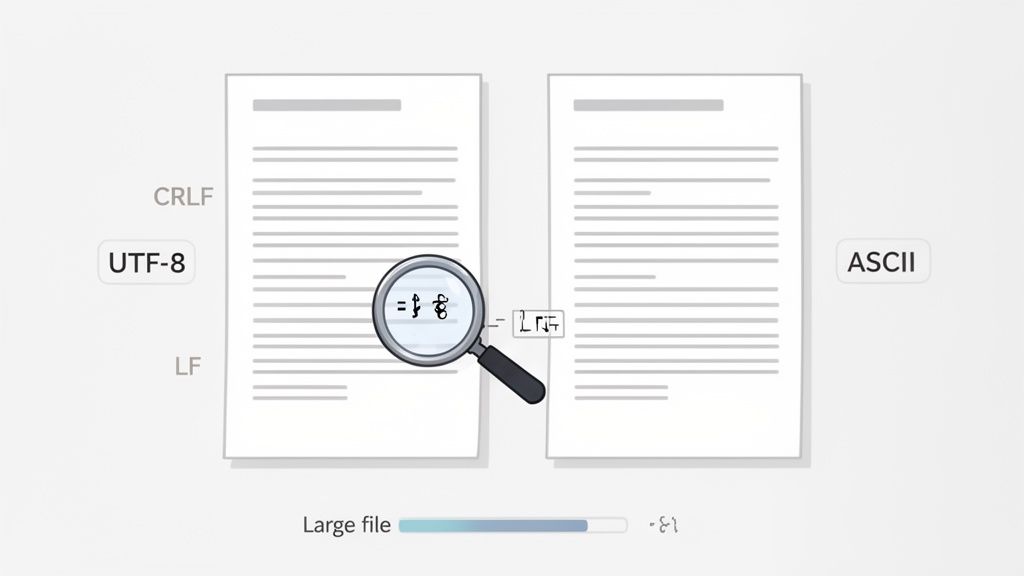
እነዚህ “የማይታዩ” ልዩነቶች ወደ ጥንቸል ጉድጓድ ሊልኩዎት ይችላሉ፣ የሌለ ስህተት እየፈለጉ። ከዚህ ትርምስ በስተጀርባ ሶስት የተለመዱ ወንጀለኞች አሉ፡ ባዶ ቦታ፣ የቁምፊ ኢንኮዲንግ እና የመስመር መጨረሻዎች። አንድ ነጠላ የኋላ ቦታ፣ ከቦታዎች ይልቅ ትር፣ ወይም አንድ ፋይል በ UTF-8 ሲቀመጥ ሌላው በ ASCII ውስጥ መሆኑ ሁለት ተግባራዊ ተመሳሳይ ፋይሎች ለመደበኛ የልዩነት መሣሪያ በጣም የተለዩ እንዲመስሉ ሊያደርግ ይችላል።
ይህ እርስዎ ከመሳሪያዎችዎ የበለጠ ብልህ መሆን ያለብዎት ቦታ ነው። እነዚህን ጥቃቅን ልዩነቶች ችላ እንዲሉ በመንገር፣ ጫጫታውን በመቁረጥ እና በእርግጥ አስፈላጊ በሆኑት ጉልህ ለውጦች ላይ ማተኮር ይችላሉ።
ባዶ ቦታ እና ኢንኮዲንግ ግጭቶችን መቆጣጠር
ባዶ ቦታ ስንት ጊዜ ግራ መጋባት እንደፈጠረብኝ ቆጥሬ አላውቅም፣ በተለይ ሁሉም ሰው የተለያየ የአርታዒ ቅንብሮች ባለው ቡድን ውስጥ ስሰራ። የአንድ ሰው IDE የኋላ ቦታዎችን ሊጨምር ይችላል፣ የሌላው ደግሞ ትሮችን ወደ ቦታዎች ይለውጣል። ለመለየት መሣሪያ፣ እነዚህ ሁሉ ህጋዊ ለውጦች ናቸው።
እንደ እድል ሆኖ፣ አብዛኛዎቹ የትዕዛዝ መስመር መሳሪያዎች ይህንን ለመቆጣጠር ባንዲራዎች አሏቸው። የ diff ትዕዛዝ፣ ለምሳሌ፣ -w ወይም --ignore-all-space ባንዲራ አለው። diff -w file1.txt file2.txt ን ማስኬድ መሣሪያው የባዶ ቦታ ልዩነቶችን ሙሉ በሙሉ ችላ እንዲል ይነግረዋል፣ ይህም እውነተኛ ለውጦችን ብቻ የሚያጎላ በጣም ንጹህ ውጤት ይሰጥዎታል።
የቁምፊ ኢንኮዲንግ ሌላ ተንኮለኛ ነው። አንድ ገንቢ ፋይልን በዊንዶውስ-ስታይል CRLF (\r\n) የመስመር መጨረሻዎች ካስቀመጠ እና ሌላው የዩኒክስ-ስታይል LF (\n) ከተጠቀመ፣ የመለየት መሣሪያ እያንዳንዱ ነጠላ መስመር የተለየ መሆኑን ሪፖርት ያደርጋል። አብዛኛዎቹ ዘመናዊ የጽሑፍ አርታዒዎች እና የእይታ ልዩነት መሳሪያዎች የመስመር መጨረሻዎችን በበረራ ላይ መደበኛ ለማድረግ ወይም በማነፃፀር ጊዜ ችላ ለማለት ቅንብሮች አሏቸው።
በቡድን ውስጥ ለሚሰራ ማንኛውም ሰው አንድ ፕሮፌሽናል ጠቃሚ ምክር በፕሮጀክትዎ ስር ማውጫ ውስጥ
.editorconfigፋይል ማቋቋም ነው። ይህ ቀላል የማዋቀሪያ ፋይል ወጥነት ያለው የኮድ አጻጻፍ ስልቶችን፣ የቁምፊ ስብስቦችን እና የመስመር መጨረሻዎችን ጨምሮ፣ በተለያዩ አርታዒዎች እና IDEs ላይ ያስገድዳል፣ አብዛኛዎቹ እነዚህ ችግሮች እንዳይከሰቱ ይከላከላል።
ግዙፍ ፋይሎችን እና ሙሉ ማውጫዎችን ማወዳደር
በርካታ ጊጋባይት የሆኑ ግዙፍ የምዝግብ ማስታወሻ ፋይሎችን ማወዳደር ሲያስፈልግስ? ወደ መደበኛ የጽሑፍ አርታዒ ወይም የእይታ ልዩነት መሣሪያ ለመጫን መሞከር ማሽንዎን ለማቀዝቀዝ እርግጠኛ መንገድ ነው። ለእነዚህ ከባድ ሥራዎች፣ የትዕዛዝ መስመር መገልገያዎች ምርጥ ጓደኞችዎ ናቸው ምክንያቱም ሁሉንም ነገር ወደ ማህደረ ትውስታ ለመጫን ከመሞከር ይልቅ ፋይሎችን መስመር በ መስመር ያካሂዳሉ።
ግዙፍ ፋይሎችን በሚይዙበት ጊዜ፣ አሁንም diff ን መጠቀም ይችላሉ፣ ነገር ግን ብልህ እርምጃ ውጤቱን ወደ less የመሰለ ገጽ ማድረጊያ ማስተላለፍ ነው ለቀላል አሰሳ።diff hugefile1.log hugefile2.log | less
ይህ ቀላል ግን ውጤታማ ዘዴ ተርሚናልዎን ወይም የስርዓትዎን ማህደረ ትውስታ ሳይጫኑ ልዩነቶቹን በተቀላጠፈ ሁኔታ እንዲያሸብልሉ ያስችልዎታል።
አሁን፣ በአንድ ሙሉ ፕሮጀክት ላይ ለውጦችን ማግኘት ከፈለጉ፣ ፋይሎችን አንድ በአንድ ማወዳደር አማራጭ አይደለም። ይህ ለተደጋጋሚ ማውጫ ንፅፅር ፍጹም ሥራ ነው። የ diff ትዕዛዝ ይህንን በ -r (ወይም --recursive) ባንዲራ እጅግ በጣም ቀላል ያደርገዋል።
የፕሮጀክት አቃፊን በሁለት ስሪቶች መካከል ያሉትን ሁሉንም ልዩነቶች ለማየት ይህንን ትዕዛዝ ብቻ ያሂዱ።diff -r project_v1/ project_v2/
ውጤቱ ለእያንዳንዱ ማውጫ ልዩ የሆኑ ፋይሎችን በግልፅ ይዘረዝራል ከዚያም በሁለቱም ውስጥ ላለ ነገር ግን የተለየ ይዘት ላለው ማንኛውም ፋይል መደበኛ ልዩነት ያሳያል። ለገንቢዎች፣ ይህ በቅርንጫፎች ወይም በማሰማራቶች መካከል ለውጦችን ለመፈተሽ አስፈላጊ ትዕዛዝ ነው። እና ፈጣን፣ የእይታ መንገድ የጽሑፍ ቁርጥራጮችን ለመፈተሽ ከፈለጉ፣ ጽሑፍን በመስመር ላይ በነፃ ለማወዳደር መመሪያ ማግኘት ይችላሉ ይህም ለአነስተኛ ተግባራት ጥሩ ይሰራል።
ፋይሎችን ስለማወዳደር የተለመዱ ጥያቄዎች
መሰረታዊ የፋይል ንፅፅሮችን ከተለማመዱ በኋላ፣ ይበልጥ የተወሰኑ፣ እውነተኛ ዓለም ችግሮች ያጋጥሙዎታል። ይህ አስደሳች ክፍል ነው—ትዕዛዞችን ከማወቅ ወደ የእጅ ሥራውን በትክክል መረዳት የሚሸጋገሩበት ቦታ ነው። እነዚህን መሳሪያዎች የዕለት ተዕለት ሥራዎ አካል ማድረግ ሲጀምሩ ከሚነሱት በጣም ተደጋጋሚ ጥያቄዎች ውስጥ አንዳንዶቹን እንመልከት።
እነዚህ ስለተለወጠ መስመር ማየት ብቻ አይደሉም። ስለ ጫጫታ ማጣራት፣ ከብዙ ሰዎች የተወሳሰቡ አርትዖቶችን መፍታት፣ እና የጽሑፍ ያልሆኑ ፋይሎችን እንኳን መቋቋም ነው። እነዚህን ልዩነቶች መቆጣጠር እርስዎን ፈጣን እና ውጤታማ የሚያደርግ ነው።
ልዩነቶቹን ብቻ እንዴት ማየት እችላለሁ?
አንዳንድ ጊዜ፣ ሙሉው የልዩነት ውጤት ዝም ብሎ... ጫጫታ ነው። ጥቂት መስመሮች ብቻ በተለወጡባቸው ሁለት ግዙፍ የምዝግብ ማስታወሻ ፋይሎች ላይ ሲመለከቱ፣ በሺዎች የሚቆጠሩ ተመሳሳይ መስመሮችን ማሸብለል የጊዜ ብክነት ነው። የተለየውን ብቻ ንጹህ፣ አጭር ዘገባ ያስፈልግዎታል።
ይህ የትዕዛዝ መስመር መሳሪያዎች በእውነት የሚያበሩበት ቦታ ነው። ክላሲክ diff ትዕዛዝ ከተዋሃደ ቅርጸት ባንዲራ (-u) ጋር በድርጊቱ ላይ ለማተኮር ቀድሞውኑ በጣም ጥሩ ነው። ነገር ግን ይበልጥ ንጹህ እይታ ለማግኘት፣ ተመሳሳይ የሆኑትን ሁሉ እንዲደብቅ መንገር ይችላሉ።
የ --suppress-common-lines አማራጭ ይህንን ለማድረግ አስደናቂ መንገድ ነው። ሁሉንም ተመሳሳይ መስመሮች ያስወግዳል፣ ይህም የተጨመሩ፣ የተሰረዙ እና የተሻሻሉ ነገሮችን የያዘ ትኩረት የተደረገበት ዝርዝር ይተውዎታል። ፈጣን ማጠቃለያ ለማመንጨት ወይም ፋይልን ለመጠገን ፍጹም ነው።
የሶስት መንገድ ውህደትስ?
ቀላል የሁለት መንገድ ንፅፅር በ"በፊት" እና "በኋላ" መካከል ለውጦችን ለመከታተል በጣም ጥሩ ነው። ነገር ግን በእውነተኛው ዓለም የቡድን ፕሮጀክቶች እና እንደ Git ያሉ የስሪት መቆጣጠሪያ ስርዓቶች፣ ነገሮች ይበልጥ የተወሳሰቡ ይሆናሉ። ብዙውን ጊዜ የሶስት መንገድ ውህደት ያጋጥምዎታል።
ይህ ሁኔታ ሶስት የተለያዩ ፋይሎችን ያካትታል፦
- መሰረት፦ የመጀመሪያው ፋይል፣ ማንም ለውጦችን ከማድረጉ በፊት የጋራ ቅድመ አያት።
- የእኔ፦ የእርስዎ የፋይል ስሪት፣ የእርስዎን አርትዖቶች የያዘ።
ባለሶስት መንገድ የማዋሃጃ መሳሪያ "የእኔን" እና "የእነሱን" ብቻ አያወዳድርም። ሁለቱንም የለውጦች ስብስቦች በብልህነት ለማጣመር "መሰረታዊ" ፋይሉን እንደ ማጣቀሻ ነጥብ ይጠቀማል። ይህ Git ውህደቶችን በራስ-ሰር የሚያስተናግድበት እና ከሁሉም በላይ ደግሞ ሰው እንዲፈታ የሚያስፈልጋቸውን ግጭቶች እንዴት እንደሚለይ የሚያሳይ አስማት ነው። git mergetool ሲያሄዱ፣ ብዙውን ጊዜ ለዚህ ተግባር በተለየ ሁኔታ የተዋቀረ የእይታ ልዩነት አርታዒ (እንደ VS Code ውስጥ ያለው) ይከፍታል፣ ይህም የተደራረቡ ለውጦችን ለመፍታት በጣም ቀላል ያደርገዋል።
የሶስት መንገድ ውህደት እውነተኛው ኃይል አውድ ነው። "እነዚህ ሁለት ፋይሎች የተለያዩ ናቸው?" ከሚለው ጥያቄ አልፎ "እነዚህ ሁለት ፋይሎች ከጋራ መነሻቸው እንዴት ተለያዩ?" የሚለውን ይጠይቃል። ያ አውድ ነው ደህንነቱ የተጠበቀ፣ በራስ-ሰር የሚደረግ ውህደትን የሚቻል የሚያደርገው።
እንደ Word ሰነዶች ያሉ ሁለትዮሽ ፋይሎችን ማወዳደር እችላለሁ?
እስካሁን ያየናቸው መሳሪያዎች ለቀላል ጽሑፍ የተሰሩ ናቸው። በማይክሮሶፍት ዎርድ ሰነድ (.docx) ወይም በፒዲኤፍ ላይ diff ለማሄድ ከሞከሩ፣ ምናልባት "ሁለትዮሽ ፋይሎች a እና b ይለያያሉ" የሚል ግልጽ መልእክት ያገኛሉ፣ ምንም ጠቃሚ ዝርዝሮች ሳይኖሩ።
ይህ የሆነበት ምክንያት እነዚህ የፋይል ቅርጸቶች ከጽሑፍ በላይ ስለሆኑ ነው። እነሱ ውስብስብ መያዣዎች ናቸው ከስታይል፣ ሜታዳታ እና ሁሉም አይነት መዋቅራዊ መረጃዎች ጋር አንድ ቀላል የጽሑፍ መሳሪያ ሊረዳው የማይችለው። በትክክል ለማወዳደር፣ ቋንቋቸውን የሚናገር ሶፍትዌር ያስፈልግዎታል።
ለምሳሌ፣ ማይክሮሶፍት ዎርድ የራሱ አብሮ የተሰራ "ሰነዶችን አወዳድር" ባህሪ አለው፣ እና አዶቤ አክሮባት ፕሮ ለፒዲኤፍ ተመሳሳይ ነገር ማድረግ ይችላል። እነዚህ መሳሪያዎች የውስጥ አወቃቀሩን ለመተንተን የተነደፉ ናቸው እና በቅርጸት እና በምስሎች ላይ የተደረጉ ለውጦችን ብቻ ሳይሆን ጽሑፉንም ሊያሳዩዎት ይችላሉ።
ዕለታዊ ንጽጽሮችዎን ለማቃለል ዝግጁ ነዎት? ShiftShift Extensions ለገንቢዎች፣ ለጸሐፊዎች እና ፈጣን፣ ደህንነቱ የተጠበቀ ልዩነት ለሚያስፈልጋቸው ሁሉ ፍጹም የሆነ ኃይለኛ፣ በአሳሽ ላይ የተመሰረተ የጽሑፍ ንጽጽር መሳሪያ ያቀርባል። ከአሳሽዎ ሳይወጡ ፈጣን፣ ጎን ለጎን ውጤቶችን ያግኙ። ከ shiftshift.app ያውርዱት እና ልዩነቱን ይመልከቱ።