QR ኮዶች እንዴት እንደሚፈጥሩ የዘገባ መመሪያ ለዘመናዊ እንቅስቃሴ
QR ኮዶችን ለማዘጋጀት እንዴት መማር ይችላሉ፣ ከ Wi-Fi መዳረሻ እስከ የታዋቂ ገንቢ ማርኬቲንግ ድርጅቶች ድረስ። መመሪያችን ማስተካከል፣ የምርጥ ሥርዓቶች እና የግል መመሪያ መሣሪያዎችን ይሸፍኑ።
የተመነጨ ማስተካከያዎች

የQR ኮድ እንዴት መፍጠር እንደሚቻል መማር በጣም ቀላል ነው—እንደ URL ያለ መረጃ ወደ ጀነሬተር ያስገባሉ፣ እና የሚቃኝ፣ ፒክስል ያለው ካሬ ይወጣል። እውነተኛው አስማት ግን ለምን በጣም ውጤታማ እንደሆኑ እና መረጃን በቅጽበት ለማጋራት እንዲህ ያለ ዘላቂ መሳሪያ የሚያደርጋቸው ምን እንደሆነ መረዳት ነው።
QR ኮዶች አሁንም ዲጂታል ሃይል የሆኑት ለምንድን ነው
ለመጀመሪያ ጊዜ ከታዩ ከብዙ አሥርተ ዓመታት በኋላ፣ የQR ኮዶች ከመቼውም ጊዜ በላይ ጠቃሚ ናቸው። እነሱ ፈጣን እና አስተማማኝ የውሂብ መጋራት ምሰሶ ናቸው። ይህ ጊዜያዊ አዝማሚያ ብቻ አይደለም፤ ዲዛይናቸው በከፍተኛ ደረጃ የኢንዱስትሪ አካባቢ ውስጥ ካለው ወሳኝ ፍላጎት የተወለደ የብቃት ማስተር ክፍል ነው። የመነሻ ታሪካቸውን አንዴ ካወቁ፣ ለምን በጣም ውጤታማ እንደሆኑ እና ለረጅም ጊዜ እንደቆዩ በትክክል ያያሉ።
ከፋብሪካው ወለል እስከ ጣቶችዎ ድረስ
ታሪኩ የሚጀምረው በ1994 በቶዮታ በተጨናነቀው የመኪና ፋብሪካ ወለሎች ላይ ነው። ሰራተኞች ከባህላዊ 1D ባርኮዶች ጋር ትልቅ ችግር ገጥሟቸው ነበር። እነዚያ የድሮ መስመራዊ ኮዶች ወደ 20 የአልፋኑሜሪክ ቁምፊዎችን ብቻ መያዝ የሚችሉ ሲሆን፣ የጃፓን ካንጂን መያዝ አይችሉም ነበር፣ እና ለመቃኘት በትክክል መስተካከል ነበረባቸው። ይህ ሁሉንም ነገር እያዘገየው ነበር።
ስለዚህ፣ በዴንሶ ዌቭ፣ የቶዮታ ንዑስ ድርጅት፣ ትንሽ ባለ ሁለት ሰው ቡድን የተሻለ መንገድ የመፍጠር ተግባር ተሰጠው። በአንድ ዓመት ተኩል ውስጥ፣ ፈጣን ምላሽ (QR) ኮድ ይዘው መጡ። ይህ አዲስ ቅርጸት ጨዋታን የሚቀይር ነበር። ከ4,000 በላይ ቁምፊዎችን ማከማቸት ይችላል—ይህ ከመደበኛ ባርኮድ ከ200 እጥፍ በላይ መረጃ ነው—እና ከማንኛውም ማዕዘን መቃኘት ይችላሉ።
እውነተኛው ብልህነት በንድፍ ውስጥ ነበር። በእነዚያ ሶስት ትላልቅ ካሬዎች፣ ወይም "አይኖች" በማእዘኖቹ ውስጥ ያያሉ? ያ ልዩ የጥቁር-ወደ-ነጭ ፒክስሎች 1:1:3:1:1 ጥምርታ በGo ቦርድ ላይ ባሉ ቅጦች ተመስጦ ነበር። ስካነሮች የኮዱን አቀማመጥ እና አቅጣጫ ወዲያውኑ እንዲይዙ ያስችላቸዋል፣ ይህም ቅኝቶችን እጅግ በጣም ፈጣን እና አስተማማኝ ያደርገዋል።
ይህ ዲዛይን የQR ኮዶችን ታዋቂ የመቋቋም ችሎታ ሰጥቷቸዋል። አብሮ በተሰራው የተራቀቀ የስህተት ማስተካከያ ስርዓት ምስጋና ይግባውና የQR ኮድ እስከ 30% የሚሆነው ቢጎዳ፣ ቢቆሽሽ ወይም ቢሸፈን እንኳን መቃኘት ይችላል።
ከአገናኝ በላይ
የQR ኮዶች እንዲበለጽጉ ያስቻላቸው ይህ ከፍተኛ የውሂብ አቅም እና ከፍተኛ ጥንካሬ ጥምረት ነው። ሰዎችን ወደ ድር ጣቢያዎች ለመላክ ብቻ አይደሉም፤ አጠቃቀማቸው እጅግ በጣም የተለያየ ነው።
በስልክዎ ላይ ድረ-ገጽ ለመክፈት ሊቃኙት የሚችሉት የQR ኮድ ክላሲክ ምሳሌ ይኸውና።
ያ ጥቅጥቅ ያለ የፒክሰሎች ንድፍ ብዙ መረጃዎችን ኢንኮድ ያደርጋል፣ ይህም ማንኛውም ዘመናዊ ስማርትፎን ካሜራ በቅጽበት ዲኮድ ማድረግ ይችላል። በአካላዊ እና ዲጂታል ዓለማት መካከል ፈጣን ድልድይ ይፈጥራሉ፣ ይህም አስፈላጊ ያደርጋቸዋል።
የተተኩዋቸውን ባርኮዶች እንዴት እንደሚበልጡ የተሻለ ግንዛቤ ለመስጠት፣ ፈጣን ንጽጽር ይኸውና።
የQR ኮድ ከባህላዊ ባርኮድ ጋር በአጭሩ
| ባህሪ | ባህላዊ ባርኮድ | QR ኮድ |
|---|---|---|
| የውሂብ አቅም | ~20 የአልፋኑሜሪክ ቁምፊዎች | እስከ 4,296 የአልፋኑሜሪክ ቁምፊዎች |
| ልኬት | 1D (አንድ-ልኬት) | 2D (ሁለት-ልኬት) |
| የመቃኘት ችሎታ | ትክክለኛ፣ መስመራዊ አሰላለፍ ይጠይቃል | ከማንኛውም ማዕዘን (360°) መቃኘት ይቻላል |
| የስህተት ማስተካከያ | ምንም ወይም በጣም ውስን | አብሮ የተሰራ፣ እስከ 30% ጉዳት |
| የውሂብ አይነቶች | ቁጥራዊ እና አልፋኑሜሪክ ብቻ | URLs፣ ጽሑፍ፣ የእውቂያ መረጃ፣ Wi-Fi፣ ወዘተ. |
| የቁምፊ ስብስቦች | ውስን (ለምሳሌ፣ ASCII) | ካንጂ፣ ሲሪሊክ እና ሌሎችን ይደግፋል |
እንደሚመለከቱት፣ የQR ኮዶች በሁሉም የቴክኒክ ገጽታዎች የላቀ ናቸው፣ ይህም ሰፊ ተቀባይነታቸውን ያብራራል። ከሬስቶራንት ምናሌዎች እና የዝግጅት ትኬቶች እስከ ምርት ማሸጊያ እና የንግድ ካርዶች ድረስ፣ አፕሊኬሽኖቻቸው በሁሉም ቦታ ይገኛሉ። ወደ 7 ኃይለኛ የQR ኮድ ግብይት ስትራቴጂዎች ዘልቆ መግባት ንግዶች ዛሬ እንዴት በፈጠራ እንደሚጠቀሙባቸው ሊያሳይዎት ይችላል።
የመጀመሪያውን የQR ኮድዎን በሰከንዶች ውስጥ መፍጠር
የQR ኮድ ለመስራት ዝግጁ ነዎት? ዋናው ነጥብ ፈጣን እና ደህንነቱ የተጠበቀ መሆን ነው። ችግሩ ግን ብዙ ነፃ የመስመር ላይ ጀነሬተሮች ትንሽ አጠራጣሪ ሊሆኑ ይችላሉ፣ እና ኢንኮድ የሚያደርጉትን ውሂብ እየተከታተሉ እንደሆነ በጭራሽ አያውቁም። ሁልጊዜም የአካባቢ፣ በብሮውዘር ውስጥ ያለ መሳሪያ—እንደ ShiftShift Extensions ውስጥ ያለው ጀነሬተር—እንዲጠቀሙ እመክራለሁ—ስለዚህ ሁሉም ነገር በመሳሪያዎ ላይ እንደሚከሰት ያውቃሉ።
በጣም የተለመደውን ተግባር እንጀምር፡ ወደ ድር ጣቢያ የሚያመለክት የQR ኮድ መፍጠር። ይህንን ለፖስተሮች፣ ለንግድ ካርዶች ወይም ለዝግጅት በራሪ ወረቀቶች ሰዎች ወደ ማረፊያ ገጽ ወይም የማህበራዊ ሚዲያ መገለጫ እንዲደርሱ ለማድረግ ይጠቀሙበታል። ምንም ልዩ ሶፍትዌር አያስፈልግዎትም፣ የድር አሳሽዎ ብቻ።
የURL QR ኮድ መፍጠር
ዓላማው ቀላል ነው፡ የድር አድራሻን ወደሚቃኝ ምስል መቀየር። እንደ ShiftShift ያለ መሳሪያ እየተጠቀሙ ከሆነ፣ የትዕዛዝ ቤተ-መጽሐፍትን ከፍተው የQR ኮድ ጀነሬተርን ያበራሉ።
ሂደቱ ቀጥተኛ ነው፦
- URL ያስገቡ: በመጀመሪያ ደረጃ፣ ሙሉውን የድር አድራሻ ወደ ግብዓት መስኩ ይለጥፉ።
https://መያዙን ያረጋግጡ። - መጠን ይምረጡ: በመቀጠል፣ መጠኑን ለማዘጋጀት አማራጭ ያያሉ። 256x256 ፒክሰሎች ጥሩ መነሻ እንደሆነ አግኝቻለሁ። ለአብዛኛዎቹ ዲጂታል አጠቃቀሞች እና አነስተኛ የህትመት ስራዎች በጣም ጥራዝ ሳይሆን በቂ ነው።
- ኮድዎን ያውርዱ: አንዴ ጥሩ መስሎ ከታየ፣ ለማውረድ ብቻ ጠቅ ያድርጉ። ዝግጁ የሆነ የPNG ፋይል ያገኛሉ።
የእኔ ትልቁ ምክር: የQR ኮድዎን ወደ አለም ከመላክዎ በፊት ሁልጊዜ፣ ሁልጊዜ ይሞክሩት። በስልክዎ ይቃኙት፣ እና ጓደኛዎ በራሱ ስልክ እንዲቃኘው ይጠይቁ። የተበላሸ የQR ኮድ ከሌለ የQR ኮድ የከፋ ነው።
ይህ አጠቃላይ ሂደት የQR ኮዶችን ብሩህ ቀላልነት በትክክል ያሳያል። የተፈጠሩት አንድን የተወሰነ ችግር ለመፍታት ነው—በአካላዊ ነገር እና በዲጂታል መረጃ መካከል ያለውን ክፍተት እንዴት ማገናኘት እንደሚቻል። ይህ ሥዕላዊ መግለጫ በሚያምር ሁኔታ ያጠቃልለዋል።
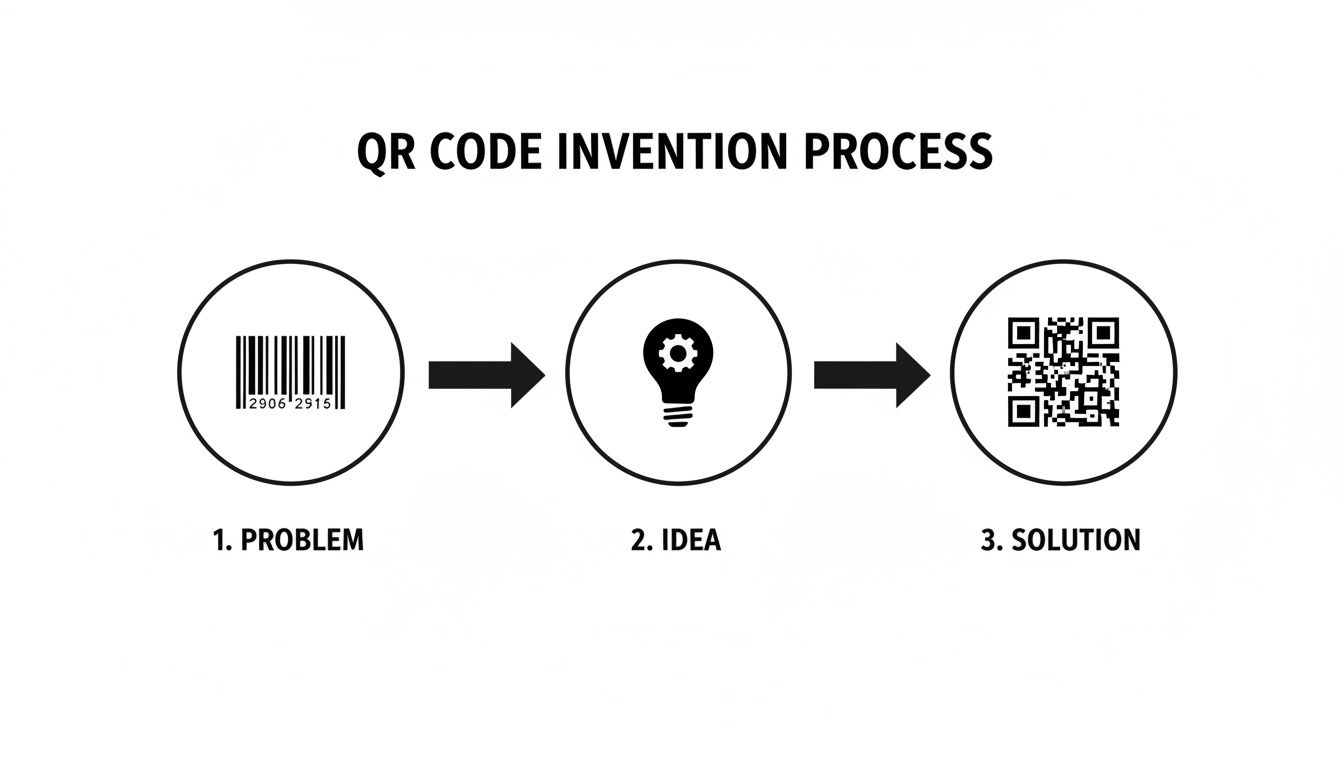
ይህ እውነተኛ የኢንዱስትሪ ፈተና ዛሬ ሁላችንም ለብዙ የተለያዩ ነገሮች የምንጠቀምበትን መሳሪያ እንዴት እንደፈጠረ የሚያሳይ ፍጹም ምሳሌ ነው።
የአካባቢ ጀነሬተር ለምን አስፈላጊ ነው
የአካባቢ መሳሪያን መጠቀም ስለ ፍጥነት ብቻ አይደለም፤ ለግላዊነት ትልቅ ጉዳይ ነው። ኮድ ለመፍጠር የዘፈቀደ ድር ጣቢያ ሲጠቀሙ፣ ውሂብዎን ወደ አገልጋዮቻቸው እየላኩ ነው። እነሱ ሊመዘግቡት፣ ሊተነትኑት ወይም ላልተወሰነ ጊዜ ሊያከማቹት ይችላሉ።
የአካባቢ ጀነሬተሮችን የምጠቀመው ለዚህ ነው፦
- የውሂብ ማስተላለፍ የለም: የእርስዎ መረጃ—ለሚያዳብሩት ፕሮጀክት የግል URL ይሁን ወይም የእርስዎ የግል የእውቂያ ዝርዝሮች—ኮምፒውተርዎን አይለቅም።
- ከመስመር ውጭ ይሰራል: መሳሪያው አንዴ ከተጫነ፣ የበይነመረብ ግንኙነት አያስፈልገውም። ይህ በጉዞ ላይ ሲሰሩ ወይም ደካማ Wi-Fi ሲኖርዎት ህይወት አድን ነው።
- በእውነት ፈጣን: አገልጋይ ምላሽ እስኪሰጥ መጠበቅ የለም። የQR ኮዱ በሚተይቡበት ጊዜ ይታያል፣ ይህም ፈጣን ግብረመልስ ይሰጥዎታል።
ይህ አቀራረብ ሙሉ ቁጥጥር ይሰጥዎታል። ለምሳሌ፣ ሰርግ ወይም የድርጅት ዝግጅት እያዘጋጁ ከሆነ፣ ወደ ካርታዎች ወይም የጊዜ ሰሌዳዎች አገናኞችን ማጋራት ሊያስፈልግዎ ይችላል። የእንግዶችዎ ውሂብ ወዴት እንደሚሄድ ሳይጨነቁ ለዝግጅትዎ የQR ኮዶችን እንዴት ወዲያውኑ መፍጠር እንደሚችሉ መማር ይችላሉ። ደህንነታቸው የተጠበቁ ኮዶችን በፍጥነት ማዘጋጀት መቻል እጅግ በጣም ጠቃሚ ችሎታ ነው።
ከURLs ባሻገር: የላቁ የQR ኮዶችን ወደ ስራ ማስገባት
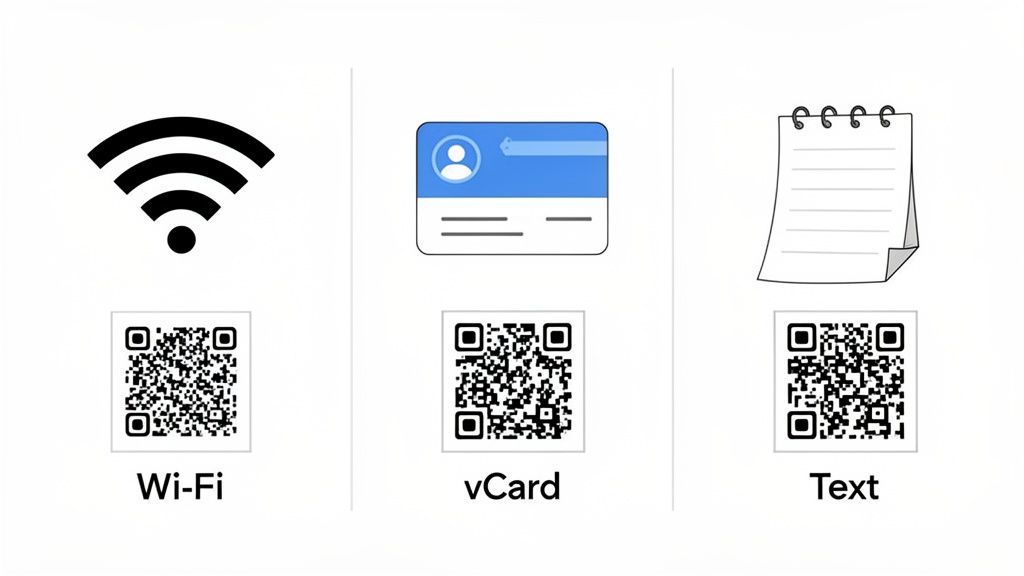
አብዛኛዎቹ ሰዎች የQR ኮዶችን የድር ጣቢያ አገናኝ ለማጋራት እንደ አንድ የሚያምር መንገድ አድርገው ያስባሉ። ይህ በጣም የተለመደ ስራቸው ቢሆንም፣ እነሱን በURLs ብቻ መገደብ ስማርትፎን ጥሪ ለማድረግ ብቻ እንደመጠቀም ነው። እውነተኛ አቅማቸው የሚያበራው ሁሉንም አይነት ውሂብ ኢንኮድ ማድረግ እንደሚችሉ ሲገነዘቡ ነው፣ ይህም በግል እና በሙያዊ ህይወትዎ ውስጥ ትናንሽ ችግሮችን ይፈታል።
ለተወሰኑ ተግባራት የQR ኮዶችን እንዴት መፍጠር እንደሚችሉ አንዴ ካወቁ፣ ጊዜ ለመቆጠብ እና ግጭትን ለመቀነስ እድሎችን ማየት ይጀምራሉ። ከአሳሽ ትር ከመክፈት ባለፈ የሚሄዱ ጥቂት የምወዳቸውን ተግባራዊ አጠቃቀሞች እንመልከት።
ፈጣን የWi-Fi መዳረሻ ይስጡ
አንድ እንግዳ የWi-Fi የይለፍ ቃልዎን የጠየቀበትን የመጨረሻ ጊዜ ያስታውሳሉ? ምናልባት እሱን ማግኘት፣ ጮክ ብለው መጥራት እና ከዚያ የትየባ ስህተትን ማስተካከል ነበረብዎት። የWi-Fi QR ኮድ ያንን አጠቃላይ ዳንስ ያስወግዳል። አንድ ፈጣን ቅኝት እና መሳሪያቸው ተገናኝቷል—ምንም መተየብ አያስፈልግም።
ይህን ለማዘጋጀት፣ ሶስት ዝርዝሮች ብቻ ያስፈልግዎታል፦
- የአውታረ መረብ ስም (SSID): የWi-Fi አውታረ መረብዎ ትክክለኛ ስም።
- የይለፍ ቃል: የእርስዎ የአውታረ መረብ ቁልፍ፣ ይህም የፊደል ትልቅና ትንሽነት የሚለይ ነው።
- የምስጠራ አይነት: ይህ ሁልጊዜ ማለት ይቻላል WPA/WPA2 ወይም WPA3 ነው።
ማንኛውም ጥሩ የQR ኮድ ጀነሬተር ለዚህ የተወሰኑ መስኮች ይኖረዋል። መረጃውን ያስገቡታል፣ እና ከትዕይንቱ በስተጀርባ WIFI:T:WPA;S:MyNetworkName;P:MyPassword123;; የሚል ልዩ ሕብረቁምፊ ይፈጥራል። ስለዚያ ኮድ መጨነቅ የለብዎትም፤ መሳሪያው ሁሉንም ነገር ይቆጣጠራል። ዝም ብለው ያትሙት፣ በማቀዝቀዣው ላይ ይለጥፉት፣ እና ጨርሰዋል።
የእውቂያ ዝርዝሮችዎን በvCard ያጋሩ
የንግድ ካርዶች ክላሲክ የአውታረ መረብ መሳሪያ ናቸው፣ ነገር ግን ለሚቀበለው ሰው ስራ ይፈጥራሉ፦ ዝርዝሮችዎን በእጅ ወደ ስልካቸው መተየብ። የvCard QR ኮድ አጠቃላይ ሂደቱን በራስ-ሰር ያከናውናል። አንድ ሰው ሲቃኘው፣ መረጃዎ ብቅ ይላል፣ በቀጥታ ወደ እውቂያዎቻቸው ለመቀመጥ ዝግጁ ነው።
አንድ vCard ብዙ ጠቃሚ መረጃዎችን ሊይዝ ይችላል፦
- ሙሉ ስም
- ኩባንያ እና የስራ ማዕረግ
- ስልክ ቁጥሮች (ስራ፣ ሞባይል፣ ቤት)
- ኢሜይል አድራሻዎች
- የድር ጣቢያ URL
- አካላዊ አድራሻ
አንዱን ሲሰሩ፣ ዲጂታል የእውቂያ ቅጽ እየሞሉ ነው። ብዙ ዝርዝሮችን ባካተቱ ቁጥር፣ ለሌላው ሰው የበለጠ ጠቃሚ ይሆናል። ይህ ትንሽ፣ በቴክኖሎጂ የዳበረ ንክኪ ነው በእውነትም ስሜት የሚፈጥር። እና የግል ብራንድ እየገነቡ ከሆነ፣ ለድር ጣቢያዎ መስክ ብጁ URL ለማግኘት የጎራ ስም መገኘትን እንዴት ማረጋገጥ እንደሚችሉ መማር ጠቃሚ ነው።
ጠቃሚ ምክር: አንድ ጊዜ የvCard QR ኮድ በስልኬ መቆለፊያ ማያ ገጽ ላይ አድርጌ ነበር። ሀሳቤ፣ ከጠፋብኝ፣ አንድ ጥሩ ሳምራዊ ኮዱን በመቃኘት መሳሪያዬን ሳይከፍት የእውቂያ መረጃዬን ማግኘት ይችላል። ይህ ቀላል ግን ውጤታማ ዲጂታል "የጠፋ እና የተገኘ" መለያ ነው።
ለማስታወሻዎች እና መመሪያዎች ግልጽ ጽሑፍ ያስገቡ
አንዳንድ ጊዜ ቀላሉ መፍትሄ ምርጡ ነው። አንድ የQR ኮድ እስከ 4,296 አልፋኑሜሪክ ቁምፊዎች ግልጽ ጽሑፍ ማከማቸት ይችላል። ይህ በድር ጣቢያ ላይ መኖር የማያስፈልገውን መረጃ ለማጋራት በጣም ጥሩ ነው።
ይህ ውጤታማ በሆነ መንገድ ጥቅም ላይ የዋለባቸው ጥቂት መንገዶች እዚህ አሉ፦
- የምርት ስብሰባ: በጠፍጣፋ ማሸጊያ የቤት እቃዎች ሳጥን ላይ ያለ ትንሽ የQR ኮድ ቀላል የማዋቀር መመሪያዎችን የያዘ የጽሑፍ ፋይል ይከፍታል።
- የዝግጅት መረጃ: በኮንፈረንስ ላይ፣ በክፍለ ጊዜ በር ላይ ያለ ኮድ አጭር የንግግር አቅራቢ የህይወት ታሪክ ወይም የንግግራቸውን ማጠቃለያ ሊይዝ ይችላል።
- የግል አስታዋሾች፡ ለጉዞ የሚሆን የዕቃ ዝርዝር የያዘ QR ኮድ ሰርቼ በሻንጣዬ መለያ ላይ ለጥፌዋለሁ።
ጽሑፍን መሰረት ያደረገ ኮድ መስራት ከዚህ በላይ ቀላል ሊሆን አይችልም። ጽሑፍዎን ወደ ጀነሬተሩ ውስጥ መተየብ ወይም መለጠፍ ብቻ ነው። ምንም ልዩ ቅርጸቶች የሚያሳስቡ ነገር የለም፣ ይህም መረጃን ለሰዎች በፍጥነት እና በአስተማማኝ ሁኔታ ለማድረስ የሚያስችል መንገድ ያደርገዋል፣ ከመስመር ውጭ ቢሆኑም እንኳ።
የእርስዎን QR ኮድ ማራኪ ማድረግ፡ ማበጀት እና አስተማማኝነት
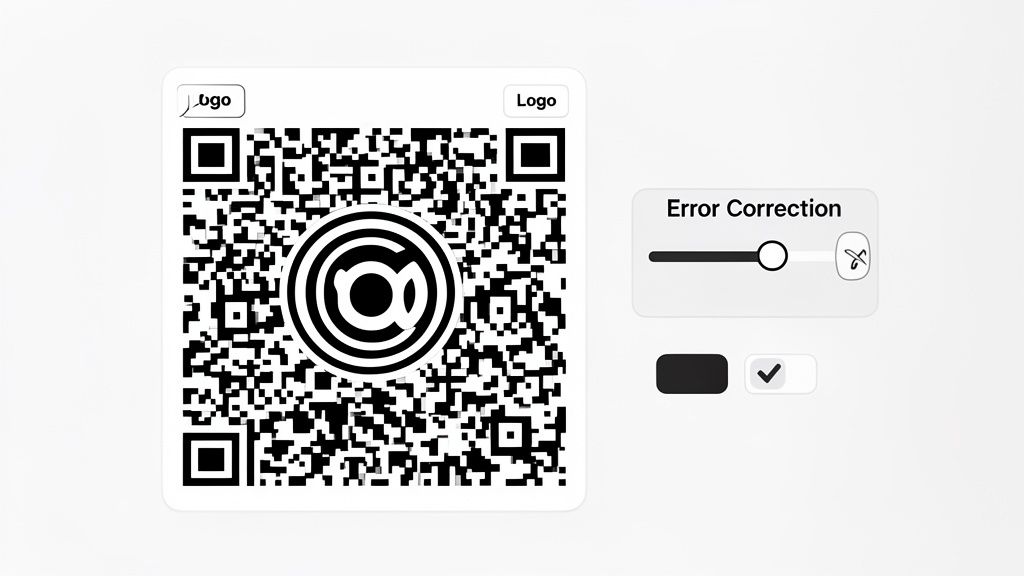
መሰረታዊ QR ኮድ ስራውን ያከናውናል፣ ነገር ግን በጥሩ ሁኔታ የተነደፈ ኮድ ትኩረት ያገኛል። ማበጀት ከመልክ በላይ ነው፤ ኮድዎ ጎልቶ እንዲታይ ማድረግ እና ነገሮች ፍጹም ባይሆኑም እንኳ ሁልጊዜ በአስተማማኝ ሁኔታ መቃኘቱን ማረጋገጥ ነው።
ከዚህ በስተጀርባ ያለው አስማት የስህተት ማስተካከያ የሚባል ባህሪ ነው። ይህ QR ኮድ በከፊል ቢቧጨር፣ ቢቆሽሽ ወይም ቢሸፈን እንኳ እንዲሰራ የሚያስችል አብሮ የተሰራ የደህንነት መረብ ነው። እንደ ኮዱ መረጃ የተወሰነ ክፍል ተጠባባቂ ሆኖ ተይዞ፣ የኮዱ ክፍል የማይነበብ ከሆነ ክፍተቶቹን ለመሙላት ዝግጁ እንደሆነ አድርገው ያስቡት።
የስህተት ማስተካከያ ለእርስዎ እንዴት እንደሚሰራ
QR ኮድ ሲፈጥሩ፣ አብዛኛውን ጊዜ ለአራት የተለያዩ ደረጃዎች የስህተት ማስተካከያ አማራጭ ያያሉ። እያንዳንዱ ደረጃ ምን ያህል መረጃ መያዝ እንደሚችል እና ምን ያህል ጠንካራ እንደሆነ መካከል የተለየ ሚዛን ይይዛል።
- ደረጃ L (ዝቅተኛ)፡ ይህ ከ7% ገደማ የመረጃ መጥፋት ማገገም ይችላል። በጣም ንጹህ የሚመስል ኮድ ያደርጋል፣ ጉዳት የማያስጨንቅበት ሙሉ በሙሉ ዲጂታል ቅርጸቶች ለመጠቀም ፍጹም ነው።
- ደረጃ M (መካከለኛ)፡ ከ15% ገደማ የመረጃ መጥፋት መቋቋም ይችላል። ይህ ለአብዛኛዎቹ ሁኔታዎች፣ እንደ ቢዝነስ ካርዶች ወይም የምርት መለያዎች ላይ ለማተም የእርስዎ ምርጥ፣ ሁለንተናዊ ቅንብር ነው።
- ደረጃ Q (ኳርታይል)፡ የመቋቋም አቅምን እስከ 25% የመረጃ መጥፋት ያሳድጋል። ይህ በአለባበስ እና እንባ ሊታዩ በሚችሉ የምግብ ቤት ምናሌዎች ወይም ከቤት ውጭ ባሉ ምልክቶች ላይ ለሚገኙ ኮዶች ብልህ ምርጫ ነው።
- ደረጃ H (ከፍተኛ)፡ እስከ 30% የመረጃ መጥፋት የሚያገግም ከባድ ክብደት ያለው ሻምፒዮን። በኮድዎ መሃል ላይ አርማ ለማስቀመጥ ካሰቡ ይህ ደረጃ በጣም አስፈላጊ ነው።
ከፍተኛ የማስተካከያ ደረጃ መምረጥ የQR ኮዱን ንድፍ የበለጠ ጥቅጥቅ ያለ እና ውስብስብ ያደርገዋል። ምክንያቱም ብዙ የውስጥ ቦታው ለዚያ የመጠባበቂያ መረጃ ጥቅም ላይ እየዋለ ነው፣ ይህም እጅግ በጣም ጠንካራ ያደርገዋል።
ስካንዎን ሳያበላሹ አርማ ማከል
የብራንድዎን አርማ በQR ኮድ መሃል ላይ ማስቀመጥ እምነትን ለመገንባት እና የምርት ስም ትውስታን ለማጠናከር ብሩህ እርምጃ ነው። ነገር ግን በስህተት ካደረጉት፣ ማንም ሊቃኘው የማይችል ኮድ ይኖርዎታል—በሚያስደንቅ ሁኔታ የተለመደ ስህተት። አርማው የመረጃውን ክፍል በአካል ይዘጋል።
ይህ ደረጃ H የስህተት ማስተካከያ የሚያድነው ቦታ ነው። የመቋቋም አቅምን ወደ ከፍተኛው በማሳደግ፣ አርማዎ የሚሸፍነውን ትልቅ ክፍል ለማካካስ በቂ የመጠባበቂያ መረጃ እንዲያስቀምጥ ለኮዱ እየነገሩት ነው።
እንደ አጠቃላይ መመሪያ፣ አርማዎ ከQR ኮዱ አጠቃላይ ስፋት ከ25-30% በላይ እንዳይወስድ ያረጋግጡ። እና ምንም ነገር ወደ አታሚው ከመላክዎ በፊት ይሞክሩት! እንከን የለሽ መሆኑን ለማረጋገጥ በተለያዩ ስልኮች እና QR ኮድ መተግበሪያዎች ይቃኙት።
ለቀለም እና ንፅፅር ብልህ አቀራረብ
ክላሲክ ጥቁር እና ነጭ QR ኮድ ለምክንያት የወርቅ ደረጃ ነው፡ ስህተት የለሽ ነው። ነገር ግን የቀለም ንክኪ ማከል ከብራንድዎ ማንነት ጋር እንዲስማማ ሊረዳው ይችላል። ይጠንቀቁ፣ ምክንያቱም ይህ ስህተት ለመስራት ቀላል የሆነ ሌላ ቦታ ነው። ቁጥር አንድ ህግ ከፍተኛ ንፅፅር ነው።
QR ኮድ ስካነሮች መረጃውን ለማንበብ በጨለማ ካሬዎች (የፊት ለፊት) እና በብርሃን ክፍተቶች (የጀርባ) መካከል ግልጽ የሆነ ልዩነት ማየት አለባቸው።
እነዚህን ቀላል መመሪያዎች ያስታውሱ፦
- ሁልጊዜ ጥቁር የፊት ለፊት ቀለም በብርሃን ዳራ ላይ ይጠቀሙ። እንደ ጥቁር ሰማያዊ በነጭ ወይም ጥቁር አረንጓዴ በፈዛዛ ግራጫ ላይ ያስቡ።
- ከብርሃን የፊት ለፊት ቀለሞች ይራቁ። ቢጫ፣ የህፃን ሰማያዊ ወይም ፓስቴል አረንጓዴ ለአብዛኛዎቹ የስልክ ካሜራዎች ለመለየት በቂ ንፅፅር አይሰጡም።
- ቀለሞችን በጭራሽ አይቀይሩ። ጥቁር ዳራ ላይ ያለ ነጭ ኮድ ጥሩ ሊመስል ይችላል፣ ነገር ግን ብዙ ስካነሮች፣ በተለይም የቆዩት፣ በቀላሉ ሊያነቡት አይችሉም።
የQR ኮዶች ብልህነት ብዙ መረጃዎችን የመያዝ ችሎታቸው ሲሆን በእውነተኛው ዓለም ውስጥ ለመኖር የሚያስችል ጠንካራ መሆናቸው ነው። ለምሳሌ፣ ከፍተኛ ደረጃ ያለው ስሪት 40 ኮድ ከ4,000 በላይ ቁምፊዎችን ማከማቸት ይችላል እና አሁንም እስከ 30% የሚሆነው ገጽታው ቢሸፈንም ሊቃኝ ይችላል፣ ሁሉም ለኃይለኛው ሪድ-ሰሎሞን የስህተት ማስተካከያ ምስጋና ይግባው። ኮድዎ በሚጠቀሙበት ቦታ ሁሉ ጥሩ ሆኖ እንዲታይ ለማድረግ፣ ለድር ምርጡን የምስል ቅርጸት ስለመምረጥ መመሪያችንን ይመልከቱ።
የተለመዱ የQR ኮድ ስህተቶች እና እነሱን እንዴት ማስወገድ እንደሚቻል
ከማይቃኝ QR ኮድ የበለጠ የሚያበሳጭ ነገር የለም። የተጠቃሚውን ልምድ ያበላሻል እና የእርስዎን ዘመቻ በሙሉ አማተር እንዲመስል ሊያደርግ ይችላል። መልካም ዜናው አብዛኛዎቹ የመቃኘት ውድቀቶች የሚከሰቱት በጥቂት የተለመዱ እና በቀላሉ ሊስተካከሉ በሚችሉ ስህተቶች ነው።
ወደ ችግር መፍታት ከመግባታችን በፊት፣ ስለ ግላዊነት ለአንድ ሰከንድ እንነጋገር። ብዙ ነፃ የመስመር ላይ QR ኮድ ጀነሬተሮች በትክክል ነፃ አይደሉም—በተለይ እነሱ የሚያስተናግዱ ተለዋዋጭ ኮዶችን እየፈጠሩ ከሆነ፣ እርስዎ የሚያስገቡትን መረጃ እየመዘገቡ ሊሆን ይችላል። በShiftShift Extensions ውስጥ ያለውን የመሰለ የአካባቢ መሳሪያ ሲጠቀሙ፣ መረጃዎ ማሽንዎን እንደማይለቅ እርግጠኛ መሆን ይችላሉ። ይህ ለስሜታዊ አገናኞች ወይም ለግል መረጃ የግድ ነው።
የእርስዎ ከማሰማራት በፊት የሚደረጉ ነገሮች ዝርዝር
QR ኮድ ወደ አታሚው ከመላክዎ ወይም በመስመር ላይ ከማተምዎ በፊት፣ ይህንን ፈጣን ቅድመ-በረራ ፍተሻ ያድርጉ። እመኑኝ፣ ወደፊት ብዙ ራስ ምታትን ይቆጥብልዎታል።
- ይሞክሩ፣ ይሞክሩ፣ እና እንደገና ይሞክሩ፦ ኮድዎን በተለያዩ ስልኮች ይቃኙ። የአይፎን እና የአንድሮይድ መሳሪያ ጥሩ ጅምር ናቸው፣ ምክንያቱም የካሜራ አፕሊኬሽኖቻቸው ኮዶችን በተለያየ መንገድ ሊተረጉሙ ይችላሉ።
- መጠን አስፈላጊ ነው፦ በጣም ትንሽ ሆኖ የታተመ የQR ኮድ ምንም ካሜራ ማተኮር የማይችልበት ደብዛዛ ካሬ ብቻ ነው። ለማንኛውም ህትመት፣ ጥሩው መመሪያ ቢያንስ 1x1 ኢንች (2.5x2.5 ሴ.ሜ) ማድረግ ነው።
- ረጅም አገናኞችን ያሳጥሩ፦ ብዙ መለኪያዎች ያሉት ረጅም እና ውስብስብ URL እየመዘገቡ ከሆነ፣ የሚፈጠረው የQR ኮድ እጅግ በጣም ጥቅጥቅ ያለ ይሆናል። ይህ ስካነሮች ለማንበብ አስቸጋሪ ያደርገዋል። በጣም ቀላል እና አስተማማኝ የኮድ ስርዓተ-ጥለት ለመፍጠር የURL ማሳጠሪያ ይጠቀሙ።
ጠቃሚ ምክር፦ የQR ኮድ በእውነተኛው ዓለም ውስጥ አለ። የት እንደሚቃኝ ያስቡ። በሬስቶራንት ውስጥ ባለው ደብዛዛ ብርሃን ስር ባለው አንጸባራቂ ምናሌ ላይ? በደብዛዛ ብርሃን ባለው ኮሪደር ውስጥ ባለው ፖስተር ላይ? እንደሚሰራ በእርግጠኝነት ለማወቅ ብቸኛው መንገድ ታዳሚዎችዎ በሚያገኙበት ሁኔታዎች ስር መሞከር ነው።
የተሳሳተ ቅኝት መመርመር
ታዲያ፣ ኮድ መስራት ሲያቅተው ምን ያደርጋሉ? አይደናገጡ። ችግሩ ሁልጊዜ ከጥቂት ነገሮች አንዱ ነው። ለምን እንደማይሰራ ማወቅ ሁልጊዜ የማይሳሳቱ የQR ኮዶችን ለመፍጠር የመጀመሪያው እርምጃ ነው።
ይህ ደግሞ ደህንነትን የሚያስቀድም አስተሳሰብ ጠቃሚ የሚሆንበት ነው። ዲጂታል መረጃን ስለመጠበቅ በጥልቀት ለመረዳት፣ ስለ የይለፍ ቃል ደህንነት ምርጥ ልምዶች የበለጠ መማር ይችላሉ፣ ምክንያቱም ብዙዎቹ ዋና መርሆዎች እዚህም ይሠራሉ።
ቅኝት ሲሳካ፣ ወንጀለኛውን ማወቅ ብዙውን ጊዜ ቀላል ነው። በጣም የተለመዱ ችግሮችን ለመመርመር እና ለማስተካከል እንዲረዳዎ ይህንን ፈጣን የማረጋገጫ ዝርዝር አዘጋጅቻለሁ።
የQR ኮድ መላ ፍለጋ የማረጋገጫ ዝርዝር
| ችግር | ሊሆን የሚችል ምክንያት | መፍትሄ |
|---|---|---|
| ኮድ በጭራሽ አይቃኝም | ዝቅተኛ ንፅፅር፦ የኮድዎ እና የጀርባው ቀለሞች በጣም ተመሳሳይ ናቸው። ለምሳሌ፣ በነጭ ላይ ቀላል ቢጫ ክላሲክ የማይሆን ነው። | ከፍተኛ ንፅፅርን ይከተሉ። በብርሃን ጀርባ ላይ ጥቁር የፊት ገጽታ ምርጥ ነው። በመደበኛ ጥቁር በነጭ በጭራሽ ስህተት መሄድ አይችሉም። |
| ቅኝት አስተማማኝ አይደለም ወይም ቀርፋፋ ነው | የጠፋ ጸጥ ያለ ዞን፦ ስካነሩ በትክክል ለመቅረጽ በኮዱ ዙሪያ በቂ ባዶ ቦታ የለም። | ሁልጊዜ በጠቅላላው ኮድ ዙሪያ ግልጽ የሆነ ህዳግ ይተዉ። ጥሩው ዝቅተኛው የአራት ትናንሽ ካሬዎች (ሞጁሎች) ስፋት ነው። |
| ኮድ ወደ የተሳሳተ ገጽ ይቃኛል | የውሂብ ግቤት ስህተት፦ ቀላል የትየባ ስህተት—በመጀመሪያ ባስገቡት URL ወይም ጽሑፍ ውስጥ ተጨማሪ ክፍተት ወይም የተሳሳተ ቁምፊ። | ወደ ጄኔሬተርዎ ይመለሱ እና የመነሻ ውሂቡን እንደገና ያረጋግጡ። በጣም አስተማማኝው መንገድ ሁልጊዜ URLs በቀጥታ መቅዳት እና መለጠፍ ነው። |
እነዚህን ቀላል ፍተሻዎች መከተል የሚያጋጥሙዎትን የቅኝት ችግሮች 99% ይፈታል። ከማተምዎ በፊት በትክክል ማግኘት ጊዜን፣ ገንዘብን እና ሙያዊ ስምዎን ይቆጥባል።
የQR ኮዶችን ስለመፍጠር በተደጋጋሚ የሚጠየቁ ጥያቄዎች
የQR ኮዶችን የመስራት ልምድ ካገኙ በኋላም፣ አንዳንድ ተግባራዊ ጥያቄዎች ሁልጊዜ የሚነሱ ይመስላሉ። ይህ ክፍል ውጤታማ እና አስተማማኝ ኮዶችን ሁልጊዜ ለመፍጠር እነዚያን የተለመዱ አእምሮን የሚያስጨንቁ ነገሮችን ለመፍታት ነው።
የQR ኮድ ጊዜው ሊያልፍ ወይም መስራት ሊያቆም ይችላል?
ይህ ትልቅ ነው። መደበኛ ወይም ስታቲክ የQR ኮድ በራሱ ጊዜው አያልፍም። መረጃው፣ URLም ይሁን የWi-Fi የይለፍ ቃልዎ፣ በቀጥታ በጥቁር እና ነጭ ስርዓተ-ጥለት ውስጥ የተጋገረ ነው። የሚያገናኘው ድር ጣቢያ በመስመር ላይ እስካለ ድረስ፣ ያ የQR ኮድ ለዘላለም ይሰራል።
አሁን፣ አስቸጋሪ የሚሆነው በዳይናሚክ የQR ኮዶች ነው። እነዚህ ብዙውን ጊዜ በግብይት ኩባንያዎች ይሸጣሉ። በቀጥታ ወደ ድር ጣቢያዎ ከመጠቆም ይልቅ፣ በአገልግሎቱ ባለቤትነት ወደተያዘ ልዩ የማዞሪያ አገናኝ ይጠቁማሉ። ይህ ቅኝቶችን እንዲከታተሉ እና በኋላ ኮዱ ሰዎችን የት እንደሚልክ እንዲቀይሩ ያስችላቸዋል። ችግሩ? የደንበኝነት ምዝገባ ክፍያቸውን መክፈል ካቆሙ፣ ያንን የማዞሪያ አገናኝ ሊያጠፉት ይችላሉ፣ እና የQR ኮድዎ ይሞታል።
ለረጅም ጊዜ አስተማማኝነት፣ ስታቲክ ኮድ ሁልጊዜ የሚመረጥ ነው።
የQR ኮዶች የመጠን ገደብ አላቸው?
በቴክኒካዊ መልኩ፣ ከፍተኛው መጠን የለም—ከፈለጉ በአንድ ሕንፃ ጎን ላይ መለጠፍ ይችላሉ። እውነተኛው ጥያቄ ስለ ዝቅተኛው መጠን ነው። የQR ኮድ በጣም ትንሽ ከሆነ፣ የስልክ ካሜራ መረጃውን ለማንበብ በትናንሽ ካሬዎች ላይ ማተኮር አይችልም።
ለማንኛውም ህትመት ጠንካራው መመሪያ የQR ኮድዎን ቢያንስ 1x1 ኢንች (ወደ 2.5x2.5 ሴ.ሜ) ማቆየት ነው። ለዲጂታል ማሳያዎች፣ በአብዛኛዎቹ ስክሪኖች ላይ ግልጽ መሆኑን ለማረጋገጥ ቢያንስ 200x200 ፒክሰሎች ያነጣጠሩ።
የቅኝት ርቀትን ማሰብዎን ያስታውሱ። በቢዝነስ ካርድ ላይ ያለ ኮድ ትንሽ ሊሆን ይችላል፣ ነገር ግን በሩቅ የንግድ ትርኢት ባነር ላይ ያለ ኮድ ግዙፍ መሆን አለበት።
የQR ኮዶች እንዴት በጣም ተወዳጅ ሆኑ?
ከ1994 ጀምሮ ነበሩ፣ ነገር ግን እስከ ብዙ ቆይቶ ድረስ በእውነት አልተስፋፉም። በ2010 አካባቢ የጀመረው የስማርትፎን እድገት የመጀመሪያው ብልጭታ ነበር፣ ነገር ግን እውነተኛው ፍንዳታ በ2017 ተከሰተ። ያ አፕል የQR ስካነርን በቀጥታ ወደ iOS 11 ካሜራ መተግበሪያ ያዋሃደበት ዓመት ነበር። ጎግል በፍጥነት ለአንድሮይድ ተመሳሳይ ነገር አደረገ፣ እና በድንገት፣ ቢሊዮኖች የሚቆጠሩ ሰዎች የተለየ መተግበሪያ ሳያስፈልጋቸው ስካነር በኪሳቸው ውስጥ ነበራቸው።
ይህ ቀላል ለውጥ አስደናቂ እድገትን አስገኝቷል። በዩኤስ ውስጥ የQR ኮዶችን የሚቃኙ ሰዎች ቁጥር በ2025 100.2 ሚሊዮን ይደርሳል ተብሎ ይጠበቃል። ከዚያም ወረርሽኙ ተቀባይነትን አፋጠነው፣ ከንክኪ ነጻ የሆኑ ምናሌዎች እና ቼክ ኢንዎች በአብዛኛዎቹ ገበያዎች አጠቃቀምን በ20-30% ጨምረዋል። የማወቅ ጉጉት ካለዎት፣ ከፋብሪካ መሳሪያነት ወደ ዕለታዊ አስፈላጊነት ያደረጉትን ጉዞ ለማየት የQR ኮዶችን ሙሉ ታሪክ ማሰስ ይችላሉ።
አስተማማኝ፣ ግላዊ የሆኑ የQR ኮዶችን በአሳሽዎ ውስጥ ሆነው በሰከንዶች ውስጥ ለመፍጠር ዝግጁ ኖት? በShiftShift Extensions ውስጥ ያለው ጀነሬተር ለፍጥነት እና ለግላዊነት የተነደፉ ኃይለኛ የመሳሪያዎች ስብስብ አካል ነው። ሁሉም ነገር በአካባቢው በማሽንዎ ላይ ይከሰታል፣ ስለዚህ የእርስዎ ውሂብ የእርስዎ ሆኖ ይቆያል። ShiftShift Extensionsን ያውርዱ እና ብልህ የሆነ የስራ መንገድ ይክፈቱ።