እንዴት የተደረገ የይለፍ ቃል ማዘጋጀት ይቻላል የሚሰራ ይሆን
የደህንነት የቃል ይዘት ለመፍጠር እንዴት ይማሩ ከእኛ መመሪያ ጋር ይማሩ። ጠንካራ የቃል ይዘቶች፣ አስፈላጊ የቃል አስተዳደር መሣሪያዎች፣ እና ለምን ሁለት-ወገን ማረጋገጫ ያስፈልጋል ይነግሩ።
የተመነጨ ማስተካከያዎች

መለያዎችዎን በትክክል ለመጠበቅ፣ ረጅም፣ ውስብስብ እና—ከሁሉም በላይ—ለሚጠቀሙት እያንዳንዱ ድረ-ገጽ ልዩ የሆኑ የይለፍ ቃሎች ያስፈልግዎታል። ይህንን ለማድረግ ምርጡ መንገድ የይለፍ ሐረግ (አራት ወይም ከዚያ በላይ የሆኑ የዘፈቀደ ቃላት የማይረሳ ሕብረቁምፊ) መፍጠር ወይም የይለፍ ቃል አስተዳዳሪ የማይቻል የዘፈቀደ የቁምፊ ሕብረቁምፊዎችን እንዲያመነጭ እና እንዲያከማች መፍቀድ ነው።
የቀድሞ የይለፍ ቃል ልማዶችዎ ለምን ከአሁን በኋላ አይሰሩም
እውነቱን እንነጋገር ከተባለ፣ የድሮው ምክር—"በተለመደ ቃል ላይ ቁጥር እና ምልክት ብቻ ጨምር"—ሙሉ በሙሉ ጊዜ ያለፈበት ነው። ዲጂታል ዓለም ተሻሽሏል፣ እና ስጋቶቹም እንዲሁ። እንደ Password!1 ያለ የይለፍ ቃል የምዝገባ ቅጽ ላይ ምልክት ሊያደርግ ይችላል፣ ነገር ግን ለዘመናዊ የሳይበር ጥቃቶች ክፍት በር ነው።
ጠላፊዎች ከአሁን በኋላ የይለፍ ቃሎችን በእጅ አይገምቱም። በሰከንድ ቢሊዮን የሚቆጠሩ ውህዶችን ማሽከርከር የሚችሉ አውቶማቲክ መሳሪያዎችን ይጠቀማሉ። ይህ ብሩት-ፎርስ ጥቃት ተብሎ የሚጠራ ሲሆን አጭር፣ ሊገመቱ የሚችሉ የይለፍ ቃሎችን ለመስበር በሚያስገርም ሁኔታ ቀላል ያደርገዋል። እንደ 'Pa$$w0rd' ያሉ ብልህ ምትኮች እንኳን እነዚህን ፕሮግራሞች ለረጅም ጊዜ አያታልሉም፣ ምክንያቱም እነዚያን የተለመዱ ዘዴዎችን ለመፈተሽ በተለየ ሁኔታ የተነደፉ ናቸው።
የአንድ ደካማ የይለፍ ቃል የዶሚኖ ውጤት
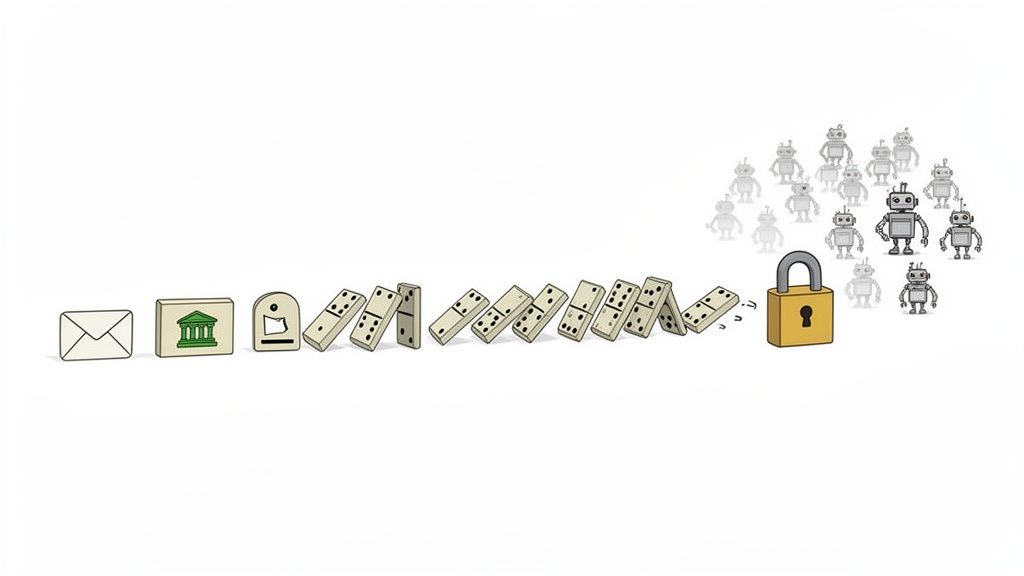
እዚህ ላይ ነው በእውነት የሚያስፈራው። አንድ ደካማ የይለፍ ቃል ለአጠቃላይ ዲጂታል ህይወትዎ እንደ ዋና ቁልፍ ሆኖ ሊያገለግል ይችላል፣ ይህም አሰቃቂ የዶሚኖ ውጤት ያስከትላል። ይህ ሁልጊዜ የሚከሰተው የምስክር ወረቀት መሙላት በሚባል የተለመደ ጥቃት ምክንያት ነው።
የሳይበር ወንጀለኞች ከአንድ ኩባንያ የውሂብ ጥሰት የተጠቃሚ ስሞችን እና የይለፍ ቃሎችን ዝርዝር ያገኛሉ። ከዚያም፣ እነዚያን ተመሳሳይ የመግቢያ ዝርዝሮች በመቶዎች በሚቆጠሩ ሌሎች ታዋቂ ድረ-ገጾች—በእርስዎ ባንክ፣ በማህበራዊ ሚዲያዎ፣ በኢሜልዎ—በራስ-ሰር ለመሞከር ቦቶችን ይጠቀማሉ።
ይህ በጣም ጥሩ የሚሰራው አብዛኛዎቹ ሰዎች የይለፍ ቃሎችን በሁሉም ቦታ ስለሚጠቀሙ ነው። ለዓመታት ማስጠንቀቂያዎች ቢሰጡም፣ በሚያስደንቅ ሁኔታ ከ80-85% የሚሆኑ ሰዎች አሁንም ተመሳሳይ የይለፍ ቃል በተለያዩ ድረ-ገጾች ላይ ይጠቀማሉ። በዚህ የይለፍ ቃል ቀውስ ላይ ያለውን መረጃ መቆፈር ይችላሉ፣ ነገር ግን ዋናው ነገር ግልጽ ነው፡ ይህ ልማድ ትልቅ፣ በራስ የተፈጠረ ተጋላጭነት ይፈጥራል።
"የይለፍ ቃሎችዎ 'የመጀመሪያው ምክንያት' ናቸው፣ ማለትም 'የሚያውቁት ነገር'። ግቡ ያ 'ነገር' ለአጥቂ ለመገመት ወይም ለማግኘት በጣም አስቸጋሪ እንዲሆን ማድረግ ነው፣ ስለዚህም በቀላሉ ወደ ቀላል ኢላማ ይሸጋገራሉ።"
ለመጀመር እንዲረዳዎ፣ የምንወያይባቸውን ዋና ዋና መርሆዎች የሚሸፍን ፈጣን የማጭበርበሪያ ወረቀት እዚህ አለ።
ለደህንነቱ የተጠበቀ የይለፍ ቃሎች ፈጣን መመሪያ
| መርህ | ለምን አስፈላጊ ነው | ፈጣን ጠቃሚ ምክር |
|---|---|---|
| ርዝመት ቁልፍ ነው | ረዣዥም የይለፍ ቃሎች ቦቶች ለመስበር እጅግ በጣም ከባድ ናቸው። | ቢያንስ 16 ቁምፊዎች ወይም 4 የዘፈቀደ ቃላት ለይለፍ ሐረግ ያቅዱ። |
| የዘፈቀደነትን ይቀበሉ | ሊገመቱ የሚችሉ ቅጦች፣ የመዝገበ ቃላት ቃላት እና የግል መረጃዎች ለመገመት ቀላል ናቸው። | የላይኛው/ትንሽ ፊደሎችን፣ ቁጥሮችን እና ምልክቶችን ድብልቅ ይጠቀሙ። የይለፍ ቃል አመንጪ እዚህ ምርጥ ጓደኛዎ ነው። |
| አንድ-ዓይነት | አንድ መለያ ከተጣሰ፣ የይለፍ ቃል እንደገና መጠቀም አጥቂዎች ወደ ሌሎች መለያዎችዎ እንዲገቡ ያስችላቸዋል። | እያንዳንዱ መለያ የራሱ የሆነ ልዩ የይለፍ ቃል ያስፈልገዋል። ምንም ልዩ ሁኔታዎች የሉም። |
| የይለፍ ቃል አስተዳዳሪ ይጠቀሙ | በደርዘን የሚቆጠሩ ልዩ፣ ውስብስብ የይለፍ ቃሎችን ማስታወስ አይቻልም። | የይለፍ ቃል አስተዳዳሪ እንዲያመነጭ፣ እንዲያከማች እና በራስ-ሰር እንዲሞላ ያድርጉ። |
| 2FAን ያንቁ | ወሳኝ የሆነ ሁለተኛ የመከላከያ ሽፋን ይጨምራል፣ የይለፍ ቃልዎን ለመስረቅ የቻለ ማንኛውንም ሰው ያቆማል። | ሁለት-ደረጃ ማረጋገጫን በሚያቀርብ እያንዳንዱ መለያ ላይ ያብሩ። |
ይህንን ሰንጠረዥ እንደ መሰረትዎ አድርገው ያስቡ። አሁን፣ በእሱ ላይ እንገንባ።
ዘመናዊ የደህንነት አስተሳሰብን መቀበል
ራስዎን መጠበቅ ስልትዎን እንዲቀይሩ ይጠይቃል። በደርዘን የሚቆጠሩ በትንሹ የተለዩ፣ ውስብስብ የይለፍ ቃሎችን ለማስታወስ መሞከርን ይረሱ። በሶስት ዋና ዋና ምሰሶዎች ላይ የተገነባ ዘመናዊ አቀራረብን ለመቀበል ጊዜው አሁን ነው፡
- ጠንካራ የይለፍ ሐረጎችን ይገንቡ፡ እንደ
R#8b^t!P9ባሉ ነገሮች ከመታገል ይልቅ፣ ወደ ረጅም፣ የማይረሱ የይለፍ ሐረጎች ይቀይሩ። እንደ "BrightPurpleRobotDancesWeekly" ያለ ሐረግ እጅግ በጣም ጠንካራ እና ለማስታወስ በጣም ቀላል ነው። - ዲጂታል ቮልት ይጠቀሙ፡ የይለፍ ቃል አስተዳዳሪ በዛሬው ዓለም ውስጥ የማይታለፍ ነው። ለሁሉም ልዩ የይለፍ ቃሎችዎ እንደ ደህንነቱ የተጠበቀ ቮልት ሆኖ ያገለግላል እና በሚፈልጉበት ጊዜ አዲስ፣ የማይሰበሩ የይለፍ ቃሎችን ማመንጨት ይችላል። የማስታወስ ሸክም በቀላሉ... ጠፍቷል።
- የመጨረሻ መከላከያዎን ያግብሩ፡ ሁለት-ደረጃ ማረጋገጫን (2FA) እንደ ዲጂታል መቆለፊያዎ አድርገው ያስቡ። ሁለተኛ የማረጋገጫ ክፍል—ብዙውን ጊዜ ከስልክዎ የሚመጣ ኮድ—ይፈልጋል፣ ይህም የይለፍ ቃልዎን ያለሱ ለሌባ ከንቱ ያደርገዋል።
እነዚህን ሶስት ፅንሰ-ሀሳቦች በመቆጣጠር፣ እምቅ ሰለባ ከመሆን ወደ ጥሩ መከላከያ ተጠቃሚነት ይሸጋገራሉ። በዚህ መመሪያ ውስጥ፣ እያንዳንዱን በተግባር እንዴት ማዋል እንደሚችሉ በትክክል አሳያችኋለሁ።
የማይረሱ እና የማይሰበሩ የይለፍ ሐረጎችን መፍጠር
እንደ !Tr0ub4dor&3 ያለ ነገር ለማስታወስ እየሞከሩ ቁልፍ ሰሌዳዎን ወደ ክፍል ውስጥ መወርወር ከፈለጉ፣ እረዳዎታለሁ። ሁላችንም እዚያ ደርሰናል። ግን ምስጢሩ ይኸውና፡ በእውነት ጠንካራ የይለፍ ቃል ለማስታወስ የማይቻል መሆን አይደለም—ኮምፒዩተር ለመገመት የማይቻል መሆን ነው። የይለፍ ቃል ቀላል ብልህነት የሚመጣው እዚህ ላይ ነው።
የይለፍ ቃል በቀላሉ ወደ አእምሮዎ ሊያመጡት የሚችሉት የቃላት ስብስብ ነው፣ ነገር ግን ለማሽን፣ የሂሳብ ቅዠት ነው። ጽንሰ-ሐሳቡ የተመሰረተው በ'diceware' ዘዴ ላይ ነው፣ ይህም "የዘፈቀደ ቃላትን አንድ ላይ ማሰር" ለማለት የሚያምር መንገድ ነው። ብዙ ቃላትን በጨመሩ ቁጥር፣ በኃይል የሚደረጉ ጥቃቶች ለመስበር እጅግ በጣም ከባድ ይሆናሉ።
እንዲህ ብለው ያስቡበት፡ ዘመናዊ የመስበሪያ መሳሪያዎች በሰከንድ ቢሊዮኖች የሚቆጠሩ ጥምረቶችን ማለፍ ይችላሉ። ስምንት ቁምፊ ያለው የይለፍ ቃል፣ ምልክቶችን ጨምሮ፣ በደቂቃዎች ውስጥ ሊሰበር ይችላል። ግን ቀላል ባለ አራት ቃል የይለፍ ቃል? እንደ ክላሲክ CorrectHorseBatteryStaple ያለ ነገር የዛሬው ቴክኖሎጂ ለማወቅ በሺዎች የሚቆጠሩ ዓመታት ይወስድበታል።
ለፍጹም የይለፍ ቃል ቀመር
እዚህ ያለው አስማታዊ ንጥረ ነገር የዘፈቀደነት ነው። ግብዎ ምንም ዓይነት አመክንዮአዊ ግንኙነት የሌላቸውን ቃላት አንድ ላይ ማሰር ነው። ይህ የማይደራደር ነው፣ ምክንያቱም አጥቂዎች ግዙፍ መዝገበ ቃላትን እና "ቀስተ ደመና ሰንጠረዦችን" በተለመዱ ሀረጎች፣ የዘፈን ግጥሞች እና ታዋቂ ጥቅሶች የተሞሉ ይጠቀማሉ። ከሚወዱት ፊልም የተወሰደ መስመር በጣም መጥፎ ሀሳብ ነው።
ለመጀመር፣ እንደ ደህንነት-ተኮር የማድ ሊብስ ጨዋታ አድርገው ያስቡት።
- ቀላል ቀመር፡
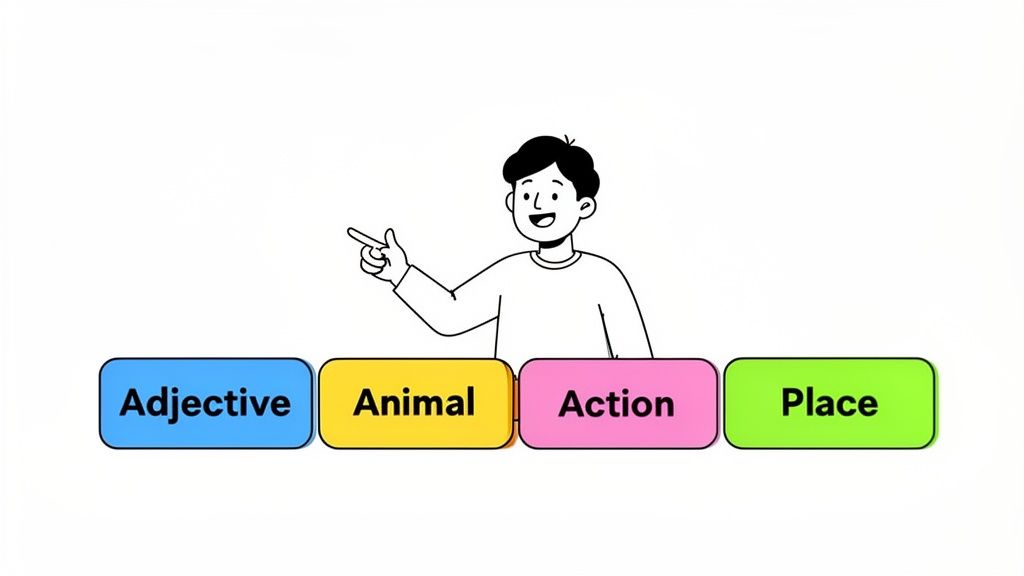
[ቅጽል][እንስሳ][ድርጊት][ቦታ]
እንደዚህ ያለ መዋቅር በመጠቀም፣ በቀላሉ የሚታወሱ እና ሙሉ በሙሉ የዘፈቀደ የሆኑ ሀረጎችን ማመንጨት ይችላሉ። "የተኛ ቀጭኔ ፓሪስን ይጫወታል" ወይም "የተጨነቀ ባጀር ማርስን ይነዳል" የሚል ሊያገኙ ይችላሉ። እነዚህ የሚፈጥሯቸው እንግዳ የአእምሮ ምስሎች ከምልክቶች ስብስብ ይልቅ በአእምሮዎ ውስጥ በተሻለ ሁኔታ እንዲጣበቁ ያደርጋቸዋል።
የይለፍ ቃል እውነተኛ ጥንካሬ በኢንትሮፒው ላይ ነው—የማይገመትነቱ መለኪያ። አራት ተዛማጅነት የሌላቸው ቃላት ሰንሰለት ጥቂት ቁጥሮች ከተጨመሩበት አንድ ውስብስብ መዝገበ ቃል ይልቅ እጅግ በጣም ብዙ ኢንትሮፒ ይፈጥራል።
የይለፍ ቃል የተለመዱ ስህተቶች ለማስወገድ
ምንም እንኳን ጥሩ ዘዴ ቢኖርም፣ የይለፍ ቃልዎን የሚያዳክሙ ወጥመዶች ውስጥ መውደቅ በሚያስደንቅ ሁኔታ ቀላል ነው። የራስዎን ሲገነቡ፣ ከእነዚህ የተለመዱ ስህተቶች መራቅዎን ያረጋግጡ።
- ሊገመቱ የሚችሉ ቅደም ተከተሎች፡ እንደ "ውሻዬን ስፖት እወዳለሁ" ወይም "GoPackGoChamps2024" ያሉ ከግል መረጃ ወይም ከተለመዱ አገላለጾች የተገነቡ ሀረጎችን ያስወግዱ። አጥቂው መጀመሪያ የሚሞክራቸው እነሱ ናቸው።
- የፖፕ ባህል ማጣቀሻዎች፡ ግጥሞች፣ የፊልም ጥቅሶች እና የመጽሐፍ ርዕሶች በኢንተርኔት ላይ—እና በእያንዳንዱ ጠላፊ መዝገበ ቃላት ውስጥ ይገኛሉ። እንደ "LukeIAmYourFather" ያለ ሀረግ እንደ "password" መጥፎ ነው።
- አጎራባች የቁልፍ ሰሌዳ ቅጦች፡ "qwerty" ደካማ የይለፍ ቃል መሆኑን ሁላችንም እናውቃለን። ተመሳሳይ አመክንዮ እንደ "TheQuickBrownFox" ላሉ ሀረጎች ይሠራል። በጣም የታወቀ ነው።
ዓላማው ለእርስዎ ልዩ የሆነ ነገር መፍጠር ነው ያለ በግል ሊታወቅ የሚችል። የጥምረቱ ትርጉም የለሽነት በጨመረ ቁጥር መከላከያዎ የተሻለ ይሆናል።
መሰረታዊ የይለፍ ቃል ለተለያዩ መለያዎች ማስተካከል
እዩ፣ ለእያንዳንዱ ጣቢያ ልዩ የይለፍ ቃል ያስፈልግዎታል። ግን ሁልጊዜ ከመጀመሪያው መጀመር የለብዎትም። ብልህ ዘዴ አንድ ጠንካራ "መሰረታዊ" የይለፍ ቃል መፍጠር እና ከዚያም ልዩ፣ ለጣቢያው የተወሰነ ማሻሻያ ማከል ነው። ይህ ለዋና ዋና መለያዎችዎ ጠንካራ የእጅ ስርዓት ይሰጥዎታል።
የእርስዎ መሰረታዊ የይለፍ ቃል AnxiousBadgerDrivesMars ነው እንበል። ለተለያዩ ጣቢያዎች እንደዚህ ሊያስተካክሉት ይችላሉ።
| የመለያ አይነት | ጣቢያ | የማሻሻያ አመክንዮ | የመጨረሻ የይለፍ ቃል ምሳሌ |
|---|---|---|---|
| ኢሜይል | ጂ-ሜይል | ምልክት + የጣቢያው የመጀመሪያ/የመጨረሻ ፊደላት ያክሉ። | AnxiousBadgerDrivesMars@gl |
| ባንኪንግ | ቸ-ኤስ | የተለየ ምልክት + የመጀመሪያዎቹ ሁለት/የመጨረሻዎቹ ሁለት ፊደላት ይጠቀሙ። | AnxiousBadgerDrivesMars#chse |
| ማህበራዊ | ትዊ-ተር | ሌላ ምልክት + የተለየ የፊደል ጥምረት ይጠቀሙ። | AnxiousBadgerDrivesMars%twr |
ይህ ቀላል ስርዓት ሊያስታውሱት የሚችሉትን ተደጋጋሚ ስርዓተ-ጥለት ይሰጥዎታል፣ ነገር ግን አሁንም ለእያንዳንዱ መለያ የተለየ ምስክር ወረቀት ያመነጫል። በብረት-ጠንካራ ደህንነት እና በሰው ትውስታ እውነታ መካከል ያለው ተግባራዊ ሚዛን ነው፣ ይህም ደህንነቱ የተጠበቀ የይለፍ ቃሎችን እንዴት መፍጠር እንደሚችሉ ለሚማሩ ሁሉ ጥሩ ስትራቴጂ ያደርገዋል።
የይለፍ ቃል አስተዳዳሪ ከባድ ስራውን እንዲሰራ ያድርጉ
ጠንካራ የይለፍ ቃሎችን ማምጣት ለዋና ዋና መለያዎችዎ—ኢሜልዎ፣ ባንክዎ—በጣም ጥሩ ነው፣ ግን እውነቱን እንነጋገር። አብዛኞቻችን በደርዘን የሚቆጠሩ፣ ካልሆነም በመቶዎች የሚቆጠሩ፣ የመስመር ላይ መግቢያዎች አሉን። ለእያንዳንዱ መድረክ፣ የዥረት አገልግሎት እና የመስመር ላይ መደብር ልዩ፣ ከፍተኛ-ኢንትሮፒ የይለፍ ቃል ለመፍጠር እና ለማስታወስ መሞከር ለውድቀት የምግብ አዘገጃጀት መመሪያ ነው። ተግባራዊ አይደለም።
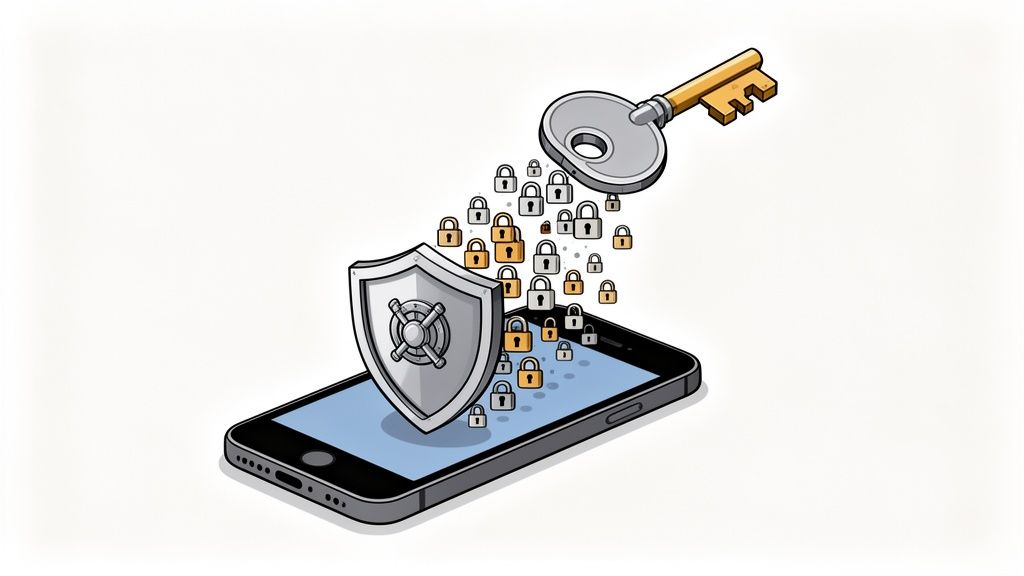
የይለፍ ቃል አስተዳዳሪ ምርጥ ጓደኛዎ የሚሆነው እዚህ ላይ ነው። በእርግጥም፣ ሊጠቀሙበት የሚችሉት በጣም አስፈላጊ የደህንነት መሳሪያ ነው። ዲጂታል ህይወትዎን በሚያስተዳድሩበት መንገድ ላይ እንደ መሰረታዊ ለውጥ አድርገው ያስቡት። ደካማ እና ተደጋጋሚ የይለፍ ቃሎችን ከመጠቀም ይልቅ፣ አንድ ነገር ብቻ ማስታወስ ያስፈልግዎታል፡ ዋና የይለፍ ቃልዎ።
አስተዳዳሪው ከዚያ በኋላ ሁሉንም ከባድ ስራ ይሰራል። እንደ ዲጂታል ጓዳ ሆኖ ያገለግላል፣ እጅግ በጣም ውስብስብ የይለፍ ቃሎችን ለሚጠቀሙባቸው እያንዳንዱ ድረ-ገጽ በደህና ያመነጫል፣ ያከማቻል፣ እና በራስ-ሰር ይሞላል። ወዲያውኑ፣ ይህ የይለፍ ቃል ደህንነት ሁለት ዋና ዋና ስህተቶችን ይፈታል፡ መደጋገም እና ድክመት።
የይለፍ ቃል አስተዳዳሪ የማይቀየርበት ምክንያት
ጥሩ የይለፍ ቃል አስተዳዳሪ የሰውን ስህተት ከሂሳብ ውስጥ ያስወግዳል። ሁሉንም ምርጥ ልምዶች በራስ-ሰር ያከናውናል እና Password123!ን እንደገና ለመጠቀም ያለውን ፈተና ያስወግዳል ምክንያቱም ቀላል ነው። የይለፍ ቃሎችን ብቻ እያከማቹ አይደለም፤ የደህንነት አቋምዎን በመሠረታዊነት እያሻሻሉ ነው።
ከመጀመሪያው የሚያገኙት ነገር ይኸውና፦
- ቀላል ልዩነት፦ አስተዳዳሪው ለአዲስ አካውንትዎ እንደ
k9#Z&p8!vR@qG$fTያለ የዘፈቀደ፣ ትርጉም የለሽ የይለፍ ቃል ወዲያውኑ መፍጠር ይችላል። እሱን ማየትም ሆነ ለማስታወስ መሞከር አያስፈልግዎትም። - ደህንነቱ የተጠበቀ ማከማቻ፦ የይለፍ ቃል ጓዳዎ በኃይለኛ ምስጠራ ተቆልፏል። ይህ ማለት የይለፍ ቃል አስተዳዳሪው ኩባንያ ራሱ ቢጠለፍም፣ የእርስዎ ውሂብ ያለ ልዩ ዋና የይለፍ ቃልዎ ለጠላፊዎች ከንቱ ይሆናል።
- አንድ-ጠቅታ መግቢያዎች፦ ዘመናዊ አስተዳዳሪዎች በቀጥታ ወደ አሳሽዎ ይገባሉ፣ የመግቢያ ዝርዝሮችዎን ለእርስዎ ይሞላሉ። ይህ ትልቅ ጊዜ ቆጣቢ ነው፣ ነገር ግን ትልቅ የደህንነት ባህሪም ነው—የማስገር ድረ-ገጾች ላይ በራስ-ሰር መሙላት ስለማይሰራ ከእነሱ ይጠብቅዎታል።
ዋናው ሃሳብ በመቶዎች የሚቆጠሩ ልዩ፣ የዘፈቀደ የይለፍ ቃሎችን የማስታወስ የማይቻል ስራን ለዚያ ስራ በተለየ ሁኔታ ለተሰራ መሳሪያ ማስተላለፍ ነው። ይህ በእርግጥ አስፈላጊ የሆነውን አንድ የይለፍ ቃል—የመላው ጓዳዎ ቁልፍ—ለመጠበቅ ትኩረት እንዲያደርጉ ያስችልዎታል።
ሙሉ አስተዳዳሪ ለመጠቀም ዝግጁ ካልሆኑ፣ አንዳንድ ቀላል የአሳሽ መሳሪያዎች ክፍተቱን ሊያስተካክሉ ይችላሉ። ለምሳሌ፣ በShiftShift Extensions ስብስብ ውስጥ ያለው የይለፍ ቃል አመንጪ ጠንካራ የይለፍ ቃል በፍጥነት እና በቀላሉ ለመፍጠር ያስችልዎታል።
እንደነዚህ ያሉት መሳሪያዎች የተለየ መተግበሪያ ሳይፈልጉ ደህንነቱ የተጠበቀ የይለፍ ቃል ማመንጨት ወዲያውኑ እንዲያገኙ ያስችሉዎታል፣ ይህም አዲስ አካውንቶችን በሚፈጥሩበት ጊዜ ደህንነታቸውን ማረጋገጥ ቀላል ያደርገዋል።
ትክክለኛውን የይለፍ ቃል አስተዳዳሪ መምረጥ
ለመጠቀም ዝግጁ ሲሆኑ፣ ይህንን አገልግሎት ለመላው ዲጂታል ህይወትዎ ቁልፎችን እየሰጡት መሆኑን ያስታውሱ። ይህ ትልቅ ውሳኔ ነው፣ ስለዚህ በጥበብ መምረጥ ወሳኝ ነው።
ሊፈልጓቸው የሚገቡ የማይቀየሩ ባህሪያት እዚህ አሉ፦
- ዜሮ-እውቀት ምስጠራ፦ ይህ የወርቅ ደረጃ ነው። አገልግሎቱን የሚሰጠው ኩባንያ ውሂብዎን ለመድረስ ወይም ለመፍታት ምንም ችሎታ የለውም ማለት ነው። እርስዎ ብቻ፣ በዋና የይለፍ ቃልዎ፣ ጓዳውን መክፈት ይችላሉ።
- የሶስተኛ ወገን የደህንነት ኦዲቶች፦ ታዋቂ አገልግሎቶች ስርዓቶቻቸውን ለመፈተሽ እና ማንኛውንም ድክመቶች ለማግኘት ገለልተኛ የሳይበር ደህንነት ኩባንያዎችን ይቀጥራሉ። ስለእነዚህ ኦዲቶች ግልጽ የሆኑ ኩባንያዎችን ይፈልጉ።
- የመድረክ-አቋራጭ ማመሳሰል፦ የይለፍ ቃል አስተዳዳሪ ጠቃሚ የሚሆነው እርስዎ ባሉበት ሁሉ ካለ ብቻ ነው። በኮምፒተርዎ፣ ስልክዎ እና ታብሌትዎ ላይ ያለምንም እንከን መስራቱን ያረጋግጡ።
- ጠንካራ 2FA አማራጮች፦ አስተዳዳሪው ራሱ በጥብቅ መቆለፍ አለበት። ባለ ሁለት ደረጃ ማረጋገጫን መደገፍ አለበት፣ በተለይም ለአረጋጋጭ መተግበሪያዎች ወይም ለአካላዊ የደህንነት ቁልፎች አማራጮች።
መፈለግ ሲጀምሩ፣ ዋና ተወዳዳሪዎች እንዴት እንደሚወዳደሩ ማየት ጠቃሚ ነው። ለምሳሌ፣ የደህንነት ሞዴሎቻቸውን፣ ባህሪያቶቻቸውን እና አጠቃላይ የተጠቃሚ ልምዳቸውን ዝርዝር ለማየት እንደ 1Password እና LastPass ያሉ መሪ የይለፍ ቃል አስተዳዳሪዎችን ማወዳደር ይችላሉ።
እስካሁን የፈጠሩት በጣም አስፈላጊ የይለፍ ቃል
አስተዳዳሪዎን ከመረጡ በኋላ፣ ዋና የይለፍ ቃልዎን ለመፍጠር ጊዜው አሁን ነው። ይህ ነው—በፍጹም፣ በእርግጠኝነት ማስታወስ ያለብዎት አንድ የይለፍ ቃል ነው። ምሽግ መሆን አለበት።
ይህ ቀደም ብለን የተነጋገርንበትን የይለፍ ቃል ሀረግ ዘዴ ለመጠቀም ትክክለኛው ጊዜ ነው። ጥሩ ዋና የይለፍ ቃል የሚከተሉትን መሆን አለበት፦
- ረጅም፦ ቢያንስ ስድስት እስከ ስምንት የዘፈቀደ፣ ያልተገናኙ ቃላትን ይምረጡ።
- ለእርስዎ የማይረሳ፦ በጭንቅላትዎ ውስጥ የሚጣበቅ ነገር ግን ለሌላ ሰው ምንም ትርጉም የሌለው እንግዳ ወይም አስቂኝ ሀረግ ይፍጠሩ።
- ሙሉ በሙሉ ልዩ፦ ይህ የይለፍ ቃል በሌላ ቦታ ጥቅም ላይ መዋል የለበትም። በጭራሽ።
ጠንካራ ዋና የይለፍ ቃል እንደ OrangeSpaceshipQuietlyPaintsAzureMountains ያለ ነገር ሊሆን ይችላል። ኮምፒዩተር ለመስበር እጅግ በጣም ከባድ ነው ነገር ግን እርስዎ ለማስታወስ ቀላል ነው። እያስታወሱት ሳሉ፣ ይፃፉት እና በአካል ደህንነቱ በተጠበቀ ቦታ ያከማቹት፣ ለምሳሌ በባንክ ደህንነት ሳጥን ውስጥ ወይም በቤት ውስጥ የእሳት መከላከያ ሳጥን ውስጥ። ይህ አንድ የይለፍ ቃል የመላው ዲጂታል ደህንነት ስትራቴጂዎ መሰረት ነው።
የእርስዎ ዲጂታል መቆለፊያ፦ በ2FA የደህንነት ንብርብር መጨመር
እውነቱን እንነጋገር፦ በጣም ብልህ የሆነ የይለፍ ቃል ሀረግ ወይም በዘፈቀደ የተፈጠረ የይለፍ ቃል እንኳን ሊሰረቅ ይችላል። ብልህ የማስገር ኢሜይል፣ በሚጠቀሙበት ኩባንያ ላይ ትልቅ የውሂብ ጥሰት፣ ወይም በኮምፒተርዎ ላይ ያለ ስፓይዌር የመግቢያ ምስክር ወረቀቶችዎን ሊያጋልጥ ይችላል። ለዚህም ነው ጠንካራ የይለፍ ቃል የውጊያው ግማሽ ብቻ የሆነው።
ሌላኛው ግማሽ ደግሞ ዲጂታል መቆለፊያ መጨመር ነው፦ ባለ ሁለት ደረጃ ማረጋገጫ (2FA)።
እንደዚህ አድርገው ያስቡት። የይለፍ ቃልዎ ለፊት በርዎ ቁልፍ ነው። ሌባ ቅጂ ካገኘ፣ በቀላሉ ገብቶ መሄድ ይችላል። 2FA በውስጥ በኩል ያለው ተጨማሪ መቆለፊያ ነው—የተለየ አይነት ቁልፍ የሚያስፈልገው ሙሉ በሙሉ የተለየ መቆለፊያ። የሚያውቁትን ነገር (የይለፍ ቃልዎን) ከያዙት ነገር (እንደ ስልክዎ ወይም አካላዊ የደህንነት ቁልፍ) ጋር በማጣመር ይሰራል።
ስለዚህ፣ ጠላፊ የይለፍ ቃልዎን ቢያገኝም፣ ያንን ሁለተኛ የእንቆቅልሽ ክፍል ስለሌለው ወዲያውኑ ይቆማል። አካውንቶችዎን በእውነት ለመቆለፍ፣ ከጥሩ የይለፍ ቃል በላይ መሄድ ያስፈልግዎታል። ጥሩ መነሻ ነጥብ ባለ ሁለት ደረጃ ማረጋገጫ (2FA) ምን እንደሆነ መረዳት እና ዲጂታል ህይወትዎን ለመጠበቅ ከሚያደርጉት በጣም ውጤታማ ነገሮች አንዱ የሆነው ለምን እንደሆነ ማወቅ ነው።
የ2FA የተለያዩ አይነቶች
ሁሉም የ2FA ዘዴዎች ተመሳሳይ የጥበቃ ደረጃ አይሰጡም። ለአንዳንድ አካውንቶች “በቂ ጥሩ” ከሚባለው እስከ በጣም ወሳኝ ለሆኑት ደግሞ “ምሽግ-ደረጃ” ደህንነት ድረስ ይለያያሉ። ልዩነቱን ማወቅ ለስራው ትክክለኛውን መሳሪያ ለመምረጥ ይረዳዎታል።
ከትንሹ እስከ ከፍተኛው ደህንነት ያለው ፈጣን ማብራሪያ እነሆ፦
- የኤስኤምኤስ የጽሑፍ መልዕክቶች፦ ይህ ምናልባት ብዙ ጊዜ ያዩት ነው። ለመግባት ሲሞክሩ አገልግሎቱ አንድ ጊዜ የሚሰራ ኮድ ወደ ስልክዎ ይልካል። ምንም እንኳን ምንም ከሌለ በጣም የተሻለ ቢሆንም፣ ይህ ዘዴ “ሲም ስዋፒንግ” ለሚባል ማጭበርበር የተጋለጠ ነው፣ በዚህም ወንጀለኛ የስልክ ኩባንያዎን ቁጥርዎን ወደ መሳሪያቸው እንዲያስተላልፍ ያታልላል።
- አውቴንቲኬተር መተግበሪያዎች፦ እንደ Google Authenticator ወይም Authy ያሉ መተግበሪያዎች በየ30 ሰከንዱ አዲስ፣ ጊዜያዊ፣ ባለ ስድስት አሃዝ ኮድ ያመነጫሉ። ይህ ከኤስኤምኤስ እጅግ በጣም ትልቅ የደህንነት መሻሻል ነው ምክንያቱም ኮዱ በመሳሪያዎ ላይ ስለሚፈጠር እና በተጋላጭ የሞባይል አውታረ መረብ ላይ በጭራሽ አይጓዝም።
- አካላዊ የደህንነት ቁልፎች፦ ይህ የወርቅ ደረጃ ነው። እንደ YubiKey ያለ አካላዊ ቁልፍ ኮምፒተርዎ ላይ የሚሰኩት ወይም ለመግባት ስልክዎ ላይ የሚነኩት ትንሽ የዩኤስቢ መሳሪያ ነው። ከፊሺንግ እና ከርቀት ጥቃቶች ሙሉ በሙሉ ማለት ይቻላል የተጠበቀ ነው፣ ለአማካይ ሰው በአሁኑ ጊዜ የሚገኘውን ጠንካራ ደህንነት ይሰጣል።
ለእርስዎ በጣም አስፈላጊ ለሆኑ ነገሮች—ኢሜል፣ ባንኪንግ፣ የይለፍ ቃል አስተዳዳሪ—አውቴንቲኬተር መተግበሪያን ወይም፣ ከዚህም የተሻለ፣ አካላዊ ቁልፍን እንዲጠቀሙ አጥብቄ እመክራለሁ።
2FA እንዴት ማዋቀር እንደሚቻል
የ2FA ማብሪያ / ማጥፊያውን ማብራት ብዙውን ጊዜ በጣም ቀላል ነው እና በአብዛኛዎቹ ዋና ዋና ድር ጣቢያዎች እና መተግበሪያዎች “ደህንነት” ወይም “መለያ” ቅንብሮች ውስጥ ይገኛል።
የመጀመሪያው እርምጃ ሁልጊዜ ማለት ይቻላል አካውንቱን ለማገናኘት በAuthenticator መተግበሪያዎ የQR ኮድ መቃኘት ነው። ያ ፈጣን ቅኝት ለወደፊት ኮዶችዎ ሁሉ ደህንነቱ የተጠበቀ ግንኙነት የሚፈጥረው ነው። ይህ እንዴት እንደሚሰራ ለማወቅ ከፈለጉ፣ የእኛ መመሪያ የQR ኮድ እንዴት እንደሚፈጠር እና በውስጡ ምን እንዳለ ያብራራል።
በዋና ኢሜል አካውንትዎ ላይ ለማንቃት የሚወስዷቸውን የተለመዱ እርምጃዎች እንመልከት፦
- ወደ ደህንነት ቅንብሮች ይሂዱ፦ ወደ አካውንትዎ ይግቡ እና የደህንነት ወይም የመግቢያ ቅንብሮች ገጽን ይፈልጉ።
- የ2FA አማራጭን ይፈልጉ፦ እንደ “ባለ ሁለት ደረጃ ማረጋገጫ”፣ “2-ደረጃ ማረጋገጫ” ወይም “የመግቢያ ማረጋገጫዎች” በሚሉ የተለያዩ ስሞች ያዩታል።
- ዘዴዎን ይምረጡ፦ ጣቢያው ኮዶችዎን እንዴት ማግኘት እንደሚፈልጉ ይጠይቅዎታል። “Authenticator App” አማራጭ ካዩ፣ ሁልጊዜ ከኤስኤምኤስ ይልቅ ይምረጡት።
- መተግበሪያዎን ያገናኙ፦ የQR ኮድ በማያ ገጽዎ ላይ ብቅ ይላል። በስልክዎ ላይ የAuthenticator መተግበሪያዎን ይክፈቱ፣ “+” ቁልፍን ይንኩ እና ኮዱን ይቃኙ። ይህ አካውንቱን ወደ መተግበሪያዎ ዝርዝር ያክላል።
- ያረጋግጡ እና ያስቀምጡ፦ በትክክል እንዳገናኙት ለማረጋገጥ ከመተግበሪያዎ ባለ ስድስት አሃዝ ኮድ ያስገቡ። ቀጣዩ ማያ ገጽ ወሳኝ ነው—አገልግሎቱ የምትኬ ኮዶች ዝርዝር ያሳየዎታል።
ጠቃሚ ምክር፦ የምትኬ ኮዶችን ዝም ብለው አይለፉ። ወዲያውኑ ያስቀምጧቸው። ያትሟቸው ወይም ይፃፉ እና ደህንነቱ በተጠበቀ ቦታ ያስቀምጧቸው፣ ለምሳሌ በእሳት መከላከያ ሳጥን ውስጥ ወይም በተቆለፈ መሳቢያ ውስጥ። ስልክዎን ከጠፉ፣ እነዚህ ኮዶች ወደ ውስጥ ለመግባት ብቸኛው መንገድዎ ናቸው።
2FA ን ማግበር አንድ ጊዜ የሚደረግ ማዋቀር ሲሆን በየቀኑ የሚከፍል ነው። በእርግጥ፣ ለመግባት ተጨማሪ አምስት ሰከንዶች ሊወስድ ይችላል፣ ነገር ግን ወንጀለኞችን የሚያስወግድ ግዙፍ ግድግዳ ይገነባል፣ የይለፍ ቃልዎ ቢኖራቸውም እንኳ። ለደህንነት ትልቅ ጥቅም ሲባል ትንሽ ግጭት ነው።
የግል ደህንነት ኦዲት እንዴት ማካሄድ እንደሚቻል
ጠንካራ የይለፍ ቃሎችን መፍጠር እና ለአዳዲስ አካውንቶች 2FA ን ማንቃት በጣም ጥሩ ልማድ ነው። ግን አስቀድመው ትተውት የሄዱት ዲጂታል ዱካስ? ባለፉት ዓመታት የፈጠሯቸውን በደርዘን የሚቆጠሩ—ምናልባትም በመቶዎች የሚቆጠሩ—አካውንቶችን ለመፍታት ጊዜው አሁን ነው። እንደ ስራ ሳይሆን እንደ ዲጂታል ጥልቅ ጽዳት አድርገው ያስቡት።
ለመጀመር ምርጡ ቦታ እውነታውን መጋፈጥ ነው። መረጃዎ የት እንደተጋለጠ ማወቅ ያስፈልግዎታል።
ሁልጊዜ የምመክረው መሳሪያ Have I Been Pwned ነው። የኢሜል አድራሻዎችዎን ብቻ ያስገቡ፣ እና የተሳተፉባቸውን ሁሉንም የታወቁ የውሂብ ጥሰቶች ያሳየዎታል። ትንሽ የማንቂያ ደውል ሊሆን ይችላል፣ ግን ወዲያውኑ ትኩረት የሚያስፈልጋቸውን አካውንቶች የተወሰነ፣ ቅድሚያ የሚሰጠው ዝርዝር ይሰጥዎታል።
አካውንቶችዎን ቅድሚያ ይስጡ እና ያሸንፉ
ያንን የጥሰት ሪፖርት ማየት ከባድ ሊሆን ይችላል። ቁልፉ ሁሉንም በአንድ ጊዜ ለመጠገን አለመሞከር ነው—ይህ ለድካም የሚዳርግ ነው። ብልህ አቀራረብ አካውንቶችዎን በአደጋ መመደብ እና በየደረጃው መፍታት ነው።
እኔ የምጠቀምበት ቀላል የደረጃ ስርዓት እነሆ፦
- ደረጃ 1 (ከፍተኛ ቅድሚያ)፦ እነዚህ የዘውድ ጌጣጌጦች ናቸው። ከእነዚህ ውስጥ አንዱ ከተበላሸ፣ ወደ ማንነት ስርቆት ወይም ከባድ የገንዘብ ኪሳራ ሊያመራ ይችላል። ስለ ዋና ኢሜልዎ፣ የይለፍ ቃል አስተዳዳሪዎ፣ የባንክ መተግበሪያዎችዎ እና የመንግስት አገልግሎት አካውንቶችዎ እያወራን ነው። እዚህ ይጀምሩ፣ ምንም ልዩ ሁኔታዎች የሉም።
- ደረጃ 2 (መካከለኛ ቅድሚያ)፦ ይህ ቡድን ብዙ የግል መረጃዎችን ወይም የክፍያ መረጃዎችን የያዙ አካውንቶችን ያካትታል። እንደ ዋና የማህበራዊ ሚዲያ መገለጫዎች (ፌስቡክ፣ ኢንስታግራም)፣ እንደ Amazon ያሉ የእርስዎ ተወዳጅ የግብይት ጣቢያዎች እና ቁልፍ ከስራ ጋር የተያያዙ መድረኮችን ያስቡ።
- ደረጃ 3 (ዝቅተኛ ቅድሚያ)፦ እነዚህ የተለያዩ አካውንቶች ናቸው—አንድ ጊዜ የተመዘገቡባቸው መድረኮች፣ የቆዩ ጋዜጦች ወይም የረሷቸው የአንድ ጊዜ አገልግሎቶች። እዚህ ያለው ጥሰት ያን ያህል ወሳኝ አይደለም፣ ግን አሁንም ማጽዳት አለባቸው።
ከደረጃ 1 ወደ ታች ይሂዱ። በእውነቱ፣ አንድ ከፍተኛ ቅድሚያ የሚሰጠውን አካውንት ብቻ ማስጠበቅ ለአጠቃላይ ደህንነትዎ ትልቅ ድል ነው።
የደህንነት ኦዲት ማረጋገጫ ዝርዝርዎ
ለእያንዳንዱ የሚገመግሙት አካውንት፣ ይህንን ቀጥተኛ ሂደት ይከተሉ። ግልጽ ያልሆነ ግብን ወደ ግልጽ የድርጊት ስብስብ ይለውጣል፣ እና እያንዳንዱን ሲያጠናቅቁ ፈጣን ይሆናሉ።
- ጥሰቶችን ያረጋግጡ፦ የአካውንቱ ምስክርነቶች በ Have I Been Pwned ላይ መጋለጣቸውን ያረጋግጡ። ከሆነ፣ ወደ ዝርዝርዎ አናት ያንቀሳቅሱት።
- አዲስ የይለፍ ቃል ያመነጩ፦ ረጅም፣ የዘፈቀደ እና ሙሉ በሙሉ ልዩ የሆነ የይለፍ ቃል ለመፍጠር የይለፍ ቃል አስተዳዳሪዎን ይጠቀሙ። ይህ ዛሬ ያሉትን ስጋቶች መቋቋም የሚችሉ ደህንነቱ የተጠበቀ የይለፍ ቃሎችን እንዴት መፍጠር እንደሚቻል የመማር ዋና አካል ነው።
በአሳሽዎ ውስጥ የተከማቸውን ውሂብ አይርሱ። የቆዩ ኩኪዎች አንዳንድ ጊዜ የክፍለ ጊዜ መረጃን ሊይዙ ይችላሉ፣ ስለዚህ ከዋና የደህንነት ማሻሻያ በኋላ እነሱን ማጽዳት ጥሩ ሀሳብ ነው። የበለጠ ዝርዝር መረጃ ከፈለጉ፣ የኩኪ አርታዒ Chrome ቅጥያ እንዴት የበለጠ ቁጥጥር እንደሚሰጥዎ መማር ይችላሉ።
ይህ ቀላል ፍሰት ገበታ 2FA ምን ያህል ኃይለኛ እንደሆነ ያሳያል።
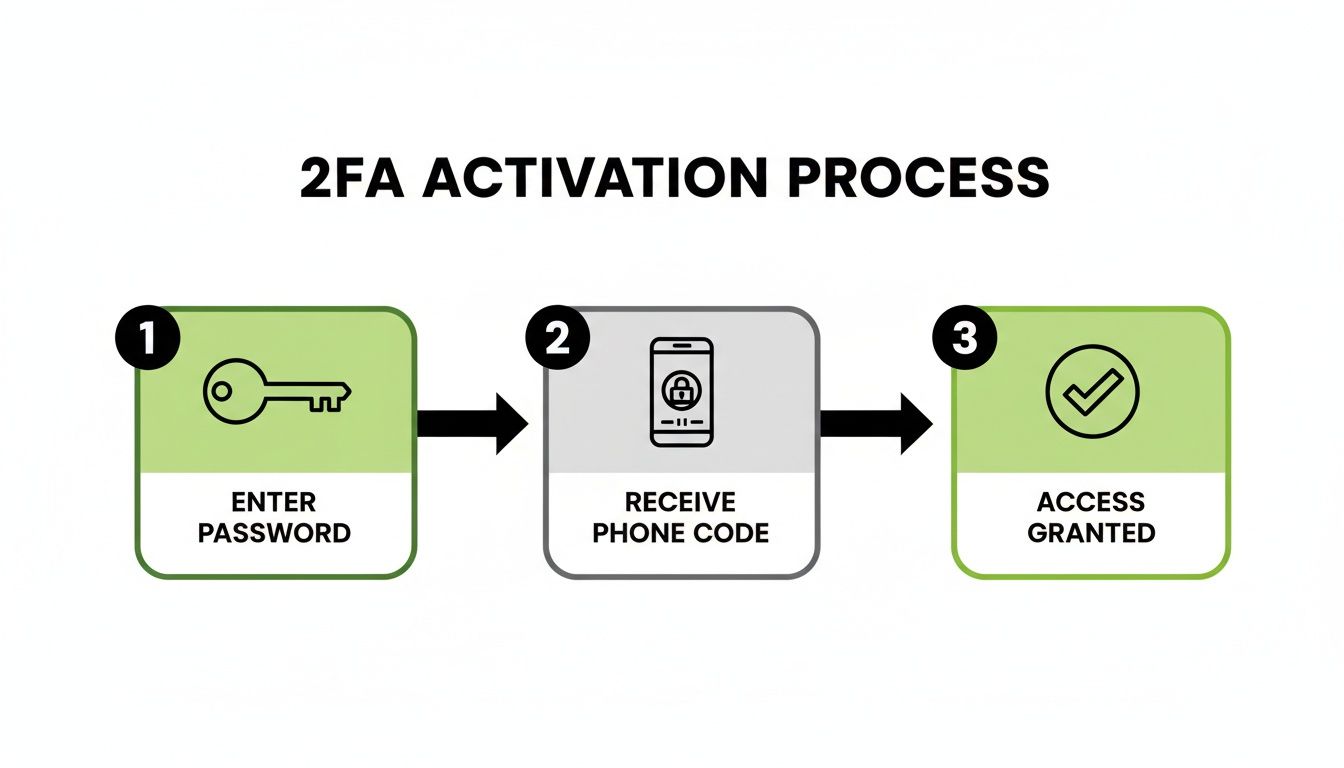
ይህ የሚያሳየው ሌባ የይለፍ ቃልዎን (ቁልፉን) ቢያገኝም እንኳ ከስልክዎ የሚገኘው ሁለተኛው ነገር ከሌለ ሙሉ በሙሉ እንደሚቆም ነው።
ደህንነትን ቀጣይነት ያለው ልማድ ያድርጉት
የግል ደህንነት ኦዲት አንድ ጊዜ የሚደረግ ፕሮጀክት አይደለም፤ ልምምድ ነው። በየስድስት እስከ አስራ ሁለት ወሩ በጣም ወሳኝ የሆኑ አካውንቶቼን በፍጥነት ለመገምገም የቀን መቁጠሪያ አስታዋሽ አዘጋጃለሁ። አዳዲስ ጥሰቶችን ለመፈተሽ እና ምናልባትም በደረጃ 1 አካውንቶቼ ላይ የይለፍ ቃሎችን ለመቀየር ጥሩ ጊዜ ነው።
የእርስዎን ዲጂታል ደህንነት እንደ ቀጣይነት ያለው ሂደት ሲመለከቱ፣ በጣም ጠንካራ መከላከያ ይገነባሉ። የሚያዘምኑት እያንዳንዱ የይለፍ ቃል እና የሚያበሩት እያንዳንዱ 2FA መቀየሪያ ለአጥቂዎች በጣም አስቸጋሪ ኢላማ ያደርግዎታል።
ሁሉንም ነገር በተግባር ላይ ማዋል፦ የእርስዎ አስተማማኝ የይለፍ ቃል መመሪያ
እሺ፣ ከንድፈ ሃሳብ ወደ ተግባር እንሂድ። የይለፍ ቃል ደህንነትዎን በትክክል ማስተካከል ብዙ ውስብስብ ህጎችን ከመሸምደድ ጋር የተያያዘ አይደለም። ጥቂት ብልህ ልማዶችን ከመገንባት እና ትክክለኛዎቹ መሳሪያዎች ከባድ ስራውን እንዲሰሩ ከመፍቀድ ጋር የተያያዘ ነው።
በዚህ መንገድ ያስቡት፦ አዲሱ መመሪያዎ በእርግጥ ወደ አራት ቁልፍ ሀሳቦች ይወርዳል።
በመጀመሪያ፣ ጥንካሬ የሚመጣው ከርዝመት እና ከዘፈቀደነት ነው። ለአንድ ወሳኝ አካውንት ረጅም፣ የማይረሳ የይለፍ ቃል እየፈጠሩም ይሁኑ ወይም ጄኔሬተር ሙሉ በሙሉ ትርጉም የለሽ ነገር እንዲፈጥር እየፈቀዱ፣ ኢንትሮፒ እርስዎን ደህንነት የሚጠብቅ ነው። አጭር፣ ሊገመት የሚችል የይለፍ ቃል ለአውቶሜትድ ጥቃቶች የፊት በርዎን ክፍት እንደመተው ነው።
በሁለተኛ ደረጃ፣ እያንዳንዱ አካውንት የራሱን ልዩ የይለፍ ቃል ያገኛል። ይህንን በበቂ ሁኔታ አፅንዖት መስጠት አልችልም። ምስክርነቶችን እንደገና መጠቀም አንድ ትንሽ ጥሰትን ወደ ሙሉ አደጋ ለመቀየር ፈጣኑ መንገድ ነው፣ ይህም ሌቦች ለመላው ዲጂታል ግዛትዎ ቁልፎችን ይሰጣቸዋል። ይህ በፍጹም የማይጥሱት አንድ ህግ ነው።
አዲሱን ስትራቴጂዎን በእውነተኛው ዓለም ላይ መተግበር
ታዲያ፣ ይህ በየቀኑ ምን ይመስላል? ደህና፣ ለባንክዎ ግምጃ ቤት የሚጠቀሙበትን ተመሳሳይ የሞተ ቦልት ለአትክልት ስፍራዎ መጋዘን አይጠቀሙም። ተመሳሳይ አመክንዮ ለኦንላይን አካውንቶችዎም ይሠራል።
ከፍተኛ አደጋ ያለባቸው አካውንቶች (ባንክ፣ ኢሜይል)፦ እነዚህ የዘውድ ጌጣጌጦች ናቸው። እዚህ የፎርት ኖክስ ደረጃ ደህንነት ያስፈልግዎታል። እንደ ShiftShift Extensions' Password Generator ካሉ መሳሪያዎች ረጅም፣ በዘፈቀደ የተፈጠረ የይለፍ ቃል ይጠቀሙ። ከዚያም፣ ሊያገኙት በሚችሉት በጣም ጠንካራ ባለ ሁለት ደረጃ ማረጋገጫ—በተለይም የማረጋገጫ መተግበሪያ ወይም አካላዊ የደህንነት ቁልፍ—ይቆልፉት።
ዝቅተኛ አደጋ ያለባቸው አካውንቶች (መድረኮች፣ ጋዜጣዎች)፦ እነዚህ አሁንም የምስክር ወረቀት መሙላት ጥቃቶችን ለማስቆም ልዩ የይለፍ ቃሎች ያስፈልጋቸዋል፣ ነገር ግን የበለጠ ውጤታማ መሆን ይችላሉ። የይለፍ ቃል አስተዳዳሪዎ በአንድ ጠቅታ ጠንካራ የይለፍ ቃል እንዲፈጥር እና እንዲያስቀምጥ ይፍቀዱለት። ግቡ እርስዎን የማያዘገይ ደህንነት ነው።
እዚህ ያለው እውነተኛ ግብ ስለ የይለፍ ቃሎች ያለዎትን አስተሳሰብ መቀየር ነው። ደህንነት ስራ አይደለም፤ ጠንካራ ስርዓት ካለዎት በኋላ በራስ-ሰር የሚሰራ፣ የሚያበረታታ ልማድ ይሆናል። አንድ በአንድ አስተማማኝ መግቢያ በመጠቀም ዲጂታል ምሽግ እየገነቡ ነው።
ይህ ወደ መመሪያዎ የመጨረሻዎቹ ሁለት ምሰሶዎች ያመጣናል፦ ሁሉንም ነገር ለማከማቸት ሁልጊዜ የይለፍ ቃል አስተዳዳሪ ይጠቀሙ፣ እና ሁልጊዜ 2FAን ያብሩ እንደ የመጨረሻ የመጠባበቂያ እቅድዎ። አስተዳዳሪው በደርዘን የሚቆጠሩ ውስብስብ የይለፍ ቃሎችን የማስታወስ የማይቻል ስራን ይቆጣጠራል፣ እና 2FA የይለፍ ቃል ቢሰረቅም እንኳ ለሌባ ሙሉ በሙሉ ከንቱ መሆኑን ያረጋግጣል።
እነዚህን አራት ነገሮች አንድ ላይ ሲያመጡ፣ እራስዎን በመስመር ላይ ለመጠበቅ ቀላል እና ተደጋጋሚ ሂደት ይኖርዎታል። ይህ ሌላ የፍተሻ ዝርዝር ብቻ አይደለም፤ ከፍተኛ ደረጃ ደህንነትን ቀላል የሚያደርግ መሰረታዊ ለውጥ ነው።
በዚህ መሰረት ላይ መገንባቱን ለመቀጠል፣ ስለ የይለፍ ቃል ደህንነት ምርጥ ልምዶች ያለንን ጥልቅ መመሪያ ይመልከቱ። በዚህ መመሪያ፣ የዲጂታል ዓለምዎን ጥግ ለመጠበቅ የሚያስፈልግዎትን በራስ መተማመን እና መሳሪያዎች ይኖርዎታል።
ስለ የይለፍ ቃል ደህንነት ጥያቄዎች አሉዎት? መልሶች አሉን።
ምርጥ እቅድ ቢኖርም እንኳ ጥያቄዎች ሊኖሩዎት ይችላሉ። ከምንሰማቸው በጣም የተለመዱ ጥያቄዎች መካከል ጥቂቶቹን እንመልከት፣ ጥቂት አፈ ታሪኮችን እናፍርስ፣ እና ነገሮችን ለማብራራት አንዳንድ ተግባራዊ ምክሮችን እንስጥዎ።
"የይለፍ ቃሎቼን ሁልጊዜ መቀየር አለብኝ?"
ይህ ትልቅ ጥያቄ ነው። ለዓመታት፣ መደበኛው ምክር የይለፍ ቃሎችዎን በየ90 ቀኑ መቀየር ነበር። ያ አስተሳሰብ ሙሉ በሙሉ ተቀይሯል።
ለእያንዳንዱ አካውንት ጠንካራ፣ ልዩ የይለፍ ቃሎችን እየተጠቀሙ ከሆነ—እና ደህንነቱ በተጠበቀ ሁኔታ በይለፍ ቃል አስተዳዳሪ ውስጥ ካስቀመጧቸው—በጊዜ ሰሌዳ ላይ እንዲቀይሩ ማስገደድ ብዙ ደህንነትን አይጨምርም። በእርግጥ፣ ብዙውን ጊዜ ተቃራኒውን ያደርጋል። ሰዎች ትናንሽ፣ ሊገመቱ የሚችሉ ማስተካከያዎችን ያደርጋሉ፣ ለምሳሌ Winter2023!ን ወደ Spring2024! መቀየር። ጠላፊዎች ስለእነዚህ ቅጦች ሁሉንም ያውቃሉ።
ዘመናዊው፣ በባለሙያዎች የተደገፈው ምክር ይህ ነው፦ ጠንካራ፣ ልዩ የይለፍ ቃል ያዘጋጁ እና ይርሱት... እስኪጣስ ድረስ። ደህንነትን ለመጠበቅ በጣም ውጤታማ እና ያነሰ የሚያበሳጭ መንገድ ነው።
"አሳሼ የይለፍ ቃሎቼን እንዲያስቀምጥ መፍቀድ ችግር የለውም?"
ግልጽ እንሁን፡ የብሮውዘርዎ አብሮ የተሰራ የይለፍ ቃል ቆጣቢን መጠቀም password123ን በየቦታው ከመጠቀም እጅግ በጣም የተሻለ ነው። ነገር ግን ከምርጥ አማራጭ የራቀ ነው።
እንደ ምቾት ባህሪ እንጂ እንደ እውነተኛ የደህንነት መሳሪያ አድርገው ያስቡት። የተለዩ የይለፍ ቃል አስተዳዳሪዎች በአንድ ዓላማ የተገነቡ ናቸው፡ ምስክርነቶችዎን በኃይለኛ፣ ዜሮ-እውቀት ምስጠራ ለመጠበቅ። በሌላ በኩል፣ በብሮውዘር ላይ የተመሰረቱ አስተዳዳሪዎች ብዙውን ጊዜ በቀጥታ ከብሮውዘርዎ መገለጫ ጋር የተገናኙ ናቸው፣ ይህም ያንን መረጃ ለመስረቅ ለተዘጋጁ ማልዌሮች ማራኪ ኢላማ ያደርጋቸዋል። ለእውነተኛ የአእምሮ ሰላም፣ ራሱን የቻለ የይለፍ ቃል አስተዳዳሪ ምርጡ መንገድ ነው።
"የምጠቀምበት ድረ-ገጽ ከተጠለፈ ምን አደርጋለሁ?"
በመጀመሪያ፣ አትደናገጡ። የውሂብ ጥሰቶች በሚያሳዝን ሁኔታ የተለመዱ ናቸው፣ ነገር ግን በዚህ መመሪያ ውስጥ ያለውን ምክር ከተከተሉ፣ ማጽዳቱ በጣም ቀላል ነው።
የእርስዎ የድርጊት መርሃ ግብር ይኸውና፦
- የይለፍ ቃሉን ወዲያውኑ ይቀይሩ። በቀጥታ ወደ ተጎዳው ድረ-ገጽ ይሂዱ እና አዲስ፣ ጠንካራ፣ ልዩ የይለፍ ቃል ይፍጠሩ።
- መለያዎችዎን ይፈትሹ። ያንን የይለፍ ቃል በሌላ ቦታ (በስህተት!) እንደገና ከተጠቀሙበት፣ አሁን በሌሎች ድረ-ገጾች ላይም ለመቀየር ጊዜው አሁን ነው። የይለፍ ቃል አስተዳዳሪ እነዚህን ተደጋጋሚ የይለፍ ቃሎች ማግኘት ቀላል ያደርገዋል።
- 2FAን ያብሩ። በዚያ መለያ ላይ ባለ ሁለት ደረጃ ማረጋገጫን (two-factor authentication) አስቀድመው ካልተጠቀሙበት፣ ወዲያውኑ ያንቁት። የተሰረቁ ምስክርነቶችዎን አንድ ሰው እንዳይጠቀምባቸው ምርጥ መከላከያዎ ነው።
ጠንካራ ስርዓት ሲኖርዎት፣ የጥሰት ማሳወቂያ ከአምስት-ደወል እሳት ወደ ትንሽ፣ ሊተዳደር የሚችል ተግባር ይቀየራል። በቮልትዎ ውስጥ አንድ ግቤት ብቻ ያዘምኑ እና ጨርሰዋል።
ይህንን ሁሉ ጥረት የለሽ ለማድረግ ዝግጁ ነዎት? የ ShiftShift Extensions ስብስብ አብሮ የተሰራ የይለፍ ቃል ጄኔሬተር እና ሌሎች አስፈላጊ የደህንነት መሳሪያዎች አሉት፣ ሁሉም በአንድ የትዕዛዝ ፓሌት ውስጥ። ከChrome Web Store ያውርዱት እና የዲጂታል ህይወትዎን እንደገና ይቆጣጠሩ።