እንደ ምርጥ መመሪያ በማክ ላይ ምስል ይዘው ለማንኛውም የሥራ ሂደት
እባኮትን በእኛ የተለያዩ መመሪያዎች ላይ በማክ ላይ የምስል እንደተወሰነ ይወዳድሩ። የተለያዩ የተመለከተ አይነቶች፣ የውስጥ አስተዳደር እና የዘመናዊ የአውታረ መሳሪያዎች እንዲያወቁ ይማሩ።
የተመነጨ ማስተካከያዎች

የእርስዎን Mac ለምስሎች ማንሳት እጅግ ኃይለኛ እና በሆነው ውስጥ የተሠራ መሳሪያዎች አሉት—ሰሪን ማንሳት እንደሆነ ወይም ከካሜራዎ ፎቶዎችን ለመውሰድ ነው። ለመነሻ ደረጃዎች ለሦስተኛ ወገን መተግበሪያዎች ማሰስ የለዎትም። የሚያስፈልግዎ ሁሉ የ macOS ውስጥ በቀጥታ የተሠራ ነው።
አሁን እንወርት በእነเหล่านህ የተፈጥሮ ባህሪዎች ላይ ምን ዓይነት ችሎታ ማግኘት ይችላላችሁ እንዴት ፈጣን እና ዘላቂ የስራ ምற黑恶ን ማስገንባት ይችላሉ እንደሚታይ ለመረዳት። ሁለት ዋና ክፍሎችን ያገናኛለን፡
- የቃል ኪላት ማጠርታዎች፡ ይህ ማንሳት የሚችሉት ለመረዳት የሚሆን በጣም ጥሩ ዘዴ ነው። ለመረዳት ስለ ማንሳት እንዲህ ብሎ ተስፋፋ ለማድረግ ሊያስተምር ይችላል። እንደ የ Mac የጠንካራ ማስታወሻ ይመስላል።
- የምስል ያዙ መተግበሪያ፡ ይህ ከ iPhone፣ ካሜራ ወይም ከ SD ካርድዎ ፎቶዎችን እና ቪዲዮዎችን ለማስገባት የማይነገር ተገልጋይ ነው። በተጠያቂነት መቆጣጠር ይችላሉ።
ንም ይህን በትክክል ማን ማን ማድረግ ብለን በተጨማሪ ሶፍትዌር በማይበልጥ ለማርከት ሳይሆን ልክ ሁሉንም የምስል ማንሳት ፍላጎቶችዎን ማዉላት ይችላሉ።
የአስፈላጊ ሰሪን ማንሳት የቃል ኪላት ማጠርታዎችን በትክክል መርዳት
በ Mac ላይ የቻላ ማንሳት ፈጣን የሆነ ዘዴ የተሠራውን የቃል ኪላት ማጠርታዎች ነው። ፈጣን፣ ታማኝ ናቸው እና በጥቂት ጊዜ በመጠቀም ሁልጊዜ ይቃኛል።
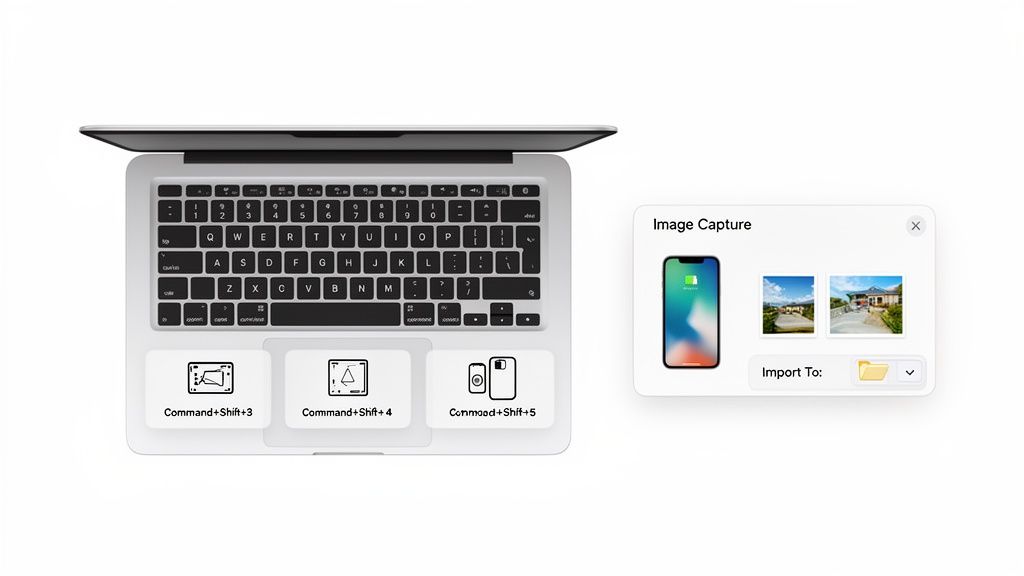
በመደበኛ የማስፈንጥ ስክሪን ቅጽበት ለማግኘት፣ በቃ Shift-Command-3ን ይጫኑ። በቅጽበት የመላውን ስክሪን የሚያሳይ PNG ፋይል ወዲያውኑ ወደ ዴስክቶፕዎ ይቀመጣል። ጥገና የለውም፣ ምንጮችም የሉም።
በበለጠ ትክክለኛነት መስራት ይፈልጋሉ? Shift-Command-4ን ይጠቀሙ። አቆጣጠሩ በስልክ ምልክት ይቀየራል፣ ስክሪንዎ ከፈለጋችሁት ክፍል ብቻ ይምረጡ ዘንድ ይፈልግዎታል። ይልቁንም ተቀይጥ፣ የተመረጠው ክልል ይቀመጣል። የተወሰነ መስኮት ወይም ምንጭ በትክክል ለመያዝ፣ Shift-Command-4ን ይጫኑ፣ ከዚያም Spacebarን ይንኩ። አቆጣጠሩ ወደ ካሜራ አይconi ይቀየራል; የሚፈልጉትን መስኮት ብቻ ይጫኑ።
በተለያዩ መሳሪያዎች ላይ በበለጠ ዝርዝር ለማወቅ፣ የእኛ በላፕቶፖች ላይ ስክሪት ስኬት እንዴት ይወስዳሉ መመሪያ አንዳንድ ተጨማሪ ምክሮች አሉት።
በፍጥነት ማጣቀሻ ሆኖ፣ በዚህ በጣም ብዙ የሚጠቀሙባቸው ቁምፊዎች እነዚህ ናቸው።
እስከ ሁሉም የሚገባ የmacOS ስክሪት ቁምፊዎች
| ተግባር | የበይነተረፍ ቁምፊ ቁጥር | ውጤት |
|---|---|---|
| ሙሉ ስክሪን መቅስት | Shift-Command-3 | ሙሉ የደስክቶፕ ማሳዎትን በፍጥነት እንደ PNG ወደ ዴስክቶፕ ይቀምጣል:: |
| የተመረጠ አካባቢ መቅስት | Shift-Command-4 | የመ谇ላ ንጥር ወደ መስርያ ቅልጥ ያቀርባል፣ ለመምረጥ እጅ ማሰሪያ ይጠቀሙ:: |
| የተወሰነ መስኮት መቅስት | Shift-Command-4, ከዚያም Spacebar | የመ谇ላ ንጥር ወደ ምስል ይቀይራል፣ መስኮት ለመቅስት ይጫኑ:: |
| የመስኮት ተቆጣጠሪ መሳሪያ ክፍት ያድርጉ | Shift-Command-5 | ከላይ የሚታይ በረদ ባለው የተሻሻሉ አማራጮች ያሳያል:: |
እነዚህን ጥቂት የሚ战组合 መርትዎ በረጅም ጊዜ በሰፋ ሁኔታ ወራት ይቆጥባሉ::
ከScreenshot App ጋር ተጨማሪ ቁጥጥር ማግኘት
በመነሻ ምልክቶች የሚያቀርበው ከሆነ ብዙ ምርጫዎች ከፈለግክ፣ Shift-Command-5 ምርጫዎች መልስ አድርገህ። ይህ ትዕዛዝ በማመቻቸት ትዕዛዞች ይህ ስክሪን ከታች በትንሽ ቼንバー ያሳያል፣ ለመያዝ ስራዎችን በእይታ መንገድ ለመቆጣጠር ያስችለሃል።
ከዚህ ጀምሮ፣ ስክሪንን፣ መስኮትን ወይም ምርጫ አንድ መያዝ ሊምረጥ ይችላል፣ ስክሪን ቪዲዮ ለመቀረፍም ምርጫዎች አሉዎት። ነገር ግን፣ በእውነቱ ኃይል በ"ምርጫዎች" ዝርዝር ውስጥ ነው ያለው። በዚህ ቦታ ከመያዝ በኋላ የሚቃጠል ትንሽ ተንሳፋፊ ቅጽበት እንዳይታይ ማጥፋት፣ ሌላ ማከማቻ ቦታ ማወකሻ ወይም ቆልቆል መጠን ማስተካከል ይችላሉ።
ከመልካም ምክር: ሰውነትዎን ለማገገም ሊሠሩ የሚችሉት ምርጥ ነገሮች አንዱ የመደበኛውን የማስቀመጥ ቦታ መቀየር ነው። በስክሪንሾት መተግበሪያው "ምክሮች" ማውጫ ውስጥ የትዕስርት አድራሻን ከ"ዴስክቶፕ" ወደ ልዩ "ስክሪንሾቶች" ፎልደር ይቀይሩ። ይህ አነስተኛ መቀየር የዴስክቶፕዎን ቆንጆ ያደርጋል እና አሮጌ መያዦችን ማግኘት ቀላል ያደርገዋል::
በወገኑ የማክ መተግበሪያዎች ውስጥ ለረcente ስኬት ማብቀል::
በማክዎ ውስጥ ካሉት አghest ችሎታ ያላቸው የስኬት መሳሪያዎች አንዱ በቀጥታ መተግበሪያዎች መሆናቸውን ሊያገኝ ይችላል በእርግጥ ያመለከታችሁት። የመነሻ ስክሪንሾቶችን ባሻገር ፣ እንደ ኩይን ቴም ፕሌይር እና ቅድመ ዕይታ ያሉ የወገኑ መተግበሪያዎች ለበለጠ ውስብስብ ሥራዎች ከፍተኛ ድብቅ ችሎታዎች አሏቸው። ብዙ ጊዜ ሶስተኛ ባለሙያ ሶፍትዌር ማንኛውንም ፍላጎት ሊከላከሉ ይችላሉ ፣ መደበኛዎን በማክ ላይ የምስል ከመያዝ ወደ በጣም ተለዋዋጭ ነገር ይቀይሩ::
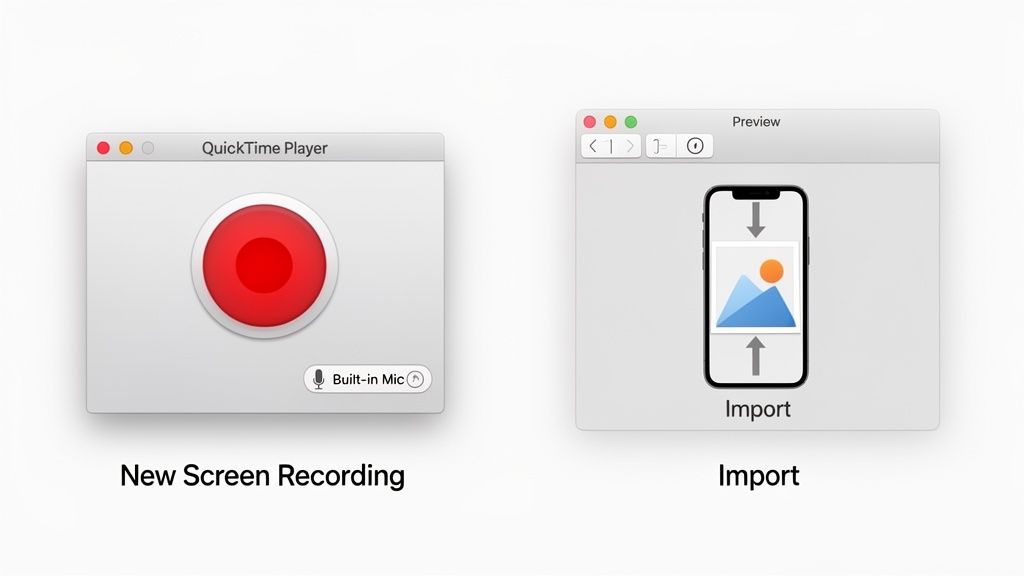
QuickTime Playerን አስቡ። ፊልሞችን ለመጫወት ብቻ አይደለም፤ ድንቅ የሚሆን ስክሪን ሪኮደር ነው። ፈጣን የሶፍትዌር ትUTIONALS ለማስተካከል፣ ወቢናር ለማስቀመጥ ወይም ቀላል ምስል ማውደም ከሚችልበት ሌላ ዓይነት ስክሪን ልንativity የማይችል ማንኛውንም ግንባር ለማውደም፣ ሁልጊዜ መጠቀምዬ ይሆናል። ከሁሉም በላይ፣ አስቀድሞ ተዘጋጅቷል፣ ለመጠቀም ዝግጁ ነው።
በQuickTime Player ስክሪን ማቅረብ
የስክሪን ማቅረብ ማስጀመር ቀላል ነው። QuickTime Playerን ከApplications folder ውስጥ ብቻ ክፈት፣ ከዚያም ወደ File ሜኑ ሄደህ New Screen Recording ምረጥ። ተመሳሳይ የቁጥጥር ባር Shift-Command-5 ቁልፍ የሚያሳይ ነገር ያይትሃል፣ ግን በዚህ ጊዜ፣ ቪዲዮ ፋይል ለመፍጠር ብቻ የተወሰነ ነው።
ይህ ትንሽ መሳሪያ ሁሉንም ወሳኝ ማስተካከያዎች በቀላሉ ወደ እጅዎ ያቀርባል፡
- የድምጽ ምንጭ፡ ድምጽዎ ከየት ይመጣ ለመወሰን ወደ "አማራጮች" ሜኑ ጠቅ ያድርጉ። የማክዎን ውስን ማይክ መጠቀም ወይም ውጪ ማይክ ማገናኘት ይችላሉ፣ ይህም ግልጽ ትሪ珞 ለማድረግ ል┧ዕሰ ነው።
- የምዝገባ ቦታ፡ ሙሉ ስክሪንዎን መቅረፍ ወይም ለተወሰነ ክፍል ሳንት መሳብ መምረጥ ይችላሉ። ይህ ተመልካቹን በትኩረት ማድረግ እና የቪዲዮ ፋይሎችዎ እንዳይጠንከት በጣም ጥሩ ነው።
- የማውስ ጠቅታዎች፡ በቅ抢抓 ዘዴ ወደምታቸው ዘይቤ ለማሳየት ተሞክሮ ያለው ምርጫ አለ። ትንሽ ተጨማሪ ነገር ቢሆንም፣ እንደምን ያህል ትምህርቶች ለመከተል ለሰዎች በጣም ቀላል ያደርጋቸዋል.
when you're done, ቪዲዮው በቀጥታ በQuickTime Player ውስጥ ይከፈታል። ከዚህ በኋላ፣ እንደምን ያህል ቀላል አርትኦት ማድረግም ይችላሉ። Command-T በመምታት የመቀጠል ተግባር ይዘርዝራል፣ ቪዲዮዎን እንደ .mov ፋይል ከመቀመጥዎ በፊት ከቪዲዮ ጀርባ ወይም መጨረሻ ያሉ ምቹ ያልሆኑ ማስተቸያዎችን ለማቀላቀል ቁጥራቸውን መዝረግ ይאפשרልዎታል.
በቀጥታ መሣሪያ ግጭቶች ለማምጣት የPreview አጠቃቀም
Preview በቀላሉ የPDF እና የምስል ተመልካች ብቻ አይደለም፡ ከሌሎች Apple መሣሪያዎችዎ በቀጥታ ምስሎችን እና ሰነዶችን ለማምጣት በኋላ ቆንጆ መሳሪያ ነው፡ የእርስዎን iPhone ወይም iPad ወደ ታERING ቀላል ካሜራ ወይም ስካነር ይቀይራል።
በቀላሉ የእርስዎን iPhone በሰልፈን ወደ Macዎ ያሳኩ። ከዚያም፣ በPreview ውስጥ፣ ፋይል መ выбор ወደ ላይ ሄደው ከ [የእርስዎ iPhone ስም] ማምጣት ይፈትሹ። ይህ ለእርስዎ ሁለት ከፍተኛ ጥቅም ያላቸው ምርጫዎችን ይሰጣል፡
- ፎቶ ያንሳችሁ፡ ይህ በቅጽበት የiPhoneዎን ካሜራ ይচ_activation ያደርጋል። ቁጭብ ብለህ ምስል በመያዝ ጊዜ፣ ያ በMacዎ ላይ በአዲስ Preview መስኮት ውስጥ ይታያል፣ ያ በፍጥነት Camera Roll በመናег ይቀርባል።
- ሰነዶችን ይቀበሉ፡ ይህ የiPhoneዎን የሰነድ ስካነር ይያዙ ያደርጋል። የገጹን ዳራዎች ለማግኘት፣ ተመልካቹን ለማስተካከል፣ እና ንጹህ እና ግልጽ የሆነ ስካን በቀጥታ ወደ Preview ለማስቀመጥ ወይም ለማስመዝግብ ይላካል።
Preview የማምጣት ተግባር ምርጡ እንደሆነ ከAirDrop በፍጥነት በመጠቀም እንደሆነ እብራት እንደሚያውቅ እገነባለሁ። አንድ ምስል ወይም ስካን ብቻ ስታስፈልግ ሰዓቱ ምርጥ ነው ፣ ምክንያቱም ፋይሉን በቀጥታ ወደ Macዎ ላይ ያለውን የማስተካከያ መተግበሪያ ይላካል ፣ በኋላ በPhotos ቤተ መዛግብት ውስጥ ለማስቀየር ከማለት ይቀጥራል።
በነዚህ ባህሪያት ላይ በማሳለፍ ሁኔታ የማድረግ ከቻለህ ከMac ማሽን ላይ ቀድሞውኑ የተሟላ መሳሪያዎችን በተሻለ ሁኔታ እንዲጠቀም ችላለህ።
ተለመደው የሚነሳ የምስል ማስተላለፊያ ችግሮች እንዴት መፍታት
ይህ ያውቅታቸዋል ጉዳይ ነው። ሺህ ሺህ ፎቶዎችን ለማስተላለፍ ሰዎች የሚሆኑ ስልክን እንድትገናኝ ቆርጦ ይቀጥላላችሁ፣ ነገር ግን የግስጠኛ ምልክት ማሰሪያው እንዲቆም ብቻ ትመለከታላችሁ። ምስሉ መያዙ ይቆማል፣ Mac ስልኩን ለማየት ይከልካል፣ ወይም ጥቂት ፋይሎችን ብቻ ከመስመረቷ በኋላ ይተዋል። ቀላል የመስመር ተግባር መሆን የሚገባው ነገር በፍጥነት ትልቅ ጭንቀት ይሆናል::
ችግሩ ምንድነው የሚለው ብዙ ጊዜ ከዛሬው ብዙ መገኛ መጠን እና መብዛት ጋር የሚያዝ ነው። ዛሬ ጥቂት የJPEG ፋይሎችን ብቻ እንድንመስጥ አይደለም። አርነት ያላቸውን ሺህ ሺህ የHEIC ፎቶዎችን እና ትልቅ የሆኑ 4K ProRes ቪዲዮዎችን ለማስተላለፍ እንሞክራለን፣ ይህም በቀላሉ መደበኛ ግንኙነትን ሊበልጥ ይችላል። አንድ ደቂቃ ProRes ቪዲዮ ቢያንስ ጊጊባይት ሊሆን ይችላል፣ ስለዚህ ትልቅ ማስተላለፊያ በፍጥነት እንዴት እንደሚዘልፍ ይሰበስባል ያውቃላችሁ.
ትልቅ ማስተላለፊያዎች ለምን ይቁረጡታል?
ይህ በእውነቱ ችግር አይደለም—በተጨማሪ የተግባር ገደብ ነው። Image Capture ወይም Photos የሚሉ ውስጥ ያሉ መሣሪያዎች ከትልቅ ቤተ-መዛግብት ጋር እንዴት እንደሚቸገሩ በፎሮሞች ላይ በብዛት የተጠቃሚ ምርቶችን ማግኘት ይችላሉ። ብዙ 5,000 ወይም 10,000 ፋይሎችን አንድ ጊዜ መፈረጃ እንዴት እንደሚያስከትል ሰዓቶችን የማቋረጥ፣ ከፊል ማስተላለፍ ወይም ሙሉ በሙሉ መስ苫ከት ሰዎች ያመለክታሉ። ይህን ምክንያት ማግኘት እንዳለብህ ለማወቅ Apple's ውይይት ፎሮሞች ላይ ከእነዚህ የማስተላለፍ ችግሮች ወደፊት ማንነት ማየት ይችላሉ.
በሚከሰት ጊዜ የመሳብ ብቻ በፍቅር ለመጠበቅ በተጨማሪ በከፍተኛ ማስተላለፍ ይህ ጊዜ እንደሚሆን፣ በዴከራዊ ዘይቤ መንቀሳቀስ መንገድ ነው። ጥቂት ፈጣን ምርምሮች እና ብROTO ስልት የሰዓት ሥርዓት ግራ ገብነትን ሊቆይን ይችላል.
የችግር ማስተካከያ ምርመራ ሰንጠረዥ
ማስተላለፍ ከተሳካ በኋላ، ሁልጊዜ ቀላል ነገሮችን ጀምር። እነዚህን መሠረታዊ ነገሮች በቅደም ማሳየት ማለት ምንም ውስን እንቅስቃሴ ሳያስፈልግ የ_MAC ላይ image capture እንደገና ማስኬድ ይችላል.
- የPhysical Connection ይፈትሻ: ይህ ማለት እውነቱ የሆነው አባባል ነው። ዝቅተኛ ወይም የተቀረጨ ከብድ ማለት አይሆንም። በቀጥታ ወደ_MAC ውስጥ ከUSB hub በሚለይ በኩል አይደለም በቀጥታ የOfficial ወይም MFi-certified ከብድ ተጠቀም.
- ሁሉንም አጠንክር (Reboot Everything): በጣም ቀላል የሚታይ ነገር ሆኖም፣ በአንድ ጊዜ የማድረግ አርም ብዙ ጊዜ አጭር ሶፍትዌር ችግሮችን ይፋጥናል። ማክ እና አይโฟን ቁጠባ አድርግ፣ ለቀን ስጠው፣ ከዚያም እንደገና አብራ።
- የመተማመኛ ማስተካከያ (Reset Trust Settings): ማክህ አይโฟንህን እንደመጀመሪያ ጊዜ እንደማይታይ ስለሚያደርግ፣ በመተማመኛ ጉዳይ ላይ ይሆናል። በአይโฟንህ ላይ፣ ወደ ማስተካከያ > አጠቃላይ > ለማስተላለፍ ወይም ለማረም አይፎን > ማረም > የአድራሻ እና የግላዊነት ማረም ሂድ። በሚያገናኘው ጊዜ፣ እንደገና "ይህን ኮምፒዩተር አምን" በማለት ይጠየቃለህ።
ለታላላቅ ላይብራሪዎች የምጠቀመው ስልት ሙሉ ማስተላለፊያውን ትንሽ ክፍሎች አድርጎ መቀፈል ነው። 10,000 ፎቶዎችን በአንድ ጊዜ ለማስተላለፍ ስትሞክር፣ በ500 ወይም 1,000 ቁርጭት ያደርጋቸዋለሁ። አዎ፣ በመጀመሪያ ጊዜ ትንሽ ይሸማል፣ ነገር ግን በጣም ታማኝ ነውና በመሃል የማይወድቅ ነው።
ይህን ዘዴ በደንብ ተከትሎ መሄድ ማወቂያን እና መፍትሄን ለሁል የአጋራ ችግሮች ይረዱሃል። ትግስት ማንኛውም ጊዜ ቁልፍ ነው፣ ልዩ ልዩ ከአለን ፎቶዎች እና ቪዲዮዎች ከመጠን በላይ የሆኑ ፋይል መጠኖች ጋር በሚሄድበት ጊዜ።
ለዘመናዊ የስራ ፍላጎቶች በብሮዝር ላይ የተመሰረተ ከፋት መጠቀም (
Using Browser-Based Capture for Modern Workflows)macOS ላይ ምስሎችን ለመያዝ ግሩም የተቀነቡ መሳሪያዎች ቢኖሩም፣ እንበል— ሥራዎቻችንን ብዙውን ጊዜ በድር ባውዝር ውስጥ ነው የምንጠብቀው። ሥራዎችን በፍጥነት እንዲቃሉ ወይም መተግበሪያ እንዲከፈት ለመሳብ በቀላሉ ከሥራዎች መንገድ በመውጣት መሄድ ማስተናገድ ያስቸኰላል፣ ልክ እንደሚያደርጉት በደጋሚነት ስታደርጉ ብዙ ጊዜ። ይህም ቦታ ይህ የዳይረክት የድር መሳሪያዎች በእርምጃ ላይ ይሆናሉ፣ የማይቋረጥ በጣም ምርጥና ውጤታማ ሂደት ይፈጥራሉ.
ምንም ሥራ ያለመቋረጥ ስታደርጉ፣ ድር ገጹን በመተው ሳልፈልግ በMac ላይ የምስል መያዝ ማድረግ ይችላሉ። በፍጥነት ቁርጥራኑን ለመያዝ፣ ትክክለኛውን የUI አካል ለማስታወስ ወይም ላገኘኋቸው ትስስር መረጃዎችን ለማስቀመጥ ምርጥ መፍትሄ ነው.
ለምን የዳይረክት ስርጭት ብዙ ጊዜ ይሻላል
ንዑስ የዳይረክት ስርጭት፣ እንደ ShiftShift ኢኮስስቲም ውስጥ ያሉት መሳሪያዎች፣ ነtheid የ macOS መሳሪያዎች እንደ ሊያወዳዱት የማይችሉትን ደረጃ ስለ ትክክለኛነት ይዘዋል። እነዚህ ስርጭቶች ድር ገጹን የሚሰጠውን ውስን ስብስብ ያውቃሉ፣ ይህም የሚያስተካክሉትን አካላት በአንድ ጠቅታ ማስታወስ ይችላሉ—የተከተፈ እና በእጅ የሚቋረጥ ጠፍታ የለም።
ተጨማሪ ጥቅሞቹን አጠቃላይ እንመልከት፡
- ሙሉ ገጽ ማስተንፈቂያ፡ በመጨረሻ ሙሉ በሙሉ የሚመላልስ ገጽ እንዲሁም ሳንቲሞር አይነት የሆነ ምስል አንድ ረጅም የሆነ አንድ ጥለኛ ቅርጸ ለመቀጠል ቀላል መንገድ። ለበለጠ ግንዛቤ፣ ለማንበብ ያደርጋችሁን መመሪያ ይፈትሹ፡ ምን ዓይነት ሙሉ ገጽ ስክሪንሾት መውሰድ እንደሚችሉ.
- አስተካክያ መምረጫ፡ አንድ ብቻ ቁልፍ፣ የተወሰነ ምስል ወይም የጽሑፍ ጥቅም ብቻ ማንሳት ይፈልጋሉ? ዙሪያው ያለውን ማንኛውንም አድብጋፊ ነገር ሳይያዝ በትክክል መ瞄准 ይችላሉ።
- የሚታይ ቦታ፡ ወዲያውኑ በአሁን ጊዜ በብራውዘር መስኮት ውስጥ የሚታይውን ገጽ ክፍል ብቻ ይያዝ።
ይህ ምስል የ ShiftShift 'ሙሉ ገጽ ስክሪንሾት' መሳሪያ በተግባር ሲያሳይ ያያችሁት ነው፣ ከ አizona ፓለት በቀጥታ ማውደም ይችላሉ።
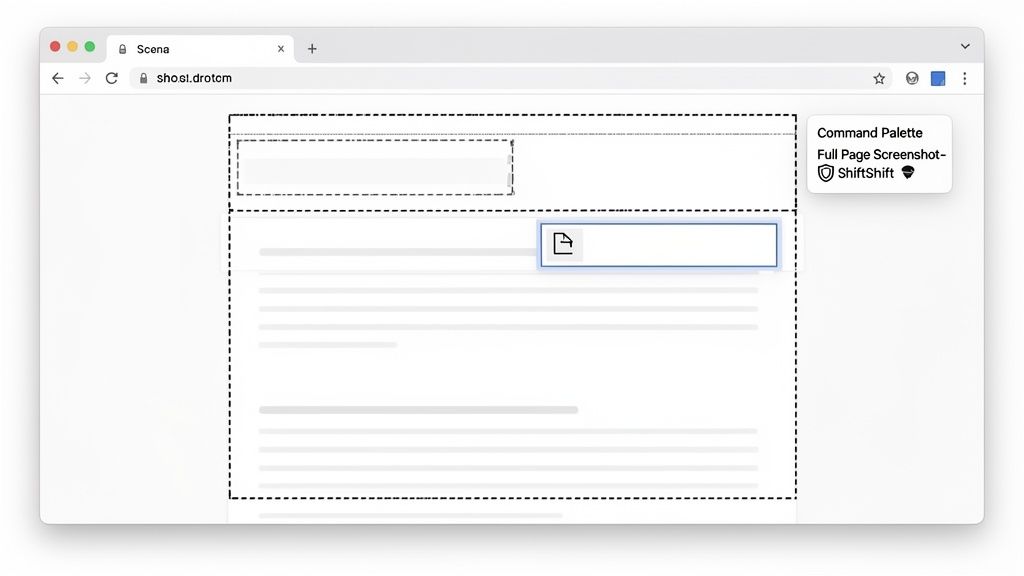
ይህ ዓይነት ቀጥታ ማቀናበሪያ ማለት ማሳወቂያውን በጥቂት ሰከунዶች ውስጥ መጀመር፣ ማስተካከል እና ማስቀመጥ ትችላለህ፣ ይህም በስራ ላይ ትሆንህ እንዲሆን ያደርጋል.
ግላዊነት እና የአካባቢ ማቀናበሪያ
ዘመናዊ የብራውዝር ማስፊያዎች ከፍተኛ ተስፋፋቸው ከሚያቀርቡት ነገሮች አንዱ የግላዊነትን ቁርጠኝነት ነው። በርካታ የቀድሞ ቴክኖሎጂ ላይ የተመሰረቱ ስክሪንሾት መሳሪያዎች የምታውቃቸውን ማሳወቂያዎች ወዲያውኑ ወደ ሦስተኛ ወገን ሰርቨር ይጫወቃሉ። ይህ ከፍተኛ የደህንነት አደጋ ሊኖር ይችላል፣ በተለይም ስITIVE መረጃ ብትISTA ካልሆነ.
የShiftShift Extensions ስᠦITE በ የአካባቢ ማቀናበሪያ መርህ ላይ የተመሰረተ ነው። የምትያዝን ማሳወቂያ ሁሉ በቀጥታ በብራውዝርህ ውስጥ ይተረጎማል። መረትህ ለፍጹም ግላዊነት እና ደህንነት ተሟልቷል ብሎ የሚያረጋግጥ ሆኖ ከ компьютерህ አይ出去ም::
ይህ "አካባቢ-መጀመሪያ" ፈልцовиста ለ_professionals እና ለመደበኛ ተጠቃሚዎች ሁለቱም ባለው የሚያስፈልግ ተስፋፋም ነው። ይህ በርካታ ተነሳሽ ነገሮች ለ_MAC-በተወሰነ መሳሪያዎች የሚሰጥ አስተዋይነት ነው። ከ macOS የግሎብ የዴስክቶፕ ገበያ መካከል በከፍተኛ እና ቀጥታ ለ 8–9% የሚሰጥ ስለሆነ በመረት መቀጠኛ እንደ የግላዊነት-መጀመሪያ ማሳወቂያ ያሉ ባህሪያትን ማሻሻል ከፍተኛ ቁጥር ተጠቃሚዎችን በቀጥታ ይጠቅማል እነዚህም መረታቸው ይዞ የሚሆን እንዲሆን በትክክል ይጠብቃሉ.
የአውታር ብራውዝር ላይ የተመሰረተ መሳሪያ በመምረጥ ብቻ የምትISTA አስፈጻሚ አይደለህም; ስለ Macህ ላይ ያለውን ማሳወቂያ ለማድረግ ተชาፋ እና ደህንነቱ የተጠበቀ ዘዴ እንደምትISTA ማለት ነው.
የመዝገብ ተግባርን ወደ ሞያዊ የስራ ጠረፍ ወስድ)
ለማንኛውም ሞያवኛ፣ በMac ላይ ምስል ማንሳት ብቻ ከታላሉ በጣም ትልቅ ሂደት ውስጥ የመጀመሪያ እርምጃ ነው። ትችላለች የእርሷ አስማታዊ ባህሪ—እና ውጤታማነት—ነው ከዚያ በኋላ የምትሠራቸው። ዘመናዊ የስራ ጠረፍ ብቻ ምስል አይዞግዝግም፤ በቀላል ሁኔታ ያን ንብረት ወደ ማሻሻያ፣ ማረጋገጫ እና የማሰራጨት ሂደት በምንም እንቅፋት ሳይደርስ ይመራዋል። ሁሉም ስለ ማገናኘት የሚደረግ የግንኙነት ቴብሬን መሠራት ነው፣ እርግጥ ነው ምክንያቱም ይህ እንቅፋት ያስቀርጣል።
አስቡት። አዲስ UI አካባቢ የሚመዝግብ ዌብ ገንቢ ምናልባት በሶስት የተለያዩ መተግበሪያዎች ይሸጋግራል። አንድ ለስክሪንሾት ለማንሳት፣ ሌላ ወደ ዌብ ምርጥ ቅርጽ እንደ WebP ለመቀየር፣ ምናልባት ሦስተኛ ለቪርኩሽን ቁጥር ቁጠባ ለመቀየር ሴስት ኮሱም ለማመንጨት። ያህል መተግበሪያ መቀያየር ሰዓት እንዲያባክን ነው የሚችለው።
በאמת የተገናኘ ሂደት መሠራት
ይህ ነው ShiftShift Extensions እንደ ዓይነት ያልተቀናበረ የመሳሪያ ስብስብ እንደዚህ ዓይነት የሚያብራ የሚሆንበት ቦታ፣ ሁሉንም እነዚህን ተለያዩ እርምጃዎች በአንድ ገጽ ላይ ያምጣቸዋል። ኤንዝ ትቀጥራለህ ለስክሪንሾት ወደ ት 명령 መ Palette ለመክፈት፣ ወዲያውኑ ወደ 'Image Converter' በማድረግ ወደ WebP ለመቀየር ትልክበታል፣ ከዚያም የ 'MD5 Generator' ተጠቅሞ ሴስት ኮሱም ለማመንጨት ትጠቀማለህ። በመሆኑም ያው ጥምዝታ በቃ ሰከንዶች ውስጥ ይፈጥራል፣ በቀጥታ በሄዳር ባውሮ ውስጥ ውስጥ.
ያለፈው የተለያዩ ሥራዎች ስብስብ እንደሆነ የሚታይበት ሌላ፣ በቀላሉ የሚሄድ ተচယና ሆኖ ይቀይራል:
- ማሳወቅ: የሚፈልጋቸውን ትክክለኛ የአርእስት አካባቢ ይያዙ.
- ማቀነቀን: ምስሉን ለዌብ ስራ ለማበረታታት ወዲያውኑ ያሻሽሉ.
- ማረጋገጥ: ፋይሉን በኮድ ባህሪዎ ውስጥ ለመከታተል ሐሽን ይፍጠሩ.
ይህ ትክክለኛ "የማሳወቅ ቴክኖሎጂ" ሆኖ የሚሰማ ነው። የምስል እንቅስቃሴን ማንበብ ሳይሆን—ለቀጣዩ ሥራ የሚጠቅም ንጥረ ነገር መፍጠር ላይ ያነጣጠረ ነው፣ ያው ዲዛይን ከሆነ፣ ስራ ከሆነ ወይም ሰነድ ስለሆነ::
የሙያ ማሳወቂያ ወደፊት
የምንጠቀምበት መሣሪያ በየቀኑ በ聰明ness ይሰጥልናል። በ2025 ዓ.ም. የግምት የ USD 391 ሚሊዮን ዋጋ ያለው ሰፊ የምስል ማሳወቂያ ገበያ፣ ለከፍተኛ ጥራት ይዘት እና ለጥልቅ የሶፍትዌር ድርብ ተገንዝቦ በፍጥነት እያደገ ነው። በዳታ ግንዛቤዎች ገበያ.
ይህ እድገት በተለይ ለማክ ተኮር መሣሪያዎች በ.apple Silicon ኃይል ሊጠቀሙ የሚችሉት ለሆነው የ AI ቁጠባ ረዳት ሂደት በከፍተኛ ደረጃ ነው። ይህ በኮምፒውተርዎ ላይ ብቻ የሆነ ኃይለኛ እና የግል ቅድመ ማሻሻያ ያመጣል፣ ዳታዎ ከኮምፒውተርዎ ለማይ走出去ም::
ይህ ለውጥ ለDevelopers በጣም ድንቅ ባህሪዎችን በቀጥታ በማስጠበቅ መሳሪያዎች ውስጥ ለመገንባት ያስችላል። በመሳሪያው ላይ በሚሆን ሁኔታ የሚሆኑ AI ራስን ከአለም የሚያስተምር እንቅፋት ማስወገድ፣ ብሩህ ስለማይደለ አምባ መቁረጥ፣ ወይም በOCR በምስሉ ውስጥ ጽሑፍ መሳል ያስተካክላሉ - ሁሉም በአካባቢው ላይ ብቻ ነው የሚሆነው። ጠንካራ፣ የተዋሐዱ መፍትሄዎችን ከፈለጉ፣ ነፃ Snagit ምትካም ለማግኘት መመሪያችን ማየት ይፈልጋሉ ይሄንን ባህሪዎች ብዙ የሚያከፋፋ ነው።
በፒፕላይን ስለሚያሰቡ እና ለዚህ ዓላማ የተሰሩ መሳሪያዎችን በመጠቀም፣ ምስል ብቻ ለማስጠበቅ ከሚሆነው በላይ ነገር ነው የምትሠራው። የተደራሽ ስክሪንሾት ወደ በሙሉ የተቀኘ ለማውረድ ዝግጁ ንብረት የሚቀይር ተደጋጋሚ ስርዓት በተቻለ ጊዜ በጠቅላላው እየፈጠራችሁ ነው።
ለስራዎ ትክክለኛውን ማስጠበቅ ዘዴ ማረጋገጥ
በ_MAC_ ላይ ምስሎችን ለማስጠበቅ እንዴት ማስተዋል ያለባቸው መሳሪያዎች ይኖራቸዋል፣ በመተግበሪያ ውስጥ ባሉት ቁምላቸው ጀምሮ እስከ ጠንካራ መተግበሪያዎች ድረስ። ትክክለኛው ምርጫ የምትችለው አንድ "ተመራጭ" መሳሪያ ማግኘት ብቻ አይደለም፣ ምንድን ነው በጣም ጥሩ የሚሆነው በመረጡ መለያየት ነው። ስራዎን በሚፈልጉት መልኩ ከሚያስፈልጋቸው ቁ güclü ነገሮች ጋር መመጣጠፍ ያለብዎት አሁን ብቻ.
ይህን እንዴት ማሰብ እንደሚችሉ ያስቡ፡ ለፈጣን አንድ ጊዜ የሚደረግ የበግ ሪፖርት ወይም አስደናቂ የቃል መልእክት ስክሪንሾት፣ የmacOS ቂቦት ስለ ቀጥታ ተስፋፋ ነው። ፈጣን፣ ምንም ማሰ饪 አያስፈልግም፣ እና ይጨረሳል። ነገር ግን ከDSLR አካል አይነት ምስል መሳሪያ 100 RAW ፎቶዎችን ለማስገባት ተግባር የሚሆን ቅርጾችን ቢሞክሩ፣ ቂቦቶችን መጠቀም ቆንጆ በሆነ ድንቅ ስቃይ ይሆናቸዋል። እዚያ የImage Capture መተግበሪያ ያሉ ልዩ መሳሪያዎች ታሪክ በምን እንደሚያብሩ ይታያል፣ ለብᴬATCH ሂደት፣ ፋይሎችን በፈጣንነት በማስተካከል እና ሁሉንም ነገር በተለይ መ Thư ማድረግ የሚያስፈልግ ቁጥጥር ይሰጣል::
ቀጥታ ዓላማዎ በእርግጥ ምርጥ መንገድን ያወዛኛል። ይህ የውሳኔ ዛፍ በእርስዎ ፍላጎት ላይ በመመስረት ምርጥ ሂደት ማቅለብ ይችላል::
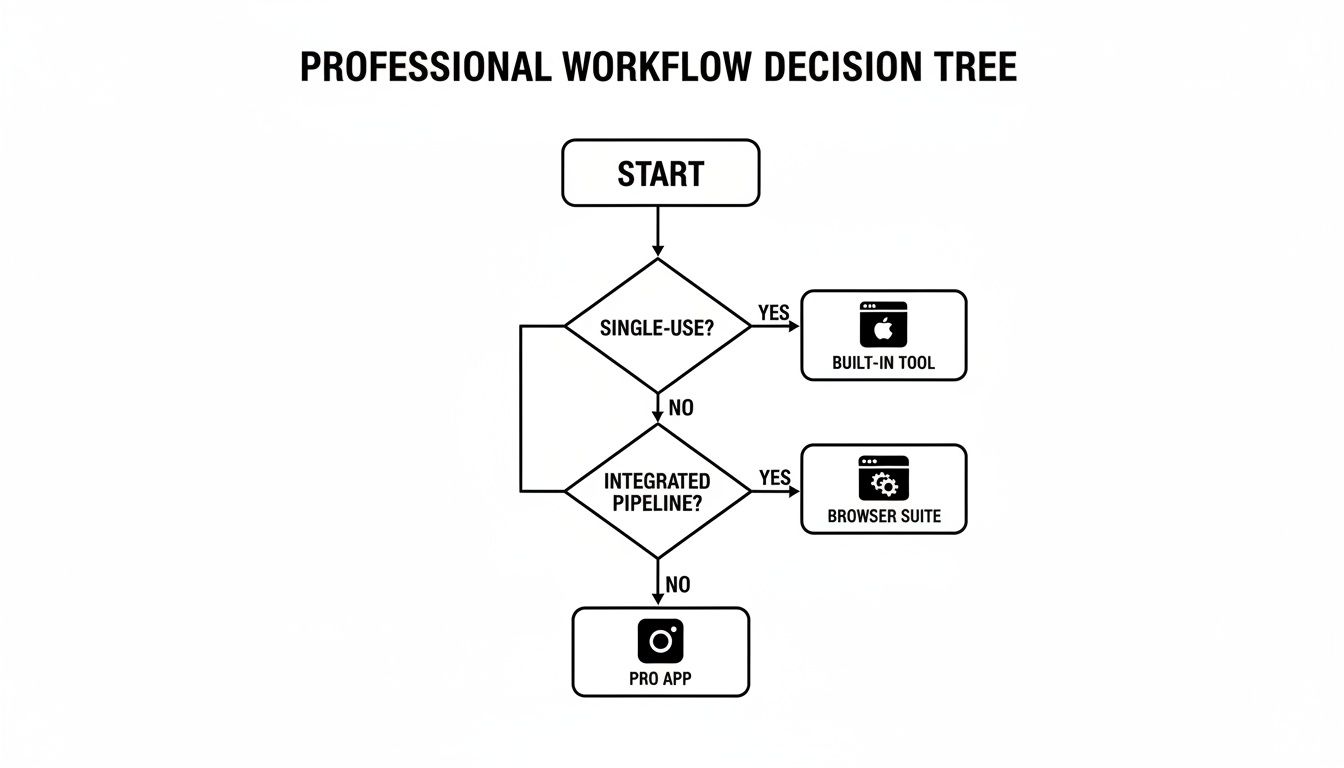
ምንግስት ሰንጠረዡ እንደሚያሳይ፣ በተጨማሪ የተወሰኑ ወይም ንትረ ተግባራት ውስጥ ስትเข้า፣ በተልዕኮ በመሆናቸው በአንድ ብቻ መጠቀም የሚችሉ የቀላል መሳሪያዎች በተጨማሪ የተቀላጠፍ ስብስብ ወይም ባለሙያ መተግበሪያ ከሌሎች በጣም ጥሩ ይሆናል።
��ሳሪያውን ከተግባሩ ጋር ማመሳሰል
ስራዎ ማንነትዎ በተለይም የማንኛውም መሳሪያ በሰዓቱ እንዴት እንደሚመቻች ብዙ ጊዜ ያርዳል። UI ለውጦችን የሚያቀርብ ተጠቃሚ የድር አካባቢ በትክክል የሚመረጥ መሳሪያ እንዲኖረው ይፈልጋል፣ ሐኪም ግን የትልቅ፣ ከፍተኛ ጥራት ባለው ፋይል ማስመጣት ለሚችል ዘመናዊ ምርጫዎች ይፈልጋል።
እነሱም እነዚህ የተለያዩ የተለመዱ ሁኔታዎች ናቸው::
- ፈጣን፣ አነስተኛ የተመሳሰሉ ስዕሎች:: macOS የ Shift-Command-4 ምልክቶች ከሆኑ ሌሎች በተሻለ ይሆናሉ። የጽሁፍ ክፍል፣ የስህተት መልእክት ወይም የመተግበሪያ መስኮት ትክክለኛ የሆነ ክፍል ለማንሳት በጣም ተስማሚ ናቸው::
- ከመሳሪያዎች ማስመጣት:: ከፎቶ ስትራክ ወይም ስካነር ፎቶ እና ቪዲዮ ሲመጣጥነው Image Capture መተግበሪያውን ሁልጊዜ እጠቀማለሁ። ትልልቅ ብዛት ለማካፈል በትክክል ተፈጥሮ ሲሆን ፋይሎች ወዴት እንደሚሄዱ እና በምን ቅርጽ እንደሚሆኑ በቀጥታ ቁጥጥር ይሰጥሃል::
- የድር ማዕከላዊ ስራ: በብራውዘር ውስጥ ለሚከሰቱ ሁሉ፣ ጥሩ ተሰፋፊ መሆኑ አለመጠቅም ነው። ሙሉ ገጽ ስክሪንሾትዎችን፣ ትክክለኛ HTML አንቀጾችን ለመያዝ ብለን ሲሆን፣ ብዙ ጊዜ ከሌሎች የድር ዲዛይን ወይም ላይብ መሠረተ ልማት መሳሪያዎች ጋር ይቀላቀላል።
እነዚህን ዘዴዎች ለመመዝገብ ሁኔታውን በብቃት ለማድረግ በጣም አስፈላጊ የሆነ መንገድ እንደ ተፎካካሪዎች ባይሆኑ ነገር በጋራ የሚሠሩ ቁም የሆኑ መሳሪያዎች አንድ ላይ እንመልከት። ትክክለኛው ዓላማ ለእያንዳንዱ ስለ ስራው ወዲያውኑ ማሰბ ማድረግ ነው። ትኩረትዎን በማቋረጥ ሳይሆን ለስራው ፈጣን መሳሪያ ማንደረግ ስትችል፣ በቀን ምንም ዓይነት ጊዜና የአእምሮ ኃይል መ tiết kiệm እንደምታደርጋቸው ድንጋጌ ትሆናላችሁ::
የMac ምስል ያወጣ ዘዴዎች ማነጻጸሪያ
ከሁሉም ጋር በተጨማሪ የሚያስተላልፍ እንዲሆን እነዚህ ዘዴዎችን በቀላሉ ለማነጻጸር ጥሩ ረዘባ ድርስ ይሄን አለ:centering::
| ዘዴ | በጣም የሚሆኗቸው | ዋና ገደቦች |
|---|---|---|
| የmacOS ማተሚያ ቁልፎች | የመረጡት ቦታ ወይም መስኮቶችን በቀጥታ የሚያሳይ ቀጭን ጊዜ ስክሪንሾቶች:: | ከብዙ ጥቅሶች የተነሣ ጥቅም ላይ መዋል የማይችል፣ በትክክል ማስተካከያ ማድረግ የማይችል፣ ከመሣሪያዎች ምስሎች ማምጣት አቅም የጠፋ:: |
| የምስል መቃቋም መተግበሪያ | ከካሜራዎች፣ iPhone ስልኮች ወይም ስካነሮች በትልቅ መጠን ፎቶዎችን/ቪዲዮዎችን ማምጣት. | ለጥቅልል የማይቀርብ፣ ለመሠረታዊ ማምጣት ብቻ የሚሆን መሳሪያ። |
| QuickTime Player | በስክሪን ላይ የሚታይ ቪዲዮን፣ ከማይክሮፎን ድምጽ ጋር ማቅረብ. | ለመደበኛ ምስሎች በጣም ብዛት ያለው፤ ውጤቱ ቪዲዮ ነው፣ ቀላል ስክሪን ሽቶት አይደለም። |
| የبراውзер ማሰሪያዎች | ሙሉ ድር ገጾችን፣ ልዩ አካባቢዎችን እና በድር ላይ የ基于 ሂደቶችን መቅረፍ. | በبراው🇿ር መስኮት ውስጥ ያለው ገጭ ነው፤ ሌሎች መተግበሪያዎችን አይቀምጥም። |
በመጨረሻው፣ እያንዳንዱን ምርጫ በአግባቡ መረዳት ልጆት መሆን እንዳይፈለግህ ያረጋግጣል፣ ስለ እውነተኛው ሥራ ትችታህን ማድረግ ይሰጥሻል።
መተግበሪያዎች መካከል መቀየር ወ嗒ር ወ嗒ር ሆኖ ሁሉንም የስራ ሂደትዎን በብሮውዘር ውስጥ ያምጡ። የShiftShift Extensions ስuiten በአንድ ትዕዛዝ ምስሎችን መያዝ፣ መቀየር እና ማስተዳደር ይችላሉ። ሙሉ የመሣሪያዎችን ስuite በ shiftshift.app ላይ ያስሱ እና የተቀላቀለ የትዕዛዝ ፓሌት ሁሉንም ነገር እንዴት ማፋጠን እንደሚችል ይመልከቱ።