Print Screen አይሰራም? ለዊንዶውስ፣ ማክ ኦኤስ እና ሊኑክስ መፍትሄዎች
Print Screen በዊንዶውስ፣ ማክ ኦኤስ እና ሊኑክስ ላይ ያስተካክሉ። ቅጽበታዊ ገጾች የት እንደሚሄዱ ይወቁ፣ አቋራጮችን ወደነበሩበት ይመልሱ፣ ወይም ሙሉ ድር ገጾችን በChrome ያንሱ።

Chrome ሙሉ ገጽ ስክሪንሾት
Chrome ላይ ሙሉ ገጽ፣ የሚታይ ክፍል ወይም ምርጫ capture ያድርጉ፤ PNG/JPEG/PDF save, copy, share በግልጽ consent ይደግፋል.
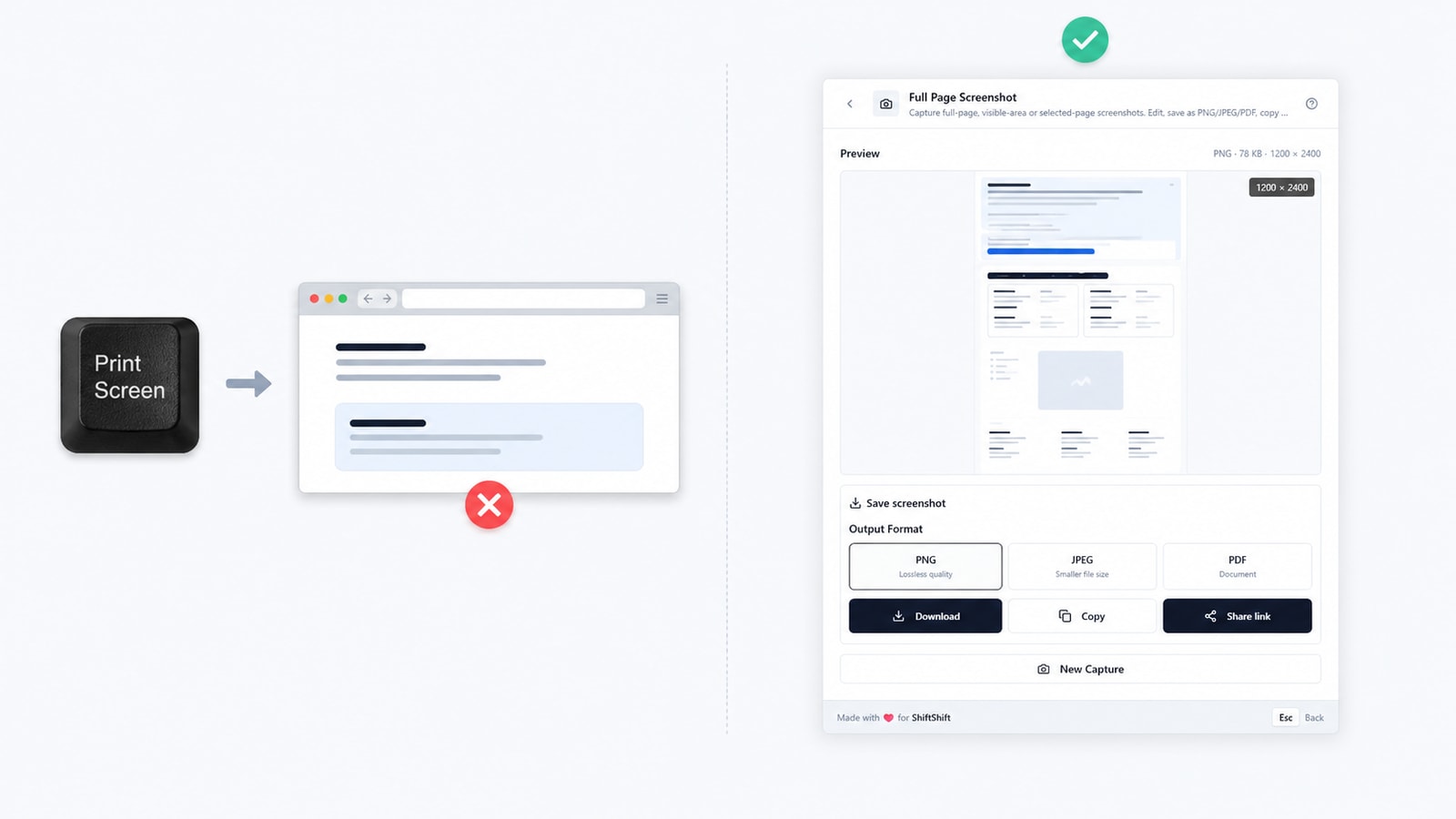
አጭር መልስ፡ መጀመሪያ ስክሪንሻቱ ወደ ክሊፕቦርድ ወይስ ወደ ፋይል እንደተላከ ያረጋግጡ፣ ከዚያም የስርዓተ ክወናዎን ለስክሪንሻት የተመደበውን የቁልፍ ሰሌዳ አቋራጭ ይሞክሩ። ችግሩ የተገደበው በድረ-ገጾች ላይ ብቻ ከሆነ—ወይም ከመጠቅለያ በታች ያለውን የገጹ ክፍል ከፈለጉ—የቁልፍ ሰሌዳውን ችግር በ... ማለፍ ይችላሉ። ለ Chrome የሚሆን የሙሉ ገጽ ስክሪንሻት ቅጥል. ሙሉ ገጹን፣ የሚታየውን አካባቢ፣ ወይም የተመረጠውን ክልል በ Print Screen ቁልፍ ላይ ሳይመሰረት ያነሳል።
“Print Screen እየሰራ አለመሆኑ” የተለያዩ ችግሮችን ሊገልጽ ይችላል፡ ምንም ነገር አይከሰትም፣ ምስል ተቀድቶ አይቀመጥም፣ አቋራጭ የተሳሳተ መተግበሪያ ይከፍታል፣ ወይም ቅጂያው የረጅም ገጽን አብዛኛው ክፍል ያመልጠዋል። መጀመሪያ የችግር ምልክቶች ሠንጠረዥን ይጠቀሙ፣ ከዚያም ለእርስዎ ኦፐሬቲንግ ሲስተም የሆነውን ክፍል ይከተሉ።
ፈጣን ምርመራ፡ በመጀመሪያ ምን ማረጋገጥ እንዳለብዎት
| ምልክት | መጀመሪያ ያረጋግጡ | ሊሆን የሚችል ማብራሪያ |
|---|---|---|
| Print Screen ን ከጫኑ በኋላ ምንም ነገር አይታይም | ወደ Paint፣ Preview ወይም ወደ ሰነድ ይለጥፉ | ምስሉ እንደ ፋይል ሳይቀመጥ በክሊፕቦርድ ላይ ሊሆን ይችላል። |
| አቋራጩ የድምጽ ወይም የብሩህነት መጠንን ይቀይራል። | የ Fn ቁልፍን ወይም F-Lock ን ይሞክሩ። | የቁልፍ ሰሌዳው ሁለተኛ የተግባር ንብርብር ንቁ ነው። |
| የስክሪንሻት መሣሪያ ይከፈታል፣ ነገር ግን ምንም ፋይል አይታይም። | የማስቀመጫ ቦታውን እና ማሳወቂያውን ያረጋግጡ። | መሣሪያው ምናልባት ምርጫ እየጠበቀ ወይም ወደ ሌላ ቦታ እያስቀመጠ ሊሆን ይችላል። |
| አንድ መተግበሪያ ብቻ አቋራጩን ችላ ይላል። | ዴስክቶፕን ወይም ሌላ መተግበሪያ ይሞክሩ | መተግበሪያው የስክሪን ቅዳፈትን ሊያግድ ወይም ሊገድብ ይችላል። |
| የድረ-ገጹ ከታች ተቋርጦ ነው። | የአሳሹን ሙሉ ገጽ ቅጽበታዊ ገጽ እይታ ይጠቀሙ። | የስርዓት ቅጽበታዊ ገጽ እይታዎች በተለምዶ የሚታዩትን ፒክሰሎች ብቻ ይይዛሉ። |
በተጨማሪም ቀላል አካላዊ ምክንያቶችን ያረጋግጡ፡ ውጫዊ ኪቦርድ እንደገና ያገናኙ፣ ሌላ USB ፖርት ይሞክሩ፣ እንዲሁም በሚቻልበት ጊዜ በስክሪን ላይ የሚታየውን ኪቦርድ ይፈትሹ። አንድ የተበላሸ ቁልፍ ከስክሪንሻት አገልግሎት ወይም የአቋራጭ አቀማመጥ ችግር የተለየ ነው።
በ Windows ላይ Print Screen ማስተካከል
Windows ለስክሪን ምስሎች በርካታ የማስቀመጫ መንገዶች አሉት፣ እና ሁሉም ወደ አንድ ቦታ አይቀመጡም። መደበኛ PrtSc በተለምዶ ሙሉውን ማያ ገጽ ወደ ክሊፕቦርድ ይቀዳል። Alt + PrtSc ንቁውን መስኮት ይቀዳል። Windows + PrtSc በተለምዶ ፋይልን በ ምስሎች → የስክሪን ቅጂዎች. Windows + Shift + S የ Snipping Tool የማያ ገጽ ኮርጆን ይከፍታል። Microsoft ሁለቱንም የቁልፍ ሰሌዳ አቋራጮች እና የአሁኑ የ Snipping Tool የስራ ሂደት.
PrtSc ምንም ምላሽ እንደማይሰጥ ከታየ፣ አንድ ጊዜ ይጫኑት እና ወዲያውኑ በ... ይለጥፉ Ctrl + V ወደ Paint፣ የኢሜይል ረቂቅ ወይም ሰነድ ውስጥ። ምስሉ ከታየ፣ ቁልፉ ሰርቷል፤ ግራ መጋባቱ በክሊፕቦርድ እና በፋይል ማከማቻ መካከል ነበር። Windows + PrtSc ከተጠቀሙ፣ Pictures → Screenshots፣ የOneDrive ተጠባባቂ ከነቃ OneDrive → Pictures → Screenshots፣ እንዲሁም ከSnipping Tool የመጣውን የቅርብ ጊዜ ማሳወቂያ ያረጋግጡ።
ብዙ ላፕቶፖች PrtScን ከሌላ የቁልፍ ተግባር ጋር ያጣምራሉ። ይሞክሩ Fn + PrtSc, ከዚያም F-Lock ወይም የ function-mode ቅንብር ንቁ መሆኑን ያረጋግጡ። አጫጭር የቁልፍ ሰሌዳዎች Print Screenን በአምራቹ በተወሰነ አቋራጭ ሊተኩት ይችላሉ። በቁልፉ ላይ የታተመው መለያ እና የቁልፍ ሰሌዳው መመሪያ ሁሉም ሞዴሎች ተመሳሳይ ውህድ ይጠቀማሉ ብሎ ከማሰብ ይልቅ የበለጠ አስተማማኝ ናቸው።
Windows የ Print Screen ቁልፍን የስክሪን ቅንጥቆጥን ለመክፈት ማመደብ ይችላል። በ Settings ውስጥ “Print Screen”ን ፈልገው PrtScን የስክሪን ቅዳጅ ለመክፈት የሚጠቀምበትን አማራጭ ይፈትሹ። አጥፍተው እንደገና ያብሩት፣ ከዚያም እንደገና ይሞክሩ። Windows + Shift + S ቢሰራ ነገር ግን PrtSc ካልሰራ፣ የካፕቸር አገልግሎቱ በትክክል እየሰራ ነው ማለት ሲሆን ችግሩ በቁልፍ ካርታ ወይም በኪቦርድ ሽፋን ላይ ነው።
በመጨረሻም፣ ዓለም አቀፍ አቋራጮችን የሚመዘግቡ መሣሪያዎችን ዝጉ፡ የስክሪን መቅረጫ መሣሪያዎች፣ የጨዋታ ኦቨርሌዎች፣ የሪሞት-ዴስክቶፕ ክላየንቶች፣ የክሊፕቦርድ አስተዳዳሪዎች፣ እና ሌላ የስክሪን ምስል መቅረጫ መተግበሪያ። ማንኛውንም ነገር እንደገና ከመጫንዎ በፊት ንጹህ ሪስታርት አድርገው ይሞክሩ። በተቆጣጠሩ የስራ መሣሪያዎች ላይ፣ የደህንነት ፖሊሲ በተጠበቁ መስኮቶች ውስጥ የስክሪን ምስል መቅረጽን ሊገድብ ይችላል፤ ፖሊሲውን ከሲስተም-አቀፍ ችግር ለመለየት መደበኛ የዴስክቶፕ መስኮትን ይሞክሩ።
በ macOS ላይ ስክሪንሾቶችን አስተካክሉ
የማክ ቁልፍ ሰሌዳዎች የ Print Screen ቁልፍ አይጠቀሙም። መደበኛዎቹ አቋራጮች የሚከተሉት ናቸው Shift + Command + 3 ለመላው ስክሪን፣ Shift + Command + 4 ለተመረጠ ክልል፣ እና Shift + Command + 5 ለስክሪንሸት መቆጣጠሪያዎች። የApple የስክሪንሾት መመሪያ እነዚህን ትዕዛዞች እና የሚገኙትን አማራጮች ይሸፍናል።
በ Shift + Command + 5 ይጀምሩ። በ Options ውስጥ፣ የ “Save to” መድረሻውን ያረጋግጡ። ነባሪው ብዙ ጊዜ Desktop ቢሆንም፣ Documents፣ Clipboard፣ Mail፣ Messages፣ Preview፣ ወይም ብጁ ፎልደር ሊሆን ይችላል። ወደ clipboard የሚቀመጥ ቅጽበታዊ ገጽ እይታ ምንም የሚታይ ፋይል አይፈጥርም፤ እንደተያዘው ለማረጋገጥ ወደ Preview ወይም ወደ ሌላ መተግበሪያ ይለጥፉት። ቅጽበታዊ ገጽ እይታውን አሁን ብቻ ከቀየሩት ወይም ማስታወሻ ከጨመሩበት፣ ተንሳፋፊው thumbnail ሂደቱን እስኪጨርስ ድረስ ጊዜ ይስጡት።
ከአቋራጮቹ አንዳቸውም ምላሽ ካልሰጡ፣ System Settings → Keyboard → Keyboard Shortcuts ን ይክፈቱ እና Screenshots ን ይመርምሩ። የተሰናከሉ ምዝገባዎችን እንደገና ያንቁ እና ከብጁ አቋራጮች ጋር ያሉ ግጭቶችን ያስወግዱ። የምናሌ አሞሌ የቅጽበታዊ ገጽ እይታ መሳሪያዎች፣ የመስኮት አስተዳዳሪዎች፣ የርቀት መዳረሻ ሶፍትዌሮች እና የቀረጻ መተግበሪያዎች ተመሳሳይ ጥምረቶችን ሊጠቀሙ ይችላሉ። ለጊዜው ያቁሟቸው እና የውስጥ አቋራጩን እንደገና ይሞክሩ።
ከአንድ በላይ ኢላማዎችን ይሞክሩ። አንዳንድ የቪዲዮ፣ የባንክ፣ የድርጅት ወይም የመብት አስተዳደር ያላቸው መተግበሪያዎች በራሳቸው ፈቃድ ባዶ ወይም የተከለከለ የቅጽበታዊ ገጽ እይታ ያመነጫሉ። ዴስክቶፕ እና መደበኛ የአሳሽ ታብ ከሰሩ፣ የ macOS የቅጽበታዊ ገጽ እይታ ድጋፍ በአግባቡ እየሰራ ነው ማለት ነው፤ ገደቡም የሚመለከተው የተጠበቀውን መተግበሪያ ብቻ ነው። ሁሉም ኢላማዎች ካልሰሩ፣ ፈቃዶችን ከመቀየርዎ ወይም የምርጫ ፋይሎችን ከመሰረዝዎ በፊት Mac-ን ዳግም ያስጀምሩ እና ነባሪ አቋራጮችን ዳግም ይሞክሩ።
የ Apple ያልሆነ ተጨማሪ ኪቦርድ ካለው MacBook ጋር፣ በመጀመሪያ የ PrtSc ባህሪን አይፈልጉ። በዚያው ኪቦርድ የሚታወቀውን የ Command ቁልፍ ማፕንግ በመጠቀም የ macOS አቋራጭን ይጠቀሙ። የ Windows ምልክት ያለበት ቁልፍ በኪቦርድ አቀማመጥ እና በ modifier ቅንብሮች ላይ በመመስረት በተለየ ሁኔታ ሊሰራ ይችላል።
በ Linux ላይ Print Screen ማስተካከል
የLinux ባህሪ በዴስክቶፕ አካባቢ፣ በስርጭት እና በስክሪንሾት መሳሪያ ላይ ይወሰናል። GNOME በተለምዶ ያመሳስላል አትም ወደ ራሱ የስክሪን ምስል ኢንተርፌስ ያደላል፣ KDE Plasma ግን Spectacle ይጠቀማል። ሌሎች አካባቢዎች ወዲያውኑ ሊያስቀምጡ፣ ወደ ክሊፕቦርድ ሊቀዱ፣ ወይም ሌላ መሳሪያ ሊጀምሩ ይችላሉ። ለአሁኑ ዴስክቶፕዎ የአቋራጭ ቁልፍ ቅንብሮችን እንደ ትክክለኛው ምንጭ ይውሰዱ።
በ GNOME ላይ፣ Settings → Keyboard → View and Customize Shortcuts ይክፈቱ፣ ከዚያም የ Screenshots ቡድንን ያግኙ። Print፣ Shift + Print፣ ወይም Alt + Print ለሚጠብቁት ተግባር እንደተመደበ ያረጋግጡ። የ screenshot overlay ከተከፈተ፣ ስክሪን፣ መስኮት ወይም ምርጫ መምረጥ እንዳለብዎት ያረጋግጡ እና የ capture አዝራሩን ይጫኑ። በ Pictures ወይም በ distributionዎ በተዘጋጀው ቦታ ይፈልጉ።
በ KDE Plasma ላይ፣ Spectacleን በቀጥታ ከመተግበሪያ ምናሌ ያስጀምሩ። የ የ Spectacle ሰነድ የትእዛዝ መስመር እና የአቋራጭ ቁልፎች ባህሪን ይዘረዝራል፣ እና አሁን ያለው መተግበሪያ የመቅረጫ ሁነታን እንዲመርጡ እና ውጤቱን እንዲያስቀምጡ ወይም እንዲቀዱ ያስችልዎታል። Spectacle በቀጥታ ሲከፈት ከሰራ ነገር ግን የ Print ቁልፍ ካልሰራ፣ የመቅረጫውን መሳሪያ እንደገና ከመጫን ይልቅ በ System Settings ውስጥ ያለውን ዓለም አቀፍ አቋራጭ ያስተካክሉ።
ብዙ ጊዜ ብጁ አቋራጮች ምክንያት ሊሆኑ ይችላሉ። የቁልፍ ሰሌዳ ቅንብሮችን በመፈተሽ ለ Print ቁልፍ የተመደቡትን ሁሉንም ተግባራት ይፈልጉ፤ ተደጋጋሚ ትስስሮችን ያስወግዱ፣ ከዚያም የስክሪን ምስል መሣሪያውን አንድ ጊዜ ብቻ ይመድቡ። በተጨማሪም ከሙሉ ስክሪን ጨዋታ፣ ቨርቹዋል ማሽን፣ የሪሞት ዴስክቶፕ ክፍለ ጊዜ፣ ወይም በ Wayland የተገደበ መተግበሪያ ውጭ ሆነው ይሞክሩ፤ እነዚህ ሁሉ ቁልፎችን ሊያጠልፉ ወይም ሌላ ሂደት ሊይዛቸው የሚችለውን ሊገድቡ ይችላሉ።
የቁልፍ ሰሌዳዎ የተግባር ንብርብር ከሚጠቀም፣ Fn + Print ን ይሞክሩ እና በዴስክቶፕ የተመረጠውን የቁልፍ አቀማመጥ ያረጋግጡ። የሃርድዌር ቁልፍ ችግርን ከሶፍትዌር ችግር ለመለየት፣ የስክሪን ምስል መውሰጃ መሳሪያውን በስሙ ማስጀመር ይችላሉ። የፓኬጅ ስሞች እና የማስቀመጫ ቦታዎች ስለሚለያዩ፣ ከሌላ የዴስክቶፕ አካባቢ የተቀዳ ትዕዛዝ ከመጠቀም ይልቅ ለስርጭቱ ልዩ የሆነ ሰነድ ማጣቀስ ይመረጣል።
የብራውዘር ኤክስቴንሽን የተሻለ መፍትሔ ሲሆን
የኦፐሬቲንግ ሲስተም መሳሪያዎች ለዴስክቶፕ አፕሊኬሽኖች፣ ለሜኑዎች እና በአሁኑ ሰዓት በስክሪኑ ላይ ለሚታዩ ፒክሰሎች በጣም ተስማሚ ናቸው። ነገር ግን የሚመለከተው ነገር ከቪውፖርት በታች የሚዘልጥ ረጅም ጽሑፍ፣ ዳሽቦርድ፣ የሰነድ ገጽ ወይም የባግ ሪፖርት ሲሆን ያነሰ ተስማሚ ናቸው። በርካታ በእጅ የተነሱ ስክሪንሾቶችን አንድ ላይ ማገናኘት ጊዜ የሚወስድ ሲሆን ይዘትን ሊያባዛ ወይም ሊተው ይችላል።
ሙሉ ገጽ ቅጽበታዊ ገጽ እይታ በ Chrome ውስጥ ስለሚሰራ፣ ከአካላዊው የ Print Screen ቁልፍ ነጻ ነው። የቁልፍ ሰሌዳ አቋራጭ ሲገኝ ሳይችል፣ ድረ-ገጽ ብቻ ሲፈልጉ፣ ወይም ውጤቱ ሙሉውን ሊሽከረከር የሚችል ገጽ በአንድ የስራ ሂደት ማካተት ሲያስፈልግ ይጠቀሙበት። የዴስክቶፕ መተግበሪያዎችን ወይም የኦፐሬቲንግ ሲስተም ዳያሎጎችን አያነሳም።

ሙሉ ገጽ፣ የሚታይ ወይም ምርጫ ይምረጡ
ሙሉ ገጽ በሰነዱ ላይ ይሽከረከራል እና ገጹን ወደ ረጅም ቅጵቻ ያጠናቅራል። ይህ ለላንዲንግ ገጽ ግምገማዎች፣ ለድጋፍ መዝገቦች፣ ለሰነዶች፣ ለጥናቶች እና ተያያዥ አውድ ለሚያስፈልጋቸው ጉድለቶች ጠቃሚ ምርጫ ነው። የሚታይ የአሁኑን ቪውፖርት ብቻ ያነሳል፣ ይህም ለጊዜያዊ የUI ሁኔታ ፈጣን ነው። ምርጫ የገጹ ቀሪ ክፍል ከዋናው ነጥብ ትኩረትን ሊያስወጣ ሲችል፣ አንድን ክልል ብቻ እንዲጎትቱ ያስችልዎታል።
ሦስቱ ሞዶች የተለያዩ የግንኙነት ችግሮችን ይፈታሉ። ሙሉ ቅጂ የገጽ አቀማመጥን እና የይዘት ቅደም ተከተልን ያረጋግጣል። የሚታይ ቅጂ ተጠቃሚው በዚያች ሰዓት በትክክል ያየውን ይመዘግባል። የተመረጠ ክፍል ትኩረትን በአንድ የቅጽ ስህተት፣ ገበታ፣ ካርድ ወይም መቆጣጠሪያ ላይ ያተኩራል። የሚያስፈልገውን አውድ የሚያካትተውን ትንሹን ሞድ መምረጥ ውጤቱን ለመገምገም ቀላል ያደርገዋል።
ማርትዕ፣ መላክ፣ መቅዳት እና ማካፈል
ካፕቸር ሲያደርጉ በኋላ፣ ጥሬው ገጽ ተጨማሪ ማብራሪያ ከሚያስፈልገው ጊዜ አርታዒውን ይክፈቱ። አሁን ያሉት መሳሪያዎች መቁረጥ፣ የጀርባ ገጽታዎች፣ የዙሪያ መስመር እና የተሞሉ ቅርጾች፣ ኤሊፕሶች፣ መስመሮች፣ ቀስቶች፣ ጽሑፍ፣ ማደብዘዝ፣ ስፖትላይት፣ ቆጣሪዎች፣ እና ማጉያ ያካትታሉ። ይህ ለተለመዱት የስህተት ሪፖርት እና የአሰራር መመሪያ ተግባራት በቂ ነው፡ በአንድ መቆጣጠሪያ ላይ ማመልከት፣ ለቅደም ተከተል ቁጥር መስጠት፣ ስሜታዊ ዝርዝሮችን በማደብዘዝ መሸፈን፣ ወይም ስክሪንሾቱን በሌላ መተግበሪያ እንደገና ሳይገነቡ አንድ ረድፍን ማጉላት።

እንደ መላክ PNG ጥርት ያለ የበይነገጽ ጽሑፍ ለማግኘት፣ JPEG የምስል ፋይሉ መጠን ማነስ አስፈላጊ ሲሆን፣ ወይም PDF ቅጂው እንደ ሰነድ መጓዝ ሲኖርበት። PDF በምስል ላይ የተመሰረተ ነው፡ OCR አያካሂድም፣ እንዲሁም የገጽ ጽሑፍን ወደ ሊፈለግበት ወይም ሊመረጥበት ወደሚችል የPDF ጽሑፍ አይቀይረውም። ድጋፍ ያላቸው የምስል ውጤቶች በትኬት፣ በቻት፣ በኢሜይል ወይም በሰነድ ውስጥ በፍጥነት ለመለጠፍ ወደ ክሊፕቦርድ መቅዳትም ይቻላል።
ቅጥያው በዚያ መሣሪያ ላይ ባለው የአካባቢያዊ አሳሽ ማከማቻ ውስጥ የቅርብ ጊዜ አምስት የስክሪን ቅጽበታዊ ገጽ እይታዎችን ያስቀምጣል። ከቅርብ ጊዜ ታሪክ ውስጥ አንድን ቅጽበታዊ ገጽ እይታ እንደገና መክፈት፣ መቅዳት፣ ማውረድ ወይም መሰረዝ ይችላሉ። ይህ ለምቾት የተዘጋጀ አጭር ታሪክ እንጂ የደመና ማህደር አይደለም። የቅጽበታዊ ገጽ እይታ ቅረጻ፣ ማስተካከል፣ ማውረድ እና የአካባቢያዊ ታሪክ በአሳሹ የስራ ሂደት ውስጥ ይቀጥላሉ።
Share link መፍጠር የተለየ ነው። ቅጥኑ መጀመሪያ ግልጽ የሆነ ማረጋገጫ ይጠይቃል፤ እርስዎ ከተስማሙ በኋላ ብቻ ነው ስክሪንሹቱ ወደ shiftshift.app ተሰቅሎ የህዝብ link የሚፈጠረው። ከመጋራትዎ በፊት ቅድመ-እይታውን ይገምግሙ እና አስፈላጊ በሆነበት ቦታ blur ያድርጉ። link እስኪሰረዝ ድረስ ማንኛውም link ያለው ሰው ምስሉን ሊያየው ይችላል።

የትኛውን የስክሪንሻት ዘዴ መጠቀም አለብዎት?
| ዘዴ | ምርጥ የሆነበት | ዋና ገደብ |
|---|---|---|
| መሰረታዊ የስርዓት አቋራጭ | ፈጣን የክሊፕቦርድ ወይም የሚታየውን ስክሪን መቅረጽ | መድረሻው ግልጽ ላይሆን ይችላል፤ ረጅም ገጾች ይቆረጣሉ። |
| ውስጣዊ የ OS የስክሪንሾት መሳሪያ | የዴስክቶፕ መተግበሪያዎች፣ መስኮቶች፣ በጊዜ የተገደቡ ቅጂዎች እና ምርጫዎች | አብዛኛውን ጊዜ በስክሪኑ ላይ በሚታይ ይዘት ብቻ የተገደበ |
| Full Page Screenshot ኤክስቴንሽን | ረጅም የChrome ገጾች፣ የብራውዘር ምርጫዎች፣ ማስታወሻ ማከል እና በርካታ የውጤት ቅርጸቶች | በድረ-ገጾች ላይ ይሰራል፣ በዴስክቶፕ መተግበሪያዎች ወይም የስርዓት ዲያሎጎች ላይ ግን አይሰራም። |
ለዘላለም አንድ መሣሪያ ብቻ መምረጥ አያስፈልግም። የኦፐሬቲንግ ሲስተም አቋራጩን አስተካክሉት፤ ምክንያቱም ለዕለታዊ የዴስክቶፕ ሥራዎች ጠቃሚ ሆኖ ይቀጥላል። አቋራጩ በደንብ ሊወክላቸው ለማይችላቸው ተግባራት የአሳሽ ቅጥያውን ያስቀሩት፡ ሙሉ ገጾችን፣ ትክክለኛ የድር ምርጫዎችን፣ እና ለትኬት ወይም ለማስረከብ ዝግጁ የሆነ የተስተካከለ ውጤት።
ሊጠበቁ የሚገቡ የመቅረጽ ገደቦች
የሙሉ ገጽ ምስል ማንሳት ማለት የሰነዱን ትይዩ እንደገና የመገንባት ሂደት እንጂ፣ በቋሚ ወረቀት ላይ የተደረጀ የካሜራ ቅጽበታዊ ፎቶ አይደለም። ተለጣጭ ራስጌዎች ሊደጋገሙ ይችላሉ፣ በዘገምተኛ ሁኔታ የሚጫኑ ምስሎች በሰዓቱ ላይጨርሱ ይችላሉ፣ እንዲሁም ያልተገደቡ ይዘቶች ምስሉ በሚነሳበት ጊዜ እያደጉ ሊሄዱ ይችላሉ። እጅግ በጣም ትላልቅ ገጾች የአሳሽን ካንቫስ ገደብ ሊያልፉ ስለሚችሉ ወደ ተለያዩ የምስል ክፍሎች ሊከፈሉ ይችላሉ።
Cross-origin iframes እና የተካተቱ መተግበሪያዎች ለገጽ መቅረጽ ሂደት ሙሉ በሙሉ ተደራሽ ላይሆኑ ይችላሉ። በCanvas የበዙ ድረ-ገጾች፣ የቪዲዮ ፍሬሞች፣ አኒሜሽኖች፣ እና በማሸብለል ጊዜ የሚቀያየር ይዘት በመጀመሪያ ከሚታየው ሊለዩ ይችላሉ። ትክክለኛነት ወሳኝ ሲሆን፣ በሚቻልበት ጊዜ እንቅስቃሴን ያቁሙ፣ ምስሎች እስኪጫኑ ይጠብቁ፣ ይቅረጹ፣ እና ከመላክ በፊት ቅድመ-እይታውን ይፈትሹ።
ለስርዓት መተግበሪያዎች፣ ለተጠበቁ መስኮቶች፣ ለአሳሽ ክፈፎች፣ ወይም ለኦፕሬቲንግ ሲስተም ምናሌዎች የስርዓቱን የስክሪንሾት መሳሪያ ይጠቀሙ። ለመደበኛ የድረ-ገጾች የይዘት ክልል ደግሞ ኤክስቴንሽኑን ይጠቀሙ። ይህ መለያየት ትጽቢቶችን ግልጽ ያደርጋል፤ እንዲሁም የአሳሽ መሳሪያን ለእያንዳንዱ የስክሪንሾት አይነት እንደ ምትክ እንዳይቆጠር ያደርጋል።
በብዛት የሚጠየቁ ጥያቄዎች
Print Screen ለምን ምስልን ይቀዳል እንጂ ፋይልን አይቀምጥም?
ብዙ የ Print Screen አቋራጮች ምስሉን በክሊፕቦርድ ላይ ያስቀምጡታል። ወደ ምስል አርታዒ ወይም ሰነድ ይለጥፉት። ወዲያውኑ ፋይል ከሚያስፈልግዎት፣ የኦፐሬቲንግ ሲስተሙን ወደ ፋይል ለማስቀመጥ የሚያገለግል አቋራጭ ወይም የስክሪንሾት መሳሪያ ይጠቀሙ።
ስክሪንሻቴ ወዴት ሄደ?
በ Windows ላይ፣ ክሊፕቦርዱን፣ Pictures → Screenshots፣ የOneDrive የስክሪንሽዎት ፎልደሮችን እና የSnipping Tool ማሳወቂያዎችን ያረጋግጡ። በ macOS ላይ፣ Shift + Command + 5 ይክፈቱ እና “Save to”ን ይፈትሹ። በ Linux ላይ፣ የተዋቀረውን የስክሪንሽዎት መሳሪያ እና የዴስክቶፕ አቋራጭ ቅንብሮችን ያረጋግጡ።
ቅጥያው ከ Chrome ውጪ ማንሳት ይቻላል?
አይ። የድረ-ገጽ ይዘትን በ Chrome ውስጥ ይቀዳል። ለዴስክቶፕ መተግበሪያዎች እና የስርዓት UI፣ የ Windows Snipping Tool፣ macOS Screenshot፣ Spectacle ወይም ሌላ የኦፕሬቲንግ ሲስተም መሳሪያ ይጠቀሙ።
ኤክስቴንሽኑ እያንዳንዱን ስክሪንሻት ያስጫዋል?
አይ። መቅረጽ፣ ማረም፣ ማውረድ፣ ክሊፕቦርድ እና የቅርብ ታሪክ በአካባቢያዊ የአሳሽ የስራ ሂደቶች ናቸው። ምስል የሚሰቀለው የShare link ፈጠራን በግልጽ ሲያረጋግጡ ብቻ ነው።
የተላከው PDF ሊፈለግ ይችላል?
አይደለም። PDF-ው ስክሪንሹቱን እንደ ምስል ይዟል። ኤክስቴንሽኑ OCR አያከናውንም ወይም ሊመረጥ የሚችል የገጽ ጽሑፍ አይፈጥርም።
የስርዓትዎ አቋራጭ አሁንም ካልሰራ፣ አሁን ለመመርመር የበለጠ ጠባብ ችግር አለዎት፡ የቁልፍ ሰሌዳ ካርታ፣ የማስቀመጫ መድረሻ፣ የአቋራጭ ግጭት፣ ወይም በመተግበሪያ ላይ የተመሰረተ ገደብ። ለረጅም የድር ገጾች፣ ለዚያ ጥገና መጠበቅ አያስፈልግዎትም። ለ Chrome የሙሉ ገጽ ስክሪንሻት ክፈት፣ ሙሉ ገጽ፣ የሚታይ፣ ወይም ምርጫን ይምረጡ፣ እና ውጤቱን በስራ ሂደትዎ በሚፈልገው ቅርጸት ወደ ውጭ ይላኩ።
Chrome ሙሉ ገጽ ስክሪንሾት
Chrome ላይ ሙሉ ገጽ፣ የሚታይ ክፍል ወይም ምርጫ capture ያድርጉ፤ PNG/JPEG/PDF save, copy, share በግልጽ consent ይደግፋል.