دليل عملي لاستخدام محول STEP STL
اتقن عملية تحويل STL خطوة بخطوة. تعلم كيفية اختيار الإعدادات الصحيحة، واستكشاف المشكلات الشائعة، واختيار أفضل الأدوات لطباعة ثلاثية الأبعاد مثالية.

الإضافات الموصى بها

إذا صممتَ قطعة أيّогдаً في برنامج تصميم ثلاثي الأبعاد (CAD) ثم حاولتَ طباعتها ثلاثي الأبعاد، فقد واجهتَ مشكلة ترجمة أساسية. برنامج التصميم الخاص بك يُنشئ ملف STEP، وهو نموذج رياضي دقيق. لكن طابعتك ثلاثية الأبعاد تحتاج ملف STL، وهو شبكة أبسط مصنوعة من المثلثات. محوّل step إلى stl هو الأداة الأساسية التي تسدّ هذه الفجوة.
الحصول على هذه الترجمة بشكل صحيح هو كل شيء. جودة التحويل من نموذج STEP الأملس والدقيق إلى شبكة STL الم.faceted تحدد بشكل مباشر الدقة، التفاصيل، وتشطيب السطح للطباعة النهائية.
سدّ الفجوة بين التصميم والواقع مع محوّل STEP إلى STL
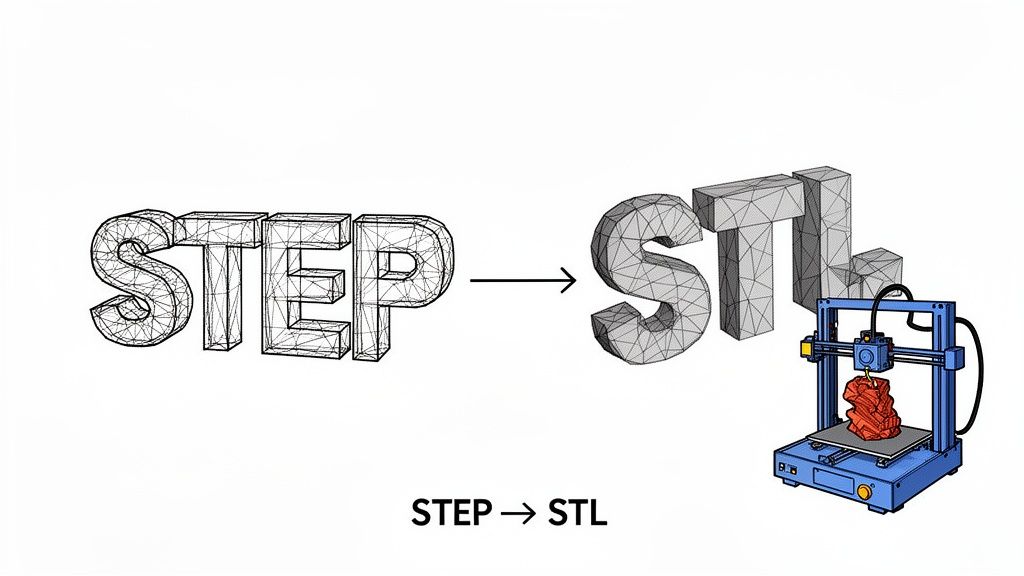
فكّر فيها بهذه الطريقة: ملف STEP يصف كرة مثالية باستخدام صيغة رياضية واحدة وأنيقة. طابعتك ثلاثية الأبعاد لا تستطيع التعامل مع ذلك. تحتاج مجموعة من التعليمات البسيطة المباشرة. ملف STL يوفر هذه التعليمات عن طريق تقريب سطح الكرة بمئات أو حتى آلاف المثلثات الصغيرة المسطحة.
المحوّل هو المترجم الذي يحول لغة التصميم الهندسي المعقدة إلى اللغة العملية خطوة بخطوة لطابعة ثلاثية الأبعاد. هذا ليس مجرد تبادل للصيغة؛ بل هو إعادة تصوّر كاملة لهندسة الجسم.
لماذا هذه الترجمة بالغة الأهمية
المخاطر عالية لأن الترجمة الرديئة تؤدي إلى طباعة رديئة. ملف STL منخفض الجودة قد يحتوي على فراغات، أو مثلثات في غير مكانها، أو تشطيب يشبه المكعبات لا يشبه تصميمك الأصلي على الإطلاق.
- للمهندسين: سير عمل التحويل القوي يعني الانتقال من تصميم في Fusion 360 أو SolidWorks إلى نموذج أولي ملموس على مكتبك في ساعات وليس أيام. يسرّع بشكل كبير عملية التكرار وتطوير المنتجات.
- لهواة التصنيع: يفتح عالمًا من الإمكانيات، مما يسمح لك بالحصول على قطع ميكانيكية معقدة عبر الإنترنت، وتعديلها، وطباعتها دون الحاجة إلى برامج احترافية باهظة الثمن للتحويل.
لتفهم حقًا لماذا هذا مهم، يساعدك أن تفهم ما هو التصنيع الإضافي ككل. إنه التكنولوجيا التي تضفي الحياة على هذه الملفات الرقمية، مما يجعل عملية التحويل من التصميم إلى الجسم بأكملها ممكنة.
لتوضيح الفرق أكثر، إليك شرحًا سريعًا لكيفية اختلاف هاتين الصيغتين في جوهرهما.
مقارنة سريعة بين STEP و STL
يُبرز هذا الجدول الاختلافات الجوهرية بين العالم الدقيق والرياضي لـ STEP والعالم العملي القائم على الشبكات في STL.
| الخاصية | STEP (معيار تبادل بيانات نموذج المنتج) | STL (معيار لغة التشكيل بالتقسيمTriangles) |
|---|---|---|
| الهندسة | يحدد الأشكال باستخدام منحنيات وأسطح رياضية دقيقة (NURBS). إنها تمثيل دقيق. | يقرب الأسطح باستخدام شبكة من المثلثات المترابطة (التقسيم). إنها تقريبية. |
| حجم الملف | أصغر حجمًا بشكل عام وأكثر كفاءة للنماذج المعقدة والمنحنية. | يمكن أن يصبح كبيرًا جدًا، حيث يلزم عدد أكبر من المثلثات لتمثيل الأسطح الناعمة بدقة. |
| الدقة | بلا فقدان. الهندسة مثالية رياضيًا ويمكن تحجيمها إلى ما لا نهاية دون فقدان التفاصيل. | بفقدان. الدقة ثابتة بعدد المثلثات. التكبير سيكشف الأوجه المسطحة. |
| قابلية التعديل | قابلة للتعديل بشكل كبير في برامج CAD. يمكنك تعديل الخصائص والأبعاد والعلاقات. | صعب التعديل. تعديل الشبكة معقد وغالبًا ما يتطلب برامج متخصصة. |
| حالة الاستخدام | تصميم CAD الاحترافي، الهندسة، التصنيع، وتبادل البيانات بين الأنظمة المختلفة. | في الغالب للطباعة ثلاثية الأبعاد، النماذج الأولية السريعة، والتصنيع بمساعدة الكمبيوتر (CAM). |
يُظهر فهم هذه الاختلافات سبب كون التحويل ليس مجرد عملية "حفظ باسم"—إنه ترجمة حاسمة تُقايِض فيها الكمال الرياضي بالقابلية للطباعة العملية.
الحاجة المتزايدة لأدوات فعّالة
مع ازدهار سوق الطباعة ثلاثية الأبعاد، trởت الحاجة إلى محوّلات موثوقة أكثر إلحاحًا من أي وقت مضى. كان السوق بقيمة 30.55 مليار دولار أمريكي في عام 2025، وهو على طريقه للوصول إلى 168.93 مليار دولار أمريكي بحلول عام 2033، مما يعكس معدل نمو سنوي مركب هائل يبلغ 23.9%.
هذا الانفجار في الاستخدام يعني أن عددًا متزايدًا من الأشخاص يصطدمون بزحفة التحويل هذه. أداة جيدة تجعل سير العمل سلسًا، بينما أداة سيئة تسبب الصداع.
سي带你 عبر الطرق المختلفة للتعامل مع هذا التحويل، بدءًا من برامج سطح المكتب القوية إلى الأدوات الخفيفة والمراعية للخصوصية التي تعمل مباشرة في متصفحك. سيساعدك معرفة الإيجابيات والسلبيات لكل خيار في اختيار سير العمل المناسب، سواء كان أولويتك الدقة المطلقة أو السرعة الفائقة أو حماية تصاميمك.
ضبط إعدادات التحويل المثالية
الانتقال من ملف STEP إلى STL ليس مجرد عملية "حفظ باسم" بسيطة. إنها عملية ترجمة حيث تحوّل كتلة مثالية ومُعرّفة رياضيًا إلى شبكة من المثلثات البسيطة التي يمكن لطابعة ثلاثية الأبعاد فهمها فعلًا.
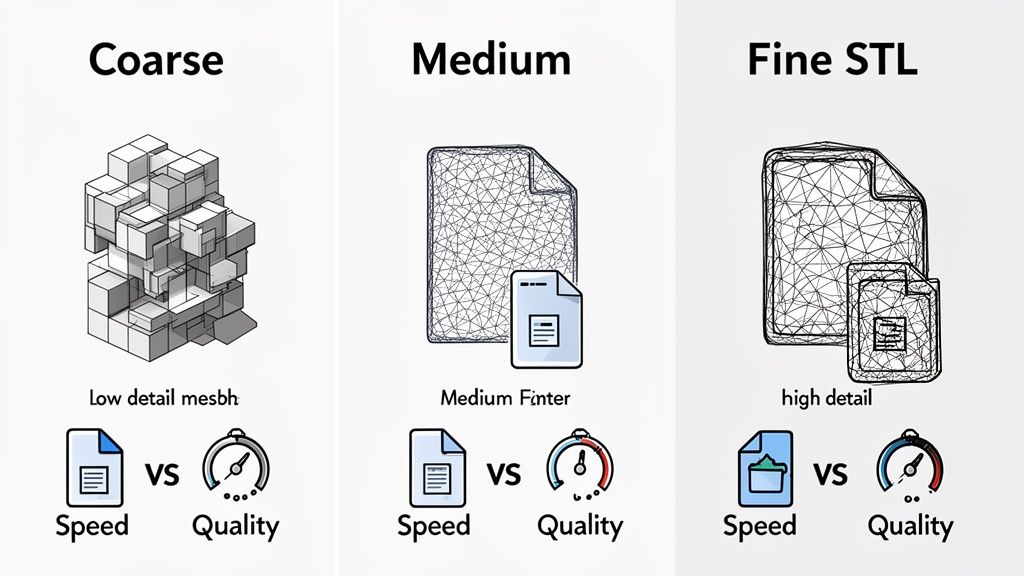
القرارات التي تتخذها هنا حاسمة. فهي تحدد الجودة النهائية لجسمك المطبوع. افكّر فيها أقل كحفظ مستند وأكثر كتطوير صورة - الإعدادات التي تختارها الآن ستتحكم في مدى وضوح وتفصيل الصورة النهائية. هدفك هو إيجاد تلك النقطة المثالية بين سطح جميل ناعم وحجم ملف لا يجعل برنامج التقطيع يتعثر. قلّل المثلثات أكثر من اللازم، وسيبدو نموذجك مربعًا؛ وزّدها أكثر من اللازم، وستظل مع ملف ضخم يصعب التعامل معه.
إتقان دقة الشبكة
عملية تحويل المنعطفات الناعمة لملف STEP إلى مثلثات STL تُسمى الترسيم. أي محوّل جيد سيمنحك التحكم في ذلك، عادةً من خلال إعدادين رئيسيين: الانحراف الوترى وolerance الزاوية.
الانحراف الوترى (يُسمى أحيانًا الانحراف الخطي) يحدد الحد الأقصى للمسافة المسموح بها بين سطح STEP الأصلي وجه مثلث STL. قيمة أصغر تعني سطحًا أكثر دقة، ولكن على حساب المزيد من المثلثات وحجم ملف أكبر.
tolerance الزاوية (أو الانحراف الزاوي) يتحكم في الزاوية القصوى بين المثلثات المتجاورة. هذا هو الإعداد الأساسي لالتقاط التفاصيل الدقيقة على الأسطح المنحنية بإحكام. زاوية أصغر تجبر البرنامج على استخدام المزيد من المثلثات لتقريب المنحنى، للحفاظ على تلك الأشكال الدقيقة.
بالنسبة لأغراض عملية مثل حامل ميكانيكي حيث تكون الدقة البُعدية هي كل شيء، سترغب في أولوية انحراف وترى منخفض. لكن إذا كنت تطبع تمثالًا مصغّرًا مفصّلًا، فإن أقل tolerance زاوية يصبح أكثر أهمية بكثير لمنع المنعطفات من أن تبدو كمضلعات حادة.
إيجاد التوازن المناسب
لا يوجد إعداد "مثالي" واحد هنا. الدقة المثالية تعتمد تمامًا على ما تصنعه.
- للنماذج الأولية السريعة: اختر شبكة خشن更高的 تiffer في القيم). إنها تُحوّل أسرع، والملف أصغر، وتُطبع بسرعة أكبر. هذا يتيح لك اختبار الشكل والملاءمة دون انتظار وقت طويل لإكمال طباعة عالية التفاصيل.
- للأجزاء بجودة الإنتاج: ستحتاج إلى شبكة أدق بكثير (قيم انحراف أقل) للحصول على سطح ناعم يمثل بدقة تصميم CAD الأصلي، خاصة للنماذج ذات الأشكال العضوية المعقدة.
هذا الم weighs-and-balances هو أحد التحديات الرئيسية لأي محوّل step to stl. على سبيل المثال، لاحظ المهندسون في DigiFabster أن تصديرات STL الافتراضية جعلت نماذج STEP المفصّلة تبدو " خشنة ومكتنزة". بعد الكثير من التجارب، وصلوا إلى إعداد 20 ميكرون قياسي لتحويل الشكل. على الرغم من أن هذا زاد من حجم الملف المتوسط 500%، إلا أنه أنتج عروضاً ناعمة بما يكفي لتلبية احتياجاتهم التصنيعية الاحترافية. يمكنك قراءة المزيد عن رحلتهم لتحقيق التوازن بين حجم الملف والجودة.
اختيار صيغة الإخراج: ثنائية أم ASCII
بعد ضبط الشبكة، سترى غالباً خياراً بين صيغتين STL: ثنائية و ASCII. يبدو الفرق بسيطاً، لكنه ي has a massive impact on حجم الملف والقابلية للاستخدام.
- STL الثنائية: هذه هي الصيغة التي تريدها 99% من الوقت. تخزن بيانات المثلثات في شفرة مختصرة وقابلة للقراءة بواسطة الآلة. الملفات الناتجة صغيرة جداً - غالباً أصغر بـ 4-5 مرات - وتتم معالجتها بشكل أسرع بكثير من قبل برامج التقطيع. لطباعة ثلاثية الأبعاد عملياً بأكملها، هذه هي الطريقة الصحيحة.
- STL النصية (ASCII): هذه الصيغة تخزن البيانات نفسها في نص عادي. يمكنك حرفي فتحها في Notepad وقراءة الإحداثيات. بينما هذا مفيد للتنقيح أو التعديل اليدوي، إلا أنه ينتج ملفات أكبر بشكل كبير. ما لم يكن لديك سبب تقني أو هواة خاص جداً لفعل ذلك، تجنب هذه الصيغة.
الخلاصة بسيطة: قم دائماً بالتصدير كملف STL ثنائي. إنه يوفر مساحة، ويُحمّل أسرع، وهو المعيار الصناعي لسبب وجيه.
التحقق من الوحدات وال scala
آخر إعداد حاسم يجب التحقق منه هو وحدة القياس. لا شيء أكثر إحباطاً من استيراد نموذجك في برنامج التقطيع ورؤية تظهر كنقطة مجهرية أو كائن ضخم يملأ صفيحة البناء بالكامل.
هذه المشكلة الكلاسيكية تحدث عندما يختلف برنامج التصدير وبرنامج التقطيع حول ما إذا كانت وحدات النموذج بالمليمترات أم بالإنشات. غالبية سير العمل في طباعة ثلاثية الأبعاد مبنية على المليمترات (mm). قبل الضغط على التصدير، تأكد مرتين من أن برنامج CAD أو المحوّل خاصتك مضبوط على الإخراج بالمليمترات.
إذا قمت بفتح ملف STL و发现 حجمه غير صحيح، فإن أول ما يجب التحقق منه هو معامل التحويل. من المرجح جداً أنه يكون خاطئاً بعامل 25.4—وهو الرقم السحري لتحويل إنش إلى ملليمتر. بينما يمكنك تصحيح ذلك بسهولة في برنامج التقطيع (Slicer) الخاص بك، فإن الحصول على المقاس الصحيح أثناء التحويل يوفر عليك تلك الخطوة الإضافية المزعجة.
العثور على أداة التحويل المناسبة من STEP إلى STL
قد تشعر وكأنك تغرق في الخيارات عندما تحتاج إلى تحويل ملف STEP إلى STL. هل تستخدم برنامج CAD احترافي قوي، أم أداة سريعة عبر الإنترنت، أم هناك خيار بينهما؟ الحقيقة هي أن أفضل محوّل step stl لك يعتمد على ما تحاول تحقيقه.
اختيار الأداة الصحيحة لا يتعلق فقط بالحصول على ملف صالح؛ بل يتعلق بإيجاد أذكى مسار لسير عملك. طباعة مجسم (figurine) رائع بواسطة هاوٍ له احتياجات مختلفة تماماً عن مهندس ينشئ نموذجًا أوليًا لمنتج جديد سري. دعنا نلخص الخيارات الرئيسية لتحديد أيها يناسبك أكثر.
برامج سطح مكتب CAD الاحترافية
إذا كنت مهندسًا أو مصممًا تعمل بالفعل في بيئة CAD احترافية، فإن الطريقة المباشرة هي استخدام الأدوات التي لديك بالفعل. تحتوي برامج مثل FreeCAD, Autodesk Fusion 360، وSolidWorks جميعها على أدوات تصدير قوية ودقيقة تقوم بمعالجة تحويلات STEP إلى STL بشكل ممتاز.
الفائدة الرئيسية هنا هي التحكم. تمنحك هذه البرامج وصولًا مباشرًا ودقيقًا لجميع إعدادات الشبكة (Mesh) الحيوية—الانحراف الشريطي، التحمل الزاوي، وما إلى ذلك. يمكنك ضبط الإخراج بدقة جراحية، مما يضمن أن ملف STL النهائي مناسب تمامًا لطابعتك ثلاثية الأبعاد والشكل الهندسي المحدد للقطعة.
لكن كل هذه القوة تأتي بثمن: منحنى تعلم حاد ومتطلبات نظام ضخمة. إذا لم تكن مستخدمًا لبرنامج CAD بالفعل، فإن تنزيل وتعلم برنامج مثل FreeCAD لمجرد تحويل لمرة واحدة يشبه استخدام مطرقة ضخمة لكسر جوز. إنها مبالغة شديدة.
أدوات سطر أوامر للأتمتة
للمطورين أو المستخدمين المتقدمين أو أي شخص يواجه جبلًا من الملفات التي تحتاج إلى تحويلها، توفر أدوات واجهة سطر الأوامر (CLI) تحولًا في الطريقة. هذه برامج خفيفة تقوم بتشغيلها من جهاز طرفي، مما يتيح لك كتابة نصوص برمجية وأتمتة العملية بأكملها من البداية إلى النهاية.
تخيل أن لديك مجلدًا يحتوي على 100 ملفات STEP تحتاج جميعها إلى تحويل باستخدام نفس الإعدادات عالية الدقة تمامًا. القيام بذلك يدويًا سيكون مملاً للحد الهلوس. مع أداة CLI، يمكن لنص برمجي بسيط معالجة المجلد بأكمله، وتطبيق قواعد التحويل الخاصة بك، وإخراج ملفات STL مثالية بينما تستعد لأخذ فنجان قهوة. بالنسبة لعمليات التصنيف وسير العمل الاحترافي، هذا وفورات وقت لا تصدق.
بالطبع، هذا النهج يفترض أنك مرتاح للعمل في بيئة سطر الأوامر. إنه بعيد كل البعد عن الحل بالنقر والتحكم، ولكن لأي شخص يحتاج إلى معالجة الملفات على نطاق واسع، فإن الكفاءة لا مثيل لها.
سهولة ومخاطر المحول عبر الإنترنت
بحث سريع في جوجل عن "محول step stl" سيغرق شاشتك بمواقع توفر تحويلات فورية ومجانية. سير العمل جذابة وبسيطة للغاية: قم بتحميل ملف STEP، وانقر على زر، ثم قم بتنزيل STL. للنماذج البسيطة غير الحساسة، لا يمكنك التفوق على هذه السهولة.
لكن هذه السهولة تأتي بتكلفة خفية ضخمة: الخصوصية.
في كل مرة تقوم فيها بتحميل تصميم إلى خادم طرف ثالث، تفقد السيطرة علىملكيةك الفكرية. للمشروع الشخصي أو النموذج مفتوح المصدر، قد يكون هذا المخاطرة التي تتحملها. أما بالنسبة للتصميم الاحترافي، أو عمل العميل، أو النموذج الأولي الحساس؟ فهذه نقطة فاصلة.
إضافة إلى كابوس الأمان، عادةً ما توفر المحولات عبر الإنترنت كمية ضئيلة بشكل مثير للسخرية من التحكم. قد تحصل على بعض الإعدادات المسبقة مثل "منخفض، متوسط، مرتفع"، لكنك تخسر القدرة على ضبط الشبكة بدقة. وغالبًا ما تجد نفسك مع ملف STL إما مفرط الحجم ومنخفض عدد الأضلاع أو ضخم بشكل غير مبرر.
الأدوات داخل المتصفح: الأفضل من كلا العالمين
فئة أحدث وأذكى بكثير من الأدوات تظهر: محولات محلية تعمل داخل المتصفح. تعمل هذه على مبدأ مختلف تمامًا. بدلاً من رفع ملفك إلى خادم في موقع غير معروف، تحدث جميع أ魔法التحويل داخل متصفح الويب الخاص بك، على جهازك الشخصي. بياناتك لا تغادر جهازك أبدًا.
هذا النهج يمنحك بساطة النقر والذهاب الخاصة بأداة الويب مقترنةً بالأمان القوي لتطبيق سطح المكتب. تحصل على واجهة نظيفة ودودة دون تثبيت أي برنامج، مع الحفاظ على تصميماتك خاصة تمامًا.
أدوات مثل ShiftShift Extensions مبنية حول هذا النموذج الذي يضع الخصوصية أولاً. معرض النماذج ثلاثية الأبعاد والمحول المدمج فيها يسمح لك بسحب وإفلات ملف STEP، وفحصه من كل زاوية، وتحويله إلى STL دون أن يصل أي بايت من نموذجك إلى الإنترنت. هذه هي الحل الأمثل لأي شخص يحتاج إلى تحويل سريع وآمن دون العبء العملي للبرامج الاحترافية أو مخاطر الخدمة عبر الإنترنت.
كيف تختار المسار الصحيح
لمساعدتك في اتخاذ قرارك، قمت بإعداد مقارنة سريعة. فقط فكر فيما هو الأهم لمشروعك، وستظهر الأداة المناسبة بسرعة.
مقارنة لطرق تحويل STEP إلى STL
| طريقة التحويل | الأفضل لـ | الميزة الرئيسية | العيب الرئيسي |
|---|---|---|---|
| برنامج CAD احترافي | المهندسون والمصممون والمستخدمون الذين يحتاجون إلى أقصى درجات الدقة. | تحكم كامل في كل إعدادات التحويل لتحقيق الجودة المثالية. | منحنى تعلم مرتفع، يتطلب أجهزة قوية، وغالبًا ما يكون مكلفًا. |
| أدوات سطر الأوامر | المطورون والمستخدمون الذين يحتاجون إلى معالجة العديد من الملفات دفعة واحدة. | لا مثيل لها للمعالجة الدفعية والأتمتة ودمج السكربتات. | تتطلب معرفة تقنية وليست سهلة الاستخدام للملفات الفردية. |
| محولات عبر الإنترنت | تحويلات سريعة وغير حساسة لمشاريع الهوايات. | سهلة الاستخدام للغاية ويمكن الوصول إليها من أي جهاز مزود بمتصفح. | مخاطر كبيرة للخصوصية والأمان؛ تحكم محدود للغاية في الإعدادات. |
| أدوات داخل المتصفح | المستخدمون الذين يعطون الأولوية للخصوصية والسرعة وسهولة الاستخدام. | معالجة محلية وآمنة دون رفع البيانات؛ بسيطة وسريعة. | قد لا توفر الضوابط المتقدمة والدقيقة لبرامج CAD الكاملة. |
في نهاية المطاف، عالم أدوات محول step إلى stl يحتوي على خيار لكل شخص. من خلال فهم التنازلات بين التحكم والراحة والخصوصية، يمكنك اختيار الطريقة التي تجعل أكثرsense لمشروعك واحتياجات أمانه بثقة.
كيفية التحقق من ملف STL واستكشاف أخطائه وإصلاحها
لقد قمت بتحويل ملف STEP الخاص بك. رائع! لكن لا تشغل طابعة ثلاثية الأبعاد بعد. تحويل ملف شيء واحد؛ التأكد من أنه قابل للطباعة شيء آخر. هذا الفحص السريع للجودة هو خط دفاعك الأخير ضد فشل الطباعة، مما يوفر عليك ساعات من الإحباط ولفافة من الخيط الضائع.
افكر في ملف STL كمنحوتة رقمية مصنوعة من مثلثات صغيرة، جميعها مخيطة معًا. إذا اختفت حتى بضعة من هذه المثلثات، أو كانت تواجه الاتجاه الخاطئ، أو اتلخبطت ببساطة، فلن تعرف طابعتك ماذا تفعل. دعنا نستعرض كيفية اكتشاف هذه الأشباح قبل أن تدمر يومك.
المسار الذي تسلكه لتحويل ملفك - سواء عبر برنامج CAD كامل أو أداة عبر الإنترنت سريعة - يمكن أن يؤثر على أنواع الأخطاء التي قد تراها. لكل طريقة خصائصها.
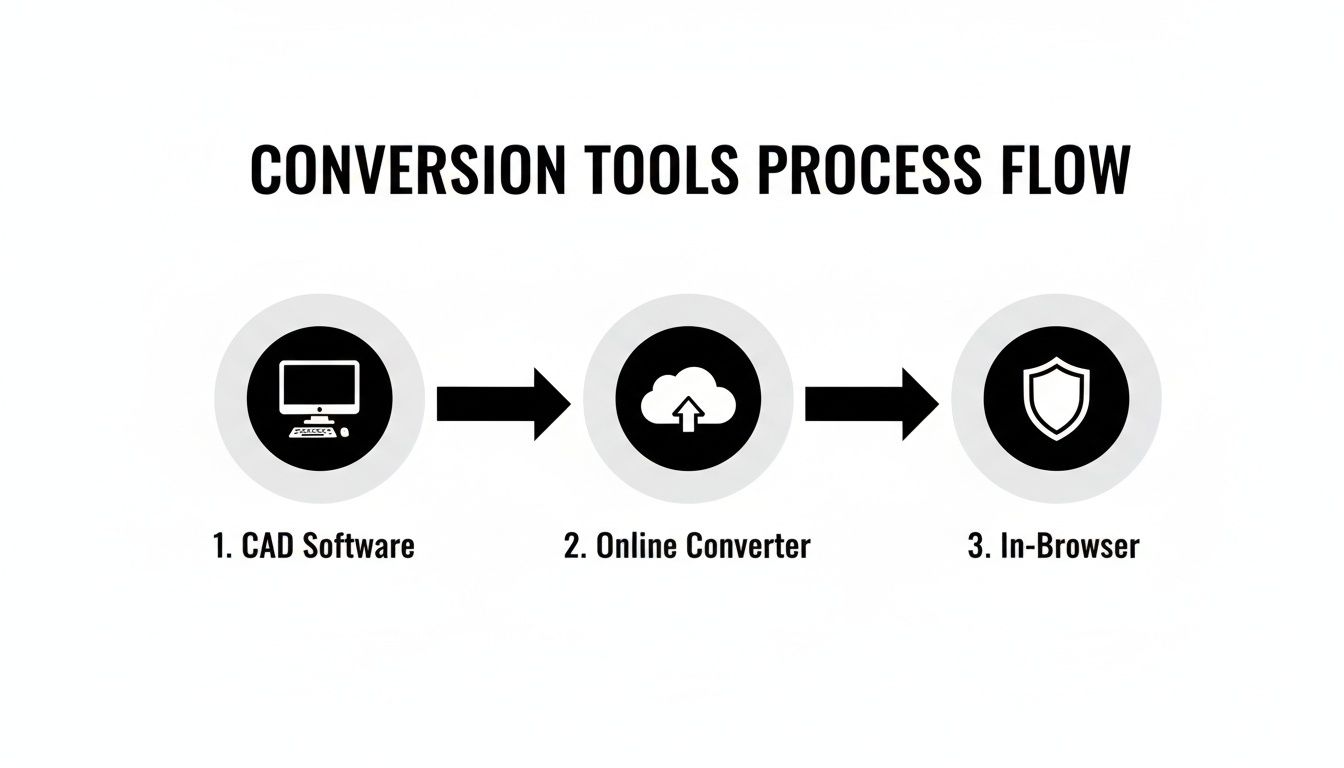
هذا هو السبب الذي يجعل الفحص السريع بعد التحويل فكرة جيدة دائمًا، بغض النظر عن الأداة التي استخدمتها.
التحقق من وجود نموذج محكم الإغلاق
القاعدة المطلقة الأولى لملف STL القابل للطباعة هي أنه يجب أن يكون محكم الإغلاق، أو ما يُعرف أيضًا بـ"متعدد السطوح". تخيل أن نموذجك دلو. إذا كان به أي ثقوب، فلن يستطيع الاحتفاظ بالماء. يتبع جهاز تقطيع ثلاثي الأبعاد التفكير ذاته؛ يحتاج إلى جسم محكم الإغلاق تمامًا لفهم أين "الداخل" و"الخارج".
العديد من أجهزة التقطيع الحديثة مثل PrusaSlicer أو Ultimaker Cura ذكية بما يكفي لتحديد هذه الثقوب وأحيانًا إصلاحها تلقائيًا. ولكن للحصول على عمل أكثر شمولاً، فإن أداة مثل Autodesk Meshmixer لا تقدر بثمن. ستشير بصريًا إلى أي فجوات وتوفر لك الأدوات لترميمها بشكل صحيح.
تصحيح العمود السطحي
كل مثلث في شبكة STL لديك له اتجاه—إما أن يواجه "الداخل" أو "الخارج". هذا الاتجاه هو العمود السطحي. إذا تم عكس بعض الأعمدة أثناء التحويل واتجهت نحو الداخل، فإن جهاز التقطيع يختل عمله ويعامل ذلك الجزء من النموذج كمساحة فارغة، مما يؤدي إلى فجوات غريبة أو أقسام مفقودة في طبعتك.
النموذج ذو الأعمدة السطحية المعكوسة هو أحد أكثر المشاكل شيوعًا—and أيضًا أكثرها إرباكًا—التي قد تواجهها. قد يبدو مثاليًا في عارض بسيط، لكنه سيتحول إلى فوضى مشوهة عند التقطيع. استخدم دائمًا عارضًا يمكنه تصور الأعمدة السطحية إذا suspects any issue.
لحسن الحظ، عادة ما يكون الحل بسيطًا. تمتلك معظم البرامج ثلاثية الأبعاد، بما في ذلك Meshmixer وحتى Blender، وظيفة مثل "إعادة حساب الأعمدة السطحية" أو "عكس الأعمدة السطحية" التي يمكنها توحيد الكل بنقرة واحدة.
إصلاح الحواف غير متعددة السطوح
هذه أكثر تعقيدًا قليلاً. الهندسة غير متعددة السطوح تحدث عندما يكون لنموذجك حواف لا يمكن أن وجودها في العالم الحقيقي. مثال كلاسيكي هو عندما تتشارك حافة أكثر من مثلثين، مما يخلق تقاطعًا على شكل T حيث لا يمكن لجهاز التقطيع تحديد ما هو داخل أو خارج.
تشمل أخطاء عدم تعدد السطوح الأخرى الوجوه الداخلية المحتجزة داخل النموذج أو الحواف الطافية التي لا تتصل بأي شيء. هذه الغموضات هي وصفة لكارثة في جهاز التقطيع. ستساعدك أداة إصلاح الشبكة الجيدة في العثور على هذه النقاط المشProblem spots, letting you delete the bad geometry or properly separate the parts into their own distinct shells.
سيناريوهات استكشاف الأخطاء وإصلاحها الشائعة
إلى جانب أخطاء الشبكة المعقدة، قد تظهر صعوبات أخرى شائعة. إليك بعض المشاكل المتكررة وكيفية التعامل معها:
المشكلة: يبدو النموذج الذي صنعته مجهرياً أو غير ناعم (
)- الحل: دقة التصدير الخاصة بك كانت منخفضة جداً. ارجع إلى أداة التحويل وأعد تصدير الملف، ولكن هذه المرة استخدم قيمة انحراف وترية أو تسامح زاوي أقل. سيؤدي ذلك إلى إنشاء شبكة أكثر دقة وتفصيلاً.
المشكلة: يبدو الملف صغيراً جداً أو ضخماً جداً عند استيراده.
- الحل: هذا في الغالب بسبب عدم تطابق الوحدات. ربما قمت بالتصدير بوحدة البوصة بينما كانت أداة القطع تنتظر الوحدات بالمليمتر. يمكنك إعادة التصدير بالوحدات الصحيحة (المليمتر هو المعيار المعتاد في الطباعة ثلاثية الأبعاد) أو ببساطة قم بتحجيم النموذج في أداة القطع بمعامل 25.4 للتحويل من البوصات إلى المليمتر.
المشكلة: تستغرق أداة القطع وقتاً طويلاً جداً لمعالجة الملف.
- الحل: الشبكة كثيفة جداً! كانت إعدادات التحويل الخاصة بك عالية جداً، مما أدى إلى إنشاء ملف ضخم يحتوي على ملايين المضلعات التي لا تحتاج إليها فعلياً. أعد التصدير بقيم انحراف أعلى قليلاً لتقليل عدد أضلاع الشبكة. إذا كنت تعمل مع كثير من الملفات، يمكن لـ عارض نماذج ثلاثية الأبعاد خفيف الوزن مساعدتك في فحصها بسرعة قبل إرسالها حتى إلى أداة القطع.
أتمتة عمليات التحويل باستخدام سير عمل متقدم
لأي شخص يعمل في مجال الهندسة أو تصميم المنتجات، تحويل الملفات واحداً تلو الآخر يُضيع وقتاً هائلاً. تلك الحلقة اليدوية--فتح ملف STEP، تعديل الإعدادات، التصدير إلى STL، الحفظ، والتكرار--مقبولة لنموذج أولي واحد فقط. ولكن عندما تقف أمام تجميع مكونات من عشرات أو حتى مئات المكونات؟ يصبح هذا شللاً إنتاجياً خطيراً. هنا يجبرك سير عملك على التوسع. لا يتعلق الأمر بالراحة فحسب؛ بل هو ضرورة.
أتمتة عملية التحويل من STEP إلى STL تحررك من العمل الروتيني المتكرر، وتضمن تحويل كل نموذج بنفس الإعدادات، وتمكّنك من تخصيص وقتك لتحديات التصميم التي تهم فعلياً. من خلال الاعتماد على البرمجة النصية وواجهات سطر الأوامر، يمكنك تحويل هذه المهمة المملة إلى عملية تتم بالكامل دون تدخل يدوي.
الاستفادة من سطر الأوامر للمعالجة الدفعية
بدلاً من النقر عبر واجهة رسومية لكل ملف على حدة، تعتمد سير عمل الأتمتة على القوة الخام لأدوات سطر الأوامر. هذه برامج خفيفة تقوم بتنفيذ عمليات التحويل بناءً على بسيطة نصية، مما يجعلها مثالية للبرمجة النصية. يمكنك كتابة سكريبت صغير يشير إلى مجلد مليء بملفات STEP ويأمر أداة التحويل بمعالجة جميعها في دفعة واحدة.
لنفترض أنك تحتاج إلى تحضير تجميع منتج كامل للطباعة ثلاثية الأبعاد. يمكن لسكريبت بسيط التعامل مع كل هذا نيابة عنك:
- قم بمراجعة كل ملف
.stepأو.stpفي مجلد مشروعك. - قم بتطبيق مجموعة محددة مسبقًا من إعدادات الشبكة عالية الدقة على الأجزاء النهائية المُنتجة.
- ربما قم أيضًا بإنشاء مجموعة ثانية منخفضة الدقة للطباعة الت验证ية السريعة.
- قم بتنظيم جميع ملفات STL المكتملة بعناية في مجلد "output"، مع إعادة تسميتها ربما بناءً على اصطلاح معين.
تضمن هذه الطريقة تحويل كل نموذج بنفس الإعدادات المتطابقة وخالية من الأخطاء. هذه درجة من الاتساق يصعب تحقيقها تمامًا عند القيام بذلك يدويًا. للغوص أعمق في أتمتة العمليات التجارية بهذه الطريقة، تفضل بقراءة this complete guide to workflow automation software؛ فهو يقدم بعض الأفكار القيمة حول الأدوات المتاحة.
مثال عملي باستخدام Python
يُعد Python خيارًا رائعًا لهذا النوع من الأتمتة، بفضل المكتبات التي يمكنها التفاعل مباشرة مع أنوية CAD. على سبيل المثال، باستخدام مكتبة مبنية على محرك هندسة قوي مثل OpenCASCADE، يمكنك كتابة سكريبت يدير عملية التحويل بأكملها دون فتح برنامج CAD أبدًا.
إليك فكرة مفاهيمية لكيفية قد يبدو عليها سكريبت Python بسيط:
سكريبت Python مفاهيمي للتحويل الدفعي
import os from some_cad_library import STEPReader, STLWriter
حدد مكان وجود ملفاتك وأين يجب أن تذهب
input_folder = "/path/to/your/step_files/" output_folder = "/path/to/your/stl_files/"
قم بتعيين جودة الشبكة المطلوبة مرة واحدة
mesh_deflection = 0.01 # A fine setting for high detail
قم بالتكرار عبر جميع الملفات في مجلد الإدخال
for filename in os.listdir(input_folder): if filename.endswith(".step") or filename.endswith(".stp"): step_path = os.path.join(input_folder, filename)
    # Read the STEP model
    model = STEPReader.read(step_path)

    # Create the mesh using your setting
    model.tessellate(mesh_deflection)

    # Figure out the new output filename
    stl_filename = filename.replace(".step", ".stl").replace(".stp", ".stl")
    stl_path = os.path.join(output_folder, stl_filename)

    # Write the final STL file
    STLWriter.write(model, stl_path)
    print(f"Successfully converted {filename} to STL.")
سكريبت بسيط كهذا يُautomate تدفقة عمل كانت تستهلك ساعات من النقر اليدوي. مبادئ الأتمتة تنطبق على جميع أنواع تحديات البيانات، كما يمكنك أن ترى مع أدوات مثل محوّل CSV إلى Excel، حيث توفر عليك السكريبتات العمل اليدوي المُرهق والباهت.
التكامل في خطوط سير التطوير الحديثة
السحر الحقيقي يحدث عندما تربط هذه السكريبتات بأنظمة تطوير أكبر، مثل خط سير التكامل المستمر/النشر المستمر (CI/CD). هذا المفهوم، المستعار من عالم البرمجيات، يعمل ببراعة في تصميم الأجهزة أيضًا.
تخيّل ذلك: في كل مرة يقوم مصمم بالالتزام بتغيير في ملف STEP في نظام التحكم في الإصدارات مثل Git، فإن ذلك يُطلق تلقائيًا سكريبت التحويل الخاص بك. تلك السكريبت تولّد فورًا ملف STL جديدًا، يمكن بدوره إدخاله في أداة تحليل آلية، أو التحقق منه بواسطة مقشّر (Slicer)، أو حتى إرساله مباشرة إلى طابعة ثلاثية الأبعاد للحصول على نموذج أولي جديد.
هذا الإعداد يخلق تدفق عمل سلسًا "اضغط-للطباعة". يسد الفجوة بين تغيير التصميم وقطع مادية بين يديك، مما يتيح لفرق الأجهزة التكرار بنفس سرعة ومرونة التي استمتعت بها فرق البرمجيات لسنوات. من خلال تبنّي الأتمتة، يتطور محوّل STEP إلى STL من أداة بسيطة إلى جزء أساسي من منظومة هندسية حديثة وفعّالة.
إلى أين يتجه التحويل: داخل المتصفح، خاص، ومتكامل
أي شخص يعمل في هذا المجال منذ فترة لاحظ اتجاهًا واضحًا: نبتعد عن البرمجيات المكتبية الثقيلة والتي تتطلب تثبيتًا. مستقبل تحويل النماذج ثلاثية الأبعاد يحدث مباشرة في متصفحك، مما يلغي متاعب التنزيلات والتحديثات. هذا ليس فقط عن الراحة؛ بل هو تحول هائل نحو السرعة، والسهولة في الوصول، وأهم من ذلك—الخصوصية.
العقلية التي تضع الخصوصية في المقدمة لم تعد "مفضّلة بل إضافية". إنها المعيار الجديد. يحتاج المهندسون والمصممون باستمرار إلى عرض النماذج والتحقق منها وتحويلها، لكن رفع الملكية الفكرية الحساسة إلى خادم سحابي عشوائي ليس خيارًا. هنا تُحدث الأدوات التي تعمل داخل المتصفح وتعمل محليًا على جهازك تغييرًا جذريًا. تحصل على أمان س software المكتبي مع سهولة الوصول البسيطة لتطبيق ويب.
ت成为 norm سير العمل الآمن
هذا الحركة بأكملها تدعّمها الانفجار في مجال الطباعة ثلاثية الأبعاد، خاصة للنمذجة الأولية السريعة. نحن نتحدث عن سوق يتوقع أن يقفز من 19.8 مليار دولار أمريكي في عام 2023 إلى ما يقارب 135.4 مليار دولار أمريكي بحلول عام 2033. هذا النوع من النمو يخلق طلبًا هائلًا على أدوات تحويل أفضل وأسرع. لمزيد من المعلومات، راجع البيانات حول مسار سوق الطباعة ثلاثية الأبعاد.
أدوات مثل ShiftShift Extensions مصممة لهذه الواقعية. إنها تمنحك عارضًا ثلاثي الأبعادًا محليًا و محوّل step stl يقوم بجميع العمل مباشرة في متصفحك. هذا يعني أنه يمكنك تكرار التصميم على الفور دون إرسال ملفك عبر الإنترنت أبدًا.
الاستنتاج الرئيسي بسيط: يجب أن يحمي سير عملك ملكيتك الفكرية بشكل افتراضي. اختيار الأدوات التي تعمل محليًا ليس مجرد ميزة—بل هو ممارسة أمان حاسمة للتصميم والهندسة الحديثة.
في النهاية، أفضل الأدوات هي تلك التي تندمج بسلاسة مع الطريقة التي تعمل بها بالفعل. الأدوات المدعومة بلوحة أوامر مثالية في ذلك، حيث تضع محوّل step stl الآمن على مسافة اختصار لوحة مفاتيح واحدة. هذا النهج لا يجعلك أكثر إنتاجية فحسب، بل يحافظ على سلامة بياناتك ويفتح قدرات قوية للجميع، من المهندسين المخضرمين إلى صانعي العطلات الأسبوعية. مبدأ الأدوات الآمنة المبنية على المتصفح لا يقتصر على النماذج ثلاثية الأبعاد—يمكنك رائحة اتجاه مشابه في دليلنا حول أفضل برنامج محول PDF مجاني.
الأسئلة الشائعة والإجابات السريعة
عندما تبدأ في تحويل ملفات STEP، تبدو بعض الأسئلة دائمًا طارحة نفسها. ترتيب هذه الأسئلة مبكرًا يمكن أن يوفر عليك الكثير من المتاعب ويمنع فشل عمليات الطباعة لاحقًا.
هل يمكنني تحويل ملف STL обратًا إلى ملف STEP؟
الإجابة المختصرة؟ ليس حقًا، على الأقل ليس بسهولة أو بشكل نظيف. بينما تتبع برامج الهندسة العكسية المتقدمة القيام بذلك، فإن تحويل ملف STL إلى STEP هو عملية فوضوية ومعقدة لا تقدم لك نتيجة مثالية أبدًا تقريبًا.
ملف STL هو مجرد شبكة من المثلثات—إنه نموذج سطح بلا "ذكاء" حقيقي. إنه لا يحتوي على سجل التصميم الغني والدقيق الذي يحتويه ملف STEP. محاولة إعادة بناء البيانات المعلمة من شبكة بسيطة تشبه محاولة إعادة تخطيط المعماري الأصلي من صورة ممسوحة للمبنى المكتمل. ستحصل على شيء ما، لكن من المرجح أن يكون به عيوب ويستغرق قدرًا كبيرًا من التنظيف اليدوي.
لماذا ملف STL المحول بحجم كبير جداً؟
هذا جزء كلاسيكي—وطبيعي تمامًا—من عملية التحويل. ملف STEP هو عبارة عن عجب من الكفاءة؛ إنه يصف الهندسة المعقدة والمنحنية باستخدام صيغ رياضية بحتة. ملف STL، من ناحية أخرى، يجب أن يقرّب تلك المنحنيات المثالية عن طريق تجميع آلاف (أو حتى ملايين) من المثلثات الصغيرة والمسطحة.
كلما أردت أن يبدو نموذجك النهائي أكثر نعومة، كلما ارتفعت الدقة التي تضبطها. هذا يجبر المحوّل على إنشاء عدد هائل من المثلثات لإنشاء وهم المنحنى المثالي، مما يجعل حجم الملف ينفجر بطبيعة الحال.
نصيحة احترافية: دائمًا، دائمًا، قم بتصدير ملف STL بالتنسيق الثنائي، وليس ASCII. ملف STL الثنائي أصغر حجمًا بشكل كبير — نتحدث عن من أربعة إلى خمسة أضعاف أصغر — وسيتمكن.program 3D الخاص بك من معالجته بسرعة أكبر بكثير. إنه المعيار لسبب وجيه.
هل يقلل التحويل من STEP إلى STL من الجودة؟
نعم، تقنيًا، تُفقد بعض الدقة دائمًا في عملية التحويل، لكن الجوهر هو أن أنت تتحكم في مقدارها. تُسمى عملية تحويل النموذج الرياضي السلس إلى شبكة مثلثات التبليط، وهي في جوهرها عملية تقريب.
فكّر فيها كمحاولة رسم دائرة مثالية باستخدام سلسلة من الخطوط الصغيرة المستقيمة فقط. يمكنك التحكم في مدى قصر تلك الخطوط. عن طريق ضبط الإعدادات مثل الانحراف القوسي والتحمل الزاوي في أداة التحويل الخاصة بك، يمكنك جعل "الخطوط" (حواف المثلثات) صغيرة جدًا بحيث تصبح فقدان الجودة غير مرئي تمامًا في الطبع ثلاثي الأبعاد الناتج. يتعلق الأمر بالعثور على النقطة المثالية بين نموذج جميل وسلس وحجم ملف لا يُثقل كمبيوتك.
افتح عالمًا من الإنتاجية مع امتدادات ShiftShift، مجموعة الأدوات الشاملة للمطورين والمصممين والمستخدمين المتقدمين. احصل على وصول فوري إلى عشرات الأدوات مثل عارض النماذج ثلاثية الأبعاد الآمن، ومحولات الملفات، وأدوات المطورين — جميعها من لوحة أوامر واحدة، مباشرة في متصفحك. ابدأ مجانًا على https://shiftshift.app.