Print Screen Not Working? Fixes for Windows, macOS, and Linux
Fix Print Screen on Windows, macOS, and Linux. Learn where screenshots go, restore shortcuts, or capture full web pages in Chrome.

Full Page Screenshot
Capture full-page, visible-area or selected-page screenshots. Edit, save as PNG/JPEG/PDF, copy or share with consent.
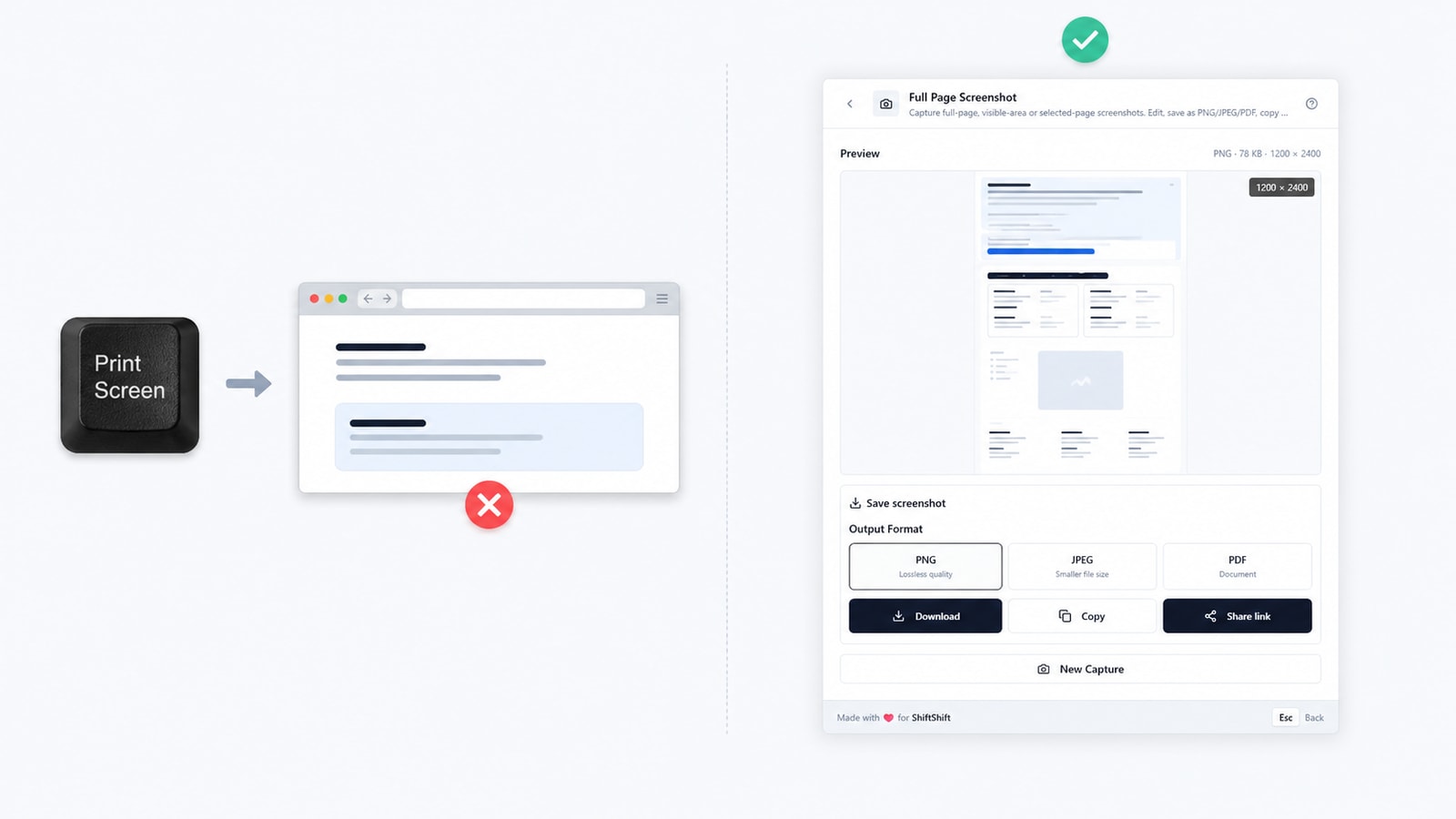
Short answer: first confirm whether the screenshot went to the clipboard or to a file, then test your operating system’s dedicated screenshot shortcut. If the problem is limited to web pages—or you need the part below the fold—you can bypass the keyboard issue with the Full Page Screenshot extension for Chrome. It captures the full page, the visible area, or a selected region without relying on the Print Screen key.
“Print Screen not working” can describe several different failures: nothing seems to happen, an image is copied but not saved, a shortcut opens the wrong app, or the capture misses most of a long page. Use the symptom table first, then follow the section for your operating system.
Quick diagnosis: what to check first
| Symptom | First check | Likely explanation |
|---|---|---|
| Nothing appears after pressing Print Screen | Paste into Paint, Preview, or a document | The image may be on the clipboard rather than saved as a file |
| The shortcut changes volume or brightness | Try the Fn key or F-Lock | The keyboard’s secondary function layer is active |
| A screenshot tool opens, but no file appears | Check its save location and notification | The tool may be waiting for a selection or saving elsewhere |
| Only one app ignores the shortcut | Test the desktop or another app | The app may intercept or restrict screen capture |
| A web page is cut off at the bottom | Use a full-page browser capture | System screenshots normally capture only visible pixels |
Also check the simple physical causes: reconnect an external keyboard, try a different USB port, and test the on-screen keyboard where available. A single damaged key is different from a screenshot service or shortcut configuration problem.
Fix Print Screen on Windows
Windows has several screenshot paths, and they do not all save to the same place. A plain PrtSc commonly copies the entire screen to the clipboard. Alt + PrtSc copies the active window. Windows + PrtSc normally saves a file in Pictures → Screenshots. Windows + Shift + S opens the Snipping Tool capture overlay. Microsoft documents both the keyboard shortcuts and the current Snipping Tool workflow.
If PrtSc appears to do nothing, press it once and immediately paste with Ctrl + V into Paint, an email draft, or a document. If the image appears, the key worked; the confusion was clipboard versus file storage. If Windows + PrtSc was used, check Pictures → Screenshots, OneDrive → Pictures → Screenshots when OneDrive backup is enabled, and the most recent notification from Snipping Tool.
Many laptops combine PrtSc with another key function. Try Fn + PrtSc, then check whether an F-Lock or function-mode setting is active. Compact keyboards may put Print Screen behind a vendor-specific shortcut. The label printed on the key and the keyboard manual are more reliable than assuming every model uses the same combination.
Windows can assign the Print Screen key to open screen snipping. Search Settings for “Print Screen” and inspect the option that uses PrtSc to open screen capture. Toggle it off and on, then test again. If Windows + Shift + S works but PrtSc does not, the capture service is probably healthy and the problem is the key mapping or keyboard layer.
Finally, close utilities that register global shortcuts: screen recorders, game overlays, remote-desktop clients, clipboard managers, and another screenshot app. Test after a clean restart before reinstalling anything. On managed work devices, security policy can also limit screenshots in protected windows; test an ordinary desktop window to distinguish policy from a system-wide failure.
Fix screenshots on macOS
Mac keyboards do not use a Print Screen key. The standard shortcuts are Shift + Command + 3 for the whole screen, Shift + Command + 4 for a selected area, and Shift + Command + 5 for the Screenshot controls. Apple’s screenshot guide covers these commands and the available options.
Start with Shift + Command + 5. In Options, verify the “Save to” destination. The default is often the Desktop, but it can be Documents, Clipboard, Mail, Messages, Preview, or a custom folder. A capture that goes to the clipboard will not create a visible file; paste it into Preview or another app to confirm it exists. Also allow time for the floating thumbnail to finish if you just changed or annotated the capture.
If none of the shortcuts respond, open System Settings → Keyboard → Keyboard Shortcuts and inspect Screenshots. Re-enable disabled entries and remove conflicts with custom shortcuts. Menu-bar screenshot tools, window managers, remote-access software, and recording apps can claim the same combinations. Quit them temporarily and retry the built-in shortcut.
Test more than one target. Some video, banking, enterprise, or rights-managed apps deliberately produce a blank or blocked capture. If the desktop and a normal browser tab work, macOS screenshot support is functioning and the limitation belongs to the protected app. If every target fails, restart the Mac and retest the default shortcuts before changing permissions or deleting preference files.
For a MacBook with an external non-Apple keyboard, do not search for PrtSc behavior first. Use the macOS shortcut with the Command key mapping recognized by that keyboard. A Windows-labeled key may map differently depending on the keyboard layout and modifier settings.
Fix Print Screen on Linux
Linux behavior depends on the desktop environment, distribution, and screenshot utility. GNOME commonly maps Print to its screenshot interface, while KDE Plasma uses Spectacle. Other environments may save immediately, copy to the clipboard, or launch a separate tool. Treat the shortcut settings for your current desktop as the source of truth.
On GNOME, open Settings → Keyboard → View and Customize Shortcuts, then find the Screenshots group. Confirm that Print, Shift + Print, or Alt + Print is assigned to the action you expect. If the screenshot overlay opens, check whether you still need to choose screen, window, or selection and press the capture button. Look in Pictures or the location configured by your distribution.
On KDE Plasma, launch Spectacle directly from the application menu. The Spectacle documentation lists command-line and shortcut behavior, and the current app lets you choose capture mode and save or copy the result. If Spectacle works when opened directly but the Print key does not, repair the global shortcut in System Settings rather than reinstalling the capture tool.
Custom shortcuts are a frequent cause. Search the keyboard settings for every action bound to Print; remove duplicate bindings, then assign the screenshot tool once. Also test outside a full-screen game, virtual machine, remote-desktop session, or Wayland-restricted application, all of which can intercept keys or limit what another process may capture.
If your keyboard uses a function layer, test Fn + Print and check the layout selected by the desktop. You can also launch the screenshot utility by name to separate a hardware key problem from a software problem. Package names and save locations vary, so distribution-specific documentation is preferable to a command copied from another desktop environment.
When a browser extension is the better answer
Operating-system tools are ideal for desktop apps, menus, and the pixels currently visible on screen. They are less suitable when the subject is a long article, dashboard, documentation page, or bug report that extends below the viewport. Stitching several manual screenshots is slow and can duplicate or omit content.
Full Page Screenshot works inside Chrome, so it is independent of the physical Print Screen key. Use it when the keyboard shortcut is unavailable, when you only need a web page, or when the deliverable should include the complete scrollable page in one workflow. It does not capture desktop applications or operating-system dialogs.

Choose Full Page, Visible, or Selection
Full Page scrolls through the document and assembles the page into a long capture. It is the useful choice for landing-page reviews, support records, documentation, research, and defects that need surrounding context. Visible captures only the current viewport, which is faster for a transient UI state. Selection lets you drag around one region when the rest of the page would distract from the point.
The three modes solve different communication problems. A full capture proves page-level layout and content order. A visible capture records exactly what the user saw at that moment. A selection focuses attention on one form error, chart, card, or control. Choosing the smallest mode that preserves the needed context makes the output easier to review.
Edit, export, copy, and share
After capture, open the editor when the raw page needs explanation. The current tools include crop, backgrounds, outline and filled shapes, ellipses, lines, arrows, text, blur, spotlight, counters, and a highlighter. That covers common bug-report and tutorial tasks: point at a control, number a sequence, soften sensitive details with blur, or emphasize a row without rebuilding the screenshot in another app.

Export as PNG for crisp interface text, JPEG when a smaller image file matters, or PDF when the capture should travel as a document. The PDF is image-based: it does not run OCR and does not turn page text into searchable or selectable PDF text. Supported image results can also be copied to the clipboard for a quick paste into a ticket, chat, email, or document.
The extension keeps the most recent five screenshots in local browser storage on that device. From recent history you can reopen, copy, download, or delete a capture. It is a short convenience history, not a cloud archive. Capture, editing, download, and local history stay in the browser workflow.
Creating a Share link is different. The extension first asks for explicit confirmation; only after you agree is the screenshot uploaded to shiftshift.app to create a public link. Review the preview and apply blur where needed before sharing. Anyone with the link may be able to view the image until the link is deleted.

Which screenshot method should you use?
| Method | Best for | Main limit |
|---|---|---|
| Basic system shortcut | Fast clipboard or visible-screen capture | Destination can be unclear; long pages are cut off |
| Built-in OS screenshot tool | Desktop apps, windows, timed captures, and selections | Usually limited to visible screen content |
| Full Page Screenshot extension | Long Chrome pages, browser selections, annotation, and several output formats | Works on web pages, not desktop apps or system dialogs |
There is no need to choose one tool forever. Repair the operating-system shortcut because it remains useful for everyday desktop work. Keep the browser extension for the jobs the shortcut cannot represent well: complete pages, precise web selections, and an edited result ready for a ticket or handoff.
Capture limitations to expect
A full-page capture is a reconstruction of a live document, not a camera pointed at a static sheet. Sticky headers may repeat, lazy-loaded images may not finish in time, and infinite feeds can keep growing while capture is in progress. Very large pages can exceed browser canvas limits and may be split into multiple image parts.
Cross-origin iframes and embedded applications may not be fully available to the page capture process. Canvas-heavy sites, video frames, animations, and content that changes while scrolling can differ from what you saw at the start. When accuracy matters, pause motion where possible, wait for images to load, capture, and inspect the preview before exporting.
Use the system screenshot tool for native apps, protected windows, browser chrome, or operating-system menus. Use the extension for the content area of ordinary web pages. That boundary keeps expectations clear and avoids treating a browser tool as a replacement for every kind of screen capture.
Frequently asked questions
Why does Print Screen copy an image but not save a file?
Many Print Screen shortcuts place the image on the clipboard. Paste it into an image editor or document. Use the operating system’s save-to-file shortcut or screenshot tool when you need a file immediately.
Where did my screenshot go?
On Windows, check the clipboard, Pictures → Screenshots, OneDrive screenshot folders, and Snipping Tool notifications. On macOS, open Shift + Command + 5 and inspect “Save to.” On Linux, check the configured screenshot utility and desktop shortcut settings.
Can the extension capture outside Chrome?
No. It captures web-page content in Chrome. Use Windows Snipping Tool, macOS Screenshot, Spectacle, or another operating-system tool for desktop applications and system UI.
Does the extension upload every screenshot?
No. Capture, editing, download, clipboard, and recent history are local browser workflows. An image is uploaded only when you explicitly confirm creation of a Share link.
Is the exported PDF searchable?
No. The PDF contains the screenshot as an image. The extension does not perform OCR or create selectable page text.
If your system shortcut still fails, you now have a narrower problem to investigate: keyboard mapping, save destination, shortcut conflict, or an app-specific restriction. For long web pages, you do not have to wait for that repair. Open Full Page Screenshot for Chrome, choose Full Page, Visible, or Selection, and export the result in the format your workflow needs.
Full Page Screenshot
Capture full-page, visible-area or selected-page screenshots. Edit, save as PNG/JPEG/PDF, copy or share with consent.