Den Ultimative Guide til Universel Filvisningssoftware
Opdag hvordan en universel filvisning kan åbne ethvert filformat sikkert. Lær om browserbaserede værktøjer, der fungerer offline og beskytter dit privatliv.
Anbefalede udvidelser

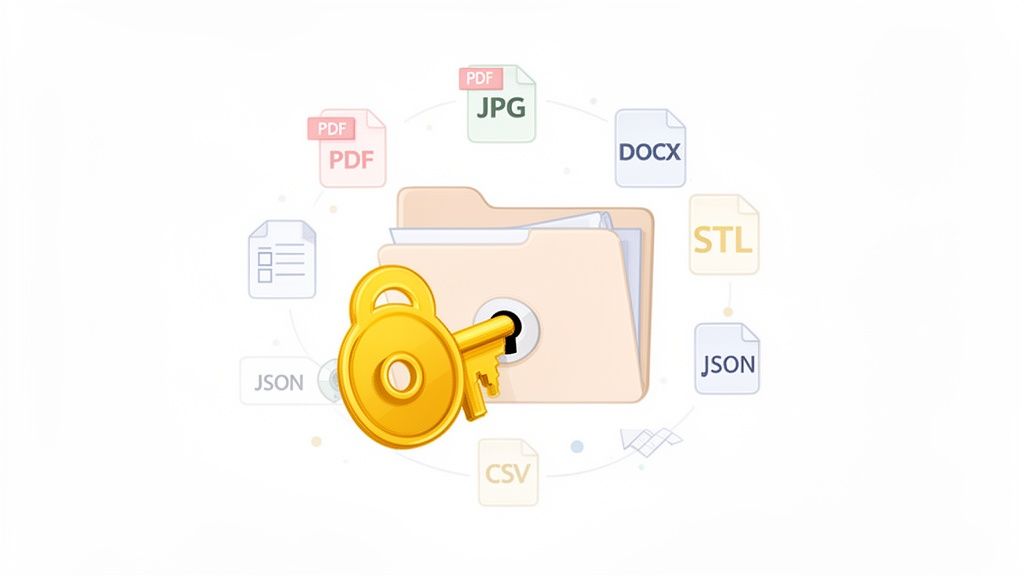
Forestil dig: du får en fil fra en kollega, men når du klikker på den, møder du den frygtede "fil ikke understøttet"-fejl. Kender du det? En universel filfremviser er løsningen på netop dette problem – forestil det som en digital hovednøgle, et enkelt værktøj, der kan låse op for hundredvis af forskellige filtyper.
Den er designet til at lade dig se indholdet i alt fra dokumenter og billeder til kompleks kode og 3D-modeller, alt sammen uden behov for det oprindelige program, det blev oprettet i.
Lås op for enhver fil uden besvær
Den moderne arbejdsgang er en minefelt af forskellige filformater. Enhver applikation, fra Adobe Photoshop til Microsoft Word, gemmer arbejde på sin egen unikke måde. Traditionelt set krævede åbning af en af disse filer, at du havde det specifikke program installeret på din maskine.
En universel filfremviser vendter helt op og ned på det. I stedet for at jonglere med dusvis af programmer, har du ét, der kan fortolke og vise et stort udvalg af filendelser. Det fungerer i bund og grund som en oversætter, læser de rå data inde i en fil og viser dem til dig på en måde, du kan forstå, uanset hvor de kommer fra.
Så, hvad er formålet med en filfremviser?
I sin kerne løser denne type software tre irriterende problemer, der kan ødelægge enhvers dag. Det handler ikke bare om at gøre tingene lettere; det handler om at holde din momentum kørende.
- Skærer ned på softwareophobning: Du kan stoppe med at installere et separat program for hver enkelt filtype. Det betyder mere diskplads og færre baggrundsprocesser, der bremser din computer.
- Holder dig produktiv: Åbn øjeblikkeligt e-mailvedhæftninger og downloads uden den frustrerende jagt på det rigtige program at installere eller købe.
- Bryder barrierer ned: Arbejd gnidningsløst med alle, velvidende at du kan åbne, hvad de end sender dig, uanset om det er en .docx, .svg, .json eller endda en .stl-fil.
En universel fremviser rydder op i dit digitale liv ved at fjerne de tekniske barrierer mellem dig og dine filer. Den sikrer, at du altid kan få adgang til dine oplysninger, uden at blive standset af et simpelt softwareproblem.
Denne tabel giver et hurtigt overblik over de vigtigste fordele.
Overblik: Fordele ved en universel filfremviser
| Fordele | Beskrivelse |
|---|---|
| Enkelhed | En applikation til at åbne hundredvis af filformater, hvilket reducerer kompleksiteten. |
| Omkostningseffektivitet | Undgå behovet for at købe flere dyre softwarelicenser. |
| Øget produktivitet | Eliminerer spildtid på at søge efter og installere specifikke programmer. |
| Forbedret samarbejde | Åbn nemt filer fra kollegaer og klienter, uanset hvilken software de bruger. |
| Ressourcebesparelser | Reducerer mængden af installeret software, sparer diskplads og systemhukommelse. |
I sidste ende er disse værktøjer bygget til at gøre dine interaktioner med digitale filer problemfrie og frustrationfri.
Skiftet til moderne, browserbaserede værktøjer
Idéen om en universel fremviser er ikke helt ny, men teknologien er kommet langt. Tidligere versioner var ofte klodsede desktop-apps, der krævede store installationer og konstante opdateringer. De fungerede, men de var bare endnu et program at administrere.
I dag lever de bedste løsninger direkte i din browser. Moderne værktøjer, som dem i ShiftShift Extensions-økosystemet, udfører alt det tunge arbejde lokalt på din maskine. Dette giver dig den nemme adgang fra et webværktøj med den solide privatlivsbeskyttelse fra en desktop-app, da dine filer aldrig faktisk uploades til en server.
Behovet for disse værktøjer er tydeligt. Det globale marked for filvisningssoftware er eksploderet og er steget fra $6.058,5 millioner til et projektet $8.001 millioner på blot fire år – det er en stigning på 32%. Denne vækst viser, hvor stort behovet er for enklere måder at få adgang til filer på i enhver branche. Du kan finde flere indsigter om det voksende marked for filvisningssoftware og se den reelle effekt selv.
Hvordan fungerer en universel filfremviser egentlig?
For de fleste af os virker en universel filfremviser lidt som magi. Du finder en obskur fil, trækker den over, og – poof – den åbner sig. Men bag denne enkle handling ligger der virkelig intelligent teknologi, der finder ud af, hvordan den skal give mening i filens data.
Forestil dig det som en mesterlingvist. De kender ikke blot mange sprog; de forstår grammatikken, kulturen og de specifikke dialekter i hvert sprog. En god filfremviser gør det samme, men for digitale formater.
Disse værktøjer bruger generelt en af tre hovedtilgange til at få en fil vist på din skærm. Hver har sine egne afvejninger og balancerer ting som visningsnøjagtighed, hastighed og sikkerhed. At vide, hvordan de fungerer, hjælper dig med at forstå, hvad der sker bag kulisserne.
Den indbyggede gengivelsesmetode
Først er der indbygget gengivelse. Dette er den højkvalitets metode. Det er som at have en lille, specialiseret version af den originale software indbygget direkte i fremviseren. Fremviseren bruger specifikke kodebiblioteker, der kender de nøjagtige regler og struktur i et filformat, hvilket gør det muligt at vise indholdet perfekt.
For eksempel, når du åbner en .docx-fil med en indbygget gengiver, gætter den ikke bare på, hvordan den skal se ud. Den læser faktisk filens interne XML-data, anvender formateringsreglerne for tekst og tabeller og sætter det hele sammen ligesom Microsoft Word ville gøre det. Det er den mest nøjagtige måde at gøre tingene på, men det betyder også, at softwaren kan blive ret stor og kompleks for at understøtte hvert enkelt format.
Omnvandlingsbaseret visningsmetode
En anden populær teknik er konverteringsbaseret visning. Dette minder mere om at tage en bog skrevet på et sjældent sprog og oversætte den til noget almindeligt, som engelsk, som alle kan læse. Her tager fremviseren kildedataene – uanset om det er et regneark, en designfil eller et dokument – og konverterer dem til et universelt format som HTML, PDF eller endda et simpelt billede.
Denne metode er utroligt alsidig. Fremviseren skal kun være rigtig god til at vise et eller to almindelige formater, ikke hundredvis af unikke. Selvom du måske lejlighedsvis mister lidt af den originale fils komplekse formatering, er det en super effektiv måde at understøtte et massivt udvalg af filer. Du ser dette meget med webbaserede værktøjer, der udfører konverteringen på deres servere, før de viser dig resultatet.
I bund og grund fungerer en universel filfremviser som en digital Rosettasten. Den tyder det unikke sprog i hvert filformat og oversætter det til en visuel repræsentation, som din enhed kan forstå og vise.
Den lokale in-browser forarbejdningsmodel
Den tredje og mest moderne tilgang er lokal forarbejdning i browseren. Dette er den model, som værktøjer som ShiftShift Extensions er bygget på, og den tilbyder virkelig det bedste fra begge verdener. I stedet for at dine filer bliver sendt til en server et eller andet sted, sker alt det tunge arbejde direkte på din computer, inde i din browser.
Forestil dig, at du kigger på en kompleks 3D-model i en .stl-fil. I stedet for at uploade den potentielt store og følsomme fil bruger en browserudvidelse teknologier som JavaScript og WebAssembly til at behandle og gengive modellen direkte der på siden. Filen forlader aldrig din maskine.
Denne tilgang medfører enorme fordele:
- Total privatliv: Dine data rejser aldrig over internettet. Det betyder, at der er nul risiko for, at de bliver gemt, scannet eller opsnappet.
- Offline funktionalitet: Da al logikken ligger i udvidelsen, kan du åbne og vise filer, selv når du ikke har en internetforbindelse.
- Rasende hurtig: Ved at fjerne upload- og download-trin åbnes filer næsten øjeblikkeligt. Den eneste begrænsning er din egen computers hastighed.
Det er en revolution for alle, der arbejder med følsomme oplysninger, uanset om du er en udvikler, der gennemgår kode, en designer, der arbejder med fortrolige mockups, eller bare en, der bekymrer sig om at holde sine data private. Denne model bruger kraften i din egen browser til at give dig en sikker og hurtig filvisningsoplevelse uden kompromisser.
Sammenligning af desktop-, cloud- og browserløsninger
Når du skal åbne en tilfældig fil, står du ofte over for tre meget forskellige veje: en traditionel desktop-app, en webbaseret cloudtjeneste eller en moderne browserudvidelse. Hver enkelt skaber en unik balance mellem bekvemmelighed, rå kraft og privatliv. At finde ud af, hvad der er rigtigt for dig, afhænger af din daglige arbejdsgang, og hvor meget du værner om dine datas sikkerhed.
Lad os gennemgå dem.
Desktop-appens dilemma
I årtier var installeret software det eneste spil på banen. Forestil dig et tungt, professionelt værktøjssæt – det har ethvert specialiseret værktøj, du nogensinde kunne få brug for, men det er et uhyre at slæbe rundt på. Disse apps kan være utroligt kraftfulde, da de trækker direkte på computerens ressourcer for at levere top-tier ydeevne, især med store eller komplekse filer.
Den banebrydende funktion? Offline-adgang. Du er aldrig i lommerne på en ustabil internetforbindelse. Men denne styrke kommer med gammeldags baggage. Du er bundet til en bestemt computer, opdateringer er ofte en manlig opgave, og de kan fylde en masse diskplads.
Cloudens bekvemmelighedsfaktor
Cloudbaserede visningsværktøjer er det modsatte. De handler alt om nem adgang – åbn en fil fra en hvilken som helst enhed, hvor som helst, med nul installation. Denne model er fantastisk til samarbejde, da den lader flere personer se det samme dokument i realtid.
Men denne bekvemmelighed har en hage: tillid. For at se en fil skal du først uploade den til en tredjepartsserver. For store filer kan det være en langsom proces, og for fortrolige oplysninger kan det være et deal-breaker. Du udlever i princippet dine data og håber på det bedste.
Denne afvejning mellem privatliv og tilgængelighed er den kernebeslutning, du skal træffe.
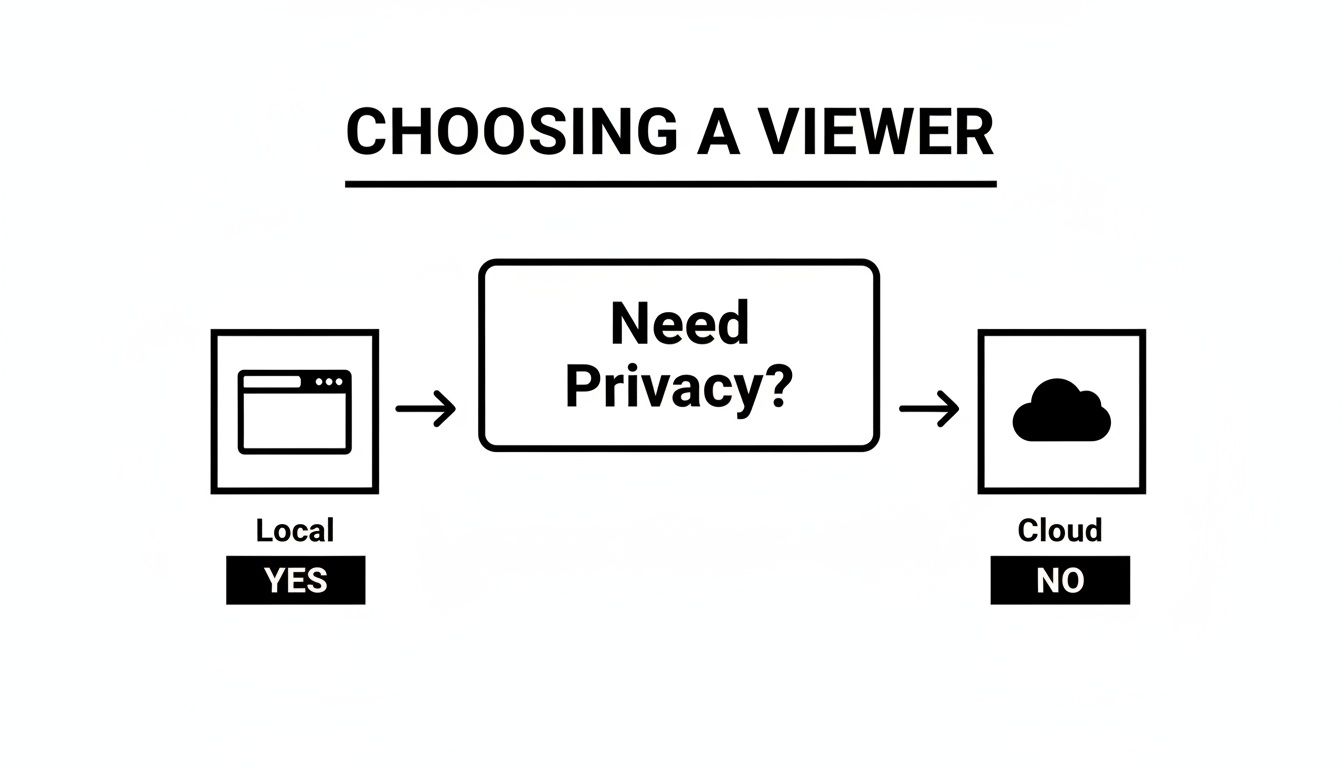
Som flowcharten viser, er en lokal løsning den eneste vej, hvis privatliv er din højeste prioritet. Hvis du accepterer risikoen for bekvemmelighedens skyld, kan en cloudtjeneste måske fungere.
Browserudvidelser: Det bedste fra to verdener?
En nyere mulighed er ved at opstå, som smart kombinerer det bedste fra begge verdener: browserudvidelser, der udfører lokal behandling. Disse værktøjer, som dem i ShiftShift Extensions-økosystemet, bor inde i din browser, men laver alt det tunge arbejde direkte på din egen maskine.
Du får webværktøjets klik-og-gå-letthed uden installationssmerterne fra en desktop-app. Vigtigst af alt forlader dine filer aldrig din computer, hvilket giver dig desktop-softwarens urokkelige privatliv og offline-funktionalitet.
En browserbaseret, lokal-først universel filvisning giver dig friheden fra clouden og sikkerheden fra desktoppen. Det er en moderne løsning til en moderne arbejdsgang, der eliminerer kompromiset mellem adgang og privatliv.
Dette er ikke bare en nichepræference; det afspejler et massivt brancheskift. Det globale marked for dokumenthåndteringssystemer (DMS), som hviler på denne type filvisningsteknologi, blev vurderet til $8.32 milliarder dollars og forventes at nå $29.78 milliarder dollars i 2032. Du kan dykke ned i tendenserne på dokumenthåndteringsmarkedet for at se det fulde billede. Denne eksplosive vækst viser, hvor kritisk sikker og øjeblikkelig filadgang er blevet.
Desktop vs. Cloud vs. Browserudvidelses-visningsværktøjer
For at gøre valget endnu klarere, lad os sætte de tre tilgange side om side. Denne tabel bryder ned, hvordan de klarer sig på de faktorer, der betyder mest.
| Funktion | Desktop-app | Cloudtjeneste | Browserudvidelse (lokal behandling) |
|---|---|---|---|
| Installation | Påkrævet; kan være kompleks og ressourcekrævende | Ingen; tilgængelig via enhver webbrowser | Et-klik installation fra en udvidelsesbutik |
| Privatliv & Sikkerhed | Høj; filer forlader aldrig din enhed | Lav; filer uploades til tredjepartsservere | Høj; filer behandles lokalt på din enhed |
| Offline-adgang | Fuld funktionalitet | Ingen; kræver en aktiv internetforbindelse | Fuld funktionalitet |
| Ydeevne | Højeste for meget store/komplekse filer | Afhængig af internet hastighed og server belastning | Fremragende; bruger din maskines ressourcer direkte |
| Tilgængelighed | Begrænset til den specifikke enhed, hvor den er installeret | Høj; tilgængelig fra enhver enhed med en browser | Høj; tilgængelig fra enhver enhed med browseren |
| Samarbejdsfunktioner | Begrænset; kræver normalt manuel fildeling | Stærk; ofte designet til samarbejde i realtid | Begrænset; fokuseret på individuel visning & privatliv |
I sidste ende, mens desktop- og cloud-viewere stadig har deres plads, er browserbaserede værktøjer, der behandler filer lokalt, ved at skabe et kraftfuldt nyt midtergrund. De tilbyder sikkerheden og ydeevnen fra desktop-software med den lette tilgængelighed, vi alle er kommet til at forvente fra nettet.
Hvad du skal kigge efter i en universel filviewer
En virkelig god universel filviewer er mere end blot en digital dåseåbner for filer. Den defineres af både sin bredde og sin dybde. Det er én ting at åbne en fil simpelthen, men de bedste værktøjer giver dig en rig, interaktiv oplevelse, der rent faktisk gør dit arbejde lettere.
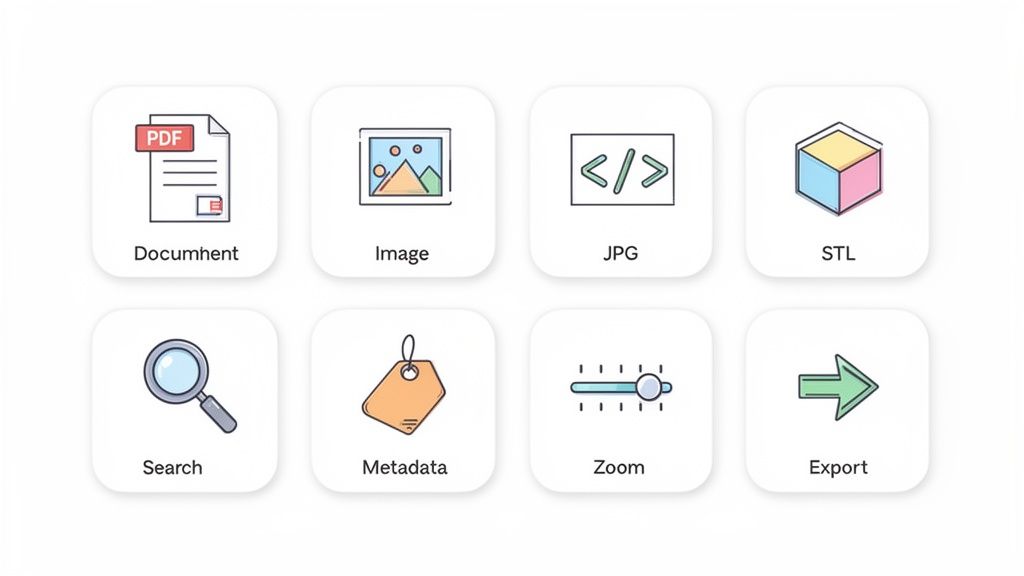
Tænk på det sådan her: en basal nøgle låser blot en dør op. En hovednøgle giver dig derimod mulighed for at åbne døren, kigge gennem dørsøget og endda tjekke posten. En simpel viewer måske viser dig en DOCX-fil, men en kraftfuld en lader dig søge i teksten, tjekke dens egenskaber og måske endda konvertere den til et andet format med det samme.
Grundlæggende filformater den absolut skal håndtere
Enhver universel filviewer, der er værd at navnet, bør håndtere de daglige essentials uden problemer. Dette betyder at dække de filer, du støder på på arbejdet, i skolen og i personlige projekter, så du aldrig sidder fast med en fil, du ikke kan åbne.
Her er de uundværlige:
- Dokumenter: Dette er fundamentet. En viewer skal understøtte PDF, DOCX og TXT filer, punktum.
- Billeder: Fra hjemmesidegrafik til feriefotos, skal den håndtere almindelige formater som JPG, PNG og WebP, samt vektorfiler som SVG.
- Udviklerfiler: For enhver, der koder, er det afgørende hurtigt at kunne vise JSON, SQL og XML til fejlsøgning og analyse.
- Specialiserede formater: De bedste viewere udvider endda deres rækkevidde og tilføjer understøttelse for ting som 3D-modeller (STL) for ingeniører og designere.
At have denne slags brede understøttelse betyder, at du kan stoppe med at downloade enkeltstående apps til hver ny filtype, hvilket sparer dig tid og holder din computer ren.
Den virkelige magi ved en universel filviewer ligger ikke kun i at åbne mange filer. Det handler om at give dig et ensartet, funktionelt sted at interagere med dem alle. Den samler dit arbejdsmiljø ét sted og omdanner en masse data til noget, du rent faktisk kan bruge.
Ud over blot at se: De værktøjer, du har brug for
At få filen åbnet er kun begyndten. For at være reel nyttig, skal en viewer have værktøjer, der hjælper dig med at arbejde med indholdet. Disse funktioner er det, der omdanner en passiv visningsoplevelse til en aktiv, produktiv en.
Sørg for, at din viewer inkluderer disse uundværlige funktioner:
- Tekstsøgning: At kunne finde et bestemt ord eller en sætning i et dokument eller en kodefil er en enorm tidsbesparelse.
- Metadata-inspektion: At se filegenskaber – som oprettelsesdato, forfatter eller billedopløsning – giver dig afgørende kontekst uden at bruge et andet program.
- Zoom og rotation: Disse er afgørende for at få et nærmere kig på billeder eller detaljerede diagrammer og for at sikre, at alt er orienteret korrekt.
- Syntaksfremhævning: Et must-have for udviklere. Farvelægning gør kode så meget lettere at læse og fejlsøge.
Disse er de funktioner, der lader dig gøre noget meningsfuldt, når filen først er åbnet.
Det er ikke overraskende, at efterspørgslen på disse smartere værktøjer er stigende. markedet for dokumentlæsningssoftware, en stor del af filfremviserindustrien, blev vurderet til 609,65 millioner dollars og forventes at stige næsten det dobbelte til 1.130,28 millioner dollars. Denne vækst handler om at give brugerne den effektivitet og sikkerhed, de har brug for – for over 70 % af fagfolk angiver, at datasikkerhed er en topprioritet.
Den Ultimative Power-Up: Filkonvertering
De mest kapable universelle filvisere stopper ikke ved at vise; de hjælper dig også med at transformere filer. Evnen til at konvertere en fil fra ét format til et andet direkte i det samme værktøj er en komplet game-changer for produktiviteten.
Dette kan betyde at omdanne en DOCX-fil til en PDF, som alle kan åbne. Hvis du gør dette ofte, finder du måske vores guide om de bedste gratis PDF-konverteringssoftware nyttig. Eller måske skal du konvertere en mappe med JPG'er til det mere effektive WebP-format til en hjemmeside – en opgave, der normalt kræver et separat program, kan udføres på få sekunder. Disse indbyggede konverteringsværktøjer tilføjer endnu et lag af nytte, hvilket gør viseren til en uundværlig del af dit digitale værktøjssæt.
Hvorfor et privatlivsførst-tilgang er vigtigt
I vores hyperforbundne verden føles det lige så naturligt at uploade en fil til en tilfældig hjemmeside som at sende en e-mail. Vi gør det ofte uden at tænke os om, især når et gratis online-værktøj lover hurtigt at åbne et obskurt filformat. Men denne tilsyneladende uskadelige handling kan åbne døren for betydelige privatlivs- og sikkerhedsrisici.
Når du bruger en cloud-baseret universel filfremviser, så åbner du ikke bare en fil; du overlader en kopi af dine data til en andens server. Og her begynder problemerne. Når den er uploadet, har du effektivt mistet kontrollen.
De skjulte risici ved online-seere
I det øjeblik din fil rammer en tredjepartsserver, udsættes du for nogle meget reelle sårbarheder. Dette er ikke kun teoretiske problemer; det er praktiske risici, der påvirker mennesker og virksomheder hver dag.
- Uautoriseret dataopbevaring: Sletter tjenesten din fil i det øjeblik du lukker fanen? Eller ligger den på deres servere på ubestemt tid og venter på at blive brugt til dataudvinding eller udsat i et fremtidigt brud? Servicevilkårene er ofte bevidst uklare, hvilket lader dine data hænge i en uvis tilstand.
- Potentiale for misbrug: Dine filer—der indeholder forretningsplaner, personlige fotos eller proprietær kode—kan blive scannet, analyseret eller endda solgt til databrokere, uden at du nogensinde finder ud af det.
- Eksponering over for brud: Selv med de bedste intentioner kan serverne, der gemmer dine data, blive mål for cyberangreb. Et enkelt sikkerhedsbrist i deres system kan udsætte dine følsomme oplysninger for hele verden.
Disse risici er grunden til, at en tilgang med隐私 som førsteprioritet ikke bare er en ønskværdig funktion; det er et grundlæggende krav for ethvert moderne universelt filvisningsprogram.
Den Gyldne Standard: Lokal Behandling
I skarp kontrast til cloud-modellen er lokal behandling. Dette er den sikkerhedsbevidste arkitektur, der driver værktøjer som ShiftShift Extensions. Konceptet er simpelt, men utroligt kraftfuldt: dine filer forlader aldrig din computer.
Tænk på det som at bruge en lommeregner-app på din telefon versus en webbaseret en. Telefonappen udfører al matematikken lige der på din enhed. På samme måde udfører en lokal-først-filfremviser al gengivelse, konvertering og analyse direkte i din egen browser.
Et privatlivsførst-værktøj opererer på et "nul-tillid"-princip. Det behøver ikke at stole på en ekstern server med dine data, fordi det aldrig sender dine data nogen steder i første omgang. Dette gør det i sin natur mere sikkert.
Grundlæggende for en tilgang med fokus på privatlivsbeskyttelse er at forstå krypteret deling af dokumenter sikrer, at følsomme filer forbliver beskyttet under overførsel og visning. Lokal behandling bringer dette et skridt videre ved helt at eliminere overførselsfasen for visningsopgaver. Dette er særligt kritisk, når man håndterer filer, der slet ikke bør deles. Hvis du er interesseret i sikre filtransformationer, kan du også lære om konvertering af billedformater som AVIF til JPG lokalt i vores detaljerede guide til AVIF til JPG-konverteren.
Ved at vælge et værktøj bygget på et privatlivsorienteret fundament åbner du ikke bare en fil; du træffer et bevidst valg om at holde dit digitale sikkert, privat og under din kontrol.
Se øjeblikkeligt enhver fil i din browser
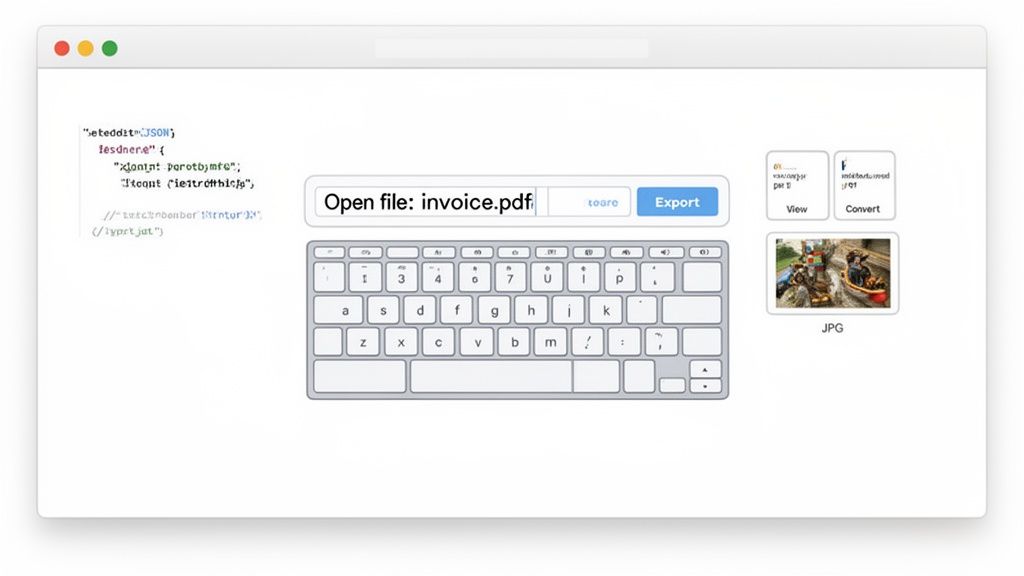
Der er én ting at tale om, hvad en universel filfremviser er, men noget andet at se den i aktion. Det er her teorien møder virkeligheden, og du begynder at se markante produktivitetsfordele. Moderne browserbaserede værktøjer, som ShiftShift Extensions, gør hele dette koncept til virkelighed med en elegant, tastaturførste arbejdsgang. Glem alt om at grave i din mappe med applikationer; du kan til kraftfulde filværktøjer på enhver webside med blot en hurtig kommando.
Kernen i dette system er Kommandopaletten. Tænk på den som en magisk pop-up-menu, der vises, når du dobbelttapper Shift-tasten eller trykker Cmd+Shift+P på Mac (Ctrl+Shift+P på Windows). Pludselig har du ét centralt sted til at se, konvertere og analysere filer uden nogensinde at forlade din browser.
Fra kommando til handling på sekunder
Forestil dig, at du er en udvikler, og nogen lige har sendt dig en rodet, minificeret JSON-fil. Den gamle måde ville være at åbne en kodeditor eller finde en online formatteringsværktøj. Den nye måde? Du bringer bare Kommandopaletten frem, skriver "JSON," og vælger formatteringsværktøjet. Indsæt din kode eller træk filen direkte ind, og vupti — den er smukt organiseret med syntaksfremhævelse.
Den egentlige styrke ligger i den rene hastighed og bekvemmelighed. Du behøver ikke bryde din koncentration og skifte applikationer. Værktøjet kommer direkte til dig og holder dig i flowet.
Praktiske eksempler på øjeblikkelig håndtering af filer
Denne tastaturførste tilgang er utrolig alsidig og forvandler det, der plejede at være irriterende opgaver, til simple kommandoer. Det er særligt nyttigt for niche-filtyper, du ikke beskæftiger dig med hver dag. For eksempel, hvis du er en udvikler, der skal debugge netværksanmodninger, kan du finde guides om hvordan du åbner HAR-filer direkte i din browser med det rette værktøj.
Her er nogle andre virkelighedsscenarier:
- For designeren: Du har et dusin JPG-billeder, der skal gøres klar til en hjemmeside. I stedet for at åbne en editor, fremkalder du Kommandopaletten, skriver "Billedkonverter," trækker hele mappen ind og konverterer dem batchvis til det lette WebP-format. Færdigt.
- For dataanalytikeren: En kollega sender dig en CSV-fil via e-mail, men du har brug for den i Excel. Glem den manuelle import/eksport-dans. Åbn "CSV til XLSX"-værktøjet fra paletten, og filen transformeres øjeblikkeligt og er klar til dine pivottabeller.
- For ingeniøren: Du har brug for et hurtigt kig på en 3D-prototype. I stedet for at vente på tung CAD-software kan du åbne den indbyggede fremviser og inspicere STL-filen med det samme. For at se præcis, hvordan dette fungerer, tjek vores dybdegående artikel om brug af en browserbaseret 3D-modelfremviser.
Ved at bringe disse værktøjer direkte ind i browseren og knytte dem til én kommandogrænseflade eliminerer du friktionen ved konstant at skifte kontekst. Dit fokus forbliver på dit arbejde, ikke på at lede efter det rette software.
I sidste ende handler denne metode ikke blot om at se filer. Det handler om at skabe en fundamentalt hurtigere og mere effektiv måde at interagere med information på, uanset hvilket format den kommer i.
Har du spørgsmål? Vi har svarene.
At springe ind i verdenen af filfremvisere, især de nyere browserbaserede værktøjer, rejser naturligt et par spørgsmål. Lad os tackle nogle af de mest almindelige, så du kan føle dig tryg ved at vælge den rigtige universelle filfremviser til dine behov.
Er browserbaserede universelle filfremvisere sikre at bruge?
Dette er et godt spørgsmål, og svaret afhænger af hvordan de fungerer. Ethvert værktøj, der får dig til at uploade din fil til en ekstern server, introducerer en privatlivsrisiko. Når dine data er på deres cloud, er de uden for din kontrol.
Heldigvis findes der en bedre måde. Løsninger som ShiftShift Extensions er bygget med privatlivets fred i centrum. De behandler hver fil lokalt, lige inde i din browser. Dine følsomme data forlader aldrig din computer, hvilket gør dem lige så sikre for fortrolige informationer som en hvilken som helst betroet desktop-app.
Kan en Universel Filsyningsprogram også Redigere Filer?
Selvom deres primære opgave er 'visning', kommer mange moderne syningsprogrammer med nyttige redigerings- og konverteringsværktøjer. Ideen er ikke at erstatte dit fuldt udstyrede skabelonsoftware, men at give dig hurtige, praktiske måder at arbejde med filer på.
Du vil for eksempel ikke skrive en roman i en DOCX-syningsprogram, men du kan øjeblikkeligt konvertere det dokument til en PDF. Du kan også tage et rodet stykke JSON eller SQL og automatisk formatere det for bedre læsbarhed, hvilket er en form for redigering, der gør debugging meget lettere.
Tænk på et universelt syningsprogram mindre som et indholdssuite og mere som et kraftfuldt multiværktøj. Dets formål er at give dig øjeblikkelig adgang og nytte til at inspicere, analysere og transformere filer i farten.
Har jeg Brug for en Internetforbindelse for at Bruge et?
Her skinner et velbygget browserudvidelse virkelig. Når en udvidelse som ShiftShift er installeret i din browser, er dens vigtigste funktioner - inklusive et stort udvalg af filsyningsprogrammer og konvertere - tilgængelige helt offline.
Hvordan er dette muligt? Al koden og behandlingskraften er bundtet direkte ind i selve udvidelsen. Så modsat cloud-tjenester, der er døde i vandet uden en forbindelse, betyder et lokal-første-værktøj, at du kan åbne og arbejde med dine filer hvor som helst, når som helst.
Vil et Universelt Syningsprogram Sænke Min Browser?
Nogle af de gamle desktop-syningsprogrammer var berygtede for at være ressourcegriser, der sænkede alt. Moderne browserudvidelser er derimod designet til at være utroligt lette og effektive.
De arbejder on-demand, hvilket betyder, at de kun aktiveres, når du kalder dem op via en kommandopalette. De lurer ikke i baggrunden og spiser hukommelse, så din browsing forbliver lige så hurtig og glat som altid. Ingen ydeevne-drag, ingen kompromiser.
Klar til at stoppe med at lede efter den rigtige app og begynde at få mere fra hånden? ShiftShift Extensions giver dig en hel suite af sikre, offline-klare syningsprogrammer og konvertere lige ved fingerspidserne. Oplev bekvemmeligheden ved lokal filbehandling i dag.