سرعت اینترنت مورد نیاز برای استریم را کشف کنید: آنچه برای HD و 4K نیاز دارید
سرعت اینترنت مورد نیاز برای استریم و مقدار پهنای باند لازم برای HD یا 4K را کشف کنید، همراه با نکاتی برای بهینهسازی اتصال خود.

افزونههای پیشنهادی

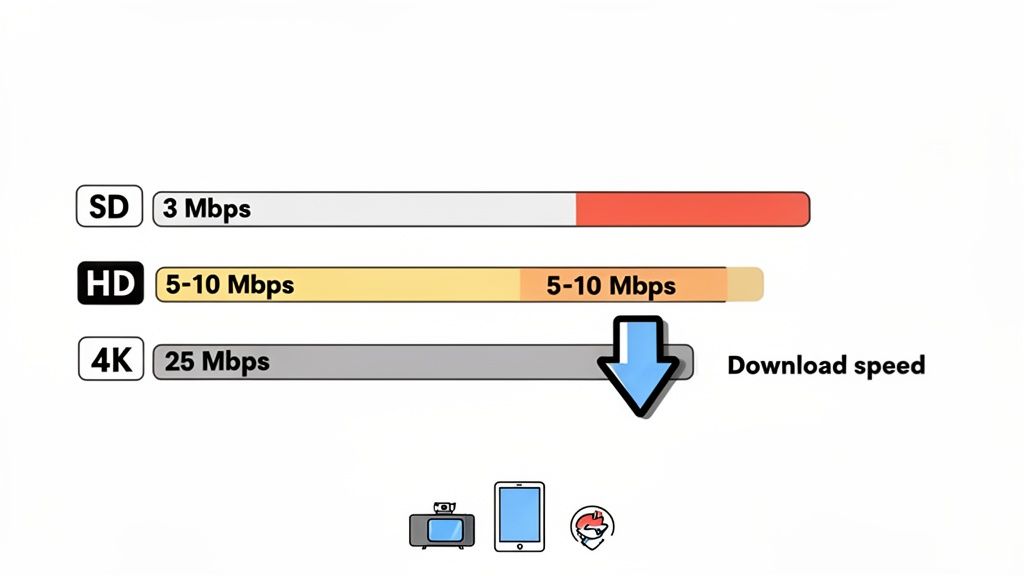
اگر میخواهید تجربهای روان و بدون بافر در استریمینگ داشته باشید، باید با پایهای مناسب شروع کنید. برای استریمینگ یک دستگاه در کیفیت بالا (HD)، حداقل به 5 Mbps نیاز دارید. برای رسیدن به کیفیت شفاف 4K Ultra HD، به یک اتصال قویتر با 25 Mbps نیاز خواهید داشت.
اما اینها فقط نقاط شروع هستند. سرعت اینترنت ایدهآل برای خانه شما واقعاً به کیفیت ویدیویی که ترجیح میدهید، تعداد افرادی که به طور همزمان از اینترنت استفاده میکنند و خدمات استریمینیگی که به آنها اشتراک دارید بستگی دارد.
راهنمای سریع شما برای سرعتهای استریمینگ
همه ما این تجربه را داشتهایم. شما برای یک شب فیلم آماده میشوید، روی دکمه پخش کلیک میکنید و بلافاصله با چرخش ترسناک بافر مواجه میشوید. این دایره چرخان نشانه جهانی یک اتصال اینترنتی است که نمیتواند بهروز بماند.
به این صورت فکر کنید: استریمینگ اساساً دریافت یک فایل دیجیتال بزرگ به صورت زنده است. سرعت اینترنت شما مانند کامیون تحویل است. اگر کامیون خیلی کند باشد، پخشکننده ویدیو از دادهها خالی میشود و مجبور میشود متوقف شود و منتظر بماند تا بخش بعدی فایل برسد.
معیار کلیدی در اینجا سرعت دانلود است که به مگابیت در ثانیه (Mbps) اندازهگیری میشود. این به شما میگوید که هر ثانیه چقدر داده میتوانید از اینترنت دریافت کنید. از طرف دیگر، سرعت آپلود مربوط به ارسال داده از دستگاه شما به اینترنت است. در حالی که سرعت دانلود برای تماشای محتوا مهم است، اگر شما یک خالق یا گیمر هستید، باید به بهترین سرعت آپلود برای استریمینگ محتوای خود نیز توجه کنید.
آنچه خدمات استریمینگ برتر توصیه میکنند
هر پلتفرم استریمینگ توصیههای کمی متفاوتی دارد تا اطمینان حاصل کند که محتوای آنها بهطور بینقص پخش میشود. همیشه بهتر است که راهنماهای رسمی آنها را بررسی کنید، اما در اینجا نگاهی سریع به آنچه برخی از بزرگترین نامها پیشنهاد میدهند، داریم.
سرعتهای اینترنت توصیهشده برای خدمات استریمینگ محبوب
این جدول به شما نمایی سریع از حداقل و سرعتهای دانلود توصیهشده برای یک تجربه روان در محبوبترین پلتفرمهای امروز میدهد.
| خدمات استریمینگ | SD (تعریف استاندارد) | HD (تعریف بالا - 1080p) | 4K/UHD (تعریف فوقالعاده بالا) |
|---|---|---|---|
| Netflix | 3 Mbps | 5 Mbps | 15 Mbps |
| Disney+ | 5 Mbps | 10 Mbps | 25 Mbps |
| Amazon Prime | 1 Mbps | 5 Mbps | 25 Mbps |
| Hulu | 1.5 Mbps | 6 Mbps | 16 Mbps |
| Apple TV+ | 5 Mbps | 8 Mbps | 25 Mbps |
| YouTube TV | 3 Mbps | 7 Mbps | 25 Mbps |
همانطور که میبینید، نیازها برای وضوحهای بالاتر بهطور قابل توجهی افزایش مییابد. یک طرح که "فقط کافی" برای HD است ممکن است در استریمینگ 4K به شدت دچار مشکل شود.
قاعده طلایی برای استریمینگ بدون بافر این است: طرح اینترنت شما باید سرعتی بیشتر از حداقل مورد نیاز برای کیفیت مورد نظر شما ارائه دهد. تلاش برای تماشای یک استریم 4K با سرعت 25 Mbps بر روی یک طرح 25 Mbps هیچ فضایی برای سایر دستگاهها، وظایف پسزمینه یا اختلالات شبکه باقی نمیگذارد.
یافتن سرعت واقعی شما
دانستن اینکه خدمات استریمینگ چه توصیهای دارند یک چیز است، اما سرعت اتصال شما در حال حاضر چقدر است؟ سرعت واقعی شما میتواند تحت تأثیر عواملی از جمله شلوغی Wi-Fi تا زمان روزی که آنلاین هستید قرار گیرد. تنها راه برای اطمینان از این موضوع، انجام یک تست سرعت است.
تست سرعت ShiftShift Extensions Speed Test ابزاری فوقالعاده است که به شما اجازه میدهد اتصال خود را بهطور خصوصی، مستقیماً از مرورگر خود بررسی کنید. بر خلاف بسیاری از تستهای آنلاین که دادههای شما را به سرورهای شخص ثالث ارسال میکنند، این تست تمام بررسیهای خود را بهصورت محلی انجام میدهد، بنابراین اطلاعات شما هرگز از کامپیوتر شما خارج نمیشود.
انجام یک تست سریع به شما یک نمای زنده از:
- سرعت دانلود: این مهمترین عدد برای تعیین کیفیت استریمینگ شماست.
- سرعت آپلود: ضروری است اگر شما هرگونه استریم زنده، کنفرانس ویدیویی یا بازی آنلاین انجام میدهید.
- تاخیر (پینگ): این میزان پاسخگویی اتصال شما را اندازهگیری میکند—عدد پایینتر بهتر است، بهویژه برای بازی.
آشنایی با اصطلاحات سرعت اینترنت
صحبت کردن درباره سرعت اینترنت میتواند مانند رمزگشایی یک زبان خارجی باشد. شما با اصطلاحاتی مانند Mbps، پهنای باند و تاخیر بمباران میشوید، اما اینها واقعاً چه معنایی دارند وقتی که فقط میخواهید یک فیلم را بدون بافر تماشا کنید؟
بیایید از اصطلاحات عبور کنیم. به اتصال اینترنت خود بهعنوان یک سیستم بزرگراه فکر کنید. دادهای که میخواهید—مانند فصل جدید برنامه مورد علاقهتان—ترافیکی است که سعی دارد از یک سرور به صفحه نمایش شما برسد.
پهنای باند: چند لاین در بزرگراه دیجیتال شما وجود دارد؟
اولین و مهمترین اصطلاحی که خواهید شنید پهنای باند است. در تشبیه بزرگراه ما، پهنای باند به سادگی تعداد لاینهایی است که دارید. یک اتصال با پهنای باند بیشتر مانند یک بزرگراه وسیعتر است.
یک اتصال 10 Mbps مانند یک جاده روستایی خوابآلود و تکلاین است. برای یک یا دو خودرو (مرور وب یا ویدیو با کیفیت استاندارد) خوب است، اما اگر سعی کنید کارهای بیشتری انجام دهید، به سرعت شلوغ میشود. از طرف دیگر، یک اتصال 500 Mbps یک بزرگراه چندلاینی بزرگ است که میتواند ترافیک یک شهر را بهطور همزمان بدون هیچ مشکلی مدیریت کند.
این ظرفیت به مگابیت در ثانیه (Mbps) اندازهگیری میشود. هرچه Mbps بالاتر باشد، دادههای بیشتری میتوانند هر ثانیه از لوله عبور کنند، که دقیقاً همان چیزی است که برای استریمینگ روان و با کیفیت بالا نیاز دارید.
یک هشدار سریع درباره یک نقطه رایج سردرگمی: Mbps (مگابیت) با MBps (مگابایت) یکسان نیست. از آنجا که یک بایت از هشت بیت تشکیل شده است، 1 MBps هشت برابر سریعتر از 1 Mbps است. ارائهدهنده اینترنت شما همیشه سرعتها را به Mbps تبلیغ میکند، اما وقتی فایلی را دانلود میکنید، کامپیوتر شما اغلب سرعت را به MBps نشان میدهد.
بیتریت ویدیو: اندازه خودروها در جاده
اگر پهنای باند تعداد لاینها باشد، پس بیتریت ویدیو اندازه وسایل نقلیهای است که در آن حرکت میکنند. بیتریت مقدار دادهای است که برای ایجاد یک ثانیه ویدیو استفاده میشود. بیتریتهای بالاتر جزئیات بیشتری را در خود جای میدهند، رنگهای غنیتر و تصاویر واضحتری تولید میکنند، اما همچنین فایلهای داده بسیار بزرگتری ایجاد میکنند که به فضای بیشتری در جاده نیاز دارند.
این نحوه ترجمه به کیفیتهای مختلف استریمینگ است:
- تعریف استاندارد (SD): اینها مانند یک دسته ماشینهای جمع و جور هستند. آنها فضای زیادی اشغال نمیکنند و میتوانند به راحتی حتی در یک جاده باریک حرکت کنند.
- تعریف بالا (HD 1080p): حالا درباره ونهای تحویل صحبت میکنیم. آنها بزرگتر هستند و به فضای بیشتری (پهنای باند) نیاز دارند تا بدون ایجاد ترافیک به آرامی حرکت کنند.
- 4K Ultra HD: این معادل یک کاروان کامل از کامیونهای نیمهسنگین بزرگ است. آنها به شدت دادهمحور هستند و به طور قطع به یک بزرگراه عریض و چند لایه نیاز دارند تا از ایجاد توقف کامل (چرخ دندانهای که به آن بدبختی میگویند) جلوگیری کنند.
این دقیقاً به همین دلیل است که سرعت اینترنت مورد نیاز برای استریم یک فیلم 4K (حدود 25 Mbps) بسیار بالاتر از آن چیزی است که برای یک نمایش قدیمی SD (حدود 3 Mbps) نیاز است. شما به یک بزرگراه بزرگتر نیاز دارید تا کامیونهای بزرگتر را مدیریت کنید.
تاخیر: چقدر سریع سفر شما آغاز میشود
در نهایت، تاخیر وجود دارد، که ممکن است آن را "پینگ" نیز بنامید. در حالی که پهنای باند درباره چقدر داده میتوانید به طور همزمان منتقل کنید، تاخیر درباره چقدر سریع آن داده سفر خود را آغاز میکند. در تشبیه بزرگراه ما، تاخیر زمان لازم برای یک ماشین واحد است تا یک سفر رفت و برگشت از کامپیوتر شما به یک سرور و برعکس را انجام دهد.
این در میلیثانیه (ms) اندازهگیری میشود و برای تاخیر، هر چه کمتر بهتر است.
برای فقط تماشای فیلمها، تاخیر عامل بزرگی نیست. یک تأخیر کوچک قبل از شروع ویدیو مسئله بزرگی نیست به شرطی که دادهها بعد از آن به طور پیوسته جریان داشته باشند. اما برای چیزهایی که به بازخورد فوری نیاز دارند، مانند بازیهای آنلاین رقابتی یا تماس ویدیویی بدون مشکل، تاخیر کم همه چیز است. تاخیر بالا باعث ایجاد آن تأخیر آزاردهنده بین زمانی که دکمهای را فشار میدهید و زمانی که شخصیت شما واقعاً کاری روی صفحه انجام میدهد، میشود.
محاسبه پهنای باند برای یک خانواده متصل
محاسبه سرعت مناسب برای یک استریم واحد یک چیز است، اما این تقریباً هرگز واقعیت نیست. در خانههای امروزی، اتصال اینترنت شما یک خط لوله خصوصی به یک صفحه نمایش نیست؛ بلکه یک منبع مشترک است که چندین دستگاه همه برای سهم خود از پای اینترنت میجنگند.
به یک شب معمولی فکر کنید. کسی در حال تماشای یک فیلم 4K در اتاق نشیمن است که به طور مداوم 25 Mbps مصرف میکند. در همین حال، شخص دیگری در حال تماس ویدیویی کاری است که 5-10 Mbps دیگر برای هر دو بارگذاری و دانلود مصرف میکند. و در انتهای راهرو، یک گیمر به یک اتصال پایدار وابسته است که حداقل به 5-10 Mbps نیاز دارد تا تأخیر را کنترل کند.
این فقط کارهایی است که شما به طور فعال انجام میدهید. فراموش نکنید که بلندگوهای هوشمند در حال استریم موسیقی، دوربینهای امنیتی در حال بارگذاری ویدیو و تلفنها و لپتاپها به آرامی در حال دانلود بهروزرسانیها در پسزمینه هستند. هر یک از این کارها یک بخش کوچک اما مداوم از سرعت کل شما را مصرف میکند.
جمعبندی نیازهای خانواده شما
برای درک واقعی از سرعت اینترنت مورد نیاز برای استریم و همه چیزهای دیگر، نمیتوانید فقط حداقلها را جمع کنید. شما باید برای آن ساعت اوج که همه به طور همزمان آنلاین هستند برنامهریزی کنید و سپس یک حاشیه مطمئن اضافه کنید.
با تهیه یک لیست سریع از تمام دستگاههای متصل به اینترنت در خانهتان و اینکه معمولاً برای چه چیزی استفاده میشوند، شروع کنید. سپس میتوانید تقاضای اوج آنها را تخمین بزنید.
- تلویزیون استریمینگ 4K: 25-30 Mbps
- تبلت استریمینگ HD: 5-10 Mbps
- کنسول بازی آنلاین: 10-25 Mbps
- لپتاپ کنفرانس ویدیویی: 5-10 Mbps
- دستگاههای هوشمند خانگی (به طور جمعی): 5 Mbps
در این سناریوی بسیار رایج، تقاضای ترکیبی به راحتی از 50 Mbps فراتر میرود. اما حتی آن عدد هم کمی گمراهکننده است.
اینجا اشتباه حیاتی است که اکثر مردم مرتکب میشوند: آنها فراموش میکنند که بار شبکه وجود دارد. اتصال شما همیشه با کارهای پسزمینه مشغول است—دستگاهها در حال چک کردن، برنامهها در حال بهروزرسانی و سایر فرآیندهای سیستمی. یک قاعده خوب این است که یک حاشیه 25-50% به بالای مصرف اوج محاسبهشده خود اضافه کنید تا به خودتان فضای کافی برای یک تجربه روان بدهید.
برای خانواده فوق، آن 50 Mbps استفاده فعال به یک نیاز واقعی 65-75 Mbps تبدیل میشود. ناگهان، آن طرح استاندارد 100 Mbps کمتر شبیه یک لوکس و بیشتر شبیه یک نیاز اساسی به نظر میرسد. این موضوع حتی بیشتر صادق است اگر شما در حال اجرای برنامههای پیچیدهای مانند یک نمایشدهنده مدل 3D باشید که میتواند به پهنای باند قابل توجهی برای بارگذاری فایلها و داراییهای بزرگ نیاز داشته باشد.
این نمودار جریان مفاهیم کلیدی را که بر نحوه عملکرد واقعی اینترنت شما تأثیر میگذارد، از پهنای باند خام تا تاخیر، تجزیه میکند.
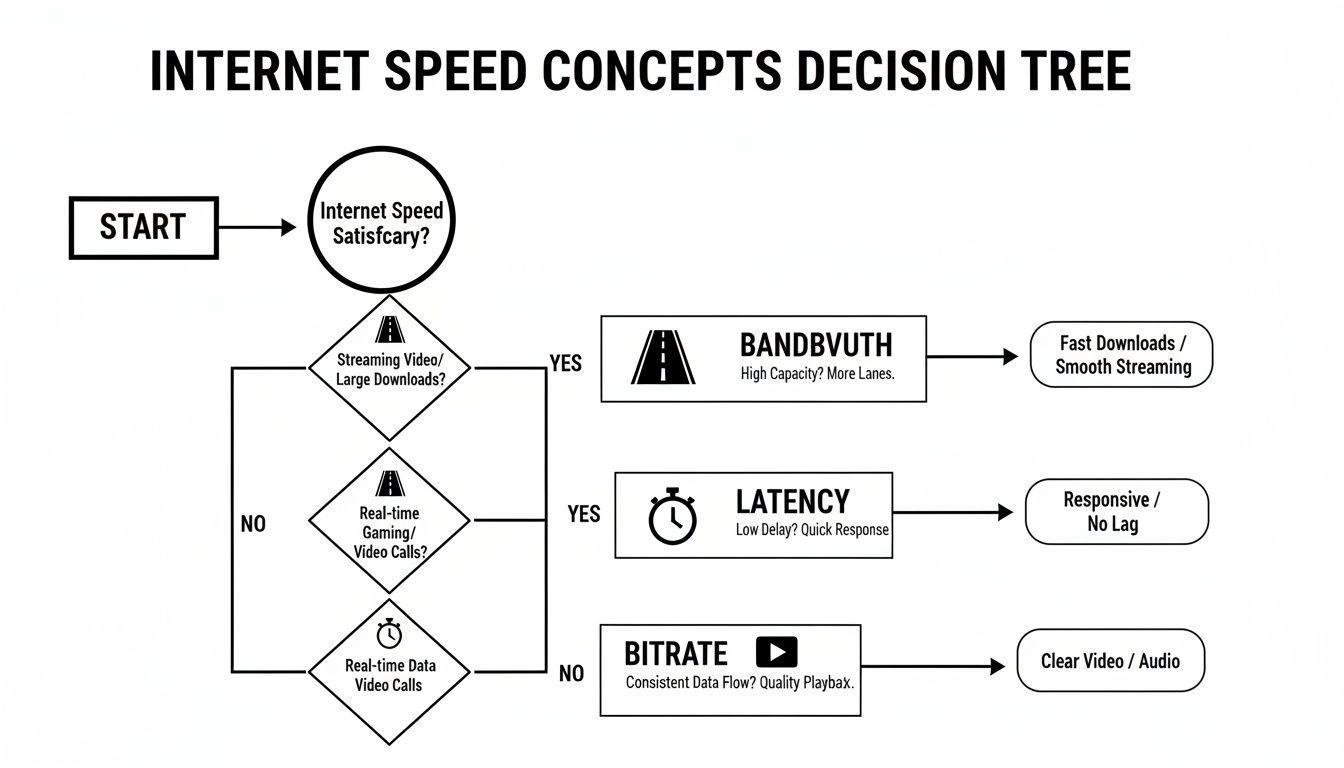
همانطور که میبینید، فعالیتهای مختلف به بخشهای مختلف اتصال شما تکیه دارند. این یک تصویر عالی از این است که چرا فقط داشتن اینترنت "سریع" همیشه داستان کامل نیست.
چه زمانی باید طرح اینترنت خود را ارتقا دهید
پس، چه زمانی وقت آن است که به خودتان فشار بیاورید و ارتقا دهید؟ نشانهها معمولاً بسیار واضح هستند. ویدیوهای شما هر شب شروع به بافر کردن میکنند، بازیهای آنلاین در ثانیهای که شخص دیگری شروع به استریم میکند، دچار مشکل میشوند و تماسهای ویدیویی شما به یک آشفتگی پیکسلی تبدیل میشود.
بیایید از چند مثال واقعی عبور کنیم تا ببینیم همه چیز چگونه جمع میشود.
سناریو A: خانواده کوچک
- دستگاهها: 2 گوشی هوشمند، 1 لپتاپ، 1 تلویزیون هوشمند.
- استفاده: یک نفر یک نمایش HD استریم میکند (10 Mbps) در حالی که دیگری در حال مرور شبکههای اجتماعی است (5 Mbps).
- نیاز کل: حدود 15 Mbps + یک حاشیه 25% = ~20 Mbps. یک طرح 50-100 Mbps در اینجا بیشتر از کافی است.
سناریو B: خانواده کاملاً متصل
- دستگاهها: 4 گوشی هوشمند، 2 لپتاپ، 2 تلویزیون هوشمند، 1 کنسول بازی.
- استفاده: یک فیلم 4K در حال پخش است (25 Mbps)، کسی در حال بازی آنلاین است (10 Mbps)، دو نفر در تماسهای ویدیویی هستند (15 Mbps مجموع)، و مرور عمومی در پسزمینه (10 Mbps) وجود دارد.
- نیاز کل: حدود 60 Mbps + یک حاشیه 50% = ~90 Mbps. یک طرح 100 Mbps به نقطه شکست خود نزدیک میشود و احتمالاً برای همه مشکلاتی ایجاد میکند.
برای خانوادهای مانند خانواده در سناریو B، ارتقا غیرقابل مذاکره است اگر میخواهید آرامش را حفظ کنید. بیشتر کارشناسان پیشنهاد میکنند که یک طرح 100-200 Mbps برای خانوادههای کوچک که HD استریمینگ، کار از راه دور و مقداری بازی را مدیریت میکنند، مناسب است. این عدد به سرعت به 200-500 Mbps برای خانههای بزرگتر که ممکن است چندین استریم 4K به طور همزمان در حال اجرا باشند، افزایش مییابد. به عنوان مثال، یک خانواده چهار نفره که هر کدام در حال تماشای نمایش 4K خود هستند، به حداقل 100 Mbps نیاز دارند. با افزودن یک حاشیه 20-50 Mbps برای بار اضافی، یک طرح 150-200 Mbps ناگهان به یک گزینه بسیار ایمن تبدیل میشود.
در نهایت، انتخاب طرح مناسب به برنامهریزی برای آینده مربوط میشود. اگر میدانید که دستگاههای هوشمند بیشتری اضافه خواهید کرد، به تلویزیونهای 4K ارتقا میدهید یا افراد بیشتری از خانه کار خواهند کرد، سرمایهگذاری در یک طرح سریعتر اکنون—مانند 500 Mbps یا حتی یک اتصال کامل گیگابیت—حرکت هوشمندانهای است که شبکه شما را از توقف در آینده حفظ میکند.
چگونه سرعت اینترنت خود را به دقت آزمایش و تفسیر کنیم
دانستن سرعت ایدهآل اینترنت برای استریم یک چیز است، اما فهمیدن اینکه شما واقعاً چه چیزی از ارائهدهنده خود دریافت میکنید، جایی است که واقعیت مشخص میشود. اجرای یک تست سرعت اینترنت مانند باز کردن کاپوت ماشین شماست—این به شما نگاهی واقعی به عملکرد اتصال شما میدهد و اولین قدم در تشخیص هرگونه مشکل بافرینگ مزاحم است.
برای به دست آوردن یک تصویر دقیق، به یک ابزار قابل اعتماد نیاز دارید. در حالی که وبسایتهای زیادی تستهایی را ارائه میدهند، بسیاری از آنها دادههای شما را به سرورهای شخص ثالث ارسال میکنند که میتواند نگرانیهای حریم خصوصی ایجاد کند. یک رویکرد بسیار بهتر استفاده از ابزاری است که به دادههای شما احترام میگذارد، مانند تست سرعت داخلی ShiftShift Extensions. این ابزار به طور کامل در مرورگر شما اجرا میشود و اتصال شما را به صورت محلی بررسی میکند بدون اینکه اطلاعات شخصی شما را به جایی دیگر ارسال کند.
درک نتایج تست سرعت شما
پس از اجرای یک تست، سه عدد کلیدی دریافت خواهید کرد. هر یک از این اعداد بخشی متفاوت از داستان استریم شما را بیان میکند، بنابراین بیایید ببینیم که آنها به طور عملی چه معنایی دارند.
سرعت دانلود (Mbps): این عدد ستاره نمایش برای استریم است. این عدد اندازهگیری میکند که دستگاه شما چقدر سریع میتواند دادهها—مانند یک فیلم یا برنامه تلویزیونی—را از اینترنت دریافت کند. سرعت دانلود بالاتر به این معنی است که میتوانید فایلهای ویدیویی بزرگ 4K را بدون مشکل دریافت کنید. این عددی است که میخواهید با توصیههای خدماتی مانند Netflix یا Hulu مقایسه کنید.
سرعت آپلود (Mbps): این عدد به سرعتی که میتوانید دادهها را به اینترنت ارسال کنید مربوط میشود. برای تماشای محتوای ساده، این موضوع چندان مهم نیست. اما اگر شما یک استریمر هستید که در Twitch پخش زنده میکنید یا روزهای خود را در تماسهای ویدیویی میگذرانید، سرعت آپلود قوی برای ارسال یک ویدیو با کیفیت و پایدار از سمت شما حیاتی است.
پینگ (تاخیر، به میلیثانیه): پینگ را به عنوان زمان واکنش اتصال خود در نظر بگیرید که به میلیثانیه اندازهگیری میشود. این زمان لازم برای سفر یک سیگنال از کامپیوتر شما به یک سرور و بازگشت دوباره است. برای استریم یک فیلم، پینگ کمی بالاتر مشکلی ایجاد نمیکند. اما برای بازیهای آنلاین یا کنفرانس ویدیویی، پینگ پایین است که به شما تجربهای پاسخگو و بدون تاخیر میدهد.
تصویر زیر یک نتیجه معمولی از ابزار تست سرعت ShiftShift را نشان میدهد. این تصویر نمایی تمیز و ساده از این سه معیار اصلی به شما میدهد.
این نتیجه یک خلاصه فوری و آسانخوان از عملکرد فعلی اتصال شما ارائه میدهد و به شما کمک میکند به سرعت بفهمید که آیا سرعتهای شما برای عادات استریم شما مناسب است یا خیر.
بهترین شیوهها برای یک تست سرعت دقیق
سرعت اینترنت شما یک عدد ثابت نیست؛ این سرعت میتواند بر اساس شلوغی شبکه، تداخل Wi-Fi و دوجین چیز دیگر نوسان داشته باشد. برای به دست آوردن یک خوانش واقعی از آنچه که برای آن پرداخت میکنید، نمیتوانید فقط یک تست انجام دهید و روز را تمام کنید.
شایعترین اشتباه، تست کردن از طریق Wi-Fi در حالی است که دستگاههای دیگر فعال هستند. سیگنالهای Wi-Fi میتوانند توسط دیوارها، فاصله یا حتی یک مایکروویو در حال کار تضعیف شوند و به شما خوانش سرعت بسیار کمتری نسبت به آنچه که ارائهدهنده شما واقعاً به خانه شما میدهد، بدهند.
برای به دست آوردن نتایج قابل اعتمادتر، این مراحل ساده را دنبال کنید:
استفاده از اتصال کابلی: اگر میتوانید، کامپیوتر خود را مستقیماً با یک کابل اترنت به روتر خود وصل کنید. این کار Wi-Fi را از معادله خارج میکند و بهترین اندازهگیری از سرعت ورودی به خانه شما را به شما میدهد.
بستن برنامههای پرمصرف پهنای باند: قبل از تست، برنامهها یا تبهای مرورگری که ممکن است اتصال شما را اشغال کرده باشند، ببندید. این به معنای بستن سایر استریمهای ویدیویی، متوقف کردن دانلودهای بزرگ و متوقف کردن خدمات همگامسازی ابری مانند Dropbox است.
تست در زمانهای مختلف: اینترنت شما یک منبع مشترک با همسایگان شماست، بنابراین سرعتها معمولاً در "ساعات اوج" (معمولاً 7-11 شب) که همه آنلاین هستند، کاهش مییابد. تستها را در صبح، بعدازظهر و شب انجام دهید تا ببینید عملکرد شما چگونه تغییر میکند زمانی که شبکه شلوغ میشود.
راهاندازی مجدد تجهیزات خود: همیشه ایده خوبی است که قبل از تست، مودم و روتر خود را سریعاً راهاندازی مجدد کنید. درست مانند یک کامپیوتر، این دستگاهها میتوانند با گذشت زمان کند شوند و از یک راهاندازی مجدد برای پاک کردن هرگونه اشکال موقتی بهرهمند شوند. برای کسانی که به دنبال بهینهسازی تجربه مرورگر خود هستند، میتوانید ابزارهای مفیدی را در راهنمای ما برای بهترین افزونههای Chrome برای توسعهدهندگان پیدا کنید.
با دنبال کردن این نکات، میتوانید با اطمینان تعیین کنید که آیا طرح اینترنت شما منبع مشکلات استریم شماست یا اینکه گلوگاه در جایی در شبکه خانگی شما وجود دارد.
رفع شایعترین گلوگاههای استریم
بنابراین، نتایج تست سرعت شما عالی به نظر میرسند، اما هنوز در حال تماشای آن آیکون بافرینگ مزاحم هستید. چه اتفاقی افتاده است؟ اگر Mbps زیادی دارید، وقت آن است که به دنبال مقصران نزدیکتر به خانه بگردید. یک طرح اینترنت سریع تنها بخشی از معادله است؛ اغلب اوقات، گلوگاههای واقعی درون شبکه خودتان پنهان شدهاند.
این را اینگونه تصور کنید: ارائهدهنده اینترنت شما یک لوله آب بزرگ به خانه شما میدهد، اما اگر لولههای داخلی شما زنگزده و مسدود شده باشند، تنها یک چکه ناچیز از شیر دریافت خواهید کرد. در دنیای استریم، روتر شما، سیگنال Wi-Fi و حتی تلویزیون شما میتوانند آن لولههای مسدود شده باشند. خبر خوب این است که بیشتر این مشکلات به طرز شگفتآوری آسان برای رفع هستند.
روتر شما قلب شبکه شماست
روتر Wi-Fi شما به عنوان پلیس ترافیک برای هر دستگاهی در خانه شما عمل میکند. یک روتر قدیمی، کمقدرت یا بهطور نامناسب قرار گرفته، بدون شک یکی از بزرگترین دلایل سردردهای استریم است. این روتر نمیتواند تقاضاهای شدید ویدیوهای مدرن را به ویژه زمانی که چند نفر آنلاین هستند، مدیریت کند.
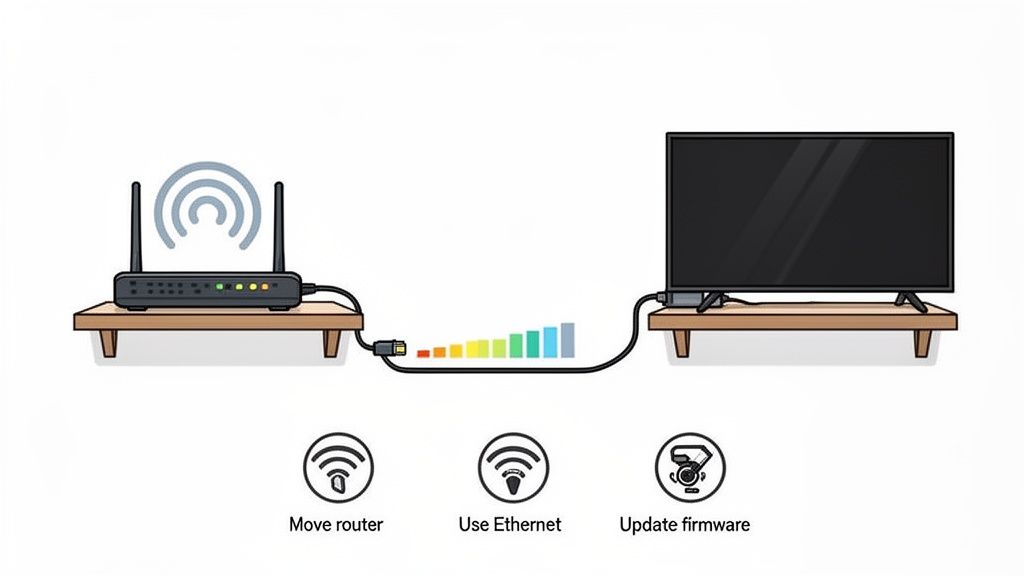
با سادهترین راهحل ممکن شروع کنید: قرارگیری روتر. یک روتر سیگنال خود را در تمام جهات ارسال میکند، بنابراین قرار دادن آن در یک نقطه مرکزی در خانه شما بهترین پوشش ممکن را تضمین میکند. آن را در یک کمد نگذارید، پشت مبل پنهان نکنید یا در گوشه زیرزمین قرار ندهید. دیوارها، مبلمان بزرگ و حتی وسایلی مانند مایکروویو میتوانند به شدت سیگنال را تضعیف کنند.
اگر جابجایی روتر مشکل را حل نکرد، در اینجا چند چیز دیگر برای امتحان وجود دارد:
- بهروزرسانی نرمافزار: سازندگان روتر به طور مداوم بهروزرسانیهای نرمافزاری را برای بهبود عملکرد و رفع مشکلات امنیتی منتشر میکنند. به تنظیمات روتر خود وارد شوید و مطمئن شوید که نرمافزار آن بهروز است.
- بررسی باندهای Wi-Fi: بیشتر روترهای مدرن دو باند هستند، به این معنی که بر روی دو فرکانس پخش میشوند: 2.4 GHz (که کندتر است اما دامنه بیشتری دارد) و 5 GHz (که بسیار سریعتر است اما دامنه کمتری دارد). برای دستگاههای اصلی استریم خود، همیشه به شبکه 5 GHz متصل شوید. این شبکه سریعتر و کمتر شلوغ است.
- بهروزرسانی سختافزار: اگر روتر شما بیش از 3-4 سال سن دارد، ممکن است زمان تعویض آن باشد. روترهای جدیدتر با فناوری Wi-Fi 6 برای مدیریت دهها دستگاه به طور همزمان طراحی شدهاند و سرعتهای بسیار پایدارتری را برای همه ارائه میدهند.
برای حداکثر ثبات از اتصال کابلی استفاده کنید
Wi-Fi بسیار راحت است، اما هرگز به اندازه یک اتصال فیزیکی قدیمی خوب پایدار یا سریع نخواهد بود. یک کابل اترنت بهترین دوست تلویزیون شماست و یک خط مستقیم به روتر شما ایجاد میکند که به طور کامل هرگونه تداخل بیسیم را دور میزند.
استفاده از یک اتصال کابلی اترنت برای دستگاههای اصلی استریم شما—مانند تلویزیون اتاق نشیمن یا کنسول بازی—موثرترین راه برای حذف بافرینگ ناشی از سیگنال ضعیف Wi-Fi است. این کار تضمین میکند که حداکثر سرعت ممکن را که طرح شما ارائه میدهد، دریافت کنید.
دستگاه استریمینگ خود را فراموش نکنید
گاهی اوقات، مشکل از اینترنت یا روتر شما نیست—بلکه از دستگاهی است که در حال تماشا هستید. تلویزیونهای هوشمند قدیمی، استیکهای استریمینگ نسل اول و کنسولهای بازی کهنه ممکن است قدرت پردازش کافی برای پشتیبانی از محتوای 4K و HDR با بیتریت بالا را نداشته باشند.
اگر متوجه شدید که Netflix به طور مداوم در تلویزیون اتاق نشیمن شما با مشکل بافر مواجه است اما روی گوشی هوشمند جدیدتان به خوبی کار میکند، مقصر را پیدا کردهاید. این یک مشکل رایج با سختافزار قدیمی است که دیگر بهروزرسانیهای نرمافزاری مهمی از سوی سازنده دریافت نمیکند.
برای بررسی عمیقتر این موضوع، میتوانید اطلاعات بیشتری درباره دستیابی به IPTV بدون بافر بیابید. و از آنجا که تصاویر با کیفیت بالا کلیدی هستند، درک نوع فایلها نیز کمک میکند. ما یک راهنمای عالی در https://shiftshift.app/blog/best-image-format-for-web داریم که ممکن است برای شما مفید باشد.
سوالی درباره سرعت استریمینگ دارید؟ ما پاسخ داریم.
حتی پس از اینکه اصول اولیه را یاد گرفتید، احتمالاً هنوز با برخی سوالات گیجکننده مواجه خواهید شد وقتی که سعی میکنید تنظیمات استریمینگ خود را به درستی انجام دهید. دنیای سرعتهای اینترنت میتواند کمی مبهم به نظر برسد، پر از اصطلاحات و مشکلات عجیب که ناگهان ظاهر میشوند. بیایید فضا را روشن کنیم و به برخی از رایجترین سوالاتی که مردم دارند بپردازیم.
آیا سرعت آپلود برای تماشای فیلمها مهم است؟
برای 99% از ما، پاسخ یک نه ساده است. وقتی که در حال استراحت و تماشای Netflix، Hulu یا هر سرویس استریمینگ دیگری هستید، تقریباً به طور کامل در حال دانلود دادهها هستید. این یک خیابان یکطرفه است: فایلهای ویدیویی بزرگ از سرورهایشان به صفحه شما ارسال میشوند. سرعت آپلود شما، که مربوط به ارسال داده از کامپیوترتان است، به سختی در اینجا مطرح میشود.
تنها زمانی که سرعت آپلود به ستاره نمایش تبدیل میشود، زمانی است که شما یک تولیدکننده محتوا هستید. اگر در حال پخش زنده در Twitch یا پخش در YouTube هستید، سرعت آپلود شما همه چیز است—کیفیت ویدیویی که ارسال میکنید را تعیین میکند. اما برای شب فیلم؟ همه چیز به آن عدد دانلود مربوط میشود.
چرا استریم 4K من با وجود داشتن پلن 100 Mbps بافر میشود؟
این به راحتی یکی از رایجترین و ناامیدکنندهترین مشکلات است. شما به صورتحساب اینترنت خود نگاه میکنید، میبینید که برای پلن 100 Mbps پرداخت میکنید و میدانید که یک استریم 4K تنها به حدود 25 Mbps نیاز دارد. پس چرا در حال تماشای یک چرخش مرگبار هستید؟
گلوگاه مشکل از پلن اینترنت شما نیست؛ تقریباً همیشه از شبکه خانگی شماست. سرعتی که برای آن پرداخت میکنید، سرعتی است که به روتر شما تحویل داده میشود، نه آنچه که به هر دستگاه در خانه شما میرسد.
مقصر شماره یک؟ Wi-Fi.
- سیگنال ضعیف: آیا Apple TV یا Roku شما در یک زیرزمین، دو طبقه دورتر از روتر قرار دارد؟ دیوارها، طبقات و حتی مبلمان میتوانند سیگنال Wi-Fi شما را تضعیف کنند و باعث کاهش سرعت شوند.
- ترافیک شبکه: آن 100 Mbps مانند یک پیتزا است که همه در خانه آن را تقسیم میکنند. اگر هماتاقی شما شروع به دانلود یک بازی ویدیویی بزرگ کند یا شریک شما در یک تماس Zoom باشد، آنها یک تکه بزرگ را میبرند. این باعث میشود که برای استریم 4K شما کمتر بماند و منجر به بافر شود.
- کاهش سرعت از سوی ISP: گاهی اوقات، کاهش سرعت حتی در داخل خانه شما اتفاق نمیافتد. در ساعات اوج (فکر کنید 7 تا 10 شب)، برخی از ارائهدهندگان خدمات اینترنت (ISP) ممکن است عمداً سرعت را کاهش دهند تا ترافیک را در کل محله شما مدیریت کنند.
آزمایش سریع: سعی کنید دستگاه استریمینگ خود را مستقیماً با یک کابل Ethernet به روتر خود وصل کنید. اگر بافر ناپدید شد، شما فقط ثابت کردهاید که مشکل از Wi-Fi شماست.
آیا فیبر واقعاً بهتر از کابل برای استریمینگ است؟
بله، در بیشتر موارد، فیبر استاندارد طلایی برای یک تجربه استریمینگ با کیفیت بالا است. در حالی که یک پلن کابل سریع میتواند به راحتی استریم 4K را بدون مشکل مدیریت کند، فیبر چند مزیت کلیدی به همراه دارد که آن را قابل اعتمادتر و پایدارتر میکند.
بزرگترین تفاوت تاخیر (که به آن پینگ نیز گفته میشود) است. اتصالات فیبر به سادگی تاخیر کمتری دارند، به این معنی که دادهها سریعتر و با پاسخگویی بیشتری به شما میرسند. مهمتر از آن، سرعتهای فیبر در ساعات اوج مانند شبکههای کابلی که بیشتر در معرض شلوغی محله هستند، کاهش نمییابند.
فیبر همچنین سرعتهای متقارن را ارائه میدهد، به این معنی که سرعت آپلود شما به همان اندازه سریع است که سرعت دانلود شما. در حالی که این برای تماشای فیلمها به طور خاص ضروری نیست، کل تجربه اینترنت شما را سریعتر میکند—از تماسهای ویدیویی تا آپلود عکسها.
چگونه بفهمم که آیا VPN من باعث کاهش سرعت استریم من شده است؟
استفاده از یک شبکه خصوصی مجازی (VPN) یک حرکت عالی برای حفظ حریم خصوصی است، اما واقعیت این است که این کار حداقل کمی سرعت اتصال شما را کاهش میدهد. با رمزگذاری دادههای شما و مسیریابی آن از طریق یک سرور اضافی، یک VPN چند مرحله اضافی به این فرآیند اضافه میکند. این کار اضافی، یا سربار، به طور طبیعی سرعت شما را کاهش میدهد.
بهترین راه برای دیدن اینکه چقدر از سرعت شما کاهش یافته است، انجام یک آزمایش ساده قبل و بعد است.
- دریافت یک خط مبنا: ابتدا، VPN خود را خاموش کنید. به یک سایت تست سرعت معتبر، مانند آزمایش سرعت ShiftShift Extensions بروید و ببینید سرعت دانلود عادی شما چقدر است.
- آزمایش با VPN: حالا، VPN خود را روشن کنید و به سرور مورد نظر خود متصل شوید. همان آزمایش سرعت را دوباره انجام دهید.
تفاوت بین این دو عدد هزینه عملکرد VPN شماست. اگر سرعت شما از 50 Mbps به 15 Mbps کاهش یابد، دلیل اینکه استریم 4K شما با مشکل مواجه است را پیدا کردهاید. یک راه حل آسان این است که سعی کنید به یک سرور VPN که جغرافیایی به شما نزدیکتر است متصل شوید؛ این معمولاً تاخیر را کاهش میدهد و مقداری از سرعت از دست رفته شما را به شما برمیگرداند.
آمادهاید کنترل مرورگر خود را به دست بگیرید و بهرهوری خود را افزایش دهید؟ اکوسیستم ShiftShift Extensions مجموعهای قدرتمند از ابزارها را در دستان شما قرار میدهد، از یک آزمایش سرعت دقیق و مبدلهای فایل تا ابزارهای توسعهدهنده—همه با یک دستور ساده قابل دسترسی هستند. امروز ShiftShift Extensions را نصب کنید و راهی هوشمندتر برای کار آنلاین را باز کنید.