Rich Text sa Markdown: Ang Pinakahuling Gabay sa Pag-convert
Pagod ka na ba sa hindi maayos na formatting? Alamin kung paano i-convert ang rich text sa markdown nang walang kamalian. Maging dalubhasa sa mga developer tools, clipboard tricks, at workflow automation.
Inirerekomendang Mga Extension

Kaya, sinusubukan mong kopyahin ang isang bagay mula sa Google Doc o isang webpage papunta sa isang platform na gumagamit ng Markdown, at nagkakagulo ang lahat. Ang mga listahan ay magulo, nawawala ang bold text, at ang mga heading ay simpleng text lang. Parang pamilyar?
Ito ay isang klasikong problema na nakakalito sa halos lahat sa isang punto. Ito ang alitan sa pagitan ng visual na mundo ng mga rich text editor at ng malinis, parang-code na mundo ng Markdown.
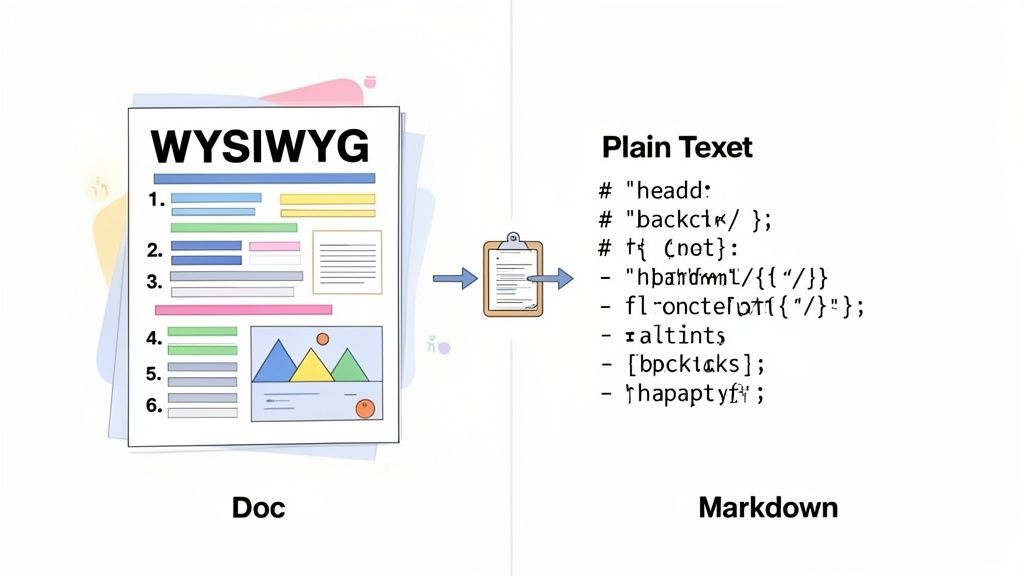
Sa esensya, ang pag-convert ng rich text sa Markdown ay nangangahulugan ng pagsasalin ng lahat ng visual na styling na iyon—bold, italics, links, at mga listahan—sa simpleng plain-text syntax na naiintindihan ng Markdown. Kung wala ang hakbang na ito, magpe-paste ka lang ng isang bungkos ng nakatagong HTML code na hindi kayang i-interpret nang tama ng karamihan sa mga sistemang nakabatay sa Markdown.
Ang Dalawang Mundo ng Paglikha ng Nilalaman
Sa isang panig, mayroon kang mga editor na "What You See Is What You Get" (WYSIWYG). Isipin ang Google Docs, Notion, o kahit ang iyong email composer. Ang mga ito ay intuitive dahil nagki-click ka lang ng button para gawing bold ang text, at mukha itong bold. Puro visual lang.
Sa kabilang panig, naroon ang Markdown. Ito ay isang magaan na markup language na binuo para sa pagiging simple at madaling pagbasa. Sa halip na nakatagong code, gumagamit ka ng mga simpleng karakter tulad ng asterisk para sa **bold** o hashtag para sa # Heading. Ito ang pamantayan para sa dokumentasyon ng developer, mga teknikal na blog, at version control sa isang dahilan—ito ay malinis, portable, at predictable.
Ang hindi pagkakasundo ay nangyayari dahil ang dalawang sistemang ito ay pangunahing nagkakaiba sa paraan ng kanilang "pag-iisip" tungkol sa pag-format. Ito ay naging mas malaking isyu nang umigting ang paggamit ng mga tool ng developer. Mula noong huling bahagi ng 2000s, tahimik na naging pangunahing pagpipilian ang Markdown para sa teknikal na pagsulat. Sa mga platform tulad ng GitHub—na nagdagdag ng Markdown support noong 2008 at nag-ulat na nagho-host ng mahigit 200 milyong repositories pagsapit ng 2023—ang pagkuha ng tamang conversion na ito ay isa nang araw-araw na gawain para sa marami sa atin.
Mga Pangunahing Pagkakaiba ng Rich Text Vs Markdown
Upang talagang maunawaan kung bakit madalas na nabigo ang simpleng copy-paste, makakatulong na makita ang mga pangunahing pagkakaiba nang magkatabi. Itinatago ng Rich Text ang pagiging kumplikado nito sa likod ng isang visual na interface, habang ginagawang nakikita at madaling kontrolin ng Markdown ang simpleng syntax nito.
| Katangian | Rich Text (HTML/WYSIWYG) | Markdown |
|---|---|---|
| Pag-format | Naka-store bilang nakatagong HTML tags o proprietary code. | Naka-store bilang plain text na mga karakter (hal., **bold**, *italic*). |
| Portability | Madalas nasisira kapag inilipat sa iba't ibang application. | Napaka-portable; pare-pareho ang trabaho sa iba't ibang platform. |
| Pagkabasa | Ang raw code ay hindi mabasa ng mga hindi developer. | Ang raw text ay malinis at madaling basahin. |
| Kontrol | Nagbibigay ng mga visual na tool ngunit maaaring magdagdag ng hindi gustong styling. | Nag-aalok ng tumpak, tahasang kontrol sa bawat elemento. |
Sa huli, ang pag-alam kung paano maayos na i-convert ang rich text ay hindi lang tungkol sa pagpapaganda ng mga bagay. Ito ay isang kinakailangang kasanayan para mapanatiling malinis ang iyong dokumentasyon, maayos ang iyong mga daloy ng trabaho sa nilalaman, at epektibo ang iyong pakikipagtulungan sa halos anumang modernong tech environment.
Ang Nakatagong Halaga ng "Mabilis at Madali" na mga Online Converter
Kaya, kailangan mong i-convert ang ilang rich text sa Markdown. Ano ang unang gagawin? Para sa karamihan sa atin, ito ay isang mabilisang paghahanap para sa isang libreng online na tool. Makakakita ka ng isang site na may simpleng paste-and-go interface, i-drop ang iyong content mula sa isang Google Doc, at—voila—mayroon ka ng mukhang malinis na Markdown. Parang panalo, pero magtiwala ka sa akin, ang pamamaraang ito ay kadalasang nagdudulot ng mas maraming sakit ng ulo kaysa sa nareresolba nito, lalo na kapag nagtatrabaho ka sa isang mahalagang bagay.
Ang pinakamalaking pulang bandila para sa akin ay palaging data privacy. Kapag nag-paste ka ng text sa isang random na website, ibinibigay mo ang iyong content sa isang third-party server. Kung ang text na iyon ay unreleased na dokumentasyon ng produkto, panloob na tala ng kumpanya, o anumang bagay na medyo sensitibo, nakagawa ka lang ng malaking panganib sa seguridad. Wala kang ideya kung paano iniimbak, nini-log, o posibleng ginagamit ang data na iyon sa hinaharap.
Kahit na hindi ka nag-aalala tungkol sa privacy, ang kalidad ng output ay kadalasang isang dealbreaker. Ang mga simpleng tool na ito ay karaniwang binuo upang hawakan ang mga absolute basics. Sa sandaling maghagis ka ng anumang kumplikado sa kanila—tulad ng mga nested list, table na may merged cells, o kahit ilang partikular na pag-format mula sa iyong orihinal na editor—ang mga bagay ay may posibilidad na masira. Nauuwi ka sa paggastos ng mas maraming oras sa paglilinis ng gusot na resulta kaysa sa oras na "na-save" mo sa paggamit ng tool.
Ang Problema sa Cleanup Duty
Isalarawan natin ang isang senaryo na madalas kong nakikita: paglipat ng isang draft para sa isang teknikal na blog post mula sa isang shared document patungo sa isang Markdown file para sa isang static site generator tulad ng Jekyll o Hugo. Ang doc ay may lahat ng karaniwan: mga header, bold text, code block, at ilang listahan.
Ang isang pangunahing online converter ay maaaring makuha nang tama ang mga header at bolding, ngunit sa mga detalye ito natitisod.
- Code Blocks: Sa halip na maayos na nakabalot sa triple backticks (```), ang iyong maingat na na-format na mga code snippet ay kadalasang lumalabas bilang plain text, nawawala ang lahat ng kanilang indentation at syntax cues.
- Nested List: Ang isang multi-level na outline ay maaaring ganap na patagin sa isang mahaba, single-level na listahan, na lubusang sumisira sa lohikal na daloy ng dokumento.
- Character Encoding: Ang mga espesyal na karakter at maging ang mga emoji ay maaaring magulo, na nag-iiwan ng mga kakaibang simbolo na nakakalat sa iyong huling dokumento.
Ito ang hitsura ng marami sa mga online editor na iyon. Ang mga ito ay malinis at mahusay para sa pagsulat ng Markdown mula sa simula, ngunit ang kanilang paste-to-convert logic ay hindi talaga binuo upang hawakan ang mga nuances ng na-import na rich text.
Ang tunay na halaga ng isang "libre" na converter ay hindi pera; ito ang oras na nasasayang mo sa manu-manong paglilinis at ang panganib na iyong tinatanggap sa iyong data. Ang isang tool na lumilikha ng mas maraming trabaho ay hindi isang solusyon.
Sa huli, habang ang mga in-browser na tool na ito ay maaaring fine para sa isang mabilis, hindi sensitibong conversion ng simpleng text, nagpapakilala sila ng isang marupok at hindi mahusay na hakbang sa anumang seryosong workflow. Ang oras na ginugol sa pag-aayos ng lahat ng maliliit na pagkakamali sa pag-format ay mabilis na nadadagdag, na ginagawang isang mahinang pagpipilian ang karaniwang unang hakbang na ito para sa sinumang nangangailangan ng maaasahang proseso ng rich text sa Markdown.
Isang Matalinong Daloy ng Trabaho Gamit ang Command Palette
Maging tapat tayo, nakakapagod ang manual conversion. Ang paglukso-lukso sa pagitan ng mga tab, pag-paste ng text sa ilang random na online tool, at pagkatapos ay pagkopya nito pabalik—ito ay isang magulo, multi-step na sayaw na humihila sa iyo palabas ng iyong daloy. Gawin mo ito nang dose-dosenang beses sa isang araw, at ang nawawalang oras at pokus ay talagang magdadag-dag.
Ngunit paano kung ang buong prosesong iyon ay maaaring mangyari nang instant, nang hindi umaalis sa pahinang iyong tinitingnan?
Dito pumapasok ang isang keyboard-first na diskarte, gamit ang isang bagay tulad ng ShiftShift Extensions Command Palette, na ganap na nagbabago ng laro. Sa halip na mag-navigate palayo sa isang website, magbubukas ka lang ng command bar gamit ang isang keyboard shortcut. Ginagawa nito ang isang nakakapagod na gawain sa isang seamless, sandali lang at wala na, na bahagi ng iyong natural na daloy ng trabaho.
Pagsasagawa ng mga Conversion nang Instant
Ang buong ideya ay binuo para sa bilis. Sabihin nating kakopya mo lang ng isang tipak ng naka-format na text mula sa isang Google Doc o isang blog post. Habang nasa iyong clipboard ang rich text na iyon, tatawagin mo lang ang Command Palette.
Sa isang Mac, ito ay mabilisang Cmd+Shift+P. Sa Windows o Linux, ito ay Ctrl+Shift+P.
Sa sandaling magbukas ang palette, magsisimula kang mag-type ng "markdown." Ang utos na 'Convert Rich Text to Markdown' ay lilitaw kaagad. Pindutin ang enter, at boom—perpektong naka-format na Markdown ay nasa iyong clipboard na, handa nang i-paste kahit saan mo ito kailangan. Ang buong bagay ay tumatagal ng mga dalawang segundo. Walang context switching, walang nawawalang pokus.
Ang tunay na panalo dito ay hindi lang ang bilis—ito ay ang seguridad. Ang mga tool tulad ng ShiftShift ay ginagawa ang lahat ng pagproseso nang lokal, mismo sa loob ng iyong browser. Ang iyong data ay hindi kailanman ipinapadala sa isang third-party server, na ganap na iniiwasan ang mga panganib sa privacy na iyong nararanasan sa karamihan ng mga online converter.
Ang maliit na flowchart na ito ay malinaw na naghahati-hati sa desisyon.
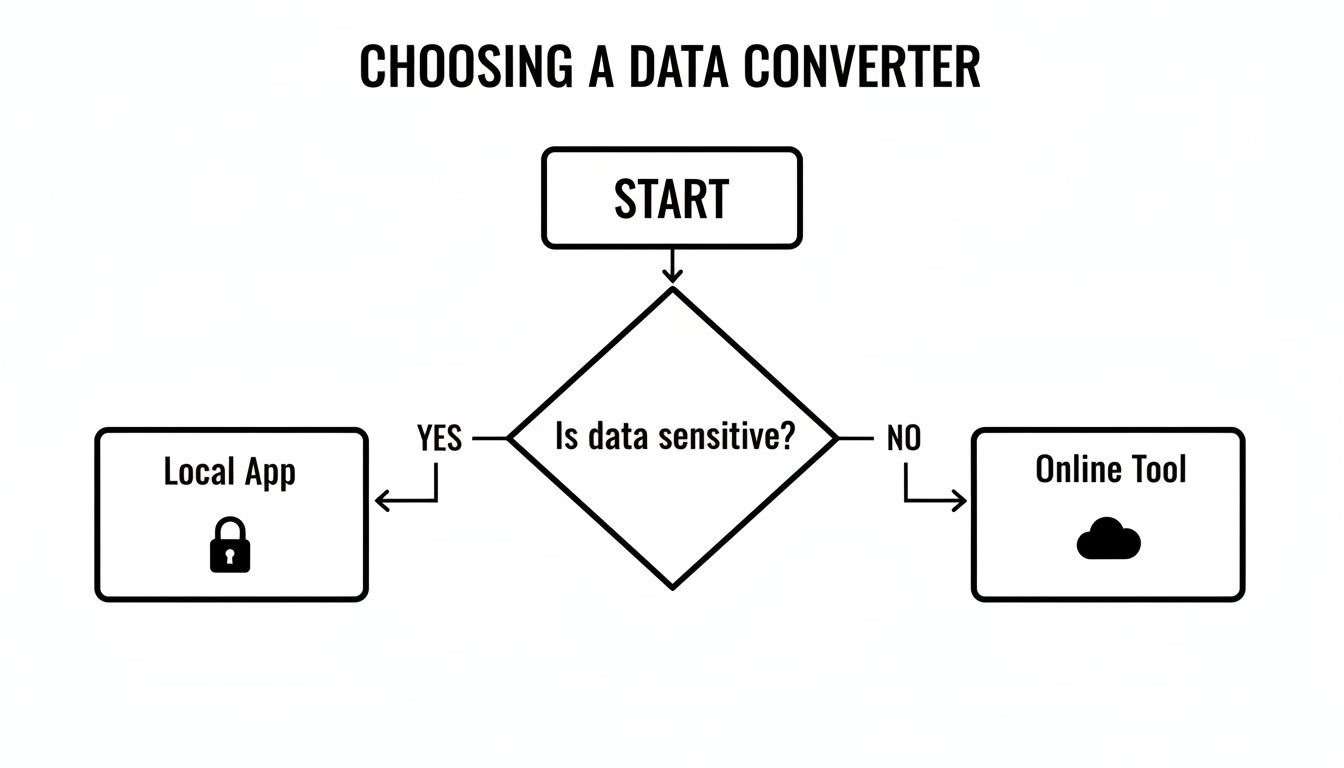
Ang takeaway ay simple: kung ang data ay kahit na bahagyang sensitibo, isang lokal, offline-first na tool ang tanging paraan.
Paghahambing ng Integrated Vs Online na mga Tool
Habang ang command palette ay nag-aalok ng isang makinis at ligtas na solusyon, nararapat na makita kung paano ito nakikipagtagisan sa iba pang mga pamamaraan. Halimbawa, ang isang Online Markdown WYSIWYG Editor ay nagbibigay sa iyo ng visual interface, na maaaring maging tunay na kapaki-pakinabang para sa pag-double-check ng pag-format on the fly.
Ang pangunahing pagkakaiba, gayunpaman, ay ang workflow. Ang isang online na tool ay palaging isang hiwalay na destinasyon na kailangan mong puntahan. Ang isang integrated command palette ay isang aksyon na iyong ginagawa mismo kung nasaan ka.
Ang pagkakaibang ito ay tiyak kung bakit napakaraming developer, manunulat, at power user ang nahuhumaling sa mga tool na naninirahan sa loob ng kanilang pangunahing kapaligiran. Kung naghahanap ka upang talagang pataasin ang iyong pagiging produktibo na nakabatay sa browser, ang pagsuri sa ilan sa mga pinakamahusay na productivity Chrome extensions sa https://shiftshift.app/blog/best-productivity-chrome-extensions ay magbubukas ng iyong mga mata sa mga posibilidad.
Sa huli, para sa mga madalas na gawain tulad ng conversion ng rich text sa Markdown, ang pagpili ng integrated tool ay tungkol sa pagputol ng maliliit na abala na pumapatay sa iyong momentum at pokus.
Paano Mag-navigate sa mga Karaniwang Pitfalls ng Conversion
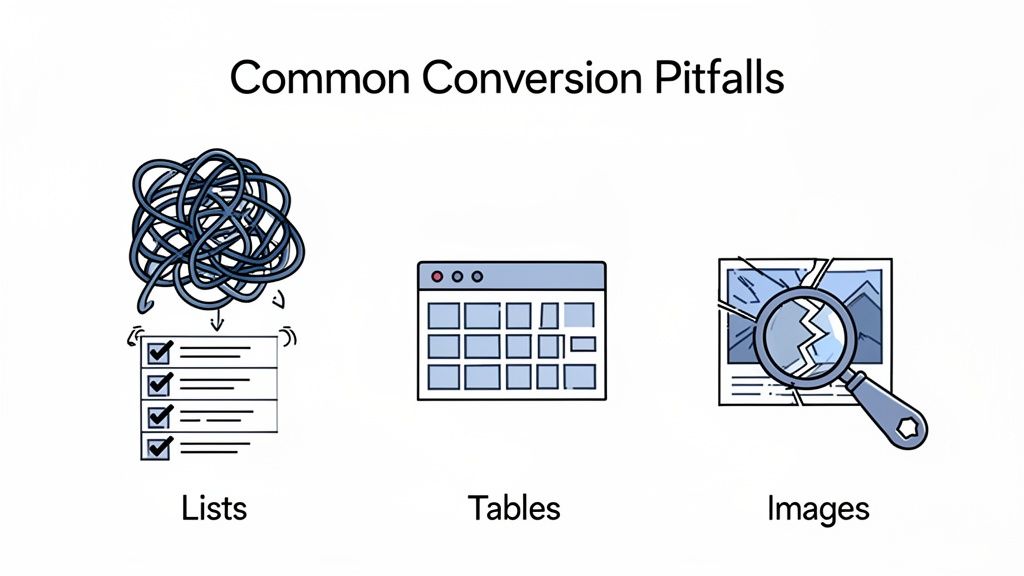
Ang tunay na pagsubok ng anumang converter ng rich text sa Markdown ay hindi kung paano nito hinahawakan ang simpleng bold o italic na text—ito ay kung paano ito humahawak kapag naghagis ka ng kumplikadong content dito. Isang minuto mayroon kang maayos na conversion, at sa susunod, natigil ka sa isang nakakadismayang trabaho sa paglilinis dahil ang mga bagay tulad ng listahan, table, at imahe ay hindi nakayanan ang paglipat.
Ang pag-unawa kung bakit nasisira ang mga elementong ito ay ang unang hakbang. Karamihan sa oras, ang isyu ay bumabagsak sa mga pangunahing pagkakaiba sa disenyo sa pagitan ng rich text (madalas na nakabatay sa HTML) at Markdown. Ang Rich text ay binuo para sa visual complexity; ang Markdown ay tungkol sa structural simplicity. Ang banggaan na iyon ay nagiging napakalinaw sa advanced formatting.
Pakikipagbuno sa mga Nested List
Ang mga nested list ay isa sa mga pinakamadalas na nasasaktan. Maaaring mayroon kang perpektong pagkakaayos na outline sa iyong source document, ngunit pagkatapos ng conversion, madalas itong nagiging flattened sa isang solong, nakakalitong gulo.
Ito ay nangyayari dahil ang mga rich text editor ay gumagamit ng kumplikadong HTML (<ul> at <ol> tags na may nested <li> items) upang lumikha ng mga antas, at ang istrukturang iyon ay hindi palaging nape-map nang malinis sa simpleng mga panuntunan sa indentation ng Markdown.
- Bago (Rich Text): Nakakakita ka ng multi-level na listahan na may malinaw na parent at child items.
- Pagkatapos ng isang masamang conversion: Lahat ng mga maingat na inilagay na sub-point ay biglang na-promote sa pinakamataas na antas, ganap na sinisira ang hierarchy.
Ang ayos ay halos palaging manual. Kailangan mong bumalik at i-re-indent ang mga list item sa iyong Markdown editor, na binibigyang pansin ang spacing (karaniwang dalawa o apat na espasyo bawat antas) upang maibalik ang orihinal na istraktura.
Ang Problema sa Tables
Ang mga table ay isa pang malaking sakit ng ulo. Habang ang pipe-table syntax ng Markdown ay napakaganda at simple, iyon din ang kahinaan nito. Hindi nito kayang hawakan ang mga advanced na feature na karaniwan sa mga rich text editor.
Narito kung bakit madalas na nasisira ang mga kumplikadong table:
- Merged Cells: Ang mga Markdown table ay walang konsepto ng
colspanorowspan. Kung ang iyong orihinal na table ay may merged cells, malamang na malito ang converter. - Multi-line Content: Ang mga line break sa loob ng isang cell ay madaling makagambala sa buong istraktura ng table sa panahon ng conversion.
- Inline Formatting: Ang Bold, italics, o links sa loob ng mga cell ay minsan nabibigo na mag-convert nang tama.
Kapag nasira ang isang table, ang iyong pinakamahusay na pagpipilian ay madalas na itayo ito muli mula sa simula gamit ang Markdown syntax. Ito ay nakakapagod ngunit epektibo. Para sa tunay na kumplikadong data, maaari mo na lang i-embed ang isang HTML <table> block nang direkta sa iyong Markdown file, dahil karamihan sa mga renderer ay ipapakita ito nang maayos.
Ang pangunahing hamon ay ang rich text at Markdown ay nag-iimbak ng impormasyong pang-istruktura sa mga pangunahing magkakaibang paraan. Ito ay nagiging lalong maliwanag sa malalaking paglilipat, kung saan ang mga manual fix ay hindi praktikal.
Nakita ko ito mismo sa malalaking proyekto. Ang paglilipat ng libu-libong file nang sabay-sabay ay naglalantad ng lahat ng uri ng mga problema sa istruktura—sirang table cell merges, hindi pare-parehong antas ng heading, at mga ligaw na HTML fragment na nangangailangan ng malaking pagsisikap sa paglilinis. Makakahanap ka ng ilang mahuhusay na community discussions sa conversion scripting na sumisid sa kung paano tinutugunan ng mga developer ang mga isyung ito sa totoong mundo.
Nawawalang mga Imahe at Media
Sa wakas, pag-usapan natin ang mga imahe. Kapag kinopya mo ang rich text mula sa isang webpage o dokumento, hindi mo kinokopya ang mismong image file—kinokopya mo lang ang isang reference dito. Karamihan sa mga pangunahing converter ay walang ideya kung ano ang gagawin sa reference na iyon.
Ang resulta? Ang iyong imahe ay nawawala na lang, nag-iiwan ng sirang link o, mas masahol pa, wala man lang.
Upang ayusin ito, kakailanganin mong muling ipasok ang mga imahe gamit ang syntax ng Markdown: . Ibig sabihin, kailangan mo munang i-upload ang imahe sa kung saan ito maaaring ma-access gamit ang isang pampublikong URL, at pagkatapos ay i-link ito.
Kapag nakikipag-usap ka sa maraming error sa pag-format, ang pagtukoy sa lahat ng maliliit na pagkakaiba ay maaaring maging mahirap. Ang isang side-by-side na tool sa paghahambing ay isang malaking tulong dito.
Ang talahanayan sa ibaba ay nagbubuod ng ilan sa mga pinakakaraniwang isyu na aking naranasan at kung paano ayusin ang mga ito nang mabilis.
Pag-aayos ng mga Karaniwang Error sa Conversion
| Lugar ng Problema | Karaniwang Isyu | Inirerekomendang Pag-aayos |
|---|---|---|
| Mga Nested List | Lahat ng sub-item ay nagiging flat sa iisang antas ng listahan, nawawala ang hierarchy. | Manu-manong magdagdag ng indentation (karaniwang 2-4 na puwang) bago ang bawat sub-item upang maibalik ang istruktura. |
| Mga Table | Nasisira ang istruktura ng table, lalo na kung may merged cells o maraming linya ng teksto sa isang cell. | Itayo muli ang table gamit ang Markdown pipe syntax. Para sa mga kumplikadong kaso, i-embed ang orihinal na HTML table. |
| Mga Larawan | Nawawala nang tuluyan ang mga larawan o nagiging broken links pagkatapos ng conversion. | I-upload ang larawan sa isang host, kunin ang public URL, at muling i-insert gamit ang syntax na . |
| Mga Espesyal na Karakter | Ang mga karakter tulad ng <, >, at & ay mali ang interpretasyon, na sumisira sa layout. |
Manu-manong i-escape ang mga karakter na ito gamit ang backslash (hal., \<) o palitan ng HTML entities. |
Ang paggamit ng diff checker para ihambing ang iyong source at output ay maaaring gawing mas madali ang buong proseso. Maaari kang gumamit ng online utility upang maghambing ng teksto online nang libre sa https://shiftshift.app/blog/compare-text-online-free sa pamamagitan ng pag-paste ng iyong orihinal at na-convert na teksto nang magkatabi. Ito ay magbibigay-daan sa iyo na makita agad ang mga pagkakamali sa formatting.
Pag-automate ng Conversion Para sa mga Advanced na User
Para sa mga developer, technical writer, o kahit sino na nagha-handle ng maraming content, ang manu-manong pag-convert ng mga dokumento ay hindi sustainable. Kapag nakaharap ka ng maraming file o kailangan mong isama ang conversion sa isang app, kailangan mong mag-isip nang programmatically. Dito natin iiwan ang mga simpleng copy-paste tricks at magsisimula nang mag-automate ng buong workflow.
Hindi na ito isang niching problema. Ang pangangailangan na gawing malinis na Markdown ang rich text ay naging pangunahing requirement para sa maraming tool, lahat dahil sa mga tunay na frustrations. Nakita ko ito mismo sa mga komunidad tulad ng Joplin, kung saan ang mga user na nag-i-import ng notes mula sa ibang apps ay nanonood ng kanilang formatting na nawawala kapag nag-reload. Ang sakit ng ulo na iyon ang nagtutulak sa mga developer na gumawa ng mga converter nang direkta sa kanilang software. Makakakita ka ng mga katulad na talakayan tungkol sa mga usability challenges na ito sa DEVONtechnologies community forum.
Paggamit ng JavaScript Libraries
Kung nasa mundo ka ng web development, ang JavaScript libraries ay iyong matalik na kaibigan para sa gawaing ito. Ang rekomendasyon ko ay ang turndown. Ito ay isang napakalakas at nako-configure na library na kumukuha ng HTML at naglalabas ng maganda at malinis na Markdown. Gumagana ito pareho para sa server-side scripts sa Node.js at para sa client-side applications.
Halimbawa, maaari kang gumawa ng mabilis na Node.js script para i-process ang isang lokal na HTML file at i-save ito bilang Markdown.
const TurndownService = require('turndown');
const fs = require('fs');
const turndownService = new TurndownService();
const htmlContent = fs.readFileSync('source.html', 'utf8');
const markdown = turndownService.turndown(htmlContent);
fs.writeFileSync('output.md', markdown);
console.log('Conversion complete!');
Ang ganitong script ay perpekto para sa batch-processing ng isang folder na puno ng mga file o para sa paglalagay ng conversion step sa isang mas malaking content pipeline.
Ang tunay na mahika ng programmatic conversion ay ang consistency. Kapag naitakda mo na ang mga patakaran, bawat conversion ay sumusunod sa parehong lohika. Ito ay ganap na nag-aalis ng human error at mga random inconsistencies na nakukuha mo sa manu-manong trabaho.
Ang isa pang slick technique ay ang pag-handle ng paste events nang direkta sa browser. Maaari kang sumulat ng kaunting JavaScript upang i-intercept ang HTML content kapag nag-paste ang user, i-convert ito sa Markdown agad, at pagkatapos ay i-insert ang malinis na bersyon sa iyong text editor. Lumilikha ito ng seamless na karanasan, awtomatikong nag-aayos ng magulong content mula sa Google Docs o Word. Ito ay isang subtle feature, ngunit para sa sinumang gumagawa ng web-based na editor, ito ay isang game-changer.
Pagpili Sa Pagitan ng Libraries at CLI Tools
Kapag ang iyong mga pangangailangan ay lumampas na sa simpleng HTML, maaaring kailanganin mong gamitin ang malalaking baril: isang command-line interface (CLI) tool. Sa larangang ito, ang Pandoc ang hindi matatawaran na kampeon. Ito ang Swiss Army knife ng document conversion. Habang ang isang library tulad ng turndown ay mahusay para sa HTML-to-Markdown, ang Pandoc ay kayang dumaan sa dose-dosenang format, mula DOCX at RTF hanggang LaTeX at pabalik.
Kaya, alin ang dapat mong piliin? Depende talaga ito sa iyong proyekto.
- Gumamit ng JS library (
turndown) kung gumagawa ka ng web app o nagtatrabaho sa loob ng Node.js environment. Ito ay magaan, nakatutok, at ginagawa nang perpekto ang trabaho. - Gumamit ng CLI tool (Pandoc) kapag nakikipag-usap ka sa iba't ibang uri ng file format o nagtatrabaho sa shell-scripting environment kung saan maaari mong i-pipe ang mga command nang magkasama.
Para sa mga nangangailangan ng kapangyarihan ng automation nang hindi sumisid sa code, ang mga browser-based na tool tulad ng ShiftShift extension ay nag-aalok ng mahusay na middle ground. Binibigyan ka nila ng bilis at reliability ng isang scripted solution, lahat ay nakatago sa loob ng isang madaling gamitin na command palette. Ito ang ideal na balanse para sa karamihan ng mga power user.
Ang pag-iisip kung paano kumikilos ang iba't ibang format, tulad ng sa aming gabay sa paano i-convert ang Word sa PDF, ay maaaring magbigay sa iyo ng higit pang konteksto sa mga document workflow. Para sa mas malawak na pananaw, ang pag-explore ng mga resources sa paano i-convert ang PDF sa Markdown ay nagpapakita kung gaano kalalim ang mundo ng document transformation.
Mga Karaniwang Tanong Tungkol sa Pag-convert ng Rich Text sa Markdown
Kahit na may solidong workflow, ang pag-convert ng rich text sa Markdown ay maaaring magbigay ng ilang curveballs. Maaari kang makabangga ng isang snag sa isang partikular na file o magtaka lamang kung may mas mahusay na paraan upang gawin ang mga bagay-bagay. Suriin natin ang ilan sa mga pinakamadalas na tanong na naririnig ko mula sa mga taong gumagawa ng conversion na ito.
Ang pag-aayos ng mga detalyeng ito ay makakatulong sa iyo na maiwasan ang mga karaniwang isyu at bumuo ng isang proseso na maaari mong aktwal na asahan.
Ligtas bang Gamitin ang mga Online Converter?
Ito ay tungkol lahat sa konteksto. Ang kaligtasan ng isang online na rich text to Markdown converter ay talagang bumabagsak sa kung ano ang iyong kino-convert. Kung ito ay draft ng isang pampublikong blog post o iba pang hindi sensitibo, malamang ay okay ka lang. Ngunit kung ikaw ay humahawak ng mga panloob na dokumento ng kumpanya, pribadong tala, o anumang may proprietary info, ang pag-paste nito sa isang random na website ay isang malaking panganib sa seguridad.
Bilang patakaran, kung ang data ay hindi maaaring maging pampubliko, ang proseso ng conversion ay hindi rin dapat. Sa sandali na i-paste mo ang sensitibong content sa isang third-party na site, nawalan ka na ng kontrol. Wala kang ideya kung saan naka-imbak ang data na iyon o kung sino ang maaaring magkaroon ng access dito.
Maaari ba akong Mag-copy at Mag-paste Lang Mula sa Word o Google Docs?
Maaari mo, ngunit kailangan mong maging maingat. Kapag kumopya ka mula sa Google Docs o Microsoft Word, hindi ka lang kumokopya ng teksto; kumokopya ka ng isang gusot ng pinagbabatayan na HTML na naglalarawan ng formatting.
- Para sa mga simpleng dokumento na may ilang bold text, italics, at mga basic na listahan, karamihan sa mga disenteng converter ay kayang nguyain ang clipboard HTML na iyon nang walang gaanong problema.
- Para sa mga kumplikadong dokumento—yaong may mga table, footnote, tracked changes, o naka-embed na chart—ang conversion ay halos palaging magiging magulo. Asahan na gumawa ng kaunting manual cleanup.
Tulong! Nawala ang Aking mga Larawan Pagkatapos Mag-convert.
Ito ay marahil ang pinakakaraniwang "gotcha." Kapag kinopya mo ang rich text na may larawan, hindi mo aktwal na kinokopya ang larawan mismo. Kinokopya mo lamang ang isang reference kung saan matatagpuan ang larawang iyon, at ang isang standard converter ay walang paraan upang sundan iyon pabalik sa orihinal na file.
Ang tanging tunay na ayos ay ang pag-handle ng mga larawan bilang isang hiwalay na hakbang:
- Una, i-save ang bawat larawan mula sa iyong orihinal na dokumento.
- Susunod, i-upload ang mga ito sa iyong web server, isang CDN, o anumang asset host na ginagamit mo upang makakuha ng public URL para sa bawat isa.
- Panghuli, bumalik sa iyong Markdown file at idagdag ang mga ito nang manu-mano gamit ang tamang syntax: ``.
Kaya, Ano ang Pinakamahusay na Tool para sa Trabaho?
Ang "pinakamahusay" na tool ay talagang nagbabago depende sa kung sino ka at kung ano ang iyong ginagawa.
Para sa isang mabilis, isang beses na conversion ng isang bagay na hindi kumpidensyal, anumang kagalang-galang na online tool ay magagawa ito. Ngunit kung ginagawa mo ito sa lahat ng oras, isang tool na naka-built sa iyong browser at hinihimok ng keyboard shortcuts—tulad ng ShiftShift Command Palette—ay magiging mas mahusay at secure. At para sa mga developer na kailangang mag-convert ng mga file nang maramihan o i-automate ang proseso, walang tatalo sa kapangyarihan ng isang programmatic tool tulad ng turndown library o ang command-line beast na Pandoc.
Handa nang itigil ang pag-aaksaya ng oras sa mga clunky web tool at manual cleanup? ShiftShift Extensions ay nag-iintegrate ng isang makapangyarihan, privacy-first rich text to Markdown converter nang direkta sa iyong browser sa pamamagitan ng isang mabilis na Command Palette. I-convert ang iyong clipboard content nang instant nang hindi umaalis sa iyong pahina. I-download ang ShiftShift Extensions ngayon at baguhin ang iyong workflow.