ዊንዶውስ 7 አንድ ስክሪንስስት እንዴት እንደሚወጣ የተግባር መመሪያ
Windows 7 ላይ እንዴት ስክሪን ምስል ማድረግ እንደሚቻል በPrint Screen ቁልፍ፣ Snipping Tool እና ሌላ ኃይለኛ የስክሪን ይዘት መዋቅር ላይ መመሪያችን ይማሩ።
የተመነጨ ማስተካከያዎች

የ Windows 7 ስክሪን ስኬት ማንበብ መማር ላልጠቅም ባለመቻል ሁለተኛው ሀገር አይደለም፣ እና ምንም አይነት ዘመናዊ ሶፍትዌር መጠቀም አያስፈልግህም። መሣሪያዎቹ ወዲያውኑ በመሠረተ ልማቱ ውስጥ ተገልግተዋል።
ለፍጥነት እና ሳያንከላከል የምትጠቅምበት መንገድ፣ የሙሉ ስክሪንህን ለመያዝ የ Print Screen (PrtScn) ቁልፍ ብቻ ንካ። ብቻ ትምህርት ቤት ውስጥ ያለ ልዩ መስኮት ፎቶ ብትፈልግ፣ ይልቁንም የ Alt + Print Screen ቀላል መስኮት ቁልፍ ተጠቀም። እነዚህ ሁለቱም ተግባራት ምስሉን በቀጥታ ወደ ቁራጭ ቅንጥብ ቅንጮ ይቀዳሉ፣ ምን እንኳን ወደ Paint ወይም ወደ Word ሰነድ ማንበብ እንደሚችል ያደርጋሉ።
በ Windows 7 ውስጥ ስክሪን ማንበብ ለምትፈልጉት ፈጣን መልስዎች
ችግር መልዕክት ለ IT ሰው ማሳየት ወይም ምemes ለሚያሳይ ጓደኛ ማጋራት የፈለግከው ጊዜ አለህ? ስክሪት እና ማንበብ በጣም ፈጣን መንገድ ነው። Windows 7 ለእነዚህ በዕለት ተዕለት ሁኔታዎች በጣም ታማኝ የሆኑ የሠራተኛ ቴክኖሎጂ ዘዴዎች አለው።
በጣም ብዙ ጊዜ የምትጠቀምባቸው ሁለት የሚያዝ ቁልፎች እነሆ፡
- ፕሪንት ስክሪን (PrtScn): ይህ ሁሉንም ነገር ለመቅረፍ የሚመርጡት ነው። የሙሉ ዴስክቶፕዎን ይሠራል፣ በተለይም ከብዙ ማሰሪያዎች ጋር የሚያዩትን ሙሉ ሁኔታ ለማሳየት ከፈለጉ እጅግ ተስማሚ ነው።
- አልት + ፕሪንት ስክሪን: ይህ በቃ የተሻለ ነው። ንቁ መስኮትን ብቻ ይፈልሳል፣ በአንድ መተግበሪያ ላይ በትኩረት መการทำงาน እና ሌሎች ፕሮግራሞችን ወይም የግል መረጃዎችን ከፎቶው ውጭ ለማድረግ ጥሩ ነው።
የቀረበውን ዘዴ ማምረጥ
እነዚህን አመስጠሞች ማንኛውንም ከጠቀማችሁ በኋላ፣ ፎቶው በፋይል አይቀመጥም ማለት ነው። በቃል በቂ ላይ በቃ ተቀምጧል። ለመቀመጥ፣ ፕሮግራም እንደ MS Paint መከፈት ይፈላጋሉ (በStart Menu ላይ ፈልጎ ይፈትሹ)፣ ፎቶውን በ Ctrl + V በመንኩ ይለጥጡ፣ ከዚያም ከዚያ በኋላ ይቀምጡት።
ይህ ቀላል ፍሎቾርት ማንኛውንም አመስጠም በፍጥነት መረጡ ይረዳች__.
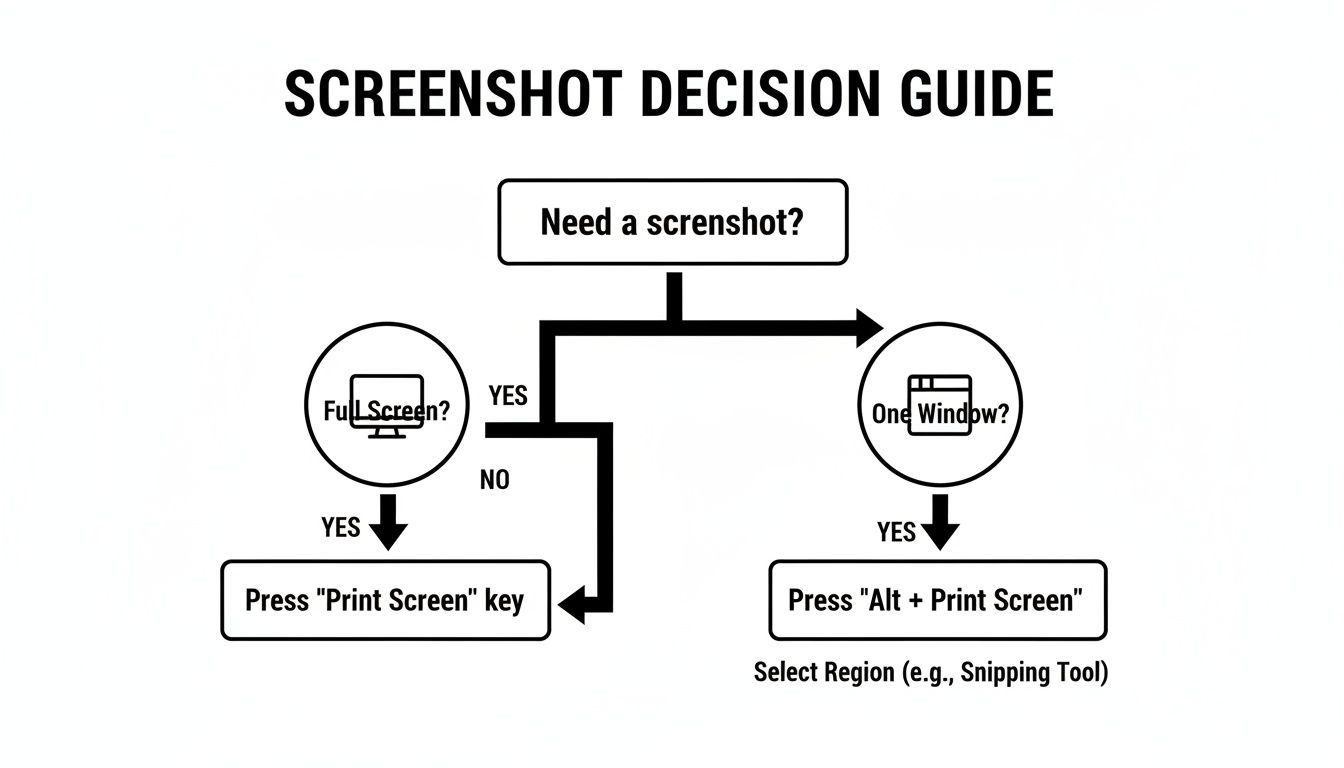
እንደ ምስሉ የሚያሳይው፣ ትክክለኛውን ዘዴ መምረጥ ቀላል ነው። ሙሉ ስክሪን ወይስ አንድ መስኮት ብቻ ይፈልጋሉ? የቁጭት ሰሌዳ ዘዴዎች ፈጣን እና ቀላል ከሆኑም ጋር، ሁሉንም ነገር መፈተን አይችሉም። ለምሳሌ፣ ረጅም እና መቃብ የሚሰጥ ዌብ ገጽ መያዝ ከፈለጉ፣ ሌላ መሳሪያ ያስፈልግዎታል። እንደ እነዚህ ሁኔታዎች በውስጡ የተነሳ ሙሉ ገጽ ስክሪን ማንሳት በተዘጋጀ መሰረት የተሰራ መሳሪያ በጣም ጥሩ አማራጭ ነው።
መደበኛውን ፕሪንት ስክሪን ዘዴ በችሎታ መንገድ
ስለምን የሚያስደስት መሳሪያዎችና መተግበሪያዎች በመቅደም የክፍት ገጹን ለመቅረት የሚያገለግለው የ Print Screen ቁልፍ በቃ የነበረው፣ በ ዋንโดዝ 7 ውስጥም እንኳን ሙሉ በሙሉ ይሠራል። በ ኪቦርድዎ ላይ አብዛኛውን ጊዜ በ PrtScn በሚለው ስም ይታይል::
ይህን ብቻ ቁልፍ ሲነኩ፣ የ ገጹን ሙሉ በሙሉ ምስል ወዲያውኑ ይዞታል—የ ብዙ ማያያዣ ያላቸው ሆኖ እንኳን ያሉ ሁሉ ማያያዣዎችን ጨምሮ የምታዩትን ሁሉ። ምስሉ ወዲያውኑ ወደ ቅንጥብ ሰሌዳዎ ተቅ ModelRenderer፣ ሌቅ ላይ ለ መለ粘贴 ዝግጁ ይሆናል። የ ዴስክቶፕዎን ትዕይንት ለማንሳት ፈጣነት ከሚችሉት አማራጮች ውስጥ ይህ ቀጥታ መንገድ ነው.
ይህ ዘዴ በጣም ይመችቃል ሙሉ የ ዴስክቶፕ አቀማመጥዎን ለማን ማሳየት በመቻል ላይ ያለ ሌላ መስኮት ላይ ለመታየት የ ስህተት መልዕክት ለ መቅረት ከፈለጋችሁ። ያንን ብቻ ያስቡት የ እንደው ሁሉን ነገር ይዞታል፣ ስለዚህ ለ ውጪ ላይ መረጃ ወይም የ ጀርባ ንረት መጋጥሞት ትችላለር.
የአктив መስኮትን ብቻ መያዝ
ፎቶውን በዘፈቀደ አለመያዝ ስለፈለግዎ፣ የመስኮትዎን ውድቀት ማሳየት አይፈልጉም? ይህ Windows 7 ለዚህ ከሚኖረው በጣም ብሩህ እና በልዩ መንገድ የተቀኘ ምልክት አለው።
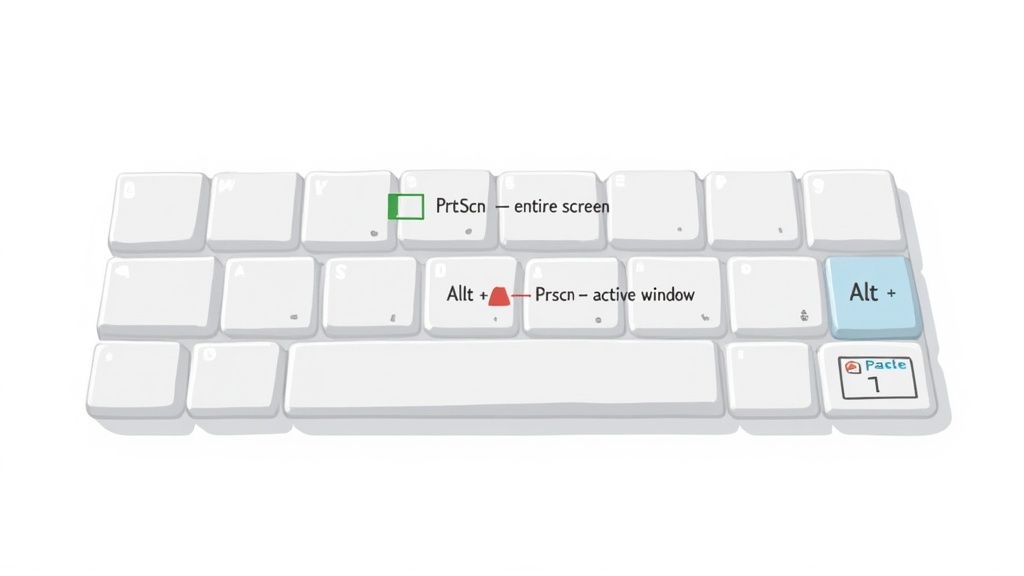
[Alt] ቁልፍ በመያዝ ላይ[PrtScn]ን ይጫኑ። ይህ ብልህ ጥምረት የአሁኑን በሚሠሩበት መስኮት— ማለትም "የአктив"ውን— ብቻ ያያዝቸዋል። ይህ የተለየ መተግበሪያ፣ እንደ ዋንበር ባይሮው ወይም የማስተካከያ ፓነል ላይ በትክክል መጠናከር የሚያስችለው ከመሬታ ማንፈጫ እና የዴስክቶፕ ምልክቶችን ሳያካትት በቂ መንገድ ነው።
ይህ የቀላሉ ሂሰት ቁልፎች የውስ መስርያ 7 ልምዶች አንዱ በጣም ከፍተኛ ክፍል ነበሩ። የአይ ኤስ አሸናፊነቱ በጣም ታዋቂ ሆኖ በሁለት ዓመታት ውስጥ በአለም ዙሪያ በ60% የኮሞፒውተሮች ላይ ደረሰ፣ እና ይህ የስክሪን ስክሪት ለማን መርሆ የሆነ ተፈጥሮ ሆነ። በእውነት፣ አርክাভ የቴክኖሎጂ ፌርሞች የስክሪን ስክሪት ለማን ችግሮች በመጀመሪያው ዓመት ብቻ ከ 1.2 ሚሊዮን በላይ ቀርተዋል ይጠቁማሉ። የውስ መስርያ 7's የመጀመሪያ ገበያ ተፅዕኖ ስለ gbnews.com .
ተጨማሪ መረጃ ማንበብ ይችላሉስክሪን ስክሪት በ MS Paint ማስቀመጥ__
እሺ፣ አሁን PrtScn ወይም Alt + PrtScn ጠቅልሎ ነበር። ስክሪን ስክሪት በጣሬ ቦታ ውስጥ ነው፣ ግን አሁን በፋይል የተቀመጠ አይደለም። ወደ ምስል አርታዒ መለያ መቀየር አለበት፣ እና የተቀረው MS Paint ለዚህ ሥራ ተስራ ነው።
- በመጀመሪያ Paint ክፈት። ስታርት ማዕከል ጠቅ በል፣ "Paint" ያስገብት ወደ ፈልጎ መሬት ውስጥ፣ እና Enter ጠቅ በል።
- Paint በተከፈተ ሁኔታ ውስጥ ምንም አይደለም Ctrl + V በል ይህን ስክሪን ስክሪት በቀጥታ ወደ ቻንቻ ላይ ያለያይ ነው።
- አሁን ያስቀመጥት። ወደ File > Save As ይሂዱ። ምርጥ ጥራት ለማግኘት እንደ PNG ማስቀመጥ እመክራለሁ፣ ነገር ግን አነስተኛ የፋይል መጠን የሚፈልጉ ከሆነ JPG ጥሩ ምርጫ ነው። ስም አስይበው ያስቀምጡት፣ የተጨማረ ነገር የለም
በSnipping Tool የትክክልነትን መከፈት
የነጥብ ማውሰቂያ (Print Screen) ቁልፍ ሙሉ የማያያዝ ስክሪንን ለማንሳት በጣም ጥሩ ነው፣ እንዲሁም ብዙ ጊዜ ከተፈለገው በላይ ይሆናል። ተጨማሪ የመሳሪያ ሰንጠረዦችን፣ የኋላ ማስጀመሪያ መተግበሪያዎችን ወይም ሌሎች ቆሻሻዎችን ይያዝ ይሆናል፣ በኋላ ማቀርብ ያለበት። በእነዚህ ጊዜያት ተጨማሪ ቁጥጥር የሚፈልጉ ሲሆን፣ Windows 7 አስደናቂ የውስጣይ መገኛ አለው፡ Snipping Tool.
እንደ ዲጂታል ሳምንት አቃቂ ያስቡት፣ የሚፈልጉትን በትክክል መቁረጥ ይሰጣል—ምንም ሳይጨምር ማለት ነው።
ይሄንን ለማግኘት፣ የመጀመሪያ ምናምን እንከፍተው በፍለጋ ሳጥን ውስጥ "Snipping Tool" ይተይቡ። ሲያይቱት ላይ ይንኩት። እነሆ የ_professional ምክር፡ ይሄንን ብዙ እንደሚጠቀሙ (እና ምናልባት እንደሚጠቀሙ)፣ የሚሆነውን በነግራት ሳይቀር የሚሰራ ሲሆን በስራ አሞክ ላይ ባለው ምልክት በቀኝ ላይ እንቅፋት ማድረግ እና ይህን ፕሮግራም ወደ ስራ አሞክ አስቀምጥ ይምረጡ። ይህ ለአንድ ጠቅታ መድረስ በቀላሉ እንዲያስችልዎ ያደርገዋል፣ በኋላ ላይ ወቅት ብዙ ጊዜ ይэкономize ይሆናችሁ።
አራቱን የመያዣ ዘይቤዎች በመተግበር
Snipping Tool ሲከፍቱ፣ አንድ ትንሽ መስኮት ይታያቸዋል। ከፍተኛው አስማታዊነት ከ "New" ቁልፍ አጠገብ ላለው ትንሽ ቀስት ጀርባ ውስጥ ይደበቃል። በመነኩት ላይ ለተለያዩ ሥራዎች የተነደፉ አራት ልዩ የመያዣ ዘይቤዎች ይገልጣሉ። ይህ ተለዋዋጭነት የ Snipping Tool ከድሮ የ Print Screen ዘዴ በጣም ከፍተኛ ግስጋት እንደሆነ ያመለታል።
ምን እና እንዴት እንደሚያዙ በትክክል የመምረጥ ኃላፊነት ምን እና እንዴት ነው ያለዎት
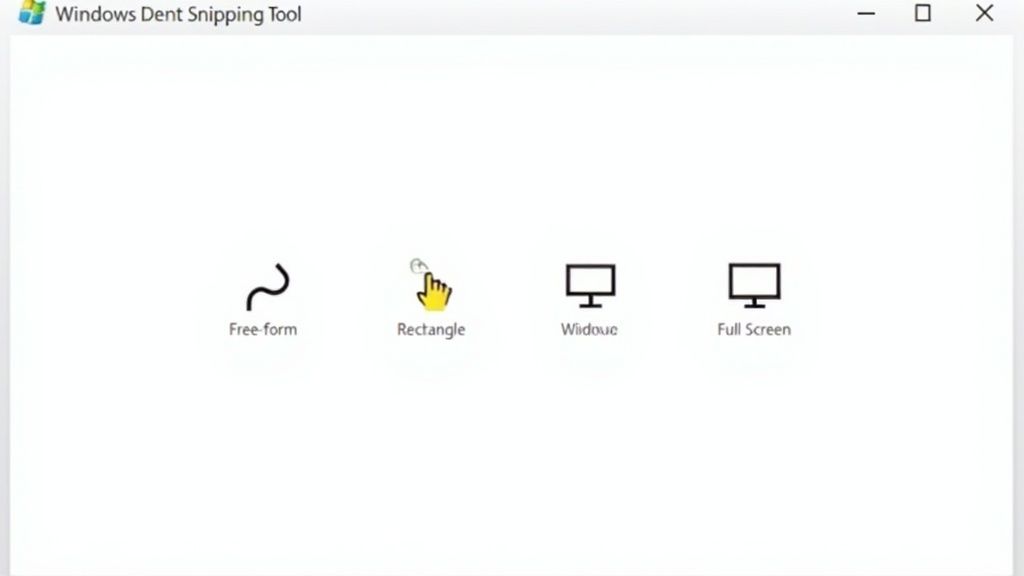
የእያንዳንዱ ሁነት ምን እንደሚሠራ በፍጥነት ዝርዝር ሃሳብ እሸን,
- ነፃ ቅርጽ ሰክፕ () ፣ ይህ ለስክሪንዎ ላይ ያሉትን ማንኛውንም ነገር ሙሉ በሙሉ ቀላል ቅርጽ ውስጥ መቀረጽ ያስችላል፣ ማለትም ስለ ያልተመሰለ ድንብላ ያለውን ነገር መያዝ ወይም አርታይነት ለማሳየት ልዩ ችሎታ ያለው ነው።
- አረድ ቅርጽ ሰክፕ () ፣ ይህ ከሁሉም በጣም ብዙ የሚጠቀምበት ይሆናል። በเมาሱ ላይ ጠቅ ብሎ የምትመርጥበትን ቦታ በመከልከል በቃ ቅርጽ ይቀርጽ። ሰ┦ን ምዕራፍ፣ የተጠቃሚ መገለጫ ሥዕል ወይም የቻርት ክፍል ለማየት በጣም ምቹ ነው።
- የመስኮት ምስል መያዣ: ይህ እጅግ በጣም ጠቃሚ ነው። አመሳርሒዎ ወደ ትንሽ እጅ መ顯示 ይቀይራል። ማንኛውንም ክፍት መስኮት—ቦታ ቦታ መቃኘት፣ ፎልደር፣ ወይም ስህተት መልእክት—ላይ በመሳብ እና በመጫን፣ ሙሉ በሙሉ ይወዳል፣ ያለውን የኋሪት ግንድነት በተplete ሁኔታ ይወገዳል።
- ሙሉ ስክሪን ምስል መያዣ: በነገሩ ላይ የተቀረ ሥራ ያደርጋል። እንደ Print Screen ቁልፍ መጫን ዓይነት ይሠራል፣ የእርስዎን ሙሉ ዴስክቶፕ በአንድ ጊዜ ይይዛል።
ተሻለው? ምስል በTaking ጊዜ ብቻ፣ ምስሉ ወደ ክሎስቦርድ ብቻ አይ坖ም፣ ወደ Snipping Tool's ራስ ማስተካከያ መስኮት በቀጥታ ይከፈታል። ይህ ከ Print Screen የሚደረግ ሂደት ጋር ለመነጻጸር ያለ የመሪ ለውጥ ነው። ምስሉን ሳይቀמרו በቅድመ ጊዜ ለጠቃሚ ነገር ዙሪያ ለማቅጠጥ ወይም ለቁልፍ ቁጥር ትኩረት ለማስተካከል ፓን ማንሳት ይችላሉ። ፈጣን መመሪያ መ指南 ለመፍጠር ወይም ለሰራተኛ ሰው ሰነድ ለማስተካከል ተስፋፋ ነው።
Ổn ኃይለኛ ተለይተው የተገነባ ስክሪን ምስል መሳሪያዎችን መፈተሽ
ክላሲክ ስኒፕንግ ቶል እና ፕሪንት ስክሪን ሾርትካዶች ለቀላል መቃረን ሥራቸውን ይሠራሉ፣ ነገር ግን አልፎ አልፎ ተጨማሪ ኃይል ያስፈልግዎ ይሆናል። የሶስተኛ ወገን ስክሪንሾት መተግበሪያዎች በእውነቱ የሚያብሩት በዚህ ነው፣ የንግድ ሥራዎን በእጅግ በፍጥነት ማCELER ሊረዱ የሚችሉ ሙሉ በሙሉ ባህሪያትን ይዘው ይመጣሉ።
ስለዚህ ያስቡ። ምናልንት ለምስል ከማካፈል በፊት ሁልጊዜ የሚደረግ ስለ ሰው ዕውቀት ዝርዝር መጠን ማብቂያ የሚያስፈልግዎ የድጋፍ ወኪል ልክ ነዎት። ወይም ለመማሪያ ገጽ ሙሉውን ተንሸራታች ዌብ ገጽ ለመቃረን የሚሞክረው ደራሲ ነዎት። በእነዚህ ጊዜያት፣ መደበኛ የዊንዶውስ 7 መሣሪያዎች ሥራቸውን አይሰሩም። ምርጥ የሶስተኛ ወገን መተግበሪያዎች የተቀደሙ ማብ锒 መሣሪያዎች—ቀስቶች፣ የጽሑፍ ሳንቆች እና የማብ鞕 ተጽዕኖዎች—በመጨመር በ秒钟 ውስጥ የሚካፈልበትን ማገናኛ ማግኛ የሚፈጥሩ ቀላል ተግባራትንም እንደ አውቶማቲክ የዕለት መስርያ ጫና መጫን በመሆን ይሠርጋሉ።
ለብዙ ሰዎች፣ Windows 7's የኮርትቦርድ ዘዴዎች ስርዓተኛ ፍጥነት የ.gameserver ለውጥ ነበር። የ操作系统 2009 በመጀመሩ ላይ፣ በጣም አስደናቂ ተመስርቶ ነበር 150 ሚሊዮን upgrade በትናንትና ሦስት ወራት ብቻ ውስጥ، በሚሊዮኖች የሚቆጠሩ ሰዎችን እነዚህ ቀላል የስራ መንገዶች አቀርבו። እስከ 2015 ድረስ፣ Windows 7 55% ዓለም አቀፍ ገበያ ትክክለኛነት፣ የህብረት መድረኮች እንደ SuperUser ያሉት ለመስኮቱ ስክሪንሾት ባህሪዎች ብቻ በላይ 500,000 መሮጠዋቸውን የመጠቃለያ ጽሑፎች በመዝገብ ላይ ናቸው። በጎንደር ላይ Windows 7's ዘላቂ ተወዳደሪነትን ማንበብ ይችላሉ.
ምን ማሻሻል እንደሚገባ
የእውነቱ ጥያቄ የሆነው ግን መቼ ነው የሚመዝገቡት? በመደበኛነት በድጋሚ ሥራ እና በዕውቀት ነው የሚወስነው። ባሉ ደረጃዎች ቁጥር ለመስጠት ወይም ቀላል ቀስት ለመጨመር እንደ ጊዜ በጊዜ MS Paint መክፈት ከሚፈልጉ ለመሆን ልዩ መሳሪያ ጊዜዎን በጣም ያ悭约።
ሶስተኛ ዓላማ መተግበሪያ ያረጋግጣል በነጭ ጊዜ የሚሆኑት ግንኙነቶች እነሆ፦
- በደረጃ በደረጃ መመሪያዎችን ማመጣතን:: በመሰረተ ልማት ስክሪንሾቶች ላይ ፈጥነው ቁጥሮችን ያስትምሙ፣ ጽሑፍ ያክሉ እና ዋና ክፍሎችን ያድምቁ::
- ቴክኒካል ድጋፍ ማስታጠቅ:: የግል መረጃ ፈጥነው በፒክሴላይዬሽን ወይም ብሉር መሳሪያ ያድብቁ::
- የቡድን ስብሰባ:: ፋይሎችን በኢሜይል ማስተላለፍ ማርከክ ያለ__, የምንስከተረ ስክሪንሾት ያስቀምጡ እና ወዲያውኑ ለቡድኑ ማካፈያ ማገናኛ ያጋሩ::
- ፈጣን ስክሪንካስቶች መቅረት:: በርካታ መሳሪያዎች አሁን መሰረተ ልማት የስክሪን ዘገባ ያካትታሉ፣ ለአጭር GIF ወይም ቪዲዮ ቅንጮች ማድረግ ምርጥ::
ታዋቂ ዕቅድ ያለዎት በዕለት ተዕለት ሥራዎ የሚገፋው ብቻ ከፈጣን ስክሪንሾት ከመቀምጠር በላይ ከሆነ፣ ልዩ መሳሪያ ያዝነዎትን የበለጠ የምርፀት ጭብጥ ማቀነብቀን ይችላል። የተቃራኒውን፣ በርካта ደረጃ ምርምር ሂደት ወደ ልምለም የተቀለለ ብቸኛ ድርጊት ይቀይራል::
ከከፍተኛ ዋጋ ባይታይ የእውቀት ማስተላለፊያ መሳሪያ የሚፈልጉትን ለማንኛውም ሰው፣ የ ነፃ Snagit ምርጫ ማየት ጥሩ የመጀመሪያ ቦታ ነው::
የተለመዱ የስክሪንሾት ችግሮችን ማ解決(
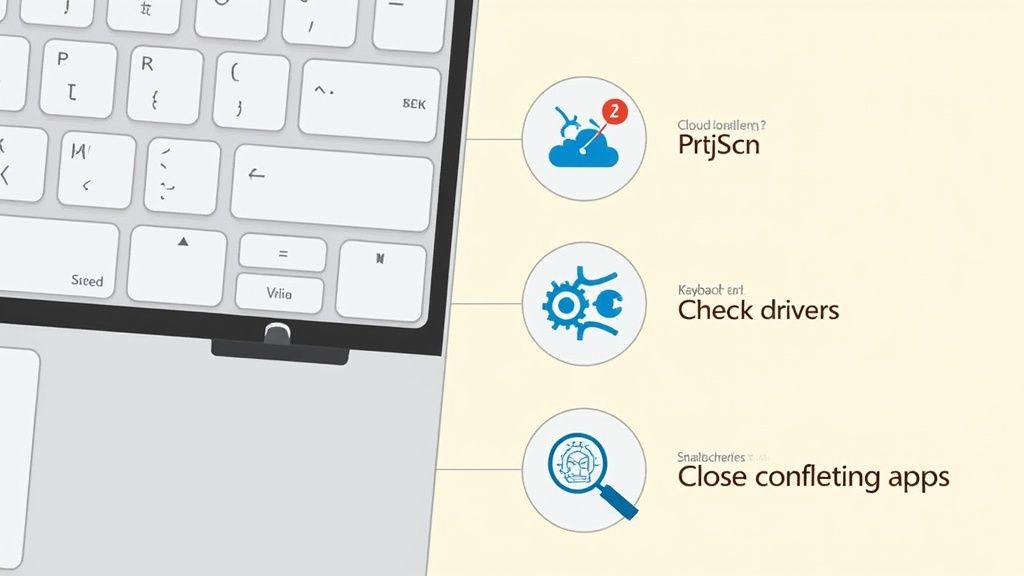
ይህ የአንድ አይነት ባህላዊ ቴክ ግራ ግጥረኛ ነገር ነው: የ Print Screen ቁልፍ ትንኝ በማድረግ ፣ ምንም ነገር አይከሰትም። የመ翣$smarty ድርጅትዎ ሞት ብለው እንደחשב ከመጀመርዎ በፊት ፣ Windows 7 ላለው ቀላል ስክሬንሾት መቅረጥ የሚችሉ አንዳንድ የተለመዱ ተፅዕኖዎች ሊኖሩ ይችላሉ። በፍጥነት በማድረግ ምርመራ በቂ በሆነ ጊዜ ውስጥ ያስተካክላል.
በብዛት ከሁሉም በላይ ፣ ችግሩ ሌላ ሰፍтуር ቁልፉን እንደ ስልችት ነው። Dropbox ወይም OneDrive ያሉ የመጠቀሚያ ሰልቦች በዚህ ነው የሚነግሩት—በብዛት የ PrtScn ቁልፍ ወዲያውኑ ስክሬንሾት በቀጥታ ወደ ደመኞቻቸው ፎልደር ለማስቀመጥ ይመልከቱ ነበር። የዚህ ዓይነት መተግበሪያዎች ማሰናበቻ ወዲያውኑ ይፈትሹ እና ማንኛውንም የስክሬንሾት ጋር የተያያዙ ህዋስ ቁልፎችን ማጥፋት ይችላሉ.
የማይሠራ ቁልፎችን ማረሚያ
ተቃርኖ የሚሆን መተግበሪያው ችግር ከመሆኑ አልፈው፣ ችግሩ ከሆንዎ የሆርድዌሩ ጋር ሊሆን ይችላል፣ በተለይ ከንብረት ቴክኒክ ያላቸው ኮምፒውተሮች ላይ። ብዙ ጊዜ የሚያዩት PrtScn ቁልፉ ከሌላ ተግባር ጋር የሚጋራ ሊሆን ይችላል፣ እንደ Insert ወይም Home።
ይህን የሚከተሉትን ነገሮች ይፈትሹ:
- "Fn" ቁልፍን ይፈትሹ፡ በብዙ ላፕቶፖች ላይ፣ እርስዎ ማንሳት እና መያዝ ያለብዎት Fn ቁልፍ (መደበኛ ከግምር በታች ጎን የሚገኝ) ነው በሚያምሩበት ጊዜ PrtScn። ይህ ቁልፍ ዋናውን ተግባር ይቀይራል።
- የ.keyboard drivers ያድሱ: ረዥም ጉዞ ነው፣ ነገር ግን ያሟላቸው ወይም ተበላሽቷቸው የ.keyboard drivers የሚያስፈልጋቸውን ስርዓት ሊያስቀይር ይችላል። ማስተካከያ ለማየት በControl Panel ውስጥ ያለውን የመሣሪያ አስተዳዳሪ (Device Manager) ማረጋገጥ ይችላሉ።
የቪንዶስ 7 ሰዓቱ ከጠቅላላ ለመሆን ቢቆይም ቀጥታ ስክሪን ማንሳት ዘዴዎቹ በሰፊ ሁኔታ እየተጠቀሙ ነው። እስከ ኖቬምበር 2025 ድረስ፣ ይህ የመሠረተ ሥር ስርዓት በዓለም ዙሪያ በدسክቶች 2.94% ላይ እየሄደ ሲሆን፣ በጥቅምት ግዛቶች አንዳንዶቹ ላይ "ቪንዶስ 7 ስክሪን እንዴት ማንሳት ይችላል" የሚል ፍለጋ 150% በተጨመረ ነው። እነዚህ ቀላል፣ በክላይቦርድ ላይ የተመሰረቱ ማንሳቶች ምን ያህል ወሳኝ መሆናቸውን ያሳያል። በተጨማሪ ዝርዝሮችን የቪንዶስ ቅርጾች የገበያ አጋም ስለ ስታት ኮውንተር.
ማገኘት ይችላሉ።ማይረሱ: Print Screen ቁልፍ ምስሉን ወደ የእርስዎን clipboard ብቻ ይወስዳል። በእውነቱ ፋይሉን አይቀምጥም። ከዚህ በኋላ ወደ Paint ወይም ሌላ ፕሮግራም ካልገጠቡት የነፃ መገረባ ያን መረጃ ወዲያውኑ ይጠፍታል::
ከጥር ጊዜዎች በጣም ለረጅም የመዘልቀም ድር ገጾች የመሰሉ ከመመልከት ላይ በላይ ሌላ ነገር ለመያዝ የሚያስፈልግዎ ሲሆን በውስጥ የተሟላ መሣሪያዎች ያለመስራቸውን ይነግርዎታል። ለዚህ የተለየ መንገድ ያስፈልግዎ ነው። ለዚህ የሚመች መሣሪያዎችን ለማሰር ያለውን በጣም ጥሩ መመሪያ የሙሉ ገጹን ምስል እንዴት መውሰድ ይቻላል እኛ እየተዘጋጀል::
ስክሪንሾት መውሰድ ስለ Windows 7 ጥያቄ አለዎት?
በክላሲክ መሳሪያዎች እንኳን አንዳንድ ልዩነቶች ጋር ይጋጩ ይሆናል። እነዚህን ጥያቄዎች በደጋሚ ሲነሱ በርካታ ጊዜ ታይቷል፣ ስለዚህ እንመልከታቸው።
ስክሪንሼሩ ወዴት ሄደ?
ይህ በቀላሉ ልምድ ያለው ግራ መንቀየሻ ነው። በWindows 7 ውስጥ Print Screen ወይም Alt + Print Screen ሲጫኑ፣ በማንኛውም ቦታ ራስን በራስ ማስቀመጥ አይሠራም። በምትኩ ምስሉን ወደ ቅלוח ቅርጫትዎ ይቅባል—ይህን ደግሞ ጊዜያዊ የማስቀመጫ ቦታ ማንንም ያድርጉ።
በእውነቱ ለማስቀመጥ፣ የምስል ተሠሪ (MS Paint ለዚህ ፍጹም ነው) መክፈት ያስፈልግዎታል፣ ምስሉን በ Ctrl + V ይለጥሙ፣ ከዚያም ራስዎ ይስхранዋል።
በሌላኛው የምስል ተቀርቅሃ መሳሪያ ግን እንዳይቻል ይሠራል። ወዲያውኑ የቀረጠውን በአዲስ መስኮት ይከፍታል ስለዚህ ወዲያውኑ ማስቀመጥ ይችላሉ።
የኢክራን ትንሽ ክፍል ብቻ እንዴት መያዝ ይችላለሁ?
ይህን ለማድረግ፣ ስኒፒንግ መሣሪያ (Snipping Tool) ምርጥ ዝግጅትዎ ነው። ይቀይሩት እና "አ CallingConvention ማስተካከያ ስኒፕ" ዘይቤ ምረጥ። ልክ እርስዎ መፈለጋቸውን ቦታ በትክክል ለመክፈት ከስልኩ ማካፈል ይችላል፣ የቀረውን ዴስክቶፕ ሙሉ በሙሉ ቆይታ። አንድ ብቻ ጠርዝ ወይም ልዩ የስህተት መልዕክት ለመያዝ በጣም ጠቃሚ ነው::
በአንድ ዓይነት ምክንያት ስኒፒንግ መሣሪያውን መጠቀም ካልቻሉ፣ በአሮጌ ዘይቤ መፈረጅ ያለብዎት ነው። ንቁ መስኮቱን በ Alt + Print Screen ማንቃት፣ ወደ MS Paint ቆም በል እና ከዚያ ለምትፈልጋቸውን አካል ብቻ በመቁረጥ መሣሪያው (Crop tool) ቀን鎖በት ያድርጉት። ትንሽ ተጨማሪ ሥራ ያስፈልጋል፣ ግን ሥራውን ያከናውናል::
ስክሪንሾቴን ለምን ጥቁር ሳጥን ብቻ ይሆናል?
እውቀት ያለው ጥቁር ስክሪን። ይህ ሁልጊዜ ከሬዲዮ ብራይ የተሟላ ነገር ለማንቃት ሲሞክሩ ይሆናል፣ ይህም በቪዲዮ ማስፈንጫዎች እና በብዙ ጨዋታዎች ውስጥ የተለመደ ነው። መደበኛ የስክሪንሾት ተግባር ይህን የተጠበቀ ይዘት ማየት አይችልም፣ ስለዚህ ቦታ ባዶ ይያዛል::
በተለይ በማንኛውም ጊዜ ትክክለኛ መፍትሄ የሚሆነው የሚያውቁት መተግበሪያ አሰቃቂ ለመቀነት የፈለጉት ነውና የሚለውን (እንደ ዌብ ብራውዘር ወይም ሚዲያ ፕሌየር) ማሰናበት ነው እናም "ሀርድዌር አክሰሌሬሽን" ማጥፋት ነው። ለዕונות አይነት ከነበራቸው በቂ የሆነ የሆነውን በመጠቀም በጣም ጥሩ ነው::
መሰረታዊ የስክሪንሾት እና በብዛታቸው የሌላ ብራውዘር ተግባራትን ለማቀናበር የሚያስፈልግዎን ተጨማሪ ጉልሉት እና ዘመናዊ መንገድ እንዲኖርዎ ShiftShift Extensions ማረጋገጥ ይፈልጋሉ። የእኛ ሙሉ ገጽ ስክሪንሾት መሳሪያ ለፍጥነት ማደራጀት የሚያስፈልግ ብራውዘር ሥራ ሂደት በሙሉ በአንድ ቀልጣፋ ትዕዛዝ ማሰሪያ ውስጥ ተሟልተው የተሰጡ ብዙ መሳሪያዎች አንዱ ብቻ ነው። ይህን በ https://shiftshift.app.
ማግኘት ይችላሉ።