Kā labot augšupielādes ātrumu un pārtraukt aizkavēšanos
Noguris no lēnām augšupielādēm? Uzziniet, kā uzlabot augšupielādes ātrumu ar mūsu ceļvedi, kas aptver aparatūras uzlabojumus, programmatūras optimizāciju un brīžus, kad jāsazinās ar savu interneta pakalpojumu sniedzēju.

Ieteicamās paplašinājumi

Pirms sākt plēst matus vai manipulēt ar maršrutētāja iestatījumiem, iegūsim skaidru un godīgu priekšstatu par jūsu interneta pašreizējo veiktspēju. Pirmais, kas jums jādara, ir veikt pareizu ātruma testu. Es nerunāju par ātru pārbaudi, kamēr ir atvērtas desmit pārlūkprogrammas cilnes un Netflix straumē citā telpā.
Mums nepieciešams tīrs, kontrolēts tests. Tas nozīmē apturēt visus lejupielādes, aizvērt fona lietotnes un, kas ir vissvarīgāk, pieslēgt datoru tieši pie maršrutētāja ar Ethernet kabeli. Tas sniedz mums stabilu pamata skaitli – patiesību par to, ko jūsu savienojums var paveikt. Tas ir vienīgais veids, kā uzzināt, vai izmaiņas, ko veicat vēlāk, patiešām darbojas.
Reālo lēno augšupielāžu cēloņu noteikšana
Jūs nevarat labot to, ko nevarat izmērīt. Mēģināt palielināt augšupielādes ātrumu, nezinot, no kurienes jūs sākāt, ir tikai minēšana. Jūs varat būt laimīgs, bet jūs nezināsiet kāpēc kaut kas darbojās. Mērķis šeit ir iegūt neitrālu mērījumu par jūsu interneta veiktspēju, pilnīgi brīvu no parastās mājsaimniecības traucējumiem.
Izveidojiet tīru testēšanas vidi
Pirmkārt, iznīcināsim visus parastos aizdomās turamos, kas patērē jūsu joslas platumu. Pirms pat domājat par ātruma testa veikšanu, izslēdziet katru programmu savā datorā, kas izmanto internetu.
Es runāju par visu:
- Mākoņu sinhronizācijas pakalpojumi, piemēram, Dropbox, Google Drive vai OneDrive.
- Video un mūzikas straumēšanas lietotnes.
- Pat par tām papildu pārlūkprogrammas cilnēm, kas jums ir atvērtas.
Šīs lietas ir pazīstamas ar to, ka klusi patērē jūsu augšupielādes joslas platumu fona režīmā, kas noteikti izkropļos jūsu testa rezultātus.
Profesionāls padoms: Uzticams ātruma tests prasa sterilu vidi. Jebkura fona aktivitāte sacenšas par jūsu joslas platuma daļu, kas padara neiespējamu diagnosticēt faktisko problēmu.
Tagad par vissvarīgāko daļu: pieslēdzieties ar vadu. Wi-Fi ir lielisks ērtībai, bet tas ir briesmīgs precīziem ātruma testiem. To viegli traucē sienas, citas elektronikas un pat jūsu mikroviļņu krāsns. Lai redzētu īsto ātrumu, ko jūsu interneta pakalpojumu sniedzējs nodrošina, jums jāpieslēdz dators tieši pie maršrutētāja ar labu vecmodīgu Ethernet kabeli. Šī tiešā līnija ir zelta standarts precīzai mērīšanai.
Šis vienkāršais process – pieslēgšanās caur Ethernet, testa veikšana un skaitļu apskate – ir pamats visam pārējam, ko mēs darīsim.
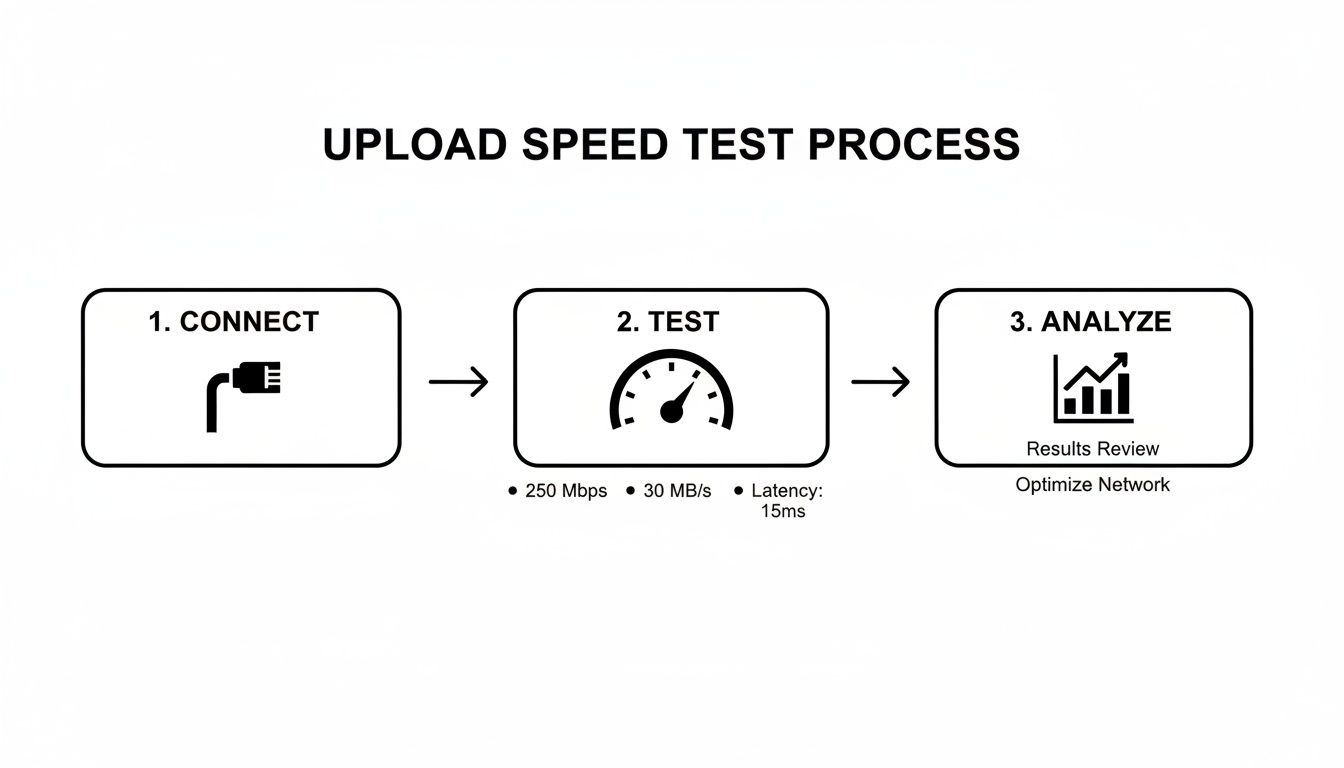
Šī darba plūsma nodrošina, ka jūs iegūstat tīru mērījumu par jūsu savienojuma spējām, pirms sākat pielāgot iestatījumus.
Jūsu ātruma testa rezultātu interpretācija
Labi, jūs esat veicis testu un jums ir jūsu skaitļi. Ko tagad? Atveriet savu interneta plāna detaļas un salīdziniet to, ko saņemat, ar to, par ko maksājat.
Ir pilnīgi normāli, ka jūsu faktiskie ātrumi ir nedaudz zem reklamētā "līdz" skaitļa. Bet, ja redzat milzīgu atstarpi, tas ir jūsu pirmais lielais norādījums. Piemēram, ja maksājat par 20 Mbps augšupielādi, bet jūsu vadu tests rāda tikai 5 Mbps, jūs esat atradis konkrētu problēmu, ko risināt.
Šī pamata dati ir jūsu spēcīgākais rīks. Lai dziļāk izpētītu tīkla veiktspējas uzlabošanas iespējas, varat izpētīt, kā uzlabot augšupielādes ātrumu spēlēm un straumēšanai.
Sākt ar acīmredzamo: jūsu aparatūra un savienojums
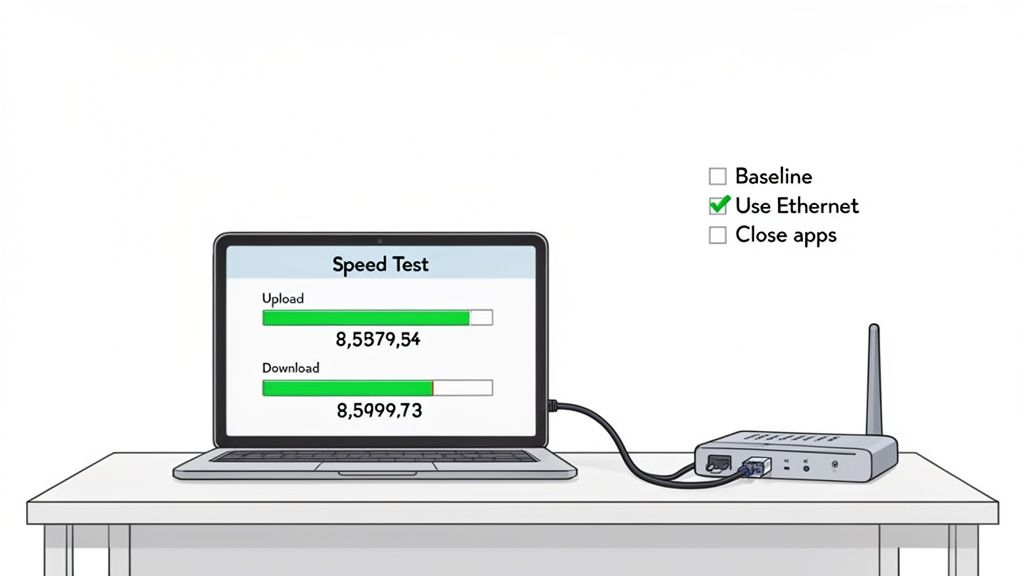
Pirms sākat manipulēt ar sarežģītiem programmatūras iestatījumiem, aplūkosim fiziskās lietas. Esmu atklājis, ka daži no lielākajiem ātruma pieaugumiem nāk no vienkāršiem aparatūras uzlabojumiem, ko ikviens var veikt. Šie vienmēr ir mani pirmie pārbaudes punkti.
Ja ir viena lieta, ko jūs darāt, padariet to: izslēdziet Wi-Fi un pieslēdziet Ethernet kabeli. Es zinu, Wi-Fi ir ērti, bet tas ir murgs augšupielādēm. Signāls tiek iznīcināts ar sienām, mājsaimniecības ierīcēm un pat jūsu kaimiņa tīklu. Augšupielādei nepieciešams stabils datu plūsmas avots, un Wi-Fi vienkārši nav veidots šādai stabilitātei.
Ethernet kabelis izveido tiešu fizisku savienojumu no jūsu datora uz jūsu maršrutētāju. Nav signāla zuduma, nav traucējumu. Ja jūs straumējat tiešraidē, piedalāties video zvanos vai mēģināt nosūtīt milzīgas failus, vadu savienojums ir neizbēgams konsekventai veiktspējai.
Vai esat mēģinājis to izslēgt un ieslēgt atkal? (Pareizajā veidā)
Tas ir klišejas iemesls. Enerģijas ciklošana jūsu modēmā un maršrutētājā var darīt brīnumus. Šie mazie kastes darbojas 24/7 un, tāpat kā jebkurš dators, tie var kļūt lēni ar atmiņas noplūdēm un dīvainiem traucējumiem, kas nogalina jūsu ātrumu.
Bet vienkārši izslēdzot un ieslēdzot strāvas slēdzi, nav pietiekami. Ir pareizais veids, kā to izdarīt:
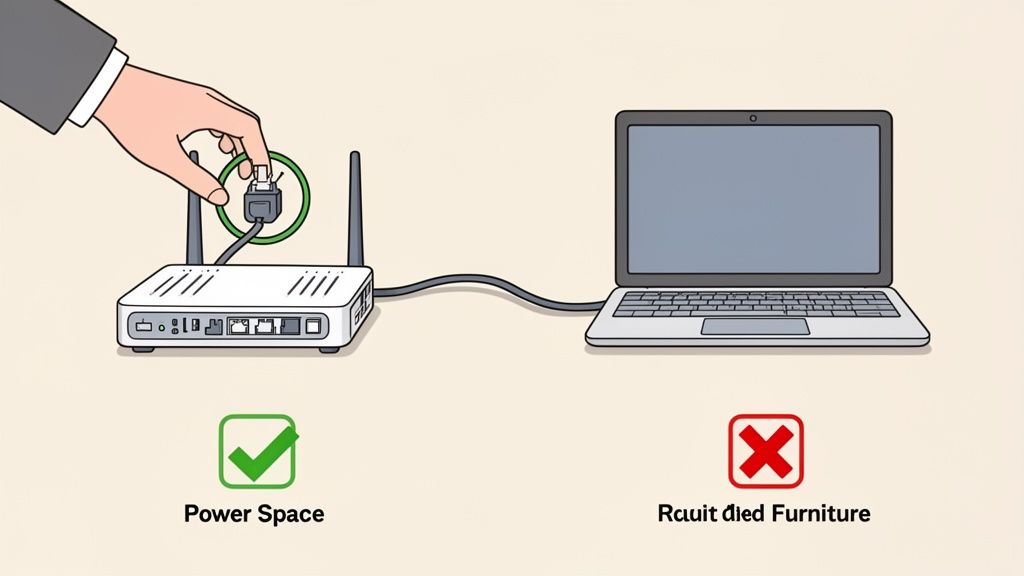
- Sāciet ar strāvas vadu atvienošanu no gan jūsu modema, gan jūsu maršrutētāja.
- Tagad dodieties pagatavot tasi kafijas. Patiesi, gaidiet vismaz 60 sekundes. Tas dod iekšējiem kondensatoriem laiku pilnībā iztukšoties un pilnībā notīrīt ierīces atmiņu.
- Pieslēdziet modemu atpakaļ vispirms. Pacietīgi gaidiet, kamēr visas gaismas kļūst stabilas zaļas vai zilas. Jūs meklējat, lai jauda, saņemšana, sūtīšana un tiešsaistes gaismas stabilizētos.
- Kad modems ir apmierināts, pieslēdziet maršrutētāju atpakaļ un ļaujiet tam pilnībā ielādēties.
Šis mazais rituāls piespiež katru ierīci iegūt jaunu roku spiedienu ar jūsu interneta pakalpojumu sniedzēju un var nekavējoties novērst augšupielādes problēmas, ko izraisa aparatūras nogurums.
Pareiza enerģijas ciklošana nav ātra slēdža pārvēršana. Tā ir pilnīga aparatūras atiestatīšana, kas iznīcina veiktspēju samazinošas kļūdas, kas laika gaitā uzkrājušās jūsu modemā un maršrutētājā.
Kur novietojat savu maršrutētāju, ir svarīgi
Labi, varbūt vadu savienojums nav iespēja katrai ierīcei. Šajā gadījumā, kur novietojat savu maršrutētāju, ir viss. Atcerieties, Wi-Fi ir tikai radio signāls, un tas ienīst šķēršļus. Biezas sienas, metāla failu skapji un pat zivju tvertnes var sabojāt jūsu signālu.
Vislabākai pārklāšanai novietojiet maršrutētāju atklātā vietā, centrālā vietā jūsu mājās. Novietojiet to augstu – uz plaukta, nevis uz grīdas. Un turiet to tālāk no citām elektroniskām ierīcēm, kas var izraisīt traucējumus, piemēram, mikroviļņu krāsnīm, bērnu monitoriem un bezvadu telefoniem.
Jūs būtu pārsteigts, cik daudz labāks jūsu savienojums var kļūt, vienkārši pārvietojot maršrutētāju dažus pēdas. Var būt noderīgi uzņemt ekrānuzņēmumus par jūsu signāla stiprumu dažādās vietās, lai redzētu, kas darbojas vislabāk. Ja jums nepieciešams labs rīks tam, apskatiet šo ceļvedi par lielisku bezmaksas Snagit alternatīvu.
Meklējiet joslas platuma patērētājus savās ierīcēs
Dažreiz lielākais šaurums nav jūsu ISP vai jūsu maršrutētājs; tas ir tieši ierīce, ko jūs izmantojat. Jūsu dators ir pastāvīgs aktivitātes troksnis, un daudzas no šīm fona lietotnēm klusi cīnās par savu augšupielādes joslas platuma daļu.
Pārdomājiet visu programmatūru, kas darbojas, ko jūs aktīvi neizmantojat. Mākoņu krātuves pakalpojumi, piemēram, Dropbox, Google Drive vai OneDrive, ir galvenie piemēri. To galvenais mērķis ir saglabāt jūsu failus sinhronizētus, kas nozīmē, ka tie bieži augšupielādē datus fona režīmā. Kad jūs pēkšņi nepieciešat šo joslas platumu video zvanam vai lielas faila pārsūtīšanai, jūs paliekat sacenšoties ar savu programmatūru.
Kā atrast un pārvaldīt joslas platuma izsalkušās lietotnes
Jūsu pirmais solis ir spēlēt detektīvu un noskaidrot, kas slepeni patērē jūsu savienojumu. Par laimi, jūsu dators ir aprīkots ar iebūvētiem rīkiem šim tieši.
- Windows PC, atveriet Uzdevumu pārvaldnieku, nospiežot Ctrl+Shift+Esc.
- Mac datorā jums būs jāatver Aktivitātes monitors, kas atrodas jūsu Utilītu mapē.
Kad rīks ir atvērts, atrodiet "Tīkls" kolonnu. Kārtot to pēc "Sūtīt" vai "Sūtītie biti", lai vislielākie pārkāpēji būtu tieši augšā. Bieži ir pārsteidzoši redzēt programmatūras atjauninātāju, dublēšanas pakalpojumu vai pat pārlūkprogrammas paplašinājumu, kas patērē milzīgu daļu no jūsu augšupielādes savienojuma.
Kad esat atradis vainīgo, jums ir daži vienkārši varianti:
- Pagaidu izslēgšana. Ja jums nepieciešams katrs ātruma bits konkrētai uzdevumam, vienkārši aizveriet lietotnes, kas patērē visvairāk joslas platuma.
- Pielāgojiet iestatījumus. Lietotnēm, kas darbojas visu laiku, piemēram, mākoņu sinhronizācijas rīkiem, izpētiet to iestatījumus. Lielākā daļa ļauj jums apturēt sinhronizāciju vai ieplānot to laikos, kad jūs neizmantojat datoru, piemēram, naktī.
Fona procesiem ir viegli klusi patērēt jūsu augšupielādes joslas platumu, pat neapzinoties to. Zemāk esošajā tabulā ir izklāstīti daži no visbiežāk sastopamajiem vainīgajiem un sniegti praktiski veidi, kā tos pārvaldīt.
| Joslas platuma patērētājs | Tipisks ietekme | Kā pārvaldīt |
|---|---|---|
| Mākoņu krātuves sinhronizācija (piemēram, Dropbox, Google Drive) | Augsts un pastāvīgs. Automātiski augšupielādē jaunus vai mainītus failus. | Apturiet sinhronizāciju svarīgu uzdevumu laikā vai ieplānojiet to ārpus darba stundām lietotnes iestatījumos. |
| Peer-to-Peer (P2P) programmatūra (piemēram, BitTorrent) | Ļoti augsts. Aktīvi augšupielādē ("sēklas") failu daļas citiem lietotājiem. | Iestatiet augšupielādes ātruma ierobežojumus lietotnē vai pilnībā aizveriet to, kad jums nepieciešams joslas platums. |
| Automātiskie programmatūras atjauninājumi | Sporādiski, bet augsti. Var uzsākt lielu augšupielādi bez brīdinājuma. | Atspējojiet automātiskos atjauninājumus, dodot priekšroku manuālām pārbaudēm, vai ieplānojiet tos konkrētā laikā. |
| Tiešsaistes dublēšanas pakalpojumi | Augsts. Darbojas fona režīmā, augšupielādējot failu dublējumus mākoņos. | Ieplānojiet dublējumus vēlu naktī vai brīvdienās, kad jūs aktīvi neizmantojat savu savienojumu. |
| Straumēšanas/spēļu pārklājumi (piemēram, Discord, Twitch) | Mēreni līdz augsti. Var augšupielādēt balss datus, video vai spēļu straumes. | Atspējojiet automātiskās straumēšanas funkcijas un pārbaudiet iestatījumus video kvalitātei un bitu ātrumam. |
Uzmanoties no šiem procesiem, jūs varat atgūt ievērojamu daļu no jūsu augšupielādes jaudas uz uzdevumiem, kas patiešām ir svarīgi.
Neaizmirstiet par savu pārlūkprogrammu un sistēmas draiveriem
Jūsu tīmekļa pārlūkprogramma pati par sevi var būt liels resursu patērētājs. Katrs atvērtais cilne un katrs instalētais paplašinājums ir potenciāls slogs jūsu savienojumam. Turēt desmitiem cilņu atvērtu nav tikai slogs jūsu datora atmiņai; daudzas no tām pastāvīgi sūta un saņem nelielus datu paketus fona režīmā.
Nepieciešamo fona lietotņu un pārlūkprogrammas cilņu aizvēršana ir viens no efektīvākajiem veidiem, kā uzlabot augšupielādes ātrumu. Pētījumi, kas balstīti uz tūkstošiem ikdienas interneta testu, rāda, ka multitasking var samazināt augšupielādes veiktspēju vidēji par 35%, jo šie procesi bieži patērē ievērojamu daļu no pieejamā joslas platuma.
Novecojuši tīkla draiveri var būt arī slēpts problēmu avots. Tie ir mazie programmatūras gabali, kas ļauj jūsu datora aparatūrai sazināties ar jūsu tīklu. Ražotāji izlaida atjauninājumus, lai novērstu kļūdas un uzlabotu veiktspēju, tāpēc vienmēr ir vērts ātri apmeklēt jūsu datora vai mātesplates ražotāja vietni, lai pārliecinātos, ka jums ir jaunākā versija.
Visbeidzot, padomājiet par to, ko jūs faktiski augšupielādējat. Milzīgi, nesaspiesti attēlu faili var aizņemt ilgu laiku, lai nosūtītu. Uzzinot par labāko attēlu formātu tīmeklim, varat dramatiski samazināt failu izmērus bez pamanāmas kvalitātes samazināšanās, kas ir glābiņš ikvienam, kurš augšupielādē fotoattēlus vai grafikas.
Jūsu maršrutētāja un tīkla iestatījumu precizēšana
Kad vadu atvienošana un ierīču restartēšana nedarbojas, ir laiks rollēt piedurknes un ienirt jūsu maršrutētāja programmatūrā. Šajos iestatījumos ir dažas jaudīgas rīku, kas var sniegt jums tiešu kontroli pār jūsu tīkla veiktspēju. Ar dažiem mērķtiecīgiem pielāgojumiem jūs bieži varat pateikt savam maršrutētājam, kā pārvaldīt tā satiksmi un atgriezt jūsu augšupielādes ātrumus atpakaļ uz pareizā ceļa.
Domājiet par savu maršrutētāju kā par satiksmes policistu visai jūsu mājas tīklam. Tāpat kā jebkurš dators, tas darbojas uz programmatūras, ko sauc par firmware, un ražotāji regulāri izlaida atjauninājumus, lai novērstu kļūdas, labotu drošības ievainojamības un uzlabotu vispārējo stabilitāti. Ja jūsu firmware ir novecojis, jūs varat saskarties ar veiktspējas šaurumiem, kas klusi sabotē jūsu augšupielādes ātrumus.
Ienākšana jūsu maršrutētāja iestatījumos parasti ir tikpat vienkārša kā tā IP adreses ierakstīšana tīmekļa pārlūkprogrammā. Kad esat iekšā, meklējiet sadaļu ar nosaukumu "Firmware atjauninājums" vai "Maršrutētāja atjauninājums" un sekojiet norādījumiem. Tas ir ātrs risinājums, kas atrisina pārsteidzoši daudz noslēpumainu savienojuma problēmu.
Prioritizējiet savu satiksmi ar pakalpojumu kvalitāti
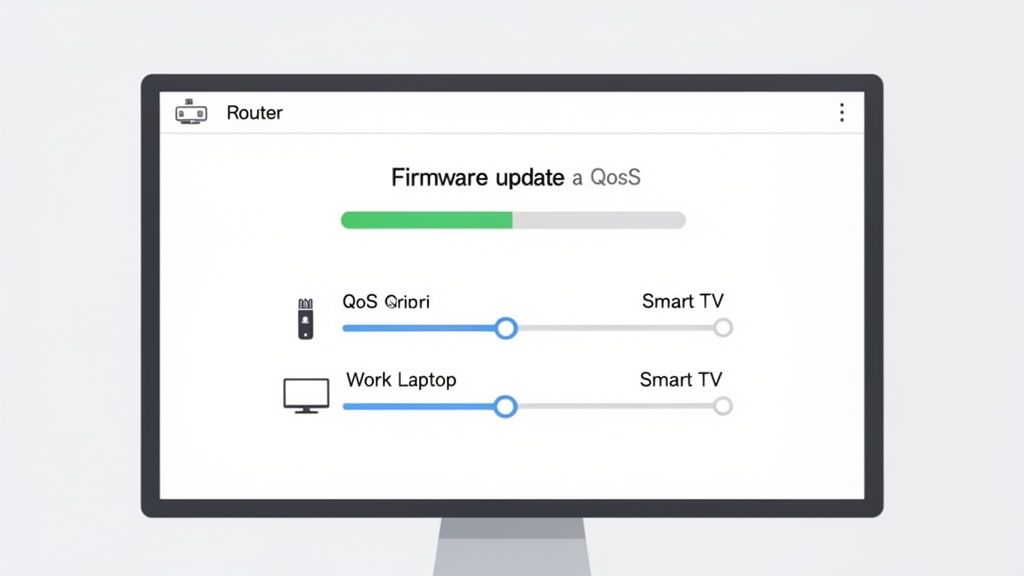
Viens no jaudīgākajiem rīkiem, kas paslēpts jūsu maršrutētāja iestatījumos, ir Pakalpojumu kvalitāte, vai QoS. Šis ērtais rīks ļauj jums pateikt savam maršrutētājam, kuri ierīces vai lietotnes ir vissvarīgākās, nodrošinot, ka tās saņem nepieciešamo joslas platumu tieši tad, kad tas nepieciešams.
Tas ir kā VIP izteiksmīga josla jūsu interneta satiksmei. Piemēram, jūs varat izmantot QoS, lai dotu savai darba klēpjdatoram augstāko prioritāti kritiskajam video zvanam, pat ja kāds cits straumē 4K filmu uz viedtelevizora. Tas nodrošina, ka jūsu svarīgās augšupielādes netiek nospiestas mazāk svarīgas tīkla aktivitātes dēļ.
QoS iestatīšana parasti ietver dažus vienkāršus soļus:
- Ieiet jūsu maršrutētāja administratīvajā panelī.
- Atrodiet QoS iestatījumus, kas bieži atrodas "Papildu" vai "Satiksmes pārvaldība" cilnē.
- Aktivizējiet QoS un pēc tam izvēlieties ierīces vai konkrētas lietotnes (piemēram, Zoom vai Dropbox), kuras vēlaties prioritizēt.
Mūsdienu maršrutētājiem bieži ir vienkāršas, lietotājam draudzīgas saskarnes šim – daži pat ļauj jums vienkārši vilkt un nomest ierīces augstas prioritātes sarakstā. Rezultāts ir tāds, ka jūsu vissvarīgākie augšupielādes uzdevumi vienmēr saņem pirmo iespēju jūsu savienojumā.
Kvalitātes pakalpojumu konfigurēšana ir viens no labākajiem veidiem, kā uzlabot augšupielādes ātrumu aizņemtā mājsaimniecībā. Tas novērš mazāk svarīgu ierīču iejaukšanos jūsu kritiskajās augšupielādēs, radot stabilāku un uzticamāku savienojumu tam, kas ir vissvarīgākais.
Galu galā labs maršrutētājs ir veselīgas mājas tīkla pamats. Kad jūs cenšaties izspiest katru veiktspējas daļu no sava savienojuma, ir svarīgi zināt, kā izvēlēties Wi-Fi maršrutētāju ar mūsdienīgām funkcijām, piemēram, Wi-Fi 6 un robustu QoS. Ja jūsu maršrutētājs ir dažus gadus vecs, tam var trūkt funkciju, kas nepieciešamas, lai pareizi pārvaldītu mūsdienu augšupielādes prasības. Šajā gadījumā aparatūras jauninājums var būt visefektīvākais risinājums.
Kad jaunināt vai zvanīt savam ISP
Tātad, jūs esat izmēģinājis visu. Jūs esat pārbaudījis savu aparatūru, izslēdzis visas fona lietotnes un pat iedziļinājies maršrutētāja iestatījumos, bet jūsu augšupielādes ātrums joprojām ir lēns. Tas ir nomācoši, bet ir pienācis laiks saskarties ar iespēju, ka problēma nav jūsu aprīkojumā—tā ir paša interneta plānā.
Ir tikai tik daudz ātruma, ko jūs varat izspiest no savienojuma, par kuru maksājat. Pirms zvanāt savam interneta pakalpojumu sniedzējam (ISP), pārliecinieties, ka jums ir dati, ko esat savācis. Šie pamata ātruma testa rezultāti ir jūsu labākā munīcija produktīvai sarunai.
Asimetriska vs. Simetriska: Patiesais šaurs posms
Daudziem cilvēkiem, īpaši, ja jūs izmantojat tradicionālo kabeļu vai DSL savienojumu, vaininieks ir asimetriskais savienojums. Tas ir tādēļ, ka jūsu lejupielādes ātrums ir ievērojami ātrāks nekā jūsu augšupielādes ātrums. ISP to izveidoja pirms gadiem, jo lielākā daļa no mums patērēja daudz vairāk datu, nekā radījām.
Šis modelis bija piemērots tīmekļa pārlūkošanai vai Netflix straumēšanai, bet tas vairs nav pietiekams. Ja esat satura veidotājs, pavadāt dienas video zvanos vai paļaujaties uz mākoņu dublējumiem, šis nelielais augšupielādes joslas platums var justies kā pastāvīgs šaurs posms.
Galīgais risinājums lēnam augšupielādes ātrumam, kas ir iekļauts jūsu plānā, ir pāriet uz simetrisku savienojumu. Šie plāni, parasti no optiskā šķiedru sniedzējiem, piedāvā tādas pašas zibens ātruma ātrumus gan augšupielādēm, gan lejupielādēm.
Simetriskais savienojums patiešām ir spēles mainītājs. Tas novērš šo mākslīgo augšupielādes ierobežojumu, ļaujot jums sūtīt milzīgas failus, straumēt augstas kvalitātes video un pievienoties video konferencēm bez problēmām. Tas ir starpība starp stundu gaidīšanu, lai augšupielādētu video, un tikai dažām minūtēm. Globāli fiksētā platjoslas augšupielādes ātrumi 2024. gada beigās vidēji bija tikai 51.49 Mbps, kas ir straujš kontrasts ar 95 Mbps vidējo lejupielādes ātrumu. Šī atšķirība ir tieši iemesls, kāpēc daudzi piedzīvo augšupielādes vilšanos. Tādās vietās kā Singapūra, kur šķiedra ir plaši izplatīta, simetriski ātrumi ir izplatīti, padarot šīs problēmas par pagātni. Jūs varat labāk saprast, kā dažādas infrastruktūras salīdzina, aplūkojot globālo interneta ātrumu un piekļuves stāvokli.
Zvanot savam ISP
Kad jūs sazināties ar savu pakalpojumu sniedzēju, esiet gatavs un dodieties tieši pie tēmas. Nesāciet ar neskaidru "mans internets ir lēns." Tā vietā, sāciet ar saviem pierādījumiem.
Lūk, kā šai sarunai vajadzētu noritēt:
- Dalieties ar saviem datiem: Sāciet ar teikumu: "Sveiki, esmu veicis vairākus ātruma testus, izmantojot vadu savienojumu, un mans augšupielādes ātrums konsekventi ir ap X Mbps, bet mans plāns ir reklamēts kā Y Mbps."
- Pieprasiet līnijas testu: Lūdziet, lai viņi veic diagnostiku savā pusē. Dažreiz problēma ir signāla jautājums vai tīkla kļūda kaut kur starp viņu aprīkojumu un jūsu mājām.
- Diskutējiet par jauninājumiem: Ja izrādās, ka jūs saņemat tieši to, par ko maksājat (un tas nav pietiekami), tad ir pienācis laiks runāt par jaunu plānu. Esiet konkrēts—jautājiet, vai viņi piedāvā kādus simetriskus vai optiskā šķiedru plānus jūsu apgabalā.
Ja viņi nevar atrast problēmu savā pusē un jūs jau esat viņu labākajā plānā, varbūt ir laiks sākt meklēt citu pakalpojumu sniedzēju, kurš var sniegt jums nepieciešamos augšupielādes ātrumus.
Biežāk uzdotie jautājumi par augšupielādes ātruma uzlabošanu
Pēc testu veikšanas un dažādu risinājumu izmēģināšanas ir normāli, ka paliek daži jautājumi. Augšupielādes ātrums var būt sarežģīts jautājums. Apskatīsim dažas no visbiežāk uzdotajām jautājumiem, ko dzirdu no cilvēkiem, kuri cenšas atjaunot savu savienojumu.
Kāpēc mans augšupielādes ātrums ir tik daudz lēnāks nekā lejupielādes?
Šis, iespējams, ir visbiežāk uzdotais jautājums, un atbilde ir vienkārša: lielākajai daļai cilvēku tas ir tādēļ, ka tas ir iecerēts. Interneta infrastruktūra, ko lielākā daļa no mums izmanto (īpaši kabeļu un DSL), tika veidota uz "asimetriska" modeļa. Tā tika izstrādāta, lai ļoti atbalstītu lejupielādes, jo gadiem ilgi tas bija tas, ko 99% no tiešsaistes aktivitātēm veica—tīmekļa pārlūkošana, video skatīšanās un failu lejupielāde.
Bet veids, kā mēs izmantojam internetu, ir pilnībā mainījies. Tagad mēs visi esam video zvanos, tiešraidē straumējam un pastāvīgi augšupielādējam milzīgus failus uz mākoņu. Šīs aktivitātes prasa simetrisku savienojumu, kas ir optiskā šķiedru plānu raksturīgā iezīme. Ar šķiedru jūs iegūstat tādu pašu zibens ātru ātrumu, vai jūs augšupielādējat vai lejupielādējat, kas novērš šaurā posma problēmu, ar kuru tika veidotas vecākas tehnoloģijas.
Vai VPN var samazināt manu augšupielādes ātrumu?
Noteikti. Patiesībā VPN gandrīz vienmēr palēnina jūsu savienojumu līdz kādai pakāpei, un augšupielādes bieži cieš visvairāk. Kad jūs ieslēdzat VPN, jūsu datiem ir jāveic daudz garāks ceļš. Pirmkārt, tie ir jāšifrē jūsu ierīcē, tad tie tiek nosūtīti uz attālu VPN serveri (kas var būt visā valstī vai pasaulē), un tikai tad tie dodas uz savu galamērķi.
Šis viss šifrēšanas un pāradresācijas process pievieno latentumu un papildu slodzi. Jūsu savienojumam ir jāveic vairāk darba, un šis darbs prasa laiku, palēninot lietas.
Lai mazinātu triecienu, vienmēr mēģiniet savienoties ar VPN serveri, kas fiziski ir tuvāk jūsu faktiskajai atrašanās vietai. Daudzas mūsdienu VPN pakalpojumu sniedzēji arī iekļauj "sadalītā tunelēšanas" funkciju. Tas ir lielisks rīks, kas ļauj jums izlemt, kuras lietotnes izmanto VPN un kuras var to apiet, dodot jūsu augstākās prioritātes augšupielādēm tiešu, ātrāku ceļu.
Vai Wi-Fi vairāk kaitē augšupielādēm nekā lejupielādēm?
Kamēr nepastāvīgs Wi-Fi signāls ir slikts visai jūsu interneta pieredzei, augšupielādes ir īpaši jutīgas pret tā nestabilitāti. Padomājiet par to: kad jūs sūtāt failu no savas ierīces, jums ir nepieciešams stabils, akmens ciets signāls. Jebkura neliela traucējuma, ko izraisa siena, traucējumi vai attālums, liek jūsu ierīcei apstāties, atkārtoti savākt zaudētos datu paketus un nosūtīt tos vēlreiz. Šis apstāšanās un sākšanās process absolūti iznīcina jūsu augšupielādes ātrumu.
Lejupielādes, no otras puses, parasti ir nedaudz izturīgākas. Tās bieži var buferēt un labāk tikt galā ar šiem sīkiem, mirkļa signāla kritumiem, pat nepamanot. Tieši tāpēc vadu Ethernet savienojums ir zelta standarts visam, kas ir saistīts ar augšupielādēm. Tādām lietām kā straumēšana vai milzīgu failu sūtīšana nekas nesalīdzinās ar fiziskā kabeļa nemainīgo stabilitāti.
Vai jauns maršrutētājs garantēs ātrākas augšupielādes?
Jauns maršrutētājs var būt liela palīdzība, bet tas nav panaceja. Tas var atrisināt tikai problēmas, ko izraisa jūsu pašreizējā aparatūra, kas ir veca, lēna vai pārslogota. Jauns maršrutētājs ir kā labāka satiksmes policista pieņemšana darbā jūsu mājas tīklā—tas var efektīvāk virzīt esošo satiksmi, bet tas nevar radīt vairāk joslu uz šosejas.
Citiem vārdiem sakot, maršrutētājs nevar radīt vairāk joslas platuma, nekā jūs maksājat par savu interneta plānu. Ja jūsu lēnās augšupielādes notiek tāpēc, ka jūsu maršrutētājs ir piecus gadus vecs dinozaurs, tad jā, jauninājums ir lieliska ideja. Bet, ja šaurais posms ir jūsu interneta abonements, jauns maršrutētājs nespēs pārkāpt šo ātruma ierobežojumu.
Un, ja jūs pastāvīgi cīnāties ar lieliem dokumentiem, mūsu ceļvedis par labākajām bezmaksas PDF konvertēšanas programmām sniedz lieliskus padomus, kā samazināt failu izmērus, pirms pat nospiežat augšupielādes pogu.
ShiftShift Extensions ievieto jaudīgu ātruma testa rīku tieši jūsu pārlūkā, ļaujot jums nekavējoties pārbaudīt savu lejupielādes, augšupielādes un ping ātrumu, lai redzētu, kas patiesībā notiek ar jūsu savienojumu. Nav nepieciešams atvērt jaunu vietni—vienkārši noklikšķiniet un pārbaudiet. Tas sniedz jums tūlītēju atgriezenisko saiti, kas nepieciešama, lai risinātu problēmas kā profesionālim. Uzziniet vairāk un iegūstiet gudrāku darba plūsmu vietnē https://shiftshift.app.