How to Screen Capture Web Page Like a Pro
Learn how to screen capture web page content with ease. Master built-in OS shortcuts, browser tools, and advanced privacy-first extensions for perfect captures.
Recommended Extensions

When you need to grab a quick screenshot of a web page, the simplest tools are often the ones baked right into your computer. For a fast, no-fuss capture, I almost always rely on the native OS shortcuts: Cmd+Shift+4 on a Mac or Win+Shift+S on Windows. Both let you instantly drag a box around what you want to save. It's the go-to for most day-to-day needs, and it requires zero setup.
Choosing the Right Screen Capture Method
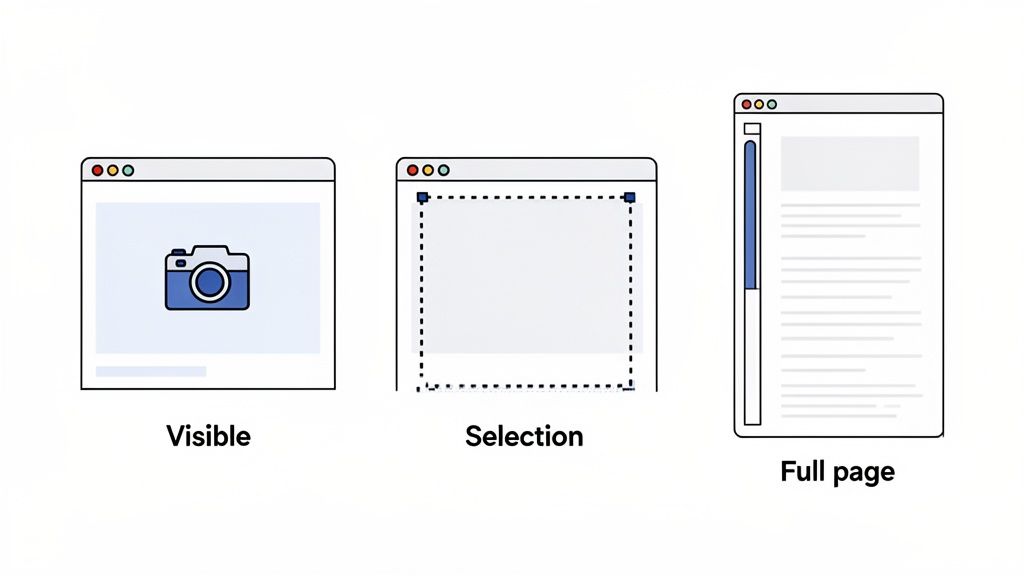
But how do you know what to capture? The best way to screen capture a web page really depends on your end goal. You've got three main options: grabbing just what's visible, selecting a tiny piece, or capturing the entire scrolling page.
There’s no single "best" method here. The most efficient approach is simply the one that fits the job. A designer pulling a cool UI element for a mood board just needs a small, precise selection. On the other hand, if I'm a developer trying to document a bug on a long settings page, I absolutely need a full-page screenshot to give the team the complete picture.
Matching the Tool to the Task
Each of the three main capture types solves a different problem:
- Visible Area: This is for sharing exactly what you see on your screen at that moment. It's quick, easy, and shows the immediate context without any extra clutter.
- Specific Selection: Perfect for zeroing in on a single element—like a button, a graph, or a paragraph of text—when you need to give focused feedback.
- Full Page: This is the only way to go when you need to capture a complete view of a long article, a lengthy product page, or a user profile that scrolls on and on.
This decision tree breaks down the thought process for picking the right capture type. It’s a simple way to visualize how your goal dictates the tool you should use.
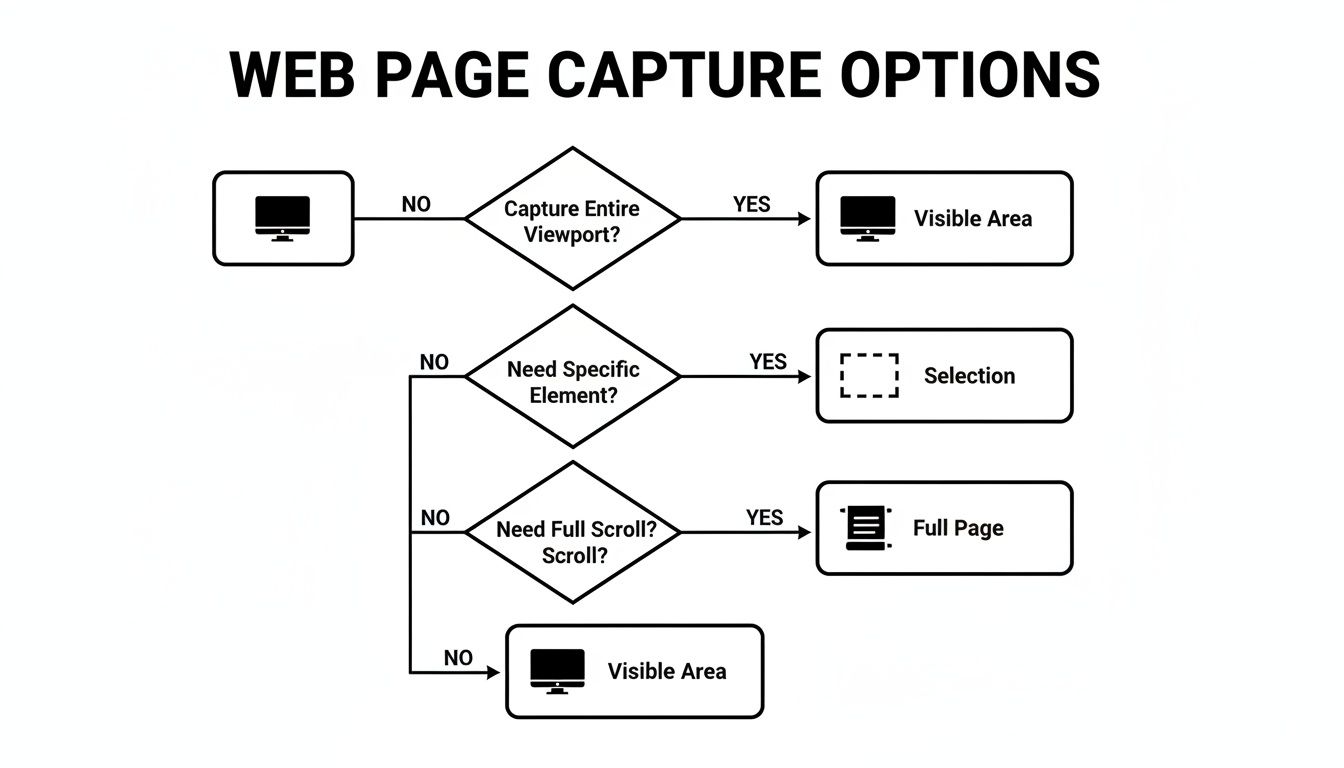
As the flowchart shows, it all starts with your intent. Are you capturing what's currently visible, a small detail, or the entire scroll? Your answer points you directly to the best method.
To give you a clearer picture, here's a quick rundown of how these methods stack up.
Web Page Capture Methods at a Glance
| Capture Method | Best For | Common Tools |
|---|---|---|
| Visible Area | Sharing exactly what's on-screen; quick reports. | OS Shortcuts (Cmd+Shift+3), Browser Tools |
| Selection | Isolating specific UI elements, text, or images. | OS Shortcuts (Cmd+Shift+4), Browser Extensions |
| Full Page | Documenting long articles, forms, or entire pages. | Browser Extensions, Developer Tools |
This table should help you quickly match your task to the right tool.
While built-in tools are great for basics, sometimes you need more power. If you find yourself needing more advanced features, it’s worth checking out the top 12 best free screen capture software options to see what's out there. And for those who need robust annotation and editing features without the hefty price tag, exploring a free Snagit alternative like ShiftShift can be a game-changer.
Mastering Your Browser and OS Built-In Tools
Before you even think about downloading another app, it's worth getting to know the screen capture tools that are already on your computer. Honestly, for most quick jobs, these built-in features are the fastest way to get what you need. Mastering them will save you a ton of time down the road.
Your operating system’s shortcuts are your go-to for daily tasks. They’re instant, reliable, and don't require any setup.
- On Windows: Hit Win+Shift+S to bring up the Snipping Tool. This lets you instantly grab a rectangular area, a freeform shape, a specific window, or your entire screen. It's incredibly handy.
- On Mac: The classic Cmd+Shift+4 is my personal favorite. It turns your cursor into a set of crosshairs, letting you draw a box around exactly what you want to capture. For a deeper dive into all the native options, this guide on how to screen capture on Mac is a great resource.
These shortcuts are perfect when you just need to grab what’s visible on your screen or a specific part of it. But what about those long, scrolling pages? That's where they come up a bit short.
Unlocking Full Page Captures with Developer Tools
If you need to capture a full, scrolling web page without installing an extension, your browser's Developer Tools have a powerful, if slightly hidden, feature for just that. This is a trick developers and QA testers use all the time to get pixel-perfect results.
Just open Developer Tools (usually by pressing F12 or Cmd+Option+I), then open the command menu with Cmd+Shift+P (Mac) or Ctrl+Shift+P (Windows). Start typing "screenshot," and you’ll see an option like "Capture full size screenshot." Select it, and the browser will save the entire page as a single, clean image file.
This method is super useful because it gives you direct access to the browser's core functions, but let's be real—it can feel a bit clunky if you're doing this all day long. That's where dedicated tools really start to shine.
A Better Way to Capture Full Pages with ShiftShift
Let's be honest, the built-in screenshot tools in browsers and operating systems are okay, but they often fall short. They can struggle with complex, modern websites—think sticky headers that repeat in your capture or pages with infinite scroll that just won't end.
This is exactly why a specialized browser extension is often the best tool for the job. When you need a pixel-perfect capture of a long or tricky webpage, a dedicated tool like ShiftShift's Full Page Screenshot is your best bet.
What really makes ShiftShift different is its focus on your privacy. A lot of extensions send your data to an external server to process the screenshot, which can be a real privacy concern. ShiftShift handles everything 100% locally in your browser.
This means the content of the pages you capture never leaves your computer. Your work stays private, secure, and the tool even works perfectly when you're offline.
Seamless Capturing with the Command Palette
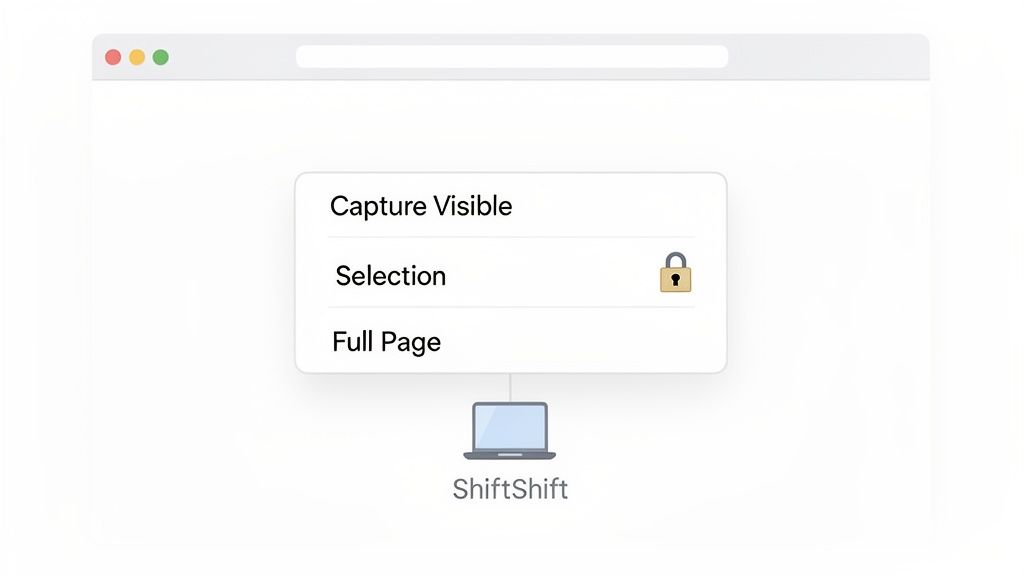
One of the biggest workflow wins with ShiftShift is its unified Command Palette. Forget hunting for a tiny icon in your toolbar. Just tap the Shift key twice, and a powerful command center pops up right where you are.
From this one spot, you can instantly launch any kind of capture you need:
- Capture Visible Part: Snaps exactly what's on your screen right now.
- Capture Selection: Lets you draw a perfect box around a specific area.
- Capture Full Page: Does the hard work of scrolling and stitching the entire page into one clean image.
The whole experience is designed for speed. You don’t have to break your focus or switch tabs to get the job done.
The real magic here is how much it cuts down on context switching. You're not opening a separate app or digging through confusing DevTools menus. Everything you need is right there, available with a simple keyboard command.
For anyone who takes screenshots regularly—developers documenting bugs, designers saving inspiration, or researchers archiving articles—this kind of efficiency is a huge deal. It turns a clunky, multi-step chore into a quick, two-second action. You can find a more detailed walkthrough in this guide on how to take a full page screenshot using the tool.
Ultimately, a privacy-first tool like ShiftShift gives you the best of both worlds. You get the reliability that built-in methods often lack, plus the security that many other third-party extensions simply can't guarantee. It’s built for professionals who need accuracy without compromising their privacy or slowing down their flow.
Dealing with Tricky Dynamic Web Content
Let's be honest: modern websites aren't static pages anymore. They're living, breathing documents. You've got images that only pop into view as you scroll (lazy-loading), social media feeds that go on forever (infinite scroll), and all sorts of other interactive bits. Trying to grab a simple full-page screenshot of this kind of content often ends in disaster—you get a half-finished image with huge blank spots.
The trick is pretty simple, though. Before you even think about hitting that capture button, just manually scroll all the way to the bottom of the page. Take your time. This forces the browser to load every single element, ensuring your screenshot tool can see and capture the entire thing properly.
Nailing Those Interactive States
What about capturing something that only appears when you interact with it? Think about an open dropdown menu, a tooltip that shows up on hover, or a modal window. These moments are fleeting, and capturing them can feel like trying to photograph a ghost.
This is where a tool with good keyboard shortcuts, like the ShiftShift Command Palette, becomes a lifesaver. You can use your mouse to trigger the hover state and then, without moving a muscle, use a keyboard command to start the capture. It's the only reliable way to freeze that specific moment in time.
When you need to document a specific UI state, it's all about timing and having the right tool for the job. You're essentially freezing a single frame of the user experience to share with your team.
The ability to handle this stuff is what separates a great tool from a frustrating one. In fact, performance benchmarks for automated screenshot services reveal that failure rates can swing from a solid 6% to an abysmal 75%, mostly because of how well (or poorly) they handle modern JavaScript. If you're curious, you can find more details about the best APIs for web page capture on scrapfly.io, which really highlights why a local tool often gives you more predictable results on today's complex sites.
5. From Capture to Action: What To Do Next
So you’ve snapped your screenshot. Great. But that's just the starting line. The real magic happens in what you do after the capture. A raw screenshot is just an image; an edited and annotated one is a powerful tool for communication.
Think about it. When you're trying to report a UI bug, sending a developer a clean screenshot with a bright red arrow pointing to the exact problem saves everyone a ton of time and back-and-forth. You're turning a picture into a clear, actionable instruction. This is where a good workflow really shines.
Choosing the Right Format
Before you even share it, picking the right file format is more important than most people think. It’s a trade-off between quality and file size, and getting it right makes a real difference.
Here’s my rule of thumb:
- PNG (Portable Network Graphics): This is your go-to for anything with sharp lines, text, or user interface elements. It’s a “lossless” format, meaning you won’t get any fuzzy artifacts. The image stays crisp and clear.
- JPEG (Joint Photographic Experts Group): Use this for photos or very complex images. JPEGs are great at compressing file sizes, which is perfect for web performance, but you'll sacrifice a bit of that pixel-perfect sharpness.
If you want to get into the nitty-gritty, we've got a whole guide on the best image format for the web that breaks it all down.
Don't just take my word for it—the need for better visual tools is booming. The market for website screenshot software is expected to jump from $500 million in 2025 to over $1.2 billion by 2033. This surge is all about finding better, faster ways to communicate visually. You can see more on the growth of the screenshot software market on datainsightsmarket.com.
This is exactly why tools that integrate these steps are so valuable. With something like ShiftShift’s Command Palette, you can go straight from capturing a page to converting its format, adding notes, or even pulling text out of the image, all without breaking your flow.
Troubleshooting Common Screenshot Problems
Even with the best tools, you'll eventually hit a snag trying to capture a web page. Here are a few common headaches I've run into and how to solve them.
Why Are My Full-Page Screenshots Broken or Missing Images?
This is almost always a "lazy loading" issue. Modern websites are smart; they only load images and other content when you scroll them into view to save on bandwidth and speed up the page. The problem is, many screenshot tools are too quick for their own good—they snap the picture before the lazy-loaded elements have a chance to appear, leaving you with ugly blank spaces.
The easiest fix? Just take a second to manually scroll all the way down to the bottom of the page before you trigger the capture. This forces everything to load into memory first. A well-built extension will often handle this automatically, but doing it yourself is a foolproof way to ensure a complete image.
Can I Capture a Full Web Page on My Phone?
You sure can, though the process is a bit different. On both iOS and Android, after you take a normal screenshot, you'll often see a small preview pop up with an option like "Full Page" or "Scroll." Tapping that will capture the entire scrollable area. It works surprisingly well for most articles and simple pages.
While this is great for grabbing something on the go, I find that for any serious work, a desktop tool gives you far more precision and better quality. Mobile captures can sometimes struggle with complex layouts or interactive elements.
The core challenge here is that many tools just can't keep up with modern web design. Your best bet is to find a tool that anticipates dynamic elements like lazy loading, which is the key to getting a perfect capture every single time.
Are Third-Party Screenshot Extensions Safe to Use?
That really depends on how they handle your data. The biggest red flag is any tool that uploads the page to an external server for processing. When that happens, your data—which could include sensitive information—is completely out of your hands. You have no idea who might see it or how it's being stored.
This is why I always recommend a privacy-first tool. Look for extensions that explicitly state they perform all processing locally on your computer. This means the web pages you capture never leave your browser, keeping your information secure and private.
Ready to capture any web page without compromising your privacy or workflow? Try ShiftShift Extensions today and get instant access to a powerful, secure screenshot tool and a full suite of productivity aids, all within one unified command palette. Get started at https://shiftshift.app.